Create a poll in the room
This article shows the room moderator how to create a poll for attendees in the room, and how to publish and save its results.
How to create a poll in the room
-
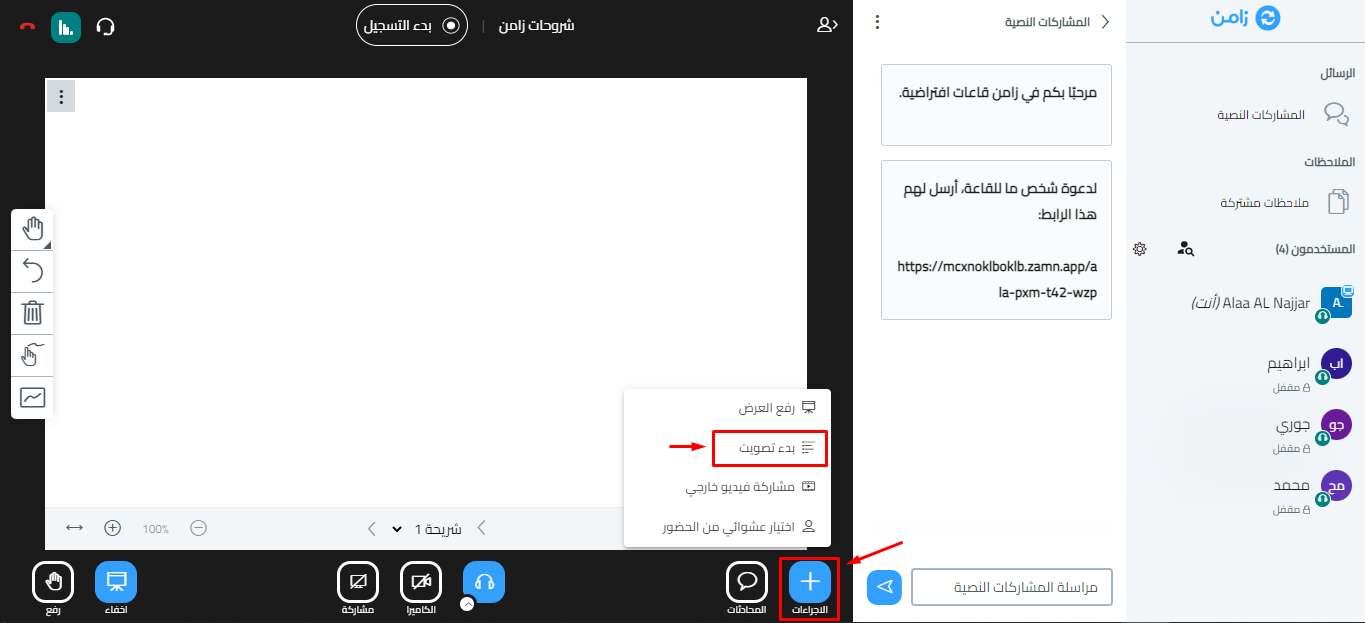
Click Actions.
-
Choose Start a poll.
-
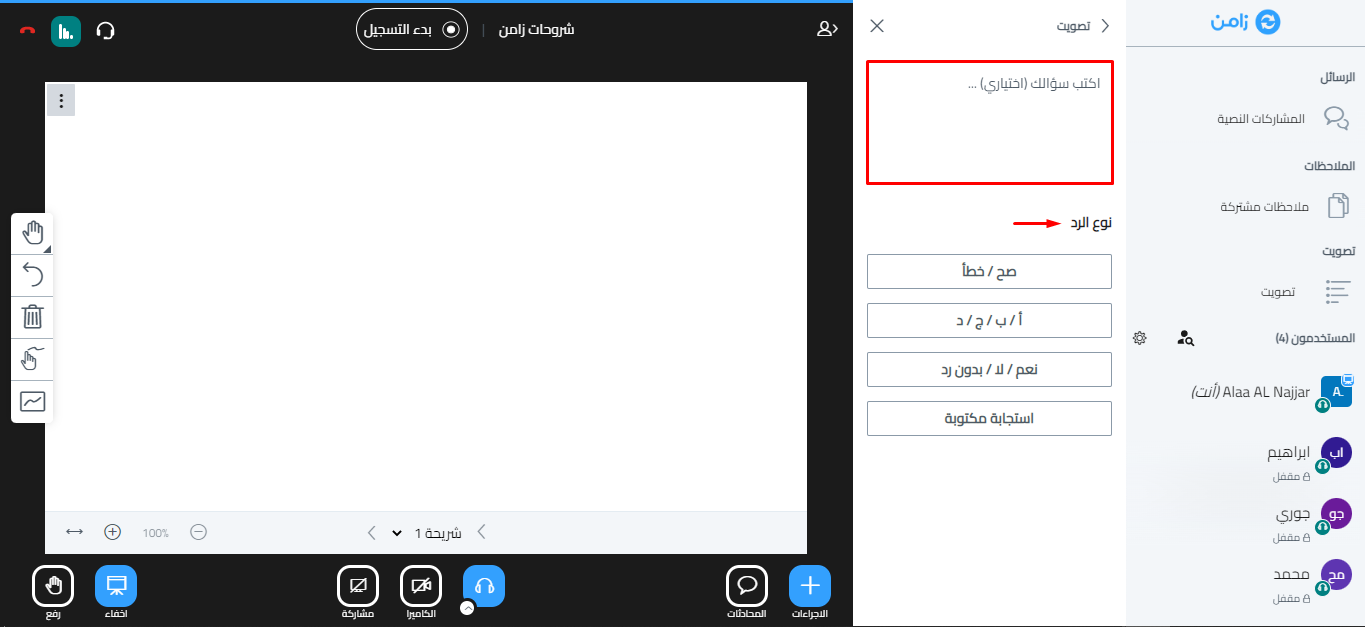
Write your question in its box.
-
Choose a Response Types option.
-
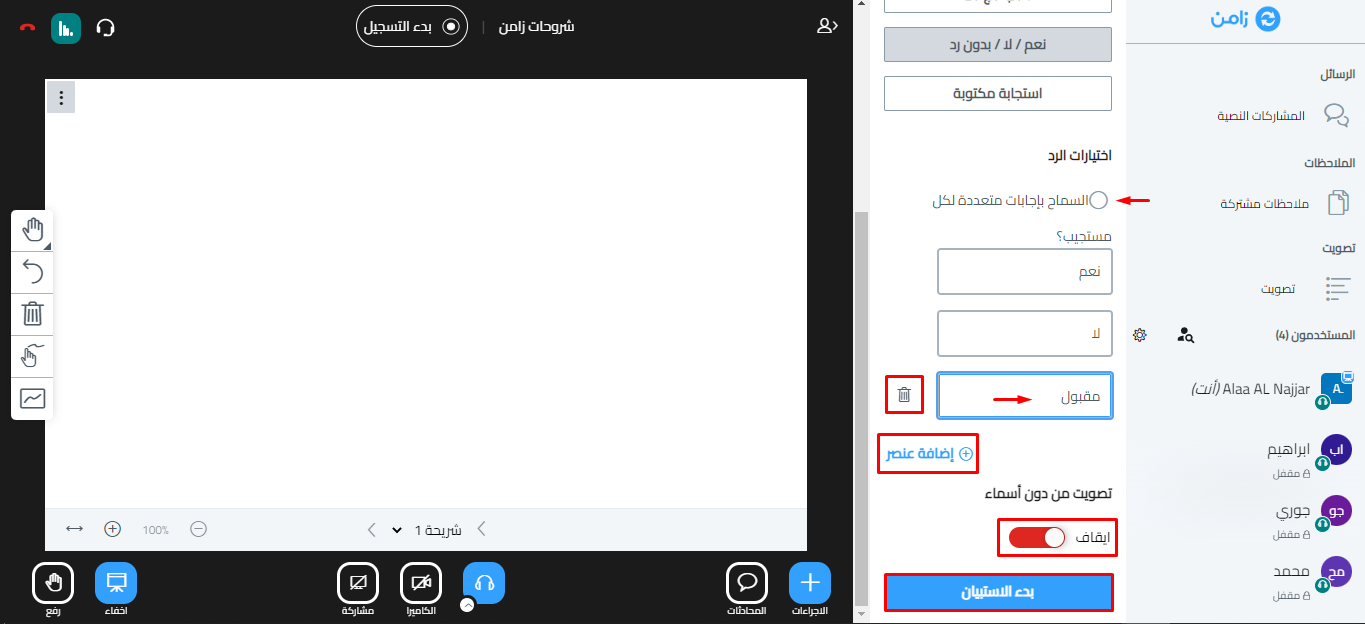
Choose the response options you want:
- You can turn on Allow multiple answers per respondent.
- You can edit or delete the choices, or add a new one with Add item.
- You can turn on Anonymous Poll so the voters' names do not show.
-
Click Start Poll to show the poll to attendees.
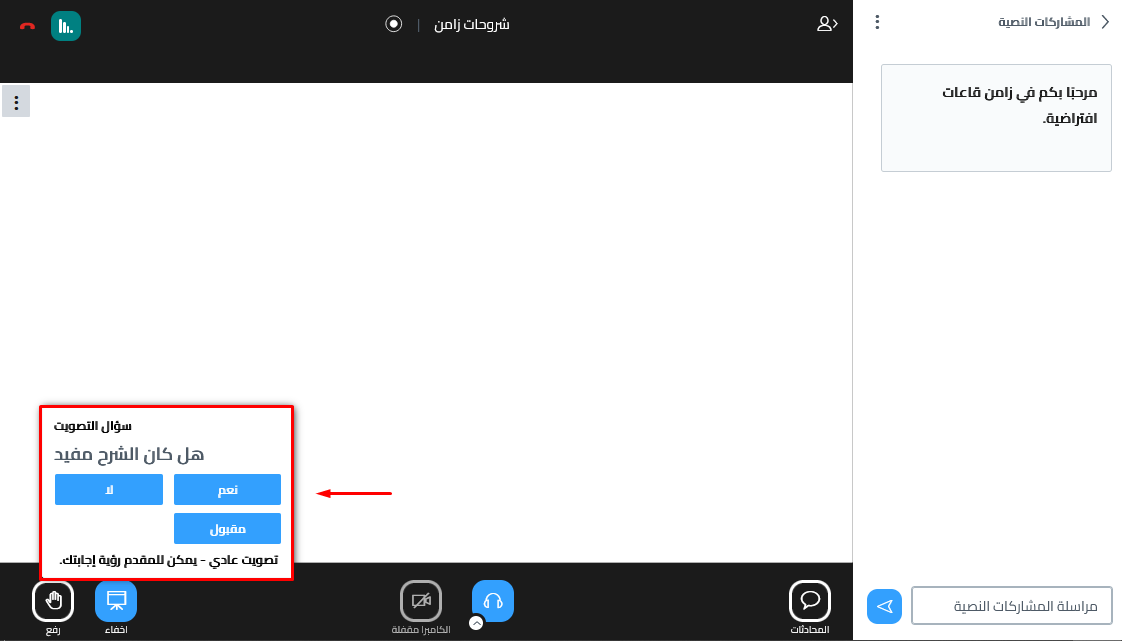
This is how attendees see the poll:
-
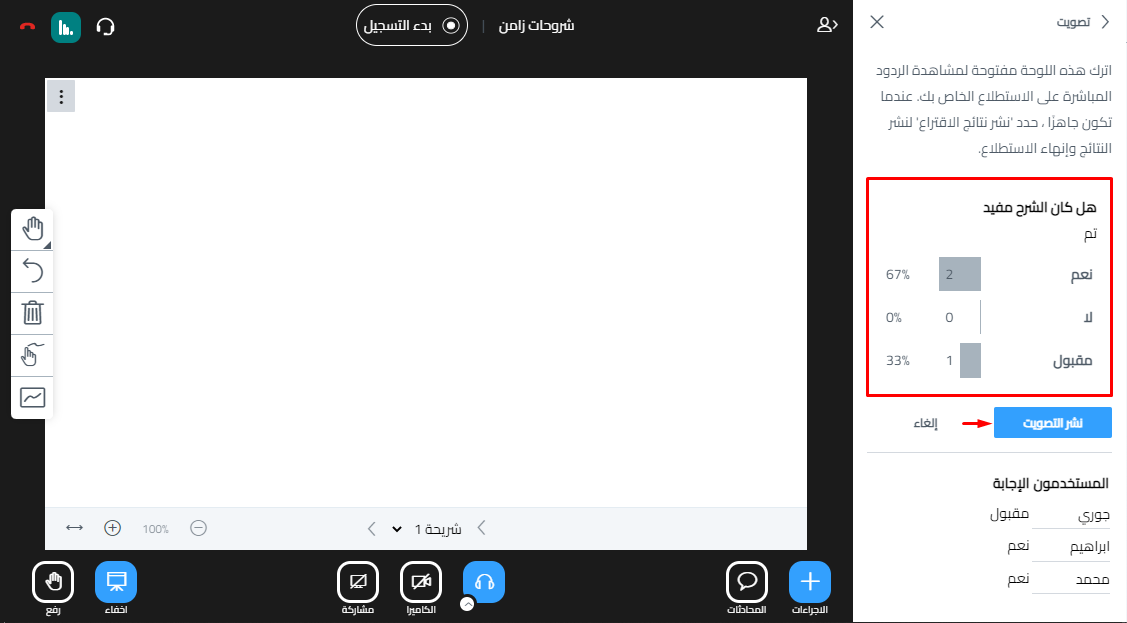
Click Publish poll to show the results to attendees.
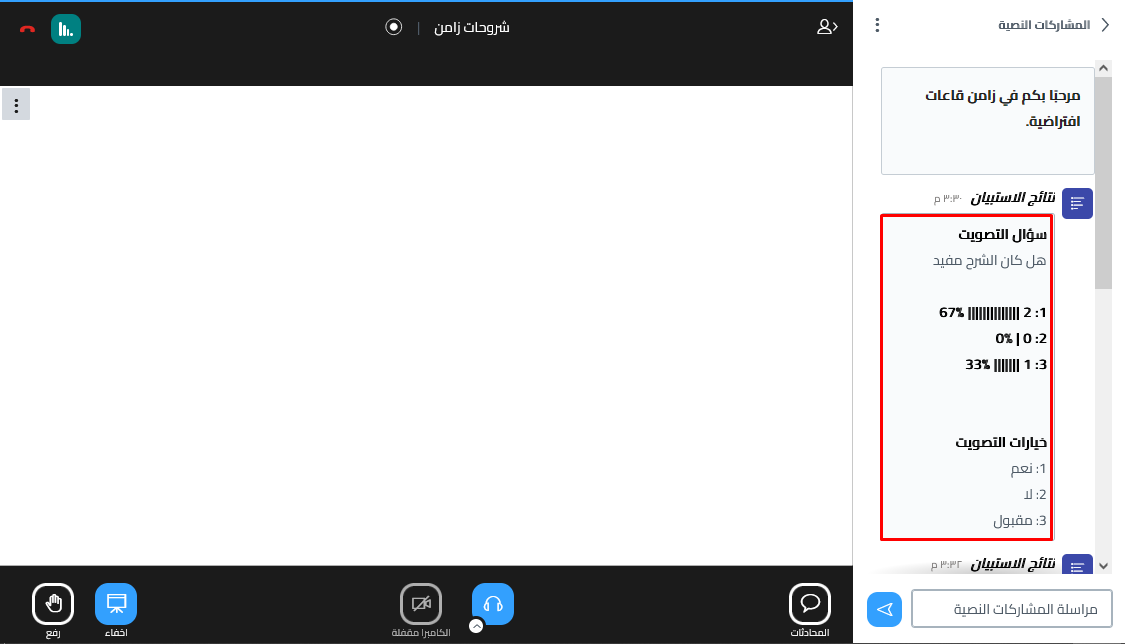
This is how attendees see the results after you publish them:
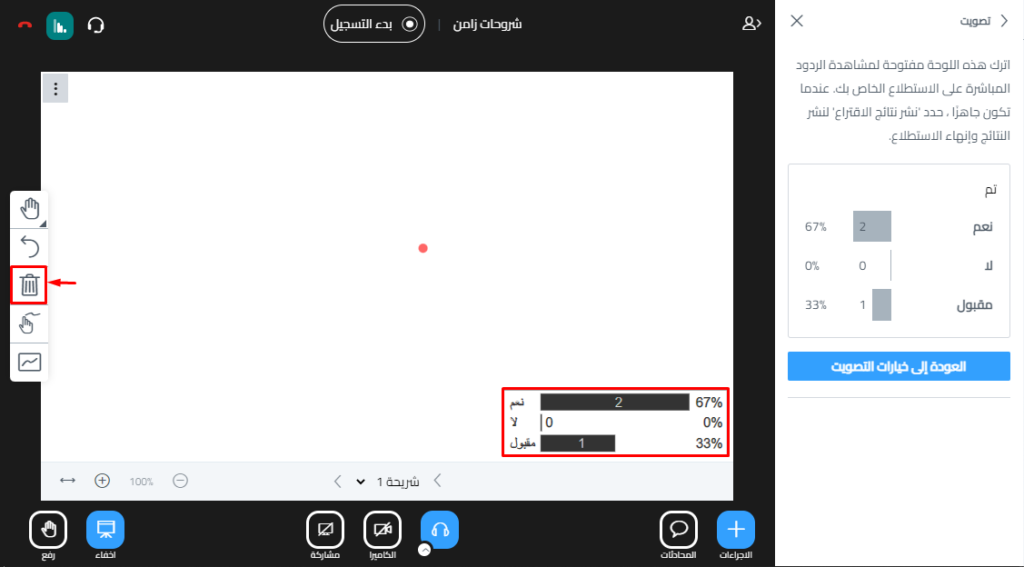
Remove the poll results from the whiteboard
Click the delete button in the whiteboard toolbar.
Save the poll results
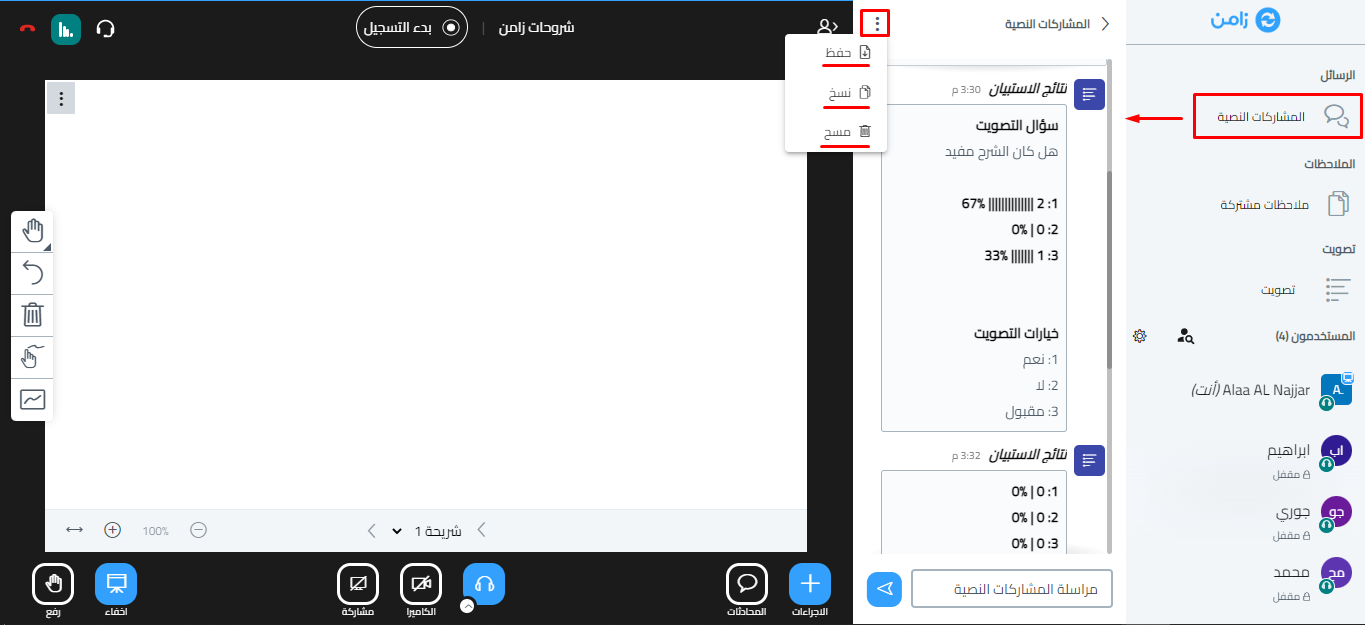
The results of all polls show in Public Chat.
Click the three dots at the top of Public Chat, then choose:
- Save: download all the Public Chat content as a file.
- Copy: copy all the content.
- Clear: clear all the content.
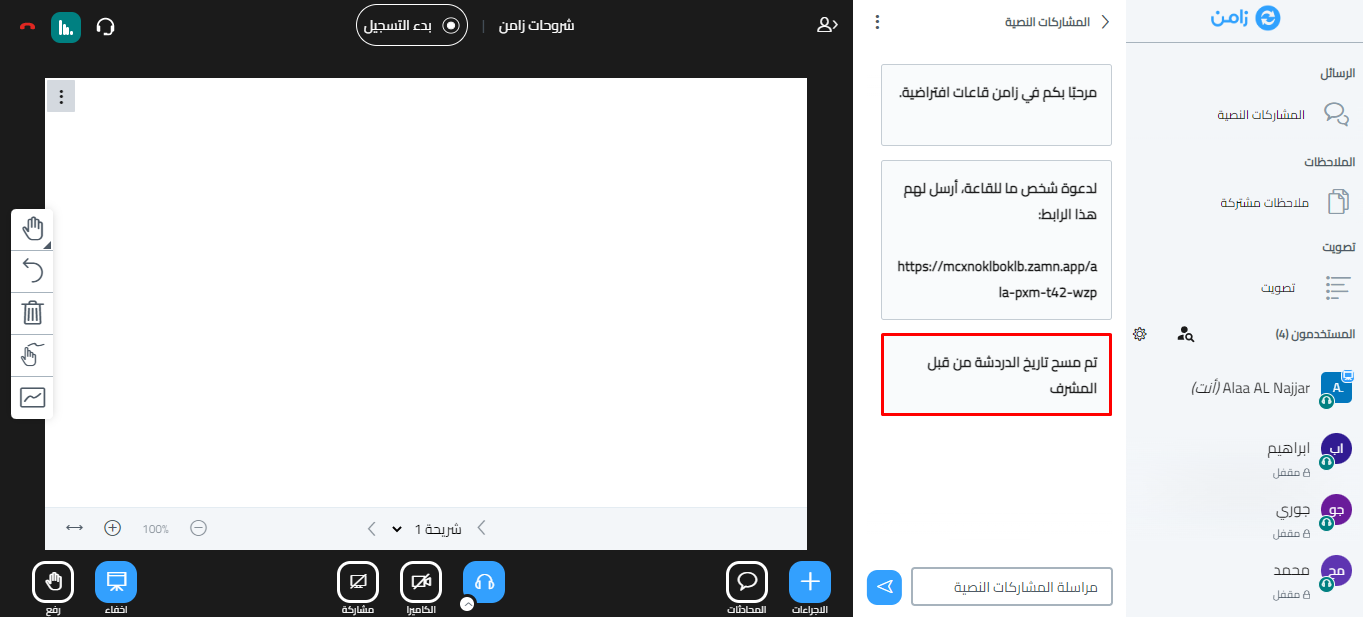
After you clear it, a message in Public Chat says that a moderator cleared the chat history.