Record a video of the session in the room
This article shows how to record a video of the session in the room. You can record the session in two ways:
- Manual recording.
- Auto recording.
The session is recorded only when your platform has free cloud storage space. If the recordings storage is full, delete some recordings or upgrade your storage before you open the room.
Steps to record by hand from inside the room
After you enter the room, when you want to start recording:
-
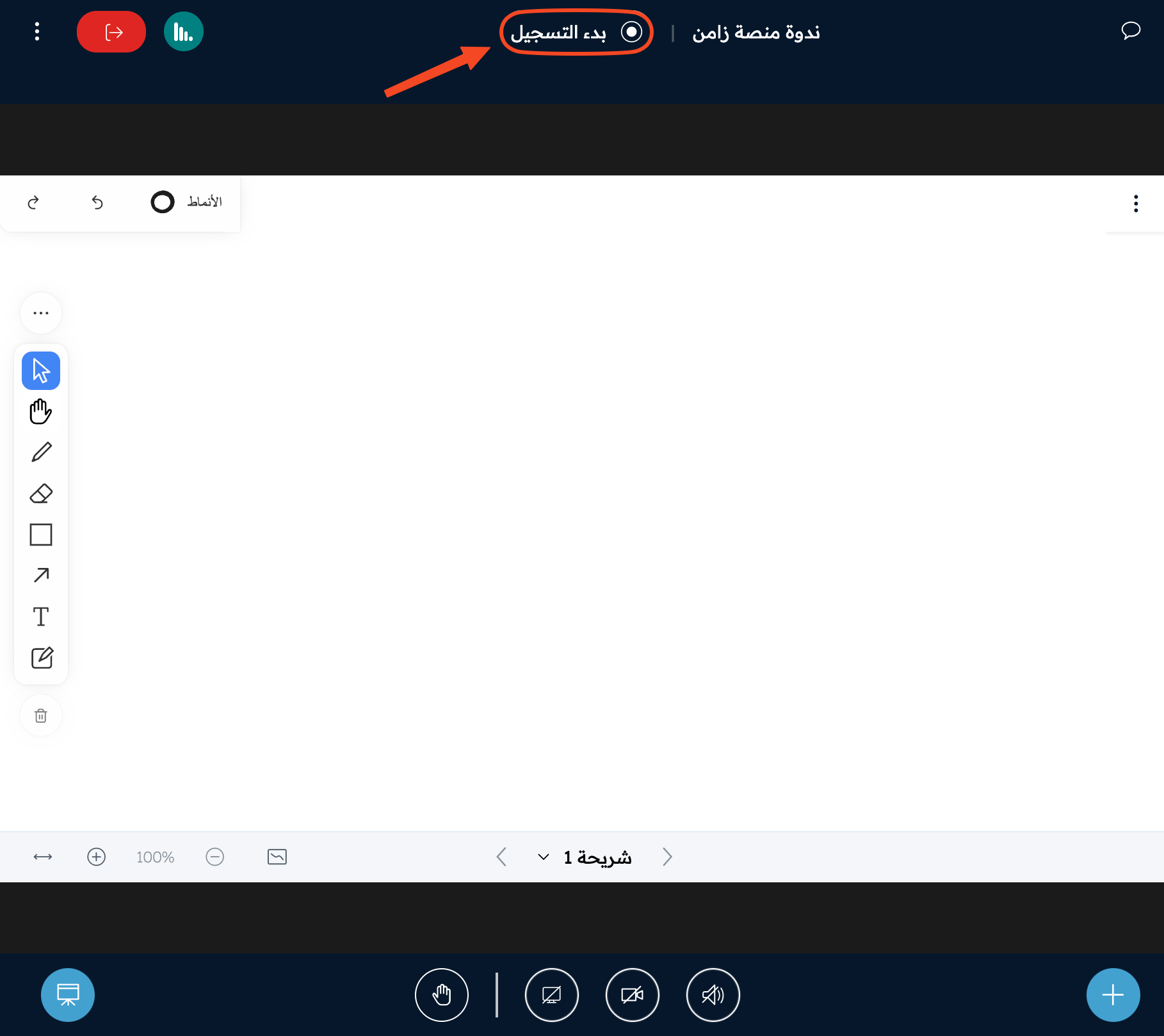
Click Start recording at the top of the whiteboard.
-
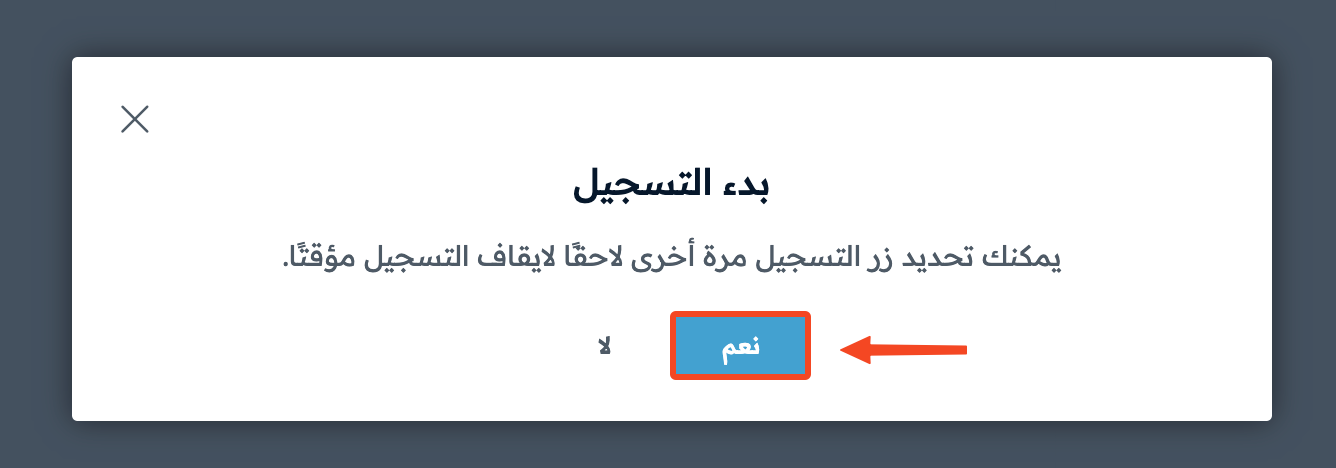
A window asks you to confirm. Choose Yes.
-
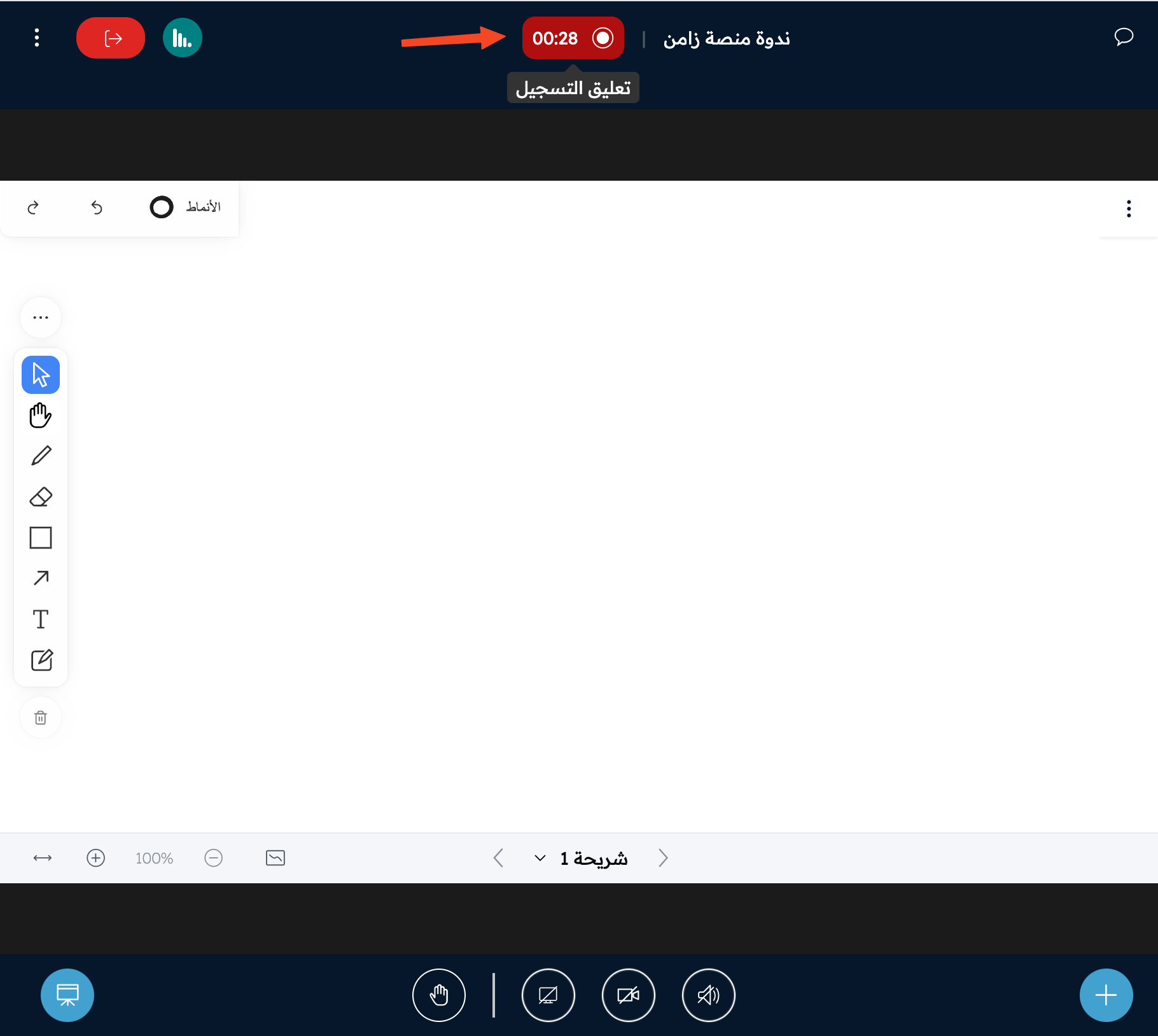
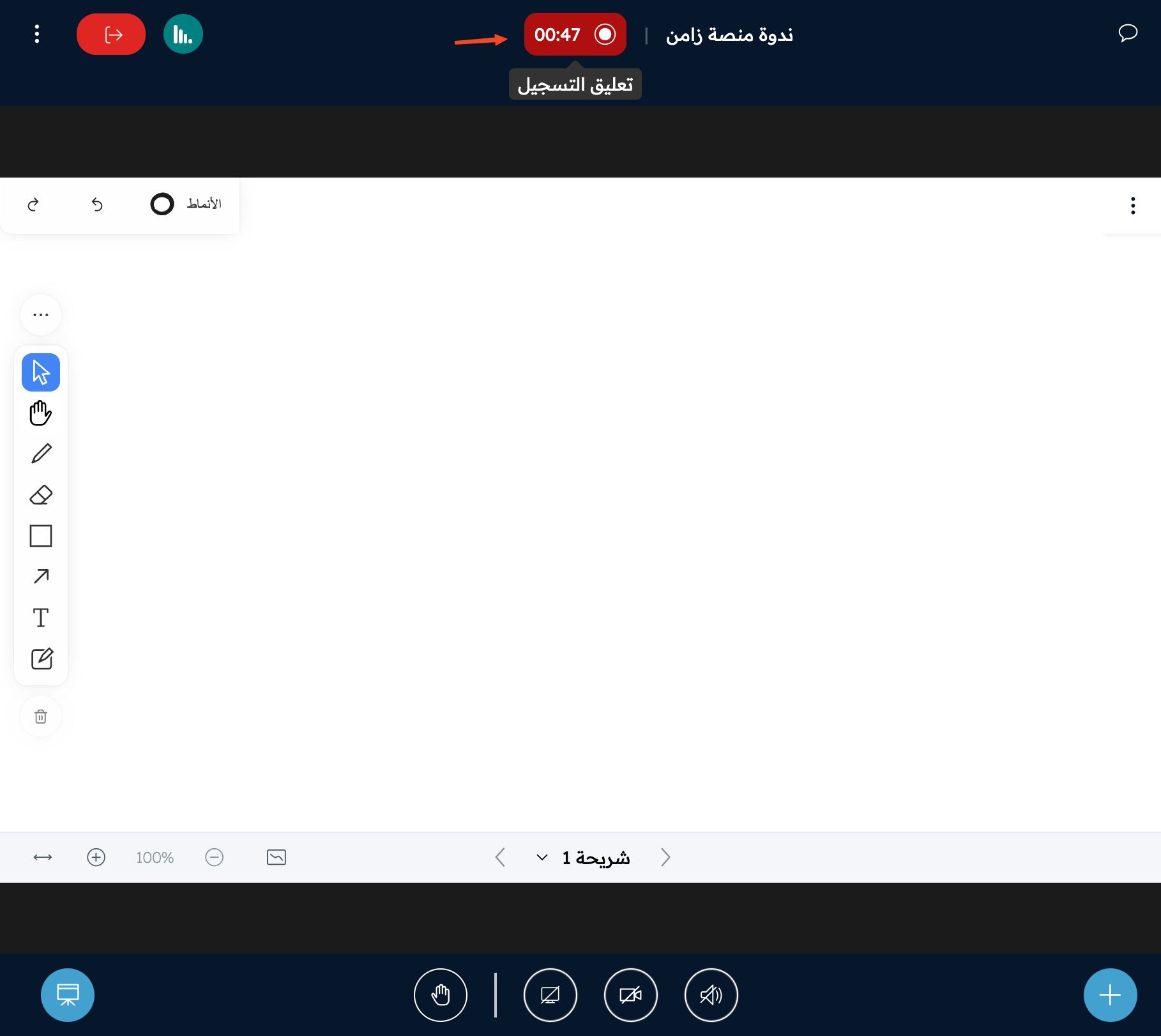
To pause the recording, click the recording button.
-
A window asks you to confirm the pause. Choose Yes.
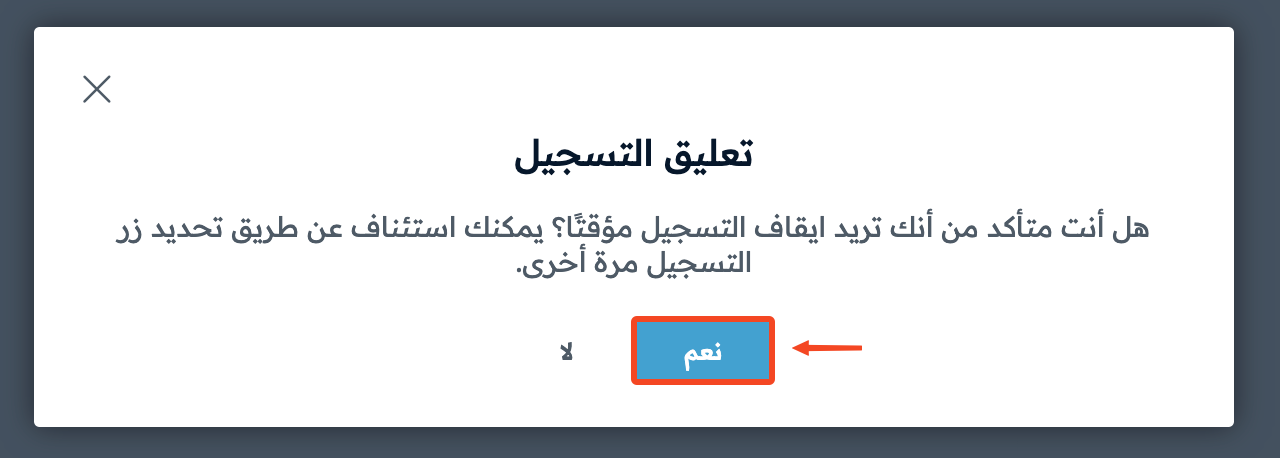
-
To continue recording, click Resume recording.
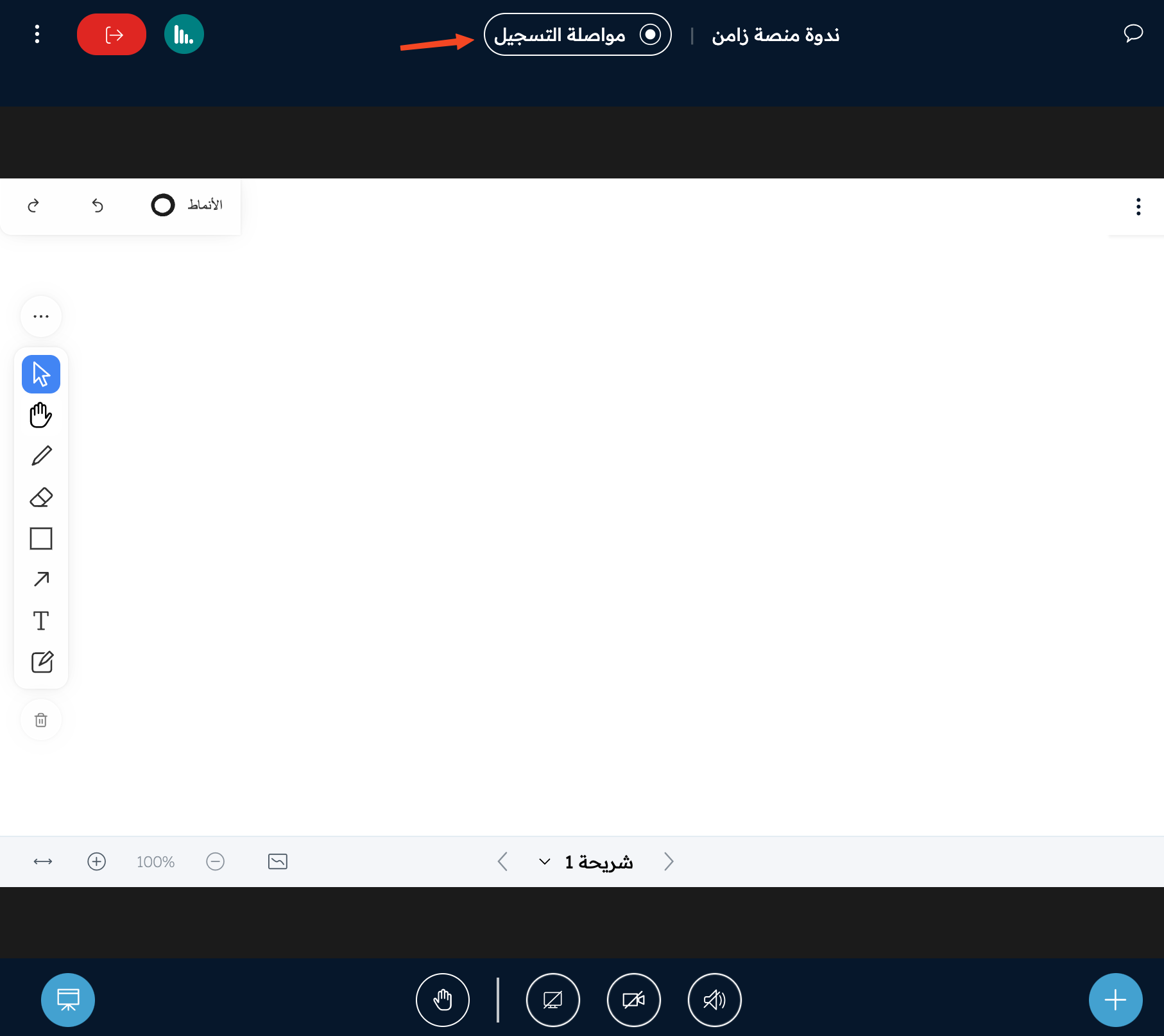
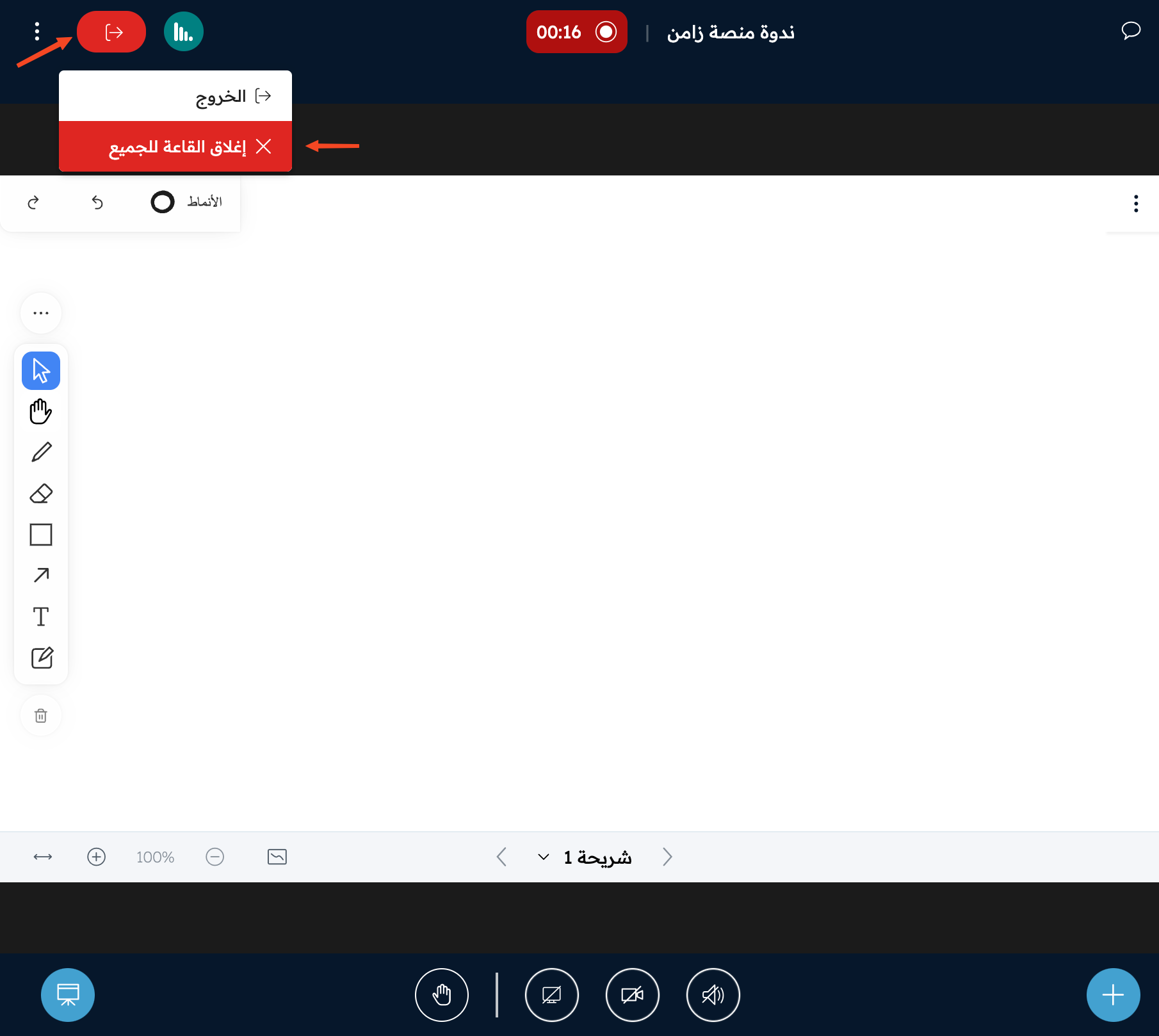
The recording is saved by itself when you close the room with End meeting for all.
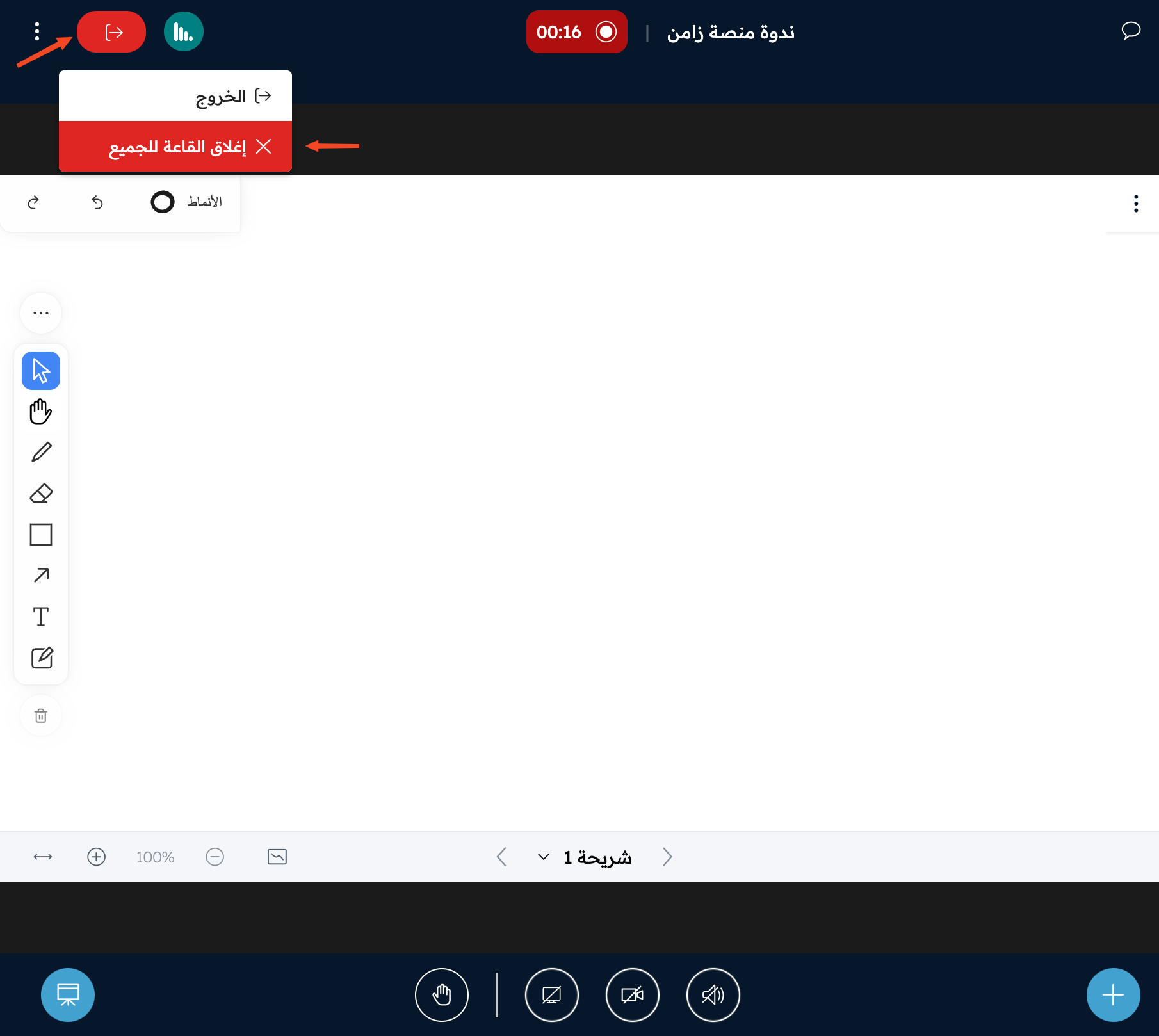
Steps to turn on auto recording
The platform admin changes room settings from the dashboard. If you are only a moderator of the room, ask the platform admin to turn on auto recording.
-
From your platform dashboard, go to Virtual Classes, then the Rooms page.
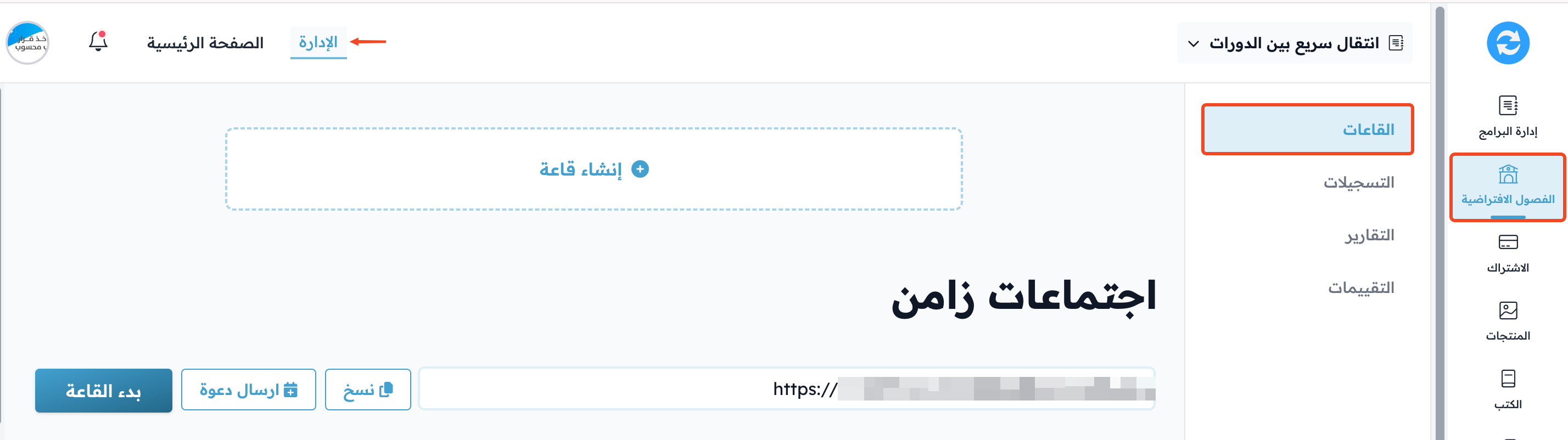
-
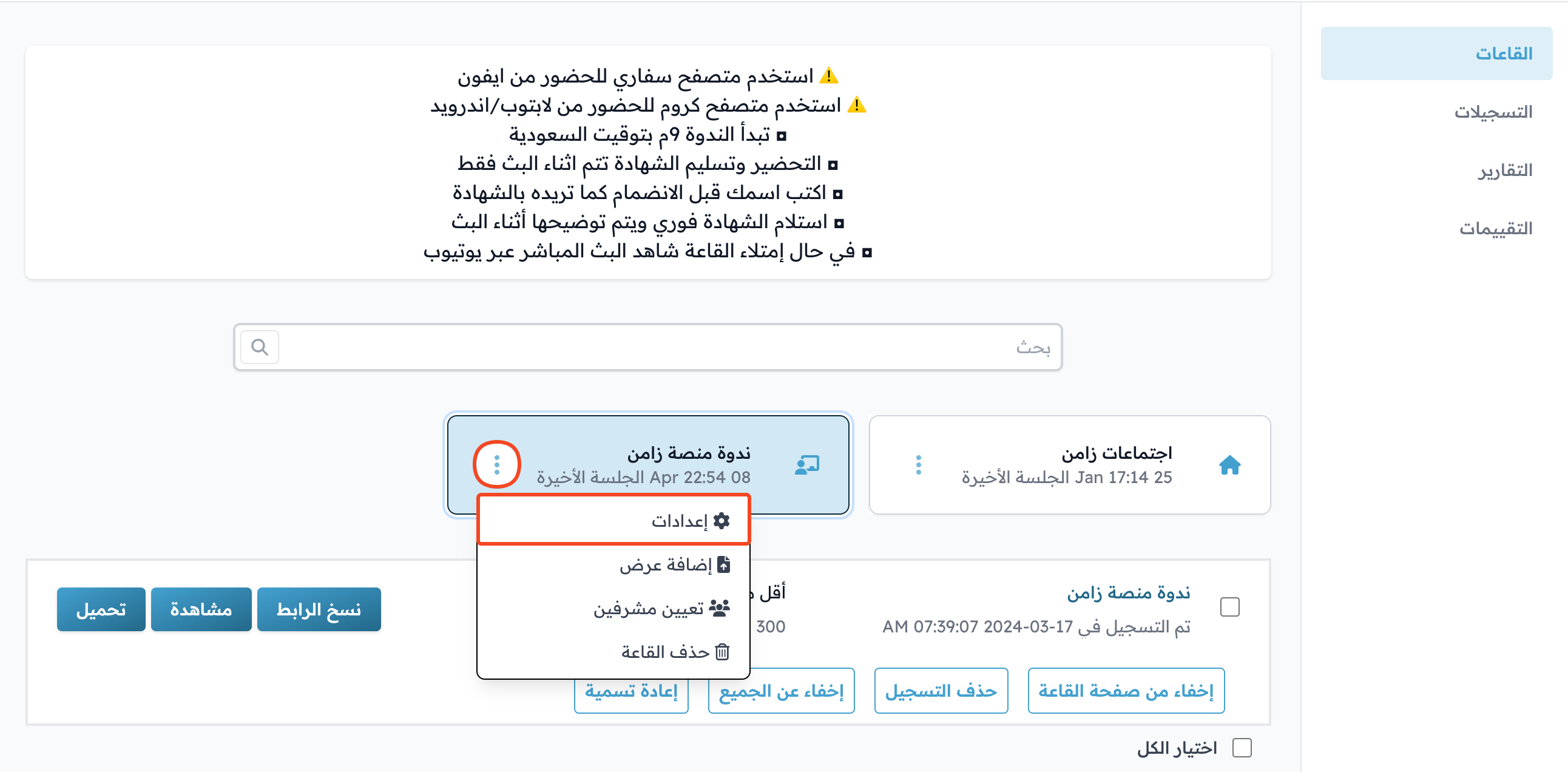
Click the ⋯ (Actions) button at the end of the row of the room you want to record by itself.
-
Click Settings.
-
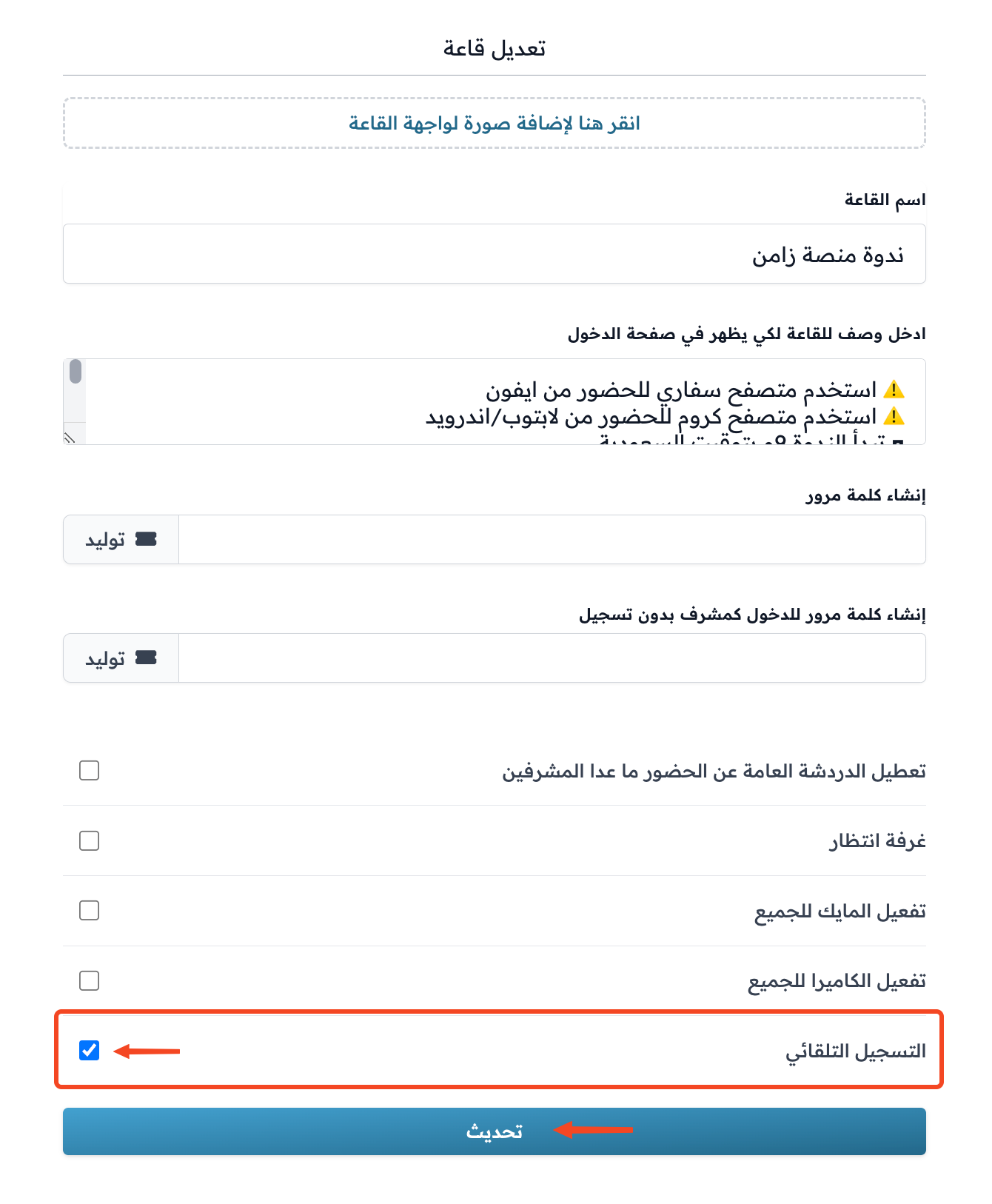
Turn on Auto recording, then click Update to save the change.
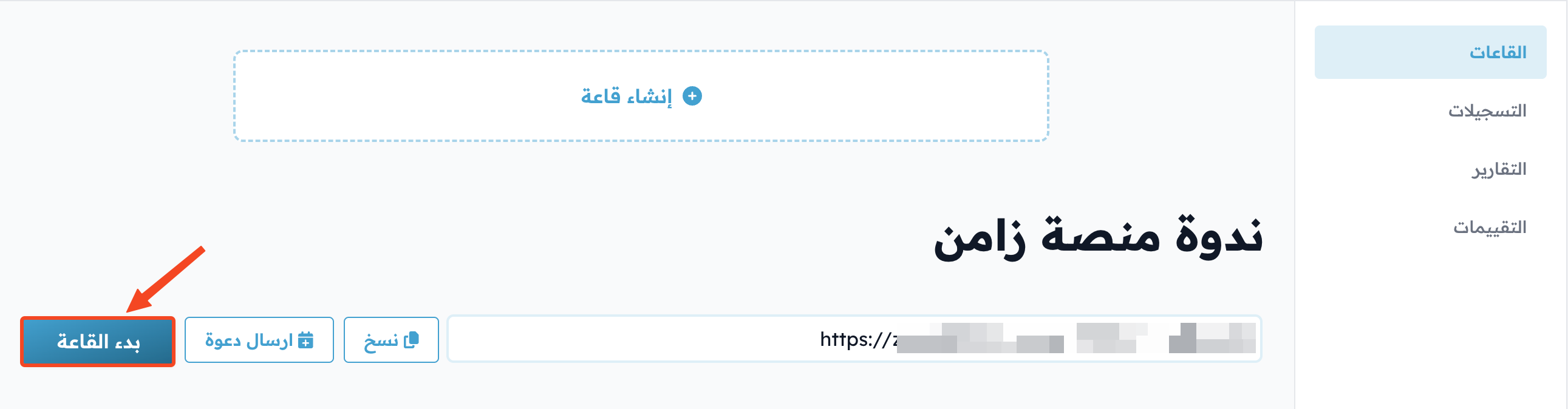
Recording starts right away, by itself, when you open the room with the Start button.
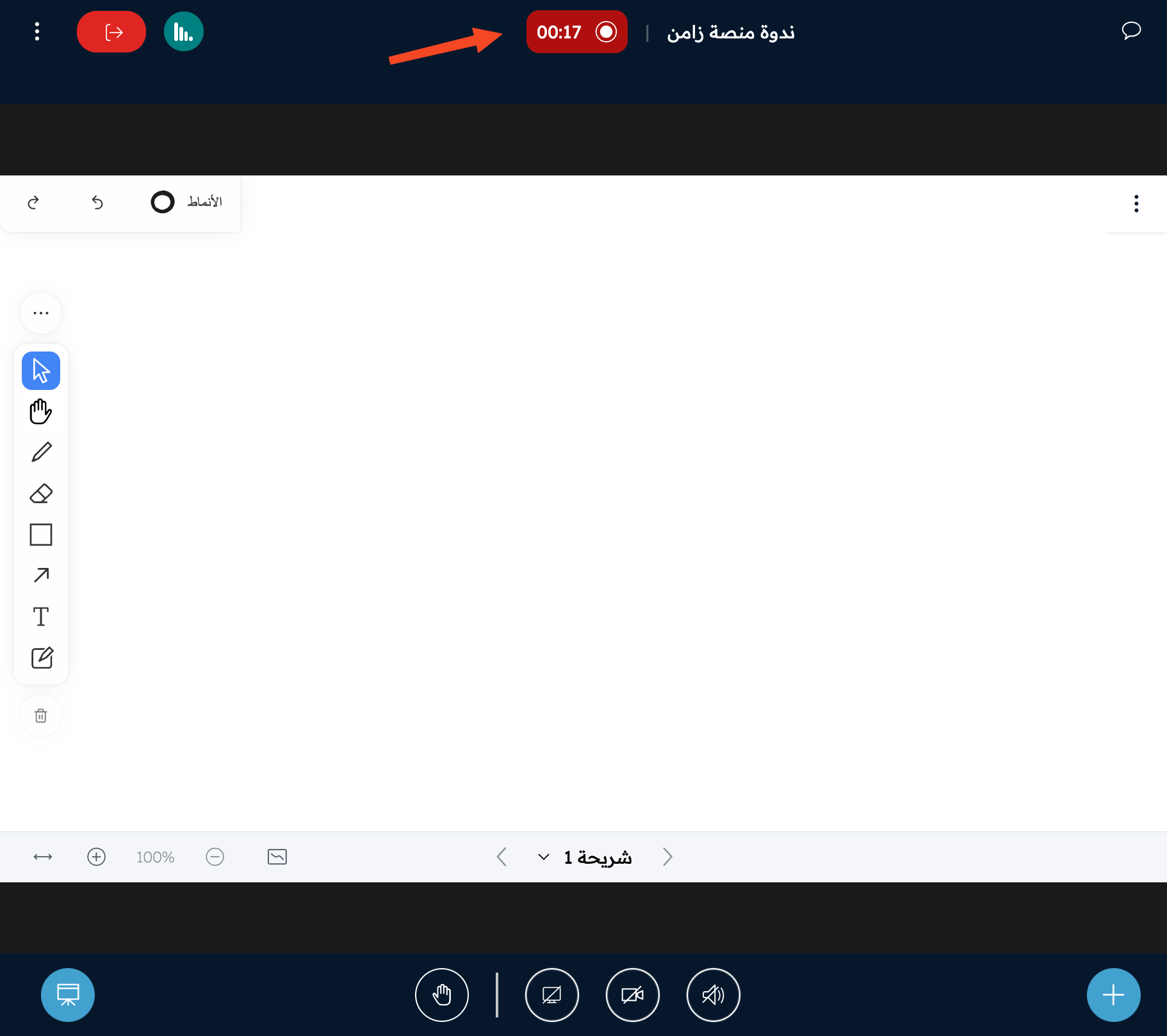
You can pause the recording by clicking the recording button.
The recording is saved by itself when you close the room.