Recorded lectures in virtual classes
This article shows room moderators where to find the recordings of the room sessions, and how to watch them, copy their link and download them.
Where does the moderator find the recordings?
-
From the top menu of your platform, choose My Rooms.
-
Click the room whose recordings you want to see. The recordings show at the bottom of the room page.

On the room page, the moderator sees only the recordings that the platform admin has shown on the room page. New recordings do not show on the room page until the platform admin clicks Show in room page.
What you can do with a recording
When the recording finishes processing, you can:
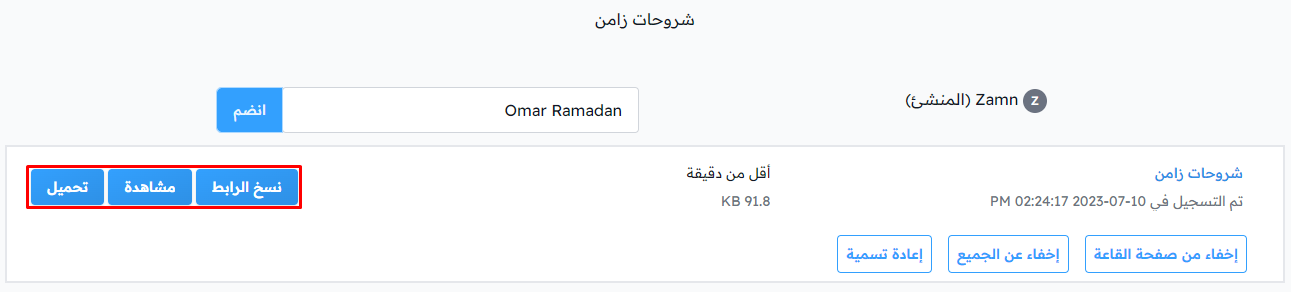
- Copy URL: to share the link to watch the video (protected version).
- Presentation: to watch the video (protected version, cannot be downloaded).
- Download: to download the video as an MP4 file.
Processing time can be different from one recording to another, based on the content and length of the session.
To learn how to record the session video in the room, click here.
Platform admin options
If you are the platform admin, you see the recordings in a table on the room page. Click the ⋯ (Actions) button at the end of the recording row to also see these options:
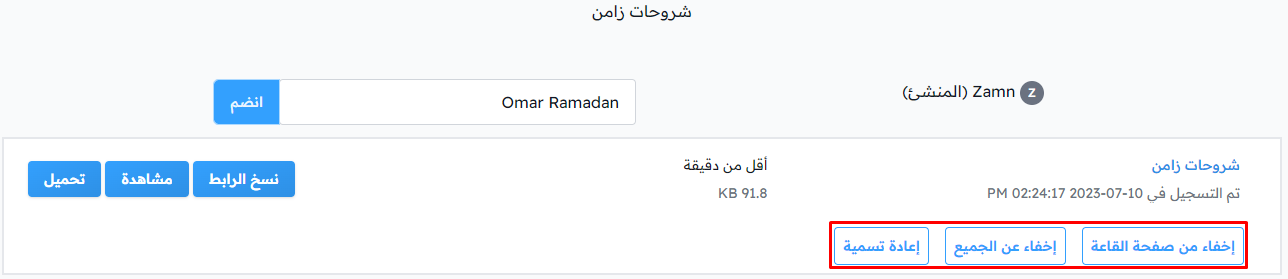
- Show in room page or Hide from room page: when you share the room link, the recording shows on the room's join page.
- Hide from everyone: people who have the video link can no longer watch or download it.
- Rename: to change the recording name.
Steps to download the recording
-
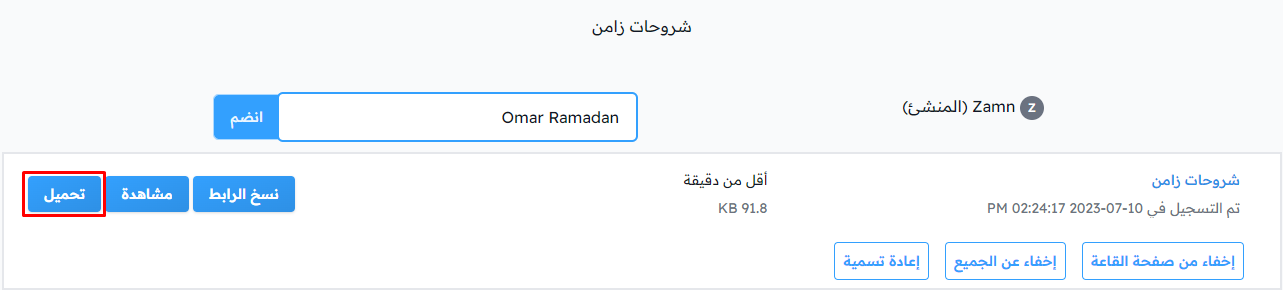
Click Download.
-
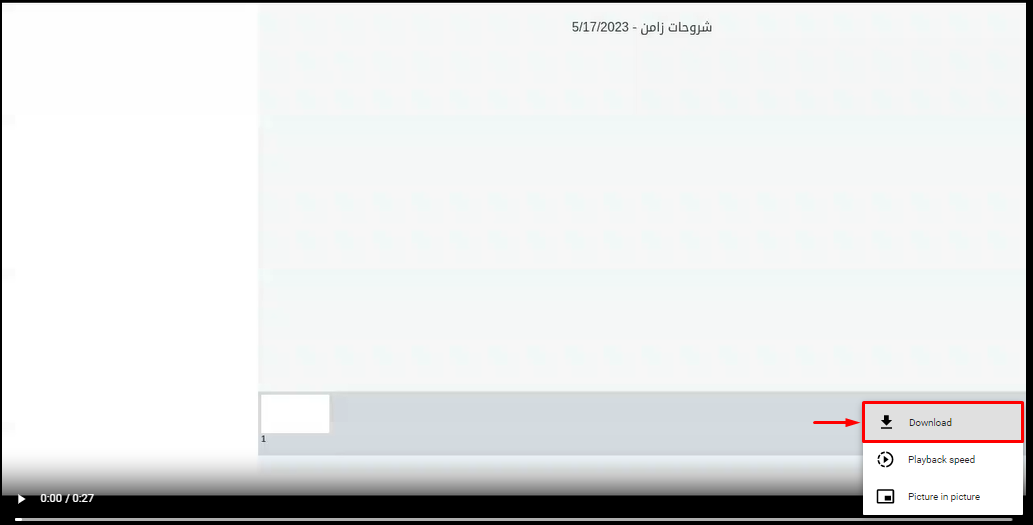
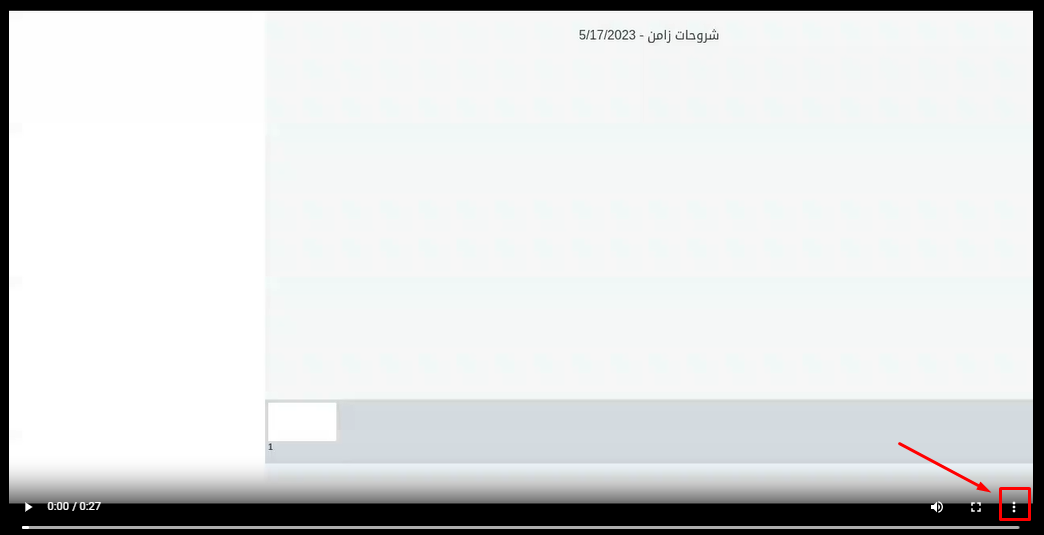
The recording opens. Click the three dots in the corner of the page.
-
Choose Download to download it.