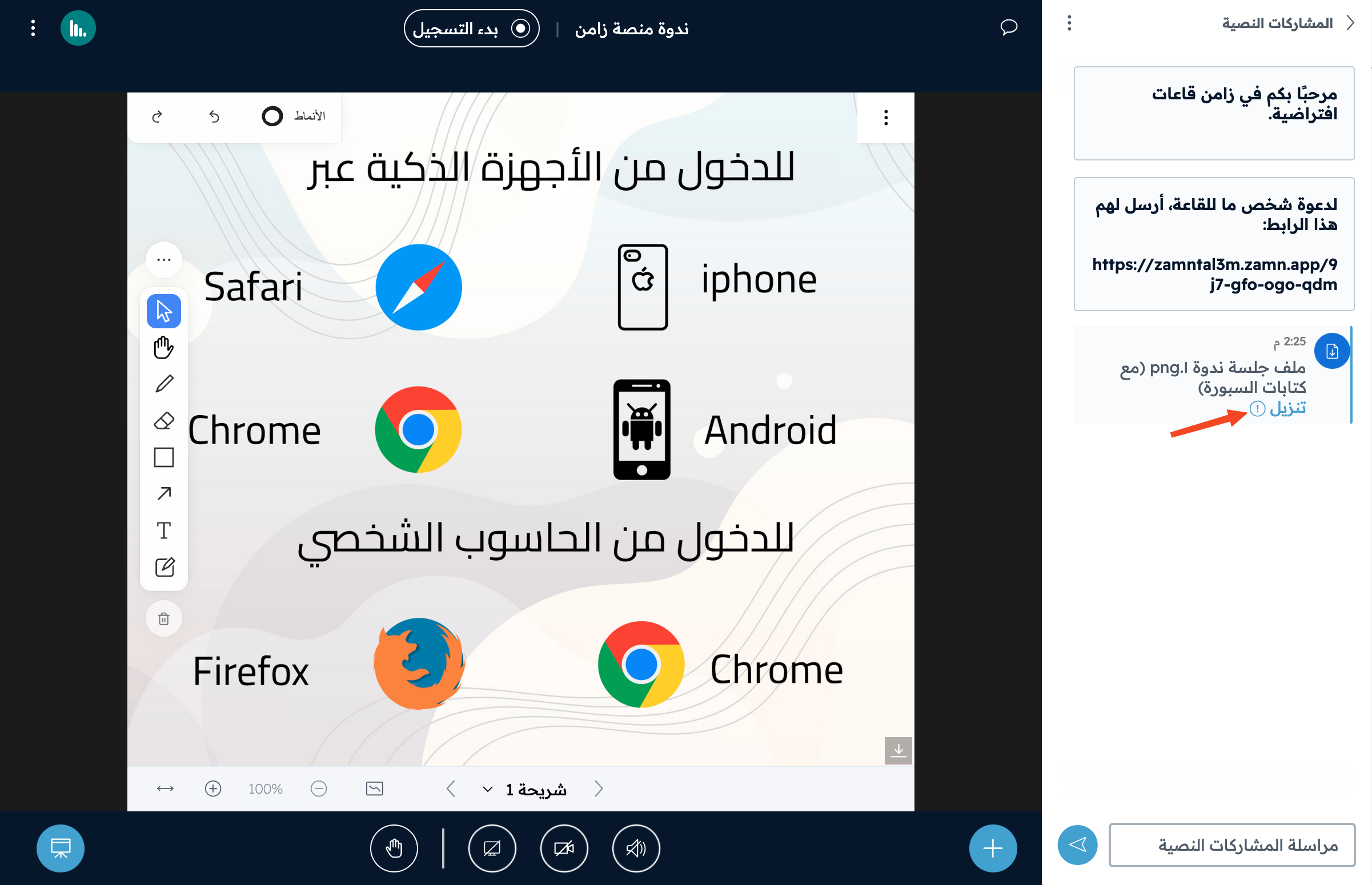
Upload a presentation file in the room
This article shows room moderators how to upload a presentation file inside the room, how to move between uploaded files, and how to share a link that attendees can use to download the file.
How to upload a presentation or file
-
Click the + button, then click Upload presentation.
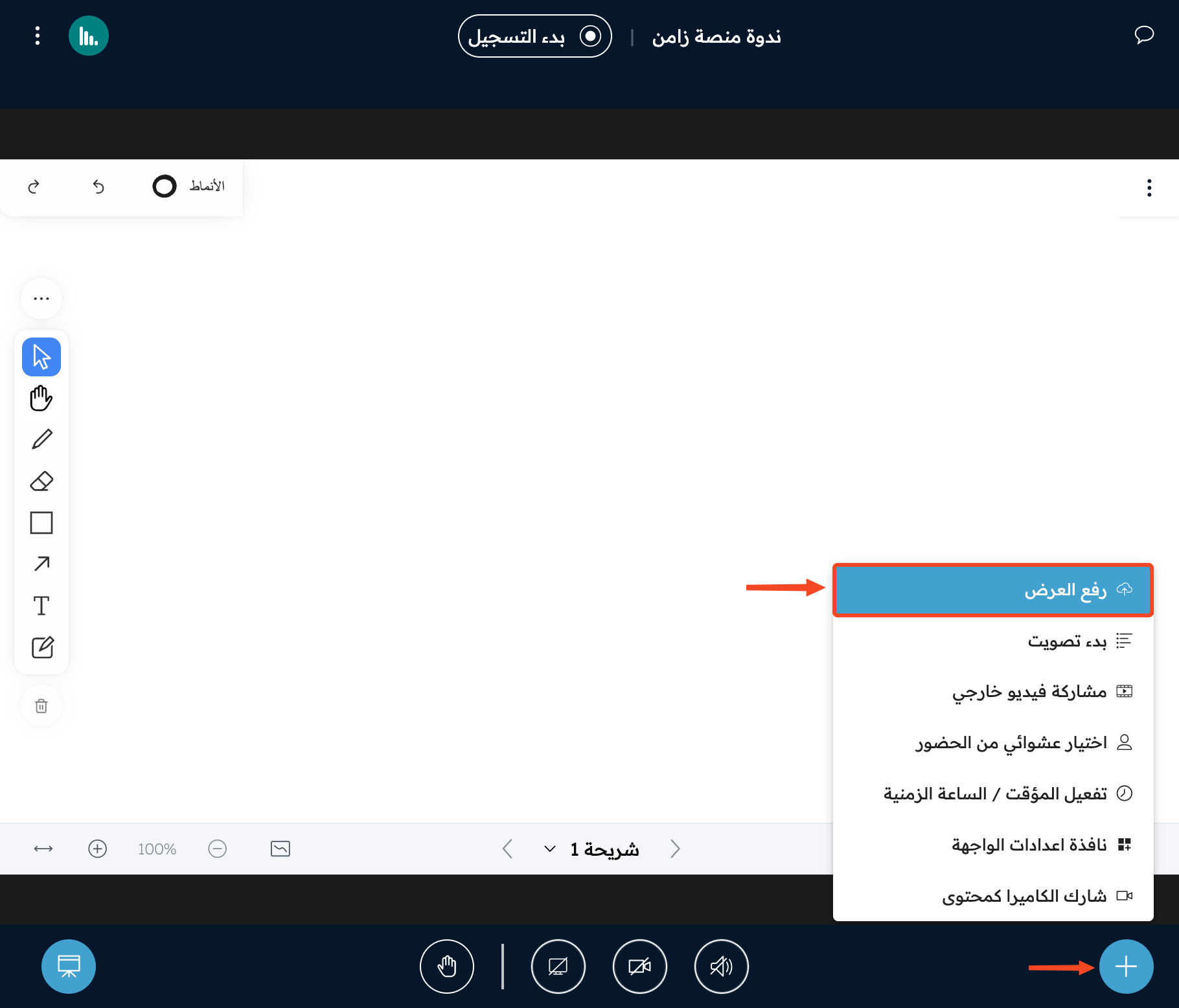
-
Click or browse for files.
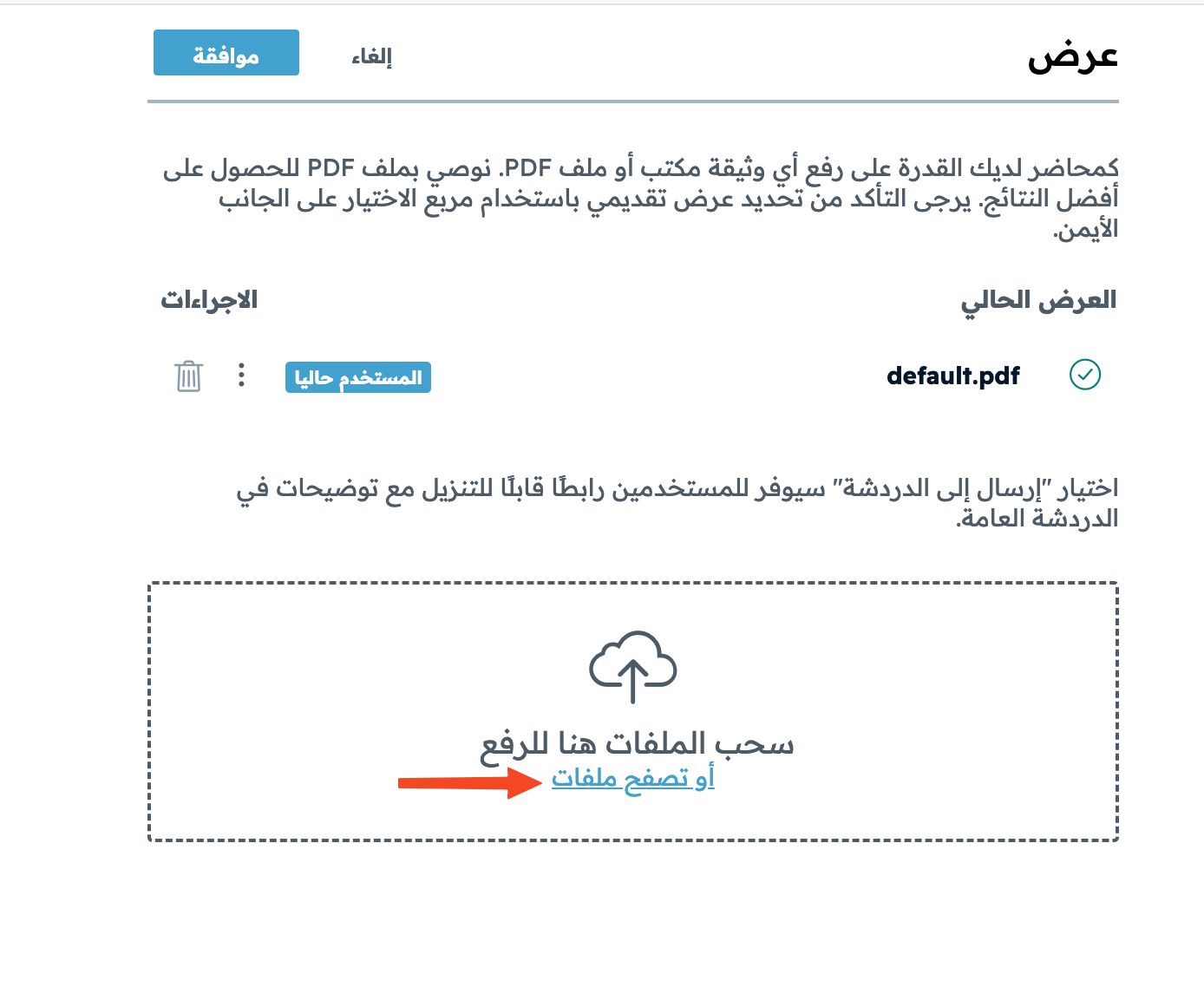
-
Choose the file you want to upload, then click Open.
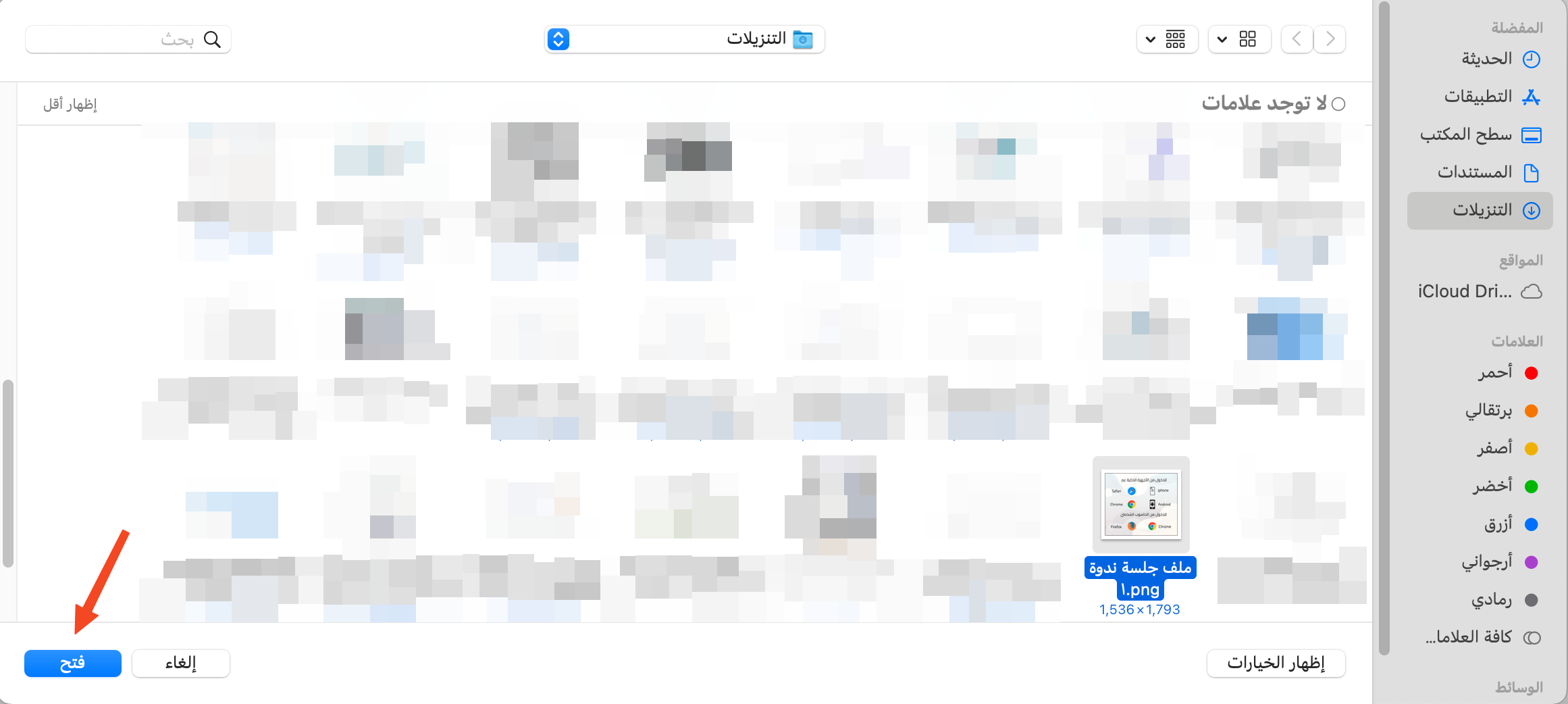
-
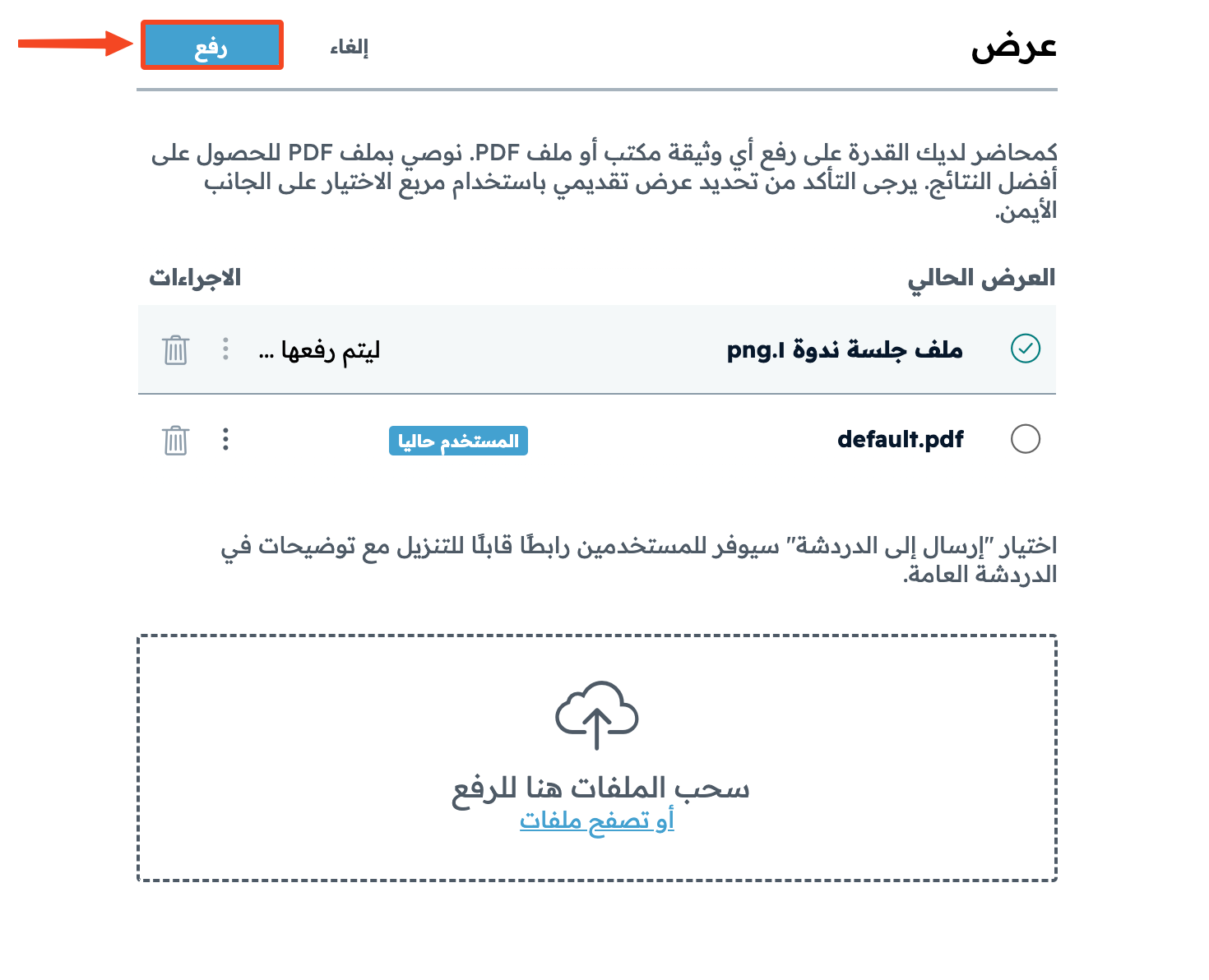
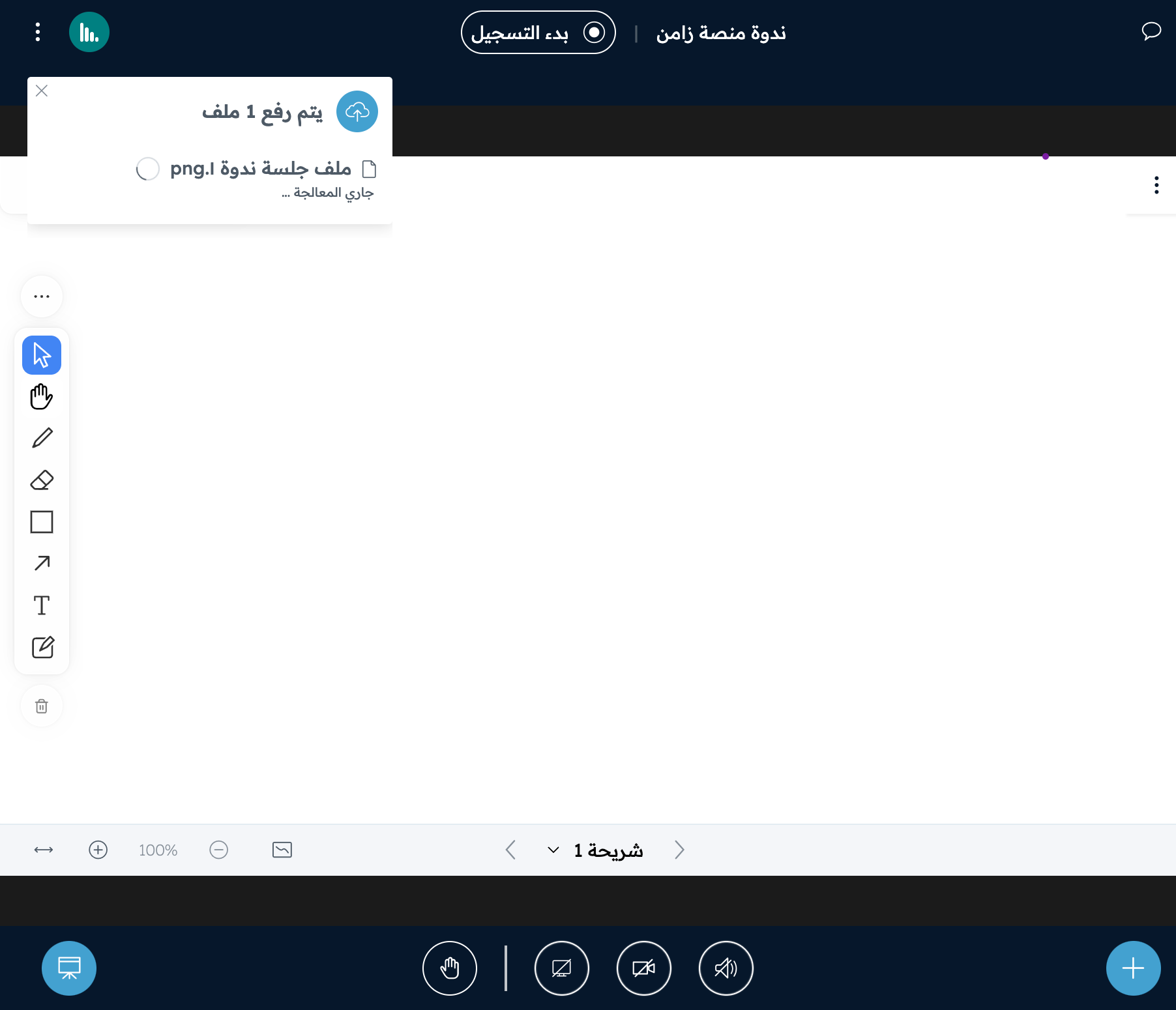
Click Upload so the file is processed and uploaded to the presentation.
Move between uploaded files
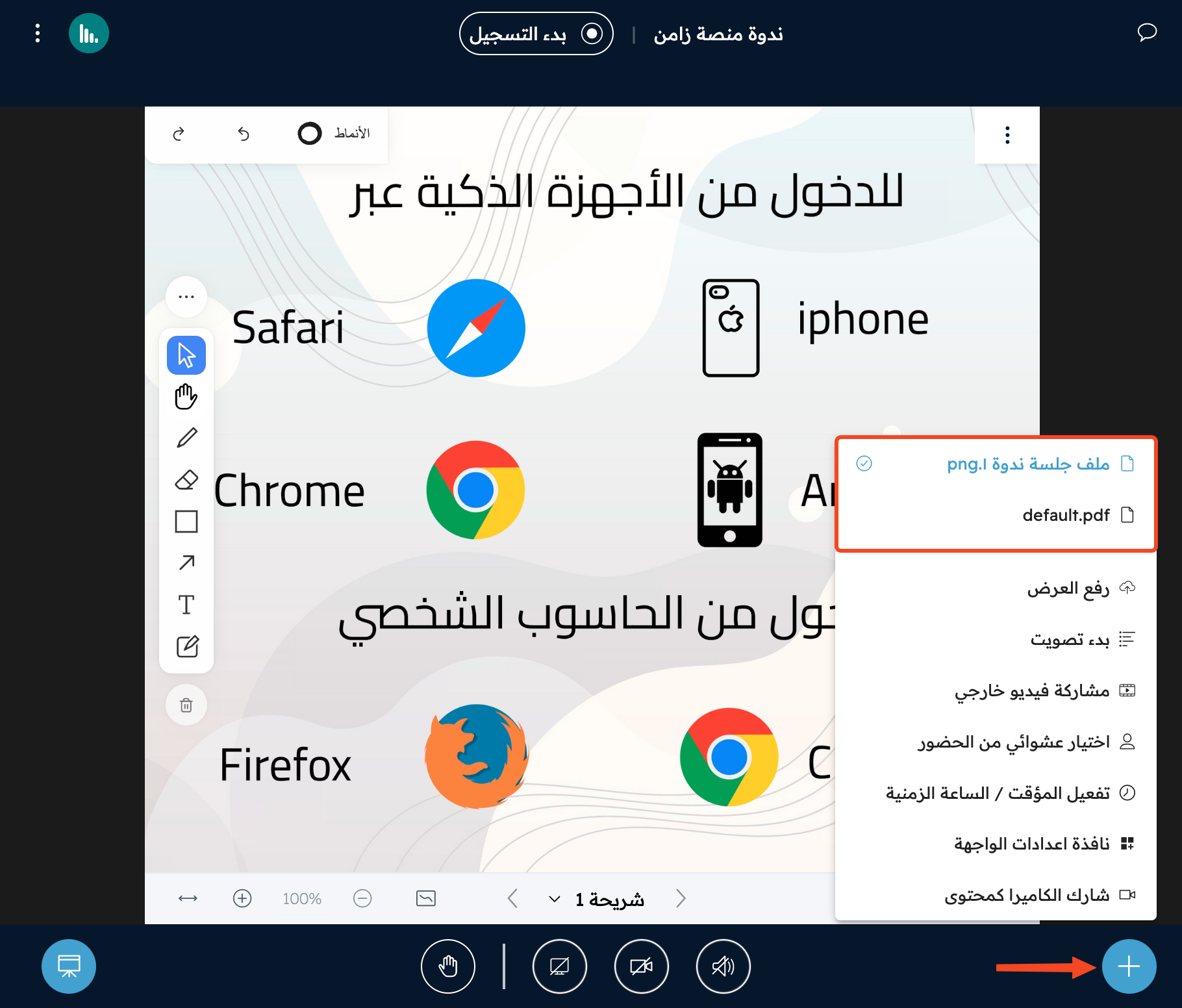
Click the + button, and all uploaded files show at the top of the menu. Click the file you want to move to it.
How to share a download link with attendees
-
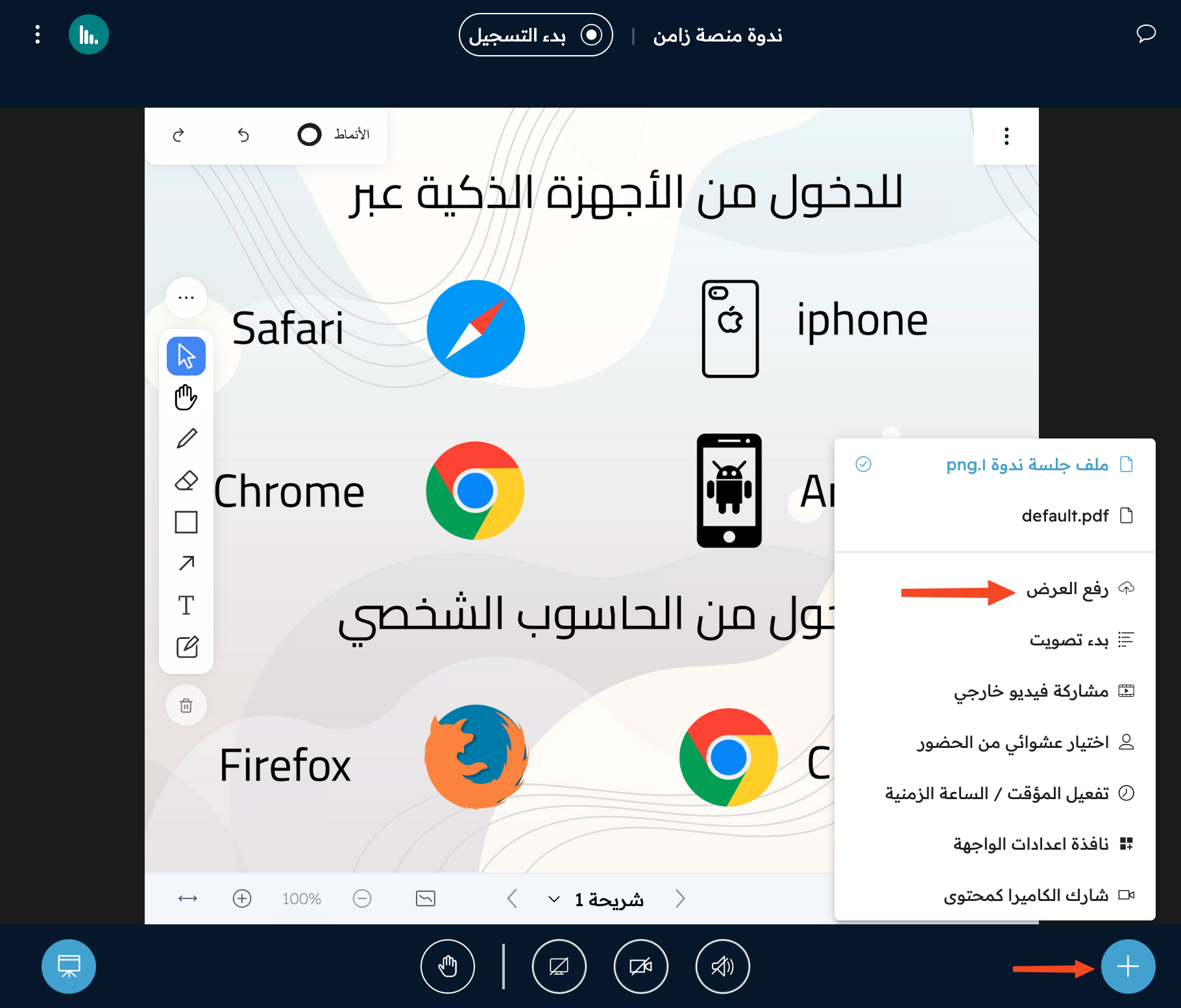
Click the + button, then click Upload presentation.
-
Click the three dots next to the presentation you want to share with attendees, then choose how to share it:
- Enable download of the presentation: to download the original presentation.
- Send out a download link for the presentation including whiteboard annotations: to download the presentation with the notes and drawings on it.
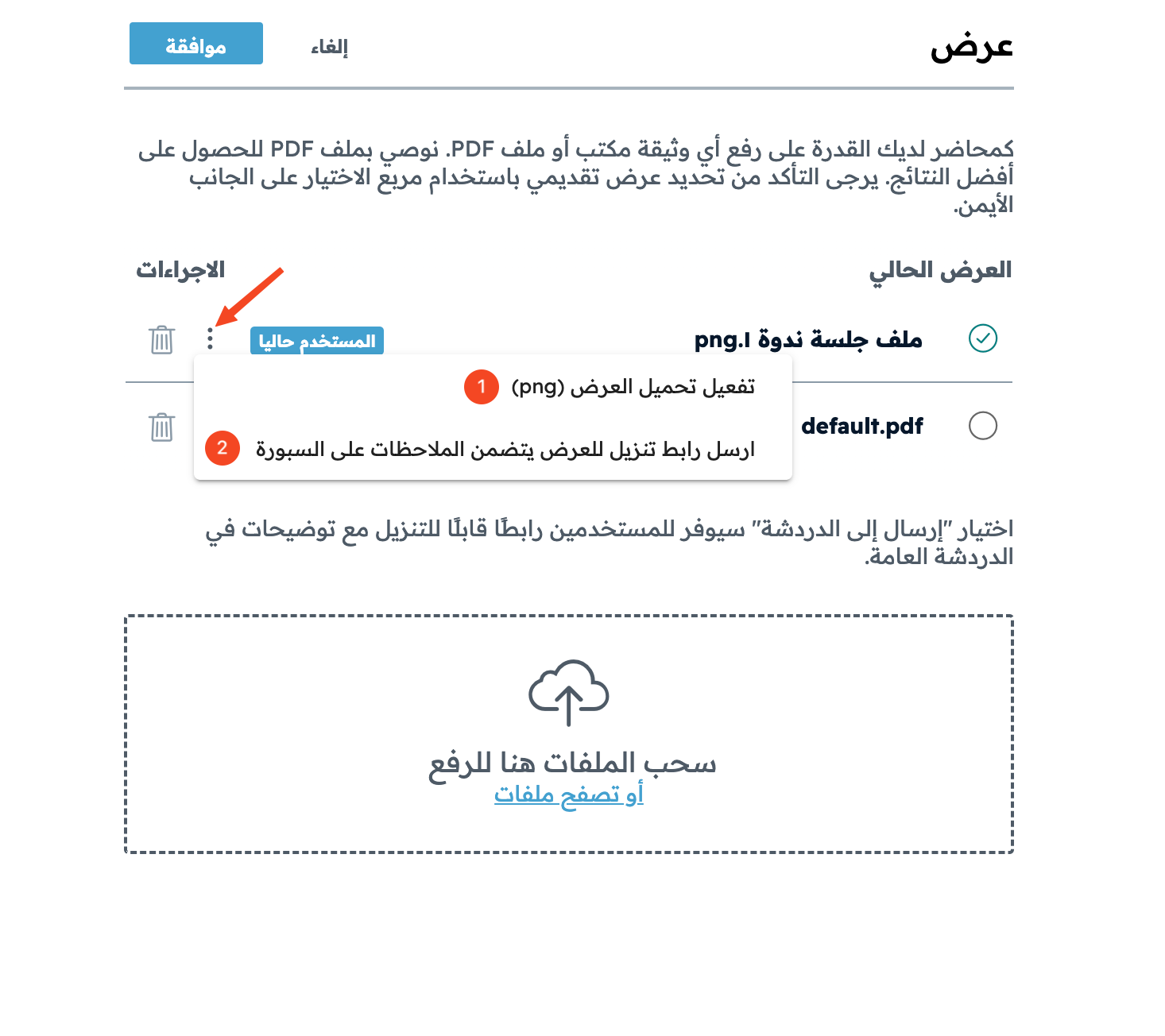
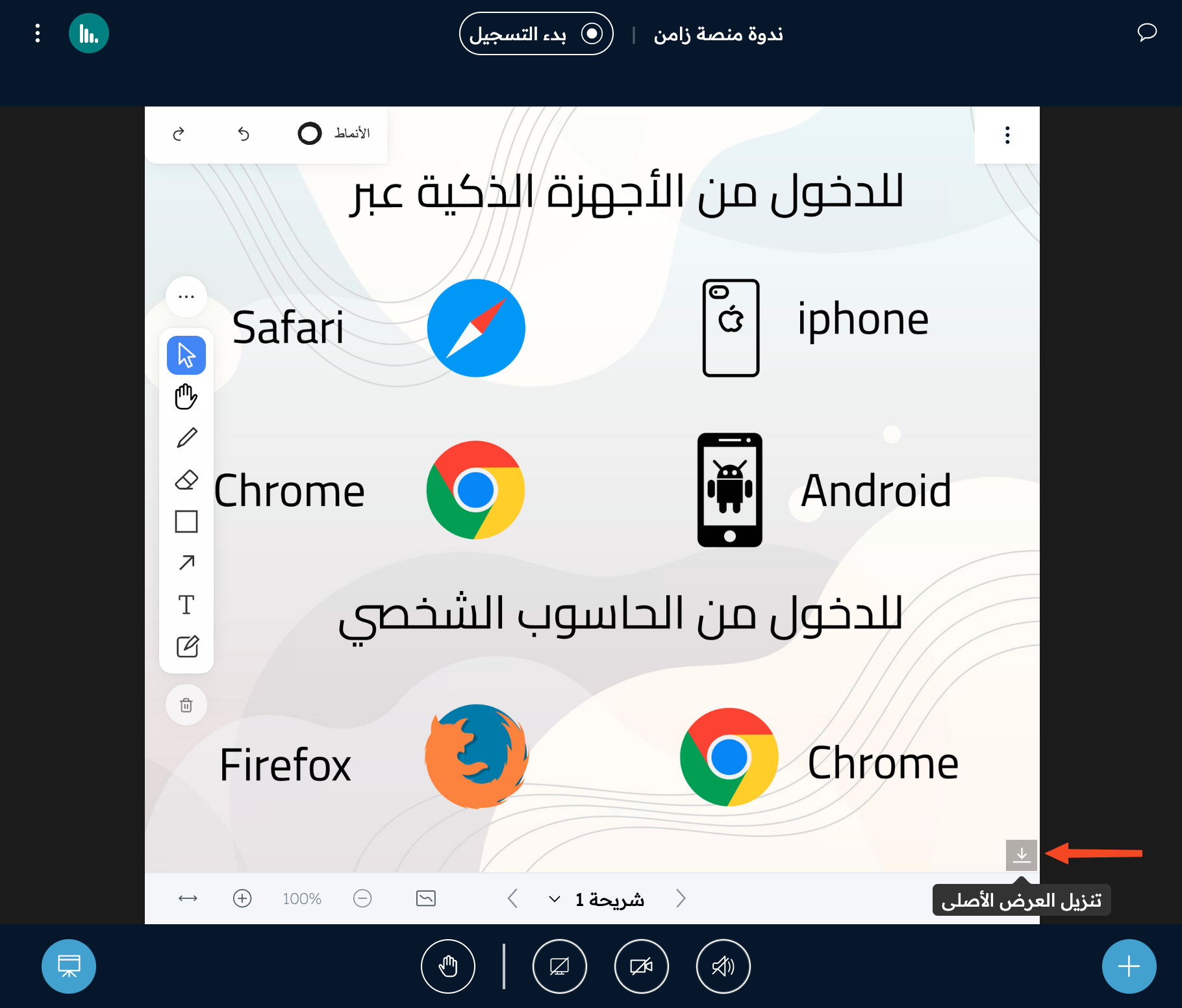
When you choose to download the original presentation (1), attendees can download it by clicking the Download original presentation button in the corner of the whiteboard.
When you choose to download the presentation with notes (2), the download link shows in the public chat. Attendees can download the file by clicking Download.