Share your camera and screen
This article shows room moderators how to share the camera or the screen with attendees, and how to change the camera settings and the layout.
How to share your camera
-
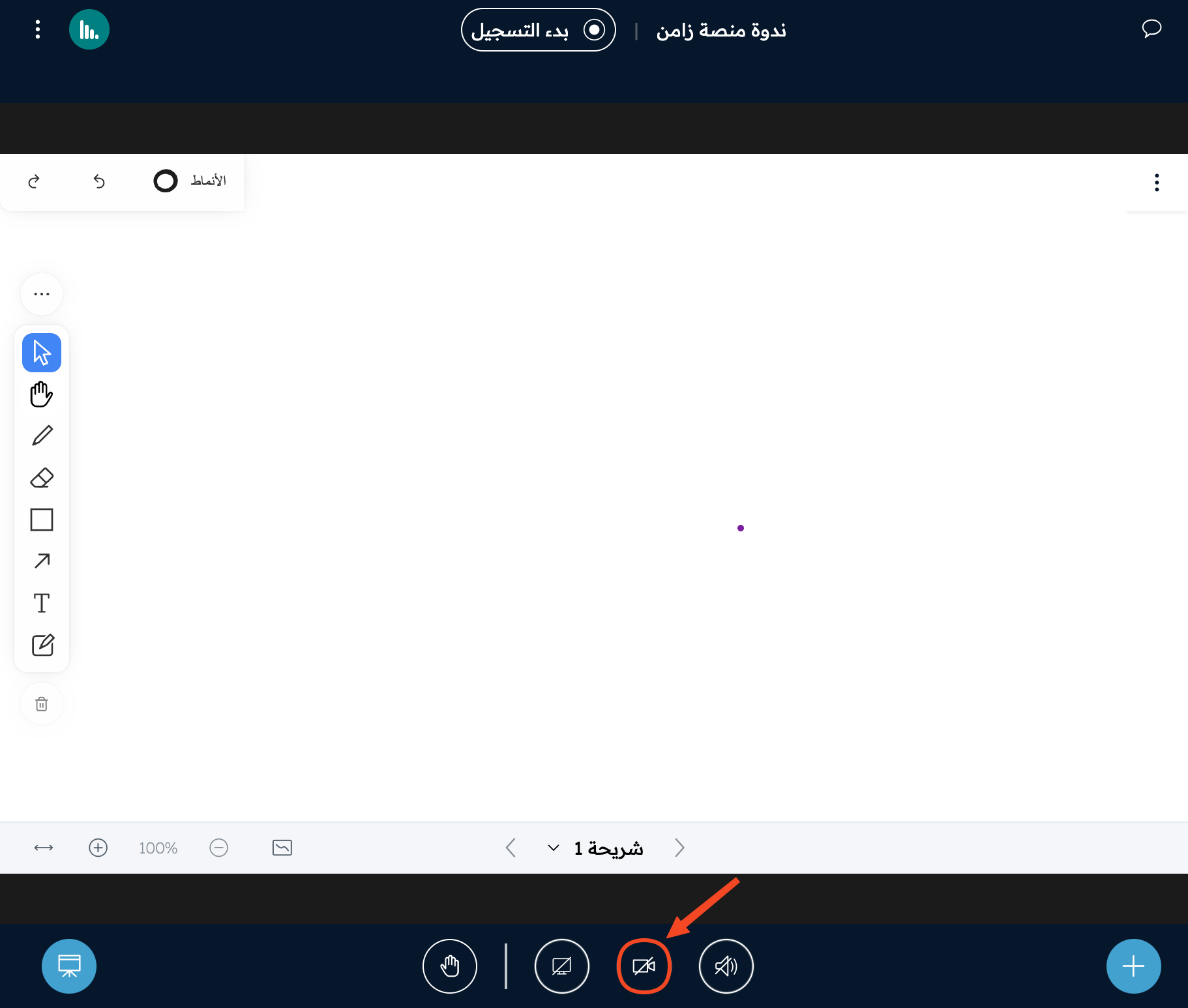
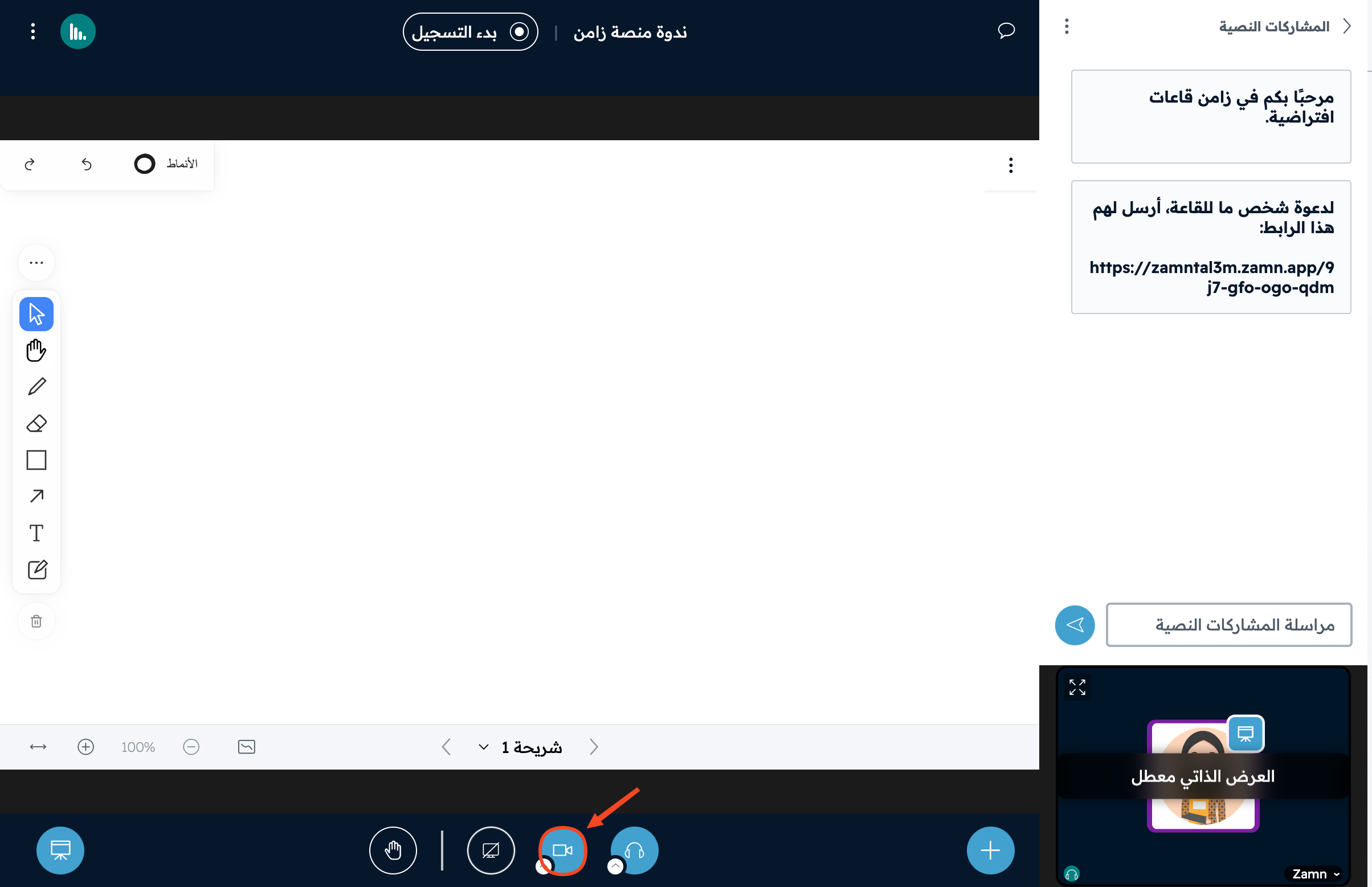
Click the camera button in the bottom bar.
-
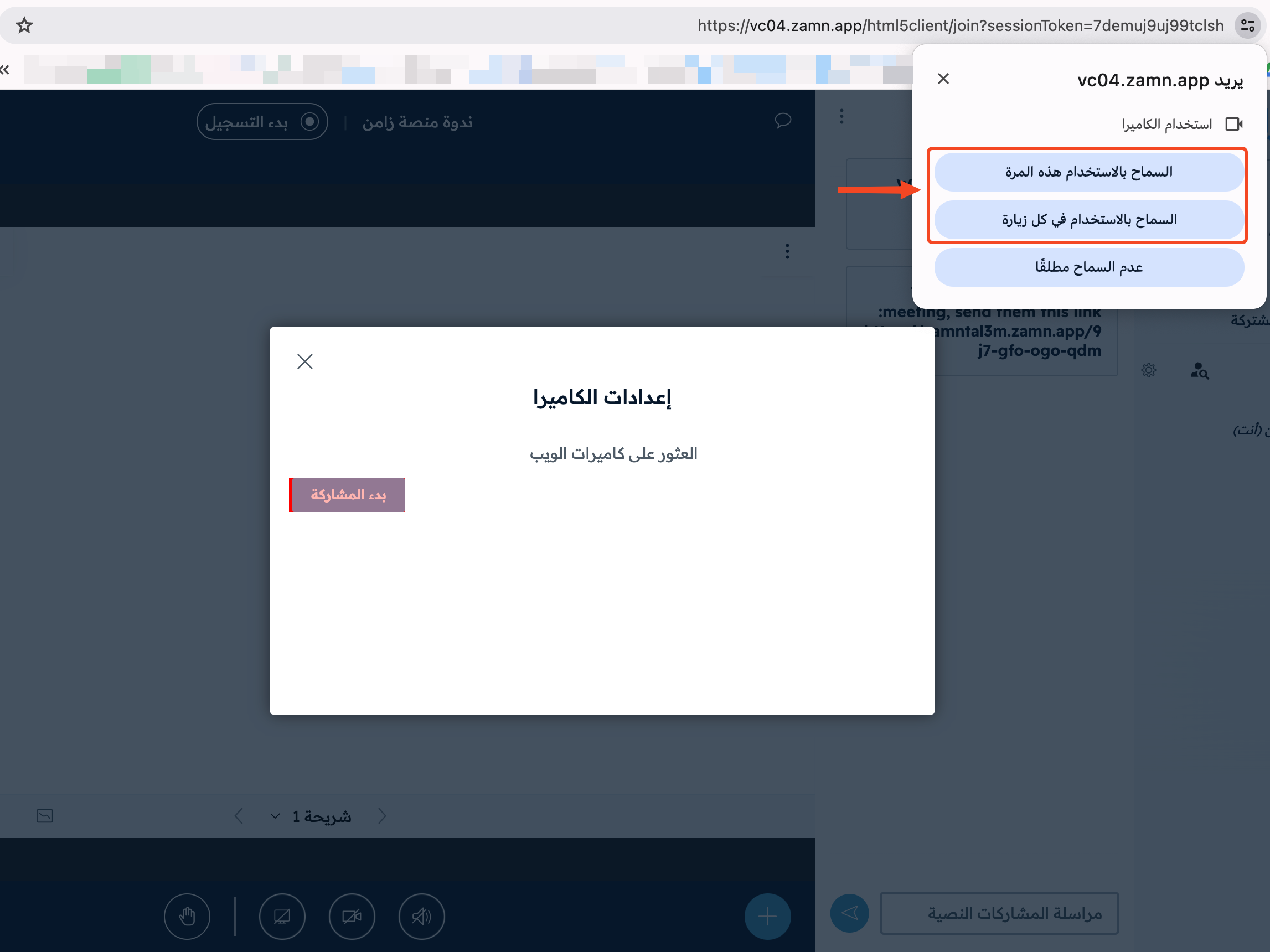
If the browser does not have permission to use the camera, a window asks you to allow it. Click the option that suits you to give the needed permission.
-
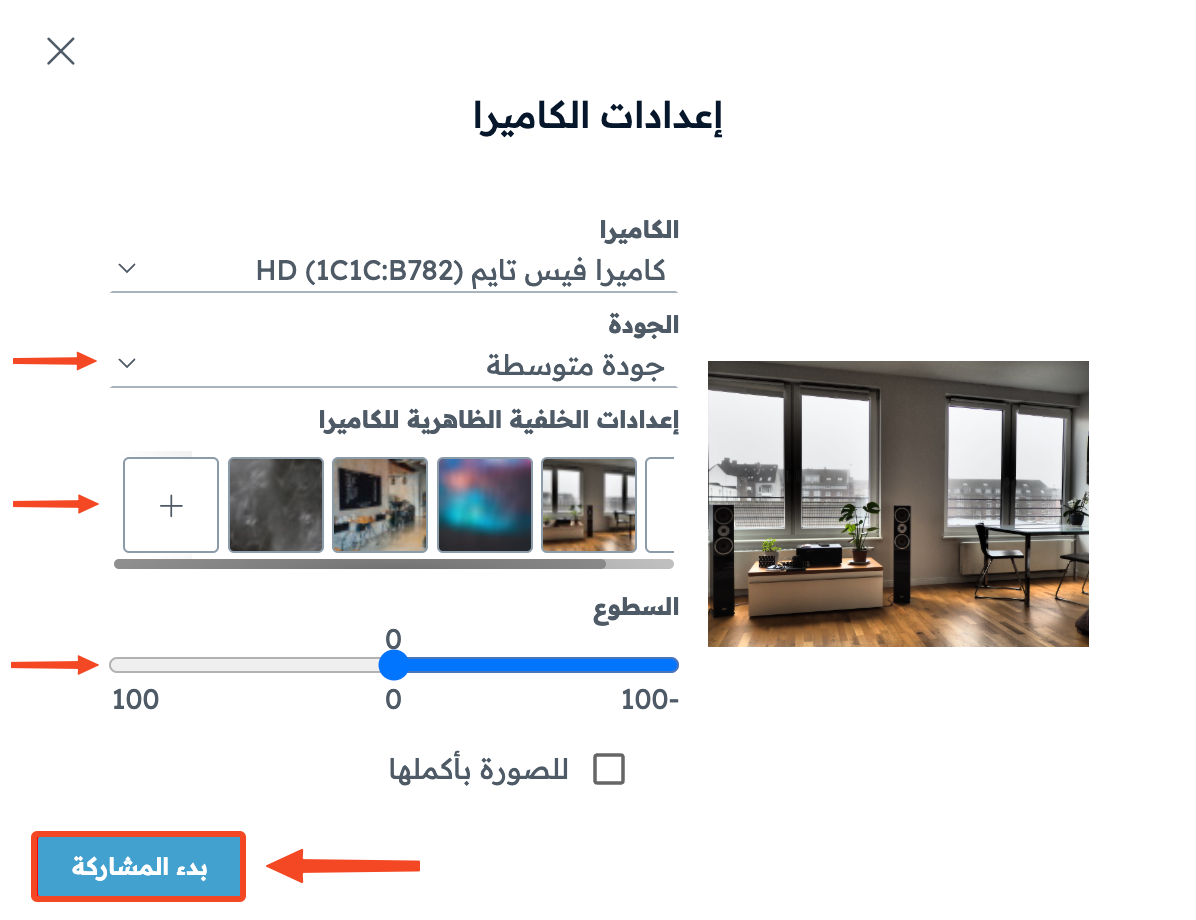
Change the camera settings as you like:
- Camera quality.
- Camera background.
- Brightness.
-
Click Start sharing.
Control your camera
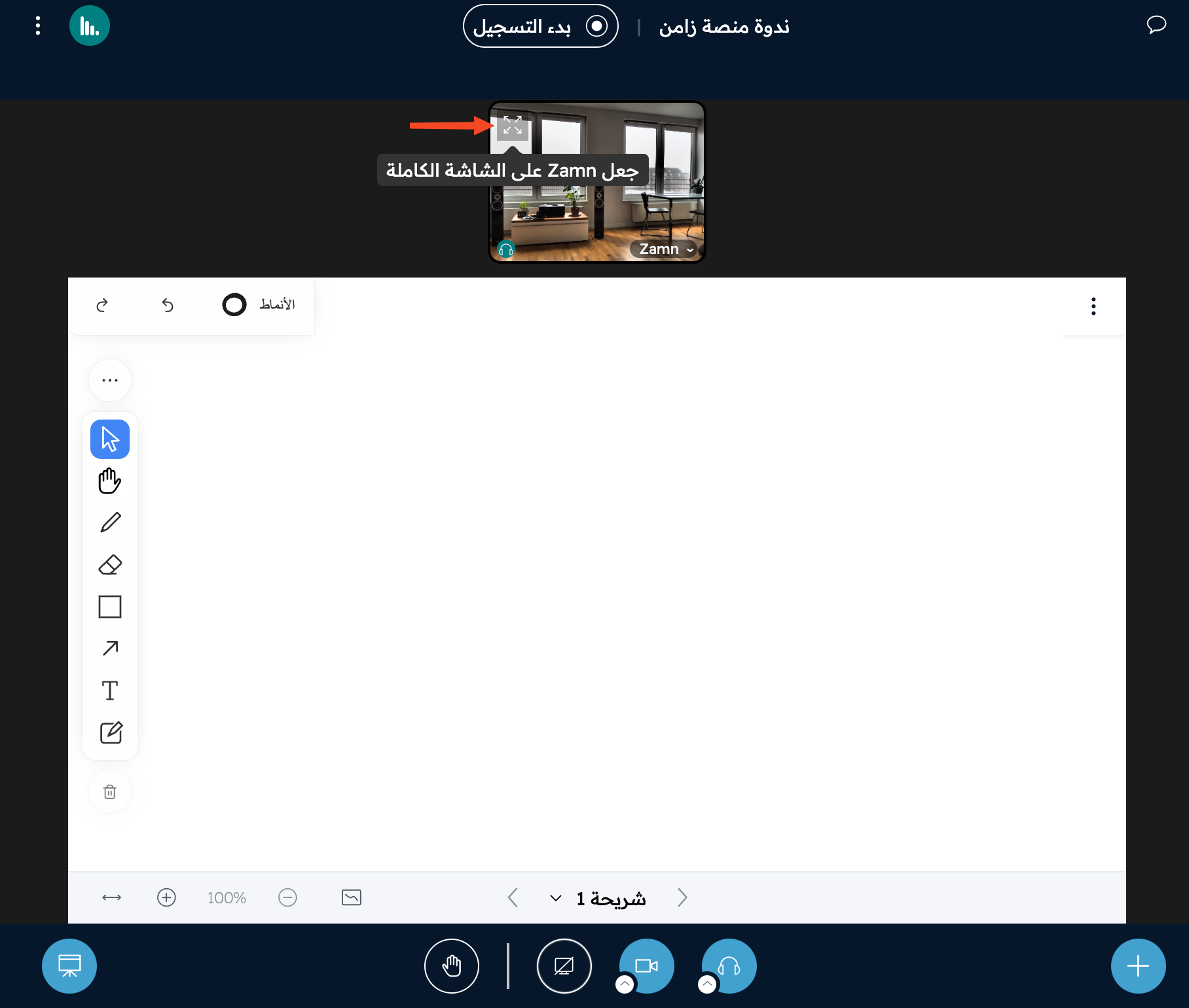
You can show the camera in full screen by clicking the full screen button.
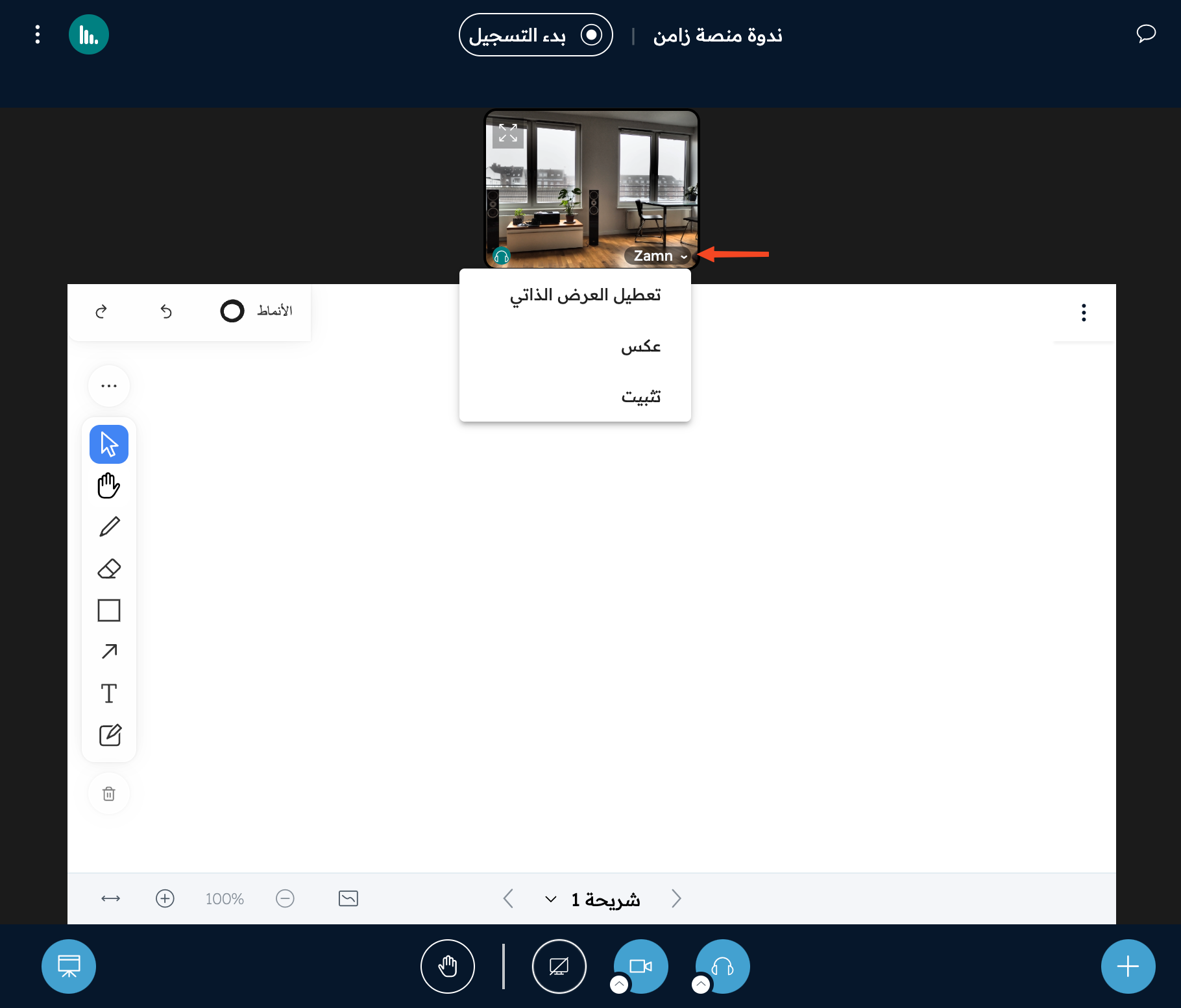
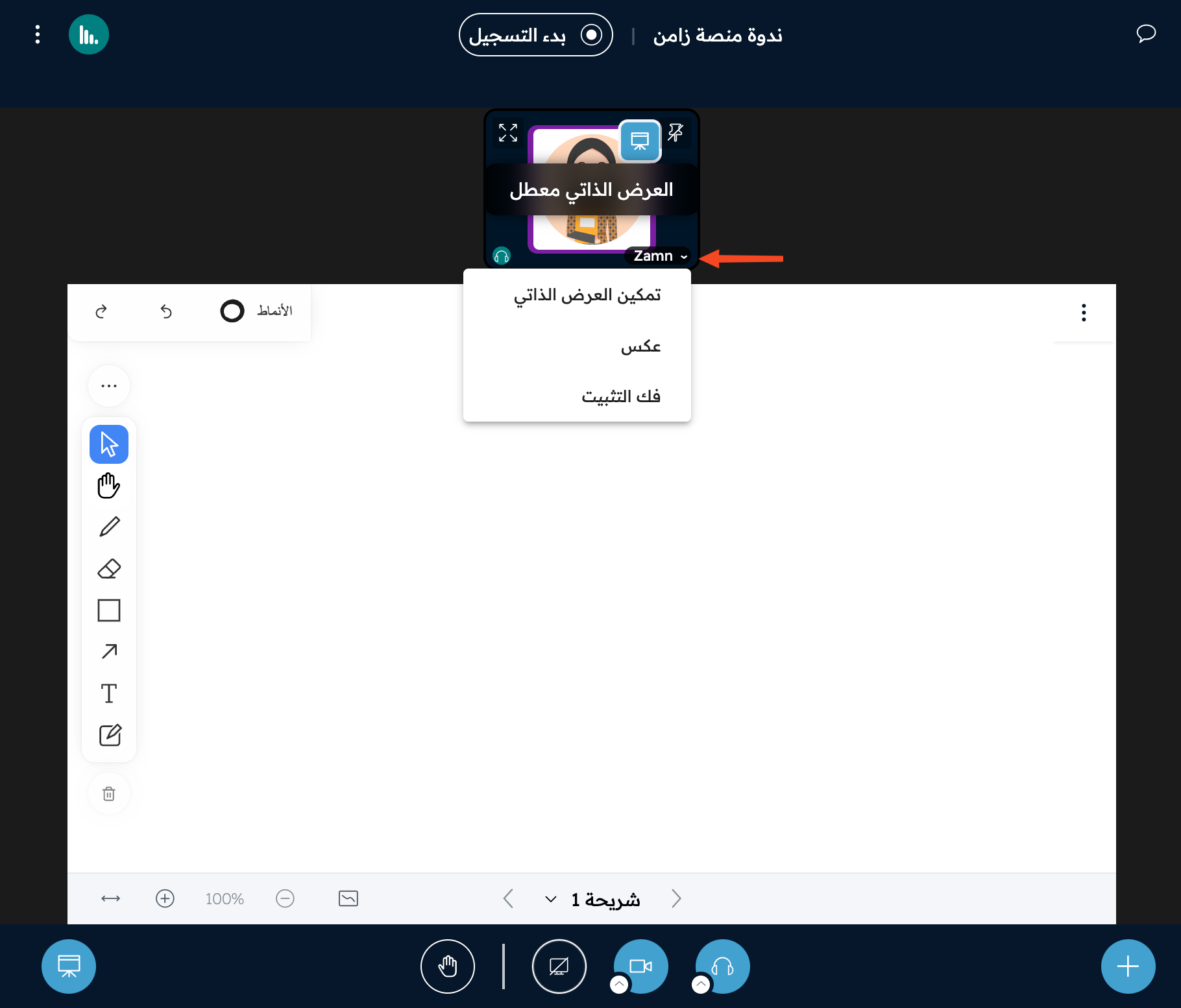
When you click the arrow next to your name on the camera video, you can:
- Disable self-view: you see your profile picture, with a notice that your camera is still on and others can still see you.
- Mirror the camera.
- Pin the camera.
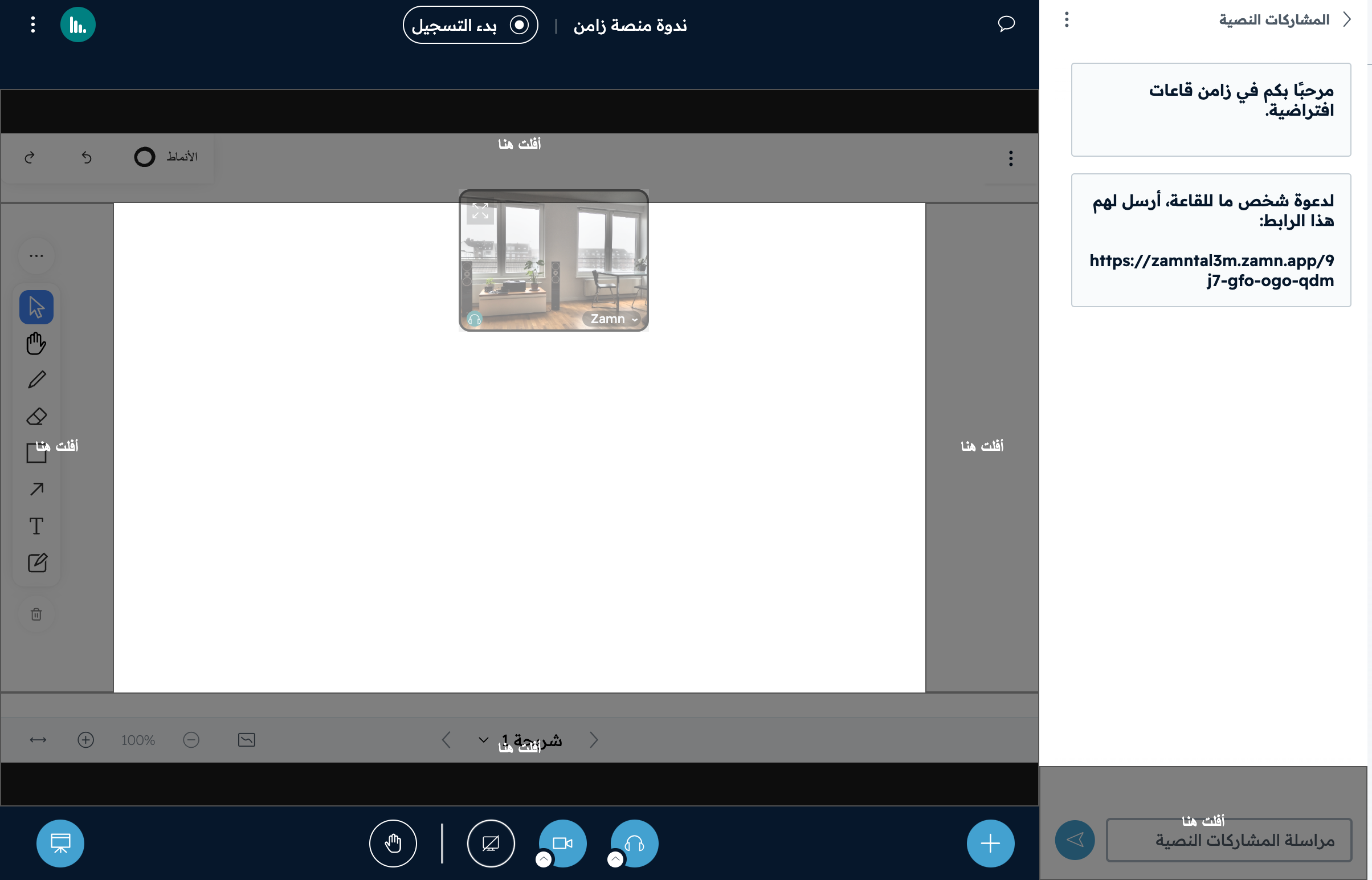
You can move the camera to another place by dragging and dropping it.
Change the layout
-
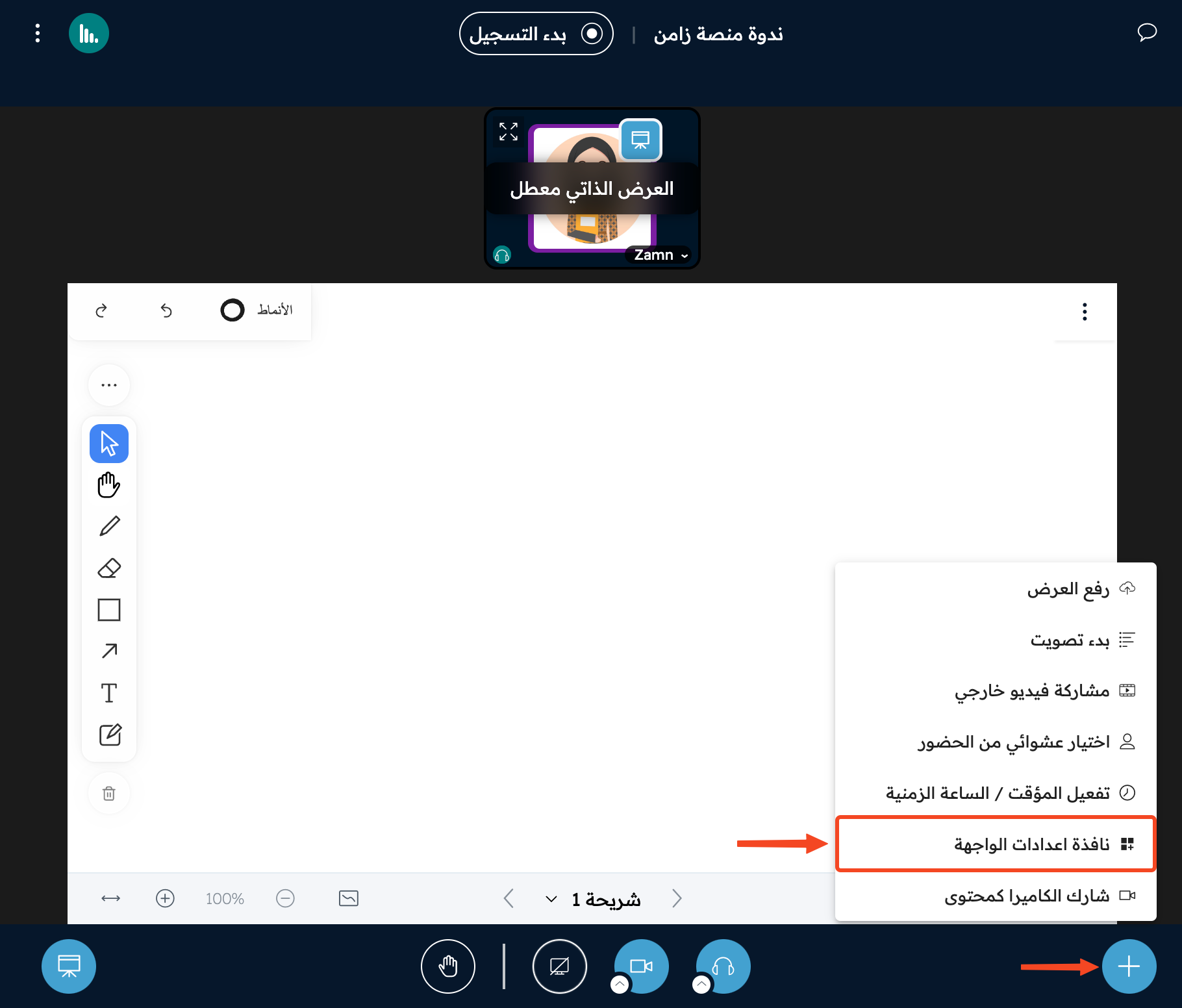
Click the + button, then click Layout settings.
-
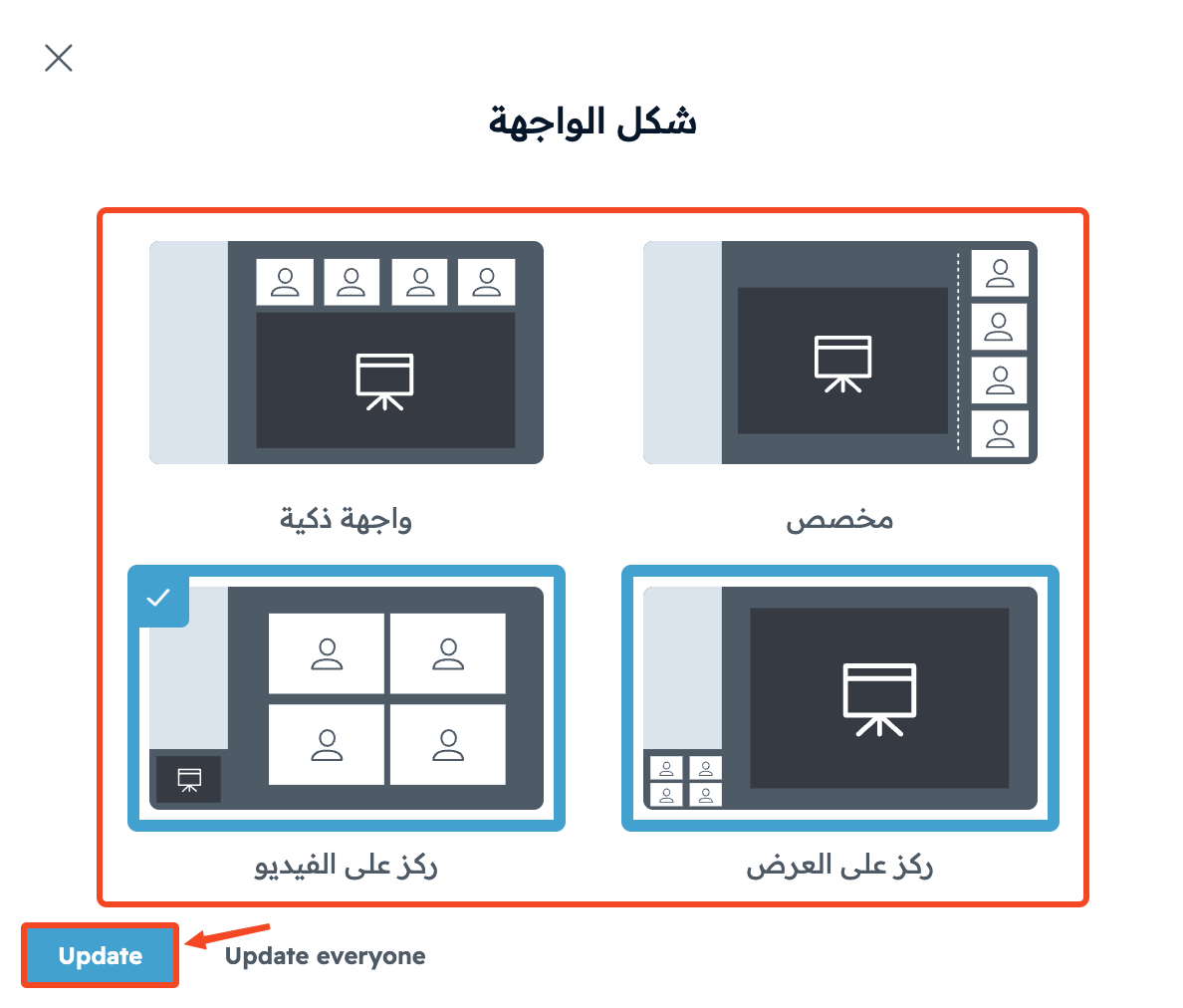
Choose the layout that suits you, then click Update.
Stop sharing your camera
To stop sharing your camera, click the camera button again.
How to share your screen
-
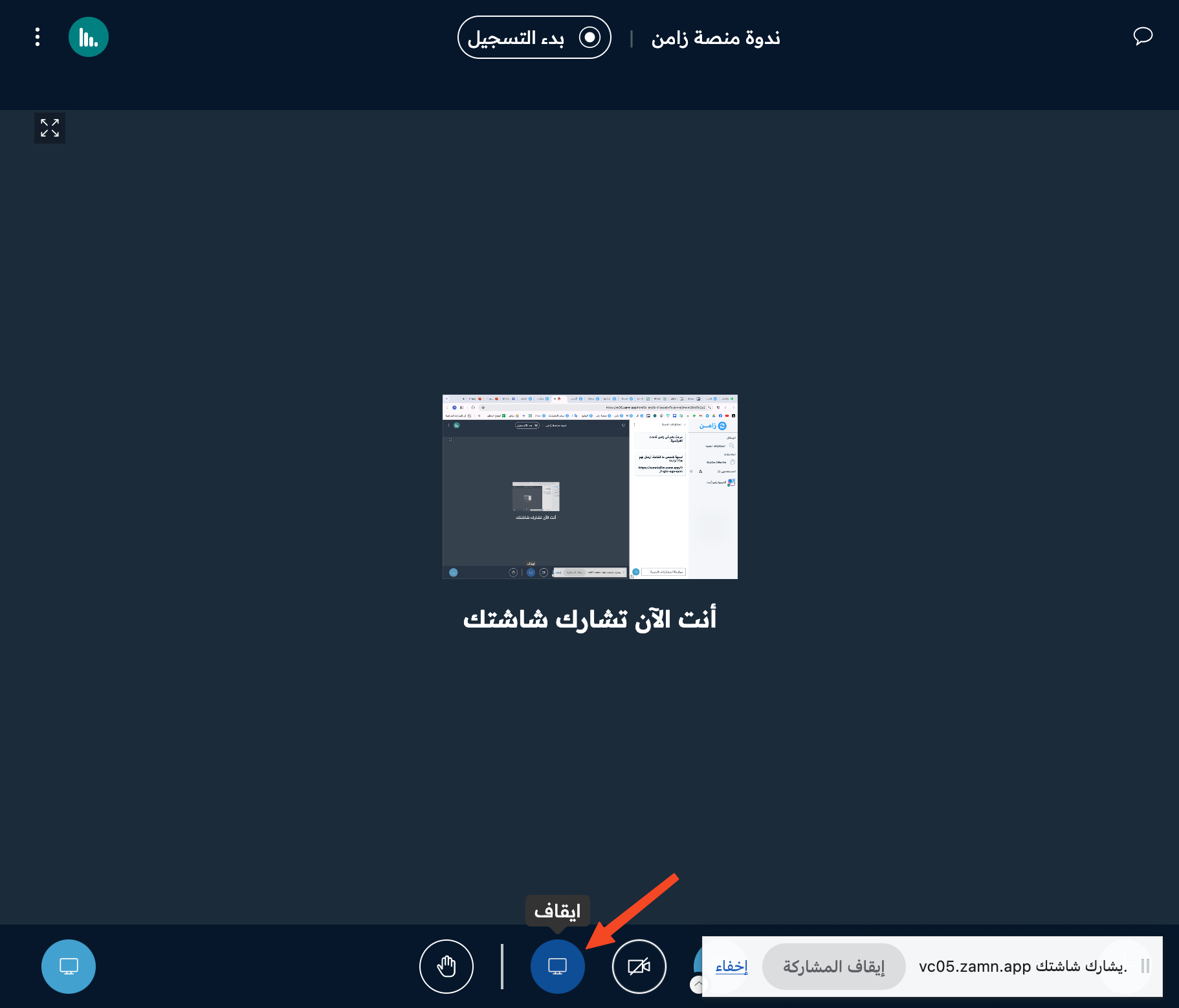
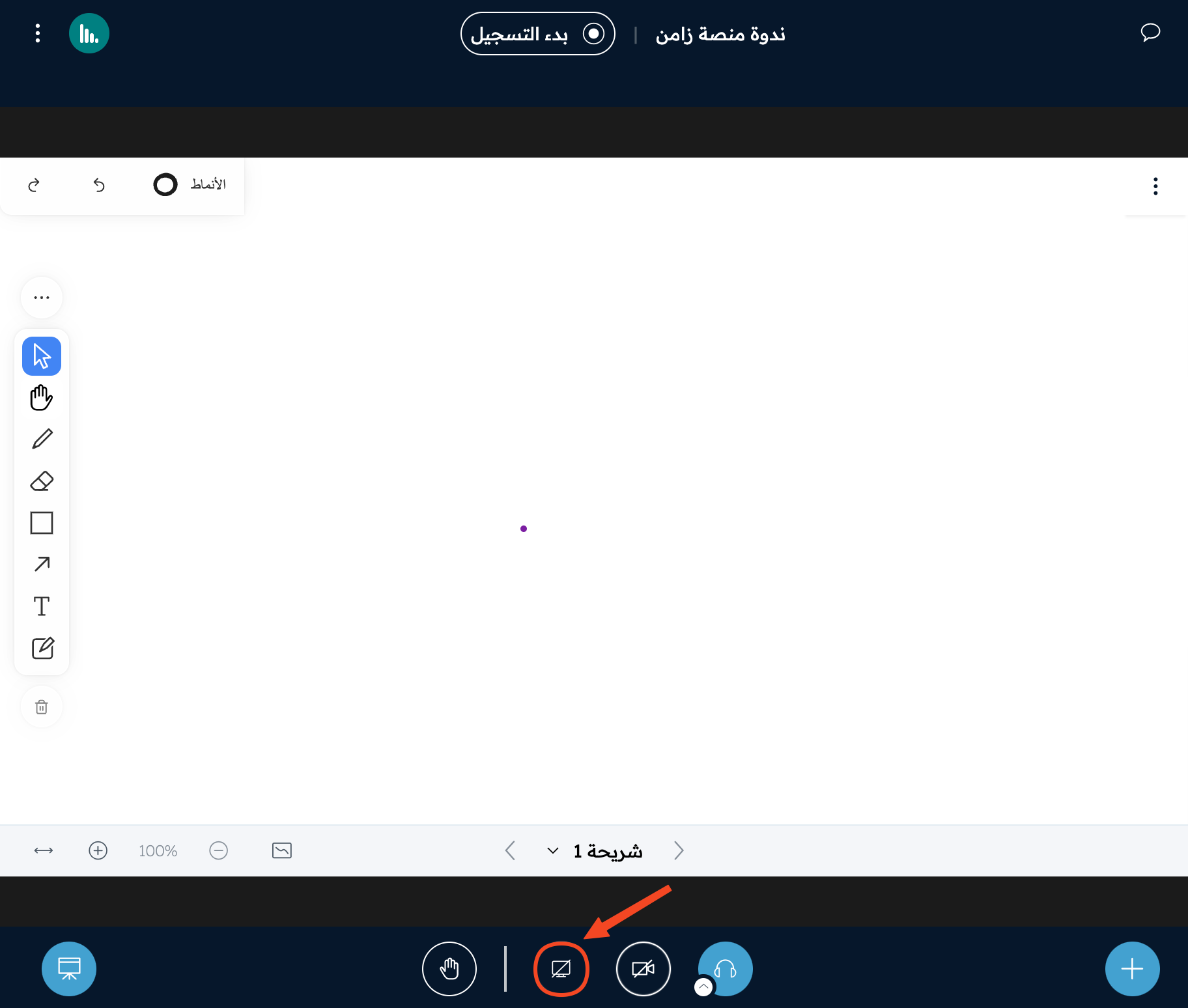
Click the screen share button in the bottom bar.
-
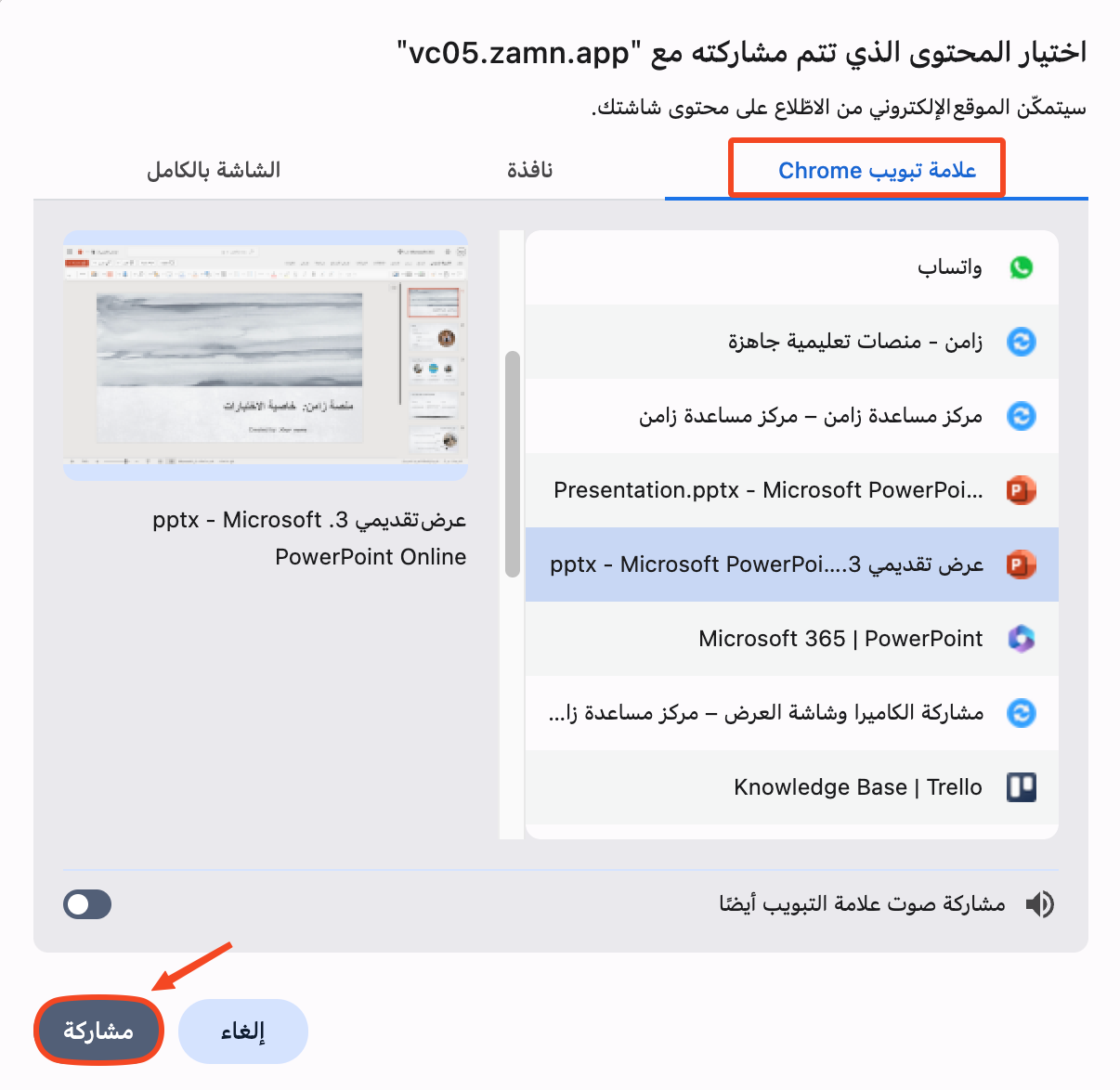
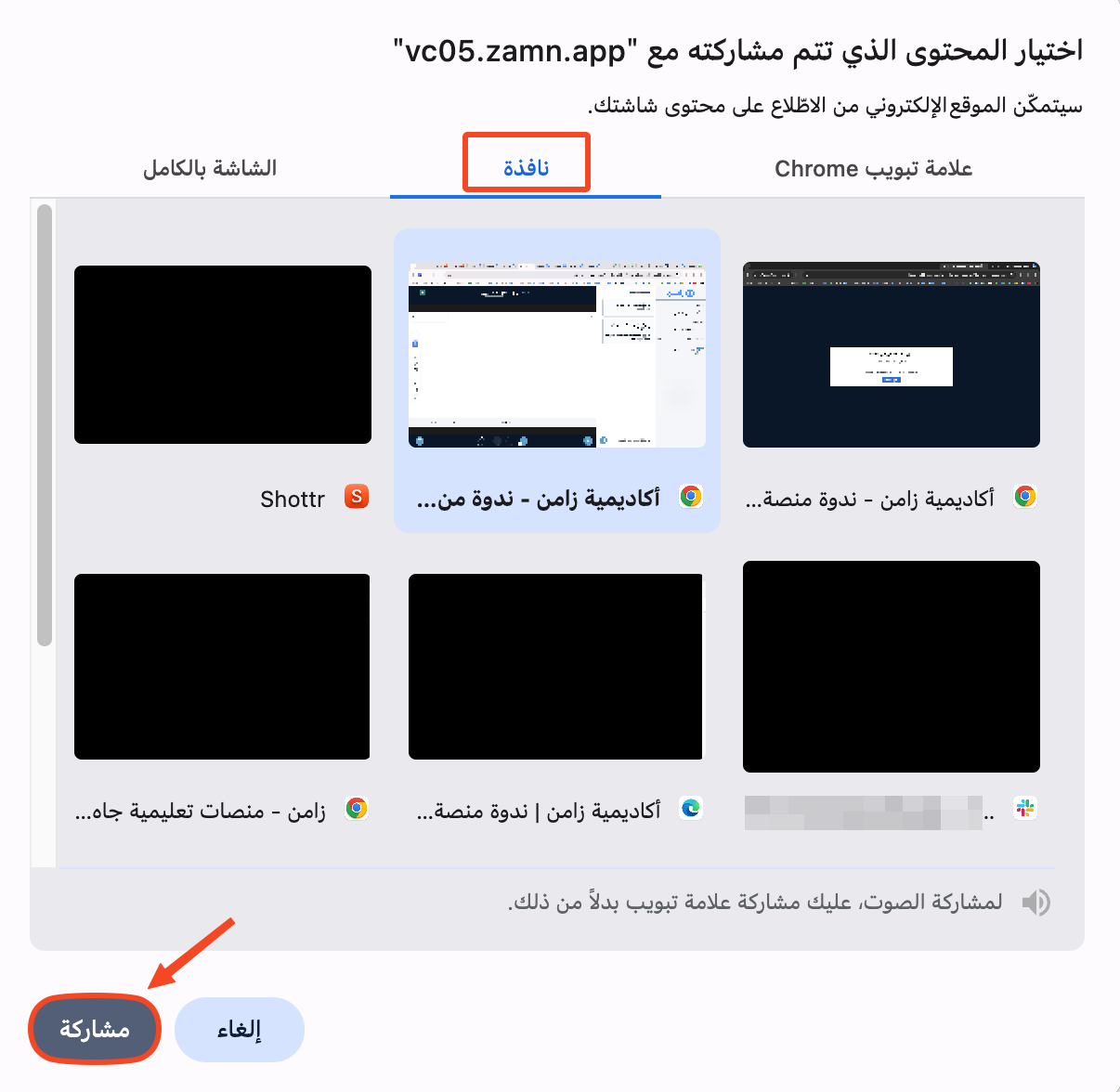
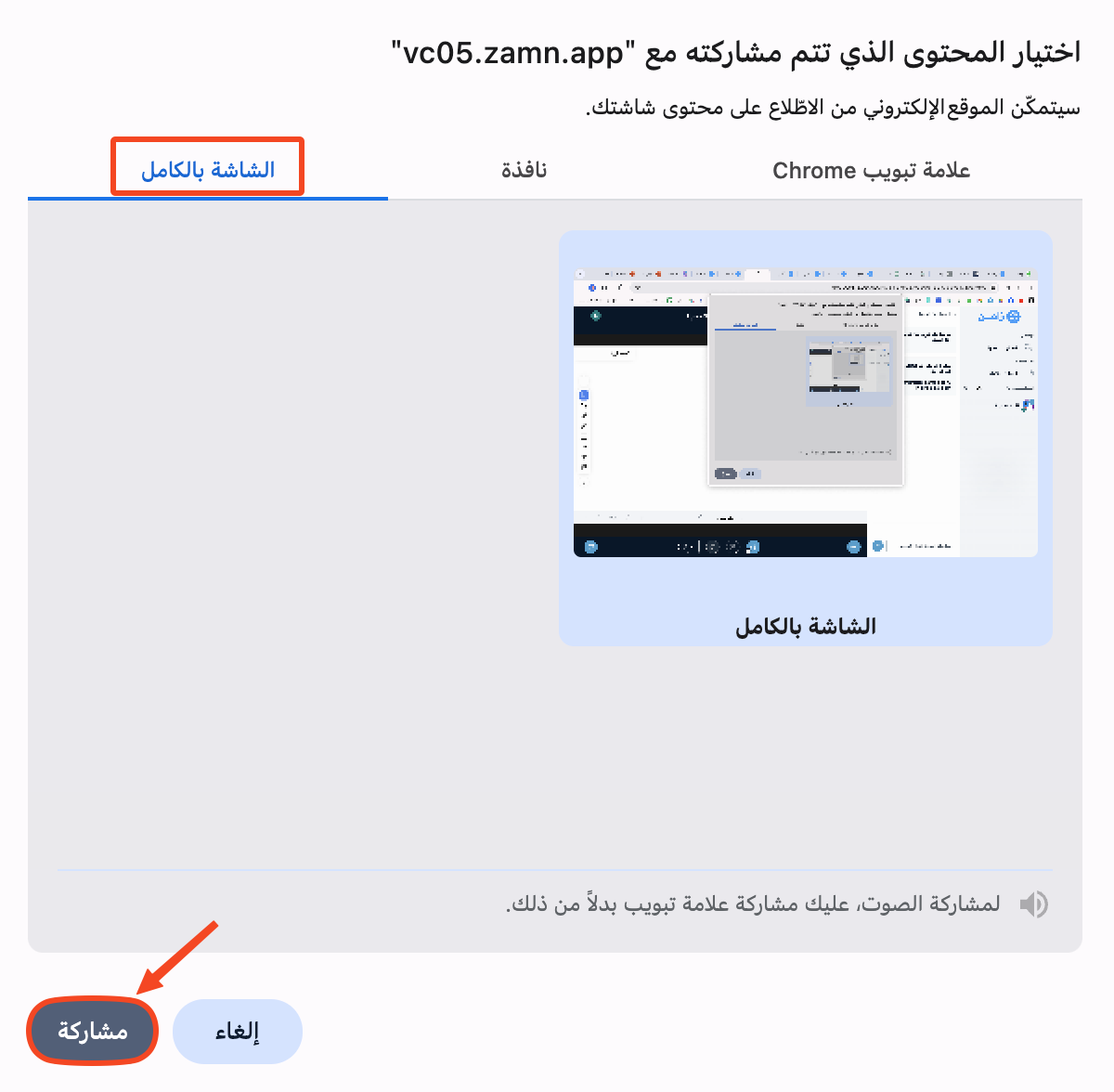
A browser window shows three options for sharing the screen. Choose one of them, then click Share:
-
Chrome Tab: choose the tab you want to share. Attendees see only what happens in the tab you shared.
-
Window: choose the window you want to share. Attendees see everything that happens inside that window.
-
Entire Screen: attendees see everything on your screen.
-
To stop sharing, click the screen button.