How attendees use the whiteboard
This article explains the tools on the whiteboard in the virtual classroom, and how attendees use them.
You can use the whiteboard only after the moderator gives you access to it.
Top toolbar
- The Undo and Redo buttons.
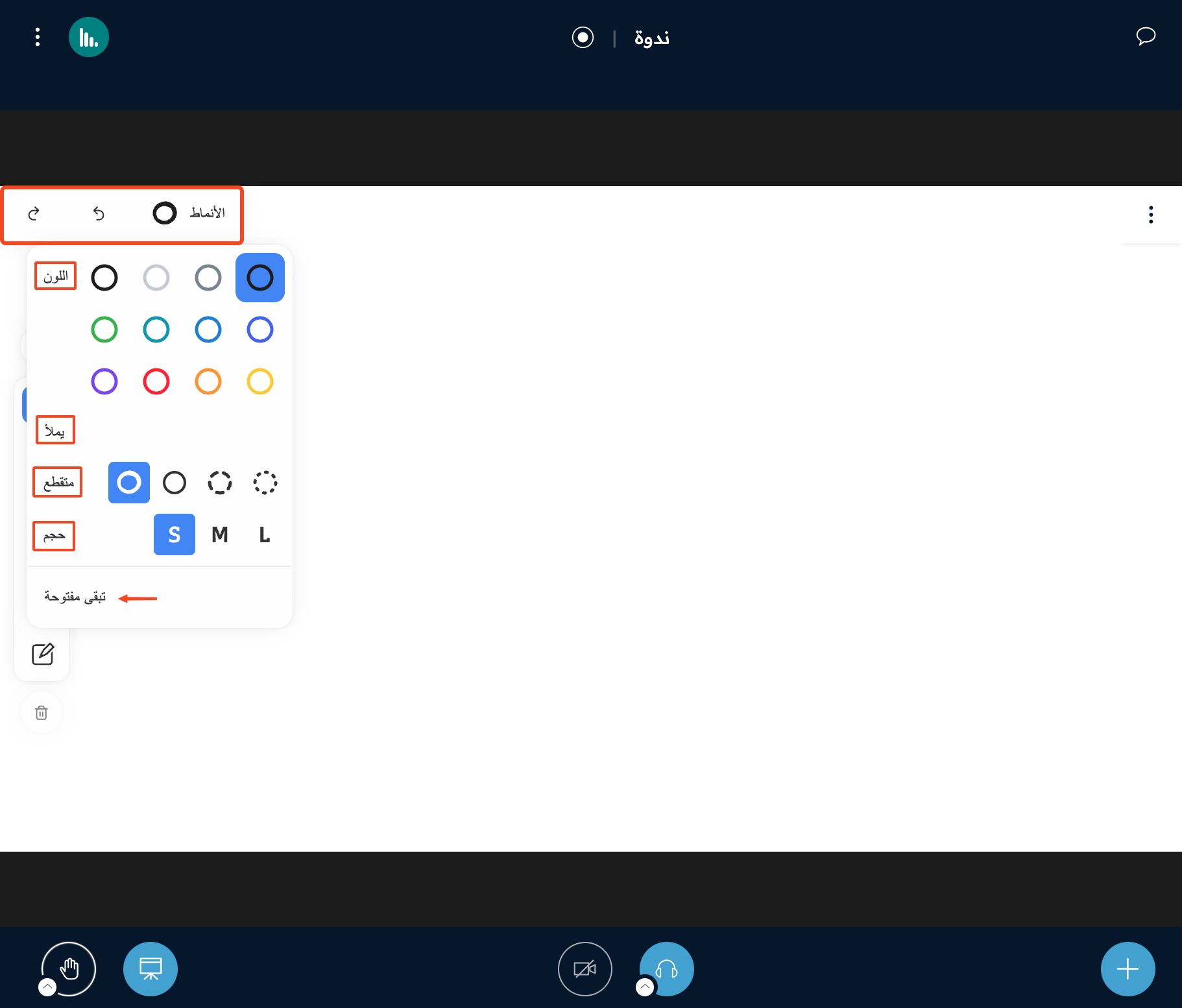
- Styles:
- Color: choose the color.
- Fill: fill closed shapes with color.
- Dash: choose the line style for drawings and shapes.
- Size: change the size (small, medium, large).
- Keep Open: keep the Styles window open.
Side toolbar
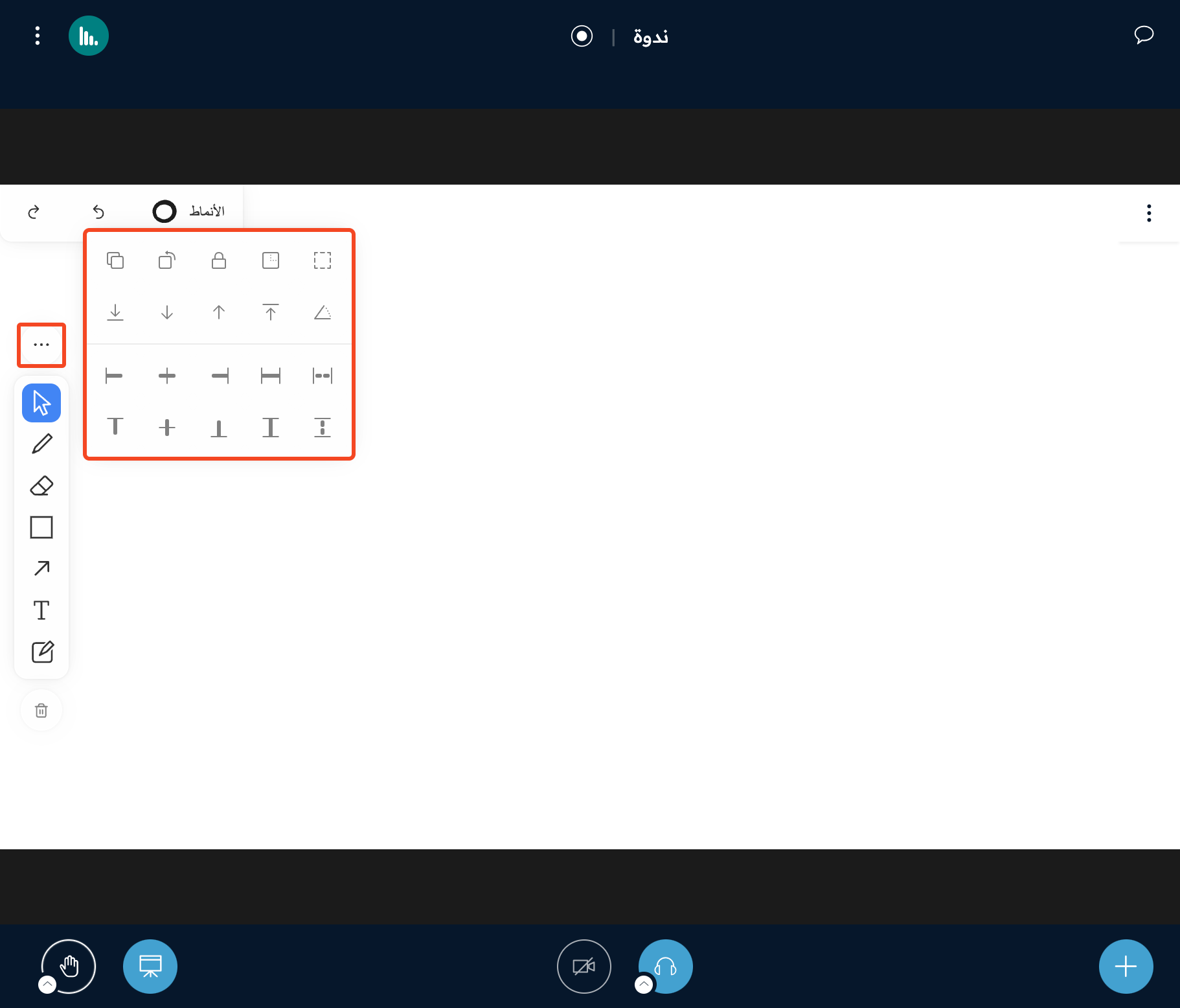
1. Three dots
Click them to open a window where you can duplicate, rotate, lock items, and more.
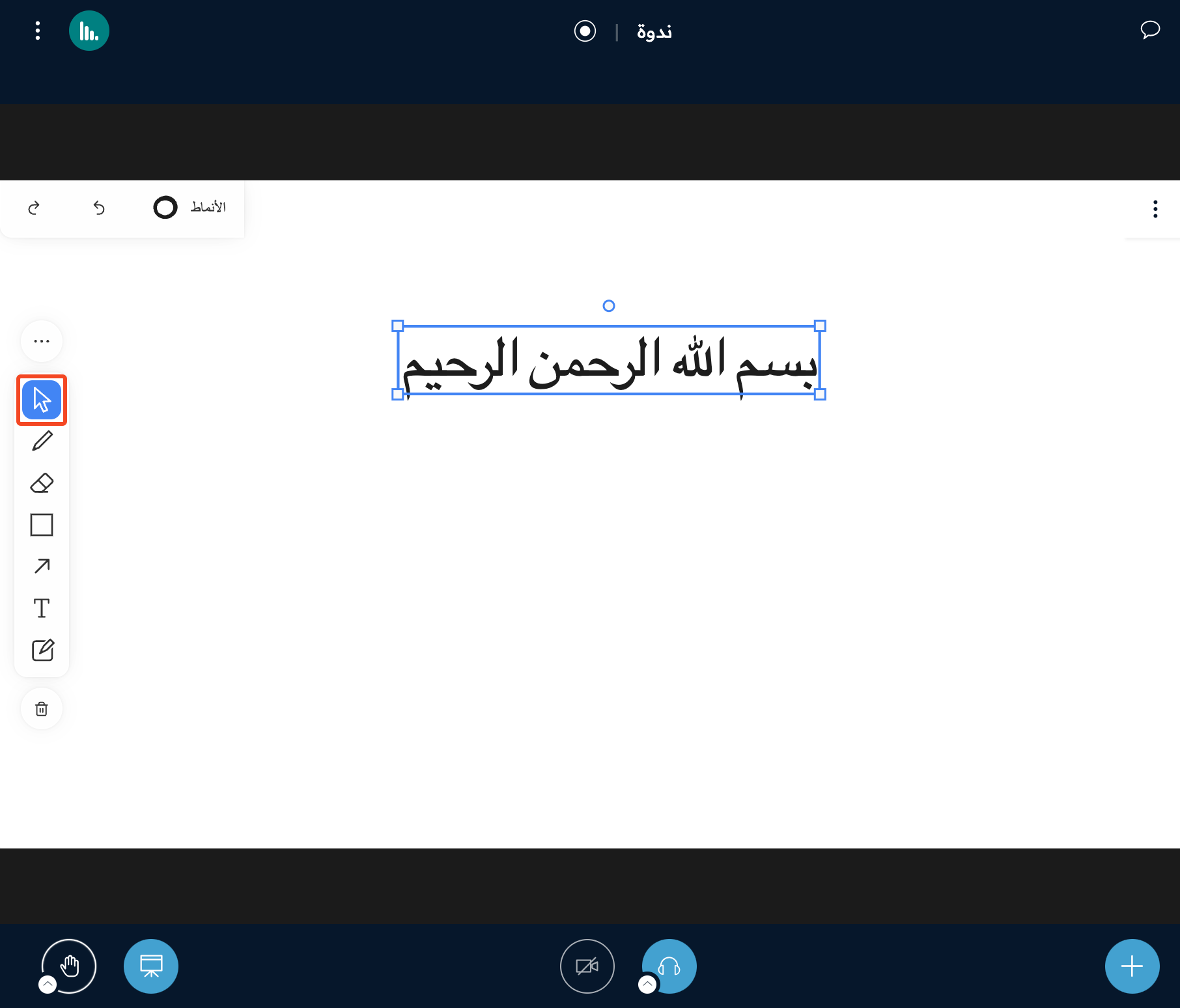
2. Select
Select items to move, resize, or rotate them.
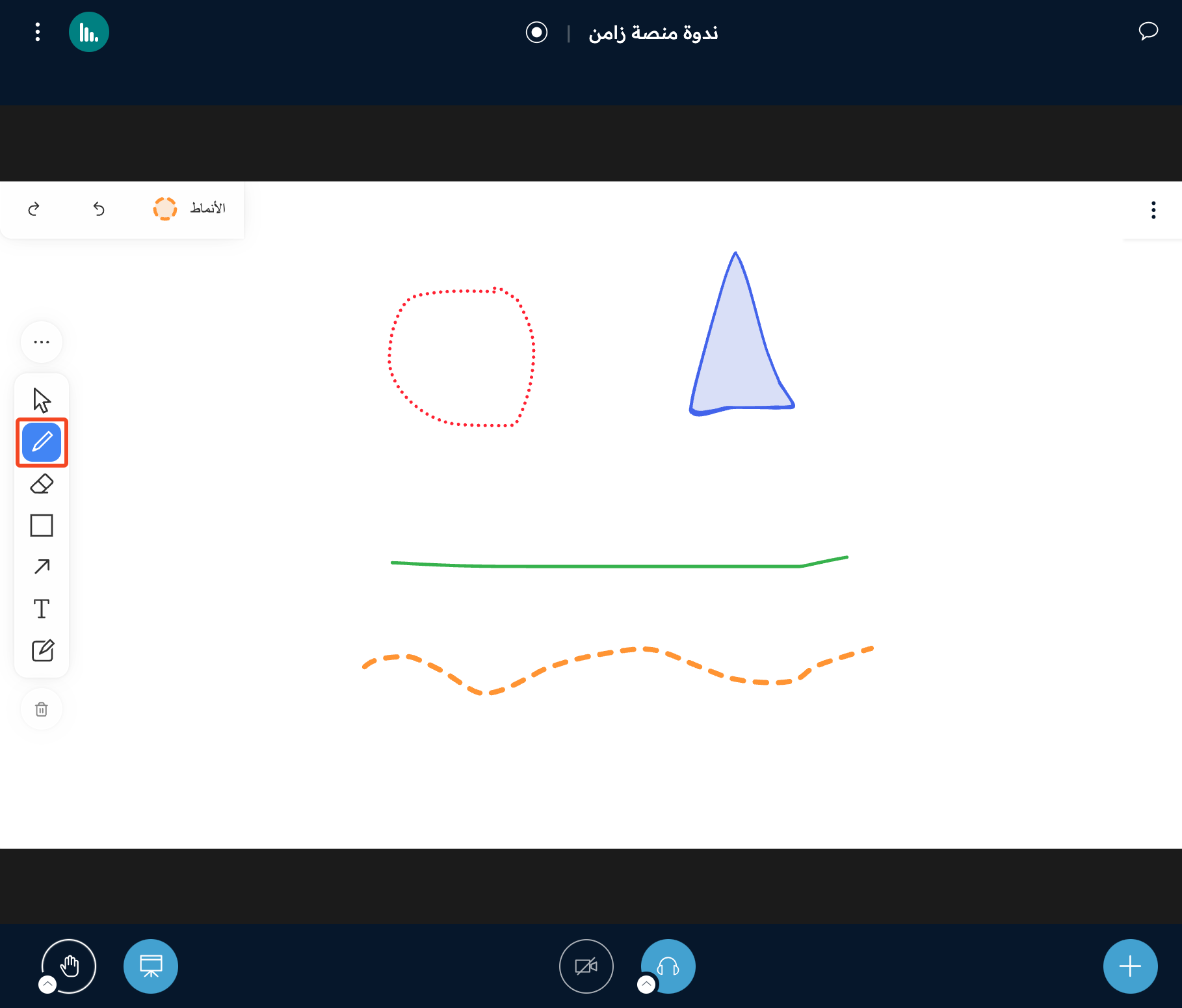
3. Pencil
For free writing and drawing. You can change the color, fill, line style, and size from Styles.
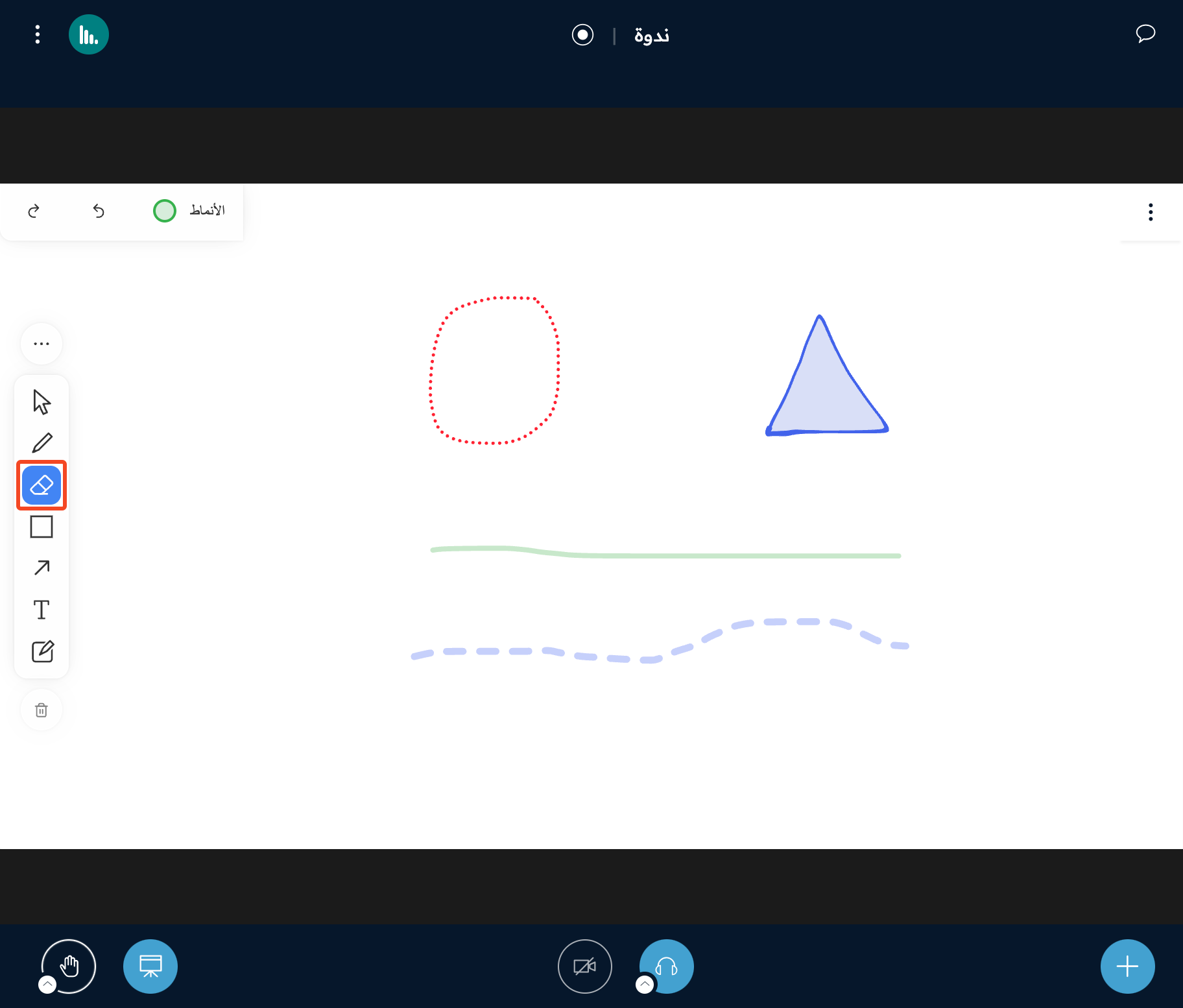
4. Eraser
Click and drag the eraser over what you want to erase.
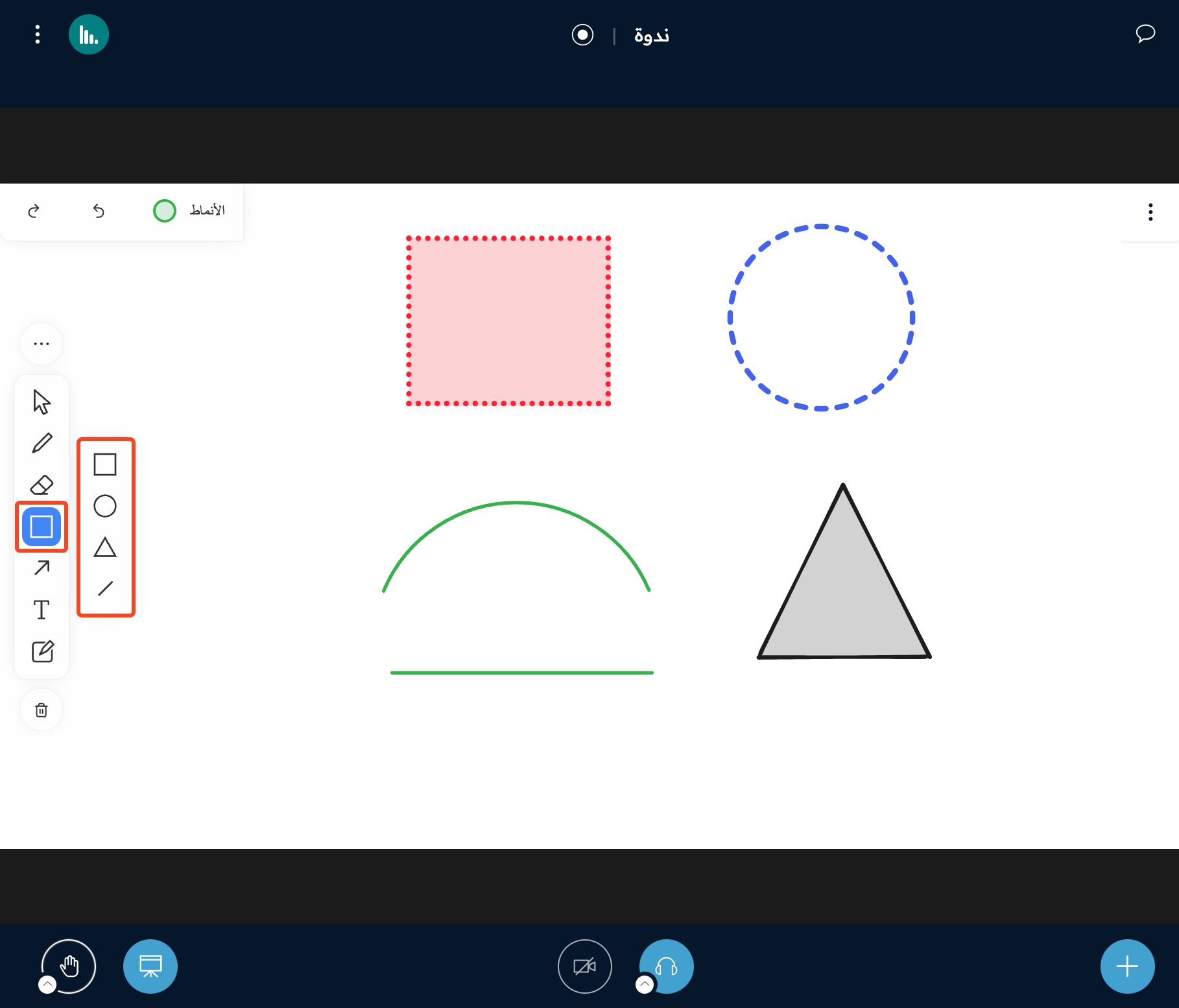
5. Shapes
Choose a shape (square, circle, triangle, straight line), draw it, then choose the style you want.
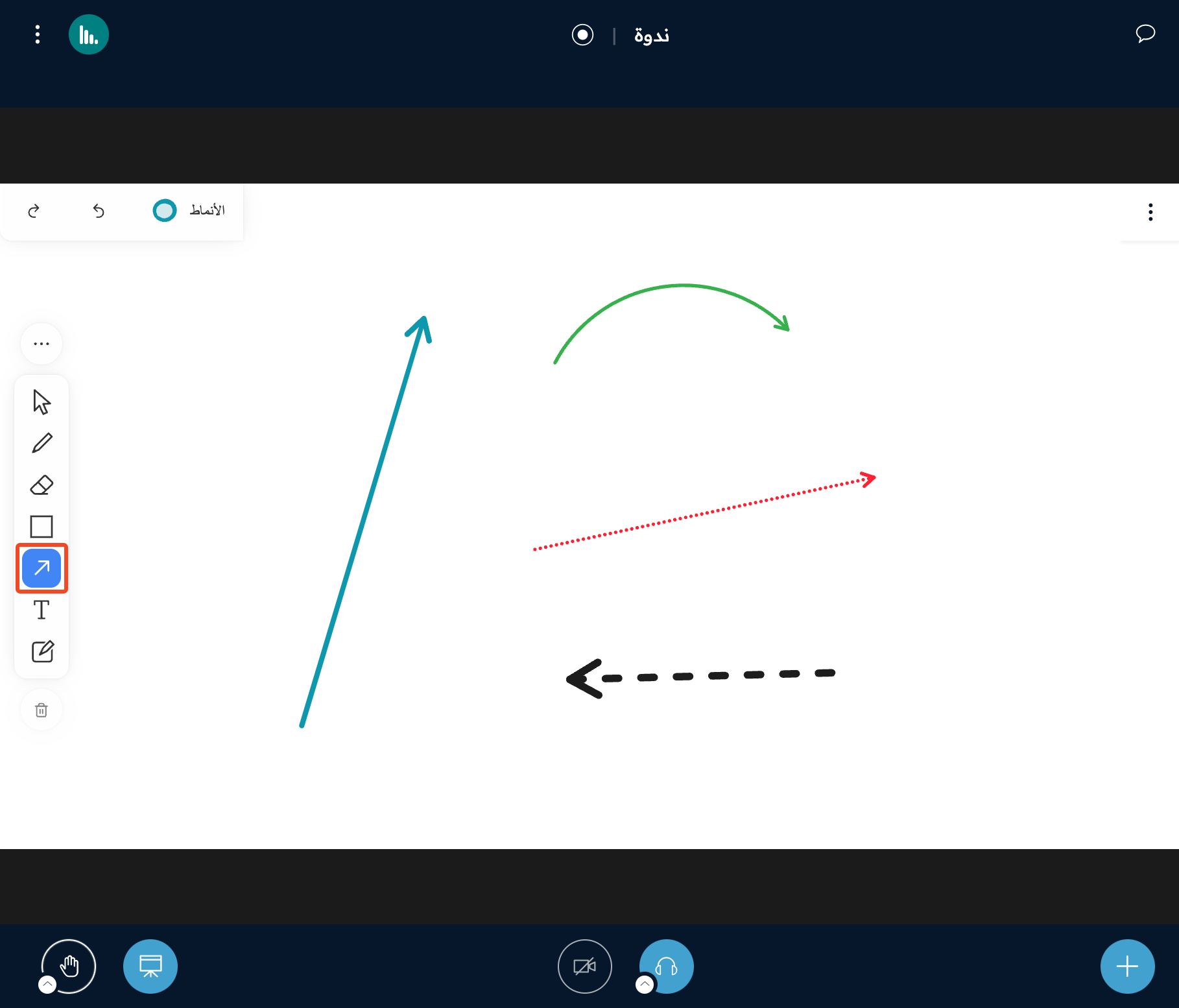
6. Arrow
Draw an arrow, and change its style as you like.
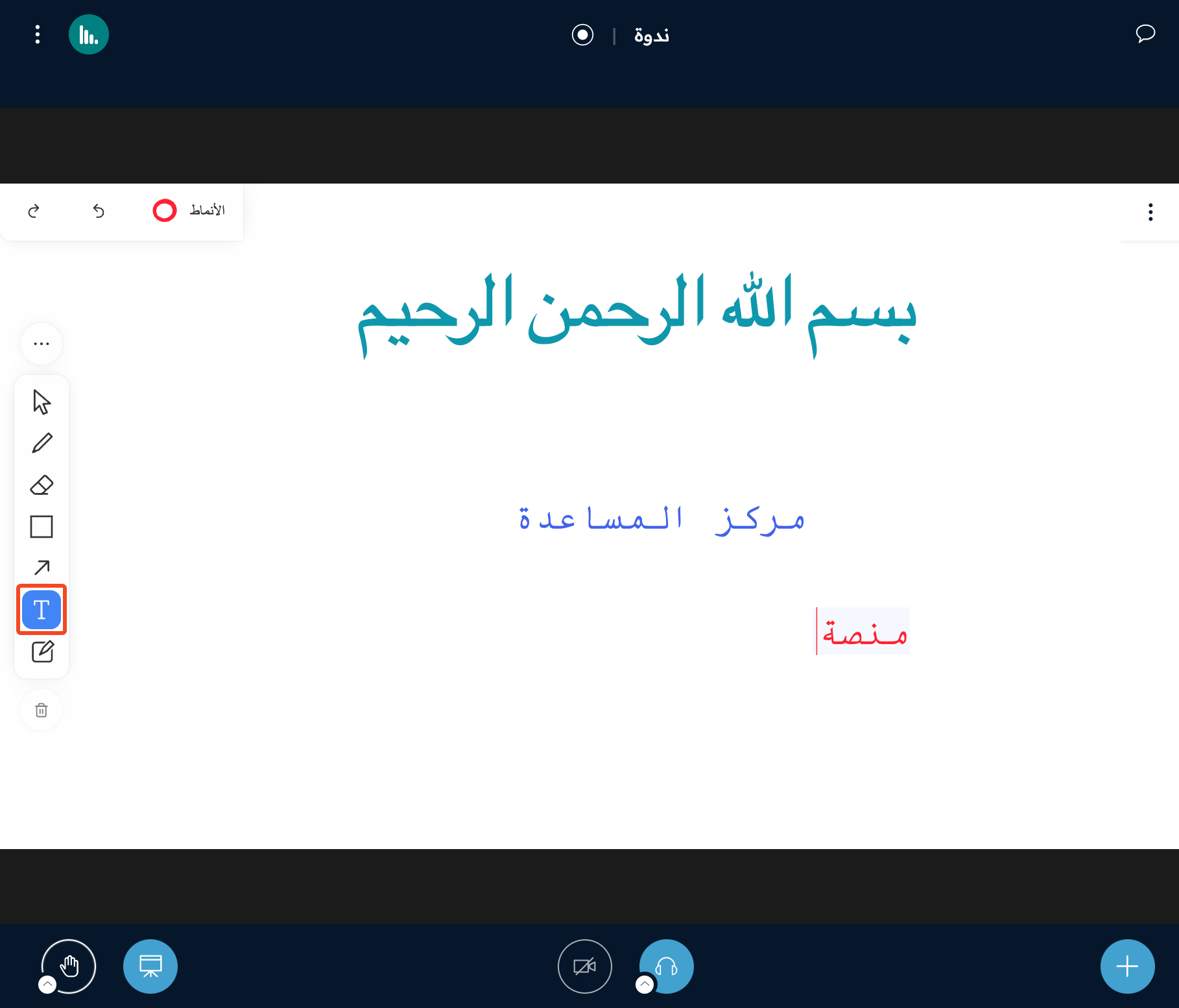
7. Text
Write text, and change its style.
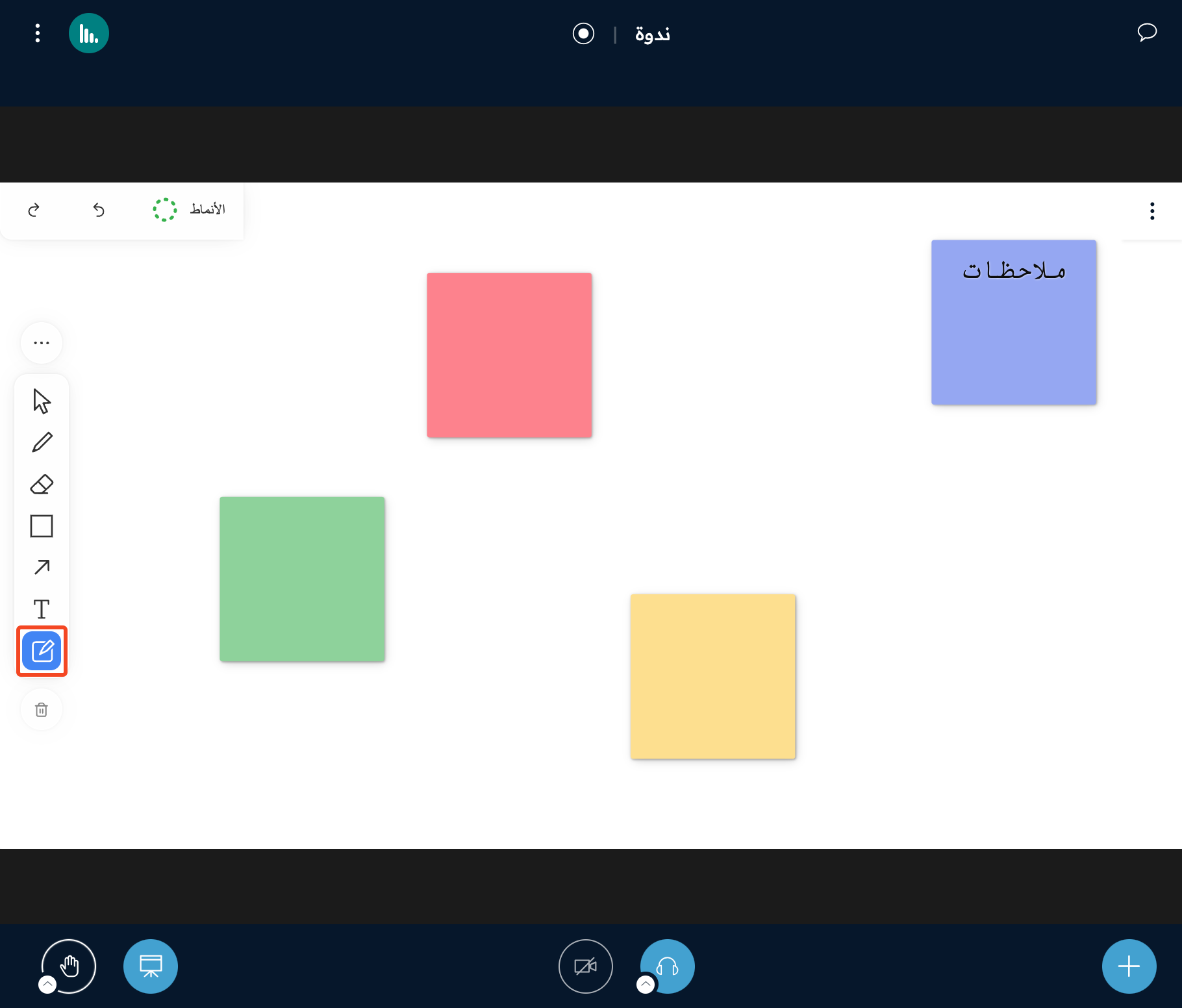
8. Sticky note
Add a sticky note and write in it. You can change its style (note color, text size inside the note, text alignment, and more).