Room settings for attendees
As an attendee, you can change some settings of the online room to suit you, such as dark mode, the application language, notifications and data use.
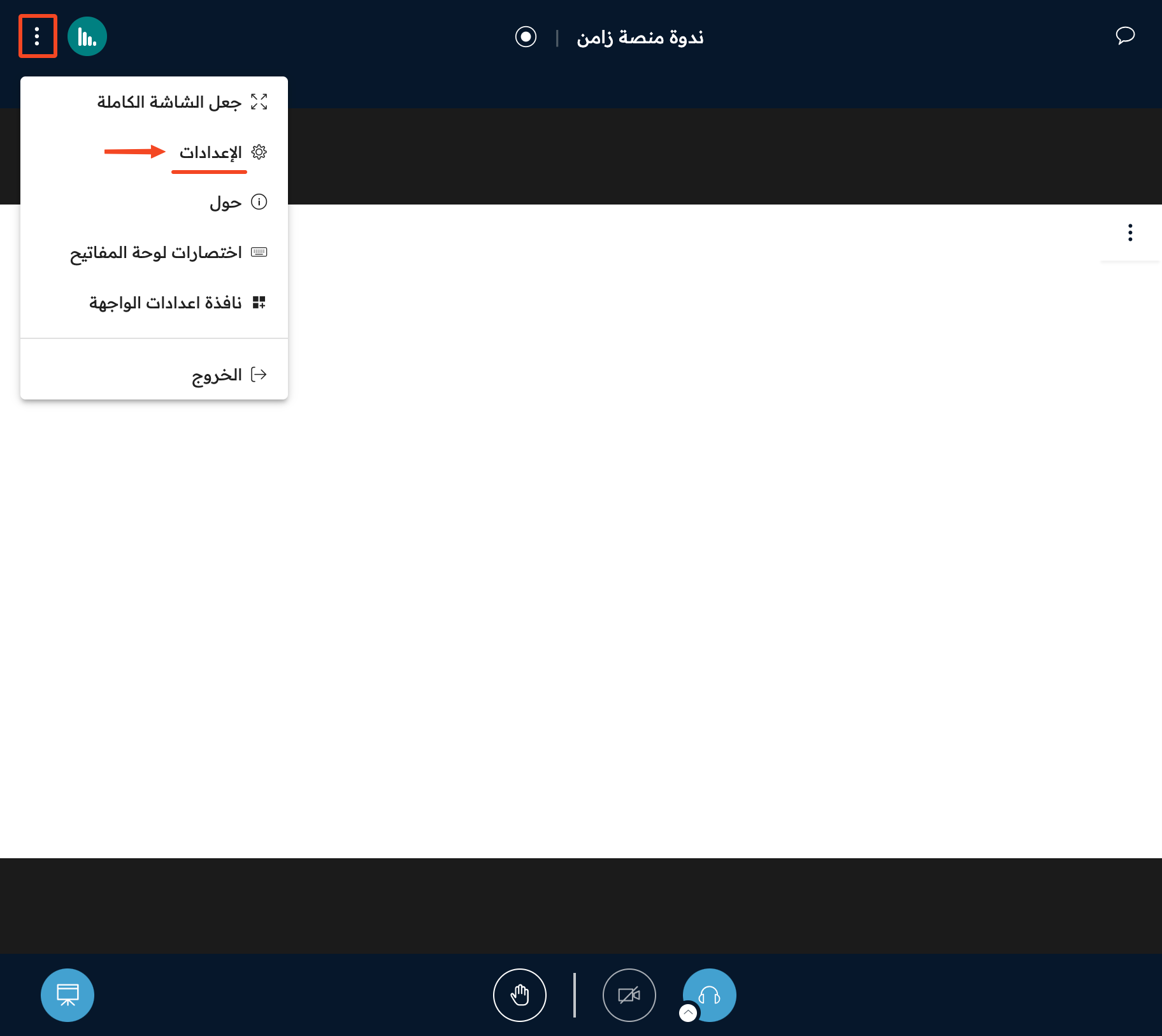
Open the room settings
-
Click the options button (three dots) at the top of the screen.
-
Click Settings.
Application page
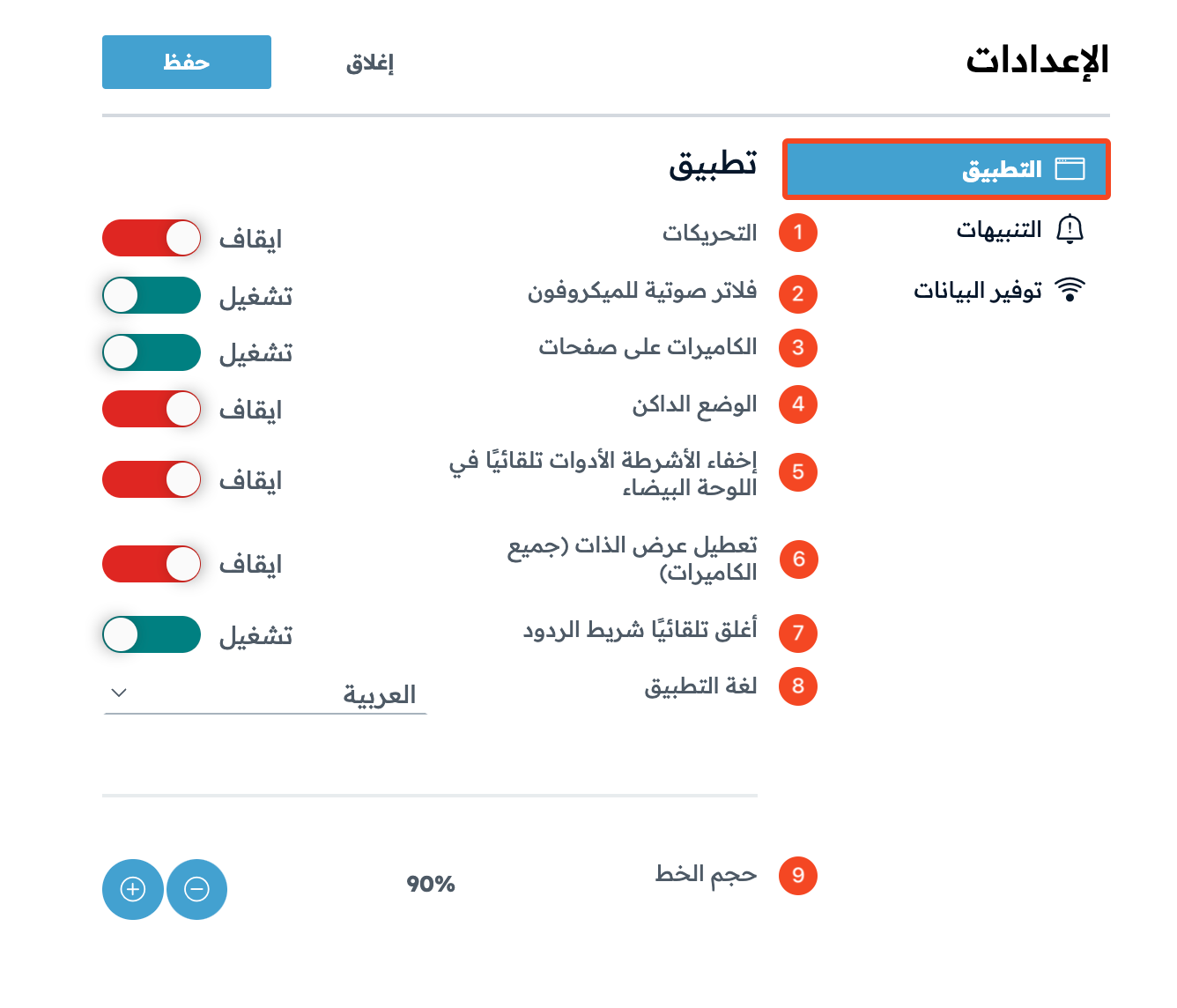
On the Application page, you can turn the following settings on or off, and change the application language and font size:
- Animations.
- Audio filters for microphone.
- Paginate webcams: when many cameras are shared, you can turn on showing all cameras together on the screen.
- Dark mode.
- Auto hide whiteboard toolbars.
- Disable self-view (all webcams).
- Auto close reactions bar.
- Application language.
- Font size.
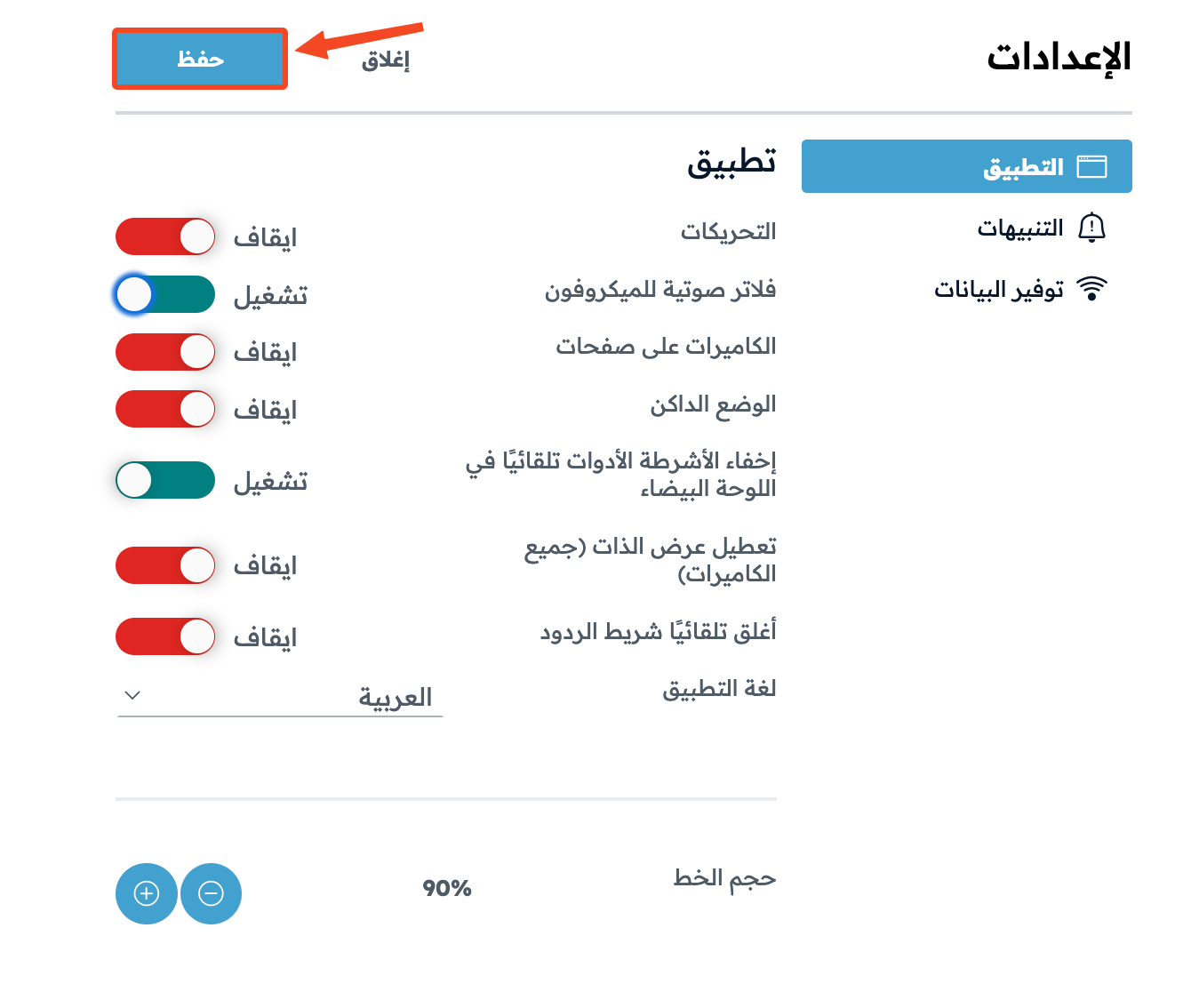
When you finish changing the application settings, click Save.
Notifications page
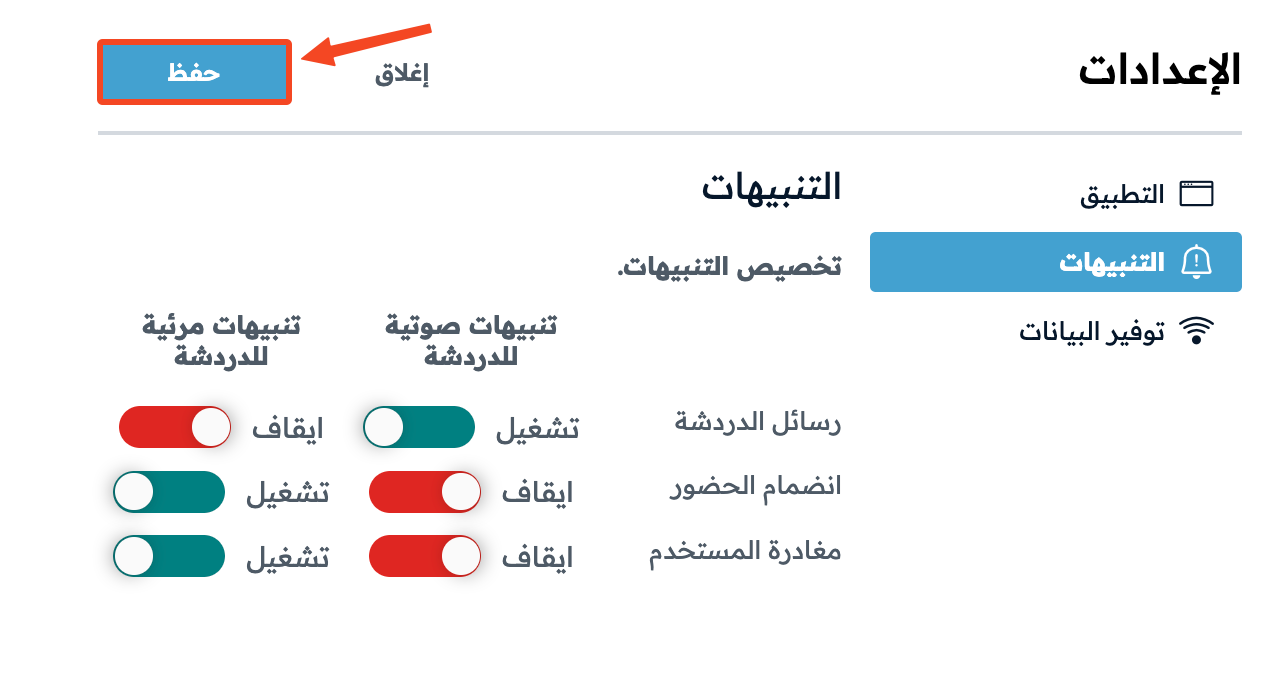
On the Notifications page, you can set up audio and popup alerts. You can turn on audio alerts, popup alerts, or both for:
- Chat message.
- User join.
- User leave.
All alerts are set to Off by default.
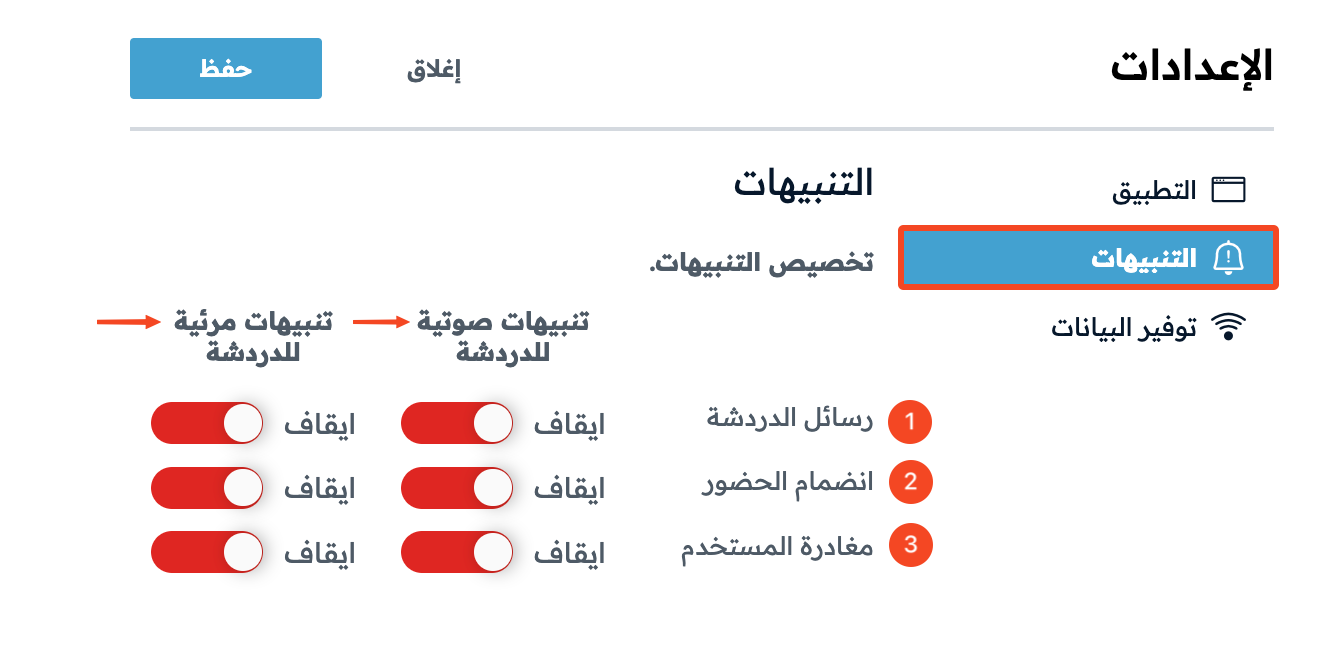
When you finish changing the notification settings, click Save.
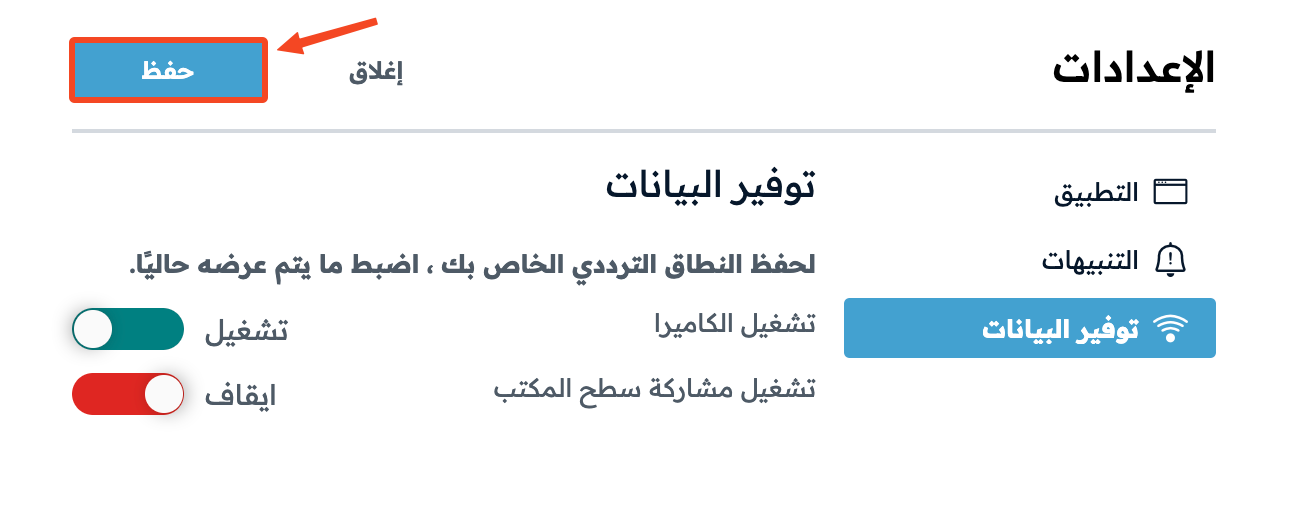
Data savings page
On the Data savings page, you can use less internet data by turning off:
- Webcams.
- Desktop sharing.
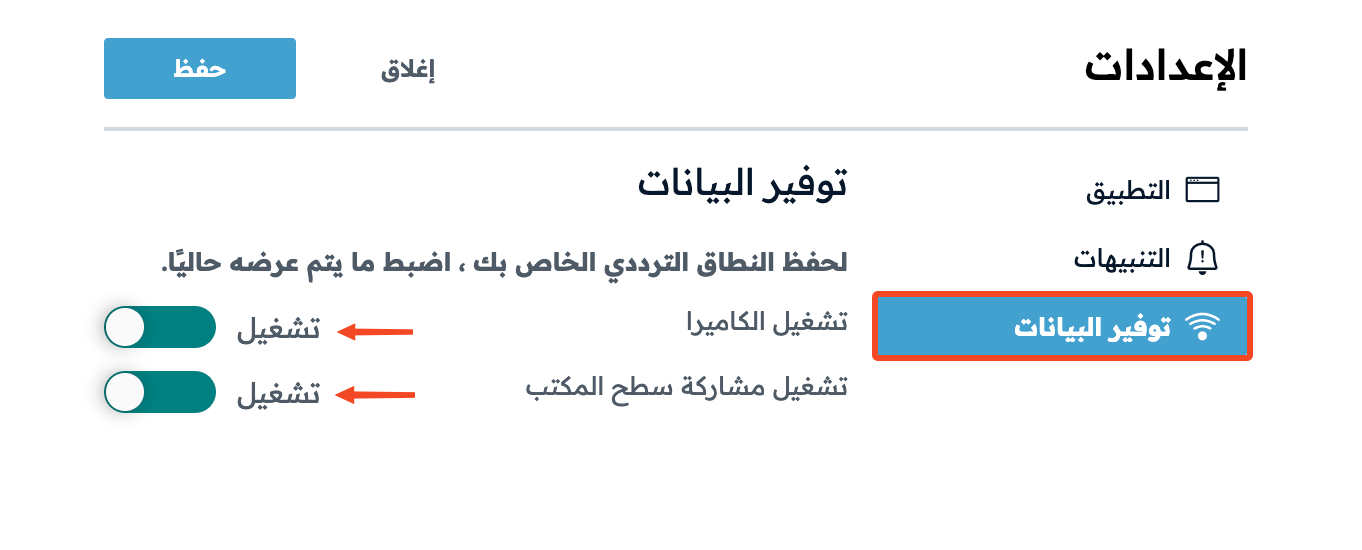
When you finish changing the data settings, click Save.