Share your camera in the room
This article shows attendees how to share their camera in the online room, and how to change the camera settings and the layout.
You can share your camera only if the moderator allows it. The moderator can allow it for all attendees with the Enable webcam for all room setting.
Steps to share your camera
-
Type your name on the room page, then click Join.

-
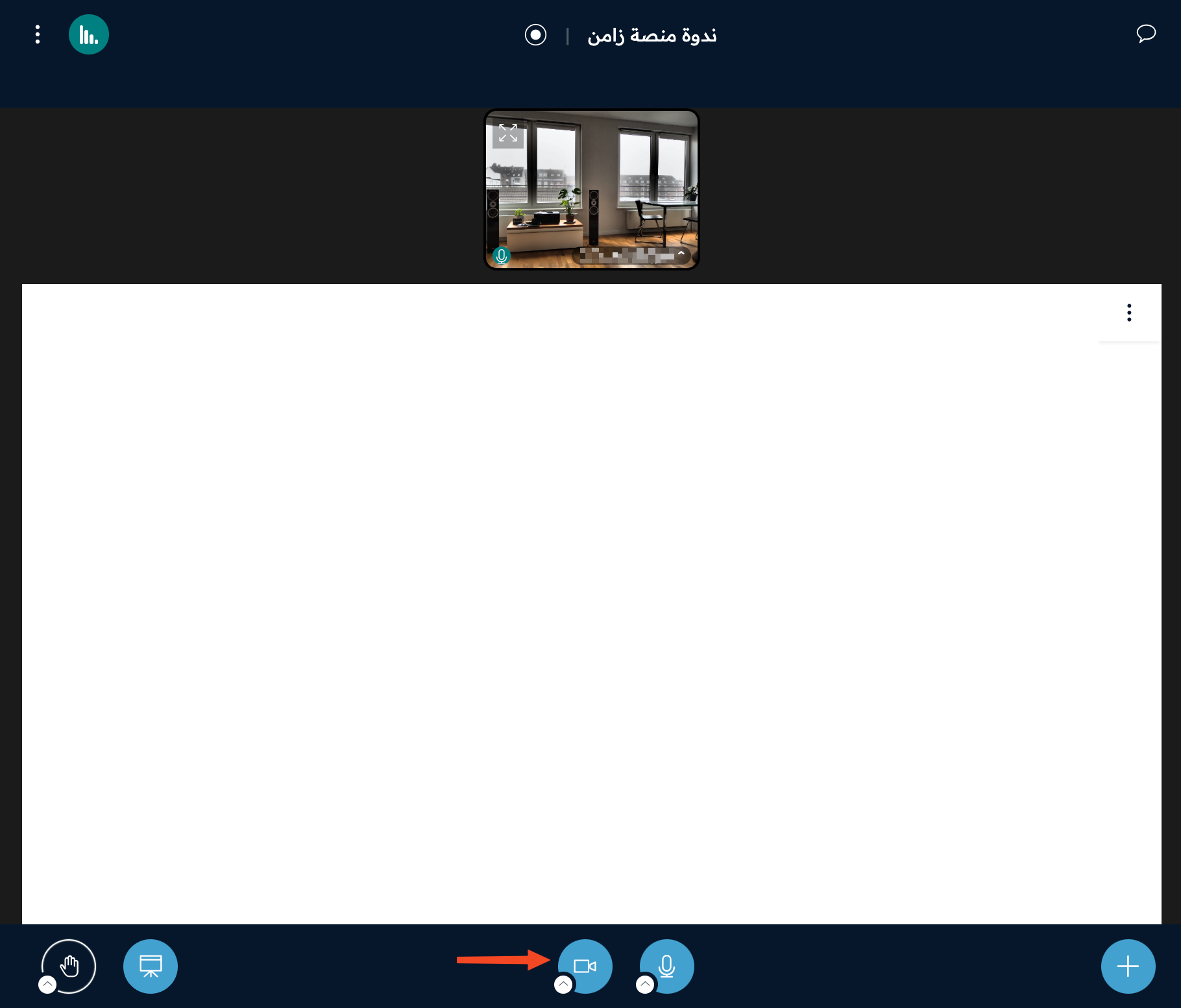
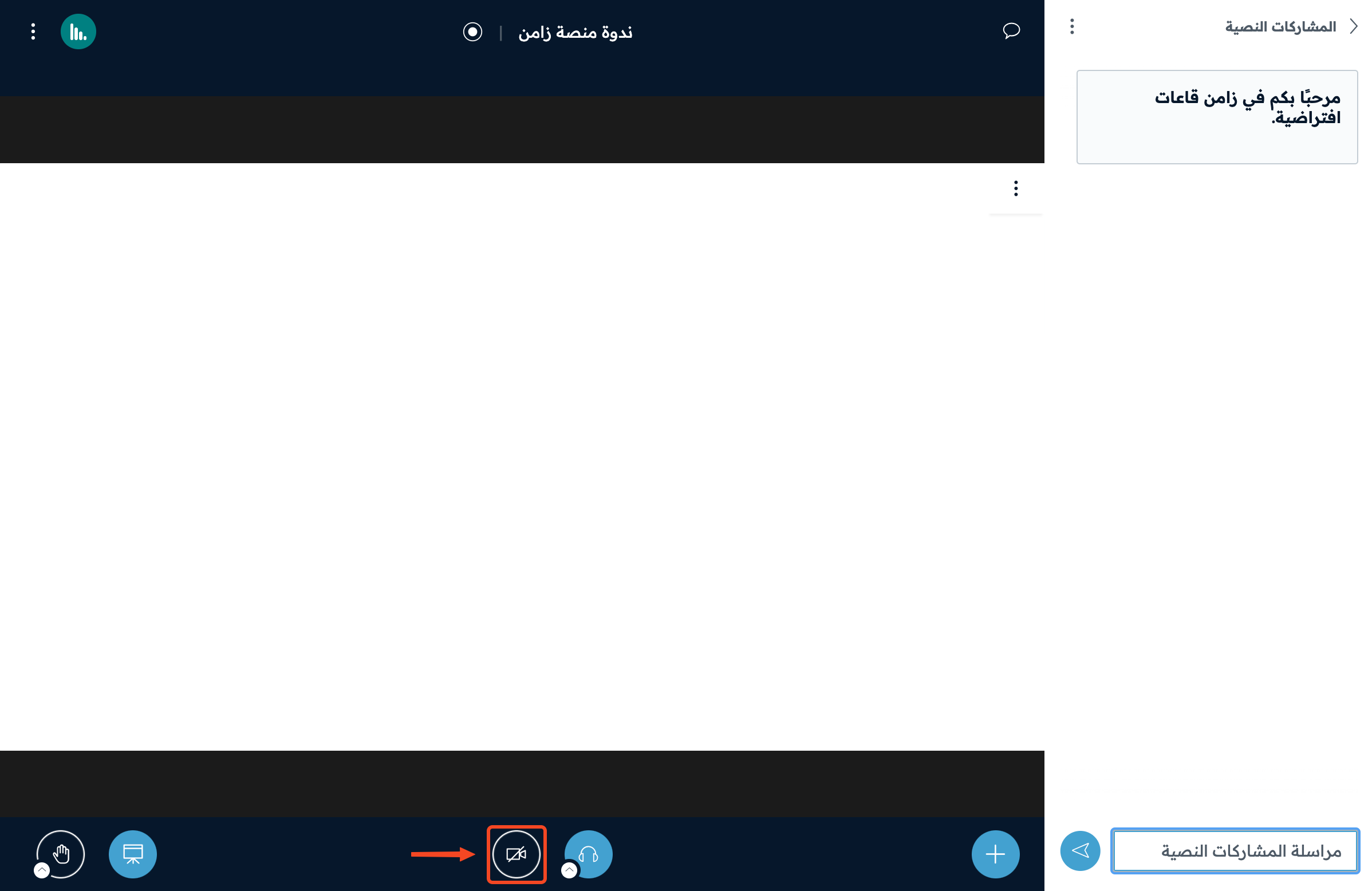
After you join the room, click the camera button.
-
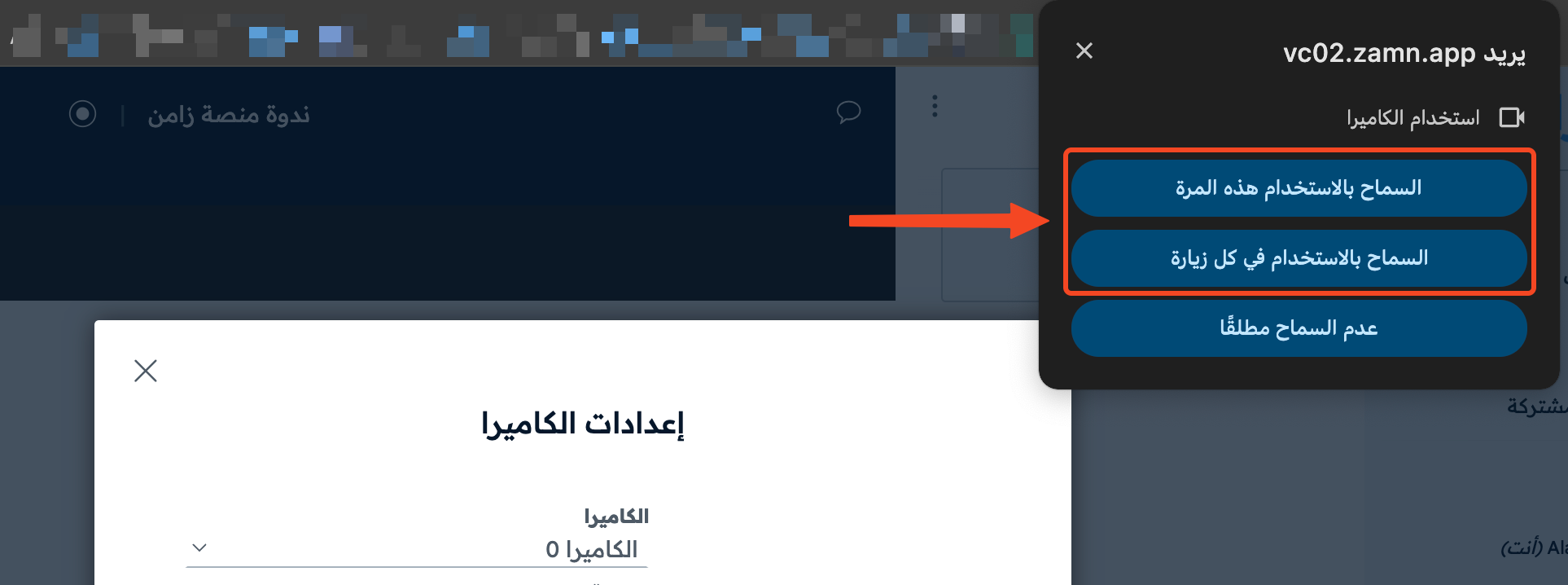
If the browser does not have permission to use the camera, a window asks if you allow it. Click one of the two allow options to give permission.
-
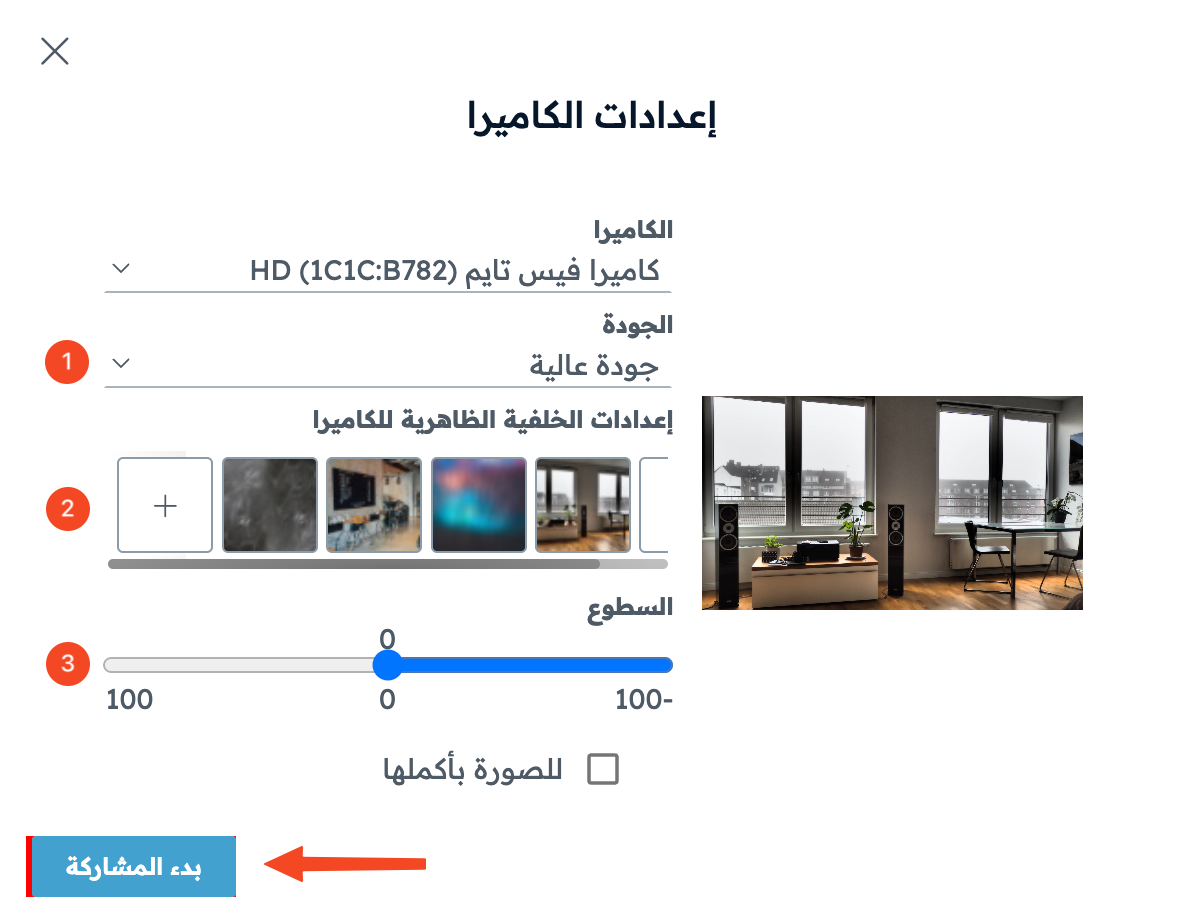
In the Webcam settings window, change what you need:
- Quality: the picture quality of the camera.
- Virtual background settings: to add a background to your camera.
- Brightness.
-
Click Start sharing.
Make the camera bigger
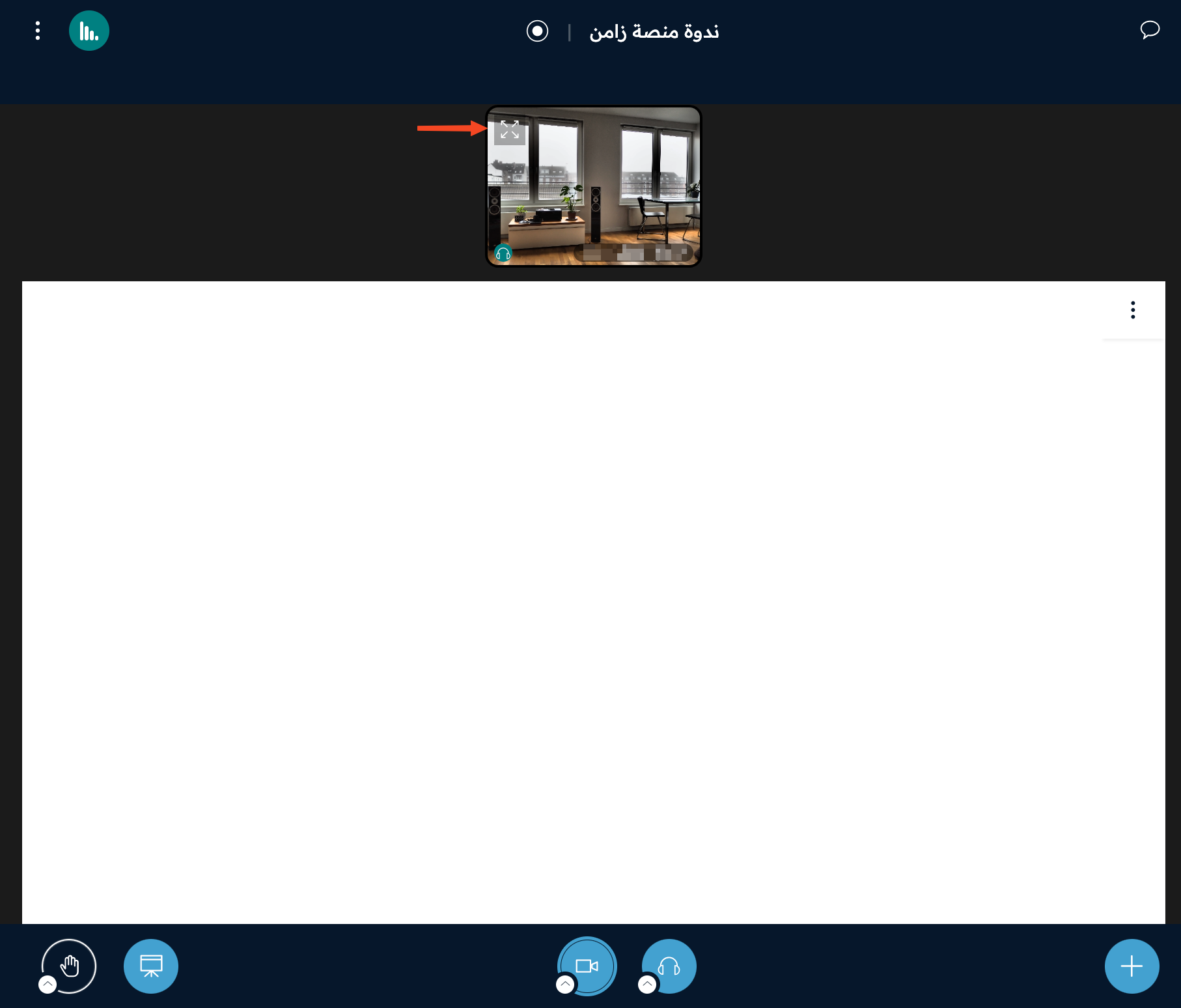
To show the camera on the full screen, click the full screen button in the corner of the camera.
Change the layout
-
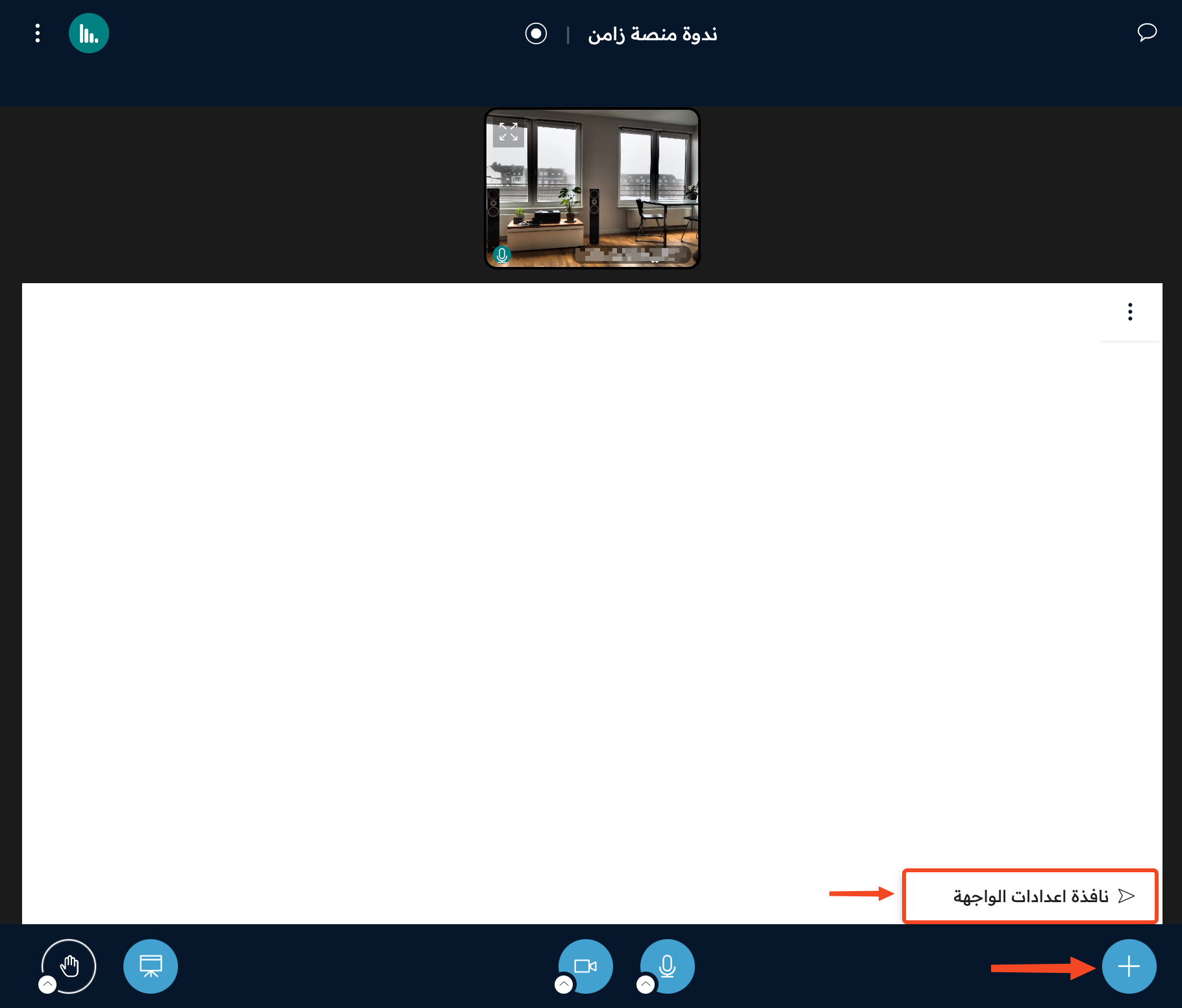
Click the + button, then click Layout settings.
-
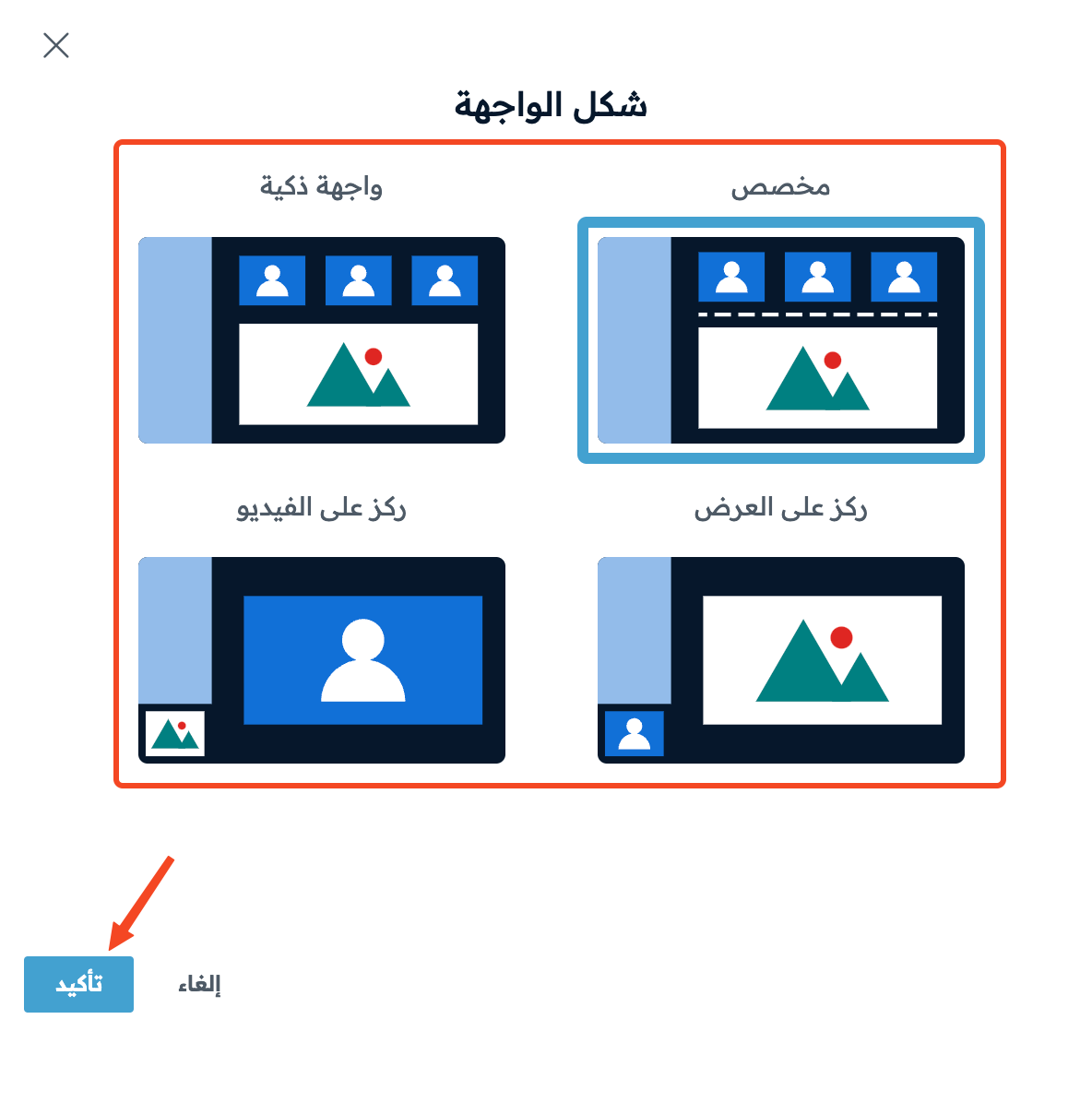
Choose one of the four layouts:
- Custom layout.
- Smart layout.
- Focus on presentation.
- Focus on video.
-
Click Confirm to use the layout you chose.
Stop sharing your camera
To stop sharing, click the camera icon.