Require sign-in to enter the room
You can make trainees sign in to your platform before they enter the room, by linking the room to a target in a course.
How to make trainees sign in before they enter the room
- Create an online room.
- Create a course.
- Set a target in the course to be completed by Visit a link to complete the target.
1. Create an online room
-
From the dashboard, click Virtual Classes, then choose Rooms.
-
Click Create room.
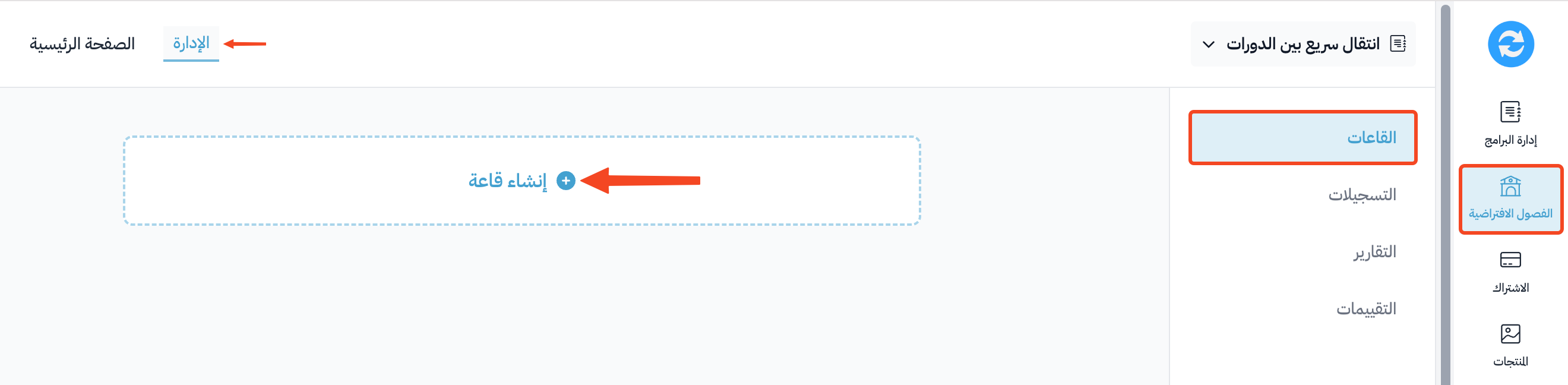
-
Fill in the needed details, then click Create.
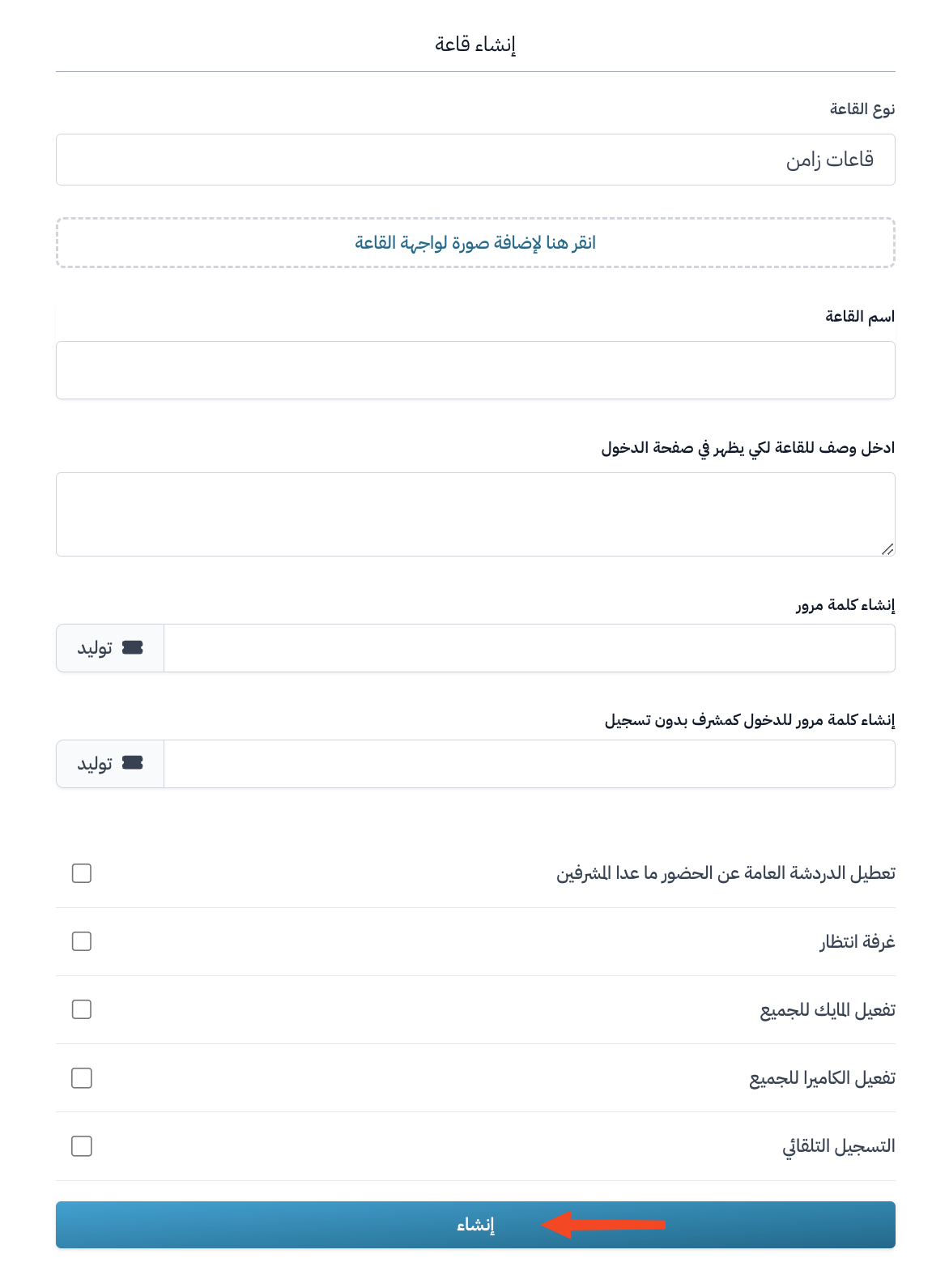
For more details, read how to create a room.
2. Create a course
You can add the room to a course you created before.
-
From the dashboard, click Courses.
-
Click Add New Course.
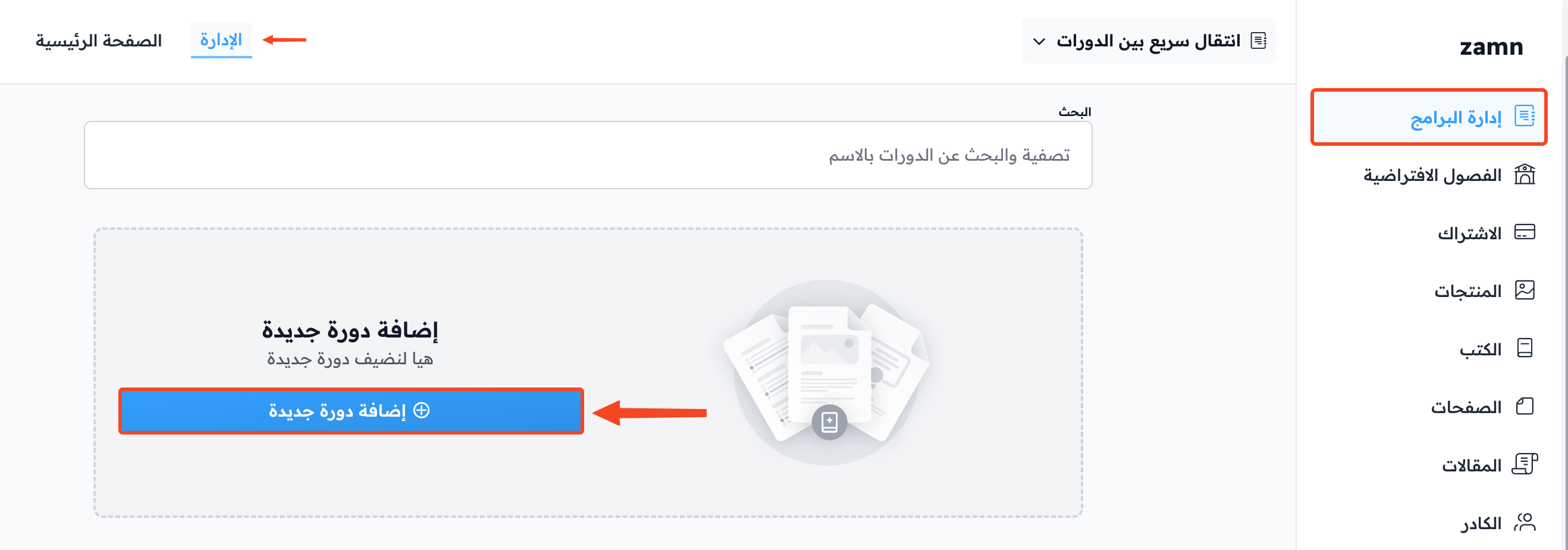
-
Enter the course details.
-
Click Save.
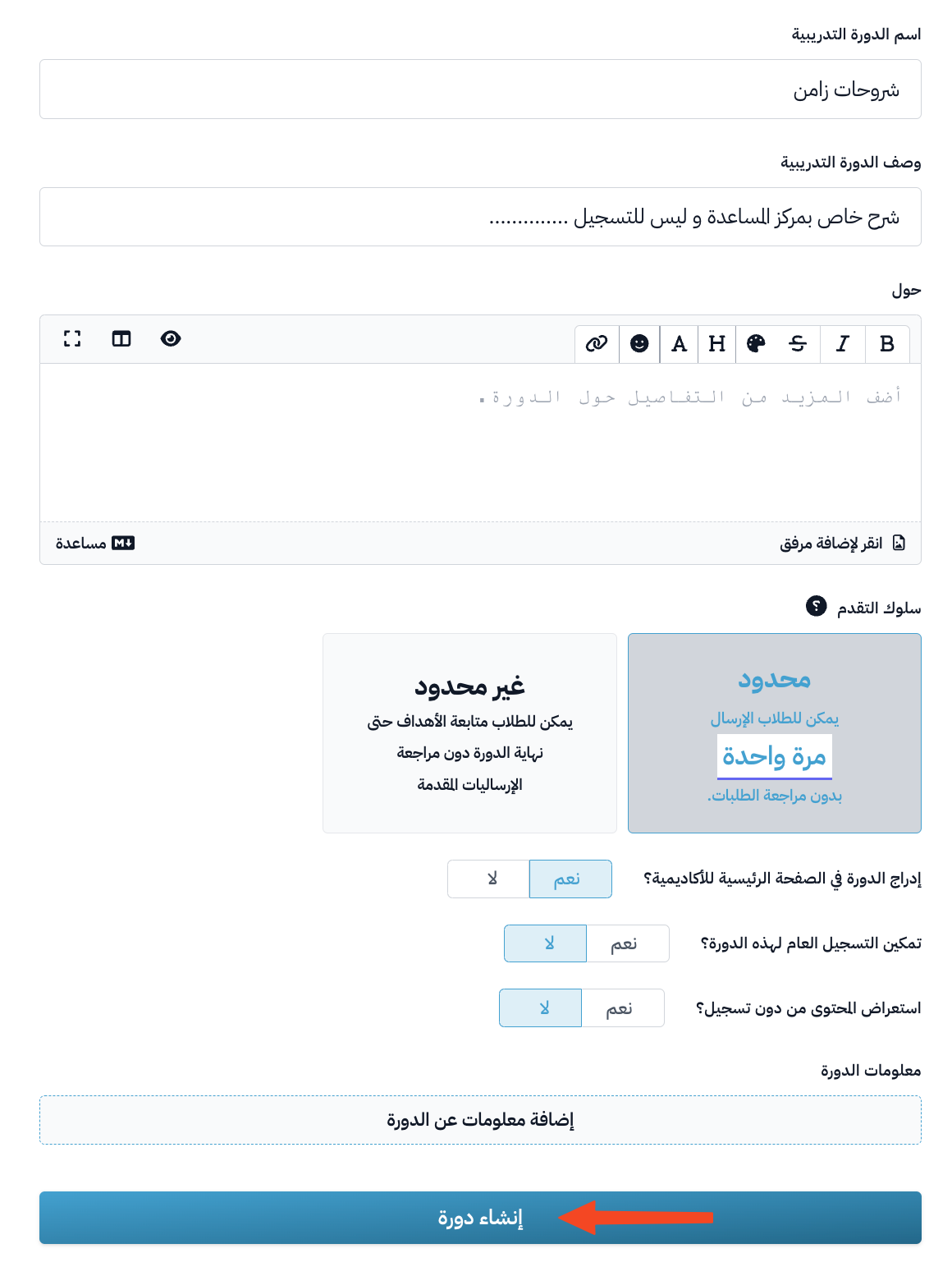
For more details, read how to create a course.
3. Set a target to be completed by visiting a link
-
From the Courses page, click Edit Curriculum for the course.
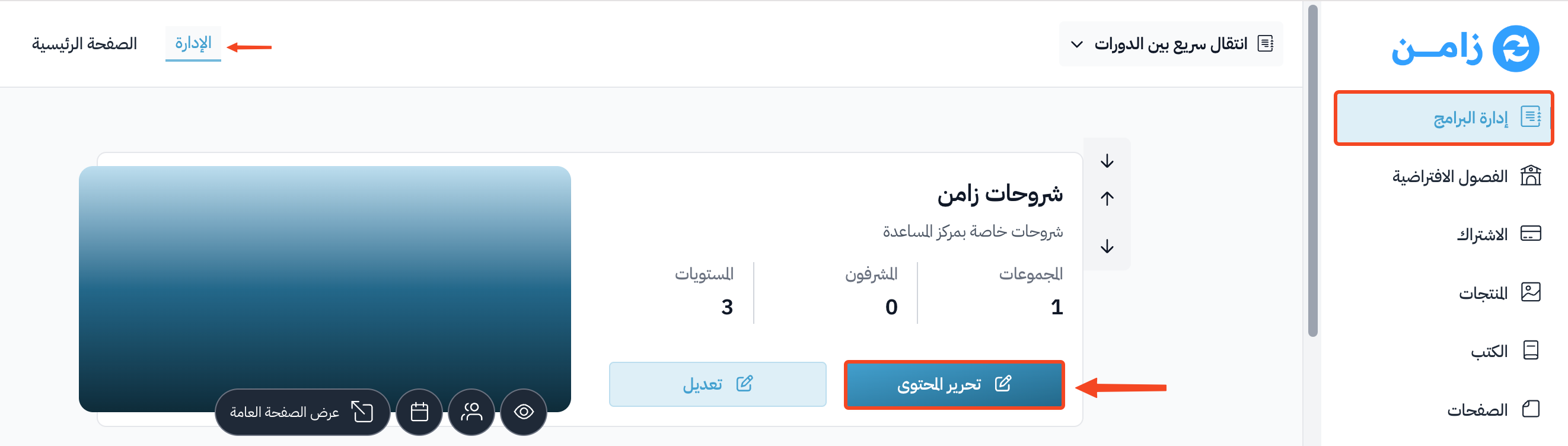
-
From the curriculum page, open an existing target or create a new one.
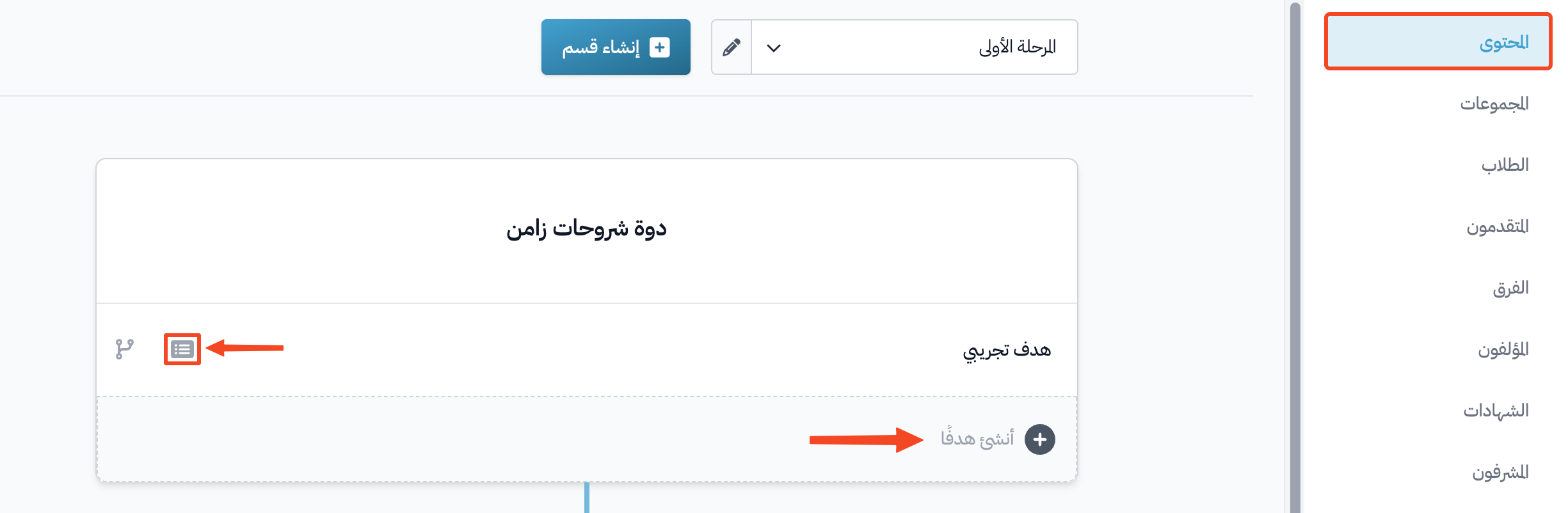
-
Open the Details tab of the target.
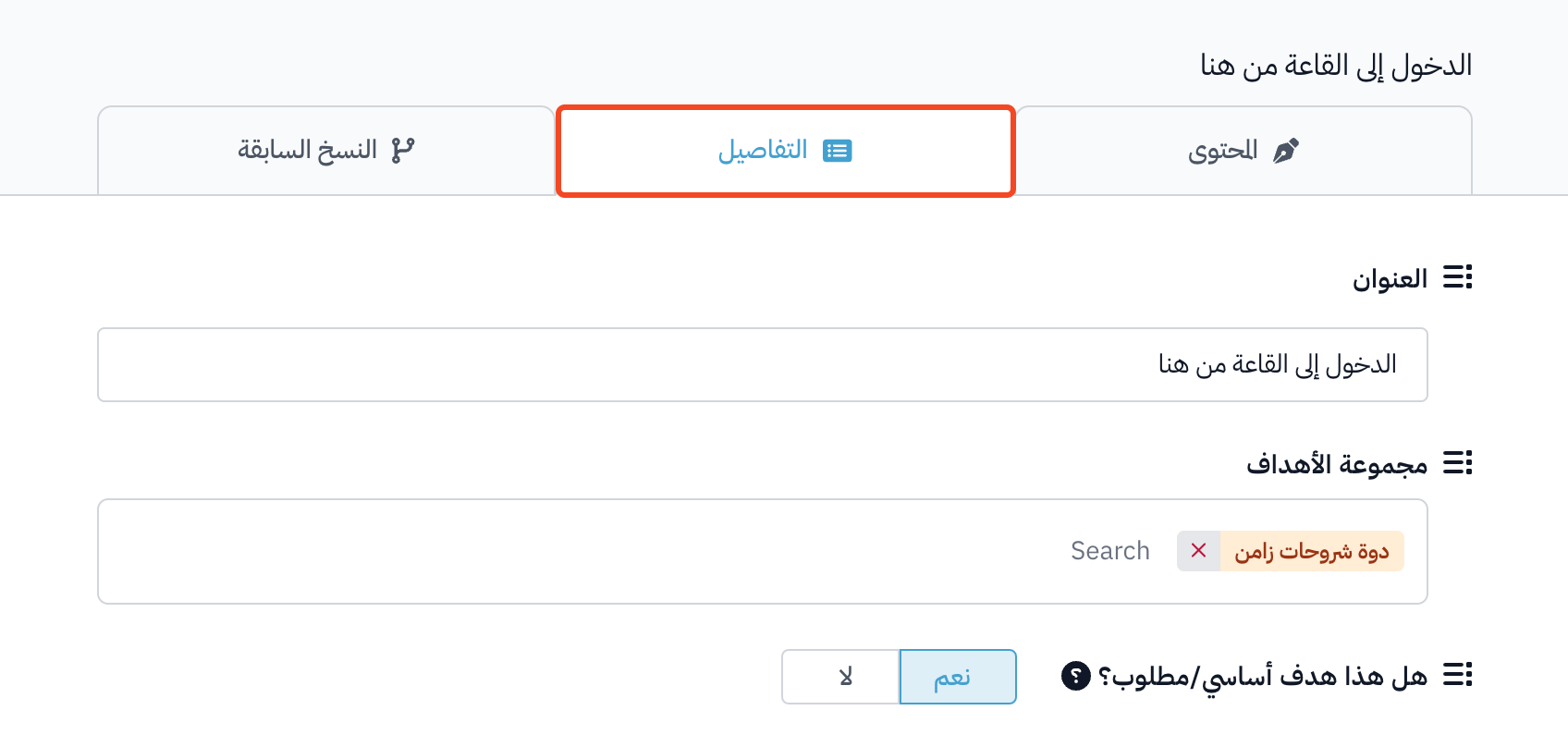
-
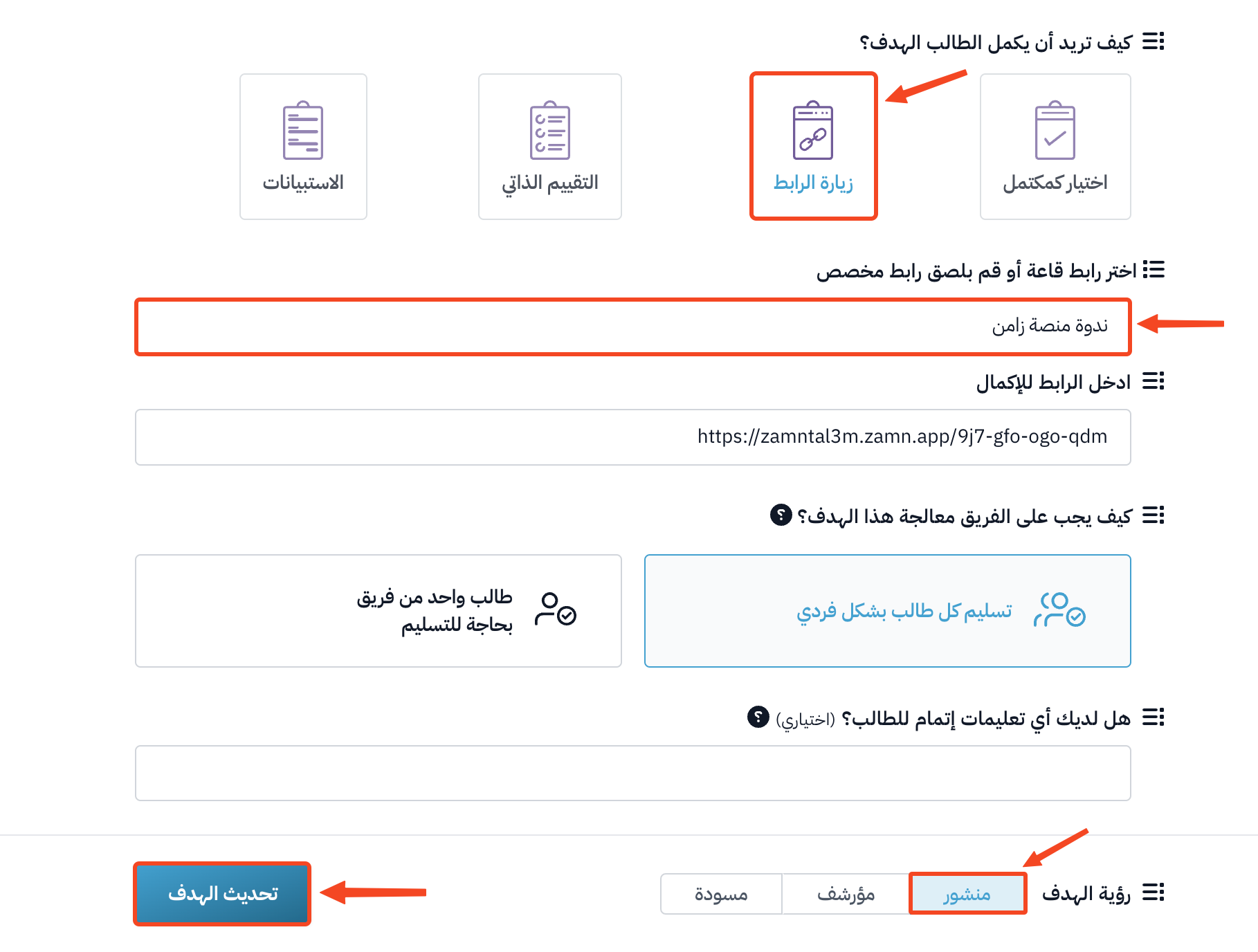
Under How do you want the student to complete the target?, choose Visit a link to complete the target.
-
From the Choose room link or paste a custom link list, choose the room you created. The room link shows in the Link to complete field.
-
Make sure Target Visibility is set to Live, then click Update Target.
To learn more, read how to add content to a course.
After you link the room to the target, anyone who opens the room link must sign in first. Only students enrolled in the course, platform admins and coaches can enter the room. Other users see this message: "You must be enrolled in this course to access this room."