Add the logo to the room
The virtual room shows your platform logo. You can add or change the logo from your platform settings.
Steps to add or change the logo
-
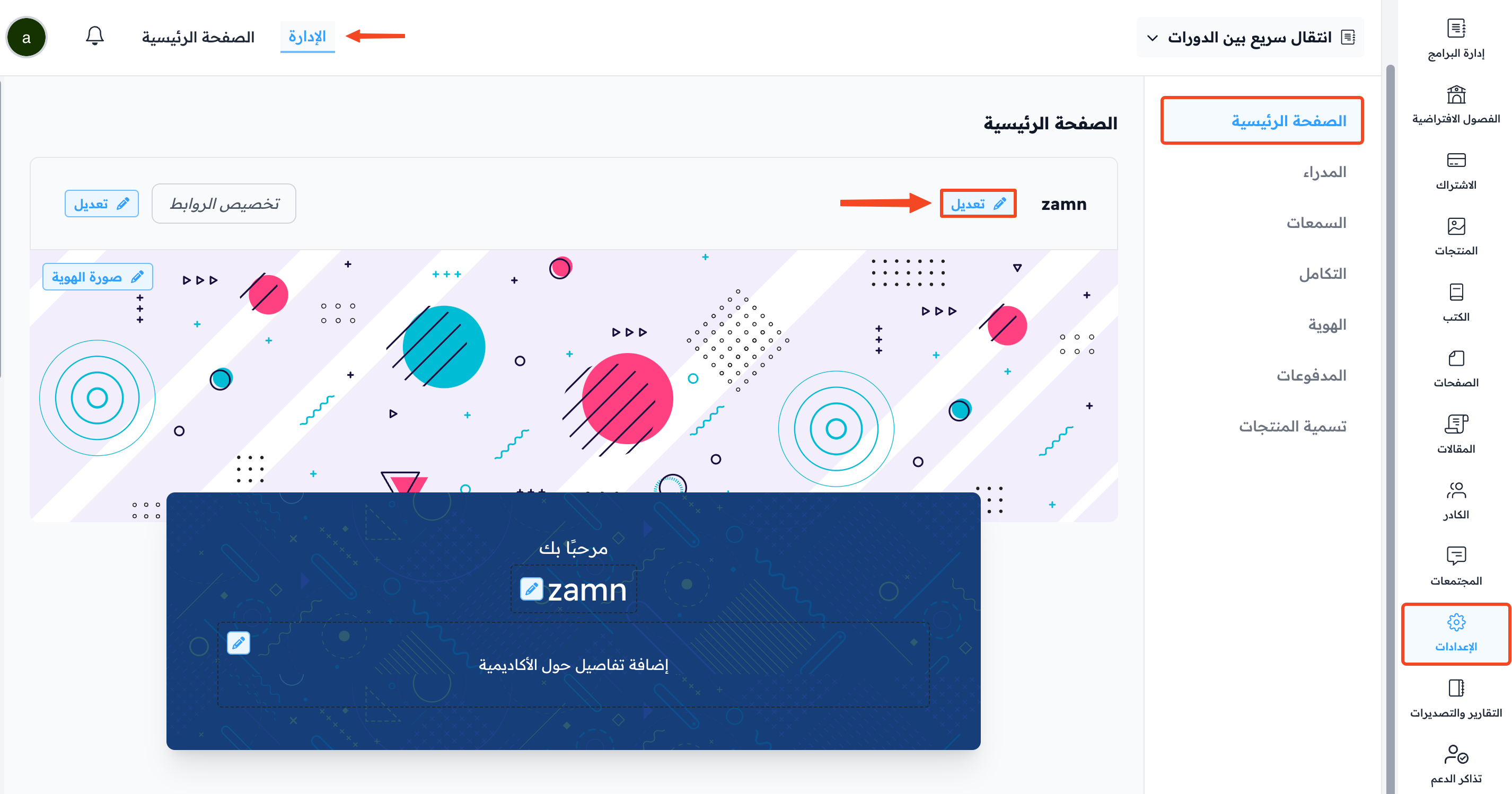
From the dashboard, click Settings, then choose Customization.
-
Click Edit next to the logo.
-
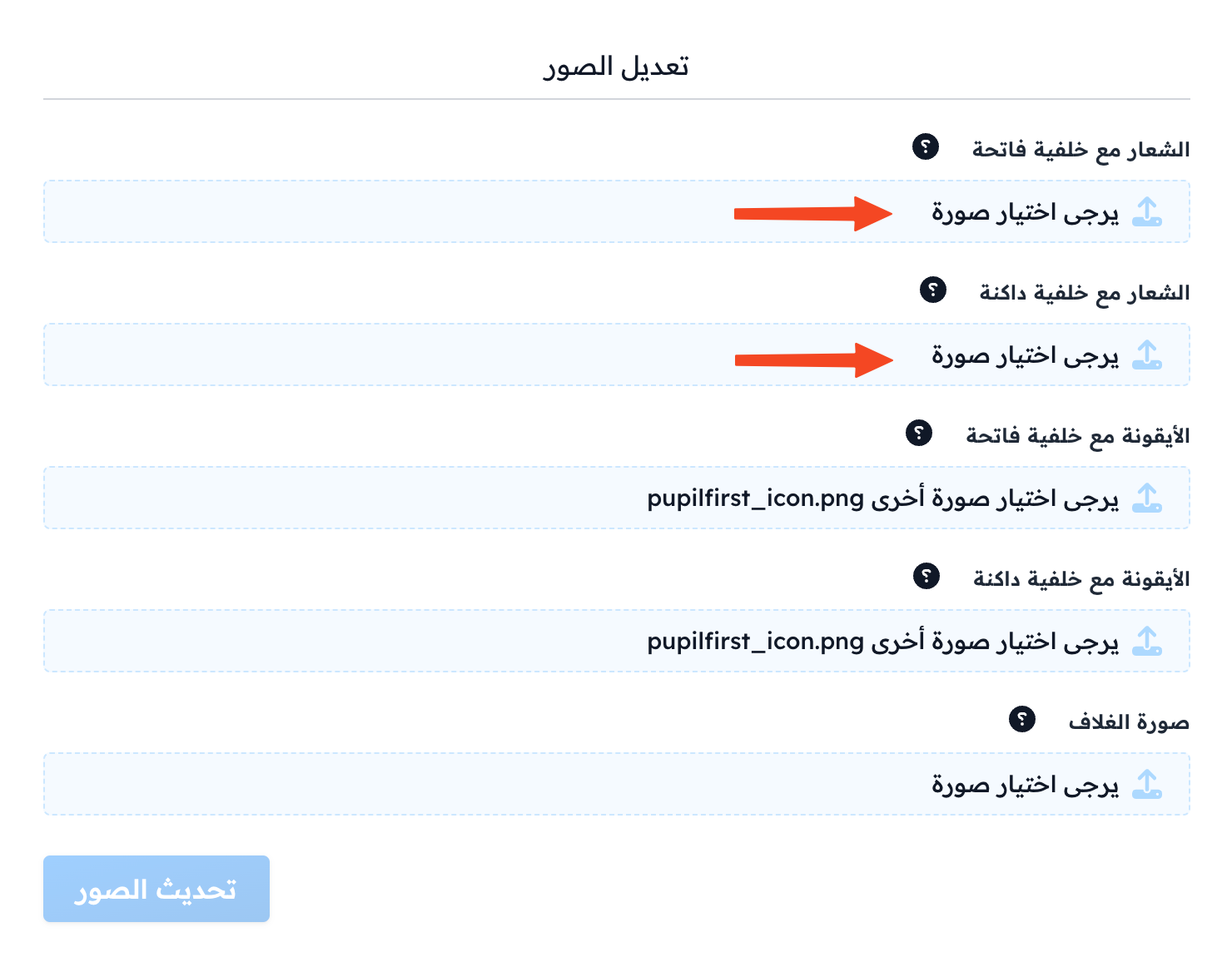
Click the field under each logo to choose the image:
- Logo on a light background: for light mode.
- Logo on a dark background: for dark mode.
Recommended logo size: 512 × 512 (1:1 ratio).
-
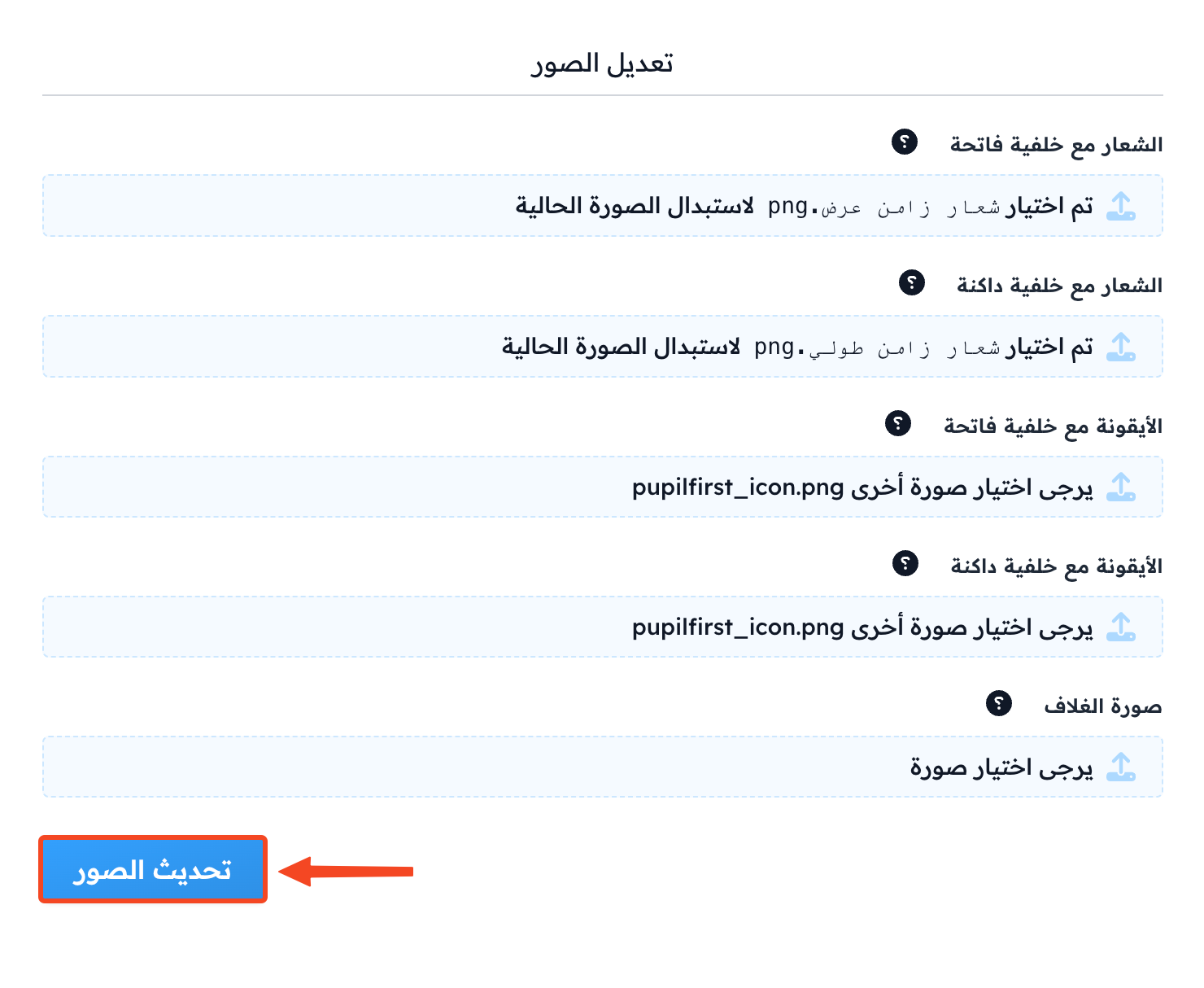
Click Update Images to save.
Note
- The room shows the Logo on a light background. If you did not add it, the room shows the Logo on a dark background.
- Your platform logo shows in the room during the free trial, or if your plan includes it (such as the Webinar, Advanced, Professional and Growth plans). On other plans, such as Basic, the room shows the Zamn logo.