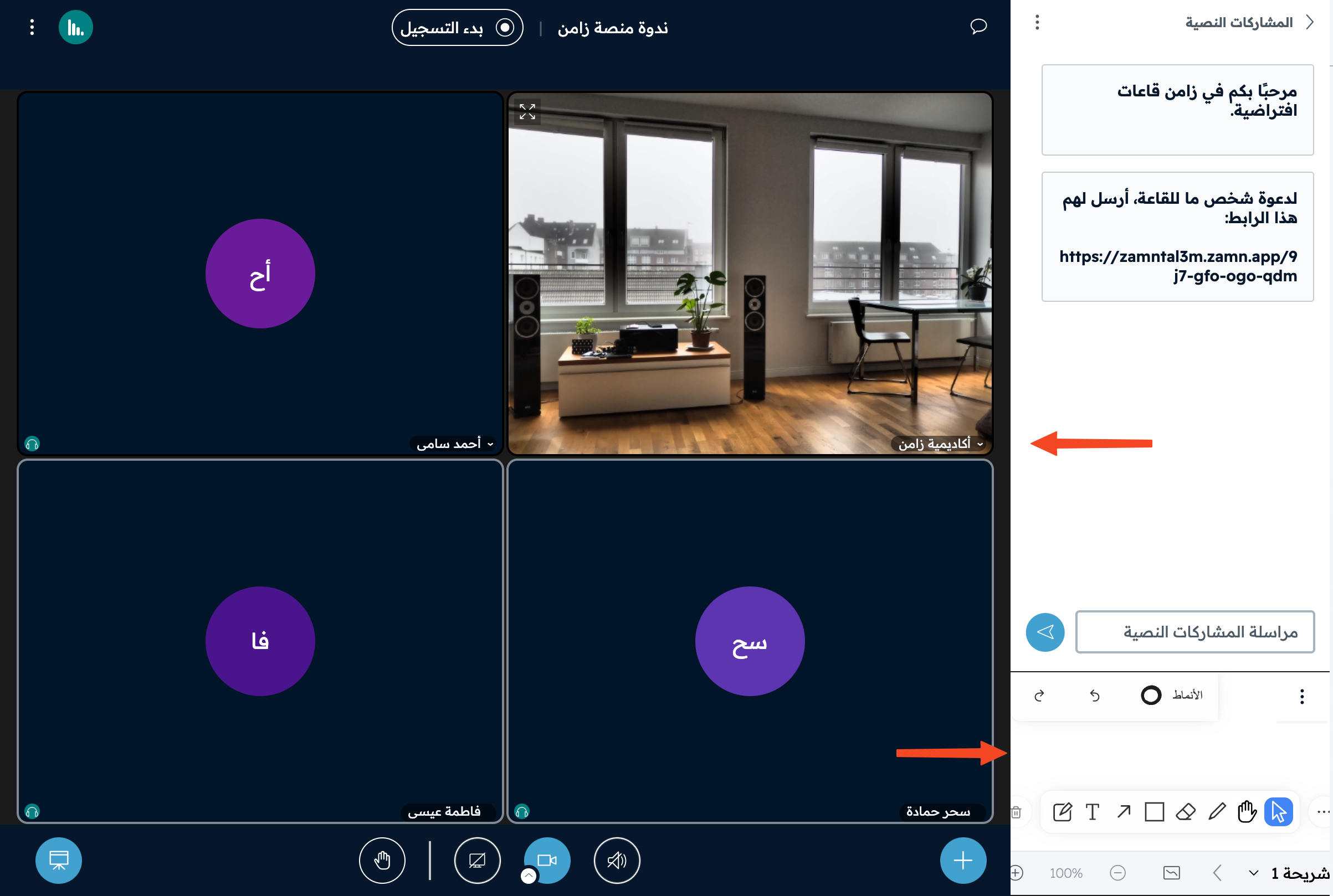
Change the layout settings in the room
Inside the room, you can change the layout: where the cameras show and where the presentation or whiteboard shows. You can change it for yourself only or for all attendees.
Steps to change the layout settings
-
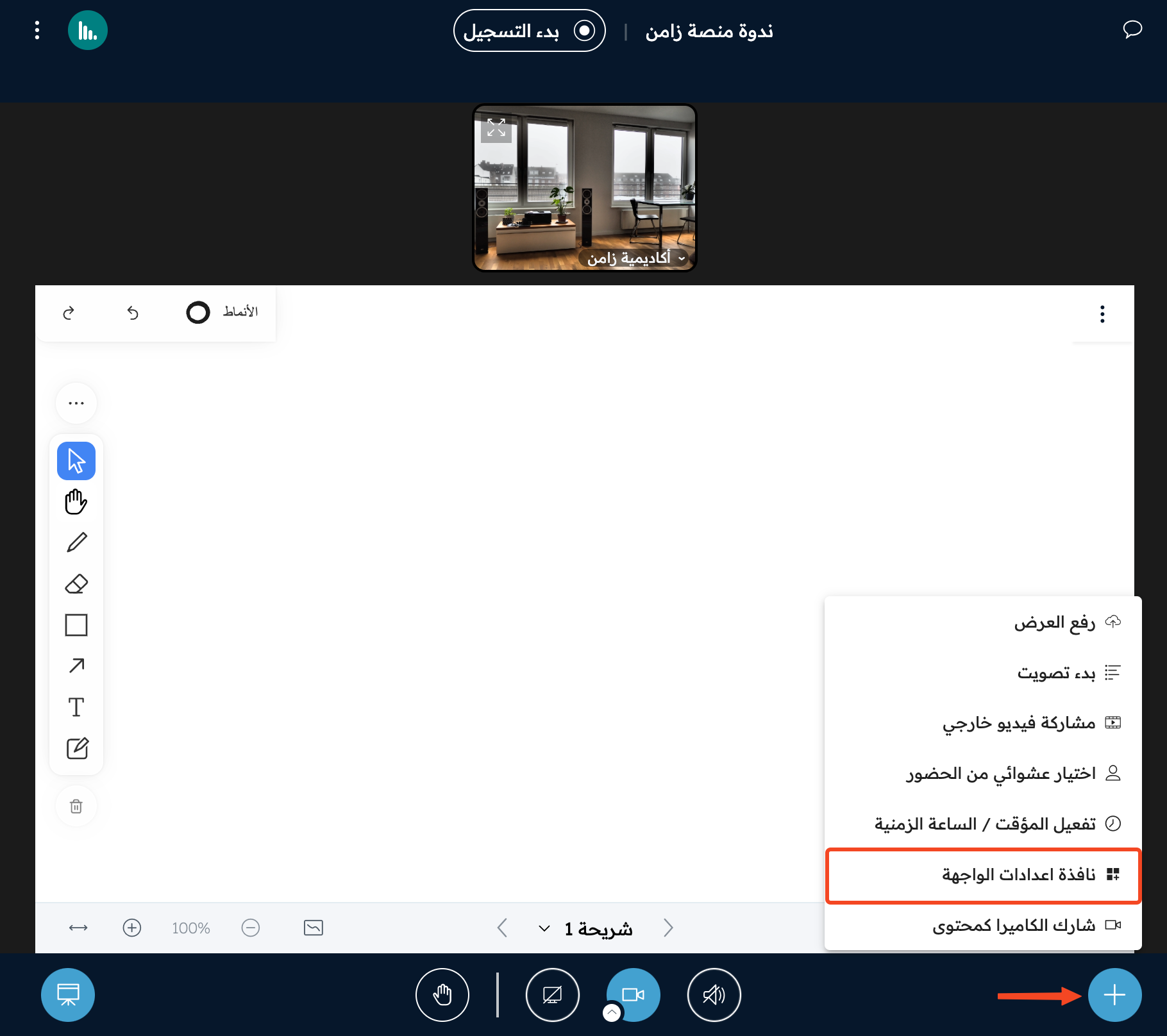
Click the + button at the bottom of the screen.
-
Choose Layout settings.
-
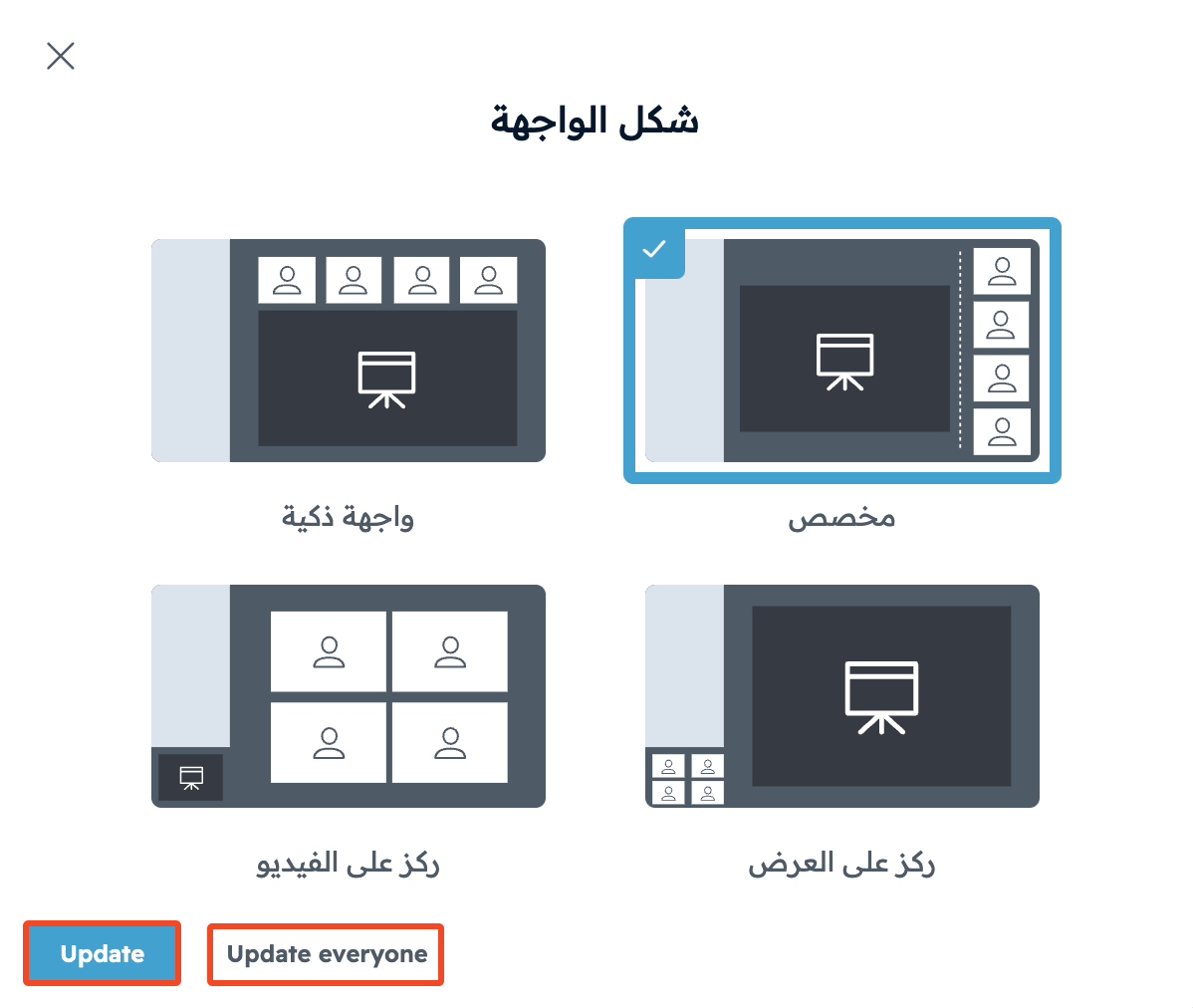
Choose the layout that suits you. There are four layouts:
- Custom layout.
- Smart layout.
- Focus on presentation.
- Focus on video.
-
Click Update to change the layout for you only, or click Update everyone to change the layout for all attendees.
Layout examples
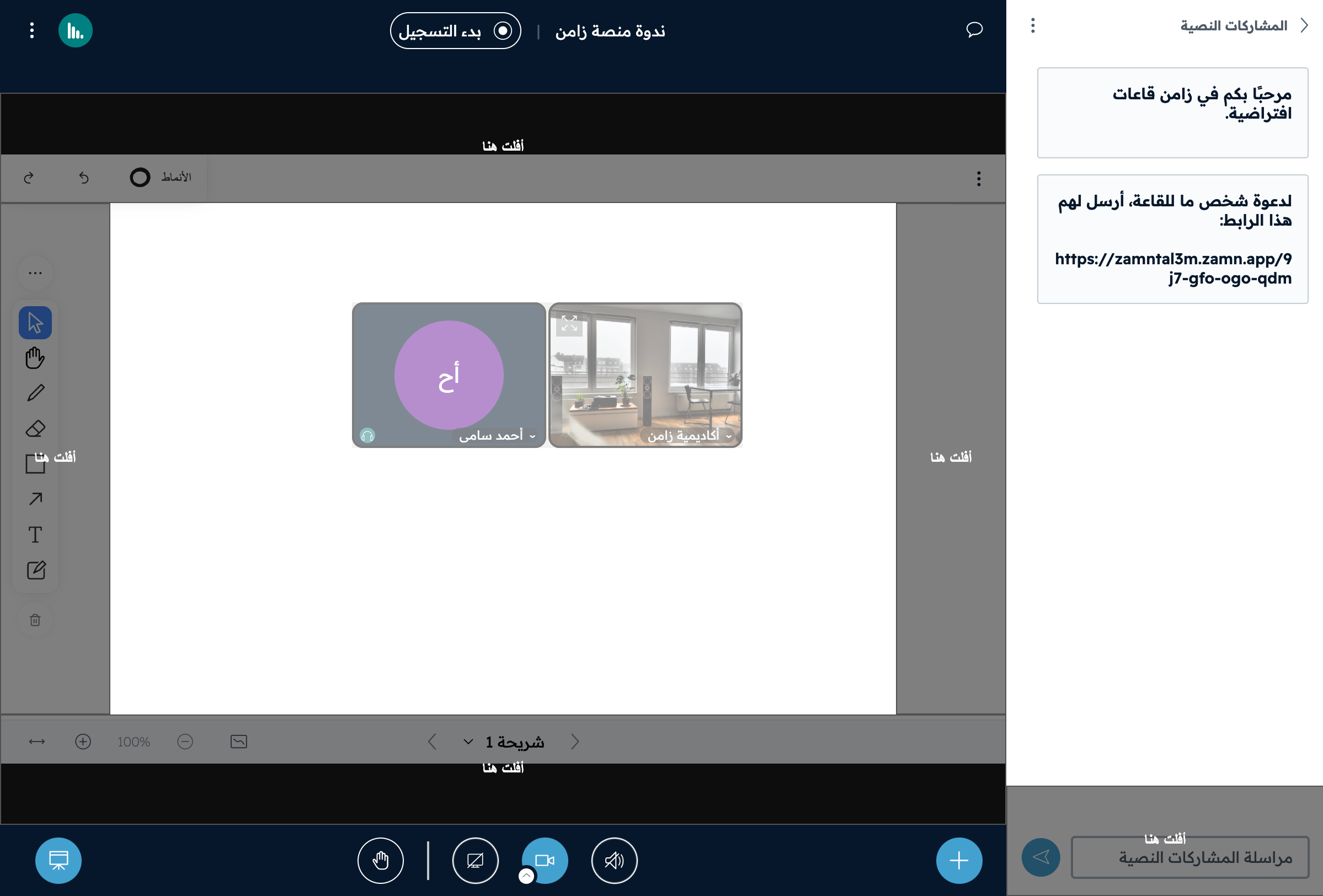
Custom layout
You can drag the camera and drop it in the place that suits you, from the places available.
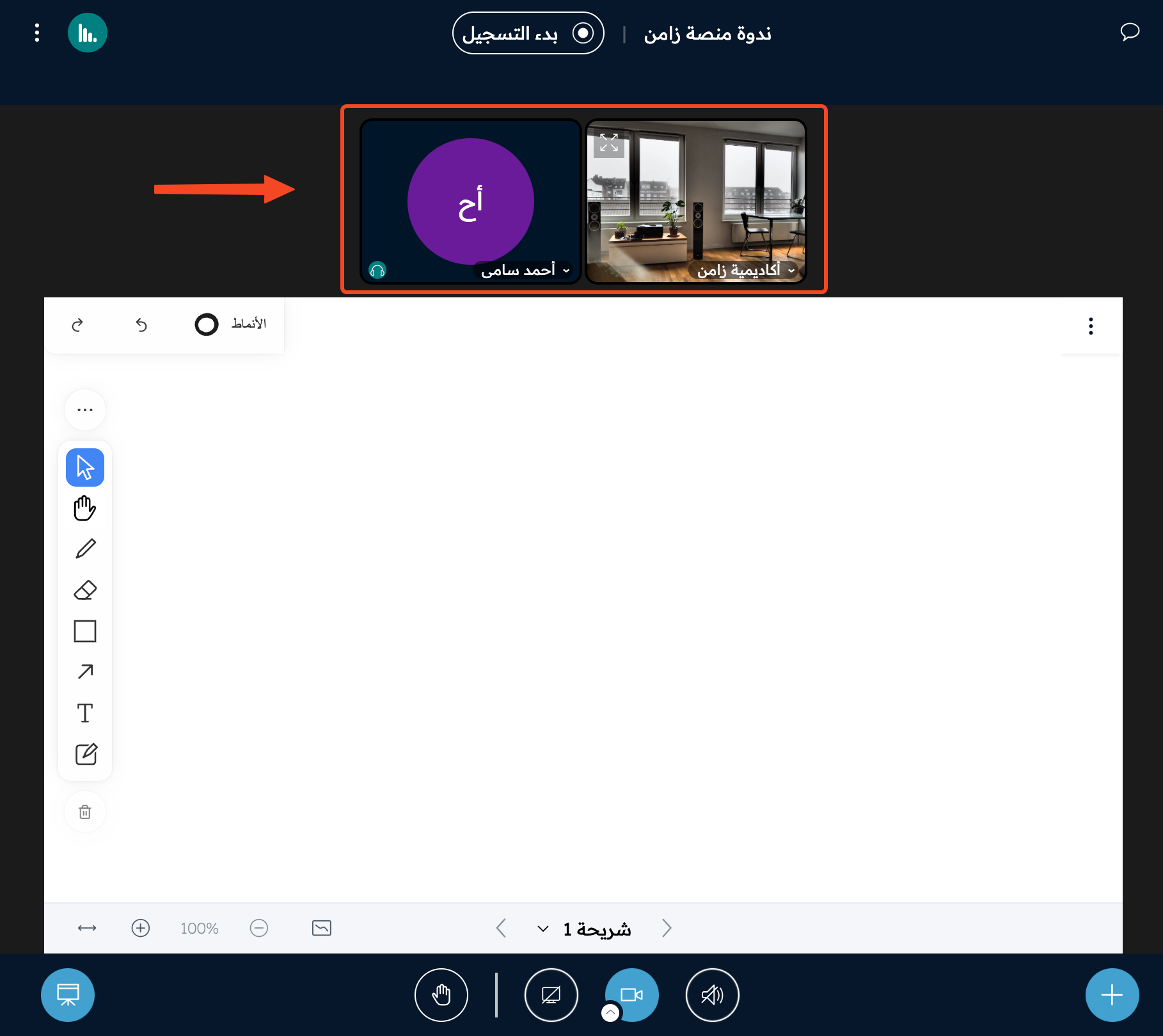
Smart layout
The cameras stay above the whiteboard.
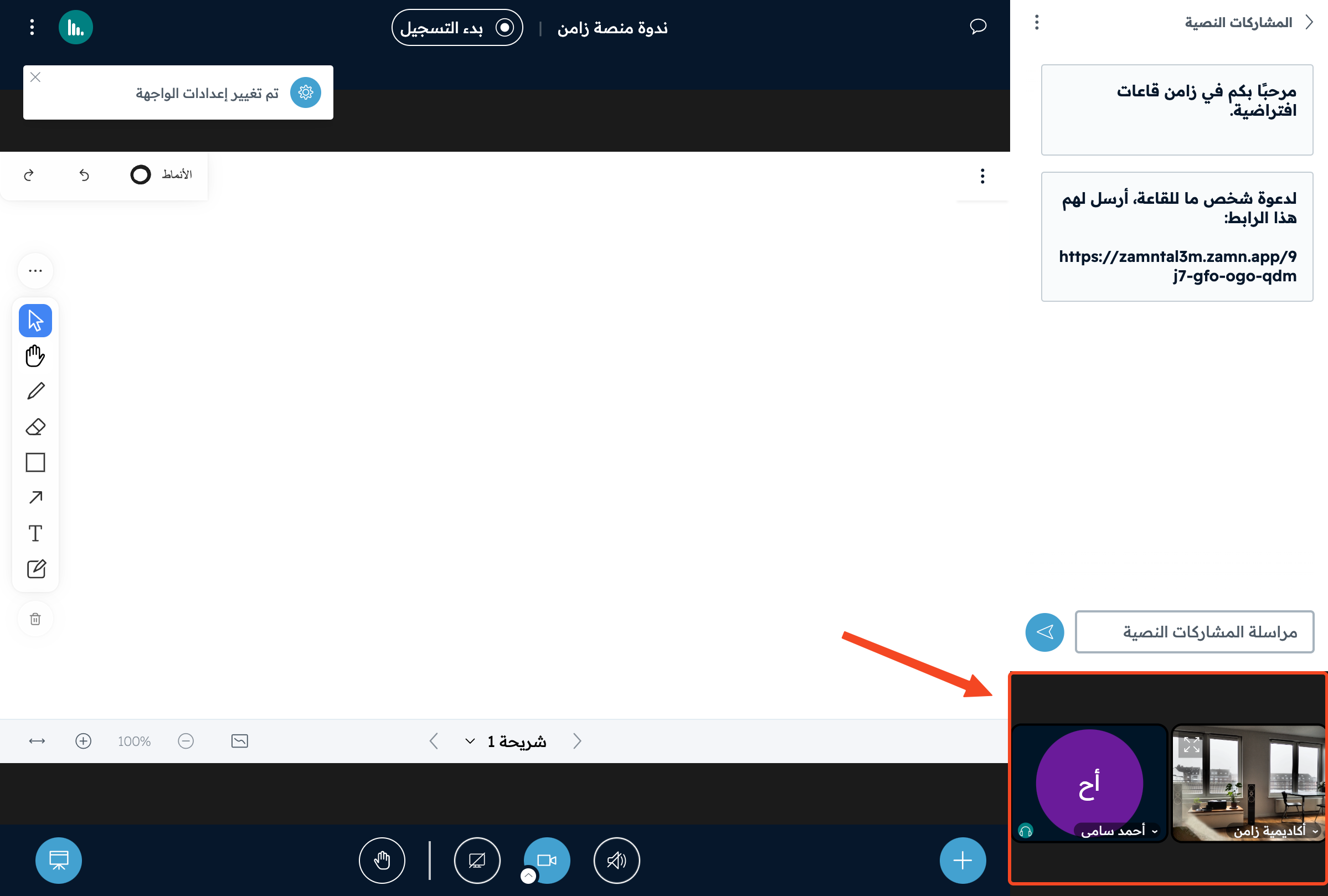
Focus on presentation
The focus is on the presentation or whiteboard, and the cameras show in the side panel.
Focus on video
The focus is on the cameras, and the presentation or whiteboard shows in the side panel.