Control center in the online room
The control center lets you lock some features for attendees inside the online room, like the camera, microphone and chat.
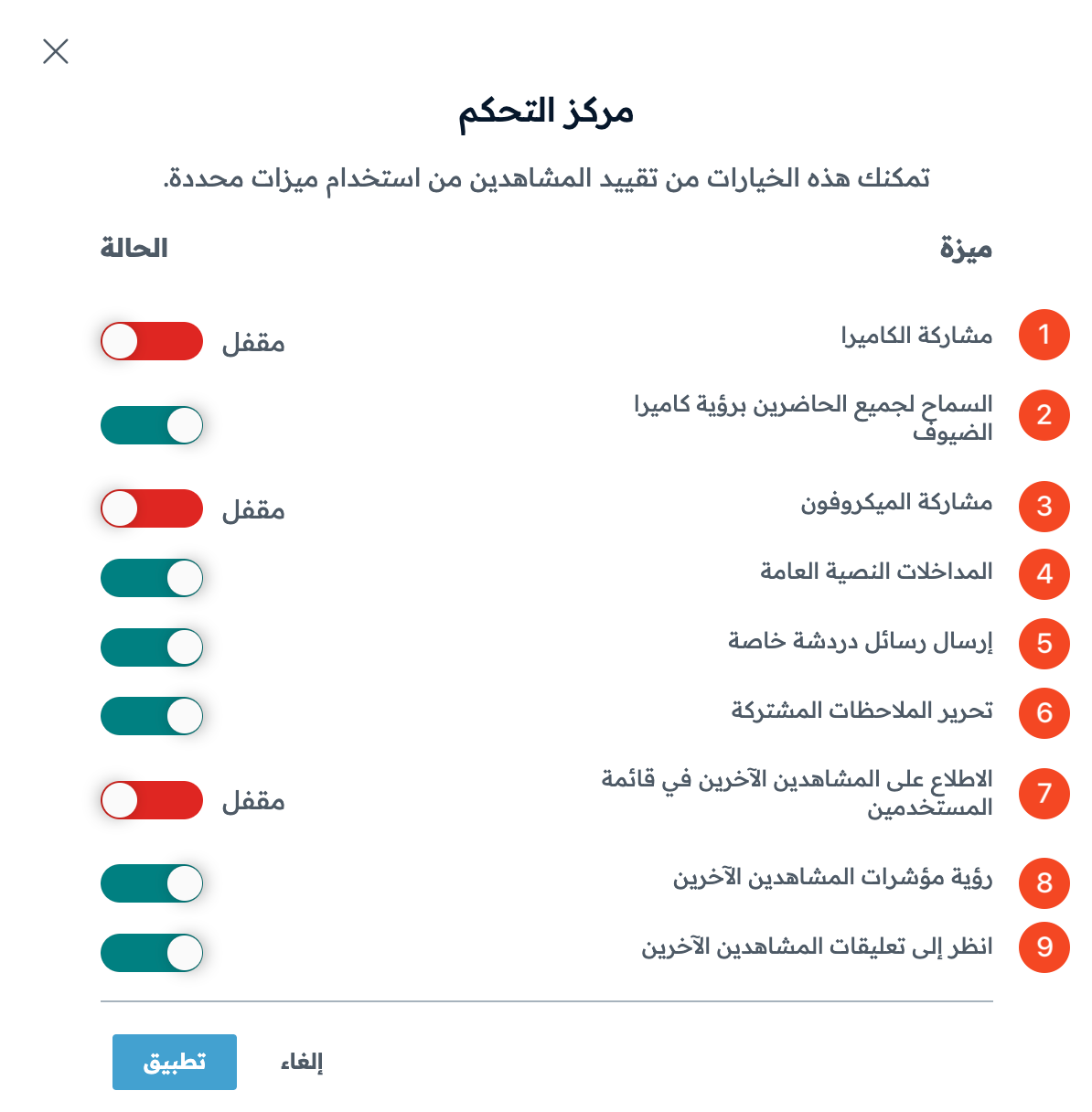
Open the control center
-
Enter the room.
-
Click the settings (gear) icon next to Users.
-
Choose Lock viewers (the control center).
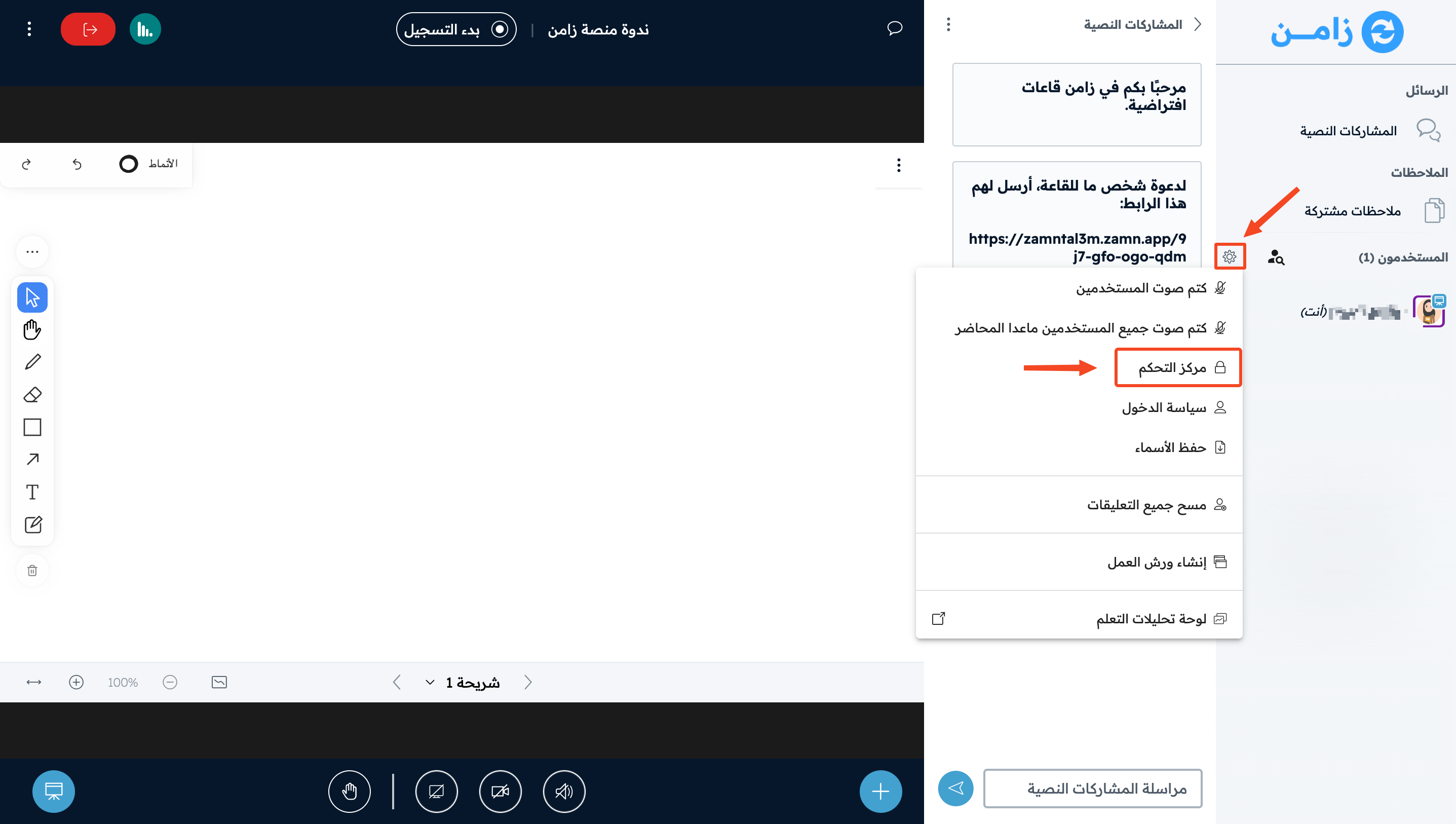
Control center features
Each feature is either Locked or unlocked.
- Share webcam
- Locked: attendees cannot turn on their camera.
- Unlocked: attendees can turn on their camera.
- See other viewers webcams
- Locked: if an attendee turns on their camera, only the room moderator can see it.
- Unlocked: if an attendee turns on their camera, all attendees can see it.
- Share microphone
- Locked: attendees cannot turn on their mic, unless the room moderator gives one of them permission.
- Unlocked: all attendees can turn on their mic.
- Send public chat messages
- Locked: attendees cannot write in the chat.
- Unlocked: attendees can write in the chat.
- Send private chat messages
- Locked: attendees cannot send private messages to each other.
- Unlocked: attendees can send private messages to each other.
- Edit Shared Notes
- Locked: attendees cannot write in the shared notes.
- Unlocked: attendees can write in the shared notes.
- See other viewers in the Users list
- Locked: attendees see only the names of the room owner and the moderator.
- Unlocked: attendees see the names of everyone in the room.
- See other viewers cursors
- Locked: attendees cannot see the other attendees' cursors on the whiteboard.
- Unlocked: attendees can see the other attendees' cursors on the whiteboard.
- See other viewers annotations
- Locked: attendees cannot see what other attendees draw or write on the whiteboard.
- Unlocked: attendees can see what other attendees draw or write on the whiteboard.
After you set each feature, click Apply to save.