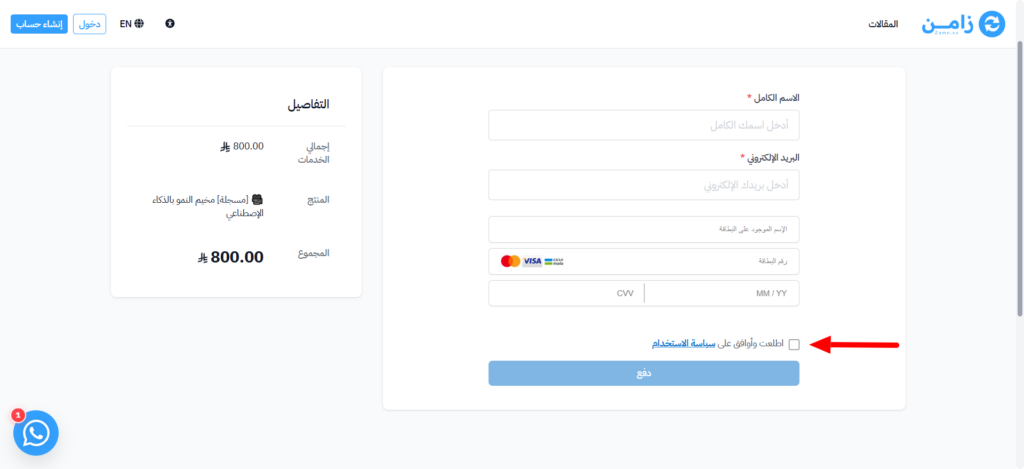
Require agreement to the terms on the payment page
When you turn on this option, buyers must check the terms and conditions agreement on the payment page before they can pay.
Steps to turn it on
-
Sign in to your platform dashboard.
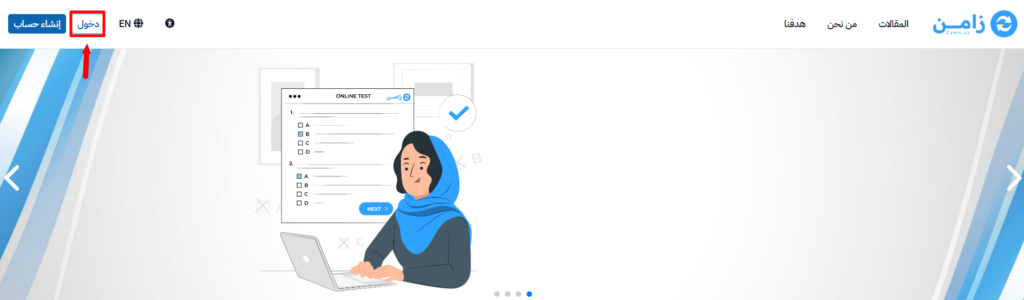
-
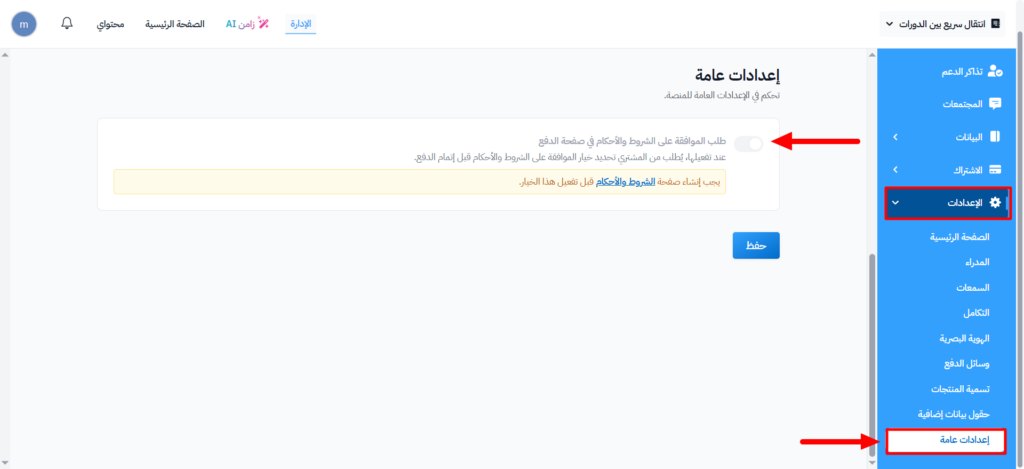
From the side menu, click Settings.
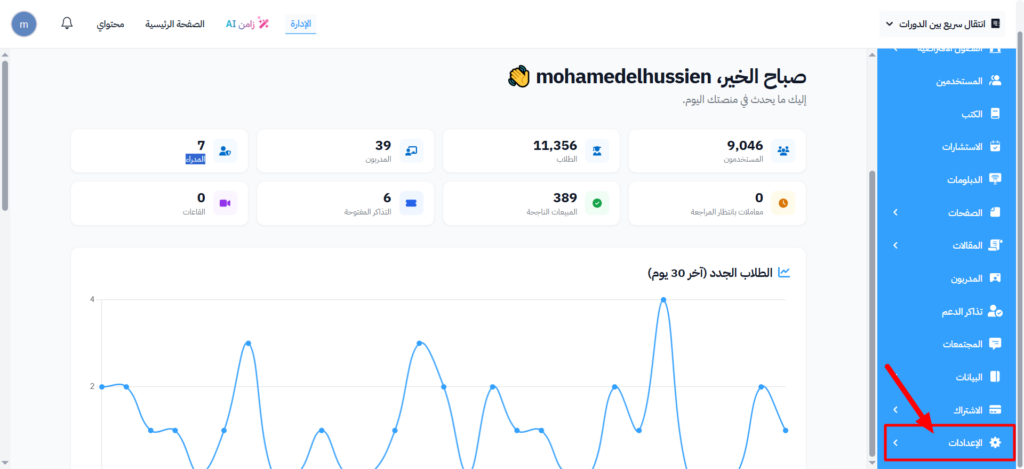
-
Choose General Settings.
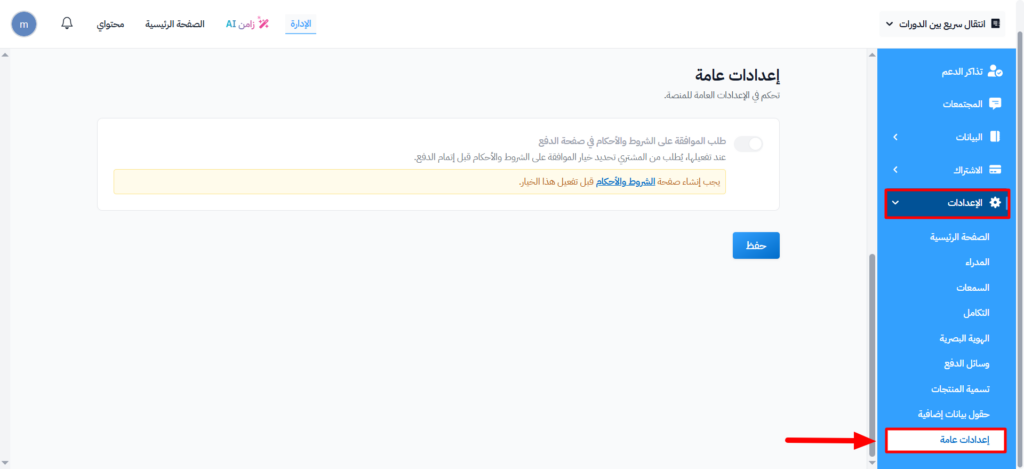
-
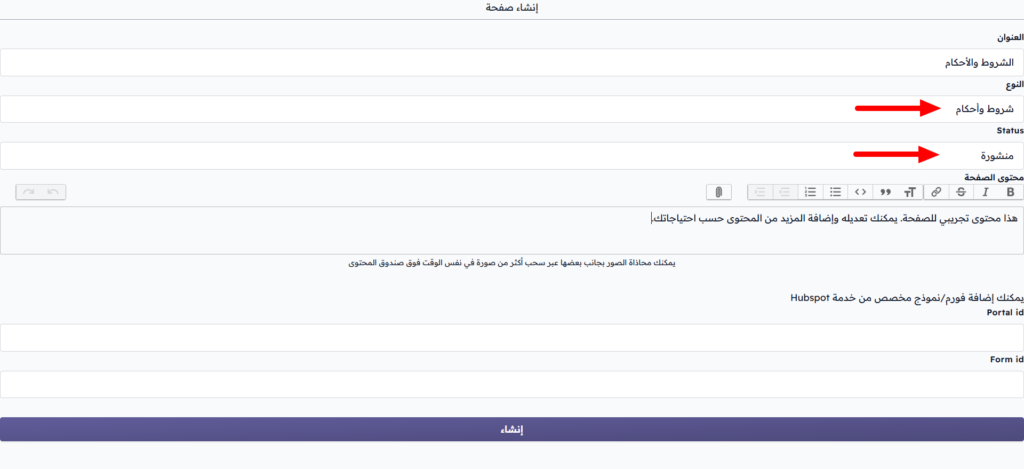
If you see the message You must create a terms and conditions page before enabling this option., the option is turned off because your platform has no terms and conditions page yet. Click the terms and conditions link in the message, create a new page and choose Terms And Conditions in the Type field, then go back to General Settings. Read Create and share text pages.
-
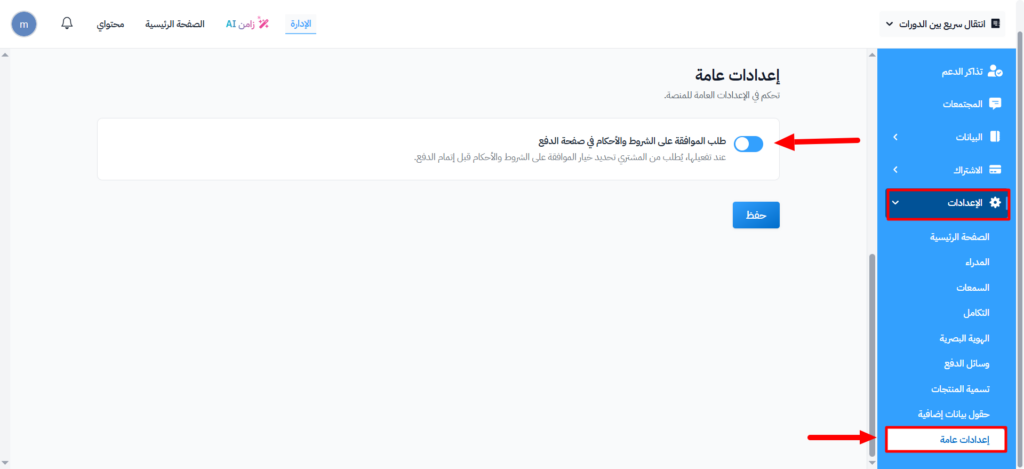
Turn on Require agreement to terms and conditions on the payment page.
-
Click Save to apply the changes.
After you save, buyers see I have read and agree to the with a link to your terms and conditions page on the payment page. They cannot pay until they check it.