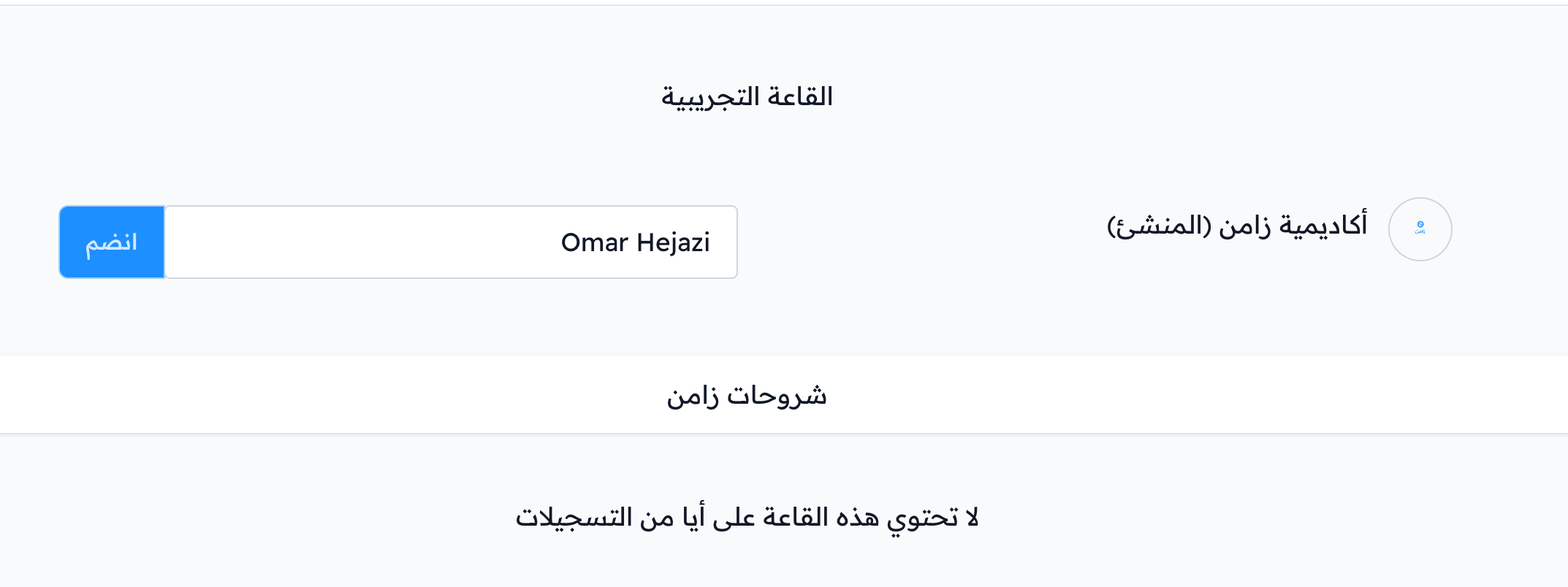
Add a coach to a virtual classroom
This article shows how to add a coach to a virtual room on your platform, so they can open and start it.
Before you can add a coach to a room, you must first add them to your platform's coaches list. Read Add and manage coaches.
Steps to add a coach to a room
-
From the dashboard, click Virtual Classes.
-
Choose Rooms, then find the room you want to add the coach to.
-
Click the ⋯ (Actions) button at the end of the room row.
-
Choose Share.
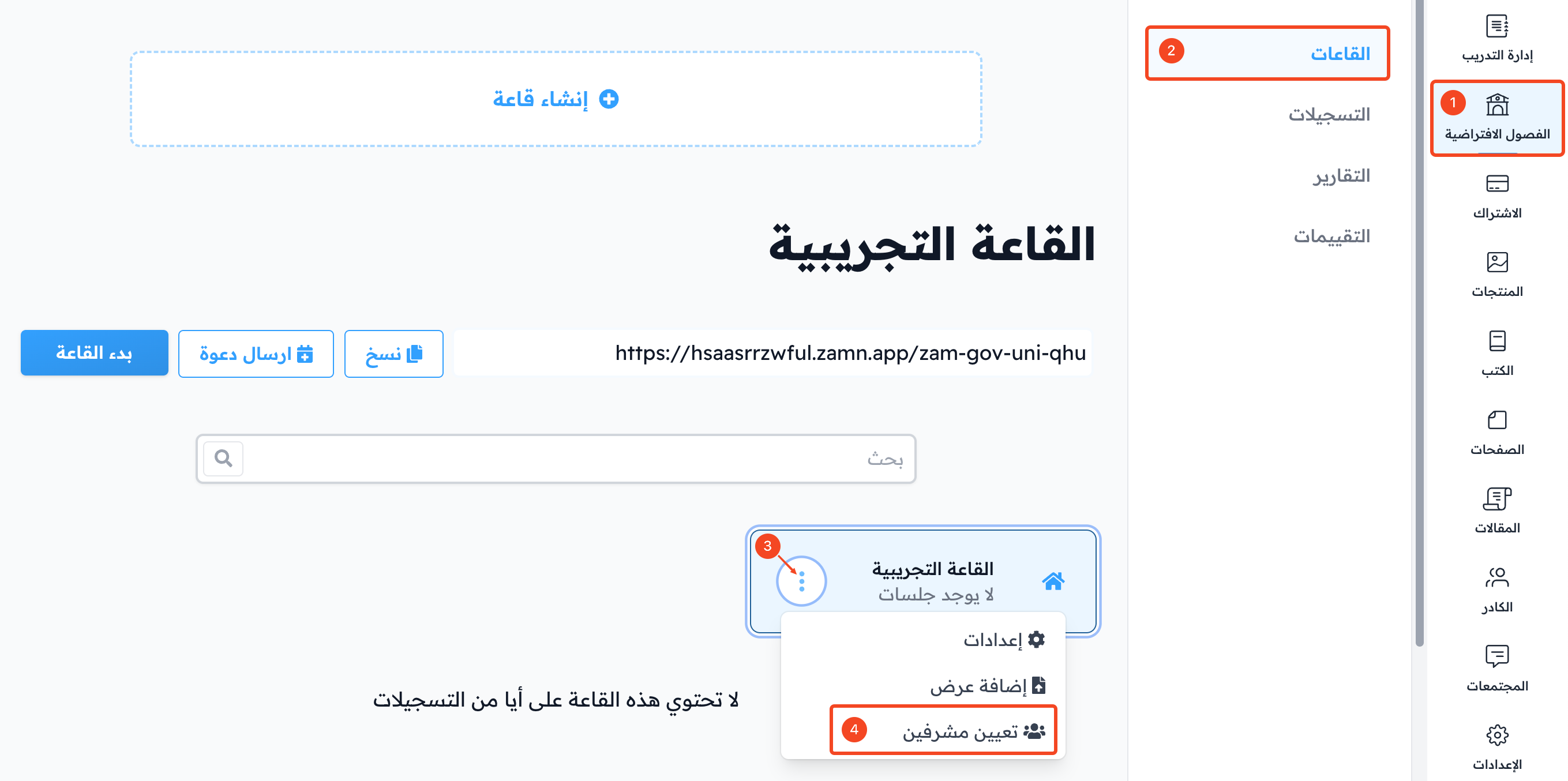
-
You will see the list of active coaches on your platform. Click Share next to the coach you want to add.
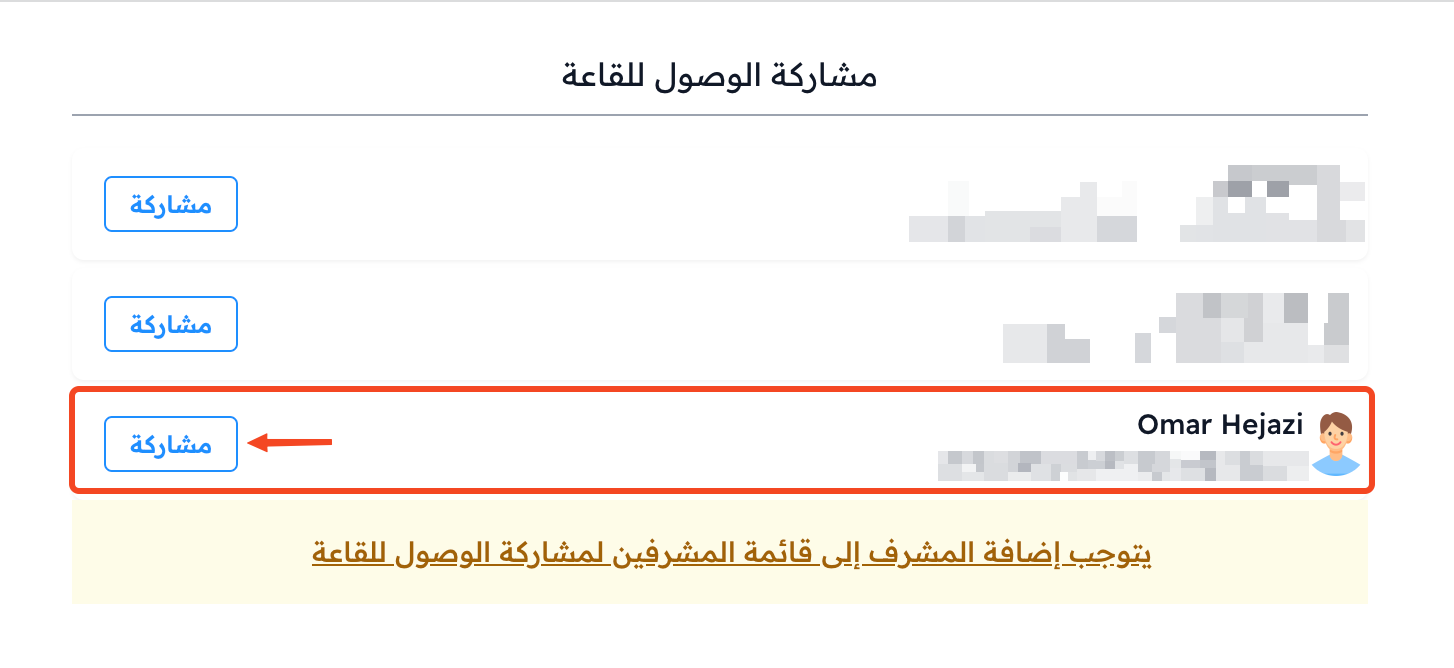
A message tells you the room was shared successfully.
How the coach reaches the room
After you add the coach to the room, send them your platform link so they can sign in and reach the room.
After signing in, the coach finds the room on the My Rooms page in the top bar.
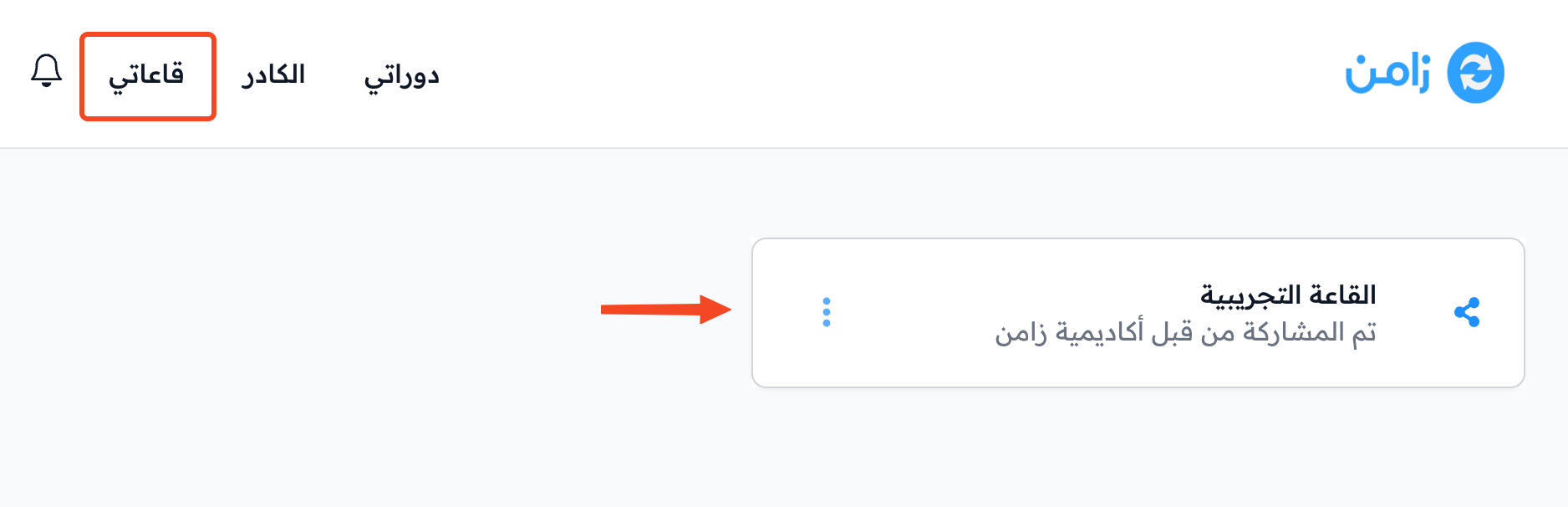
When the coach clicks the room, its page opens. If the room has a password, they type it first. Then they see the room link and the Start button.