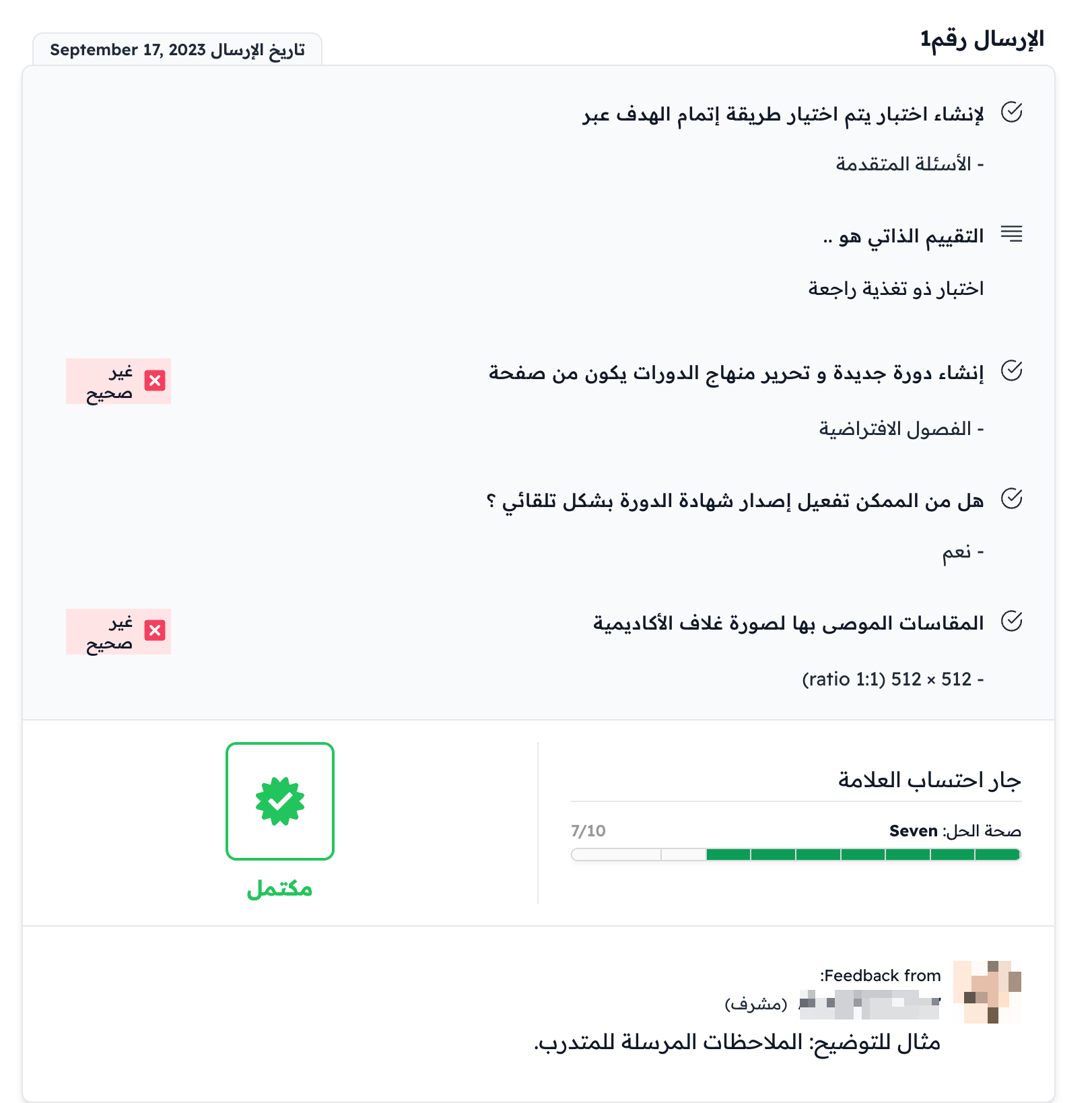
How does a coach review student submissions?
This article shows how a coach reaches student submissions in a course, reviews them, and sends the result.
Reach student submissions
Note
The platform admin assigns the coaches of a course.
-
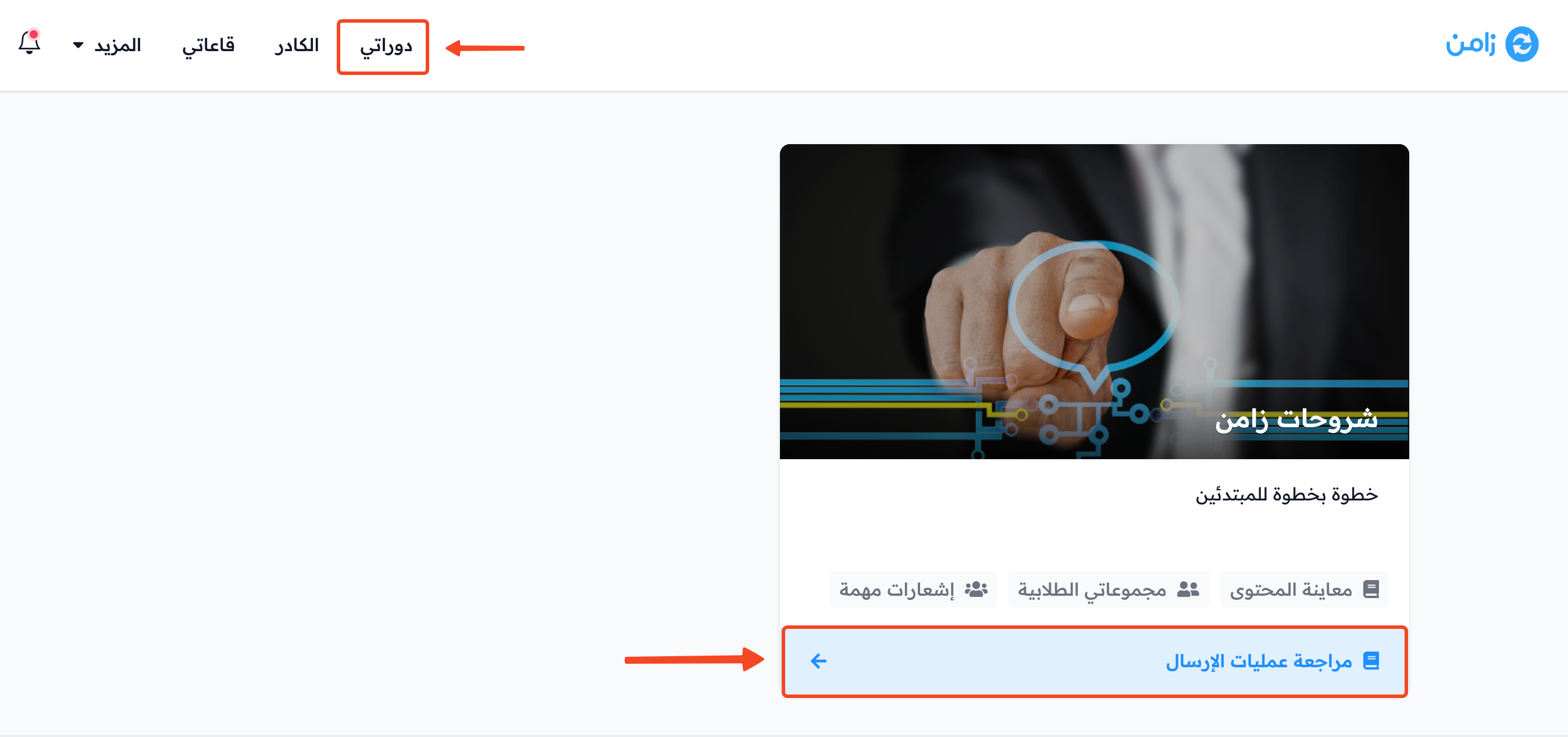
Click Dashboard in the top menu to open the My Courses page, then click Review Submissions on the card of the course whose submissions you want to review.
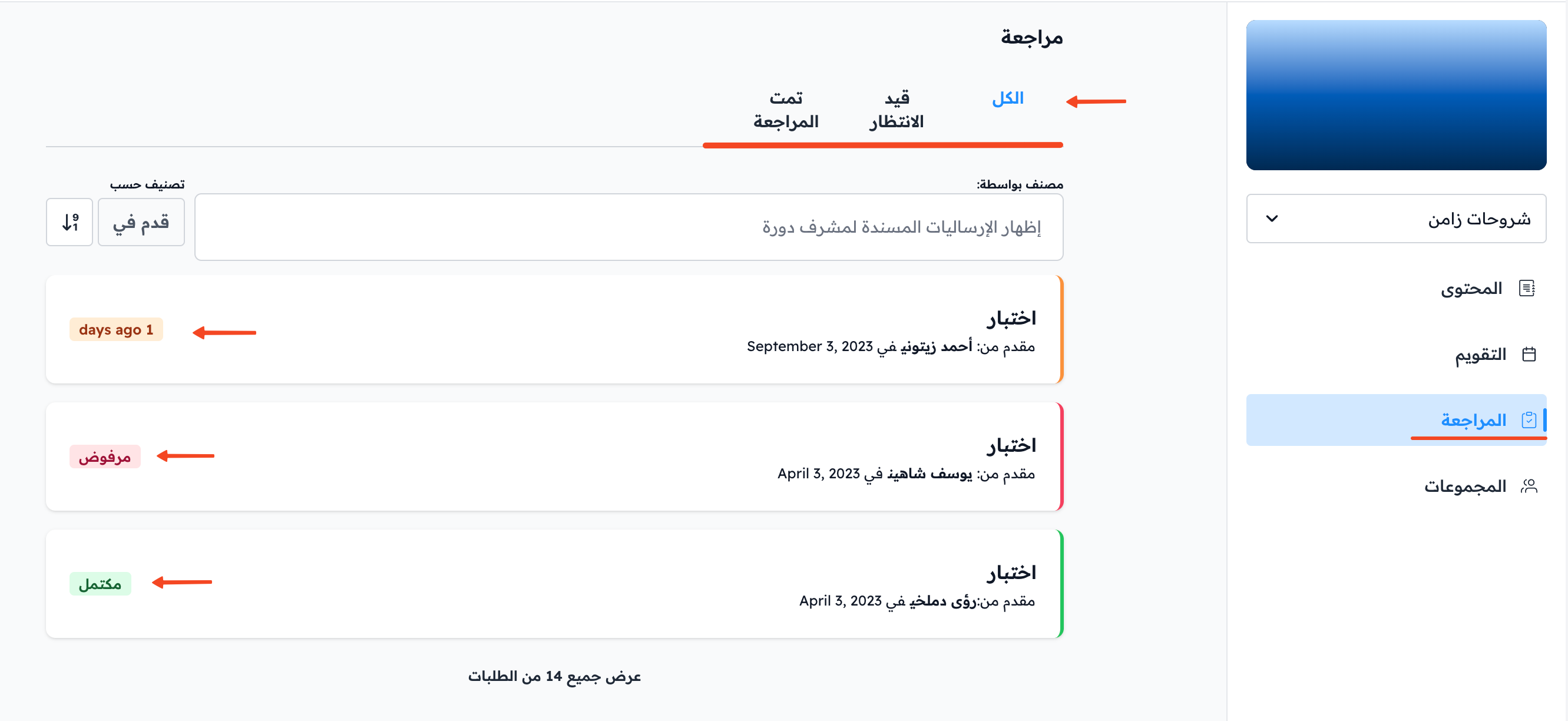
On the Review page, you can choose which submissions to show:
- All: all submissions.
- Pending: submissions waiting for review.
- Reviewed: submissions that were reviewed. They are of two kinds: Completed and Rejected.
Submissions have colors:
- Orange: submissions waiting for review.
- Red: rejected submissions.
- Green: completed submissions.
Start reviewing a submission
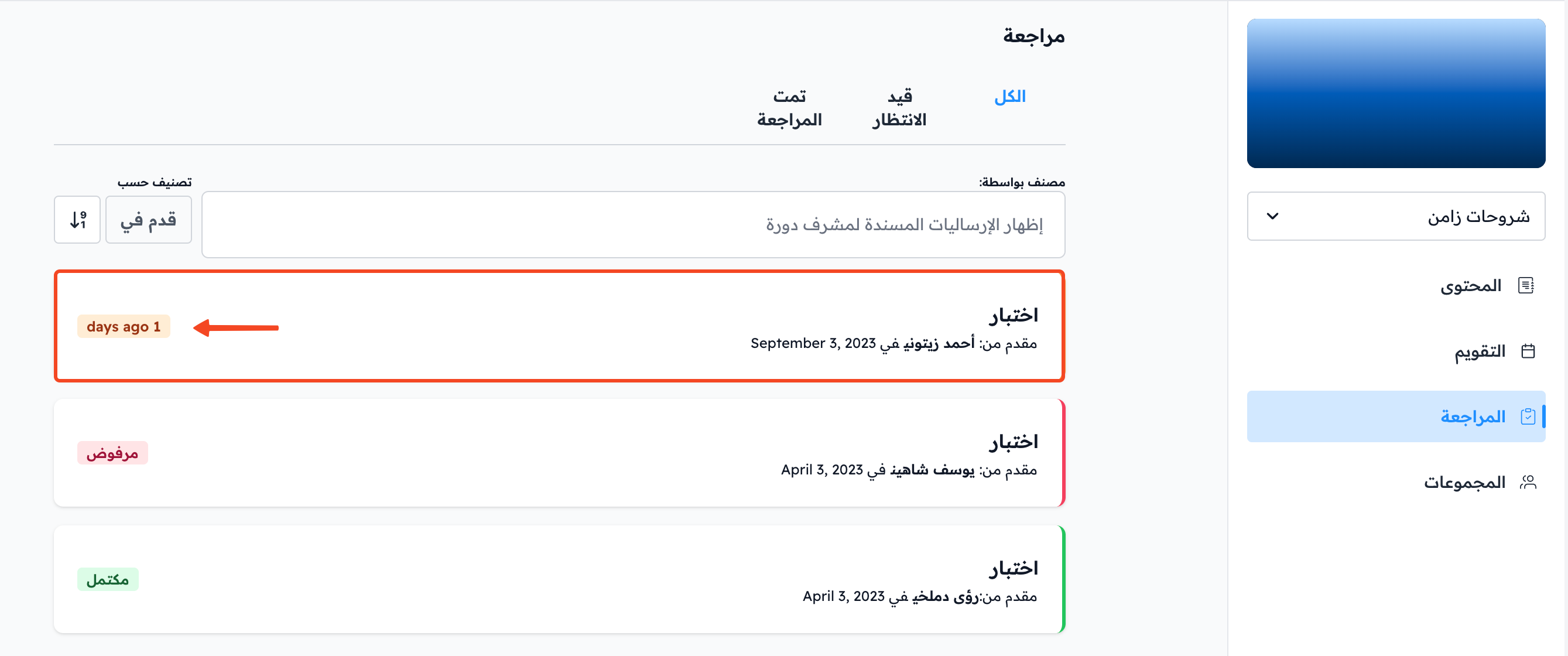
-
Click the submission.
-
Click Start Review.
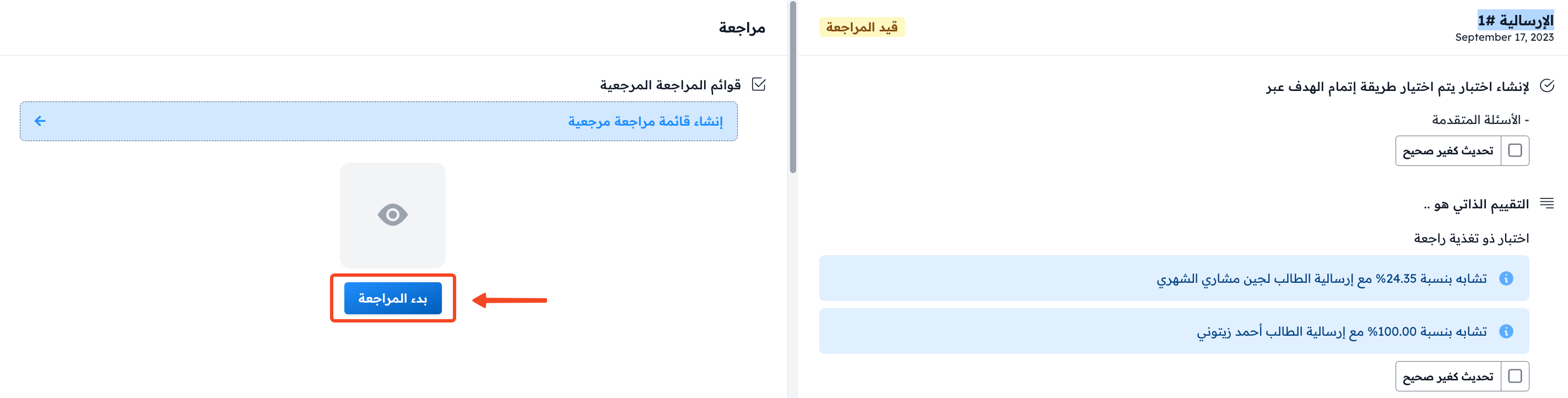
What you can do after you start the review
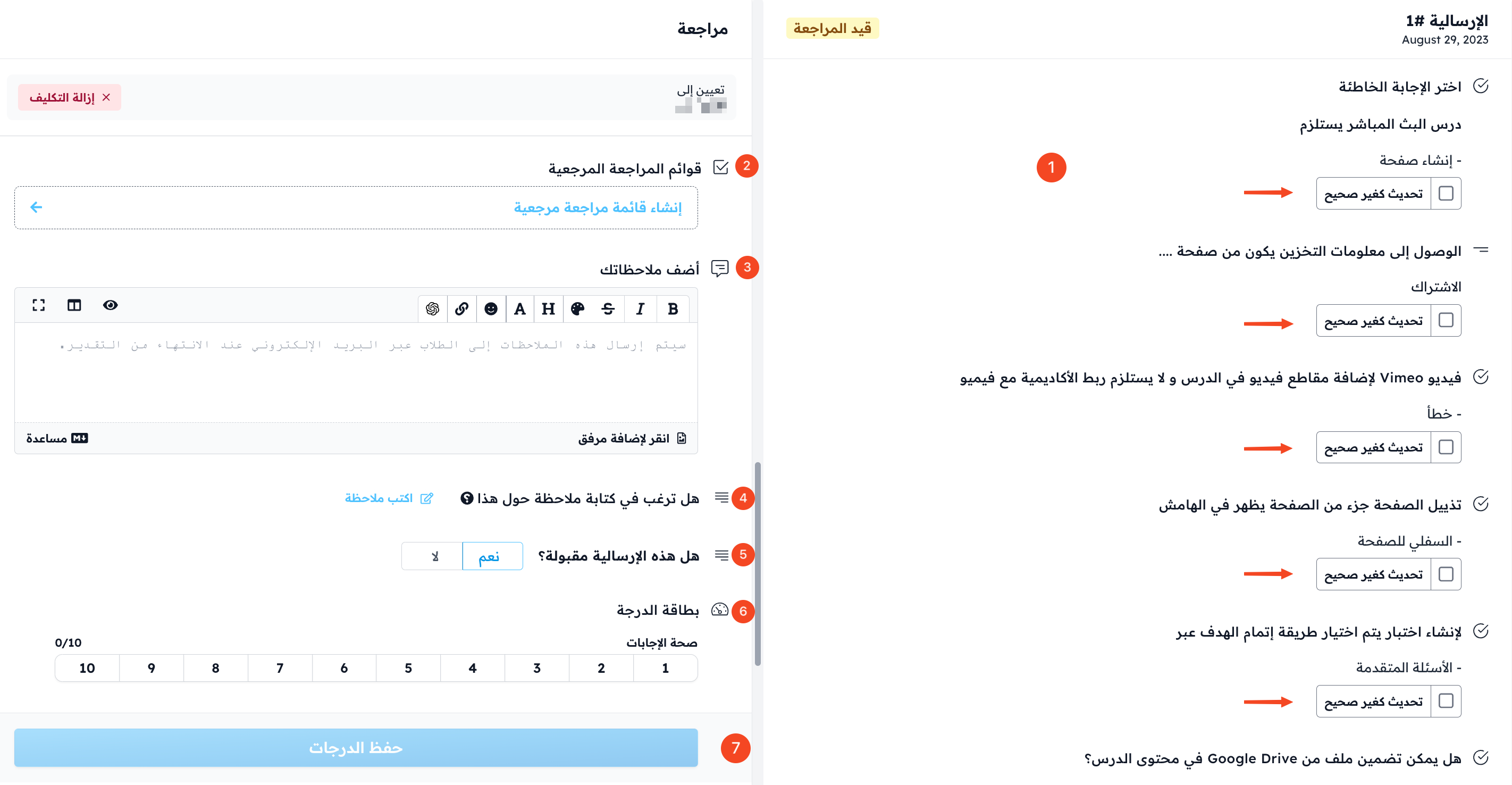
After you click Start Review, you can:
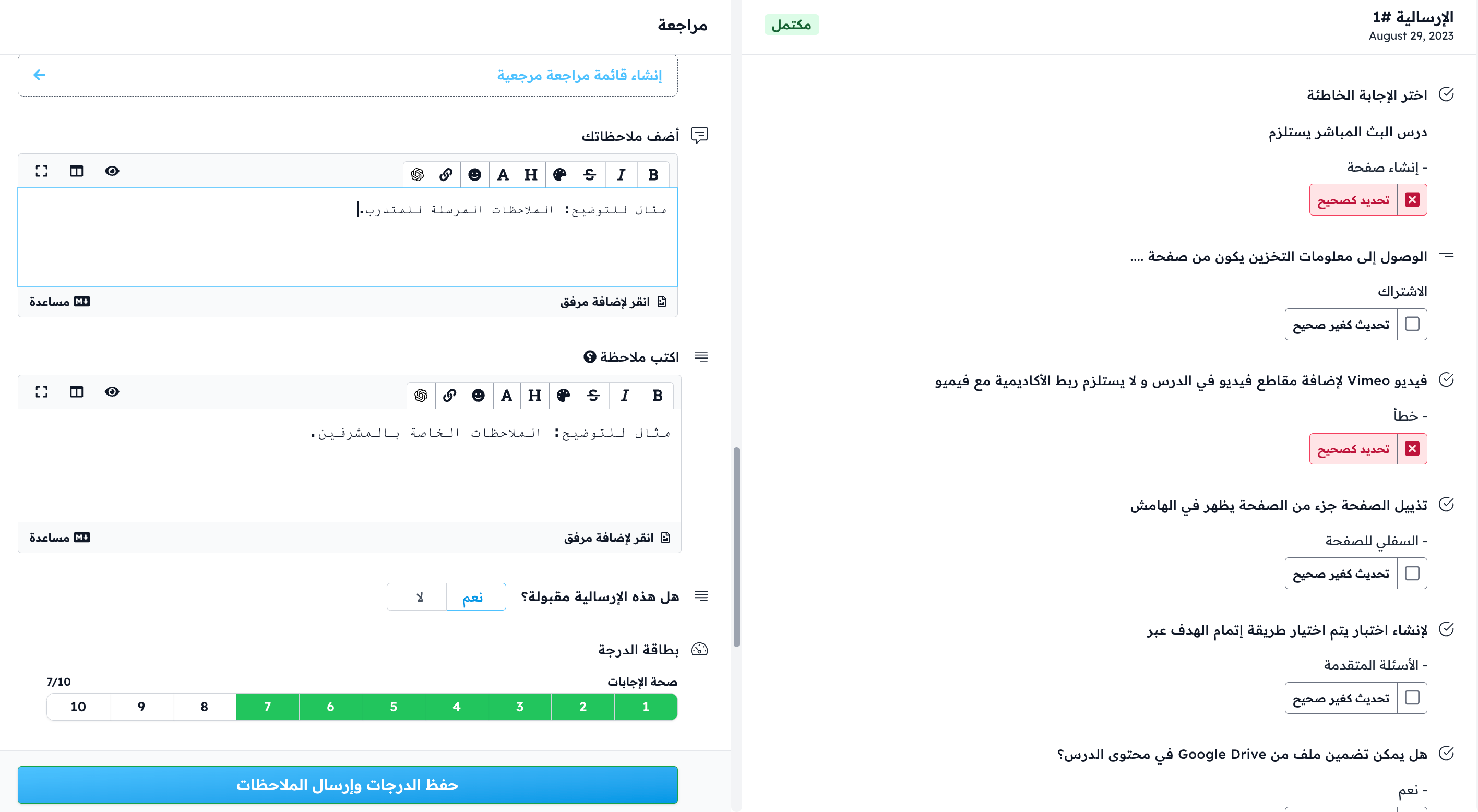
- Click Mark as incorrect next to an answer if it is wrong.
- Click Create Review Checklist to prepare a list that you use to review the answers.
- Write your feedback in Add Your Feedback. This feedback is sent to the student by email with the result.
- Click Write a Note to add a note that helps you follow the student's progress. These notes are shown only to coaches, in the student report.
- Reject the submission without giving grades: choose No for Is this submission acceptable?, then click Reject Submission.
- Give the student grades in the Grade Card, based on the evaluation criteria added to the assignment.
- Click Save grades to send the result and the feedback to the student. If you wrote feedback, the button reads Save grades & send feedback.
After you send the result
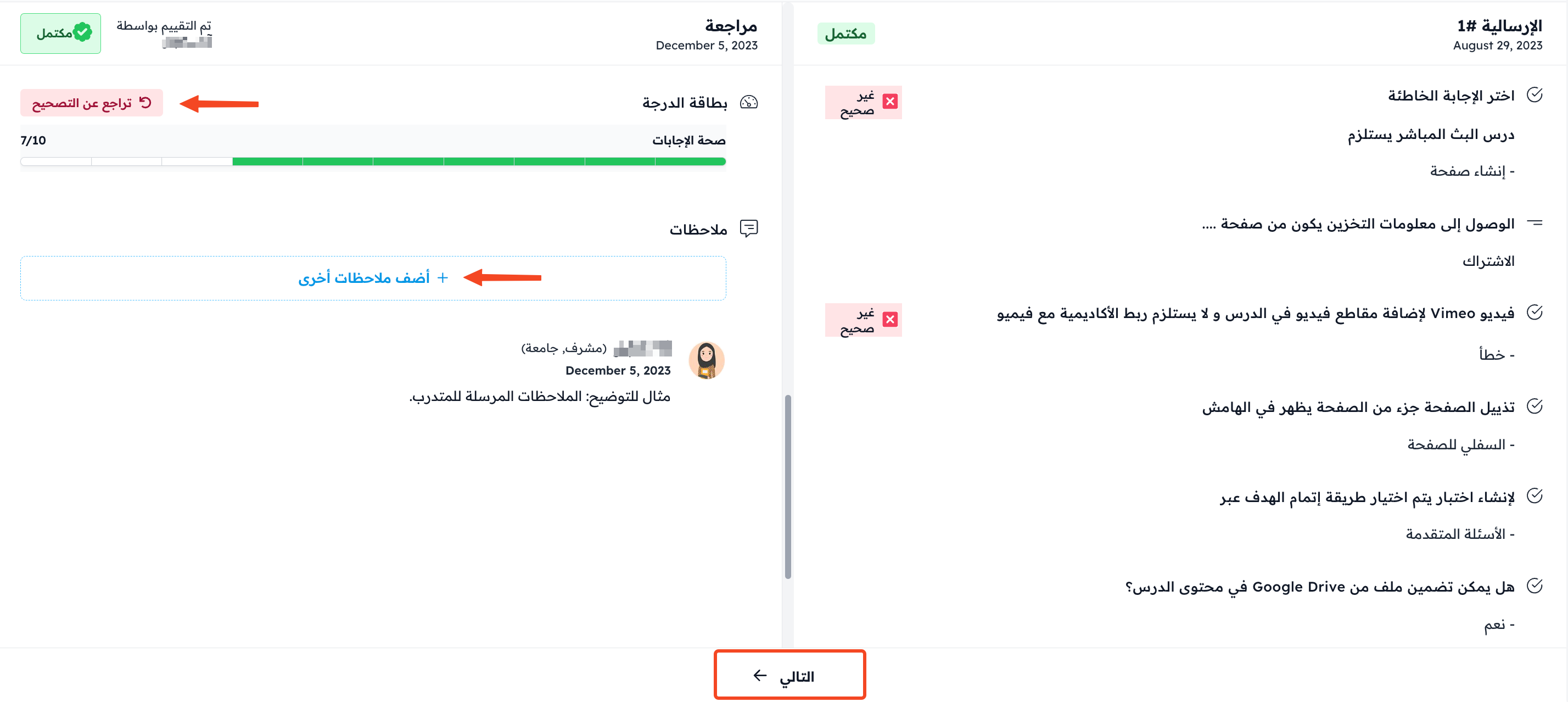
After you send the result, you can:
- Click Undo Grading to remove the grades and review again. If you rejected the submission, you see an Undo Rejection button instead.
- Click Add another feedback to send more feedback to the student.
- Click Next at the bottom of the page to go to the next submission.
The submission result as the student sees it