A coach's first sign-in to the platform
When the platform admin adds you as a coach to a course, you get an email that tells you so. This article shows how to sign in to the platform for the first time.
How a coach signs in to the platform
-
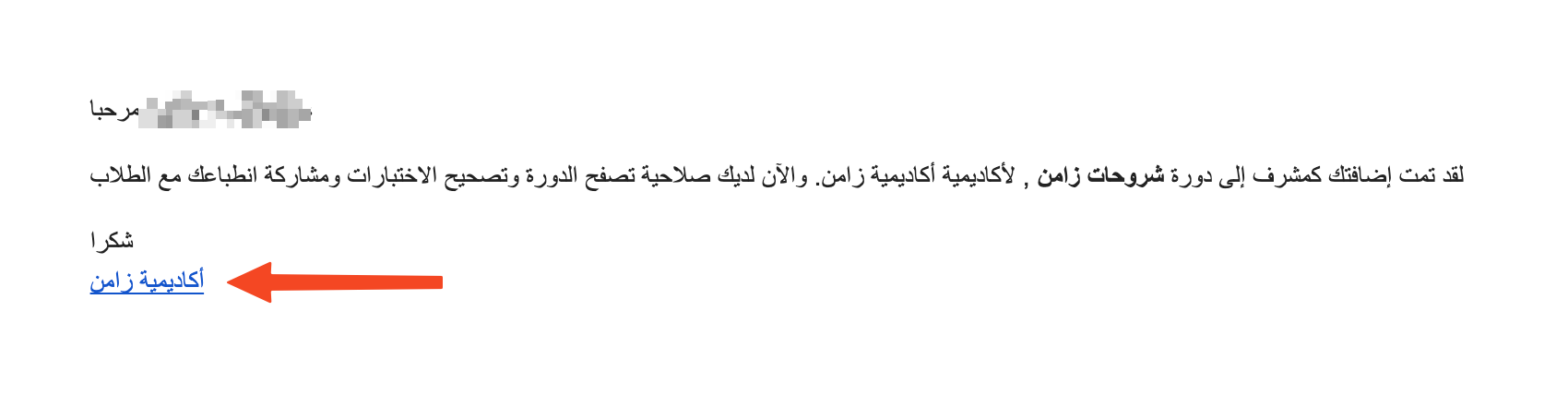
Open the email, then click the platform link (the platform name).
-
Click Login at the top of the platform page.

-
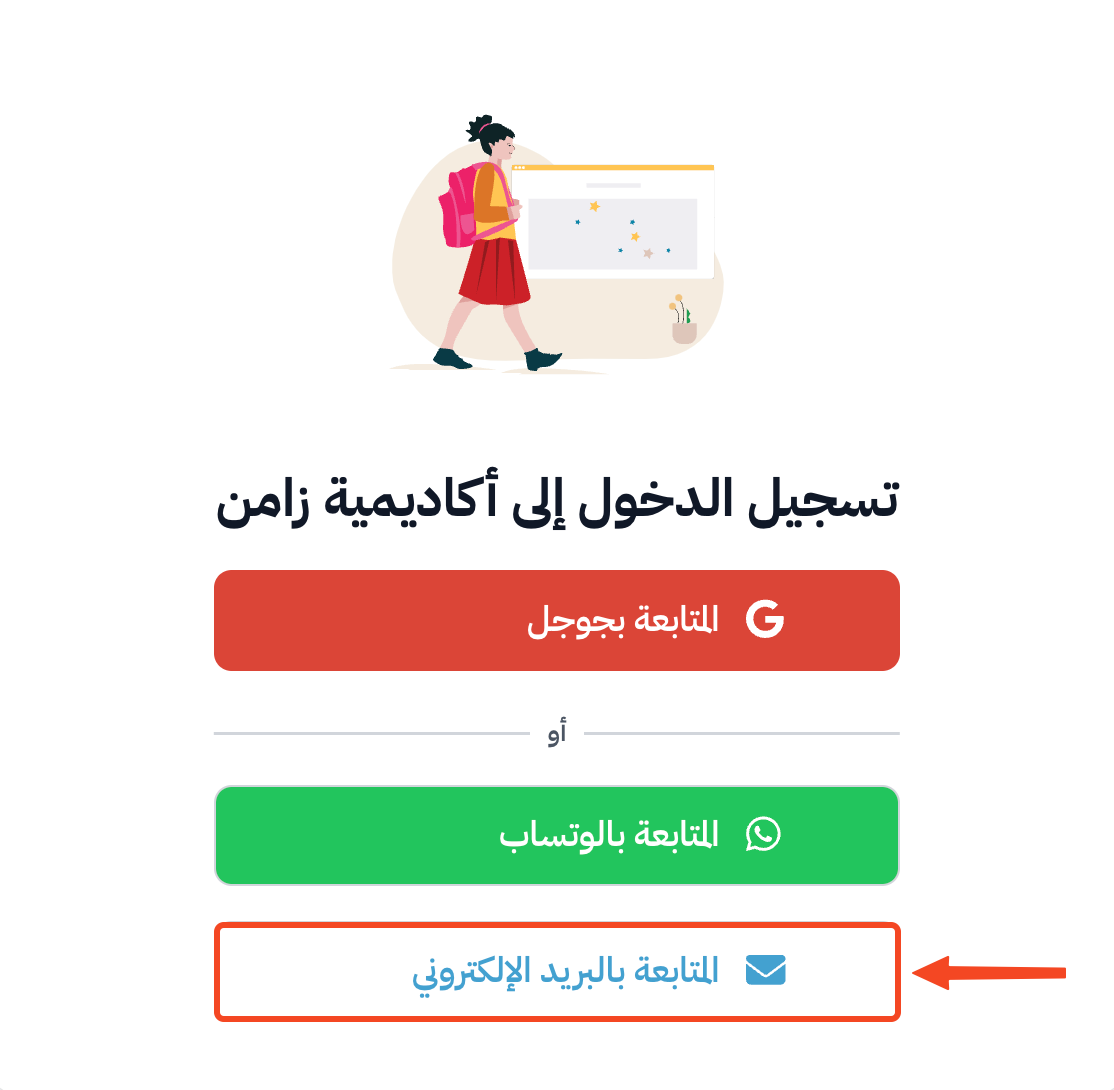
Under OR, click Continue with email.
-
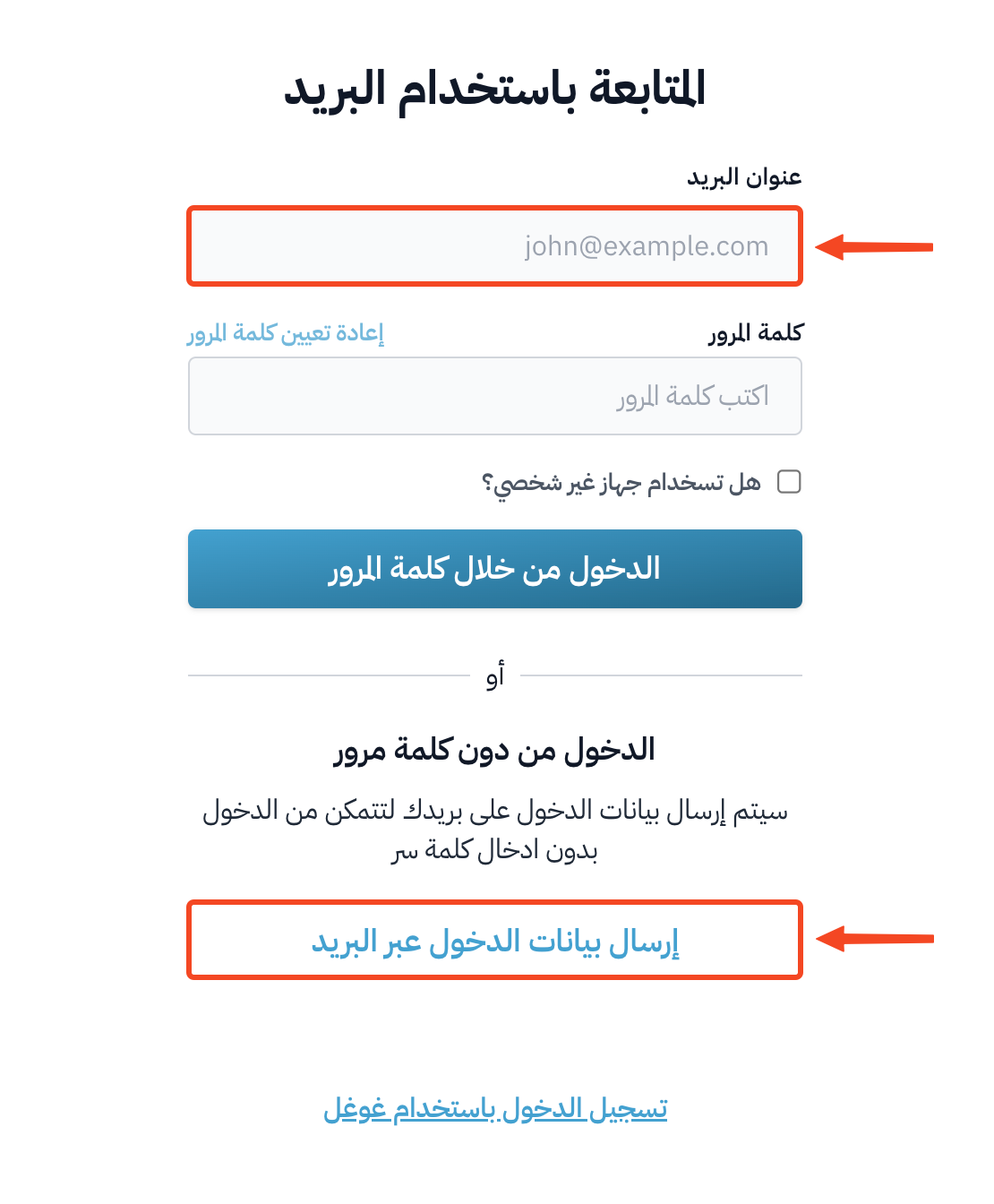
Enter your email address.
-
Click Email me to sign in. You get an email with a verification code.
-
Open the email and copy the verification code.

-
Go back to the platform and paste the code in the code field. The code is checked as soon as all 6 digits are entered, and you are signed in without clicking any button.
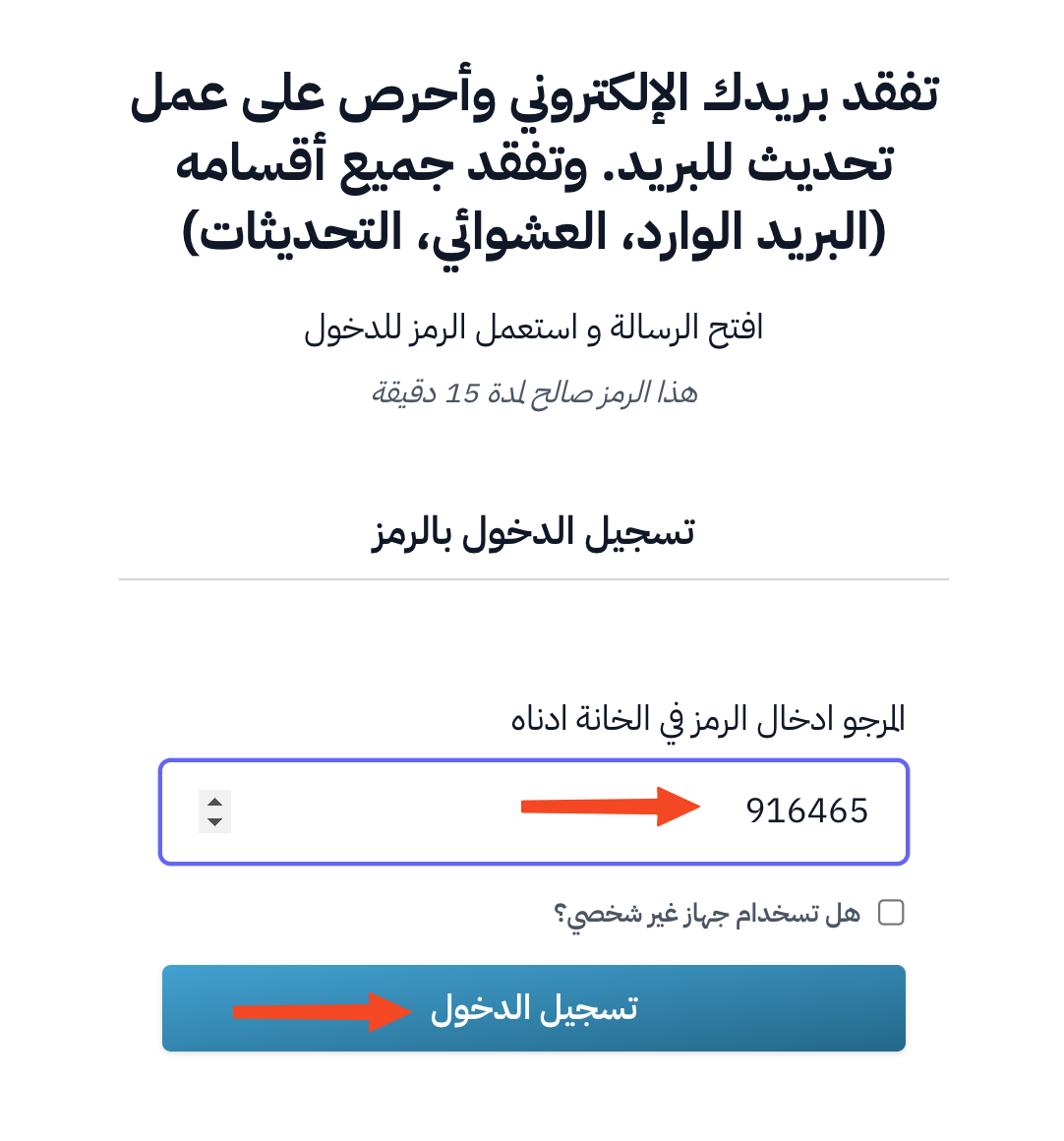
If you do not get the code, check your Spam folder, or wait two minutes and then click Resend.