Student progress reports
This article shows coaches how to open the reports of the students in their cohorts, and what each student report shows.
Open the student reports
-
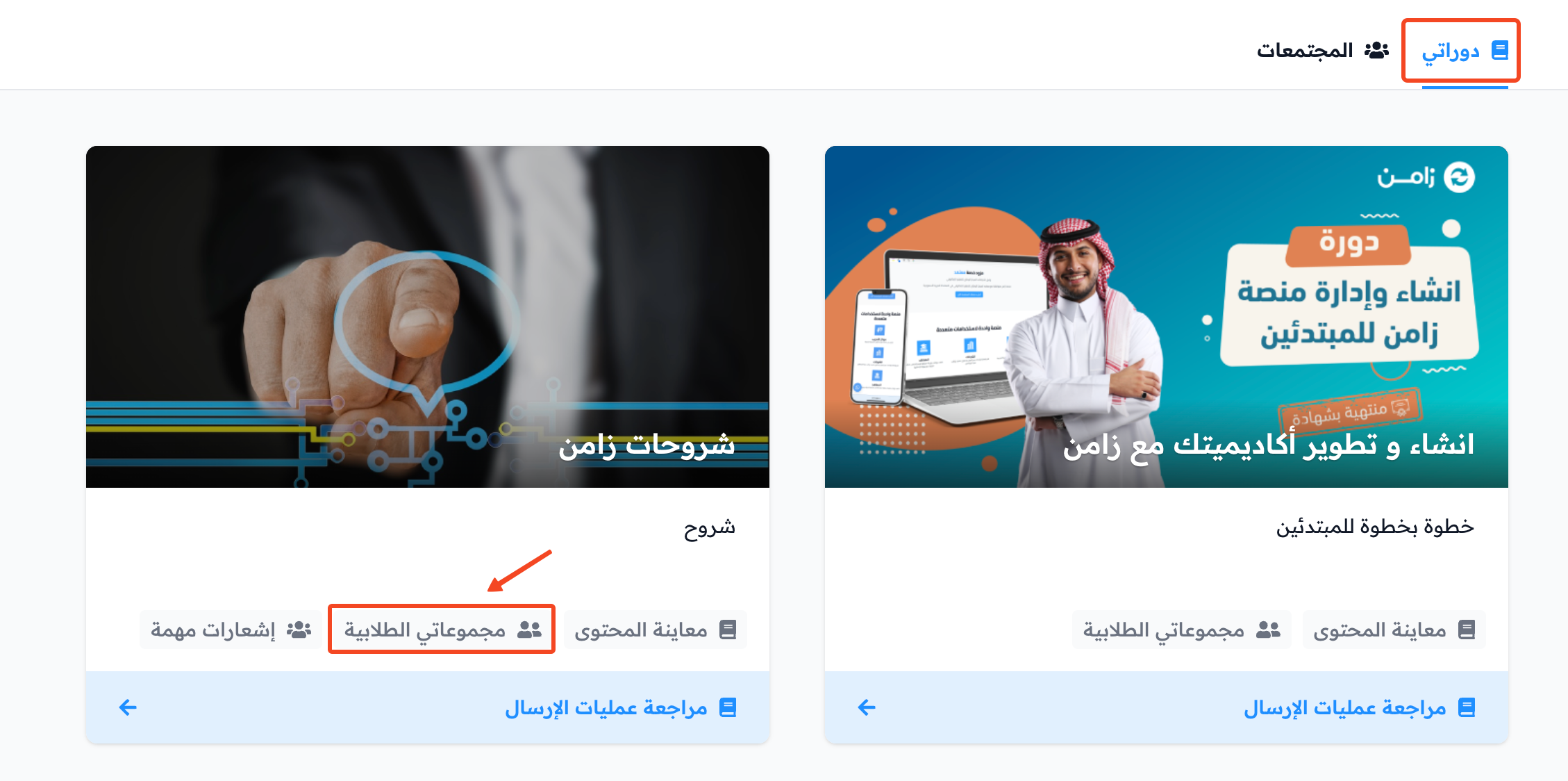
On the My Courses page, choose the course and click My Cohorts.
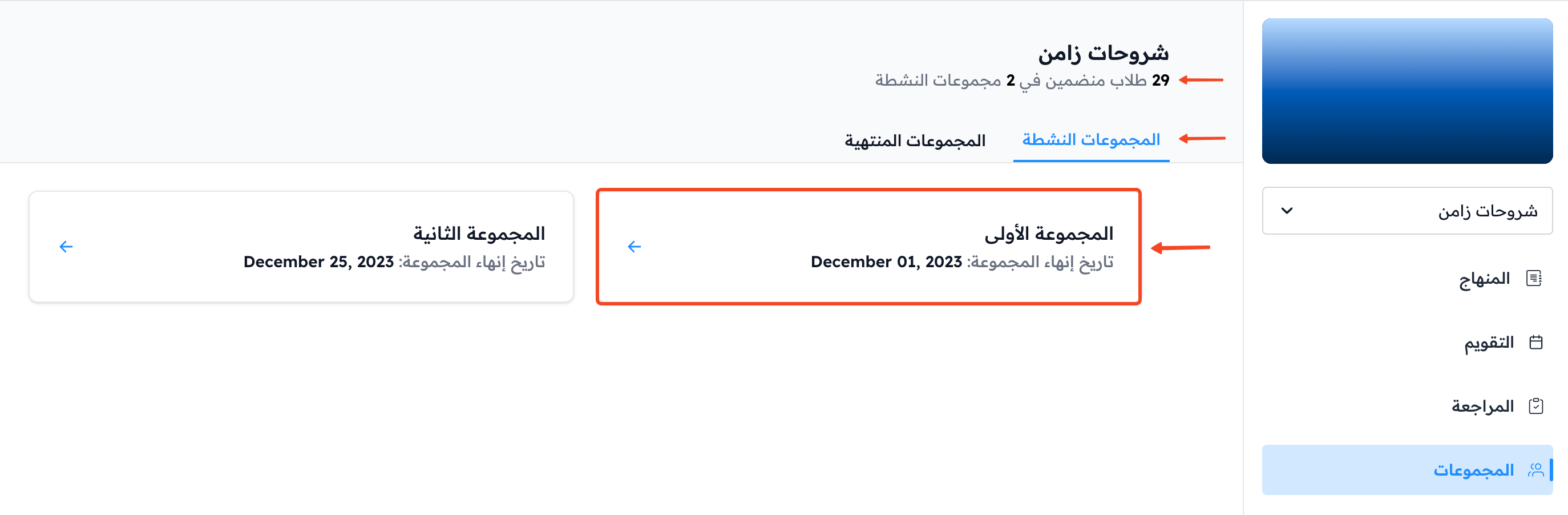
The cohorts page shows the total number of students and cohorts in the course, and splits the cohorts into active and ended.
-
Click the cohort whose student reports you want to see.
-
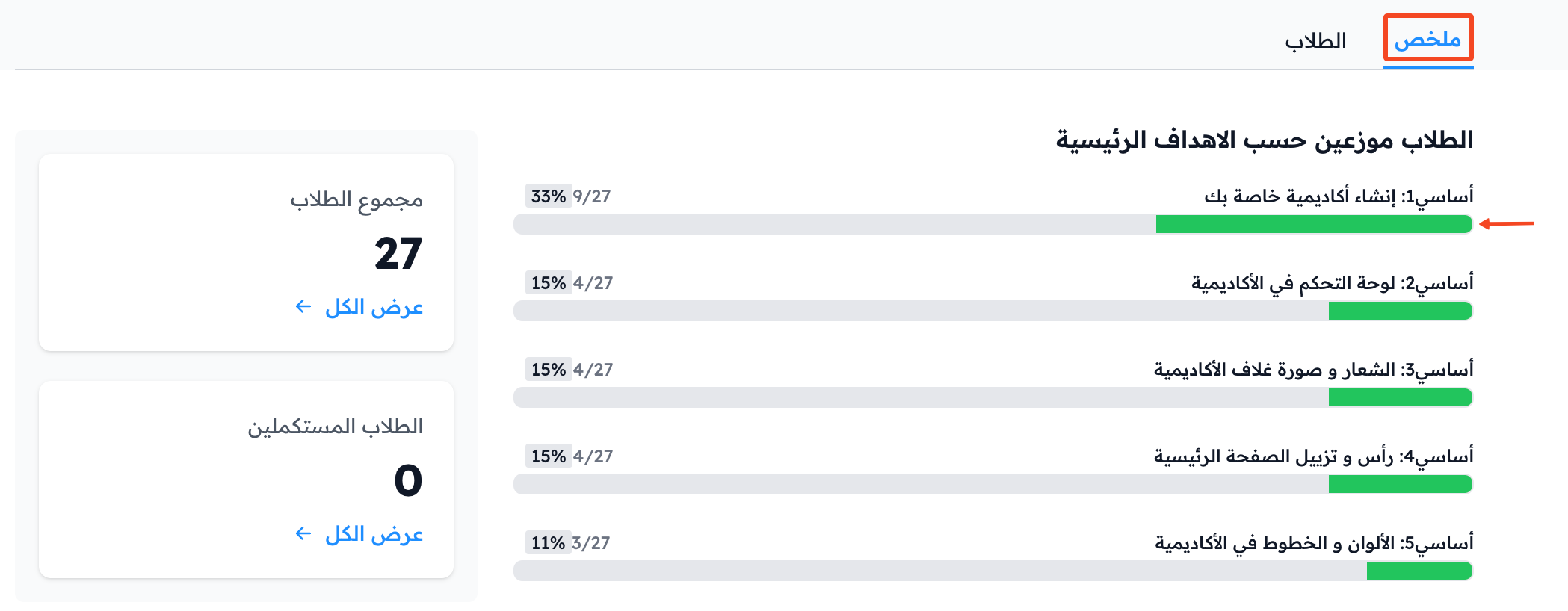
The Overview tab shows how many students in this cohort completed each milestone target. Click the progress bar of a milestone target to see the students who completed it.
-
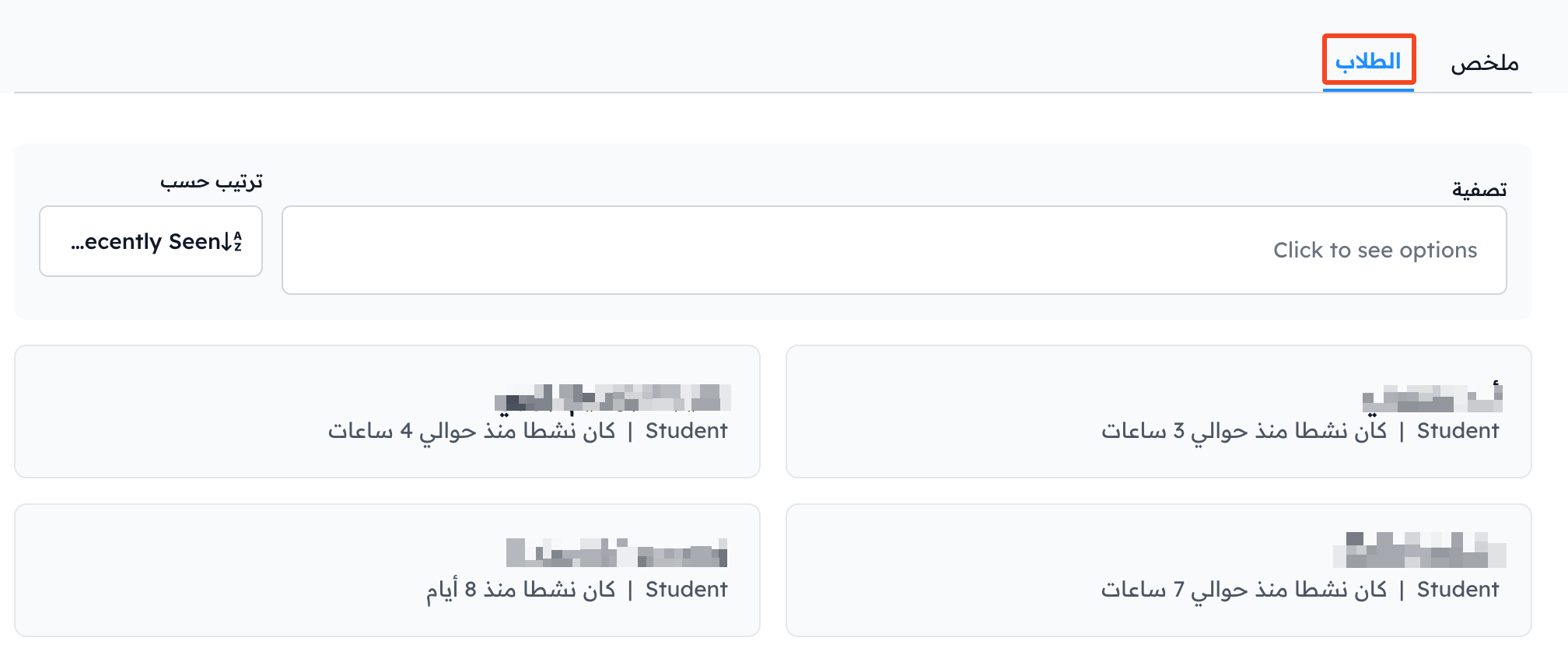
The Students tab lists all the students in the cohort, and you can search for a student by name or email. Click a student to open a detailed report of their progress in the course.
What the student report shows
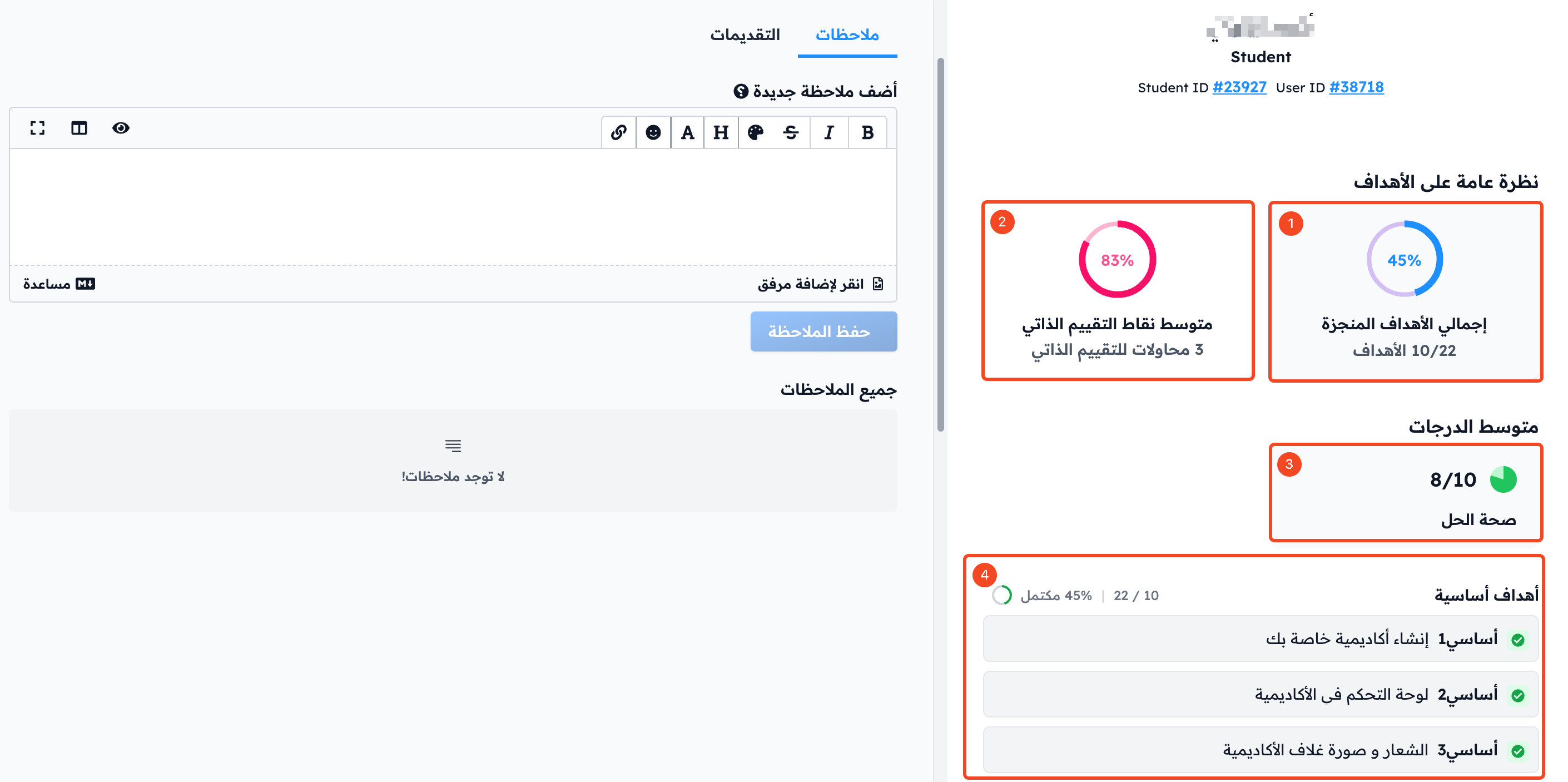
The student report has two tabs: Targets and Quizzes.
In the Targets tab:
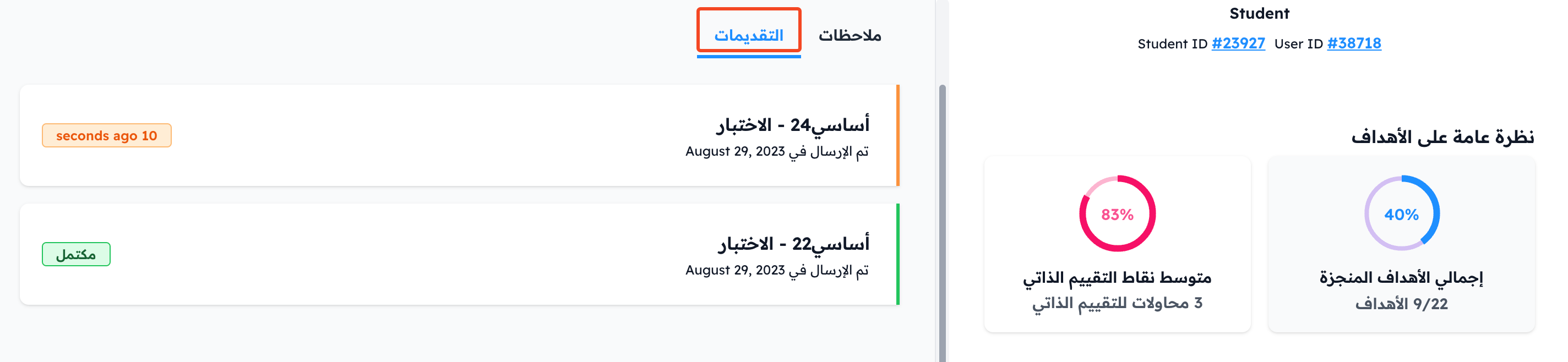
- Total Targets Completed: the share of targets the student completed in the course.
- Average Grades: the student's average grade in advanced questions.
- Milestone Targets: how many of the course's milestone targets the student completed.
In the Quizzes tab:
- Average Quiz Score: the student's average score in quizzes (self-evaluation).
- A list of each quiz with the student's score.
Other tabs in the student report
-
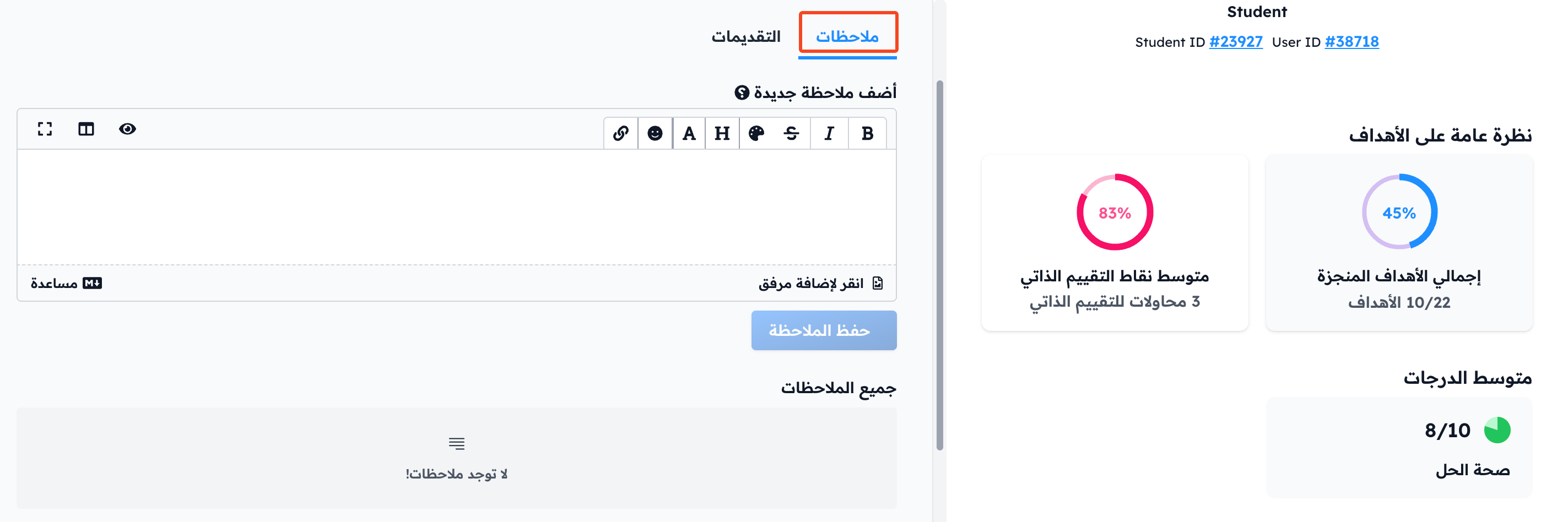
Notes: write notes to keep track of the student's progress. Only coaches can see these notes.
-
Submissions: shows all the student's submissions in the course.