The author's first sign-in to the platform
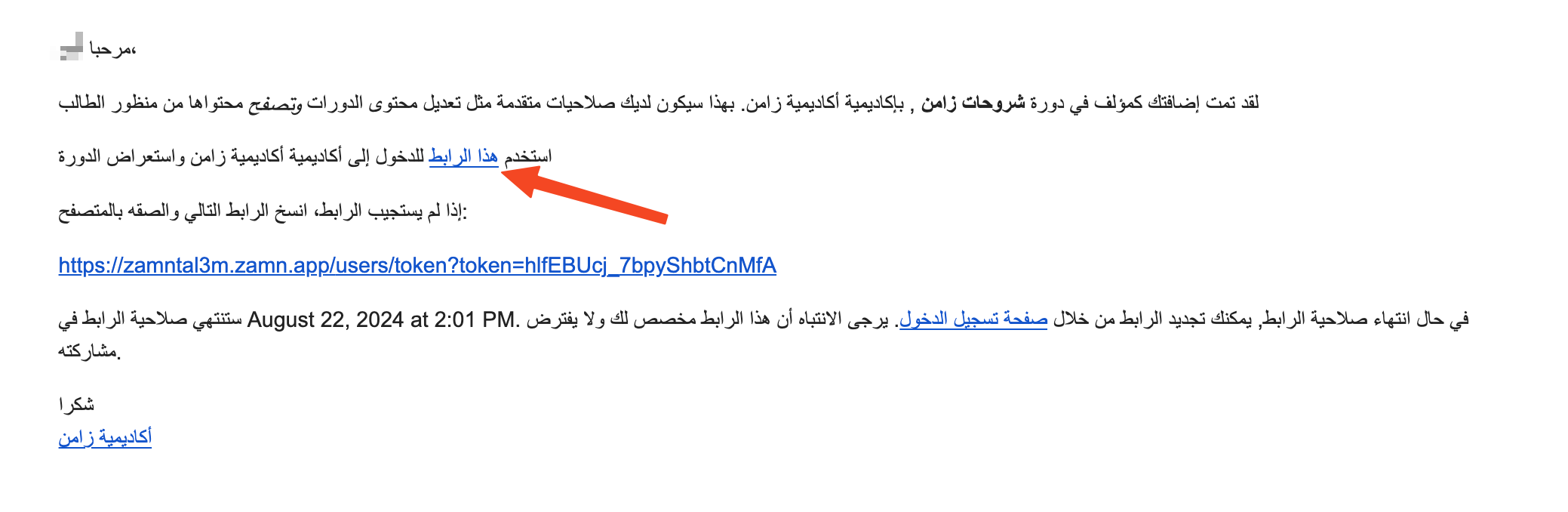
When a platform admin adds you as an author to a course, you get an email. On the platform, an author is shown as a trainer, so the email says you were added as a trainer in the course.
Steps for the author to sign in
-
Open the email and click this link. The link signs you in to the platform right away and opens the platform home page.
 Note
NoteThe link works for a limited time, written in the email. If it has expired, you can request a new link from the sign-in page.
-
Click Dashboard at the top of the page, then click Edit Profile.
-
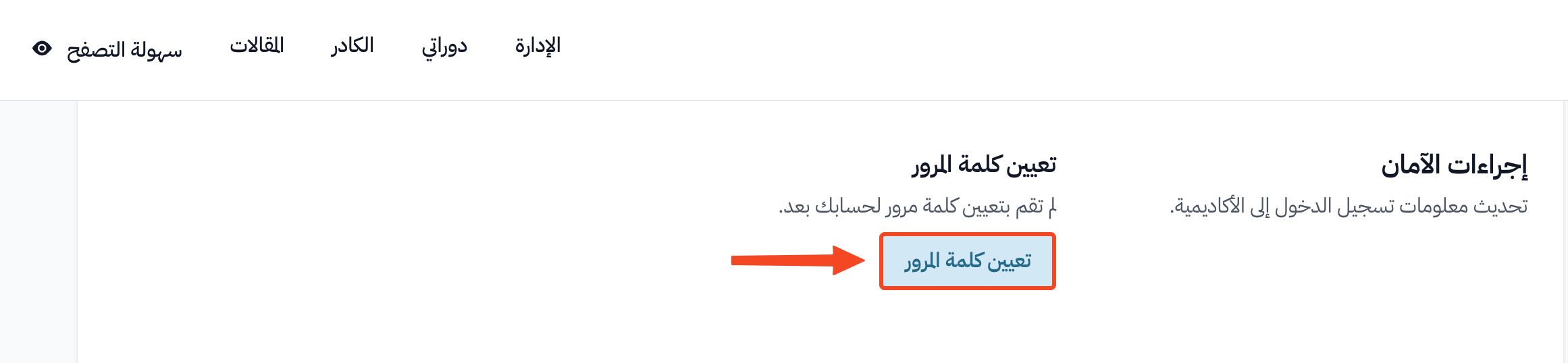
In the Security section, click Set password. You get an email to set your password.
-
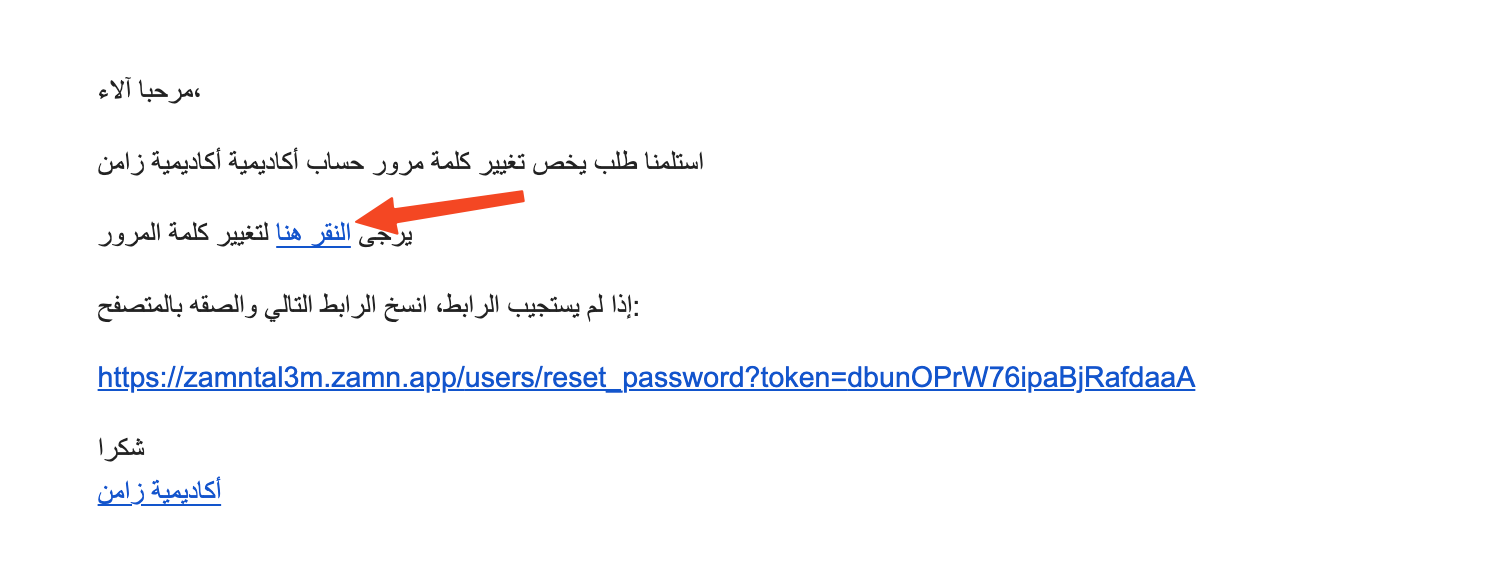
Open the new email and click click here.
-
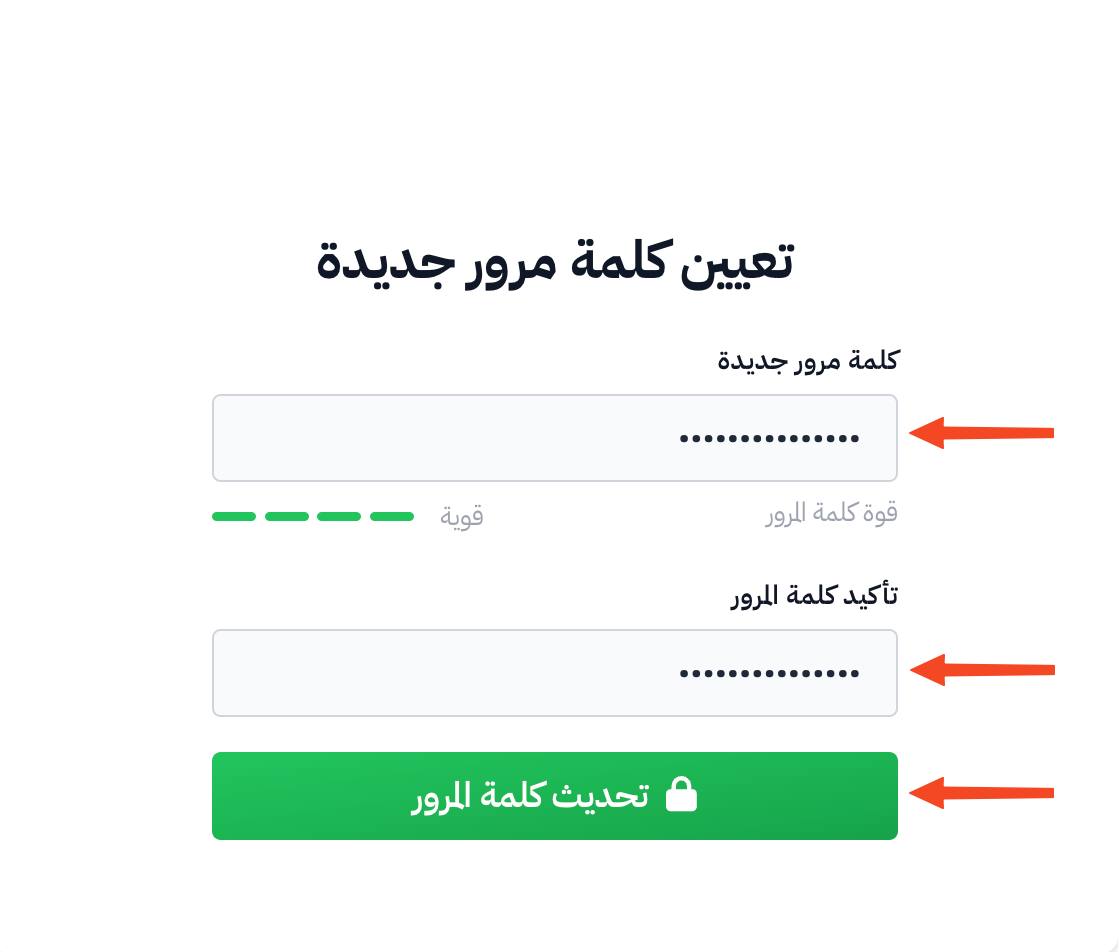
Enter a strong password (8 characters or more) in New Password, type it again in Confirm Password, then click Update Password. You then go to the platform home page.