Create a self-assessment for students
A self-assessment is a short test that gives the student a result right away, with no review from a coach. This guide is for course authors.
Steps to create a self-assessment
-
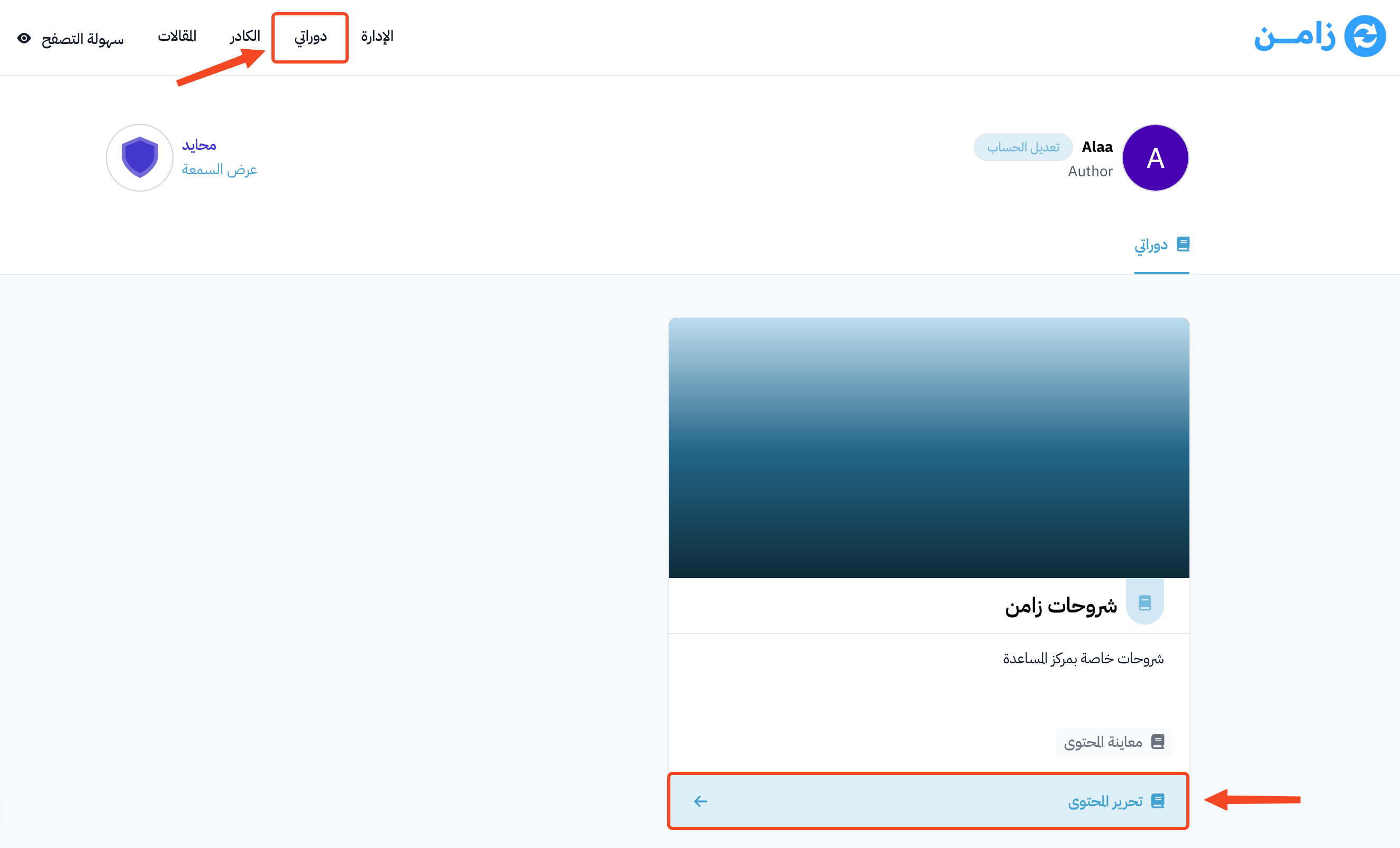
Click Dashboard at the top of the page. Then, under My Courses, click Edit Curriculum for the course.
-
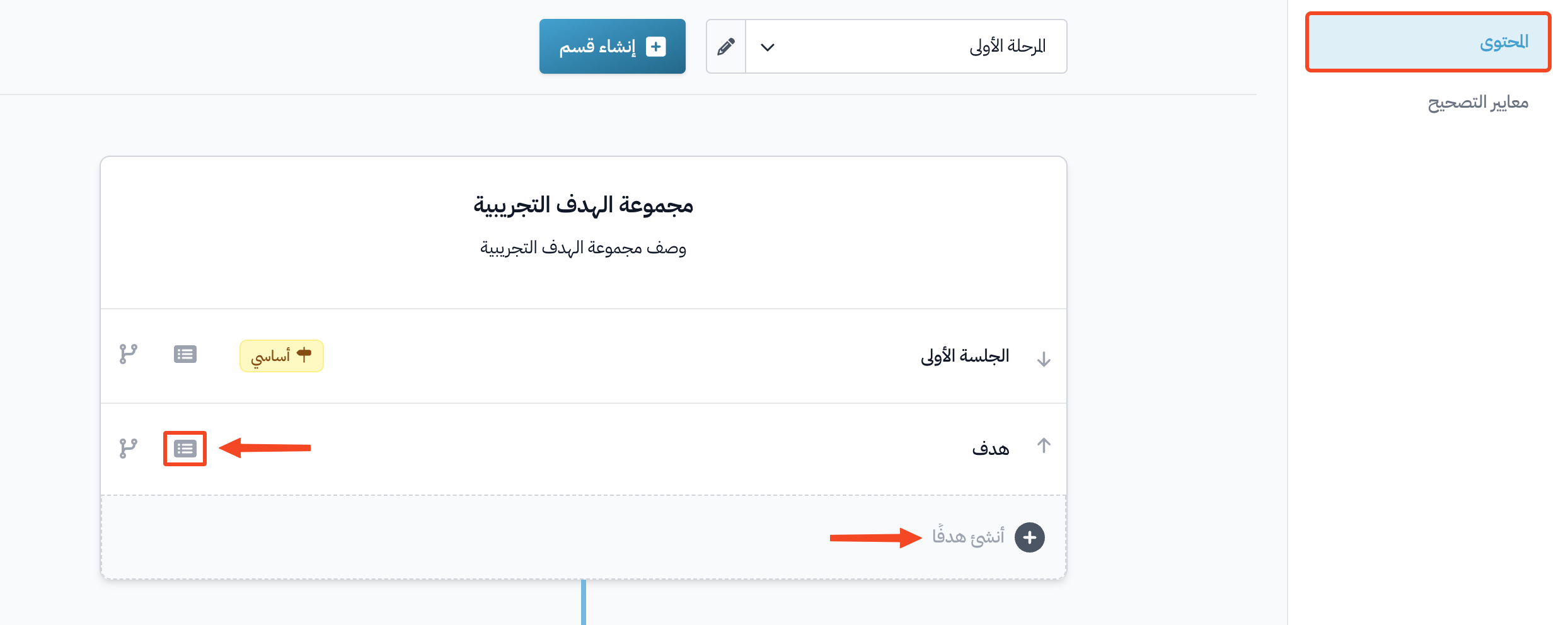
On the course Curriculum page, create a new target from the Create target field, or open a target that already exists.
-
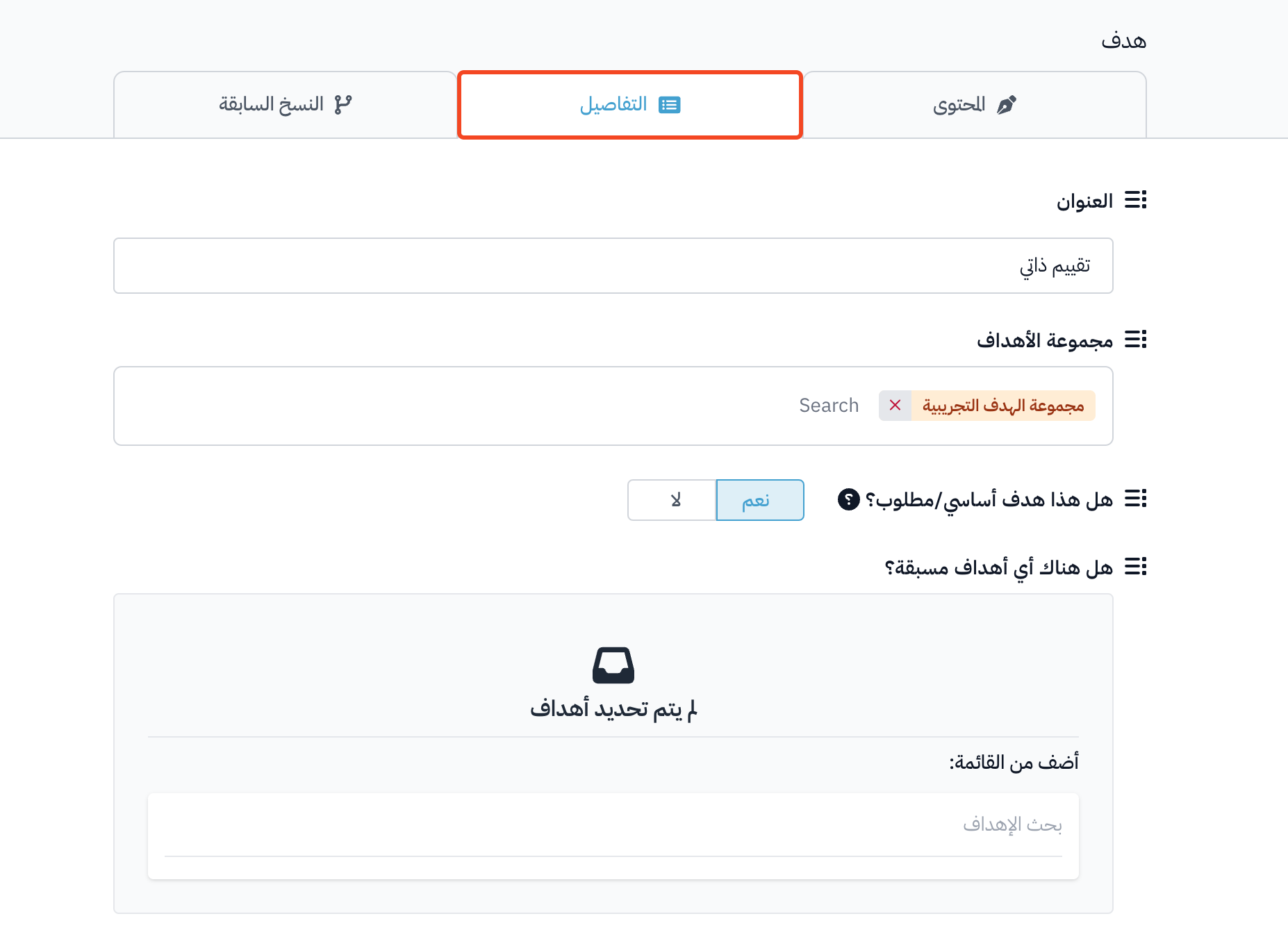
Open the Details tab of the target.
-
You can edit the Title, turn on Milestone target if the target is a milestone, and choose prerequisite targets under Are there any prerequisite targets? if there are any.
-
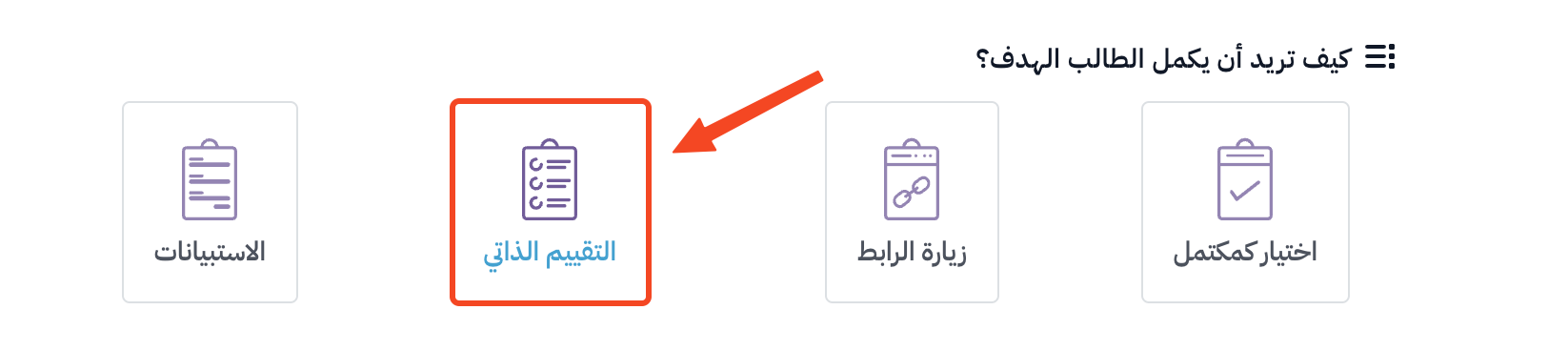
Under How do you want the student to complete the target?, choose Self-evaluation or Quiz.
-
Choose the question type: Single Choice, Multiple Choice or Number. For a Number question, you only type the correct numeric answer.
-
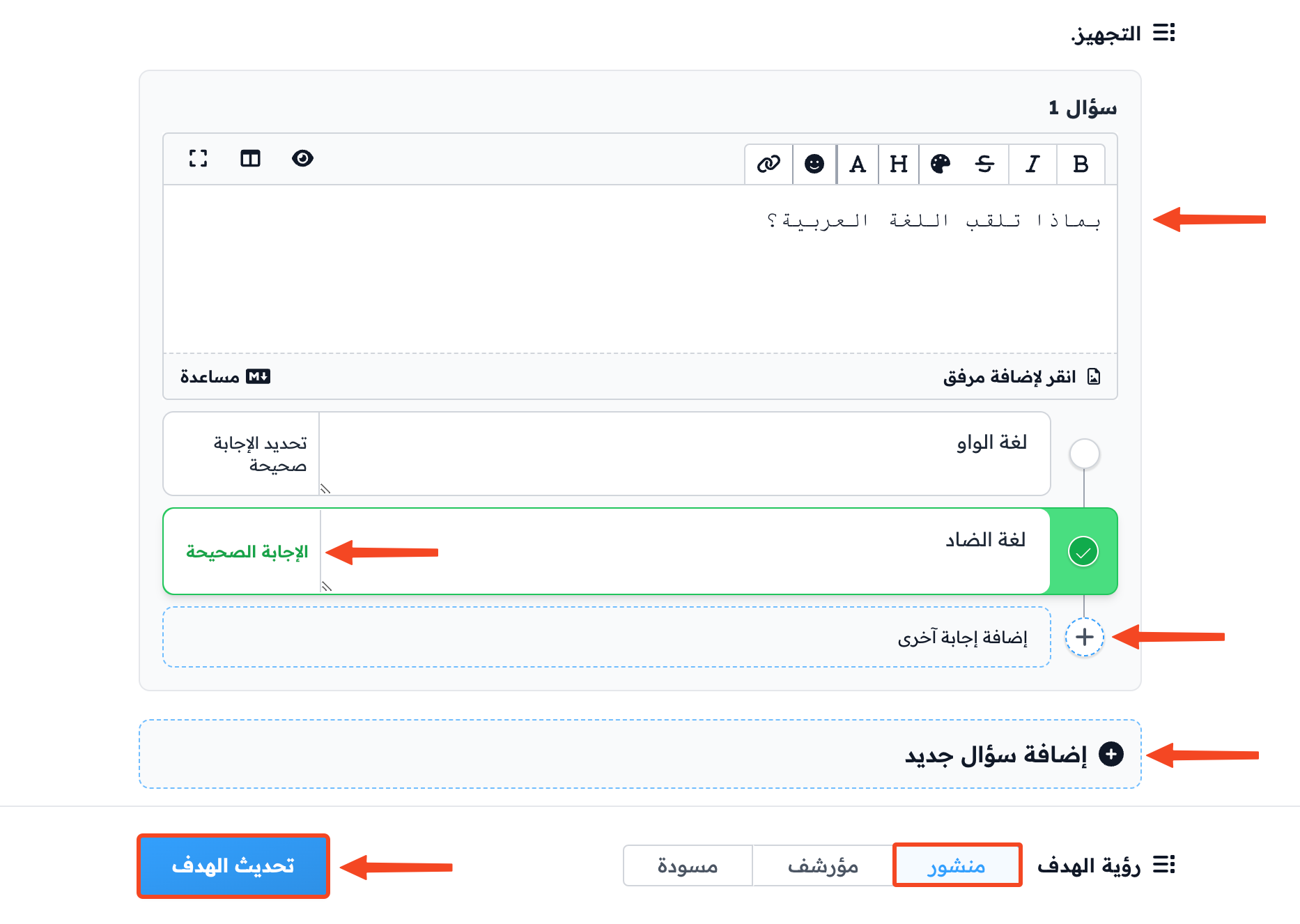
Type the question.
-
Type the answers, and mark the correct answer with Mark as correct.
-
To add more answers, click Add another Answer Option.
-
To add more questions, click Add another question.
-
Make sure Target Visibility is set to Live.
-
Click Update Target to save.
How the self-assessment looks to students
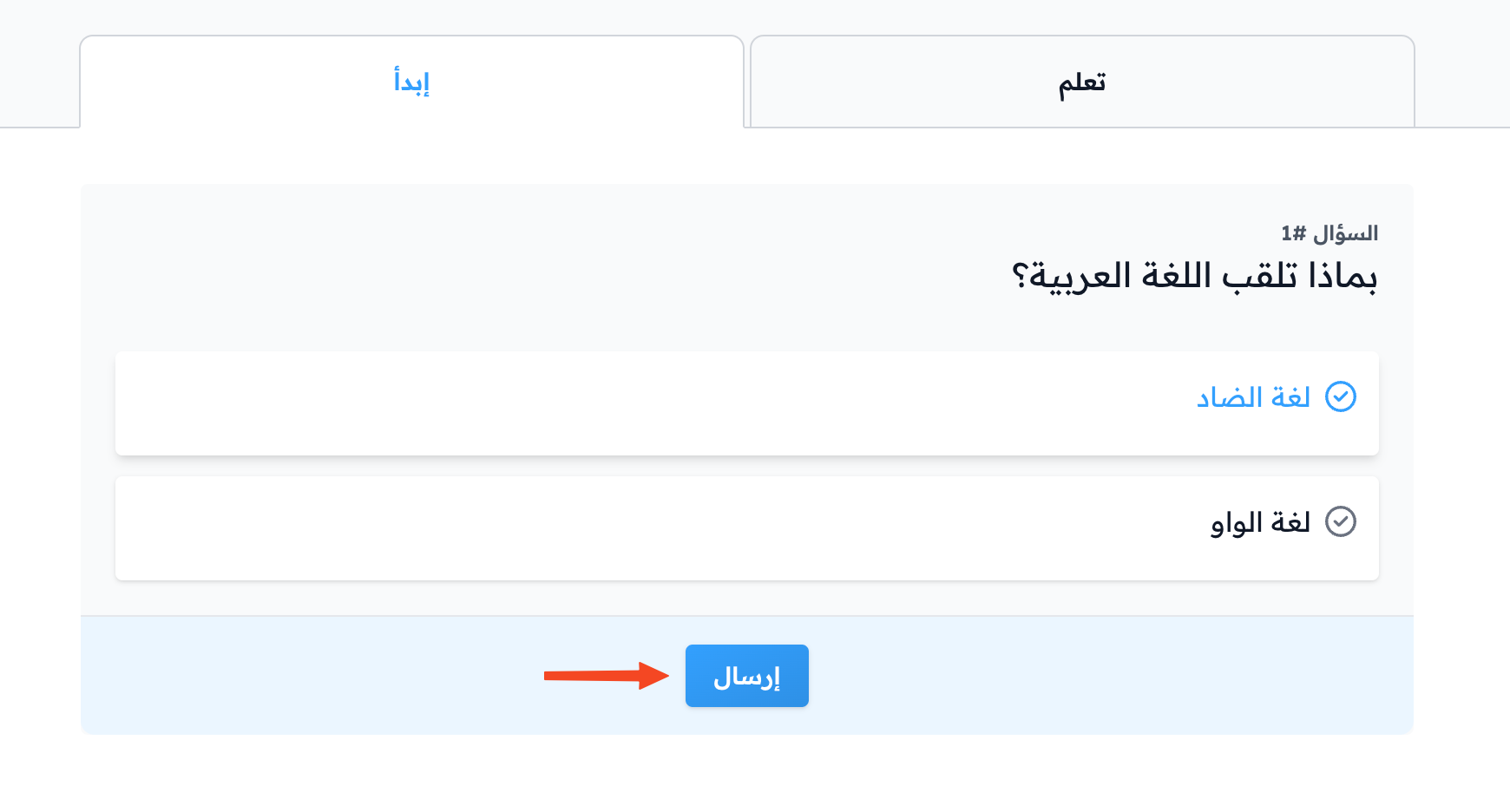
Students see the question like this.
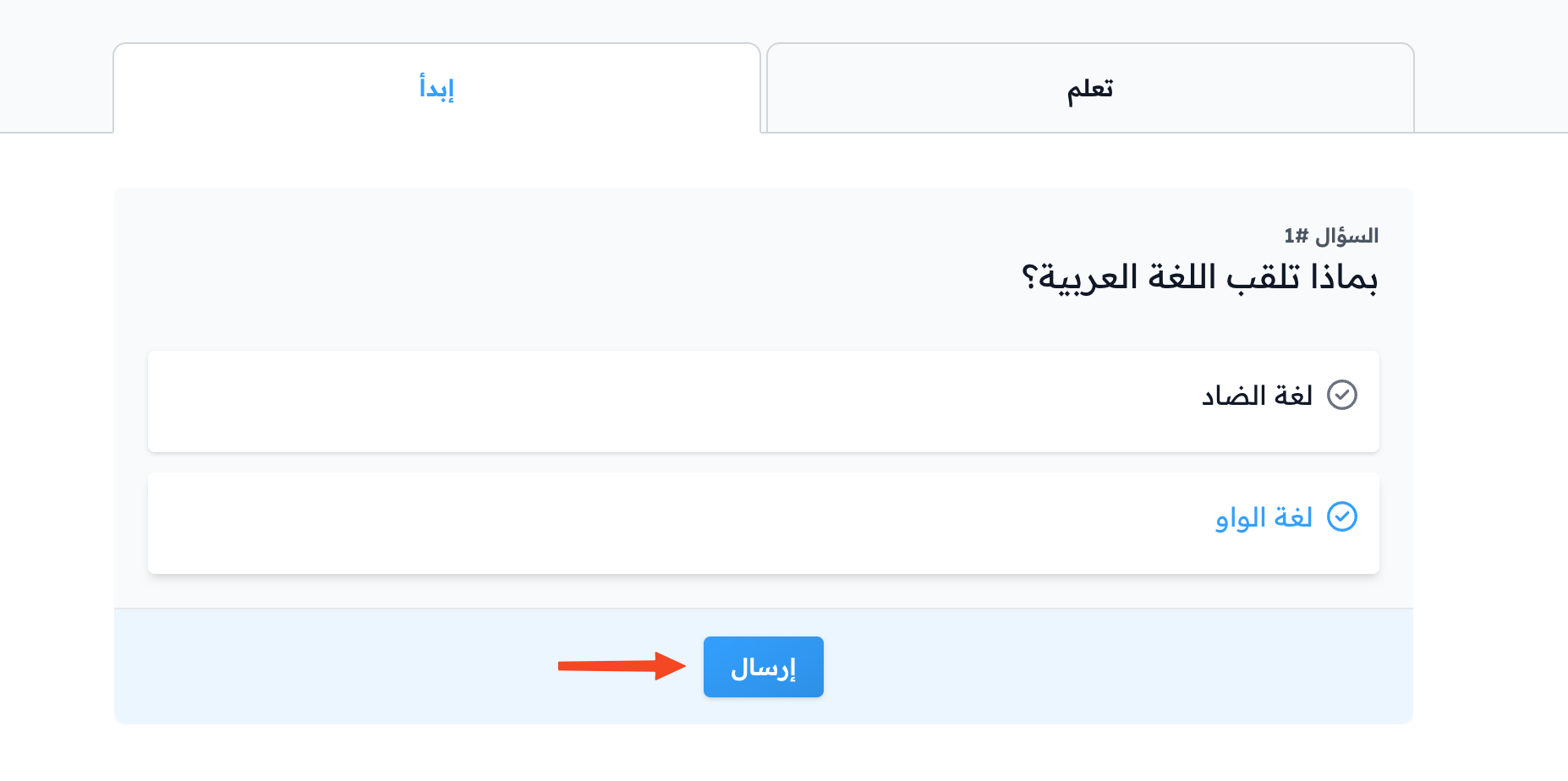
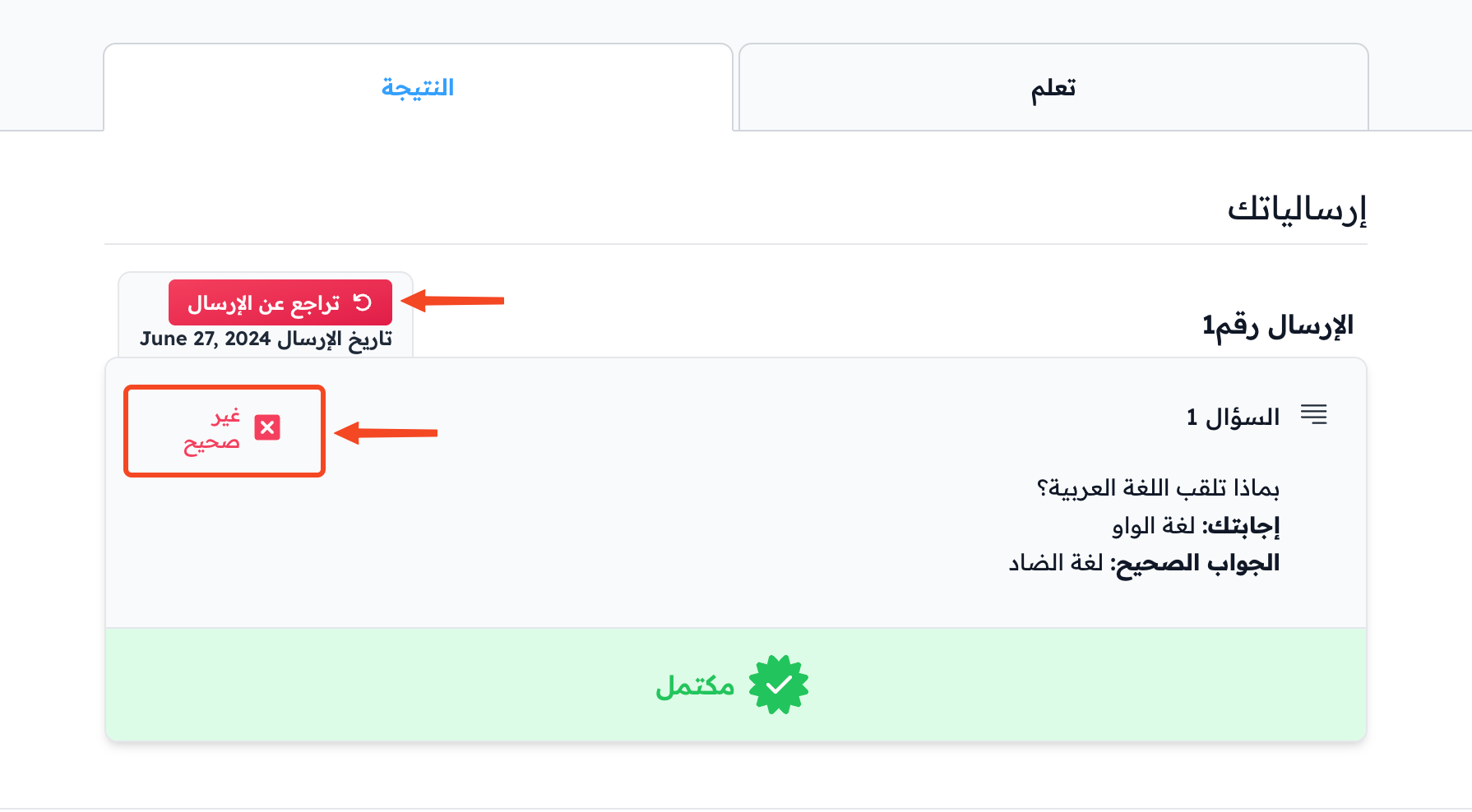
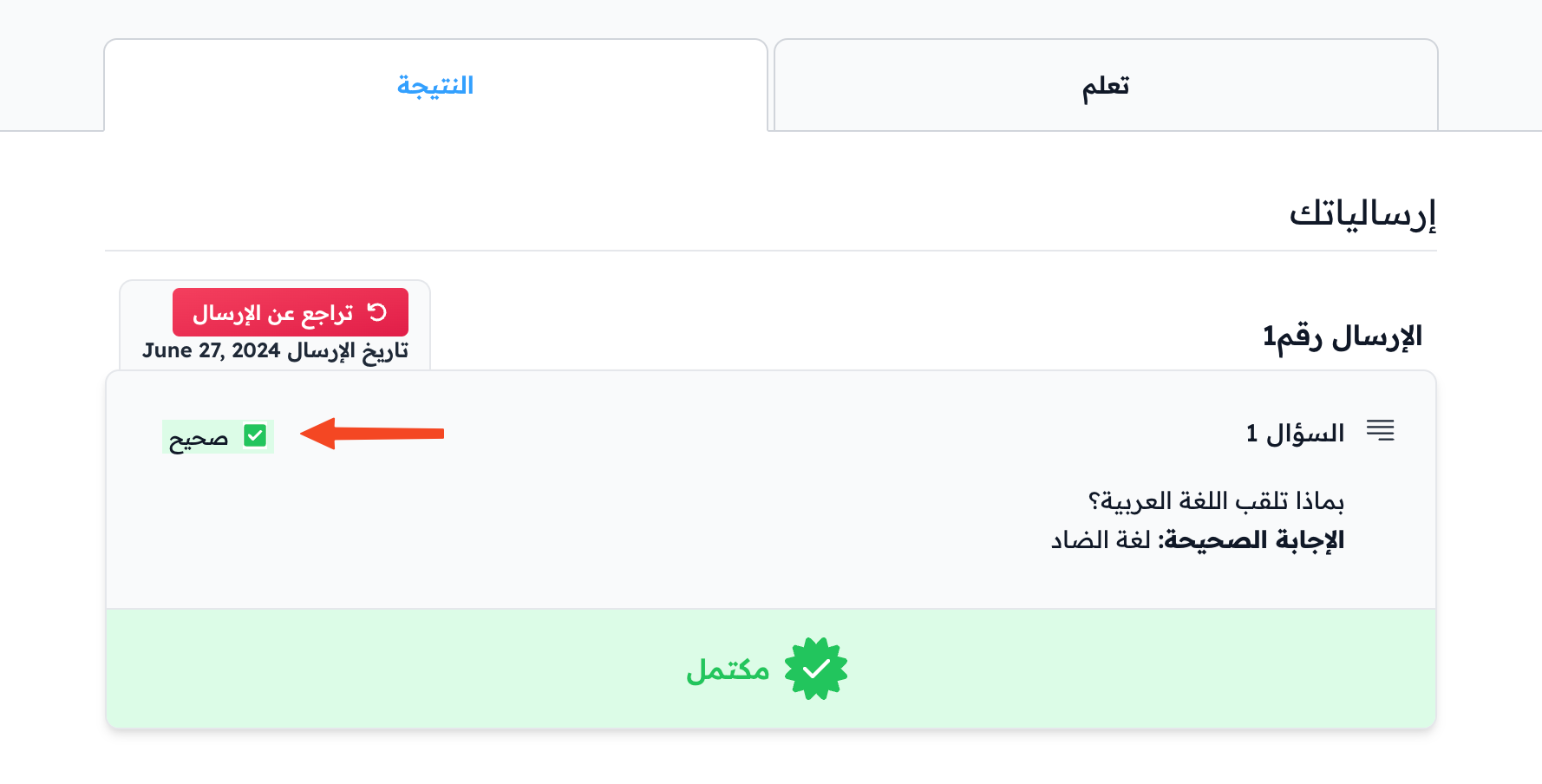
The student sees their result right away, and can take the self-assessment again as many times as they want, by clicking Undo submission.