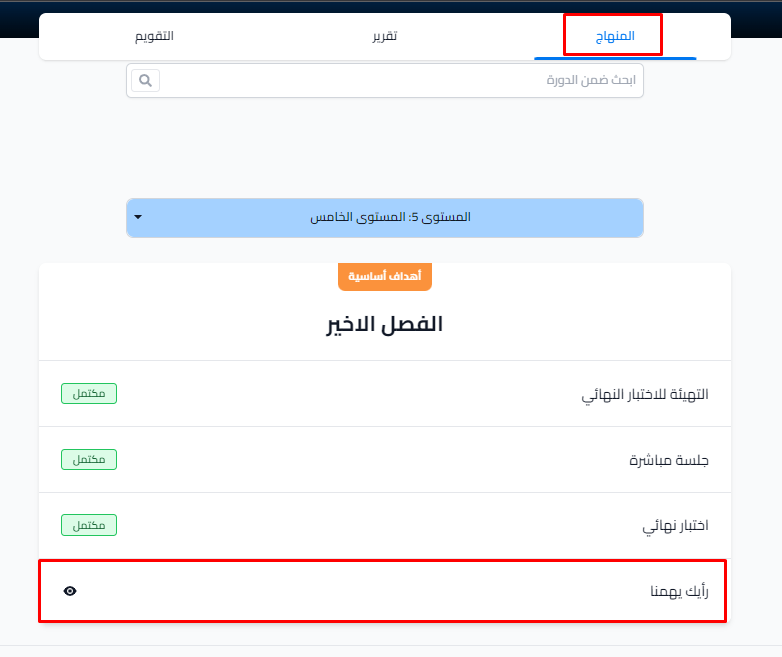
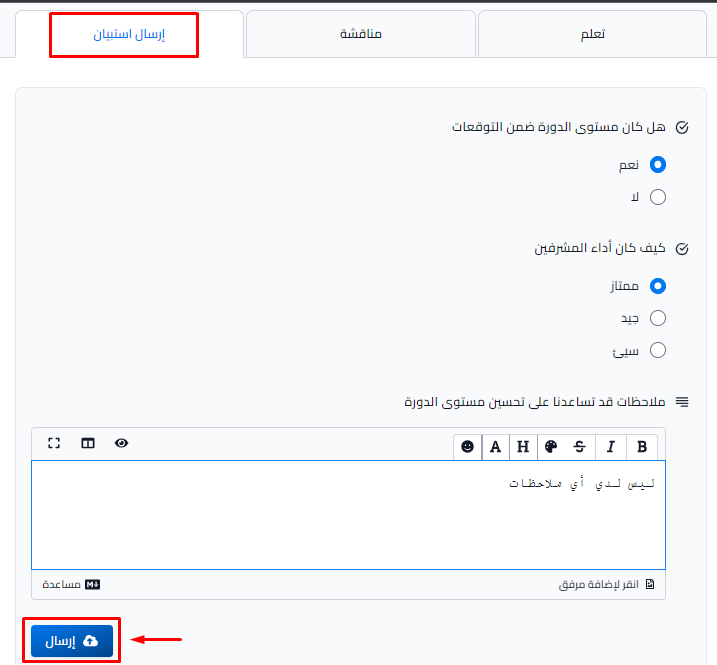
Create a survey (student satisfaction)
You can create a survey in the course to learn what students think and how happy they are with it. A survey is a target that the student completes by answering questions.
Platform admins and course authors can create surveys.
Steps to create a survey
-
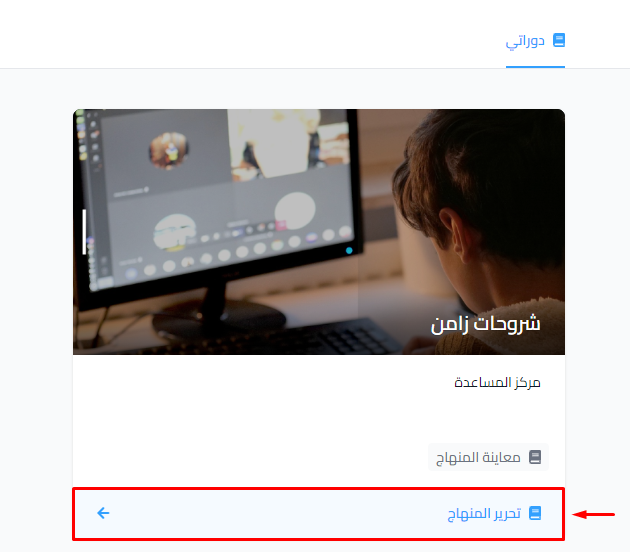
Click Dashboard at the top of the page. Then, under My Courses, click Edit Curriculum for the course.
-
On the Curriculum page, type the survey name in the Create target field, then click Create.

-
Open the target. Then, on the Details tab, type the survey title in the Title field.

-
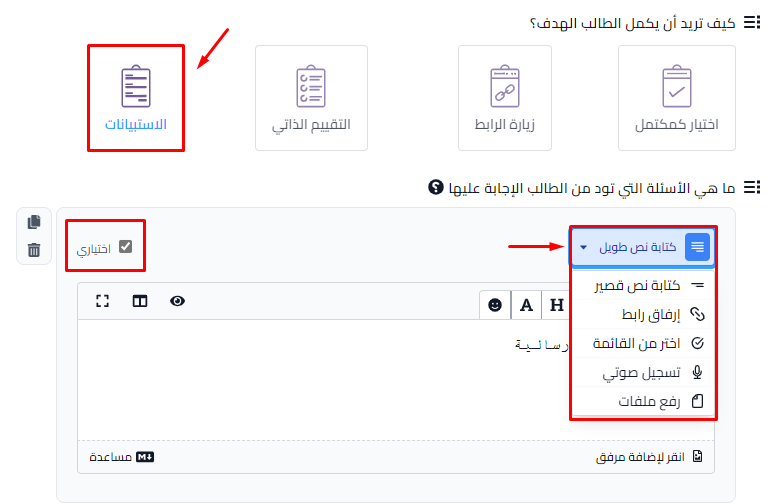
Under How do you want the student to complete the target?, choose Submit a form to complete the target.
-
From the drop-down list, choose the type of question you want to add to the survey.
-
To make the answer to a question not required, select Optional.
-
Type the question in its box.
-
To add more questions, click Add another question.
-
Set Target Visibility to Live.
-
Click Update Target to publish the survey, so students can see it.
NoteFor Choose from a list questions, you can edit the choices of the question, or add more choices with Add a choice.
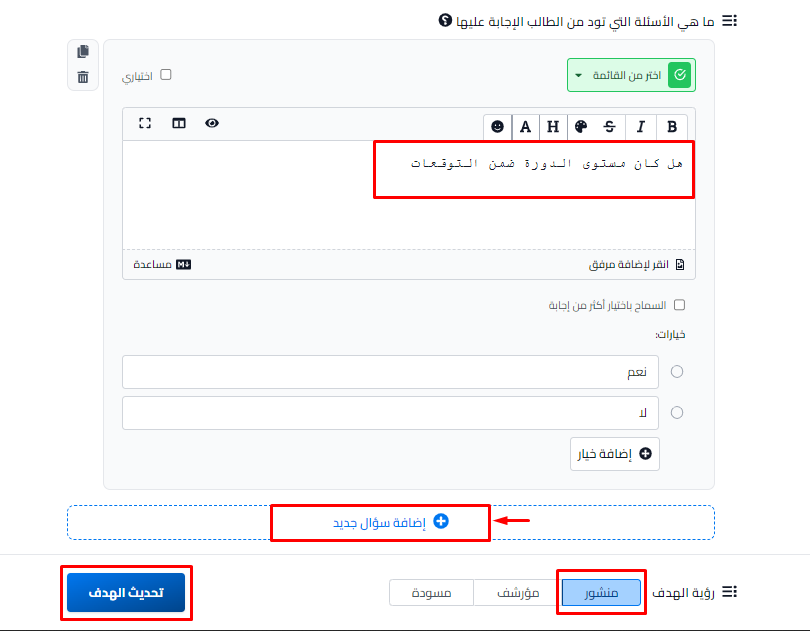
How the survey looks to students