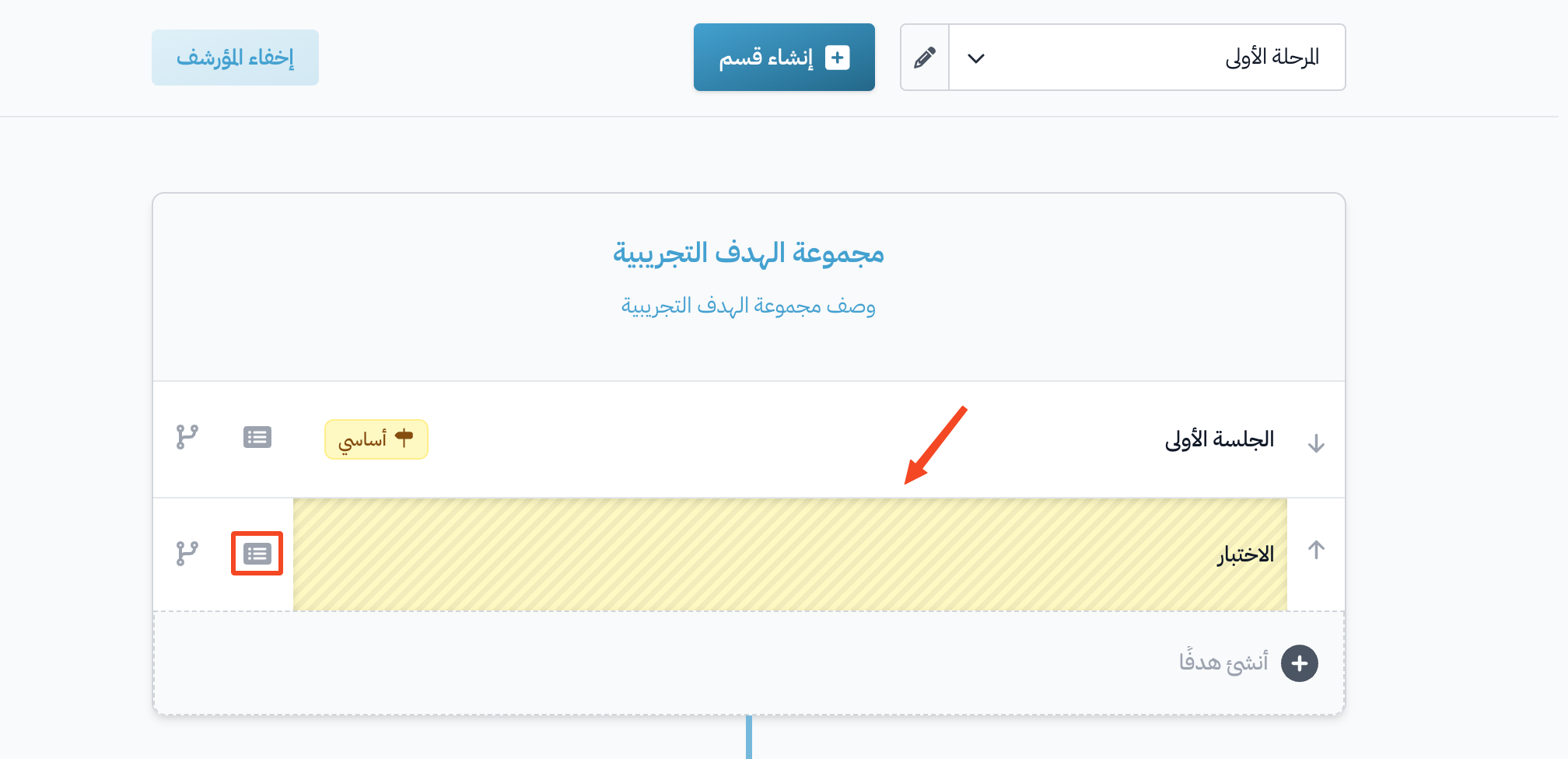
Delete a target from a training course
There is no button to delete a target from a course for good. Instead, change the Target Visibility to Draft or Archived, and the target is hidden from students.
How to hide a target from a course
-
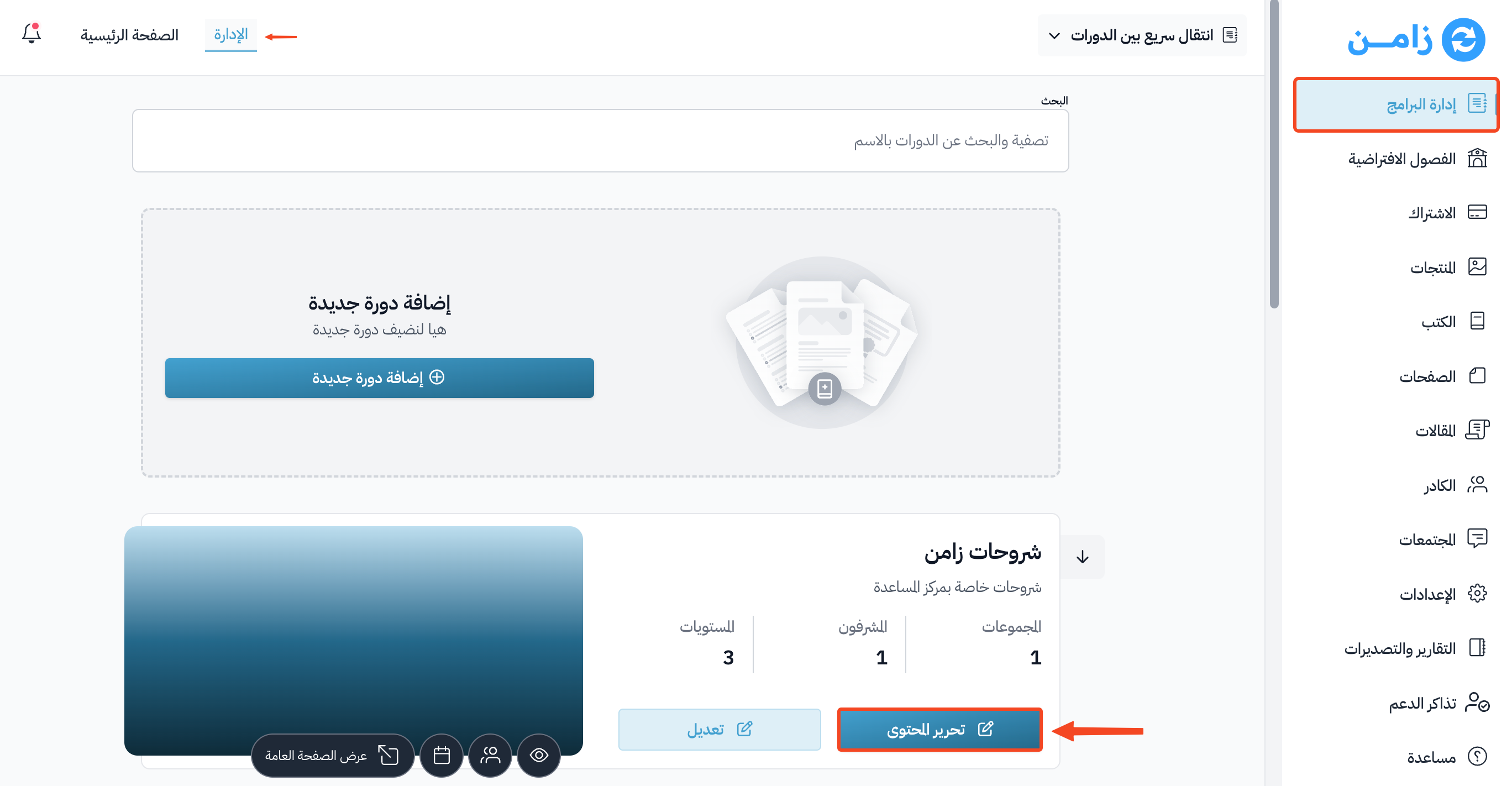
Click Dashboard at the top of the page, then click the Edit Curriculum button at the bottom of the card of the course you want, under My Courses.
-
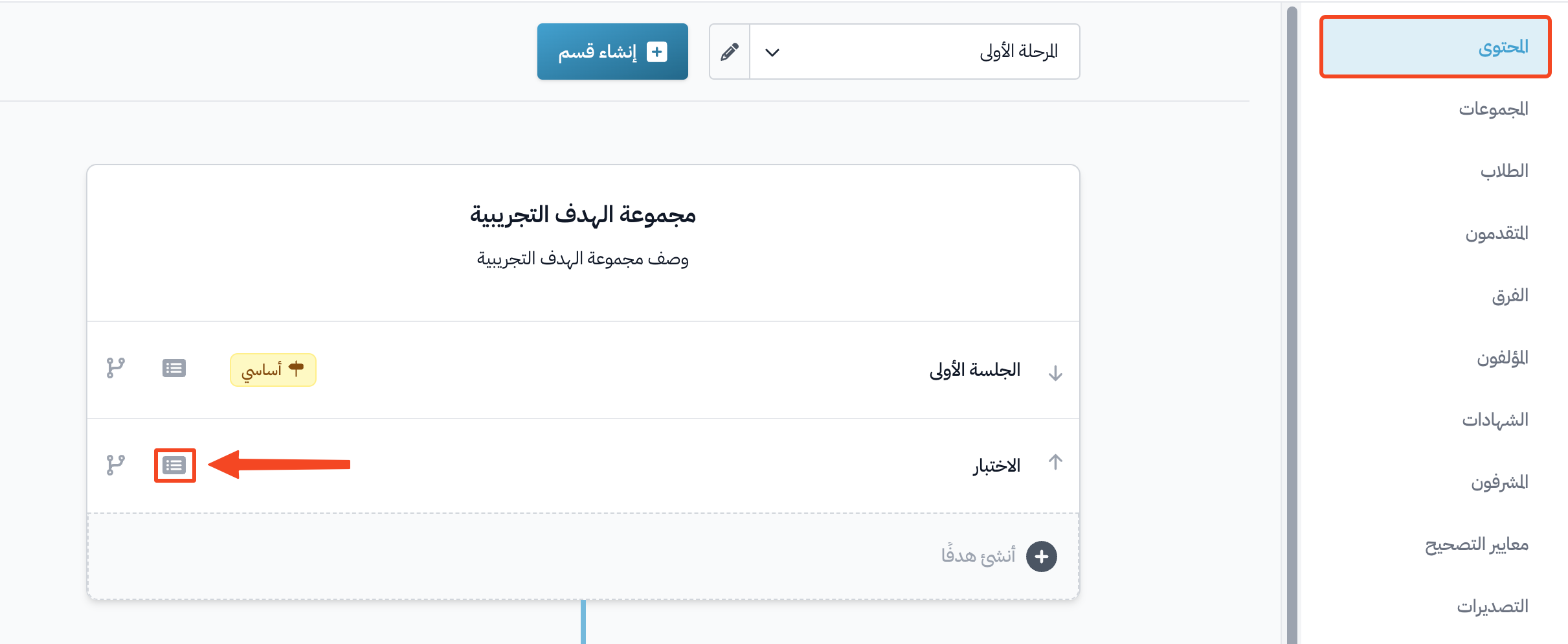
On the Curriculum page, click the details button next to the target.
-
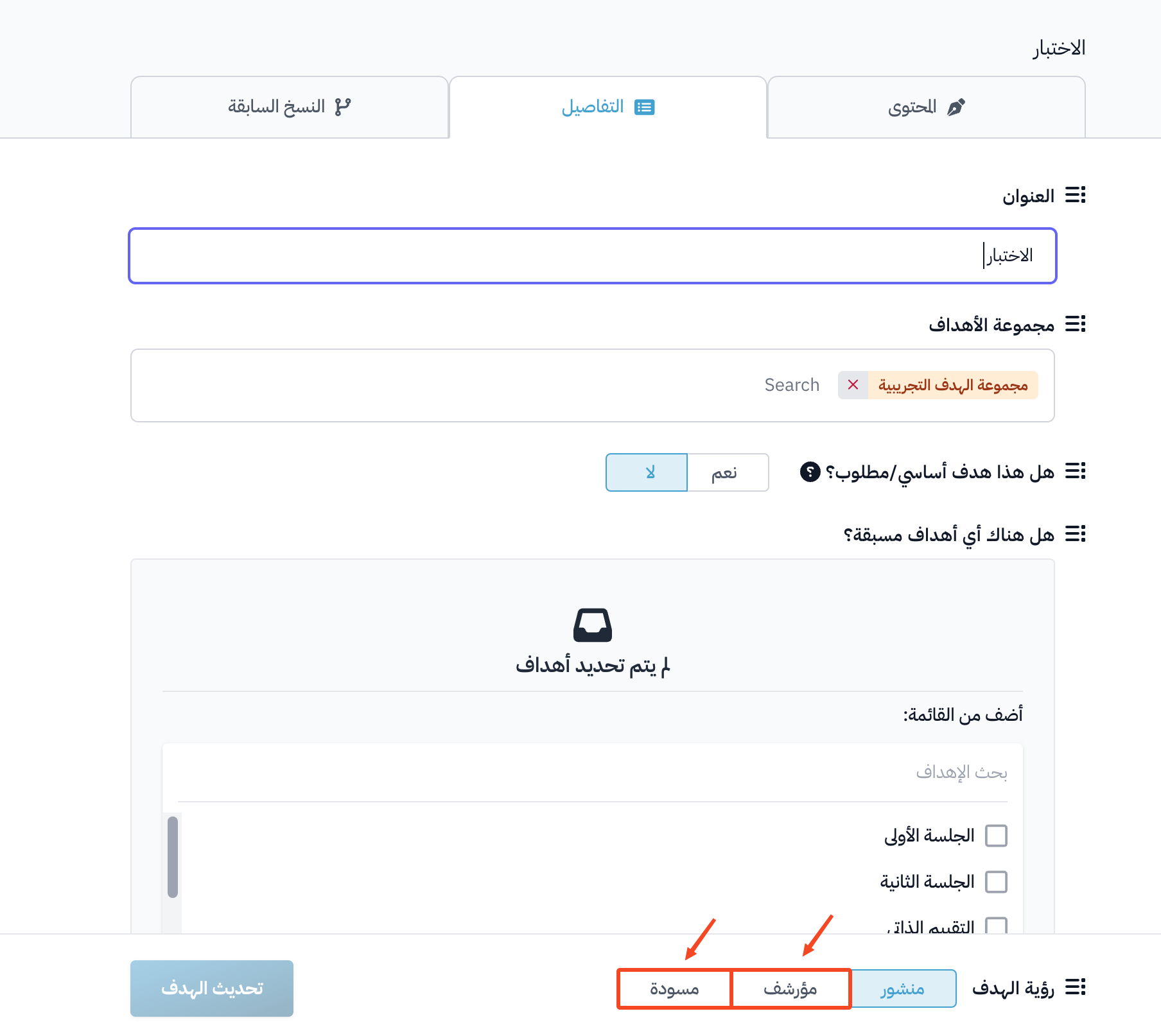
In Target Visibility, choose Draft or Archived.
-
Click Update Target to save.
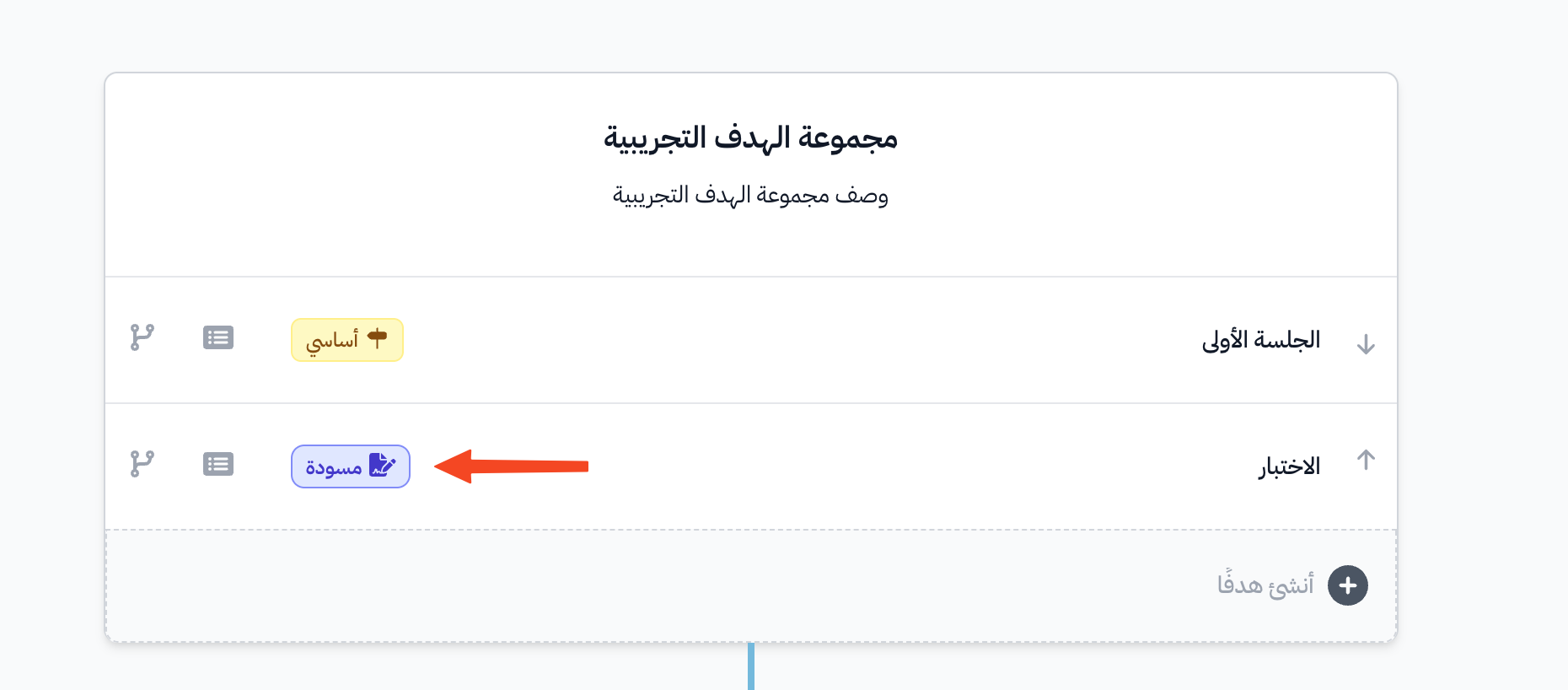
When you choose Draft
- Students do not see the target.
- Admins and authors see the target on the Curriculum page, with a Draft label next to it.

When you choose Archived
- Students do not see the target.
- Admins and authors do not see the target on the Curriculum page.
- The archived target shows on the Curriculum page when you click Show Archived.

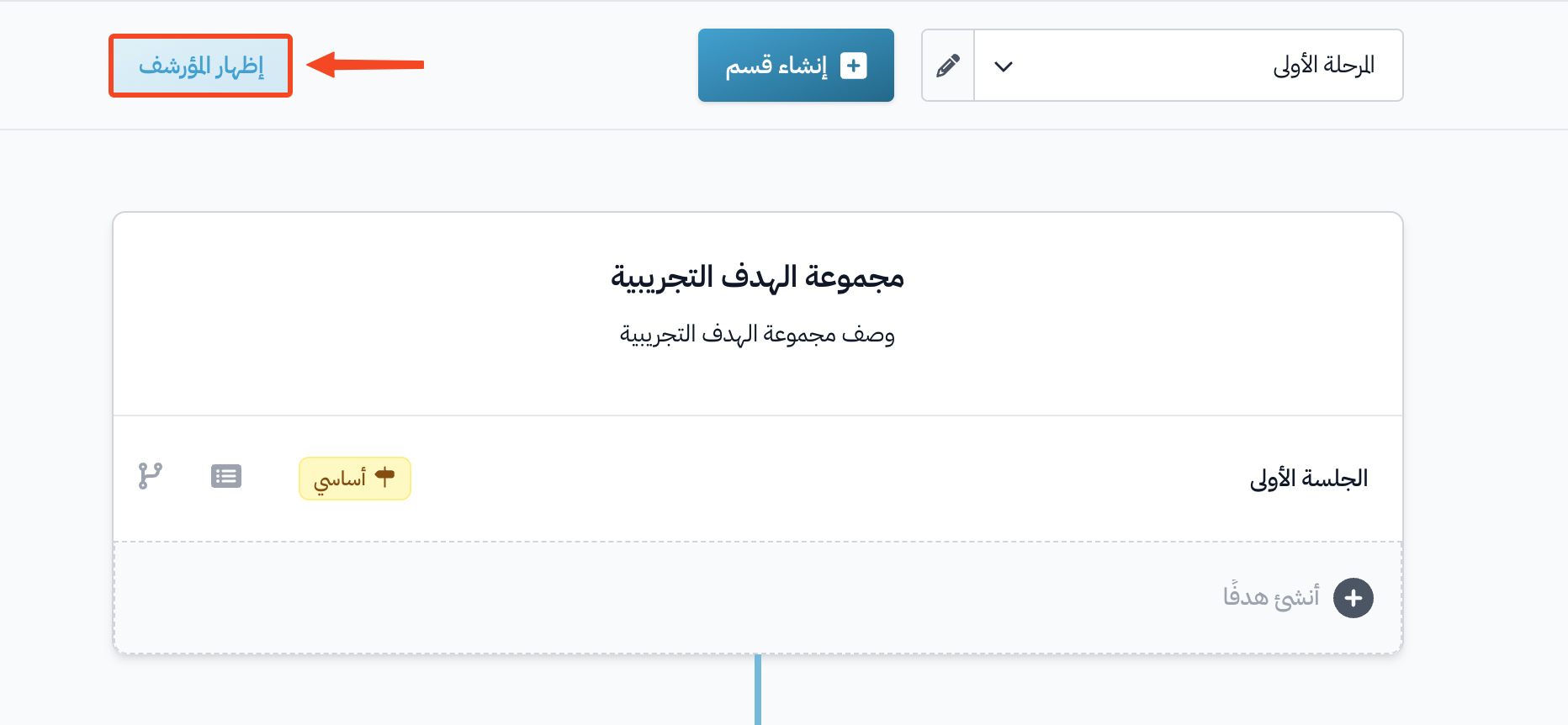
After you show the archived target, you can change its visibility and edit it by clicking the details button next to it.