Author guide: create an assignment
This guide shows how an author creates an assignment with advanced questions in a course. Students answer with text, a link, a file or an audio record, and then a coach reviews the answer.
Steps to create an assignment with advanced questions
-
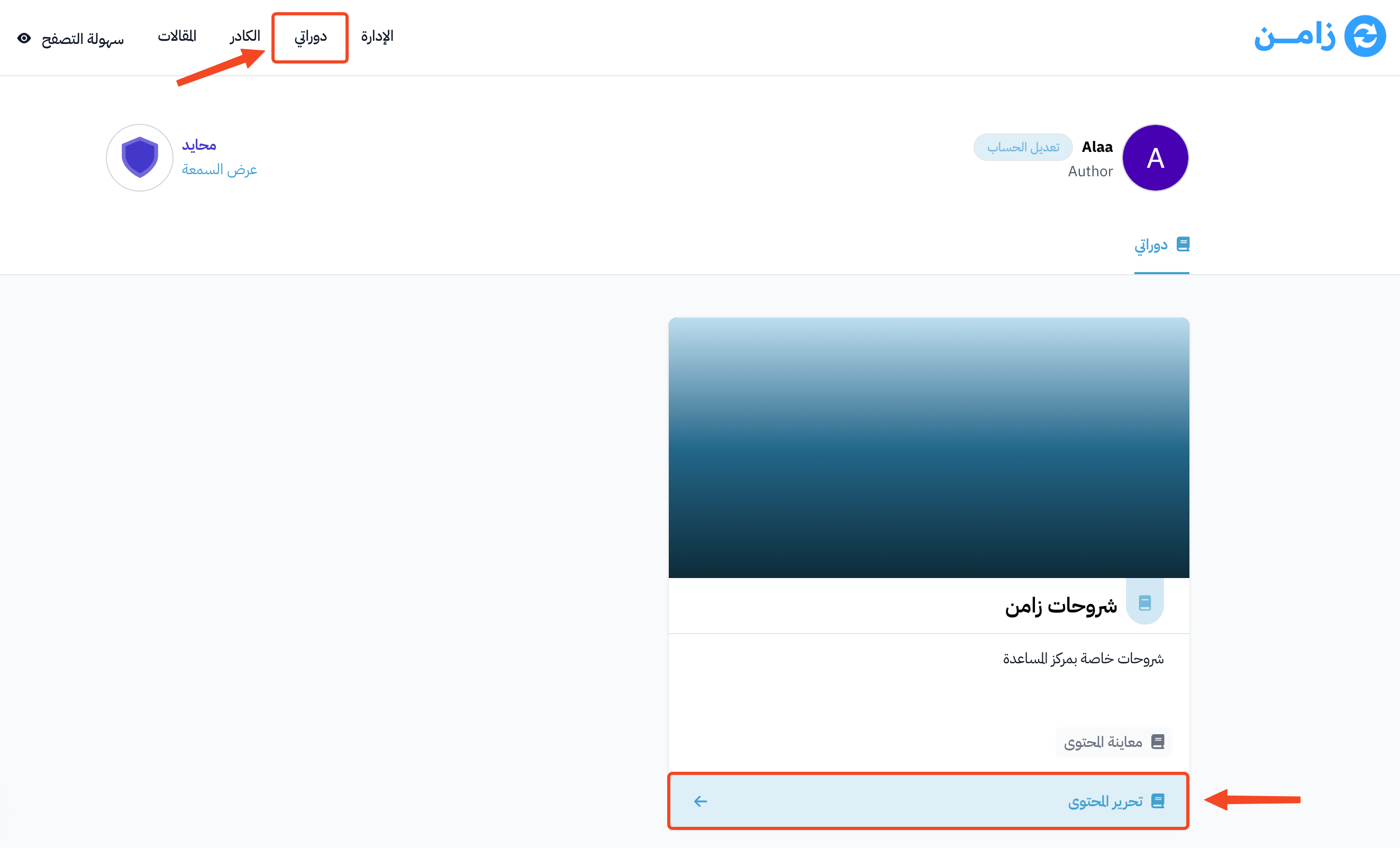
Click Dashboard at the top of the page, then click the Edit Curriculum button at the bottom of the card of the course you want to add an assignment to, under My Courses.
-
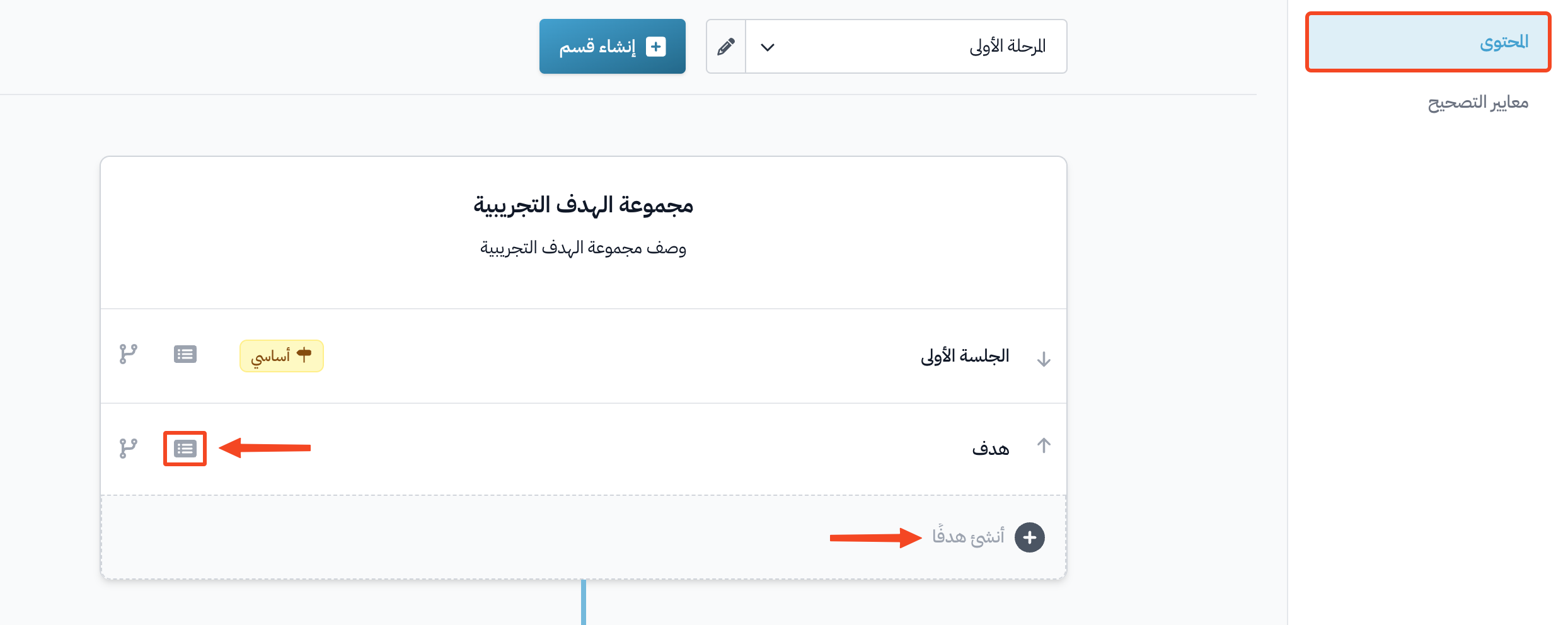
On the Curriculum page, create a new target, or open an existing one.
-
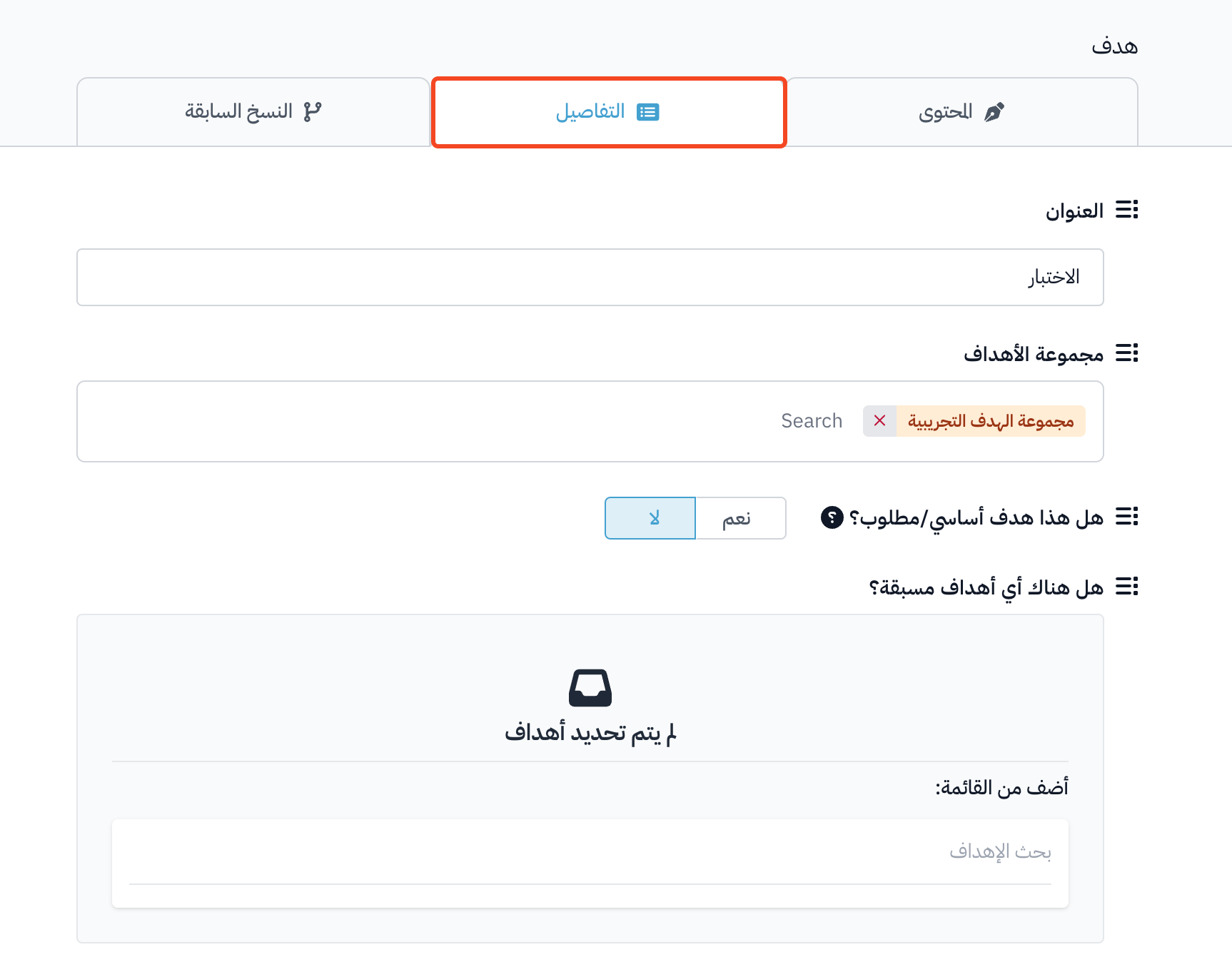
Go to the Details tab of the target.
-
You can edit the Title, turn on Milestone target, and choose prerequisite targets in Are there any prerequisite targets? if there are any.
-
Under How do you want the student to complete the target?, choose Advanced questions reviewed by coach.
-
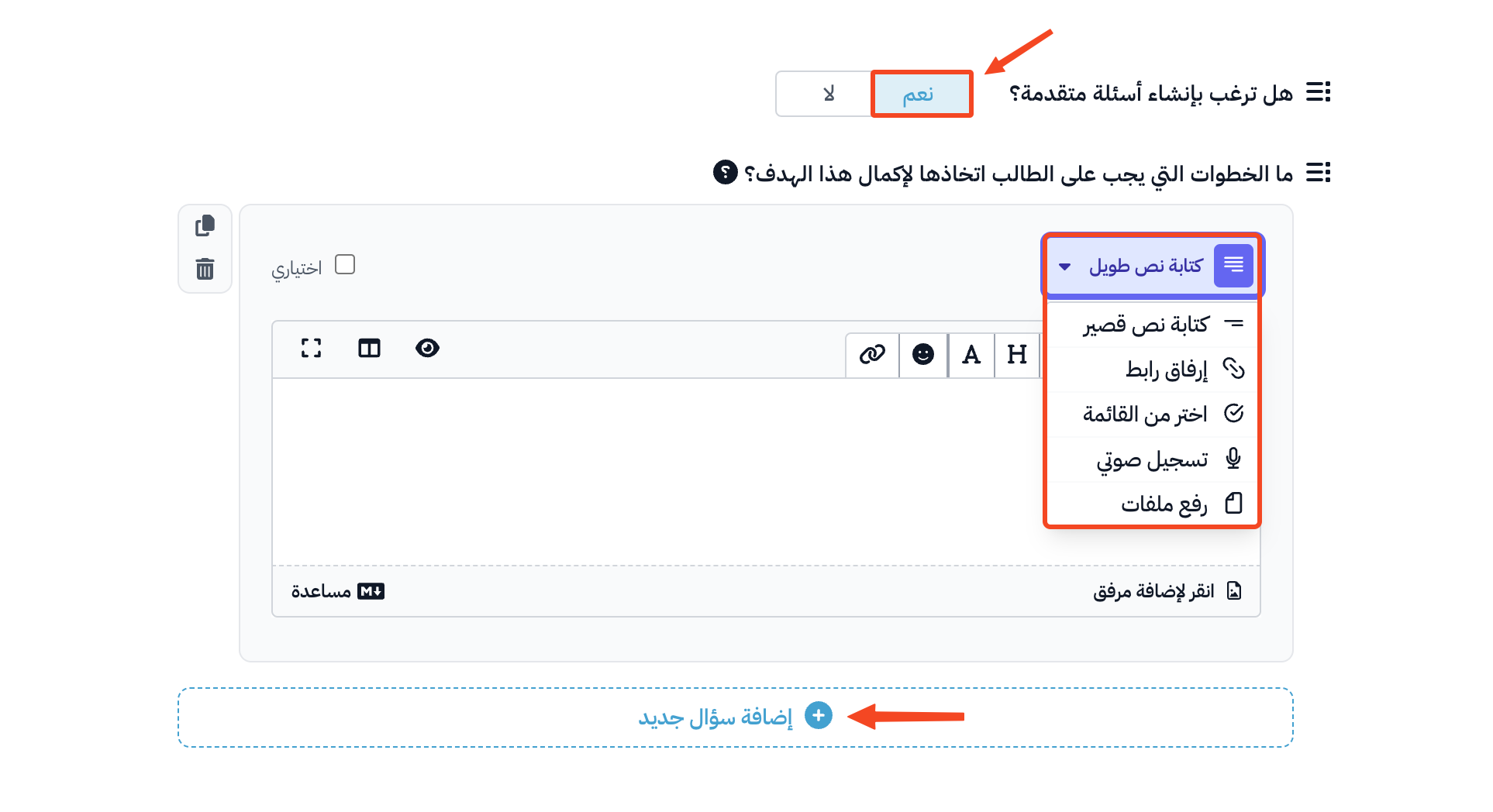
Under What steps should the student take to complete this target?, choose how the student answers: Write Short Text, Write Long Text, Attach a Link, Choose from a list, Record Audio or Upload Files. Then type the question.
-
To add another question, click Add another question.
-
In Choose evaluation criteria from your list, choose the evaluation criteria. You must choose at least one.

-
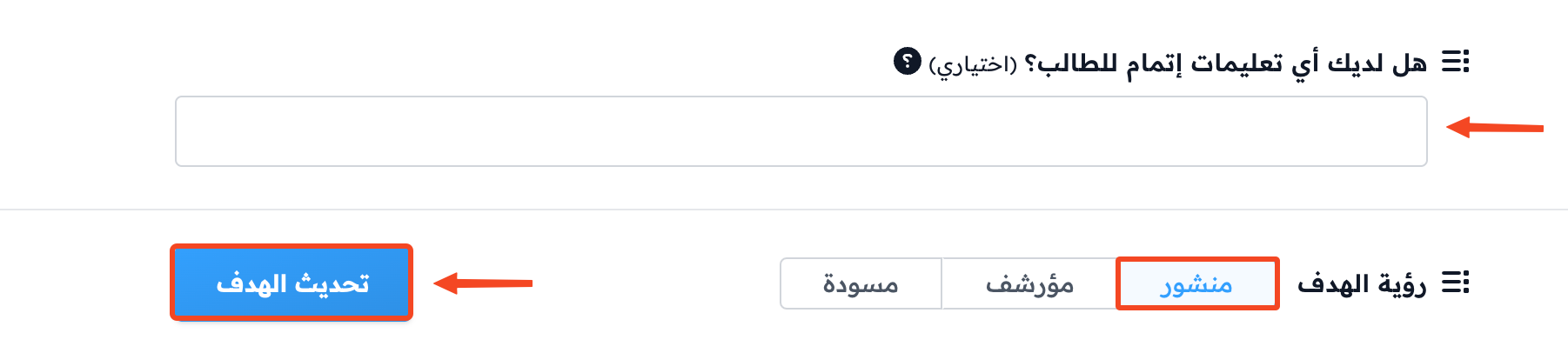
You can write instructions for the student in the Do you have any completion instructions for the student? field (optional).
-
Make sure Target Visibility is set to Live.
-
Click Update Target to save.
When students answer the assignment questions, a coach must review and grade their submissions. The target is complete for the student only when the coach accepts the submission.