How an author adds content to a course
This guide is for course authors. It shows how to open the course you were added to, and how to add its content.
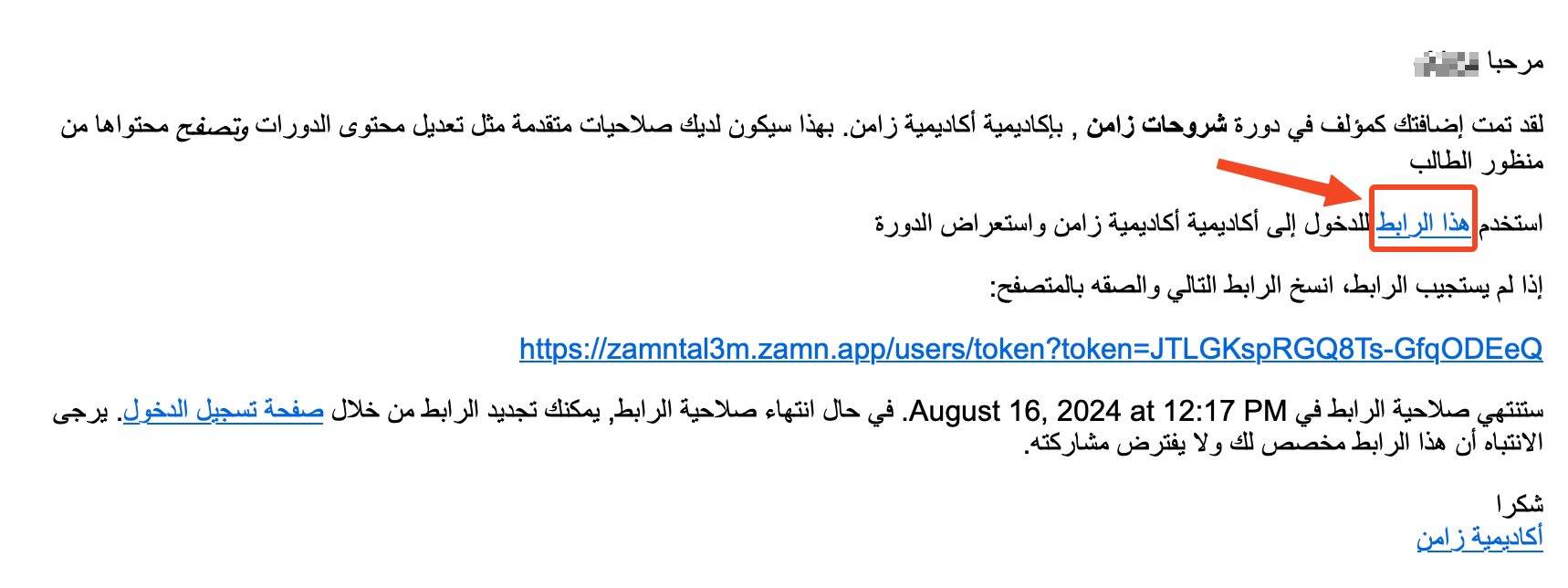
When a platform admin adds you as an author to a course, you get an email. On the platform, an author is shown as a trainer, so the email says you were added as a trainer in the course. This lets you add and edit the course content.
To sign in to the platform, click this link in the email.
Steps to open the course content
-
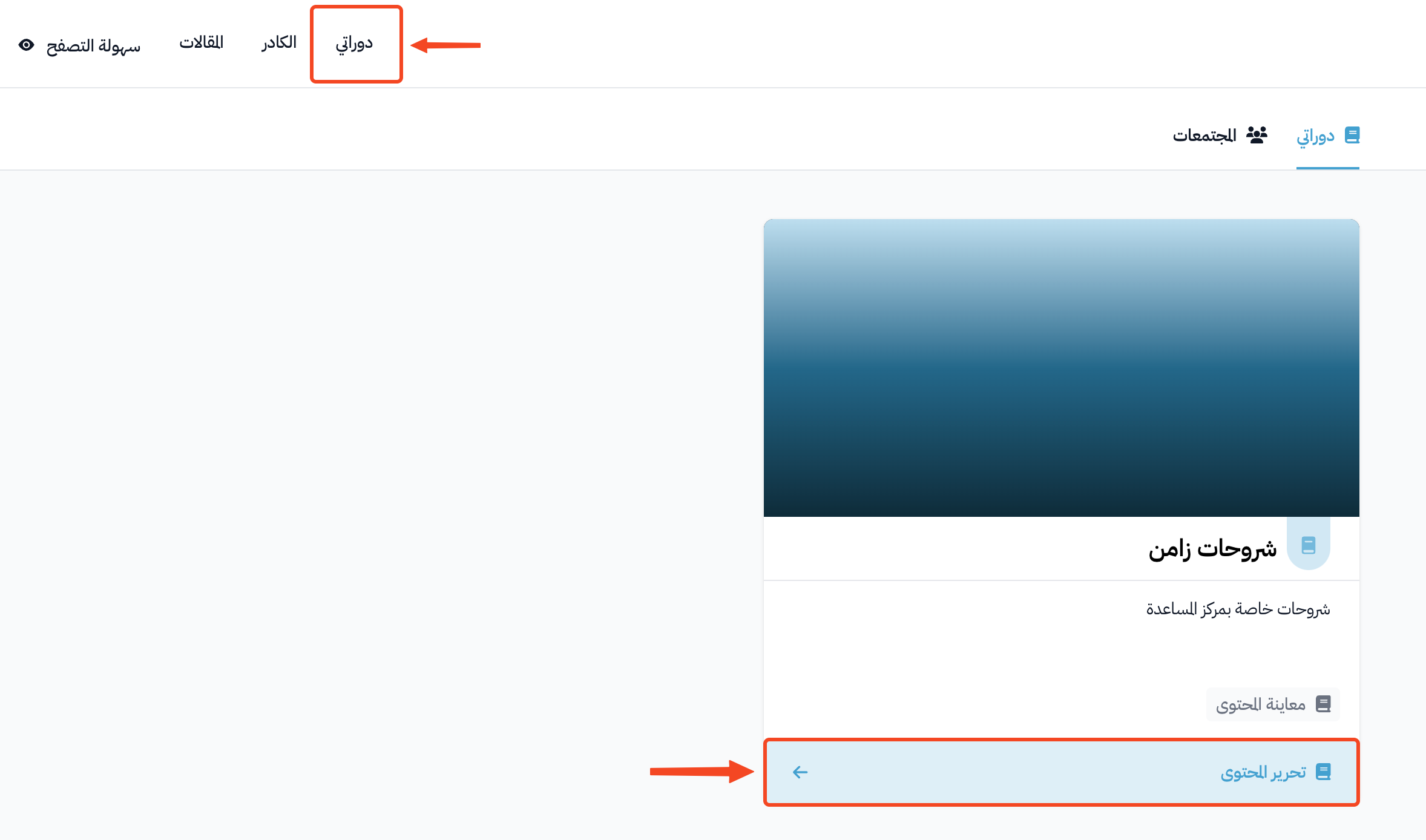
Click Dashboard at the top of the page. Under My Courses, you see all the courses you can access.
-
Click the Edit Curriculum button at the bottom of the course card to open the course dashboard.
What an author can do in a course
- View Curriculum: see the course as a student sees it.
- Edit Curriculum: add and edit the course content.
The course dashboard
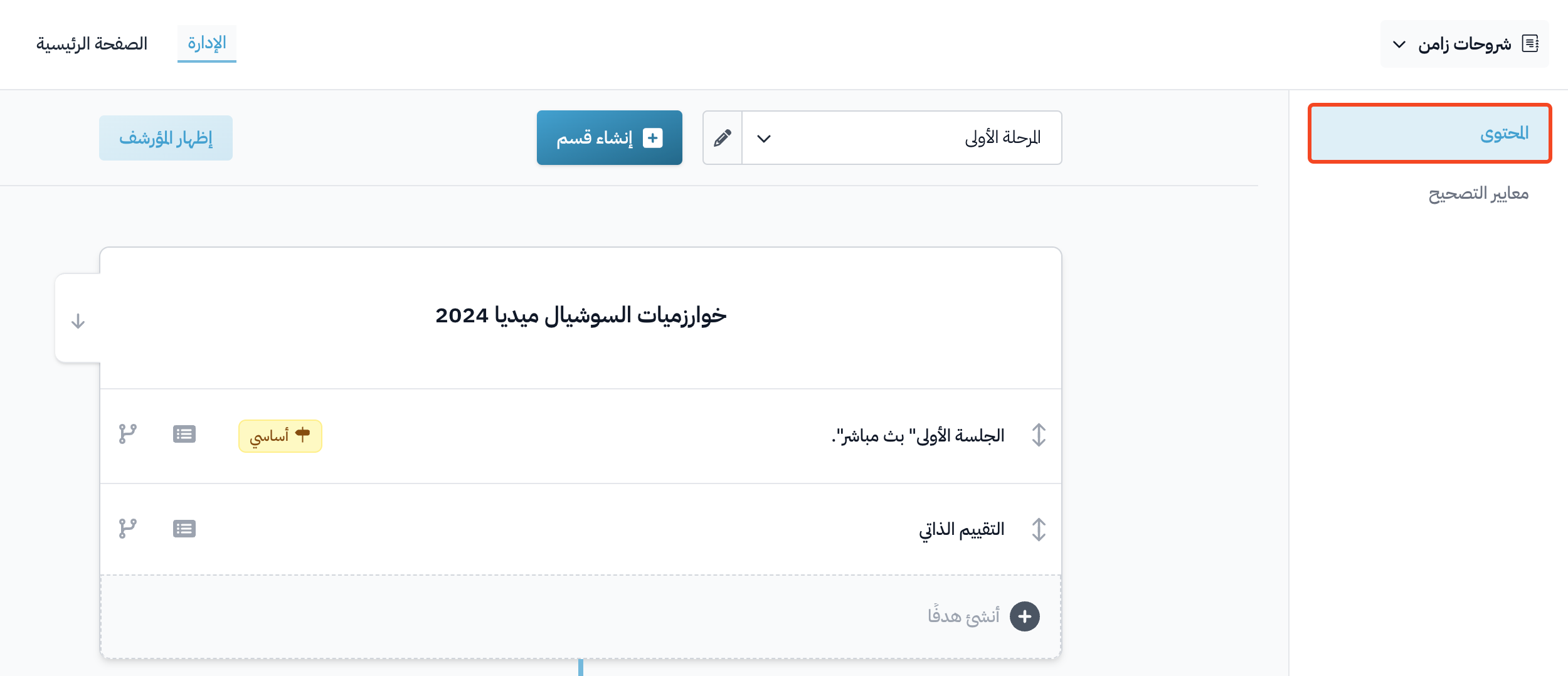
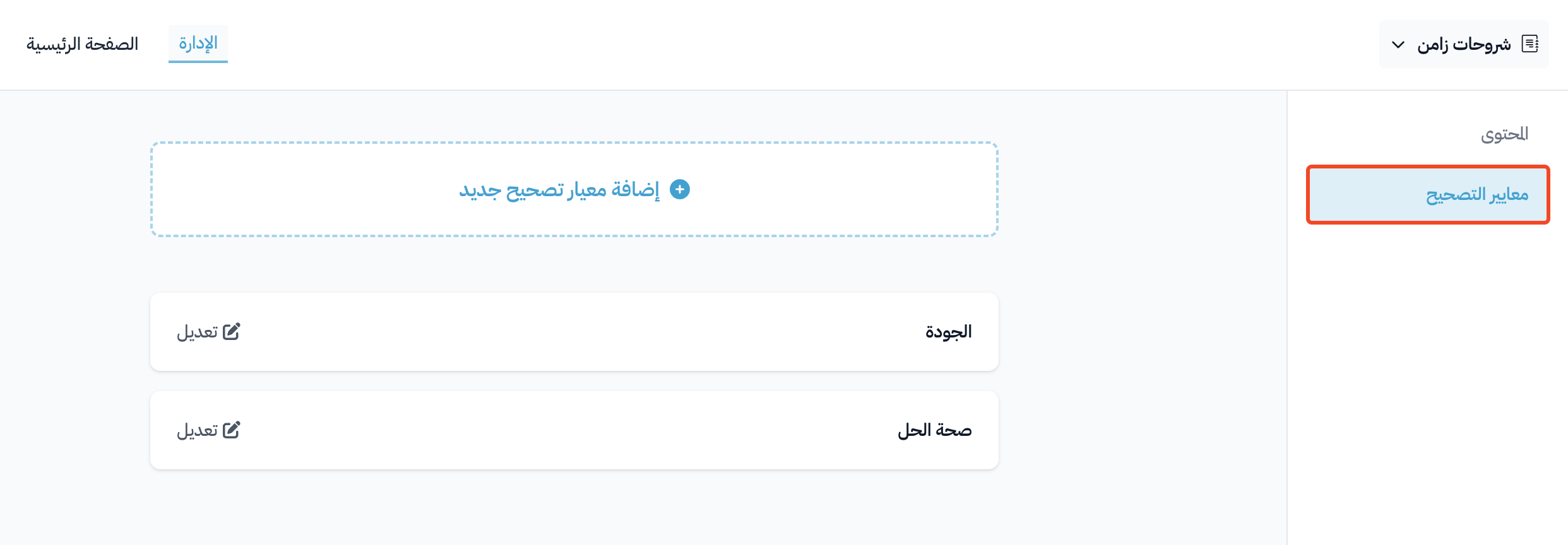
The side menu of the course dashboard has two pages: Curriculum and Evaluation Criteria.
Curriculum
On the Curriculum page, you can create new sections (levels) and targets, and edit the sections and targets that already exist.
Evaluation Criteria
On the Evaluation Criteria page, you can create new evaluation criteria and edit the ones that already exist, to link them to the advanced questions in assignments.
To learn more about how to create evaluation criteria, click here.
Content types you can add
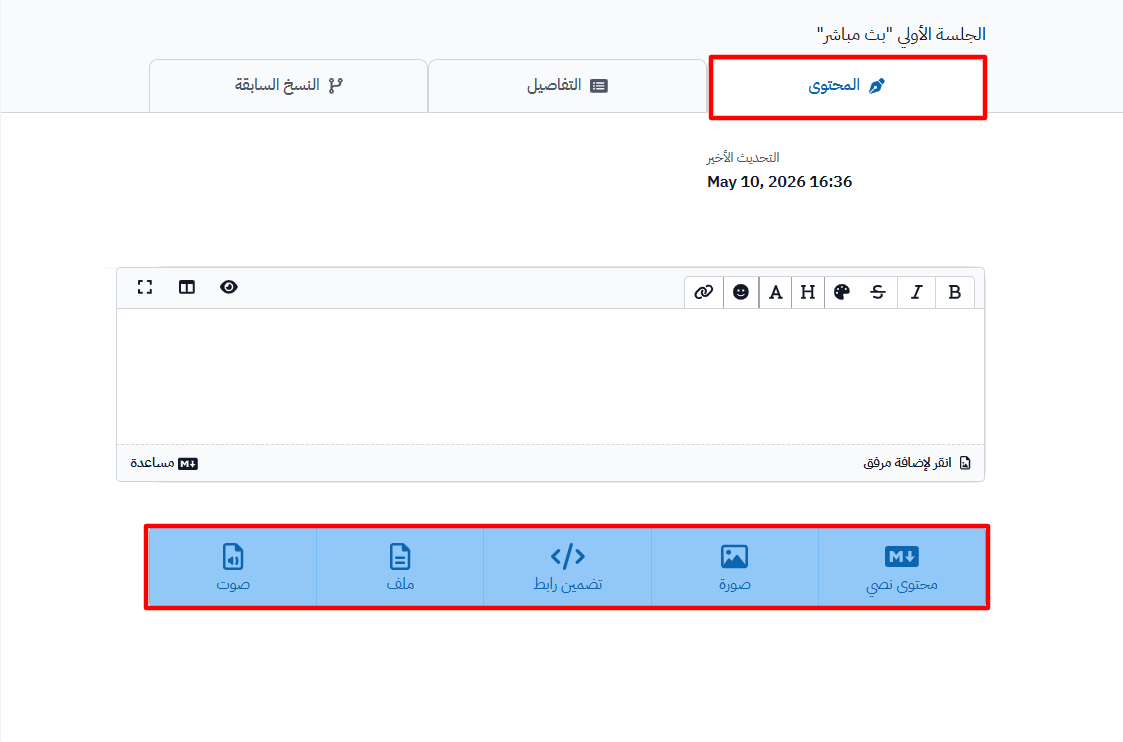
On the Content tab of a target, you see these content types:
- Markdown: add text in Markdown format.
- Image: add images.
- Embeded Link: add links from YouTube, SlideShare, Google Drive and Microsoft 365.
- Upload Video: upload a video with Zamn Stream. This button shows only on some platform plans.
- File: add different kinds of files.
- Audio: upload an audio clip.
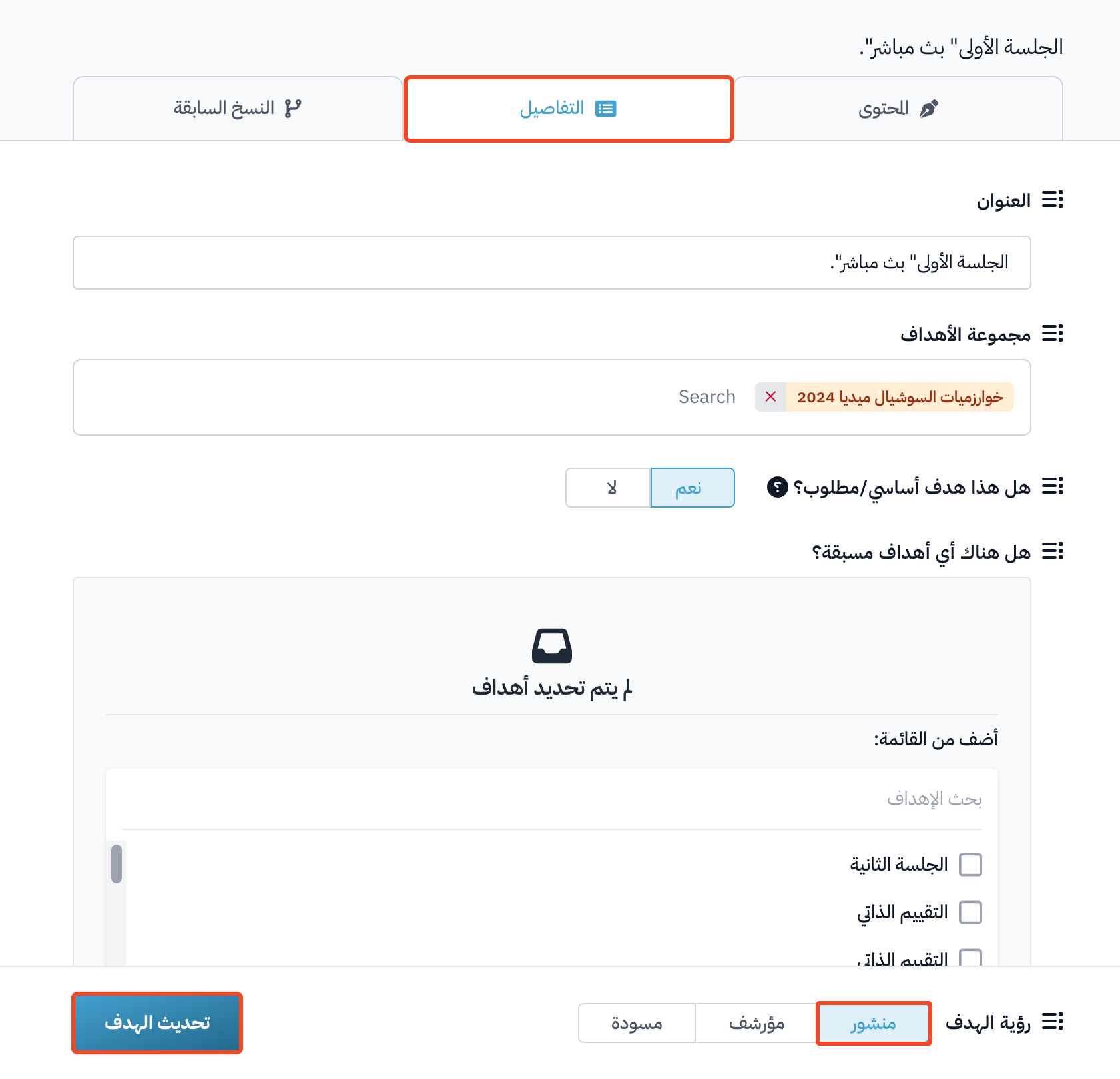
When you finish adding the content, go to the Details tab of the target, make sure Target Visibility is set to Live, and then click Update Target.