Sign in to the platform with a password or a verification code
If you signed out of the platform and want to sign in again, or you want to open your account from a different device than the one you signed up on, follow these steps.
You can sign in to the platform in several ways:
- With your password.
- With a verification code sent to your email (a one-time password, OTP).
- With WhatsApp.
The sign-in page may show other ways, based on your platform, such as Google, Sign in with username or Passkey.
Steps to sign in with your password
No password is created when you sign up for your first course on the platform. If you have not set a password for your account yet, set a password first, or sign in with a verification code.
From the platform home page or from the course link:
-
Click Login at the top of the page. The sign-in page opens on the email and password fields.
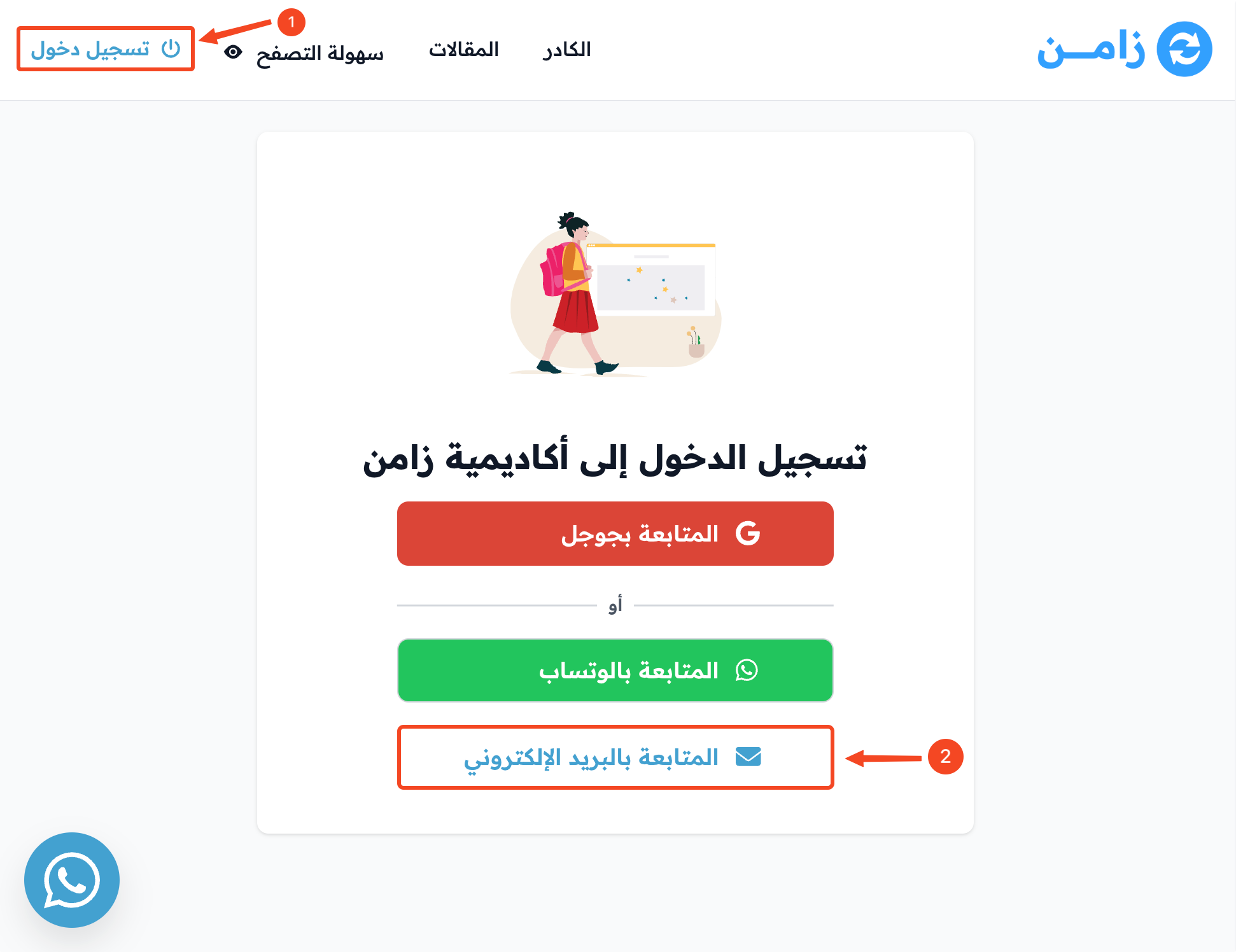
-
Enter your email address.
-
Type the password that you set for your account.
-
Click Sign in with password.
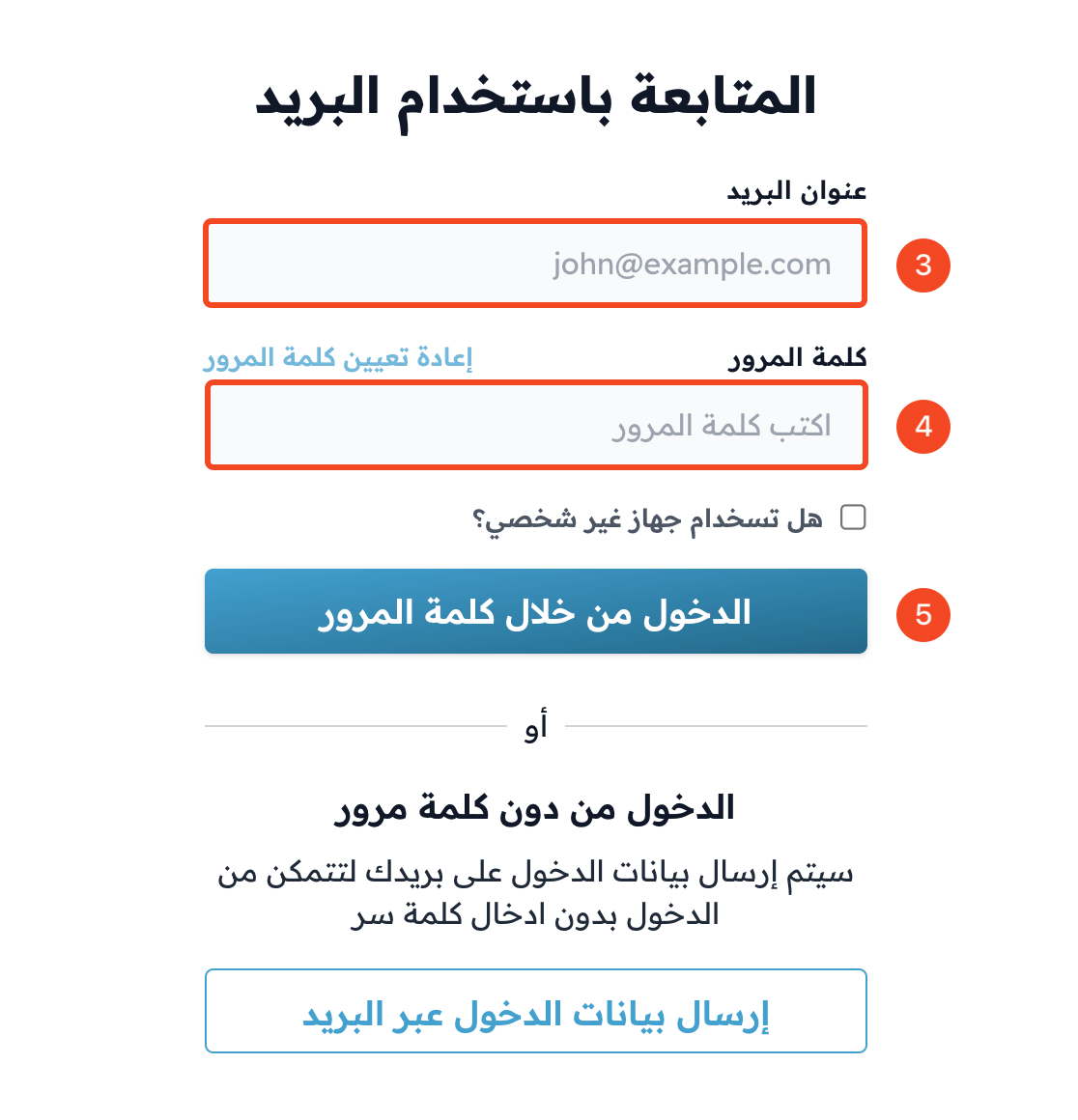
If you forgot your password, click Forgot your password? under the sign-in button to reset your password.
Steps to sign in with a verification code sent to your email
From the platform home page or from the course link:
-
Click Login at the top of the page.
-
On the sign-in page, click Continue with email under OR.
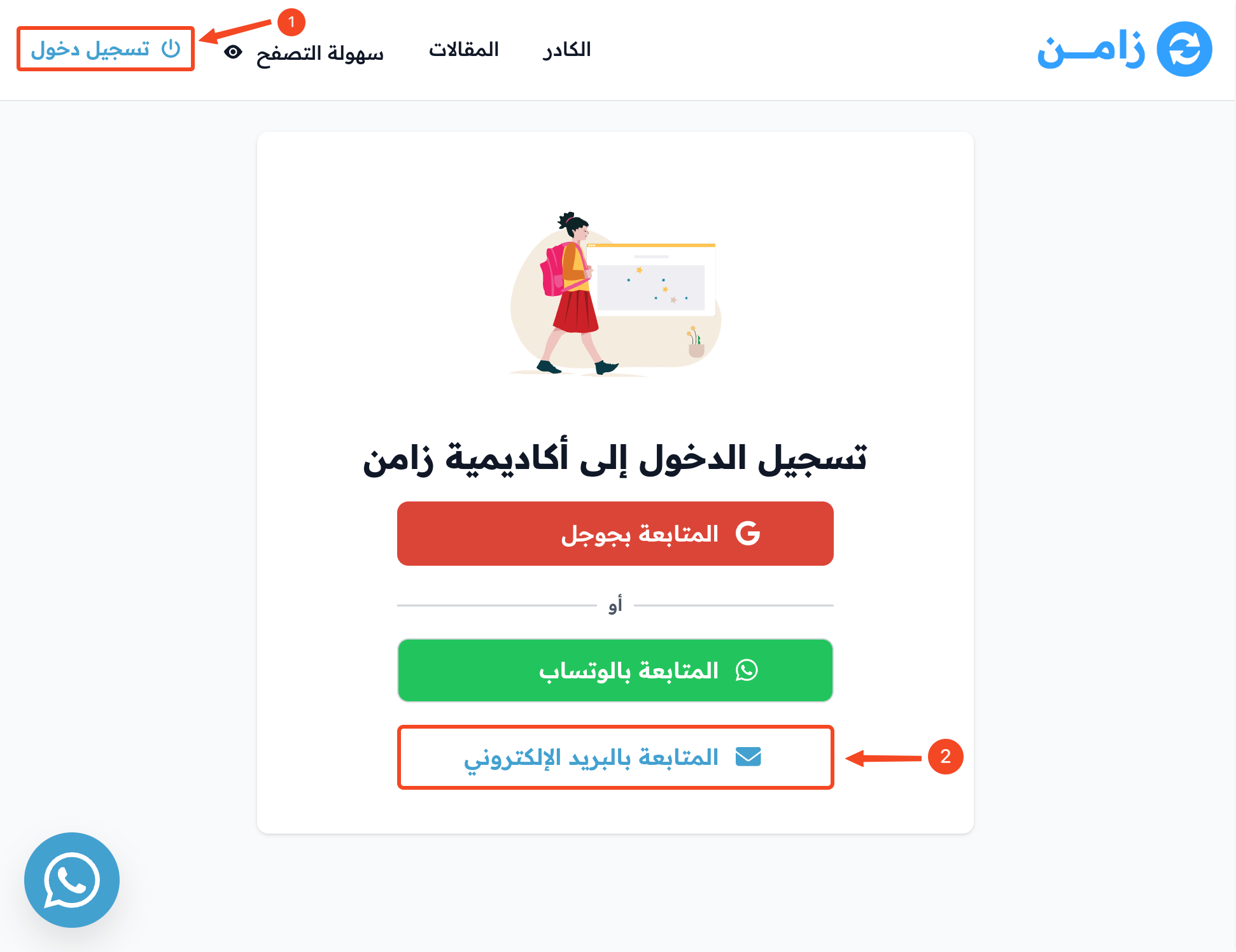
-
Enter your email address.
-
Click Email me to sign in.
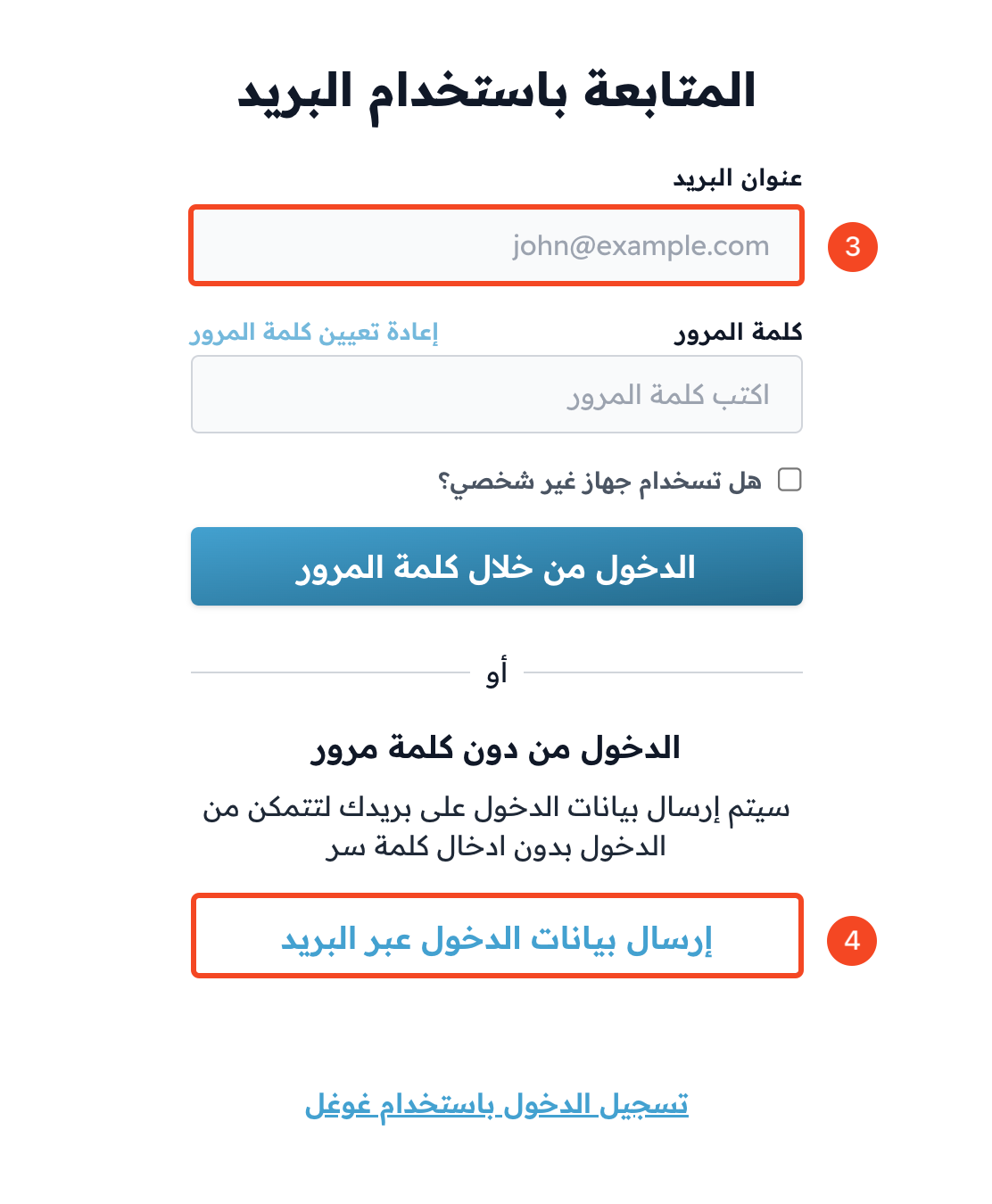
-
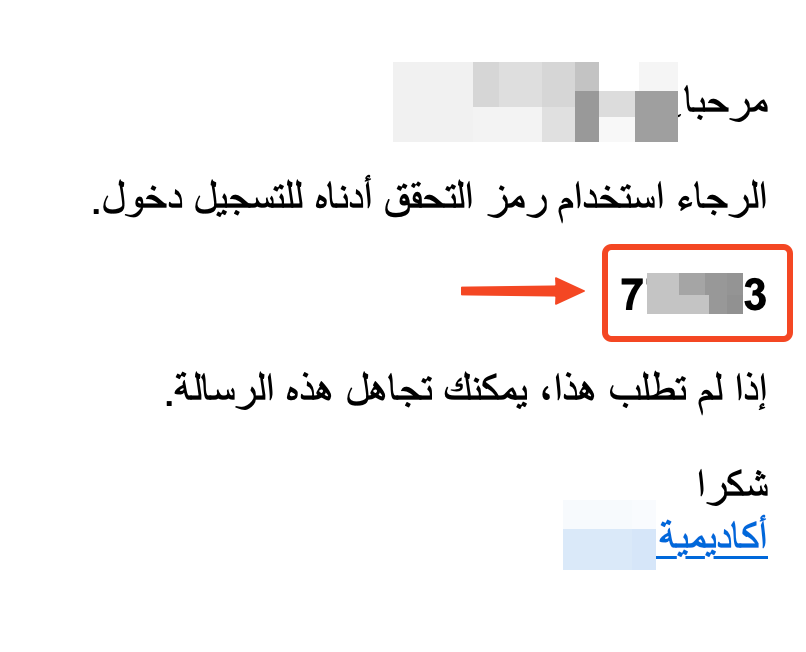
Open the message in your email and copy the verification code.
NoteThe verification code works only once, for 15 minutes.
-
Go back to the platform and enter the code in the code field. The code is checked as soon as all 6 digits are entered, and you are signed in without clicking any button.
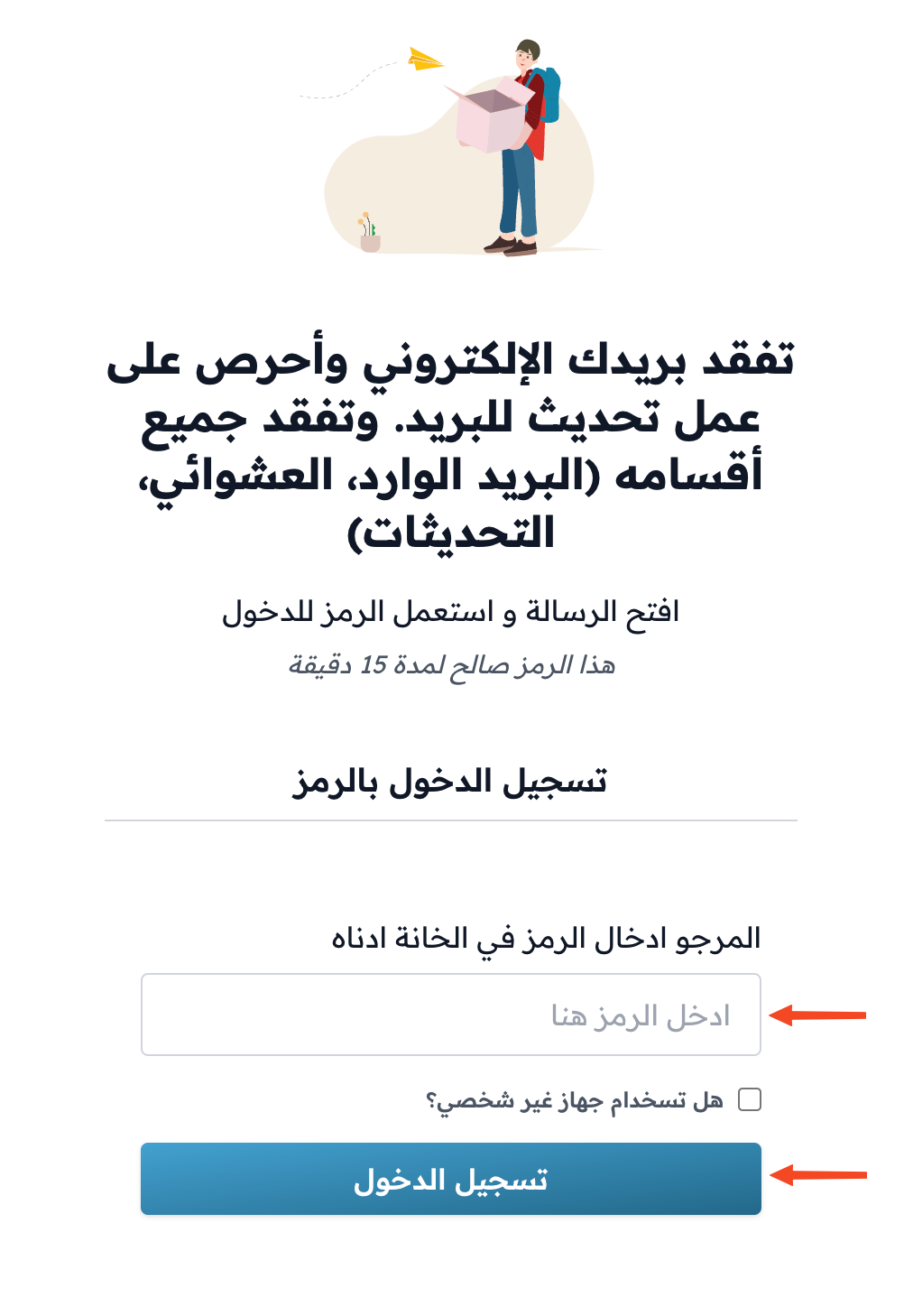
If the code does not arrive, you can click Resend on the code page after two minutes. Also see I did not get the verification code by email.