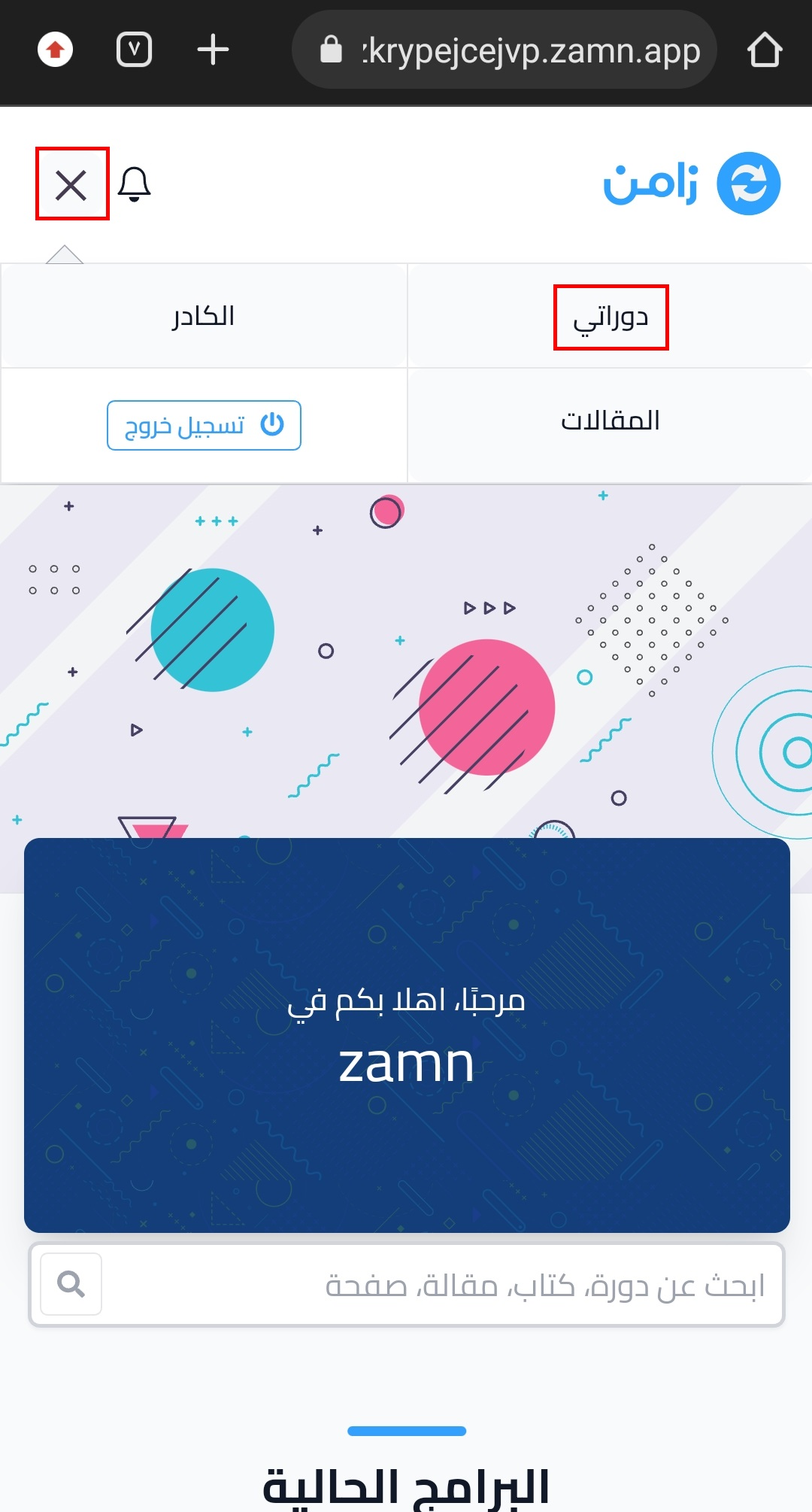
Sign in to the platform from your phone
This guide shows students how to sign in to the platform from a phone, so they can start using their courses.
If you signed out of the platform and want to sign in again, or you want to open your account from a different device than the one you signed up on, follow these steps.
Steps to sign in from your phone
-
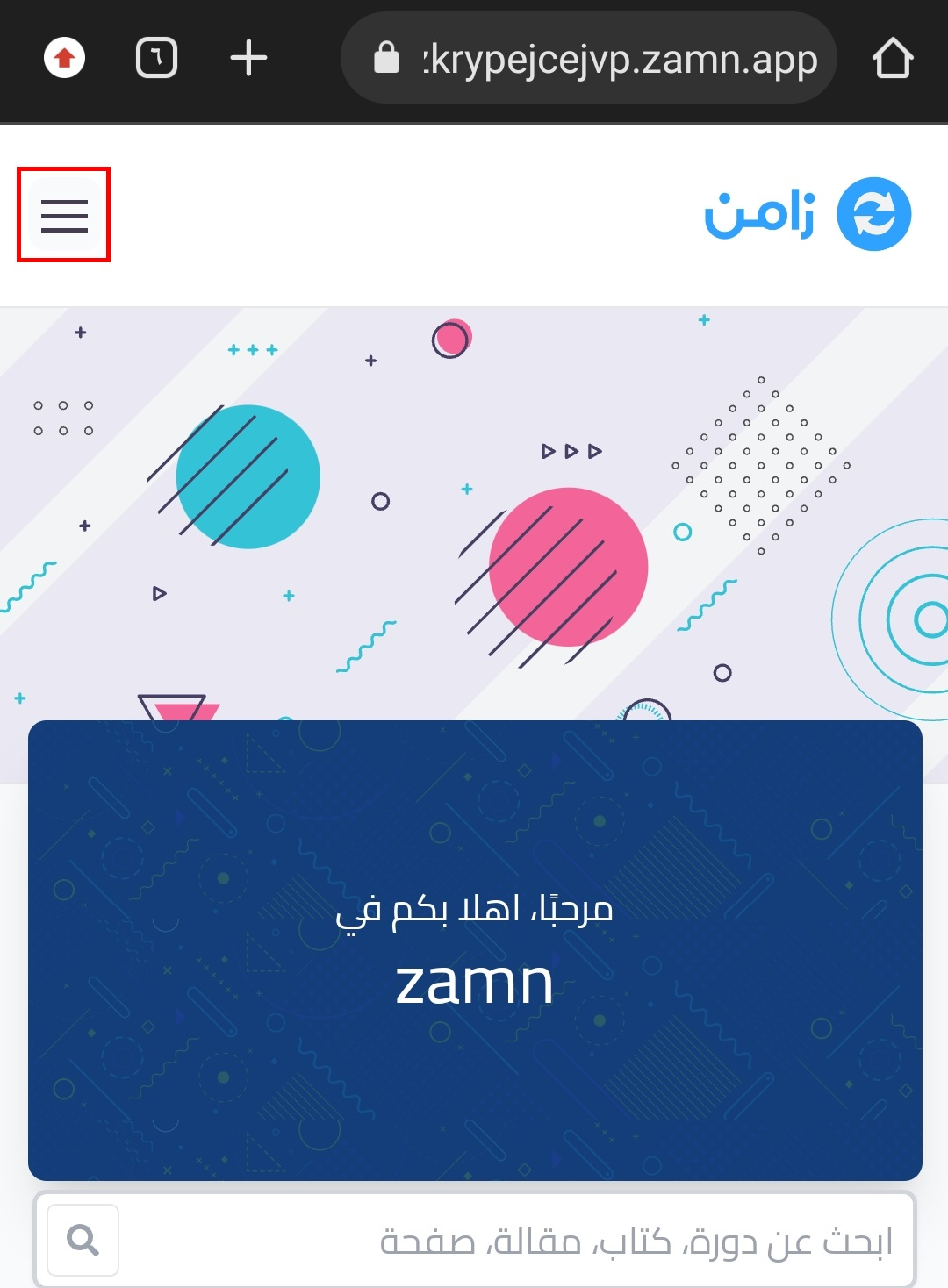
Open your platform, then tap the menu icon at the top of the page.
-
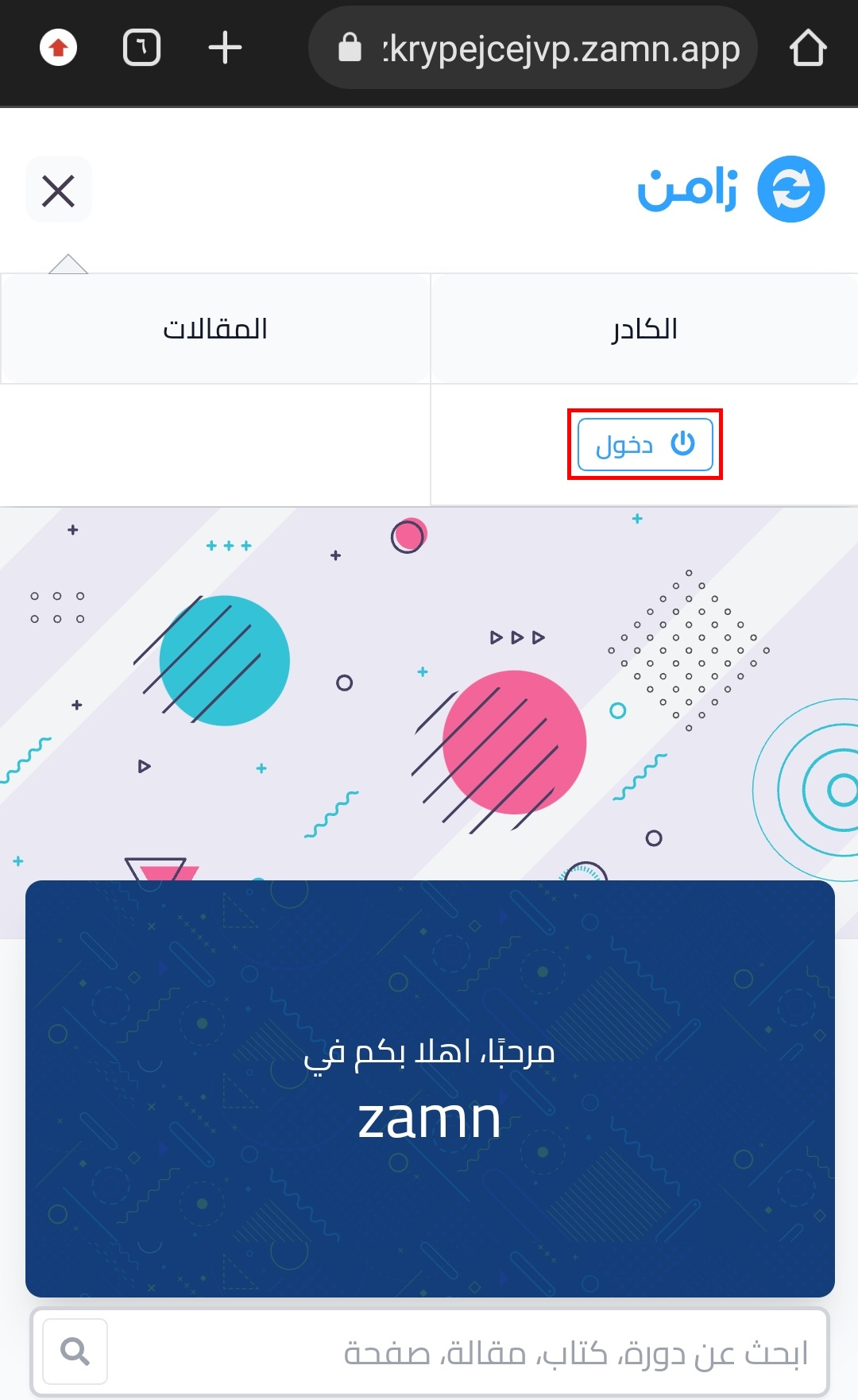
Tap Login.
-
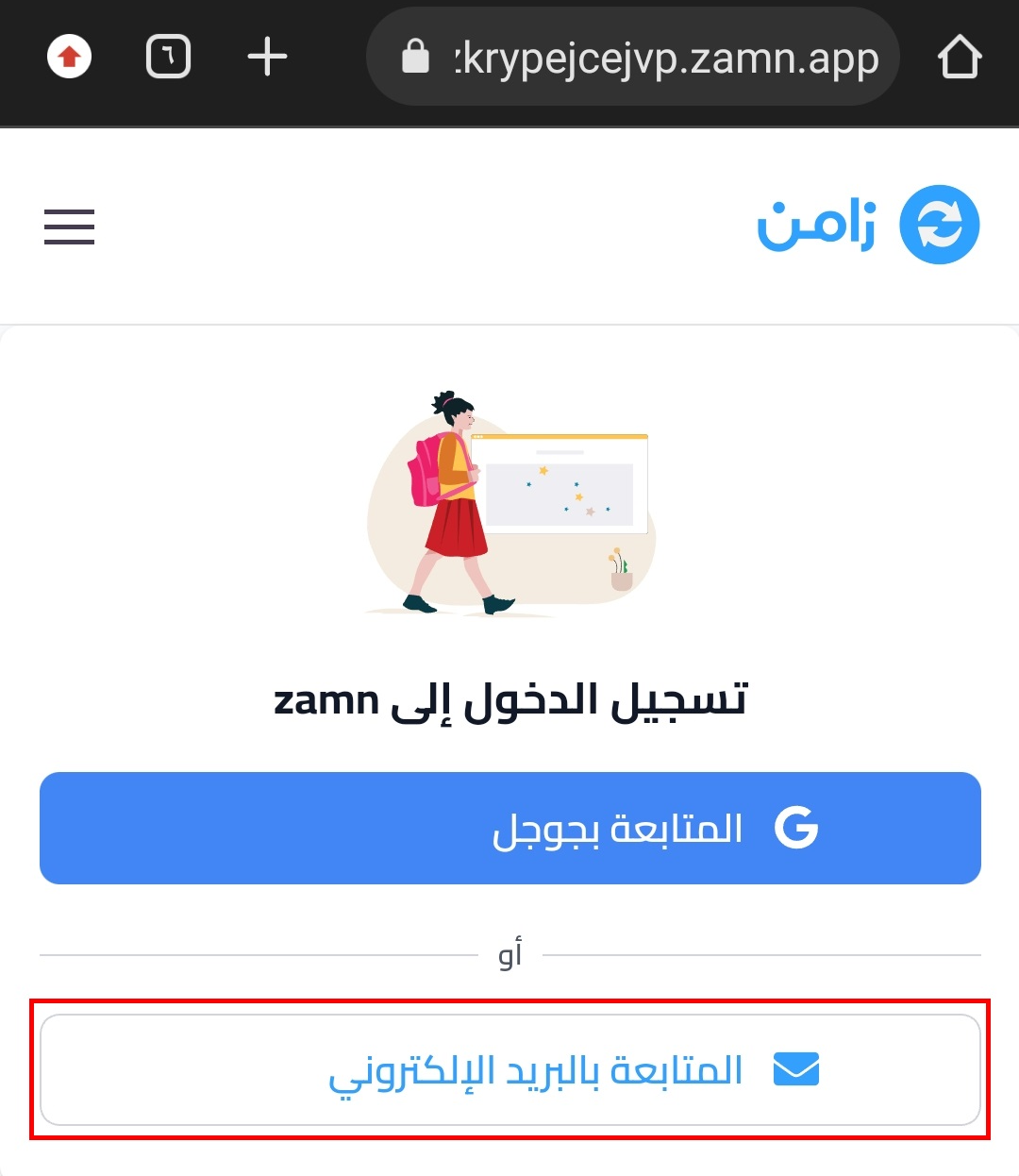
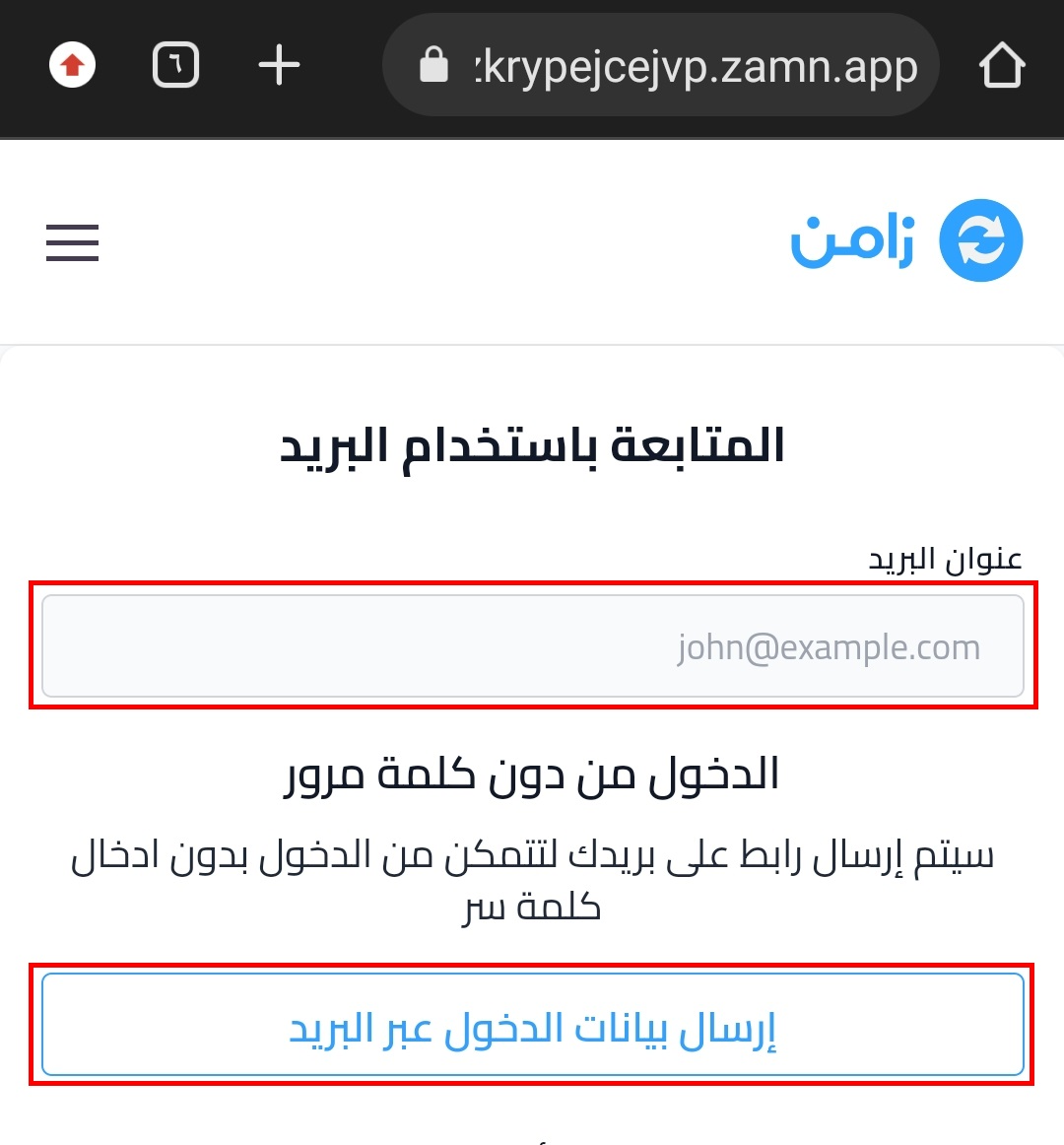
On the sign-in page, tap Continue with email under OR.
-
Enter your email address.
-
Tap Email me to sign in.
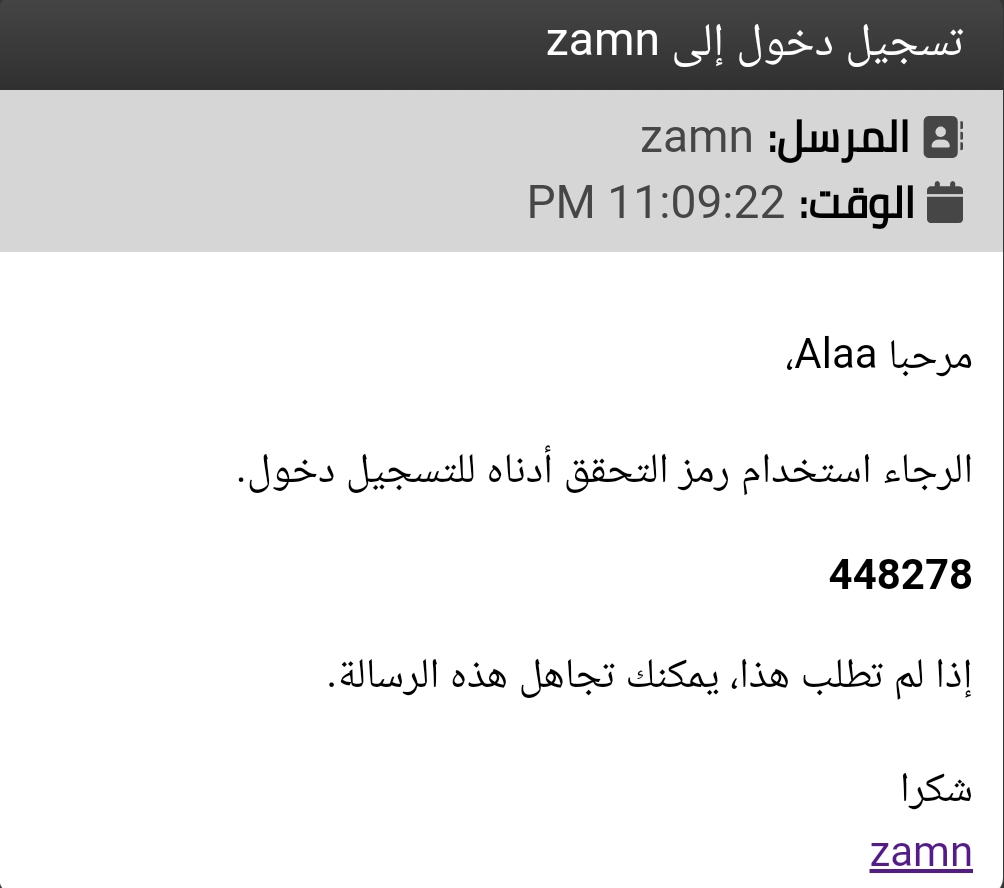
You get an email with the subject "Log in to" and the platform name. It has your verification code.
-
Copy the verification code from the message.
-
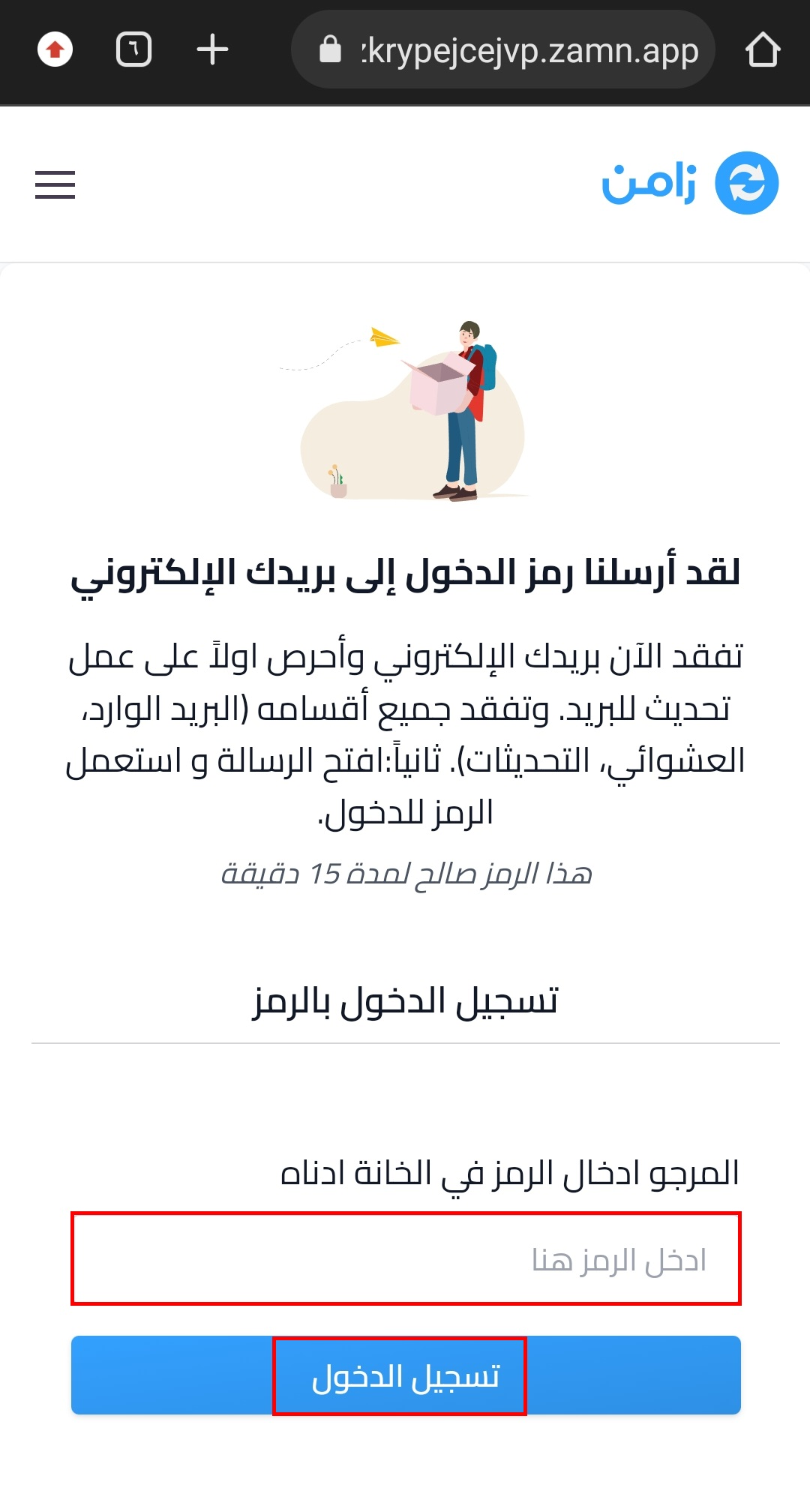
Go back to the platform and paste the code in the code field. The code is checked as soon as all 6 digits are entered, and you are signed in without tapping any button.
Open your courses
After you sign in, you can reach all your courses on the platform: tap the menu icon  , then Dashboard. Your courses are in the My Courses section.