Set a password for your account
If you have not set a password for your account yet, you can set one from the Edit Profile page. After that, you can sign in to the platform with your email and password.
The link to set your password is sent to your email. If you signed up on the platform with your phone number only, add your email first from the same page. See Change the email of your account.
Steps to set a password for your account
-
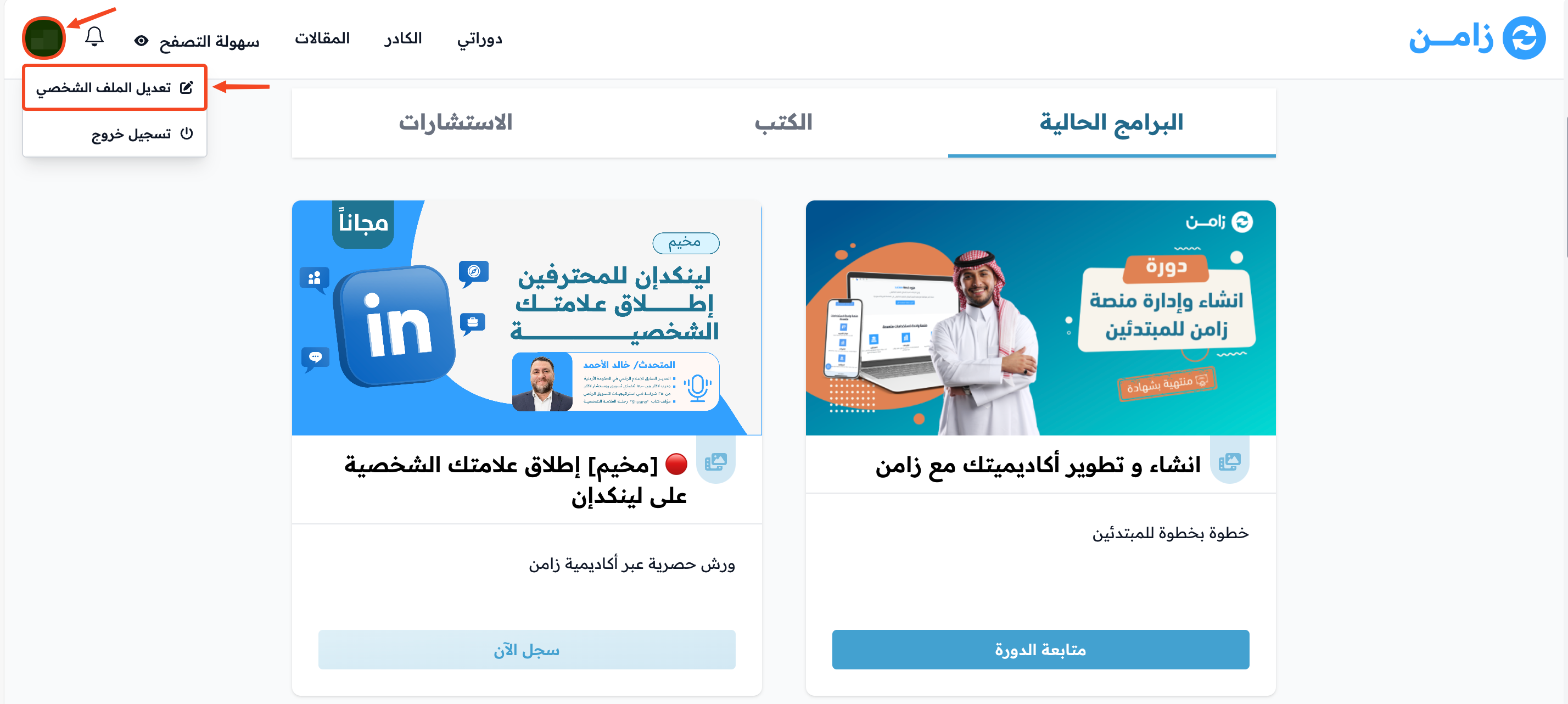
Click your profile icon, then choose Edit Profile.
-
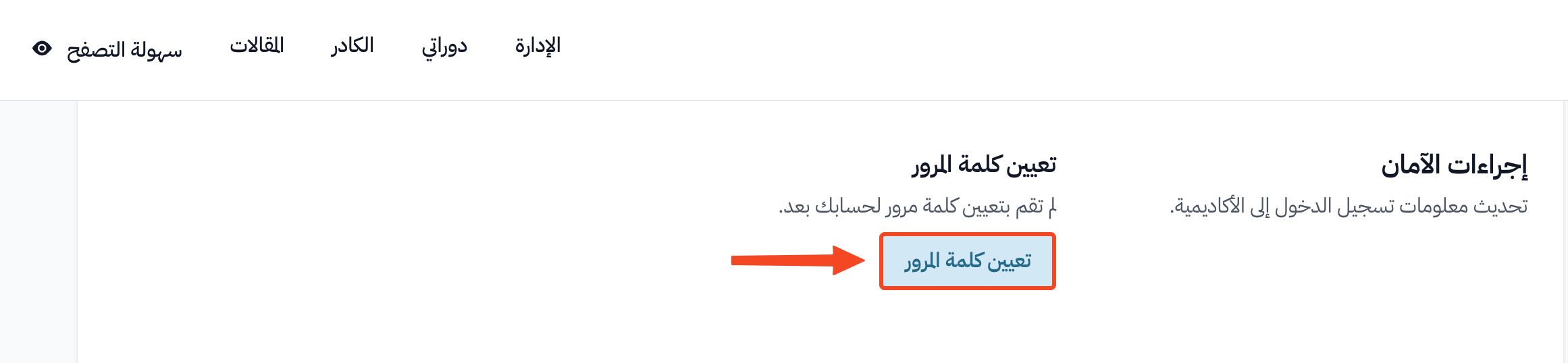
Go to the Security section, then click Set password. You get an email to set your password.
-
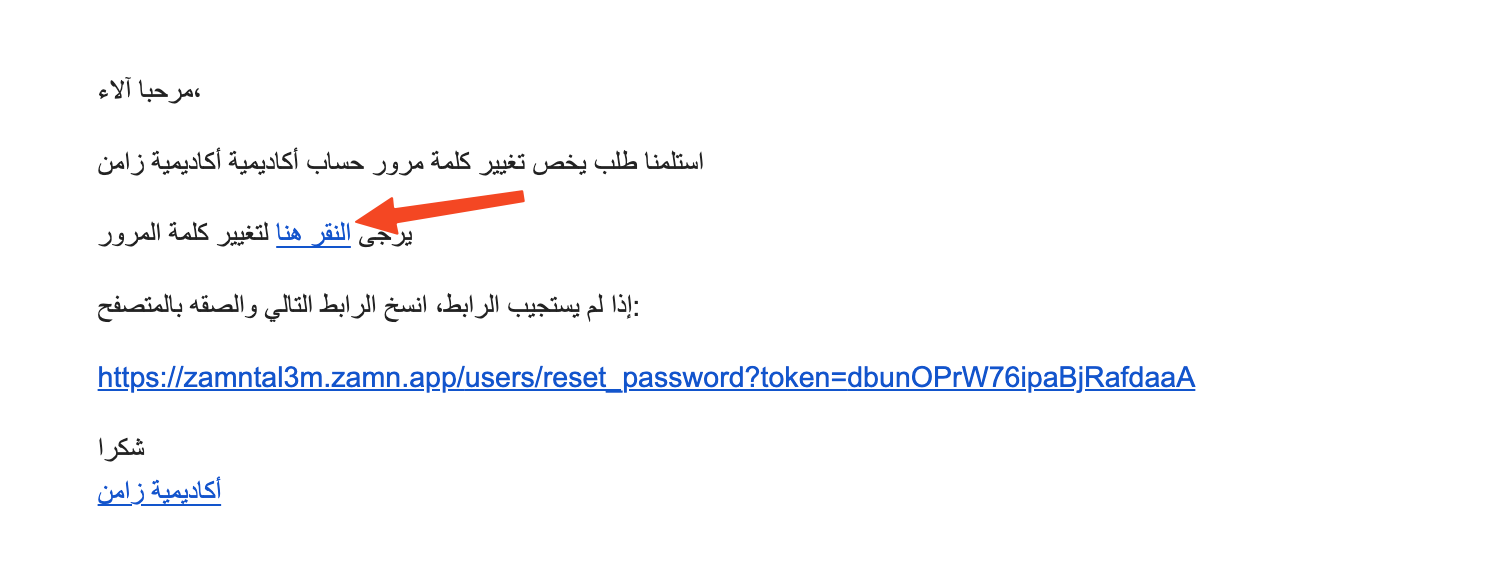
Open the new message in your email, then click click here.
-
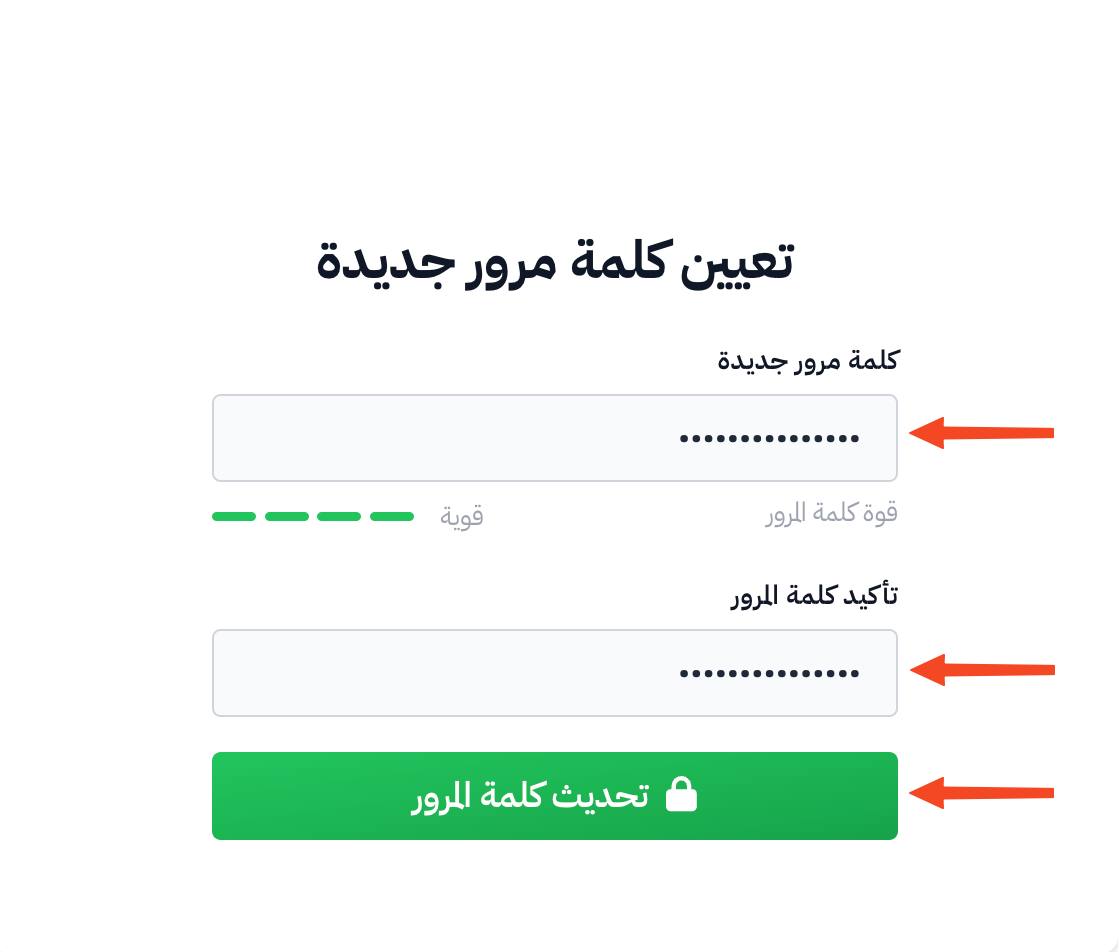
Enter a strong password of 8 characters or more and confirm it, then click Update Password. You are signed in and taken to the home page of the platform.
If your account already has a password, the Security section shows a Reset password button instead of Set password.