How to buy a program
This article shows you how to buy a paid course from the platform home page, and how to open it after you pay.
Steps to buy a course
-
On the platform home page, in the Active Programs tab, click Buy on the card of the course you want to buy.
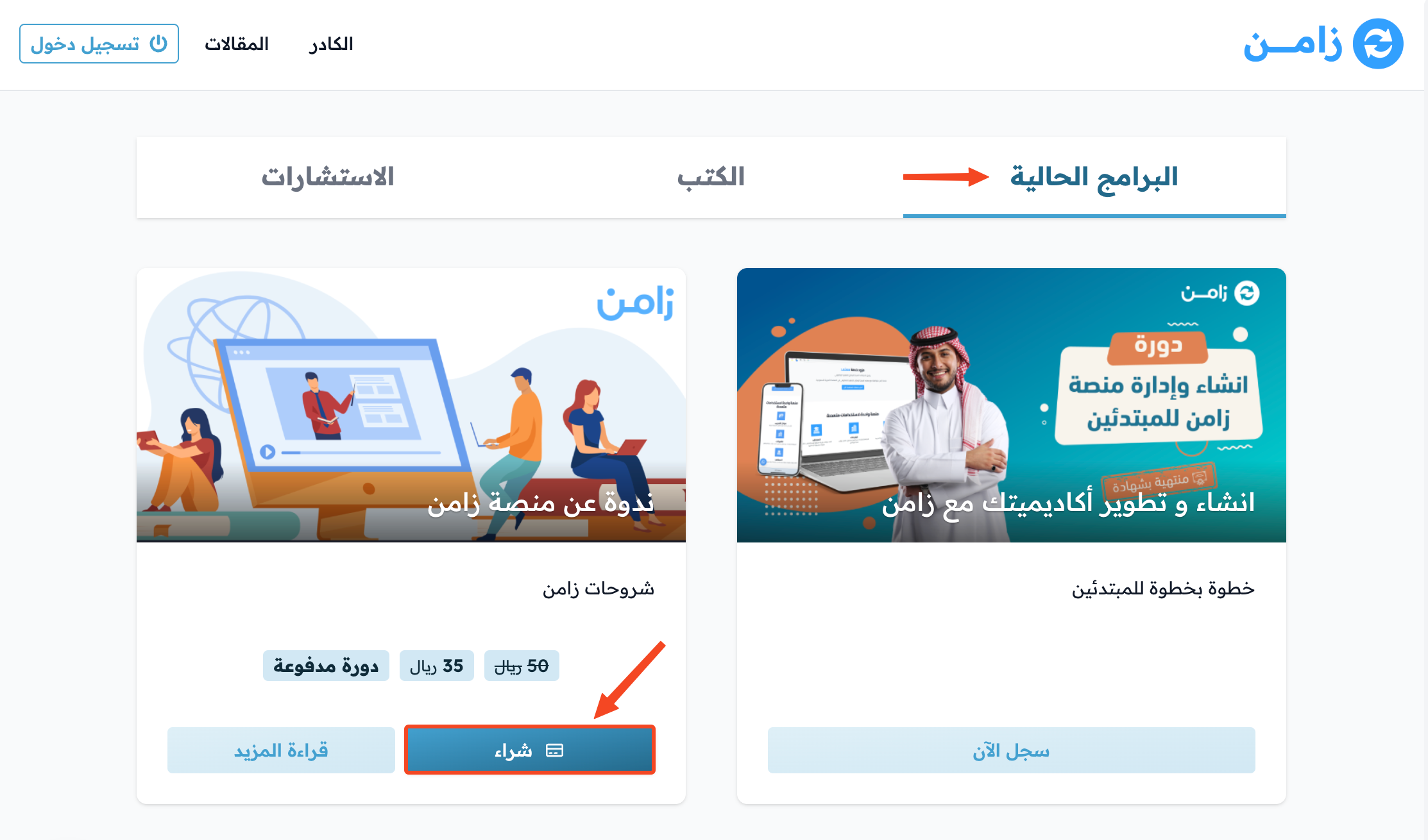
-
A window opens. Enter your phone number in the Your phone number field, or click Use email to login to use your email instead. Then click Login.
NoteIf you already have an account on the platform, use the phone number or email of that account.
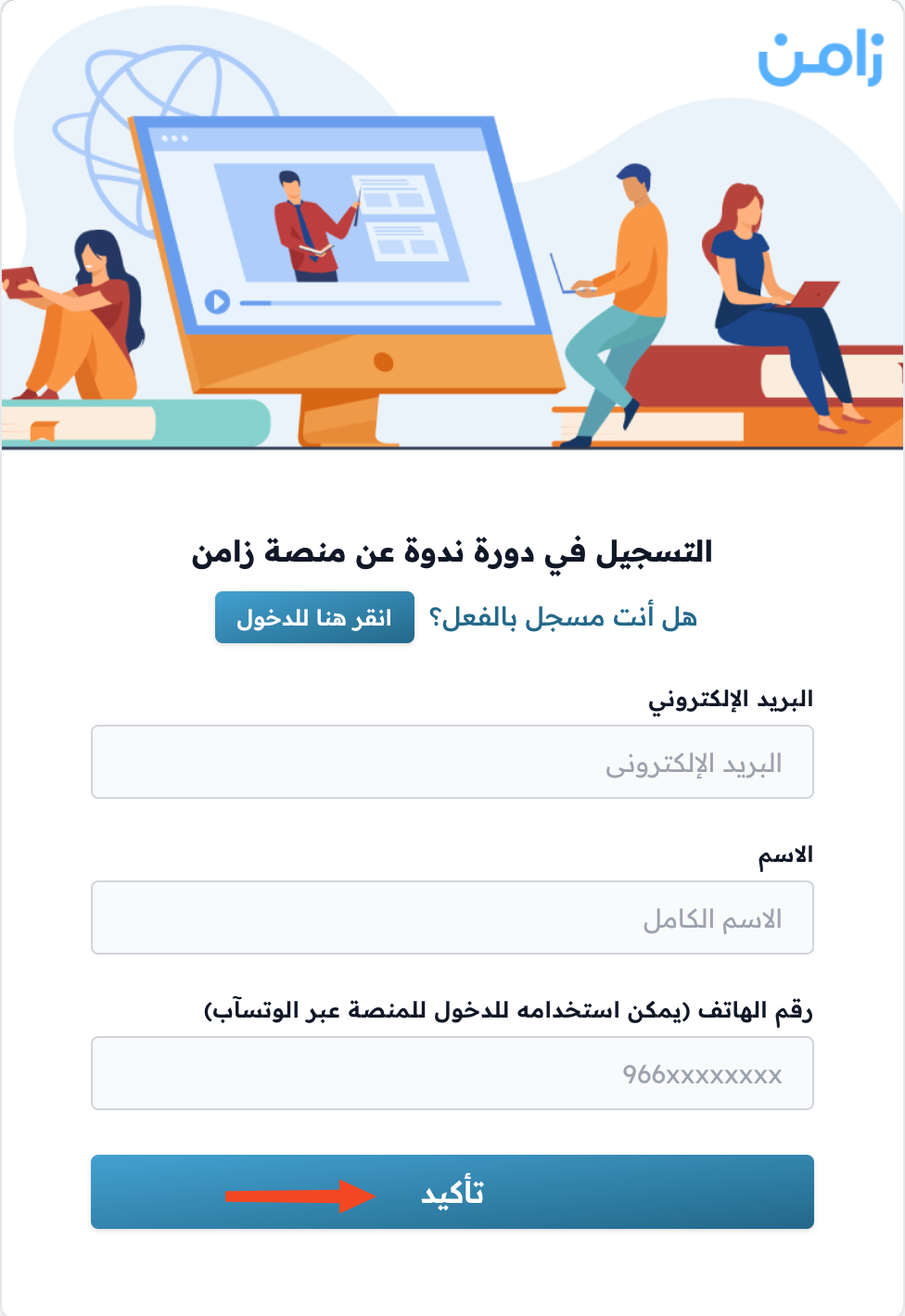
-
You get a verification code: by email if you used your email, or by text message or WhatsApp if you used your phone number.
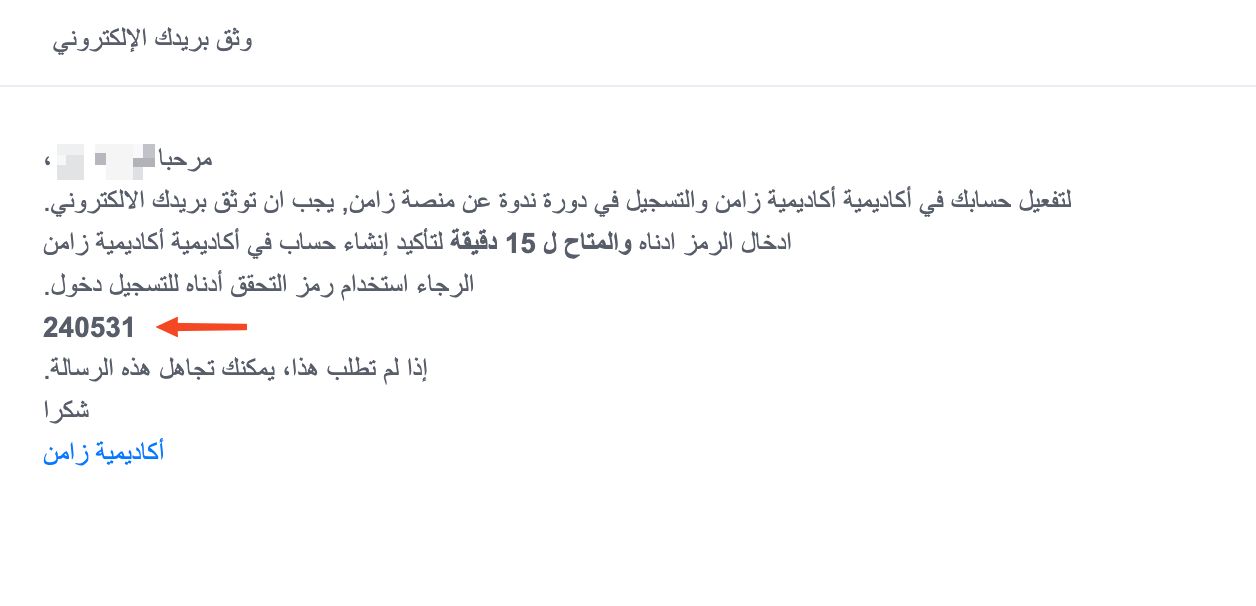
-
Type the code in the box. It is checked as soon as you type all 6 digits, so you do not need to click any button.
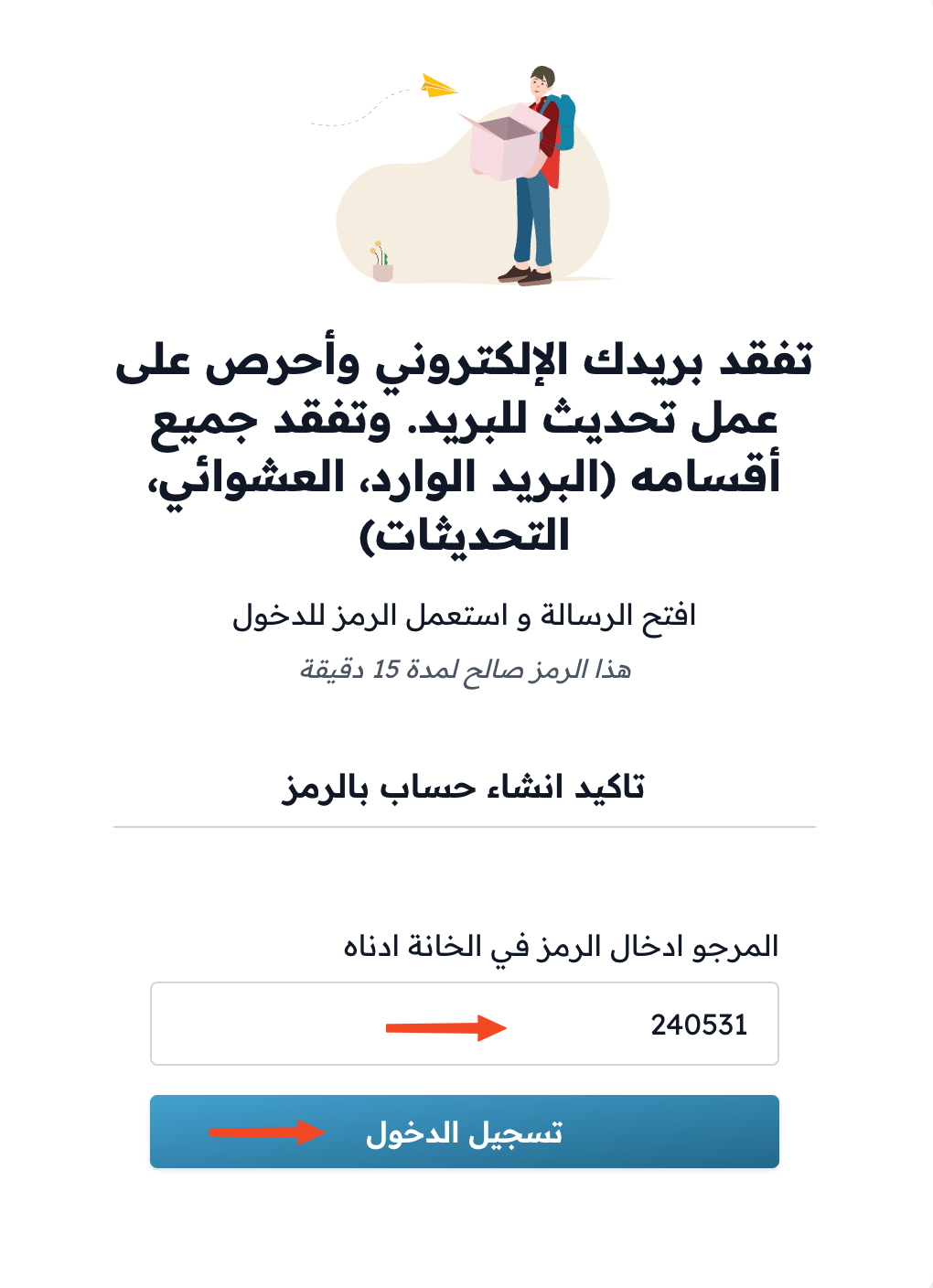
-
The Complete Order window opens with the order details. If the platform offers more than one payment method, choose one. Enter your card details, then click Confirm Payment. If you see the I have read and agree to the terms box, tick it before you pay.
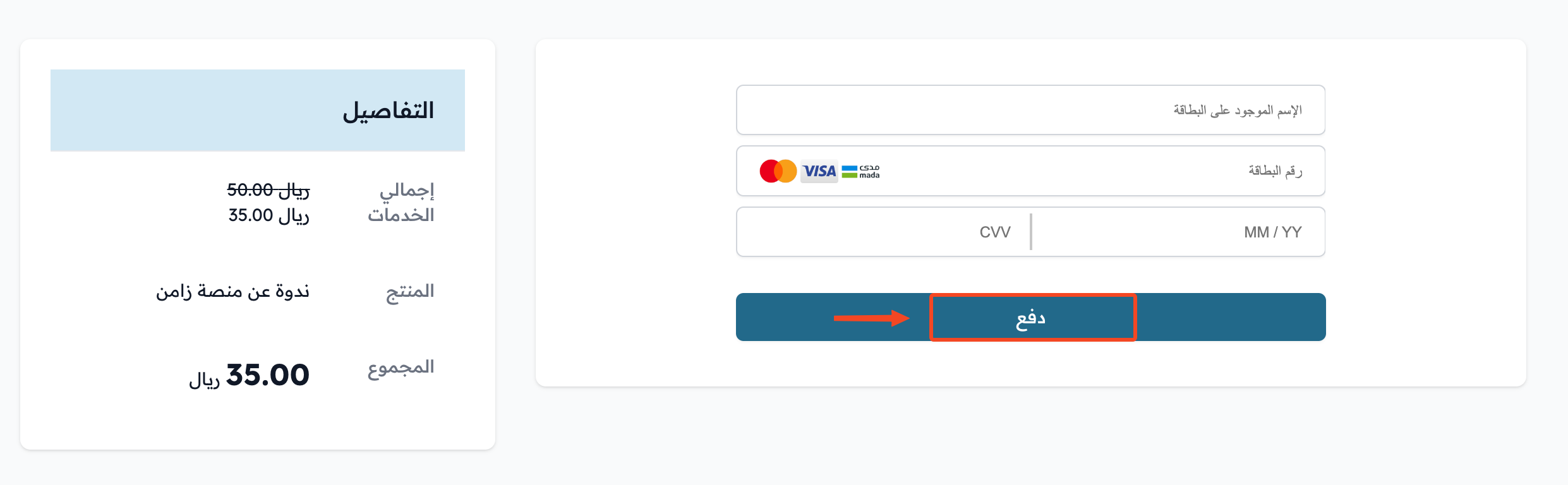
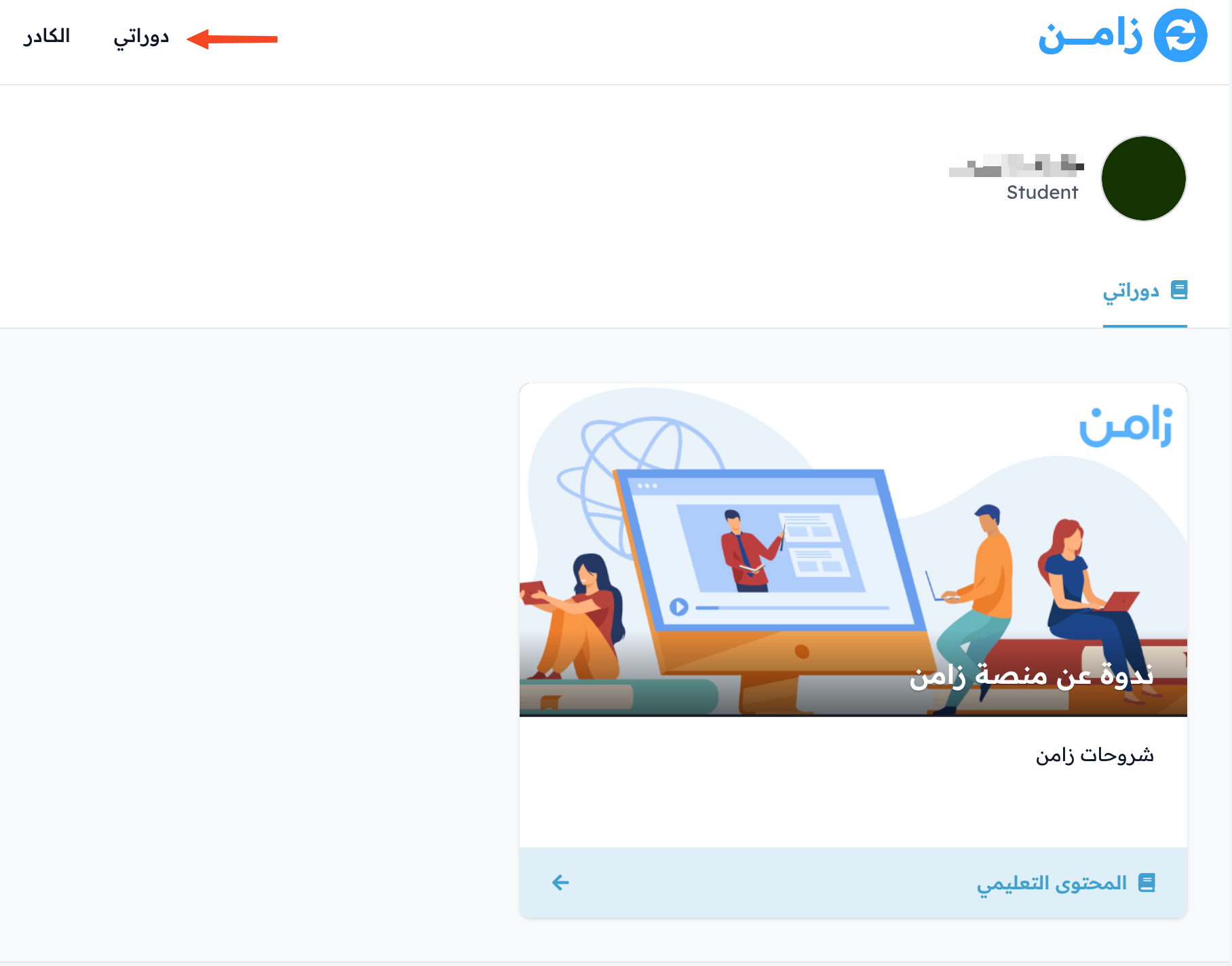
After your payment is confirmed, you can open the course from Dashboard in the top menu.
Some platforms let you buy as a guest. In that case, you enter your name and email and pay right away, and an account is created for you after you pay.