The learning content in a training program
This article explains what you find in a training program after you enroll, and how to follow your progress.
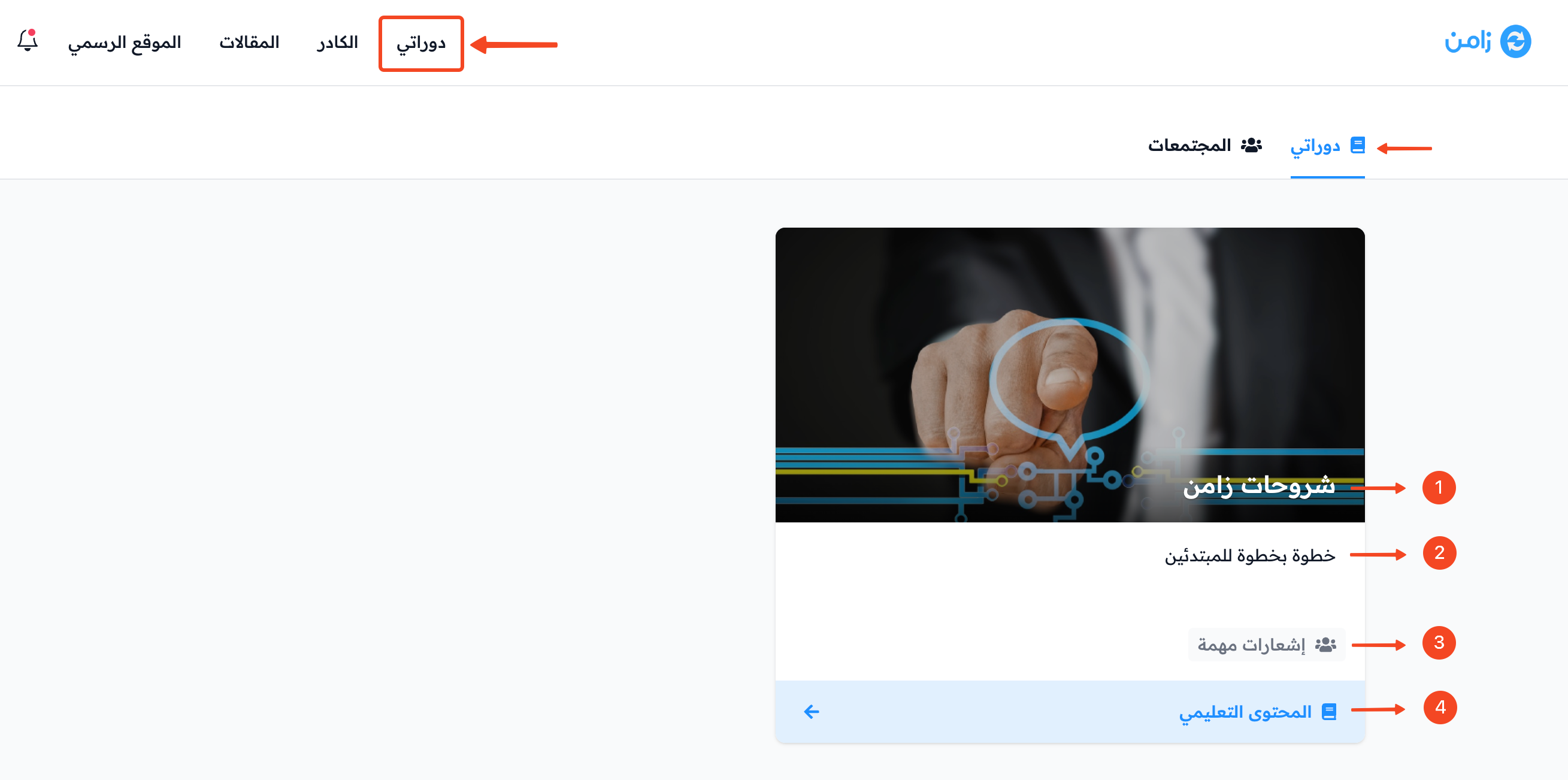
Parts of a training program
A training program has these parts:
- The program title.
- The program description.
- The communities added to the program, such as a discussion forum.
- The View Course button that opens the program content.
What the program content includes
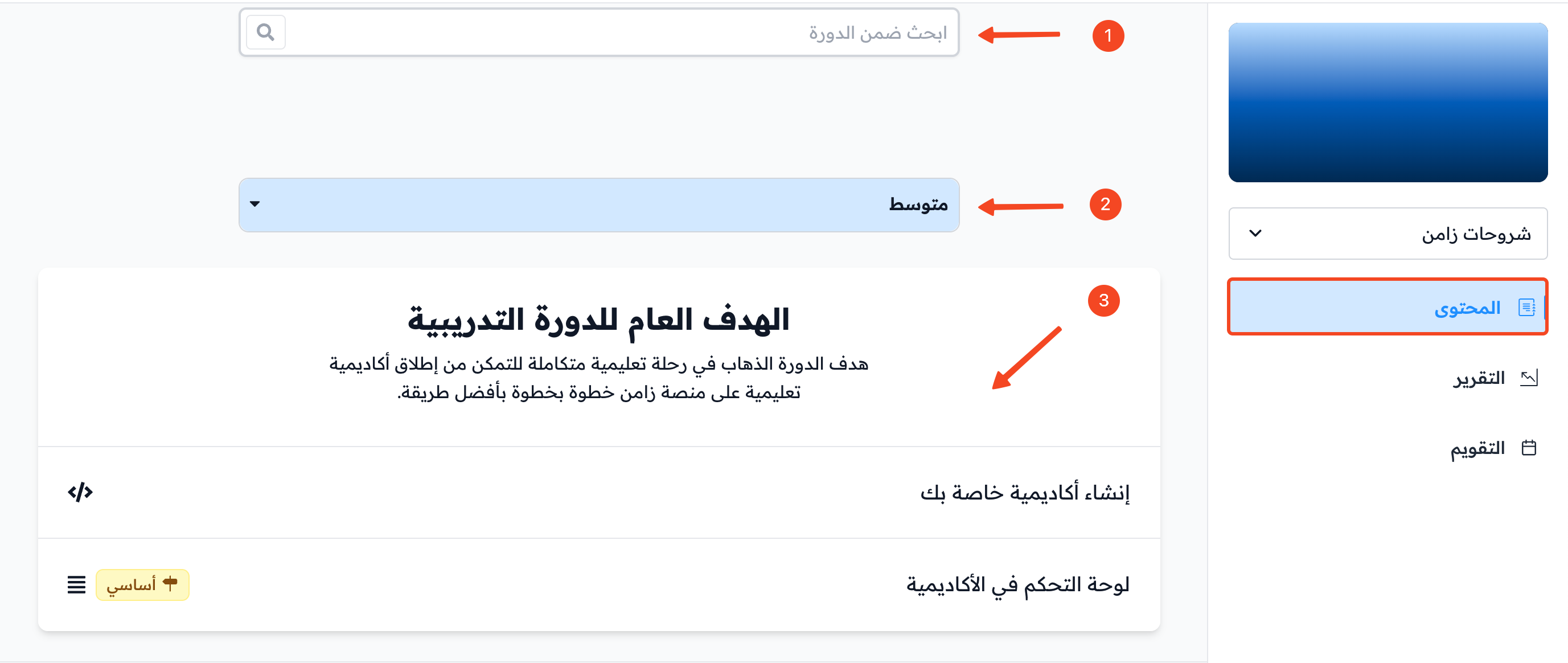
The program side menu has three pages: Program Launch (the content), Report and Calendar.
Program Launch (the content)
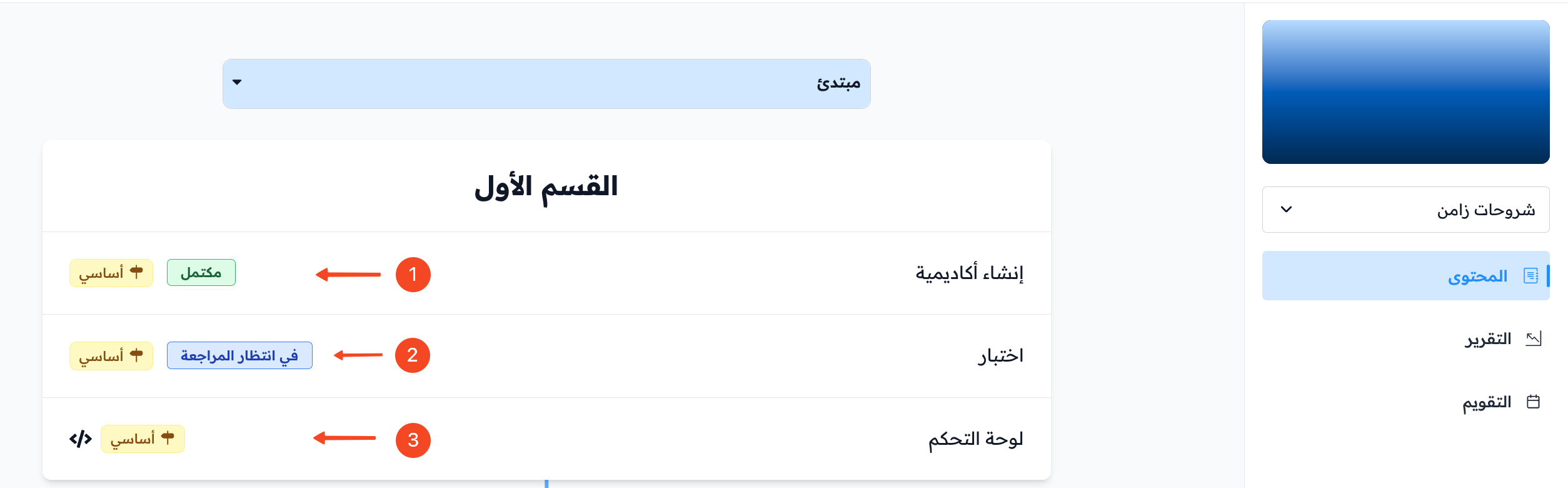
On the Program Launch page you can:
- Search in the program.
- See the program levels and move between them.
- Start studying and work with the content to complete the program targets.
Program targets
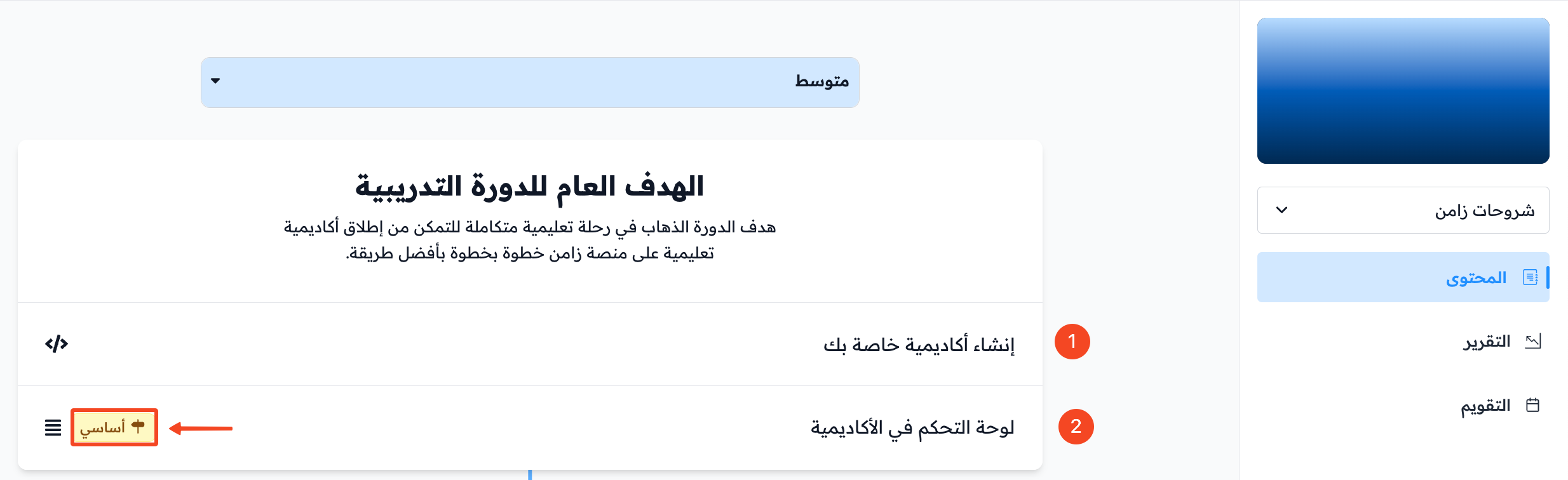
There are two kinds of program targets:
- Non-milestone target: it does not affect your progress. You can finish the program without completing it.
- Milestone target: it has a Milestone label next to it. It affects your progress, and you cannot finish the program until you complete all milestone targets.
Target status
Each target shows its status next to it. The main statuses are:
- Completed: you completed the target.
- Pending Review: you submitted the target, and you are waiting for the coach to review your submission.
- Not completed (no status shows next to it): you must complete the target to move forward in the program if it is a milestone target.
You may also see Rejected (the coach did not accept your submission, and you need to submit the target again) or Locked (you cannot open the target yet).
Report
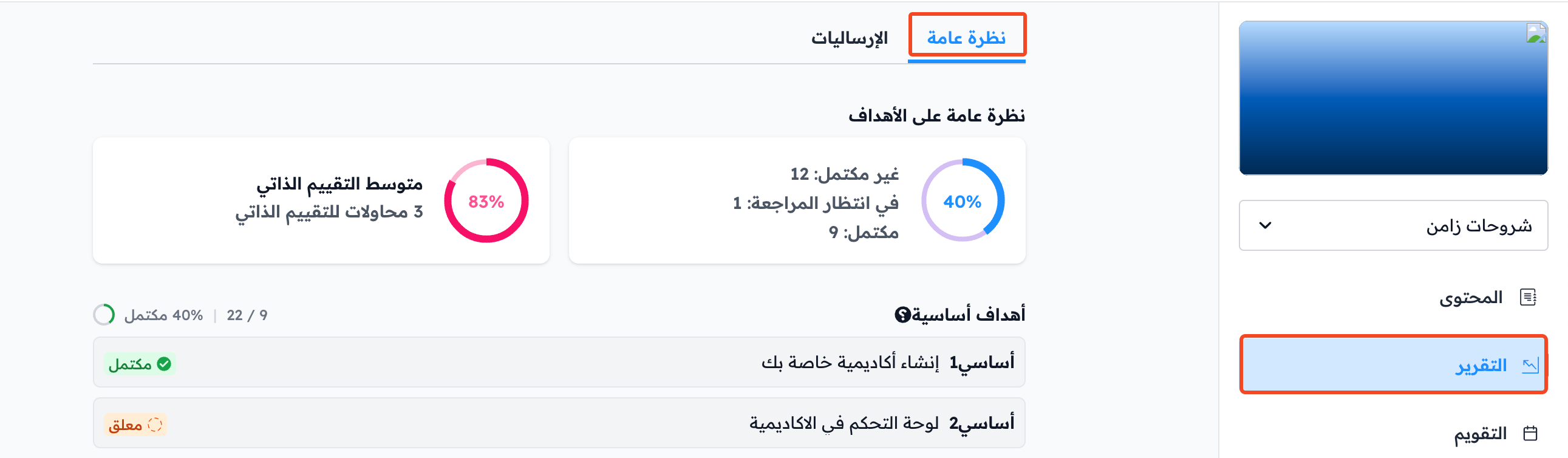
On the Report page you can see the details of your progress in the program: a targets overview, your average grades in assignments, and all milestone targets in the program.
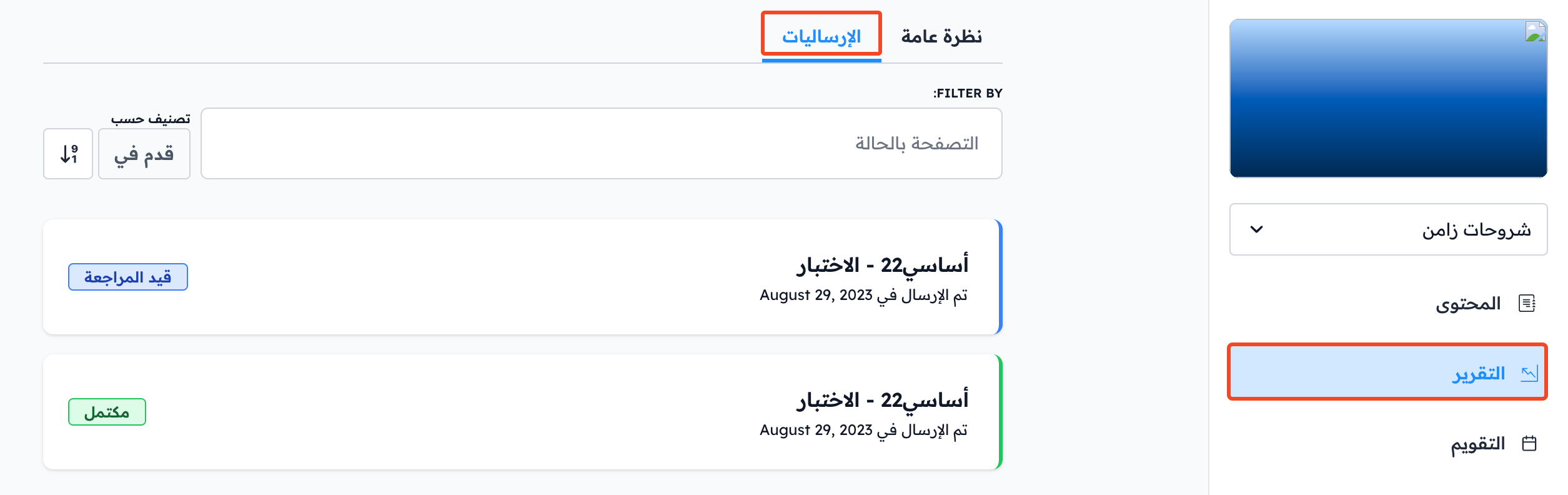
You can also see your quiz results in the Quizzes tab, and all your submissions in the Submissions tab.
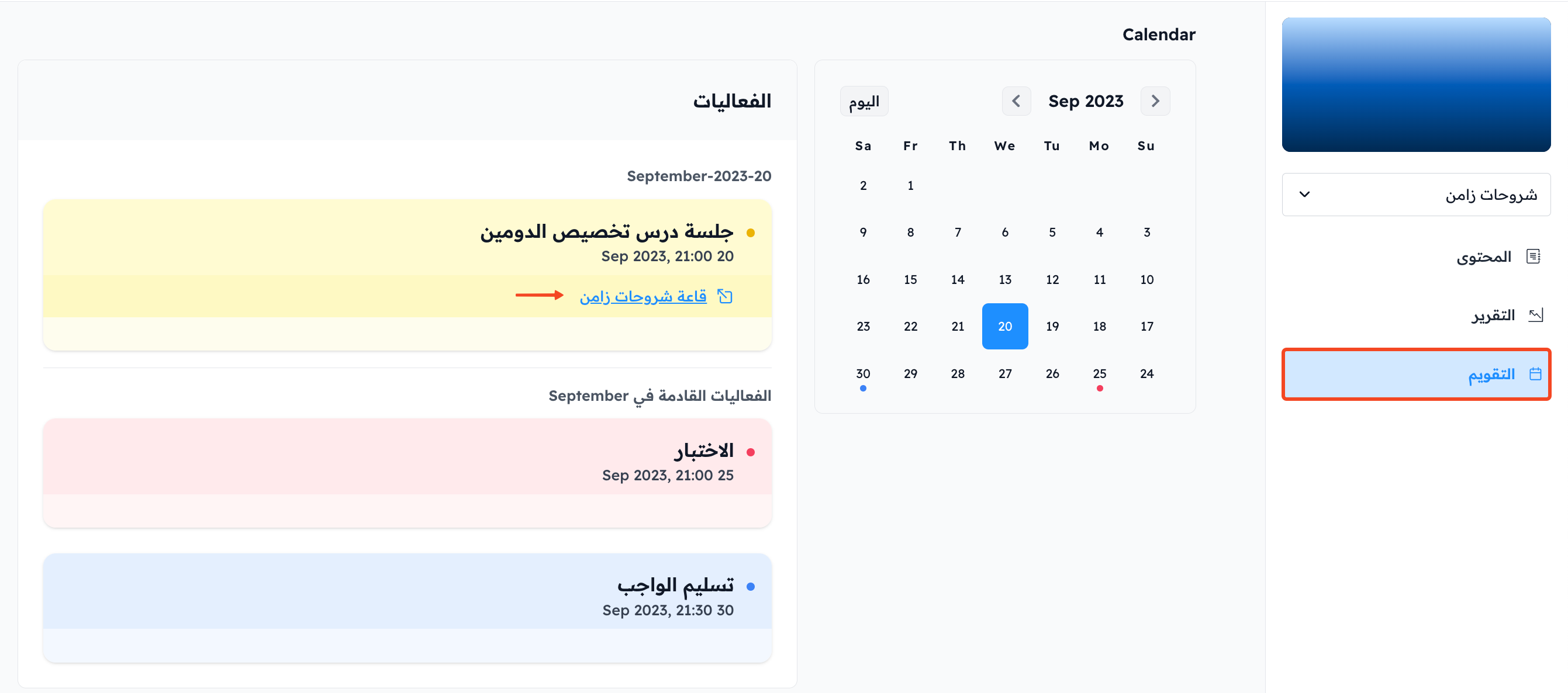
Calendar
On the Calendar page you can see the events added to the program calendar.
Each event has a date, a day and a time, and it may have its own link (such as a room link).