Getting started with your training program
This guide is for students. It explains how to open your course for the first time and what you find in it.
You are enrolled in training courses in one of two ways: the platform admins add you to the course, or you enroll in the course yourself.
Open your course for the first time
When the platform admins add you to a course, you get an email. Click the sign into (platform name) and start working on this course link in the email.
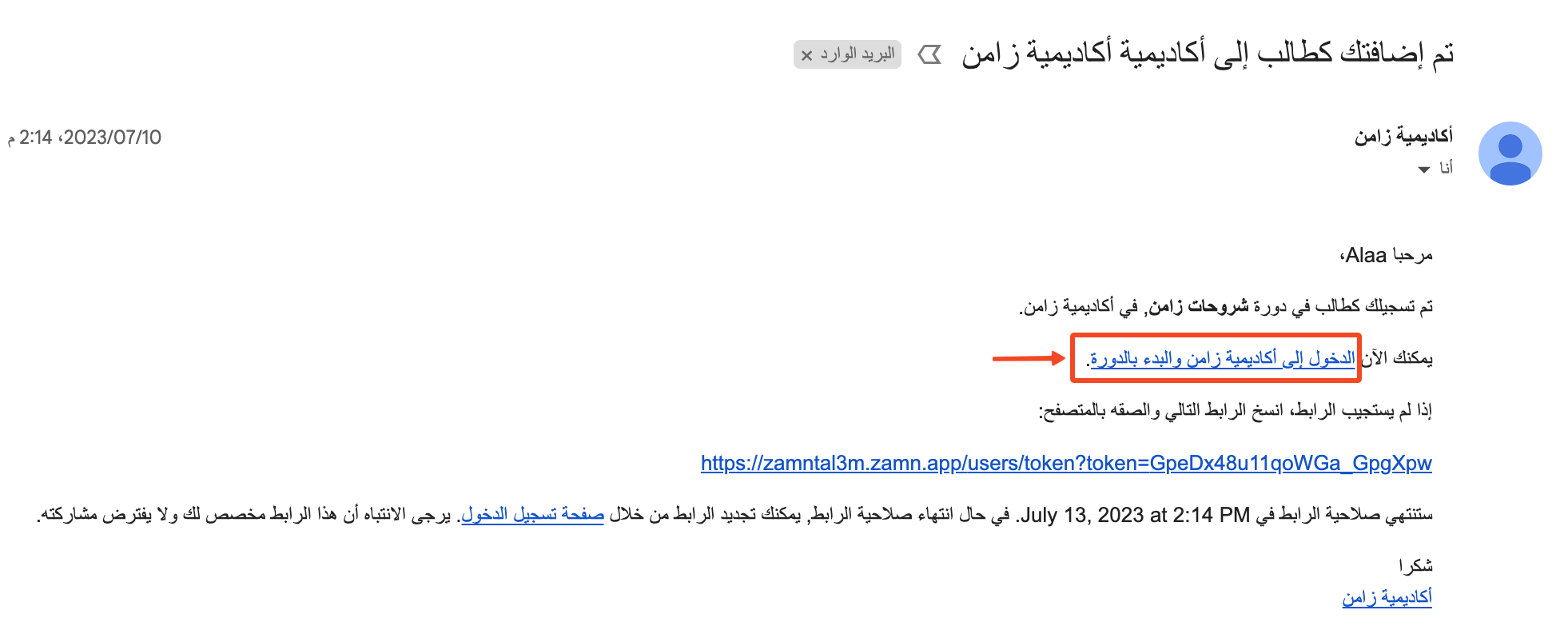
This link signs you in and opens the course page directly.
The sign-in link in the email works for a limited time. If it has expired, sign in from the sign-in page.
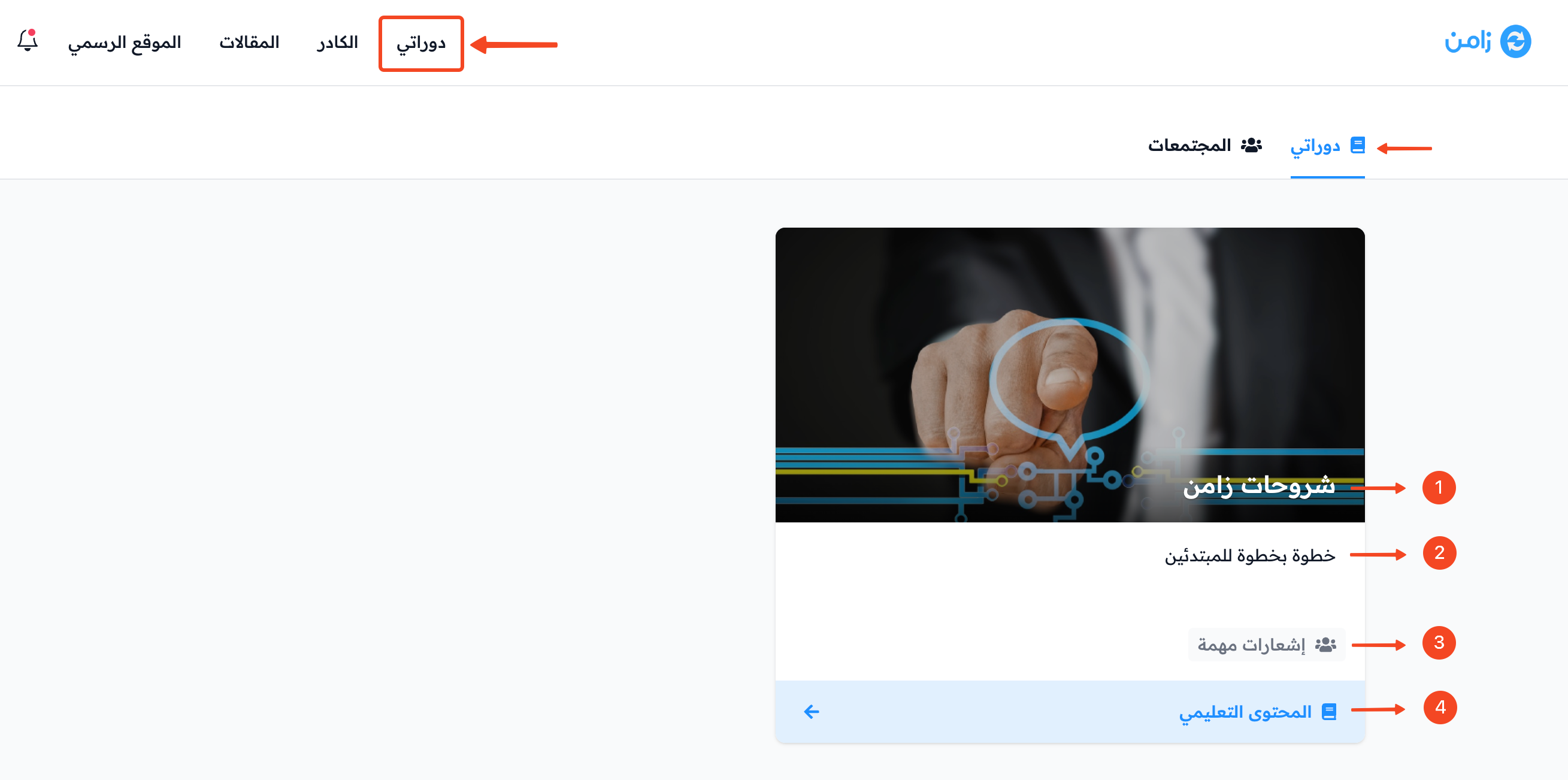
To reach your courses later from any page, such as the platform home page, click Dashboard at the top of the page. Your courses show under My Courses.
Parts of a course
Each course shows under My Courses with these parts:
- The course title.
- The course description.
- The communities added to the course, such as a discussion forum.
- The View Course button that opens the course content.
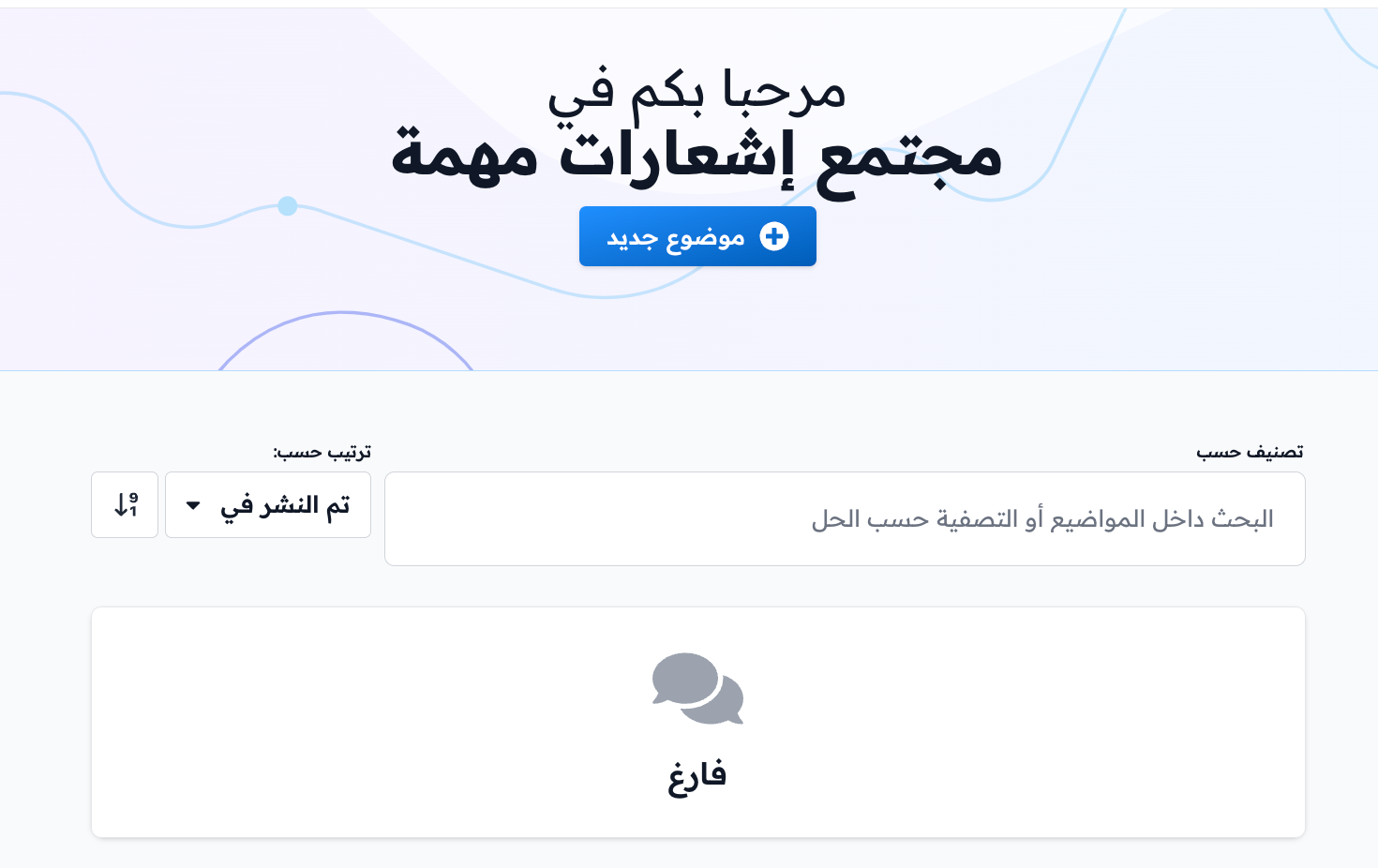
Community / forum
The community is a place to talk and discuss with your classmates. You can add topics for discussion and reply to the topics in the forum.
Course content
The course side menu has three pages: Program Launch (the content), Report and Calendar.
Program Launch (the content)
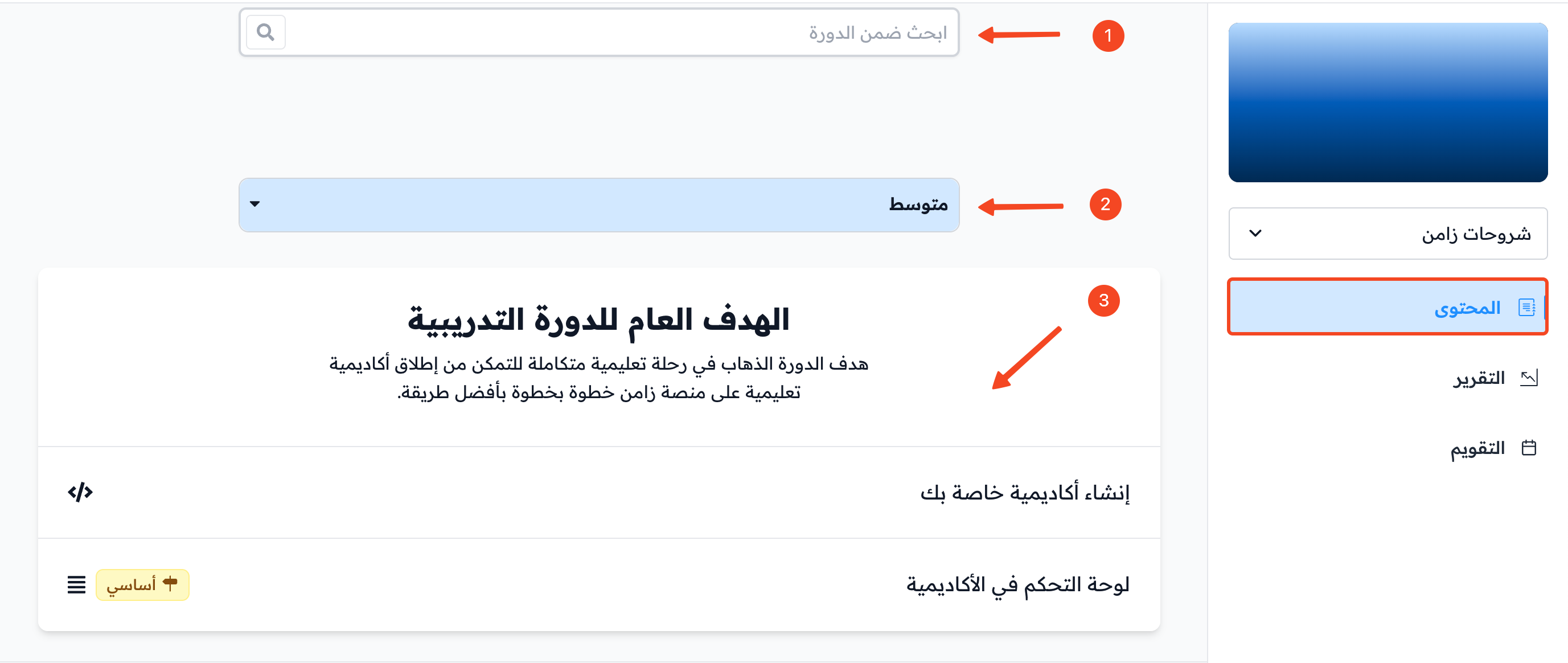
On the Program Launch page you can:
- Search in the course.
- See the course levels and move between them.
- Start studying and work with the content to complete the course targets.
Course targets
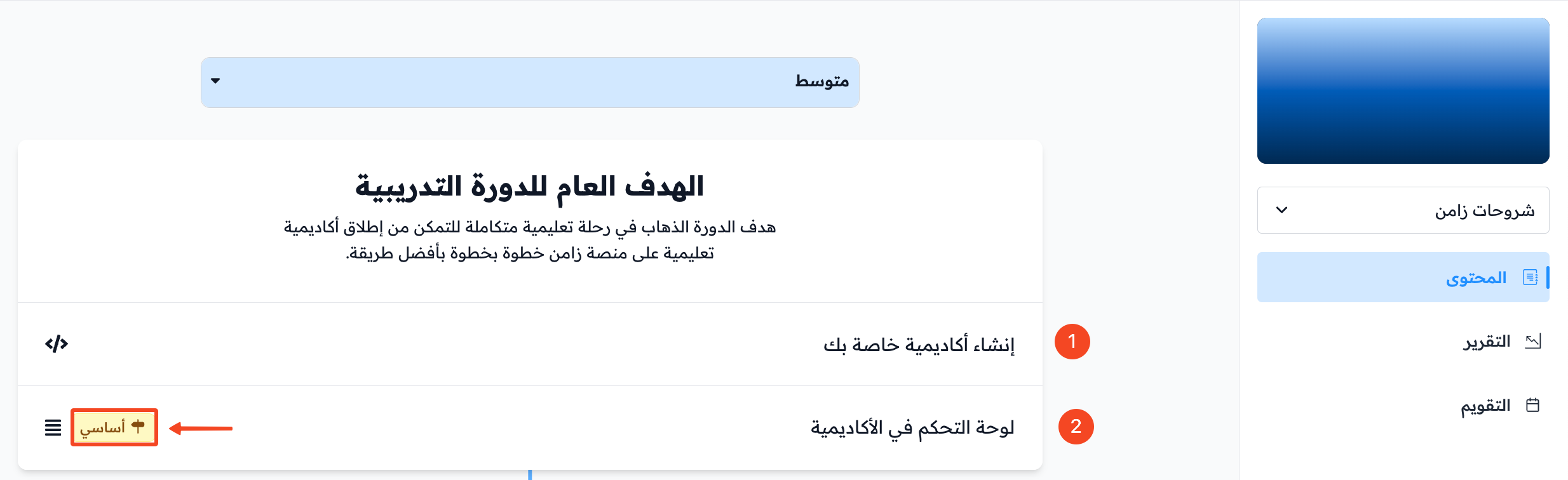
There are two kinds of course targets:
- Non-milestone target: it does not affect your progress. You can finish the course without completing it.
- Milestone target: it has a Milestone label next to it. It affects your progress, and you cannot finish the course until you complete all milestone targets.
Report
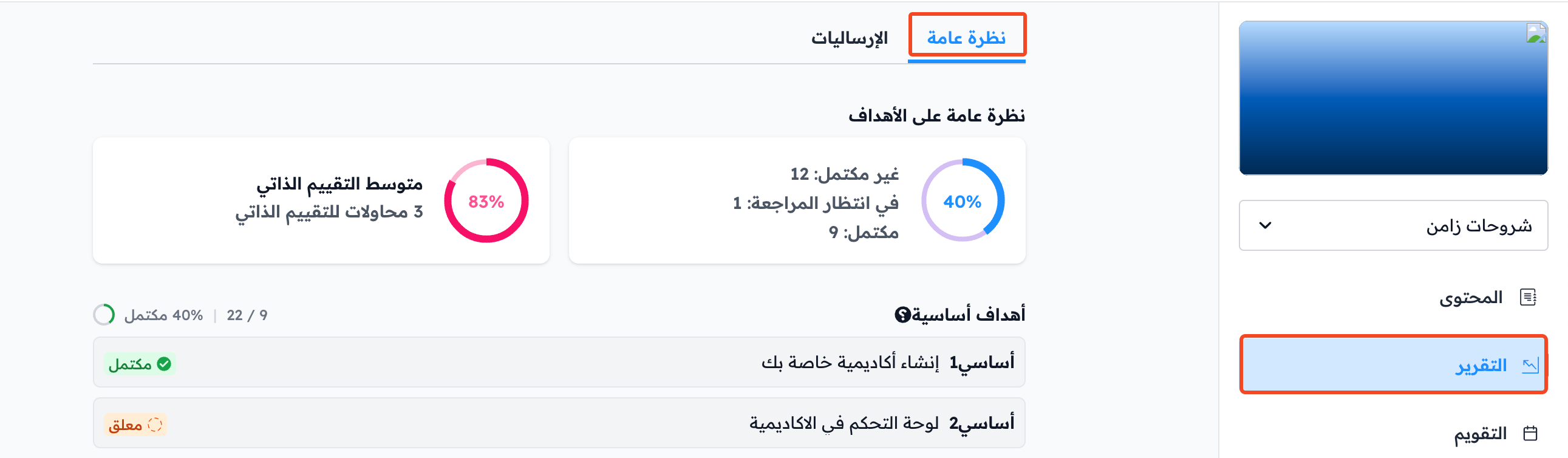
On the Report page you can see the details of your progress in the course: a targets overview, your average grades in assignments, and all milestone targets in the course.
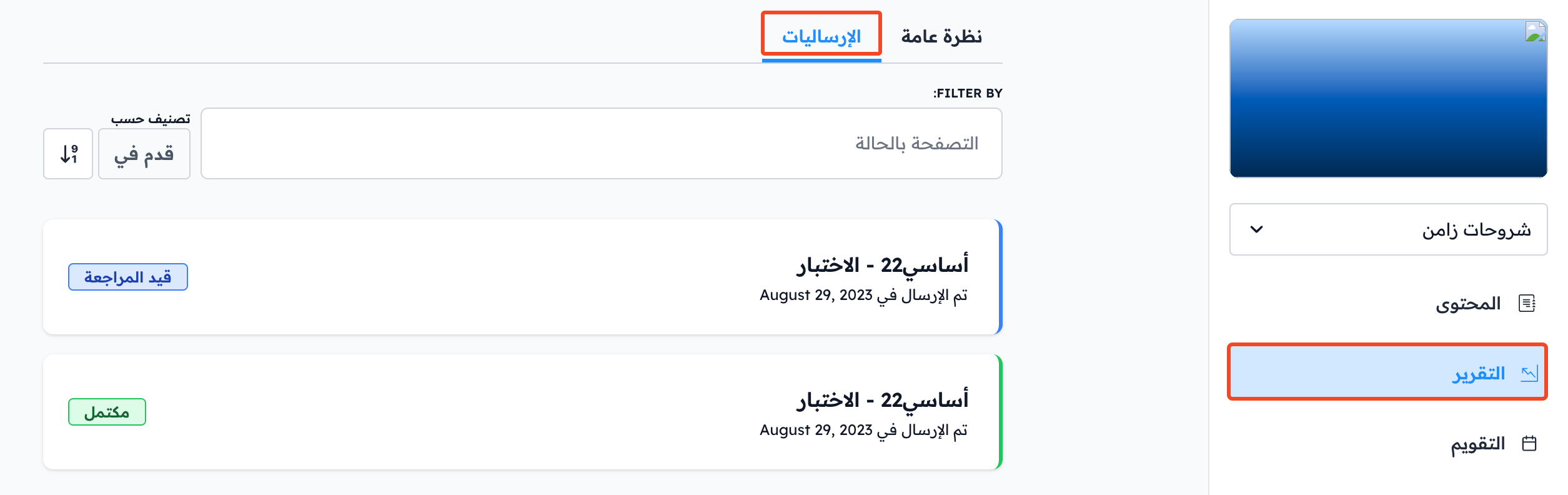
You can also see your quiz results in the Quizzes tab, and all your submissions in the Submissions tab.
Calendar
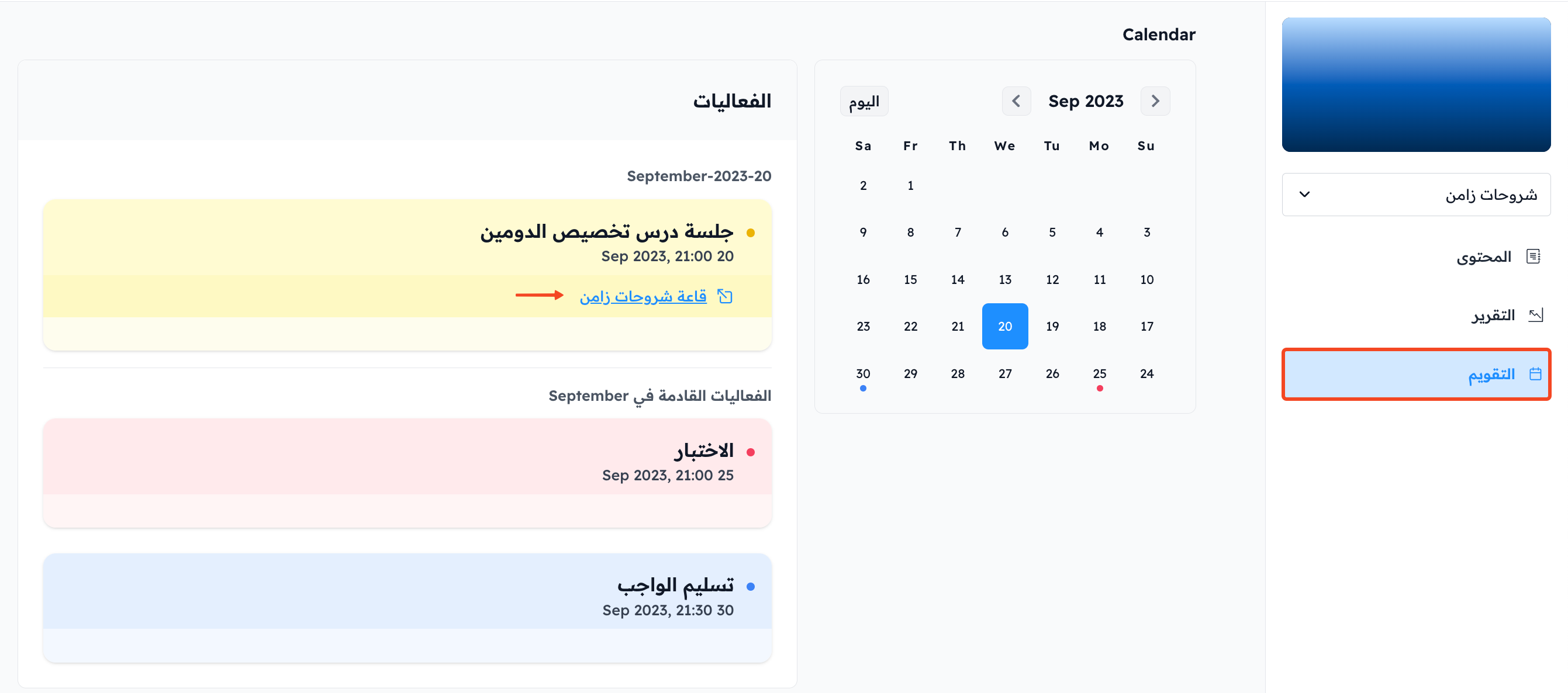
On the Calendar page you can see the events added to the course calendar.
Each event has a date, a day and a time, and it may have its own link (such as a room link).