Turn on fingerprint sign-in to your platform
You can sign in to the platform faster with your fingerprint, your face or your device lock, after you add a passkey to your account.
How to turn on fingerprint sign-in
-
Sign in to the platform with your account details.
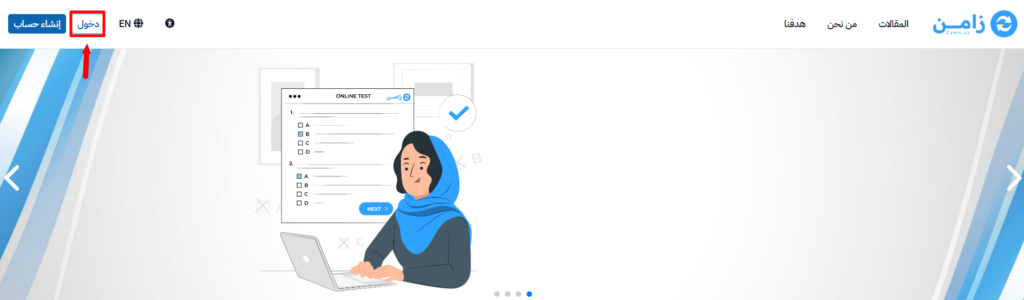
-
Click your profile icon, then click Edit Profile.
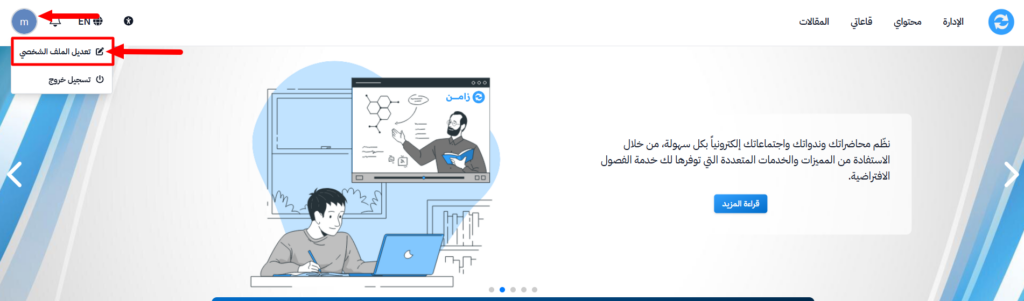
-
Go to the Security section.
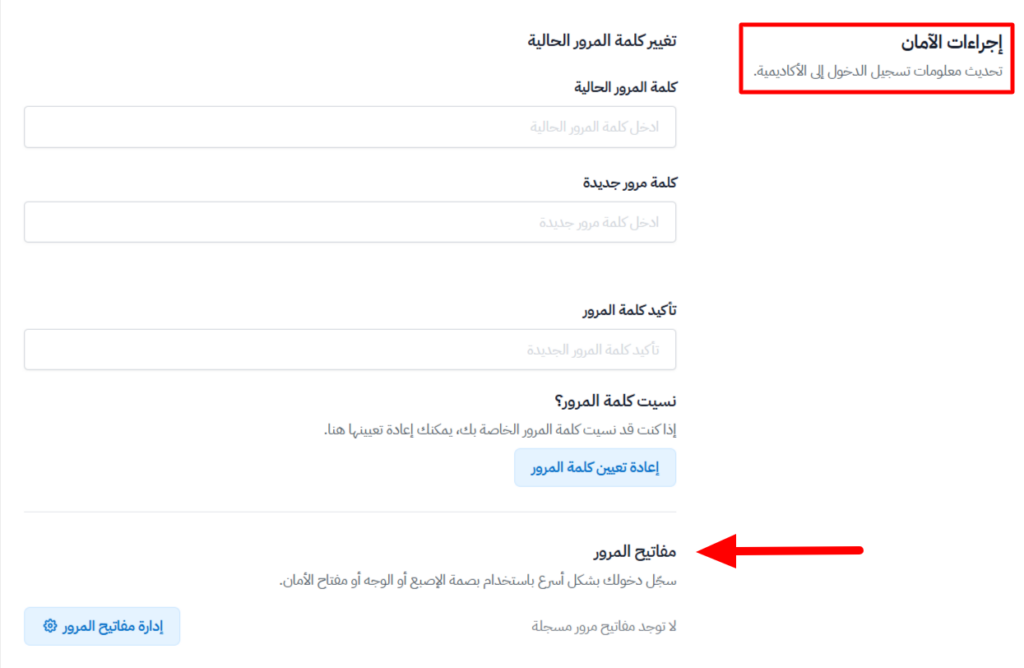
-
In the Passkeys part, click Manage Passkeys.

-
A pop-up window opens. Type a name for your device in the Device Name field, then click Register Passkey.
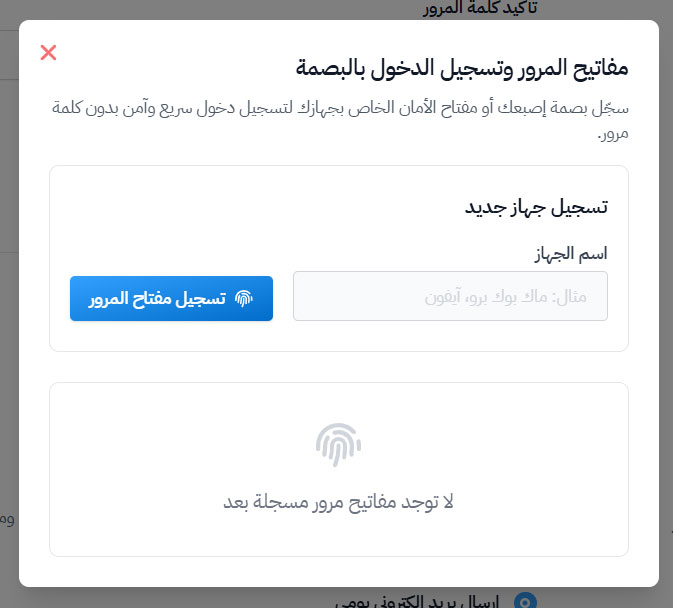
-
Choose how to save the passkey from the options your device shows you, as explained below.
If you register from a computer
You will see these options for saving the passkey:
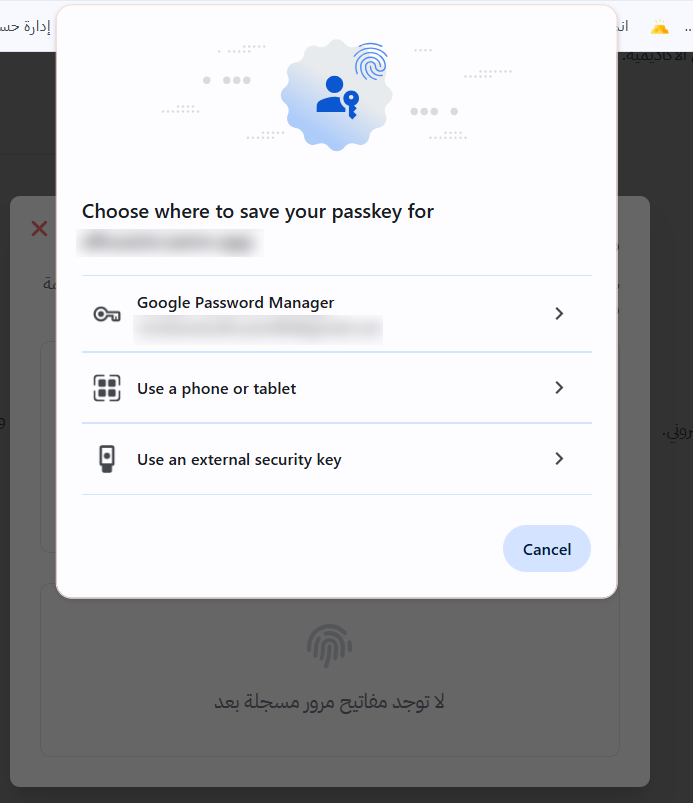
- Save it in Google Password Manager.
- Use a phone or tablet to confirm.
- Use an external USB security key.
If you register from a mobile phone
When you create the passkey from your phone, you will see two options:
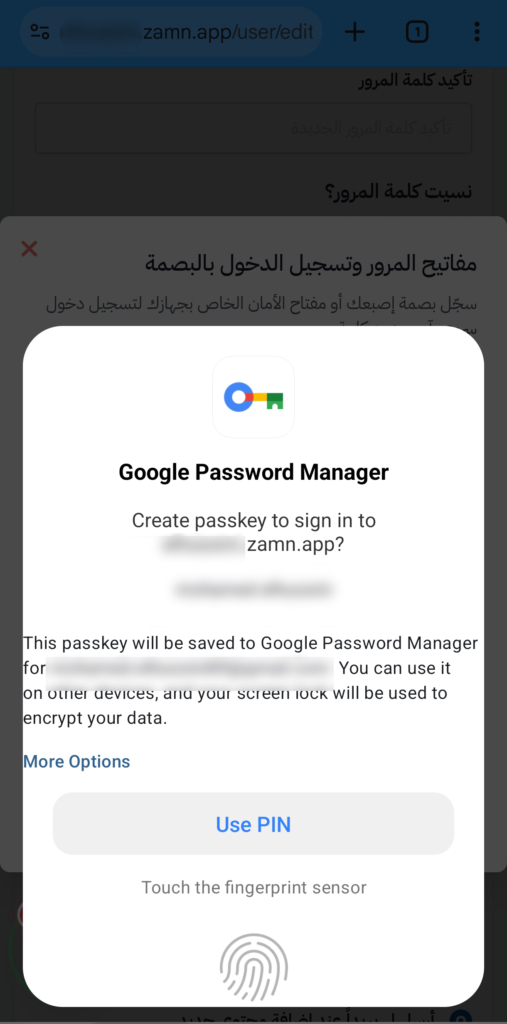
- Use the fingerprint sensor or the device lock.
- Or use the device PIN.
After you confirm, fingerprint sign-in is turned on for your account.
Remove a passkey (turn off fingerprint sign-in)
If you want to stop signing in with your fingerprint, you can delete the passkey linked to the device.
How to remove a passkey
-
Click your profile icon, then click Edit Profile.
-
Go to the Security section.
-
In the Passkeys part, click Manage Passkeys.
-
To remove a device, click the trash icon next to it in the Registered Devices list, then confirm.
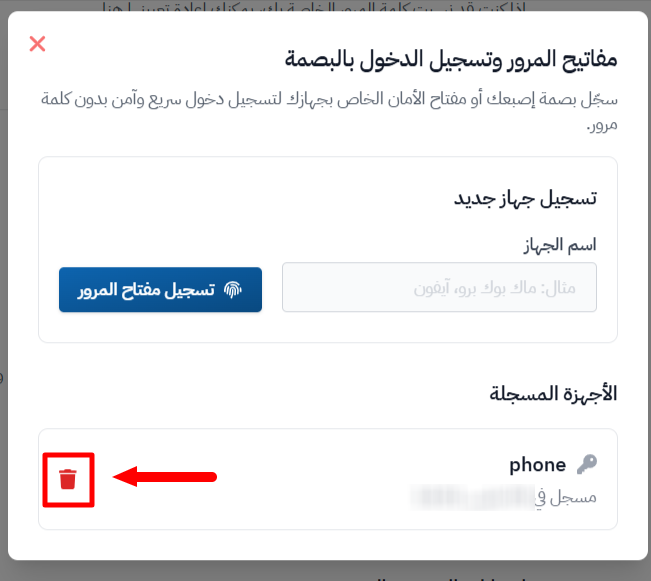
After you remove it, this device cannot sign in with a fingerprint anymore. You will need to sign in the normal way or add a new passkey.