Book a paid consultation or appointment
This article shows how to book a paid consultation or appointment on the platform, pay for it, and then confirm your booking time.
How to book a consultation or appointment
If you see a Book Now button instead of a calendar on the consultation page, click it, choose the date and time, and complete the payment. Your booking is confirmed on its own after you pay.
-
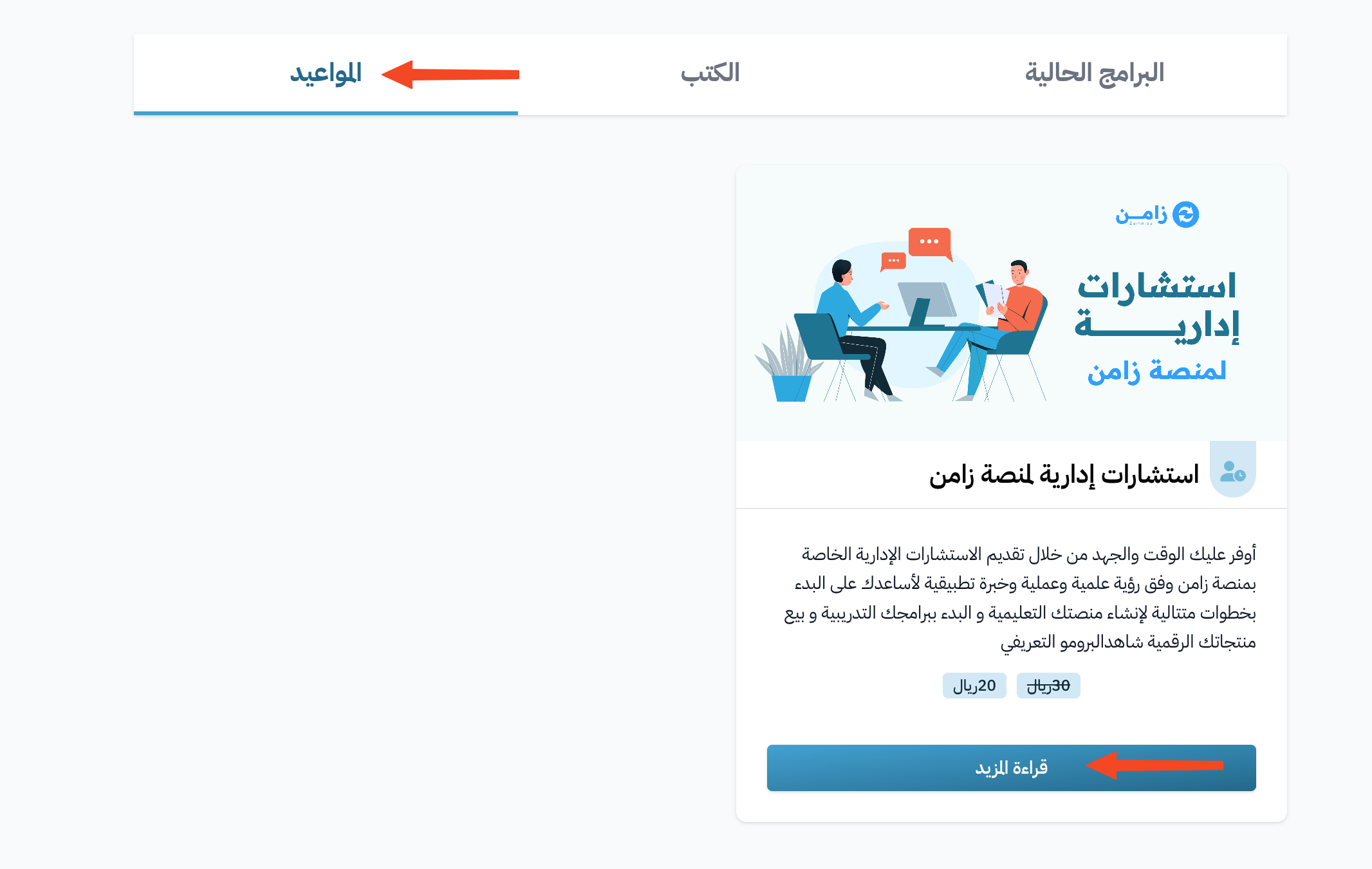
Go to the Consultations section (or Appointments, based on its name on your platform) on the platform home page.
-
Choose the consultation you want to book, then click Book an appointment.
-
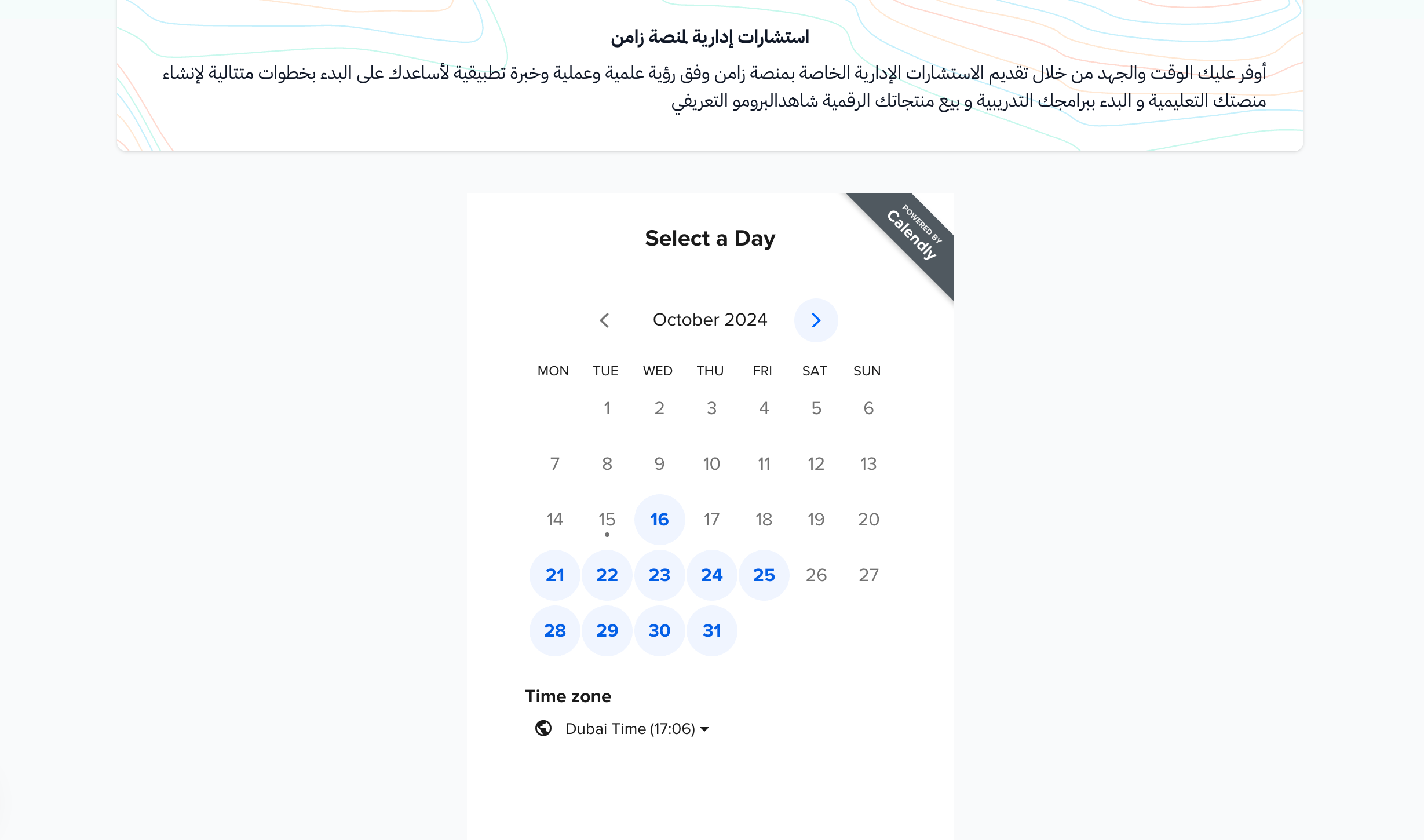
Choose an available day from the calendar.
-
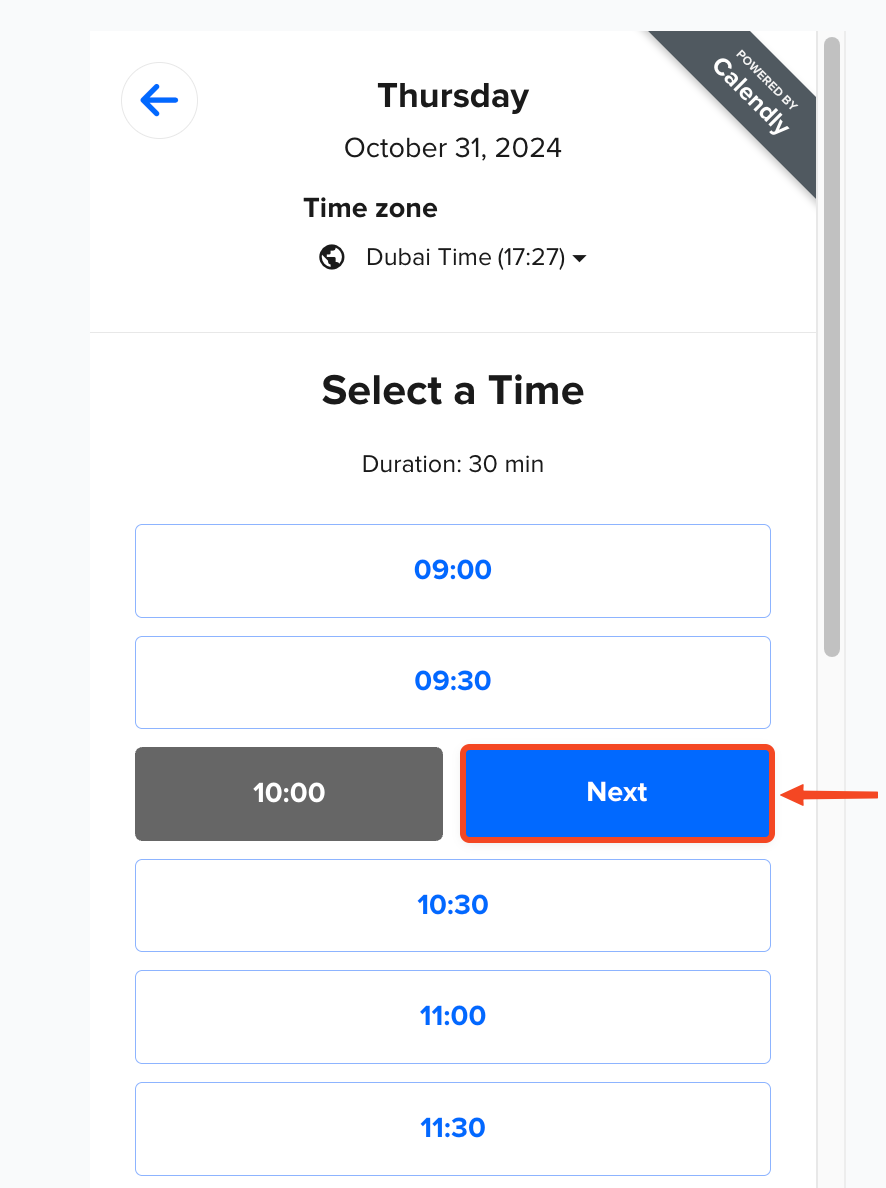
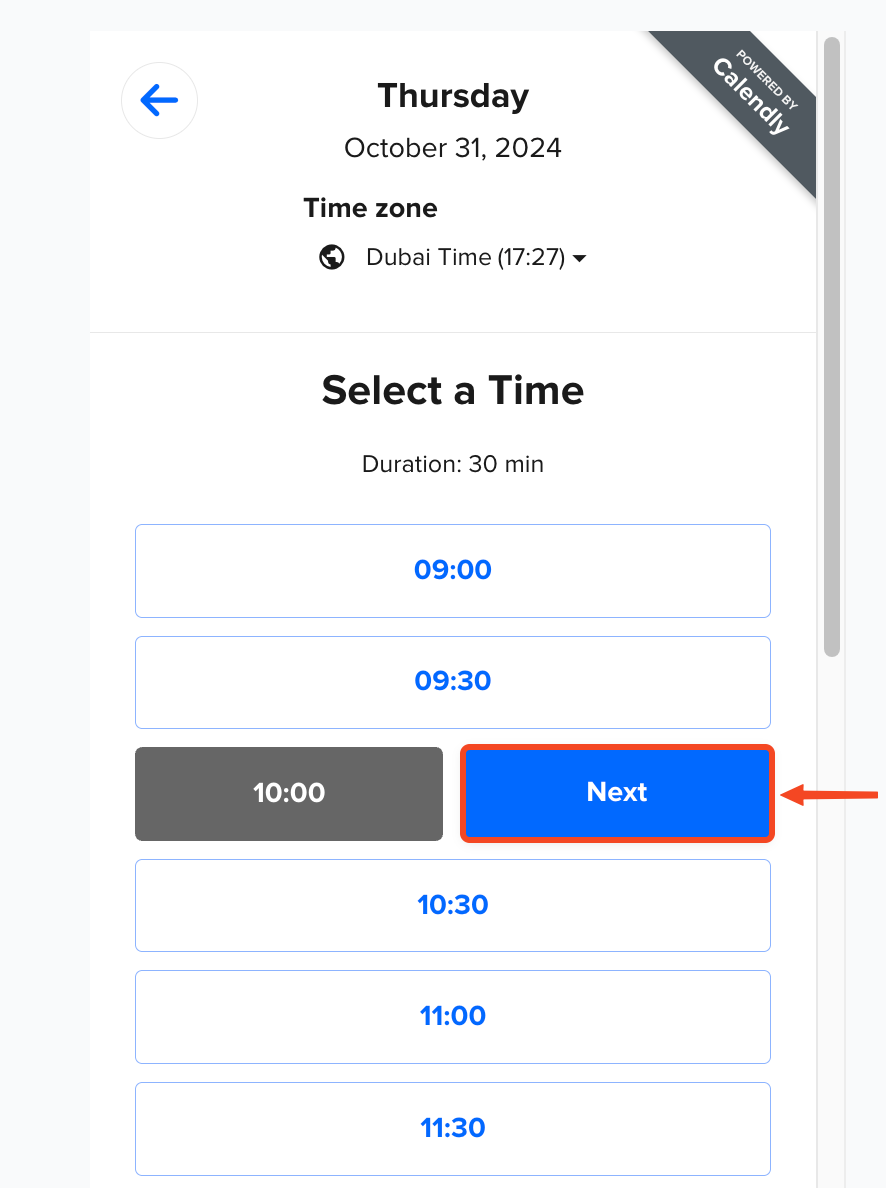
Choose an available time, then click Next.
-
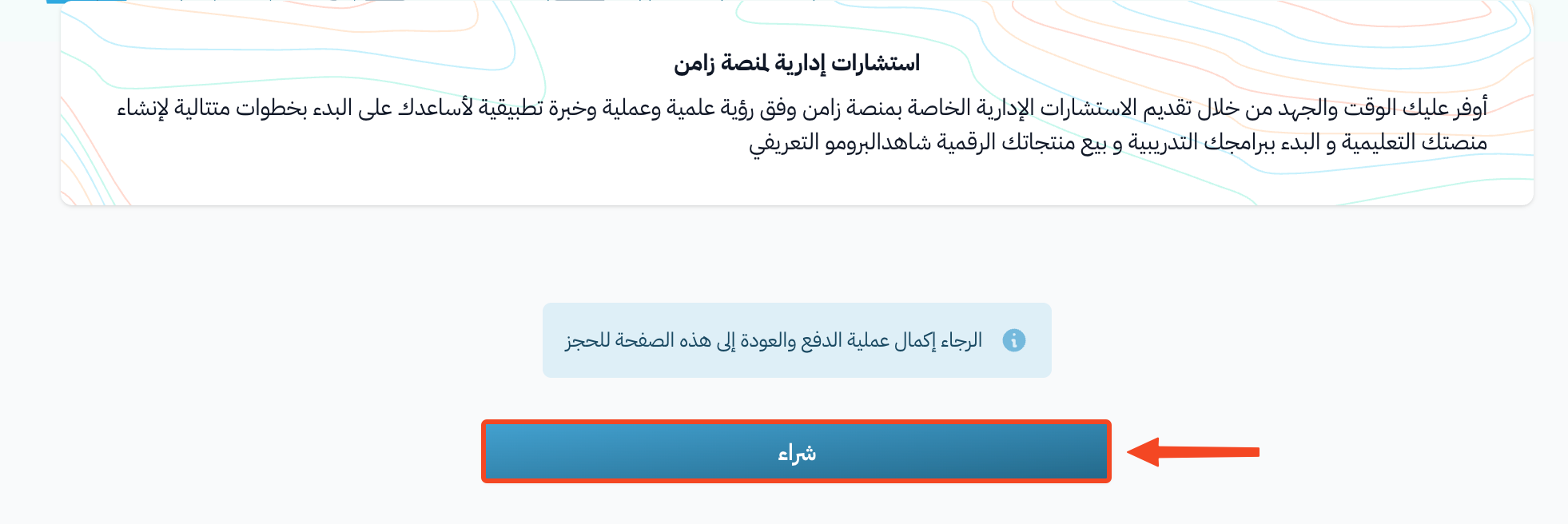
Click Buy to continue your booking. If the consultation is a monthly subscription, the button reads Subscribe.
 Note
NoteIf you have an account on the platform and you are signed in, the payment window opens right away. If you do not have an account, you must sign up first, then the payment window opens.
If you do not have an account on the platform:
-
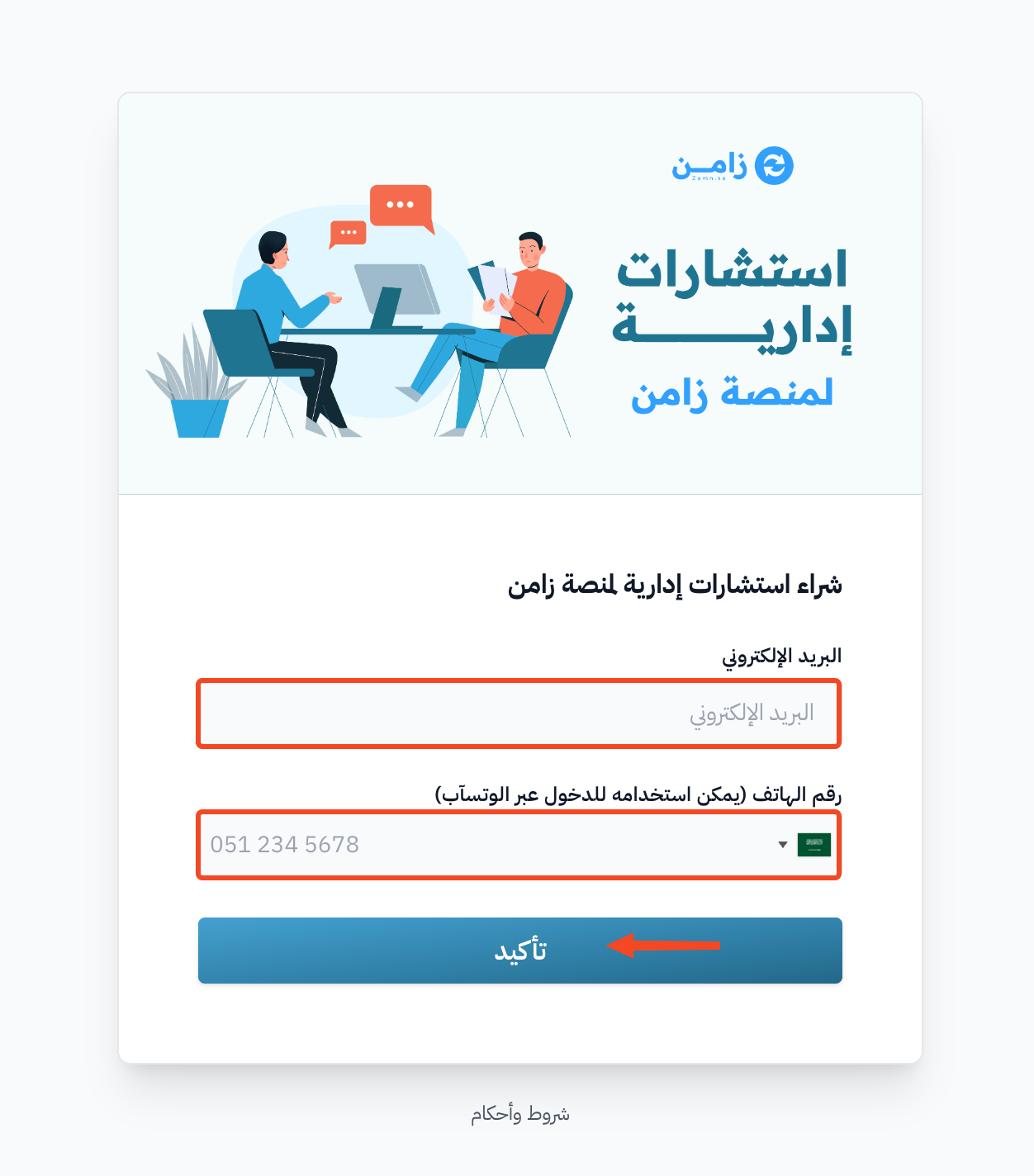
Enter your phone number, then click Login. You can also click Use email to login to use your email instead of your phone number. You will get a verification code.
-
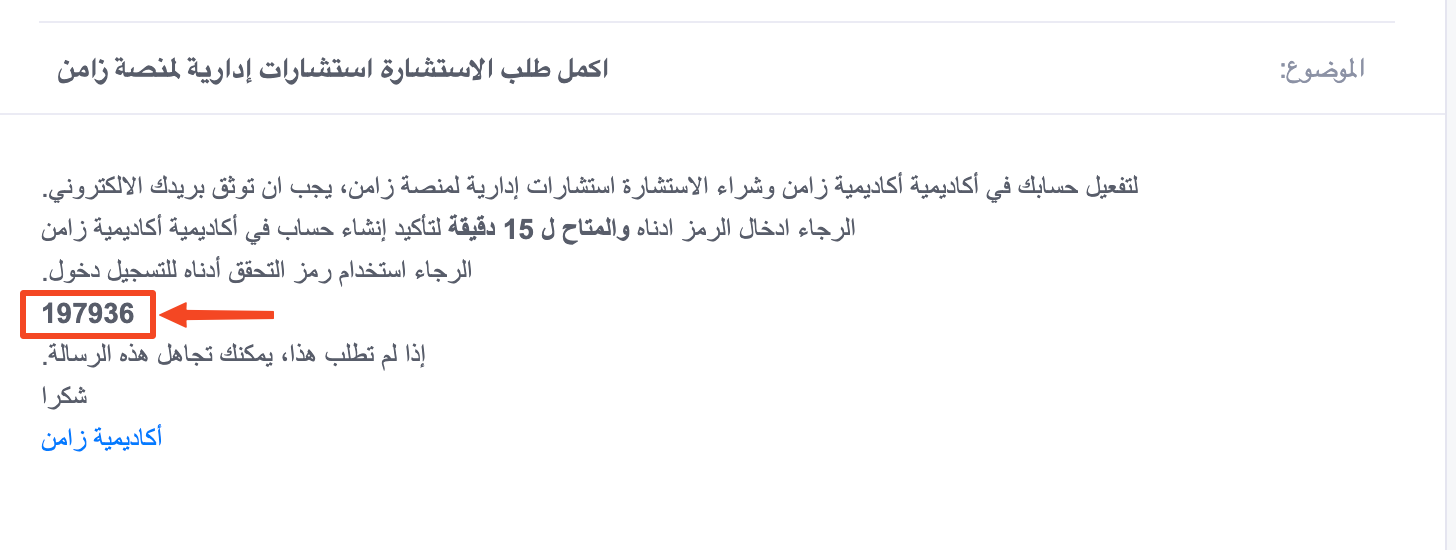
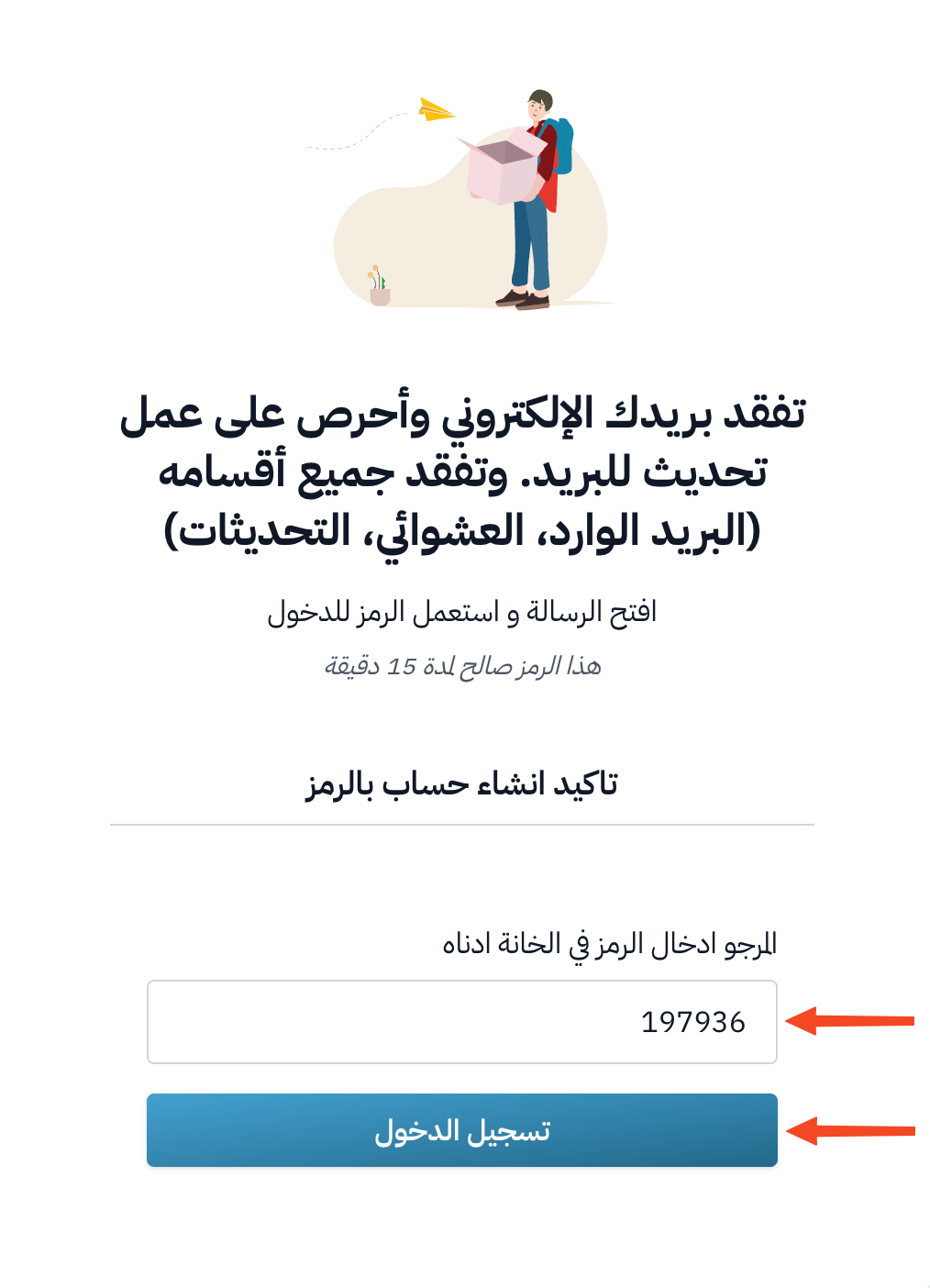
Open the message and copy the code.
-
Paste the code in the code field. The code is checked as soon as all 6 digits are entered.
-
-
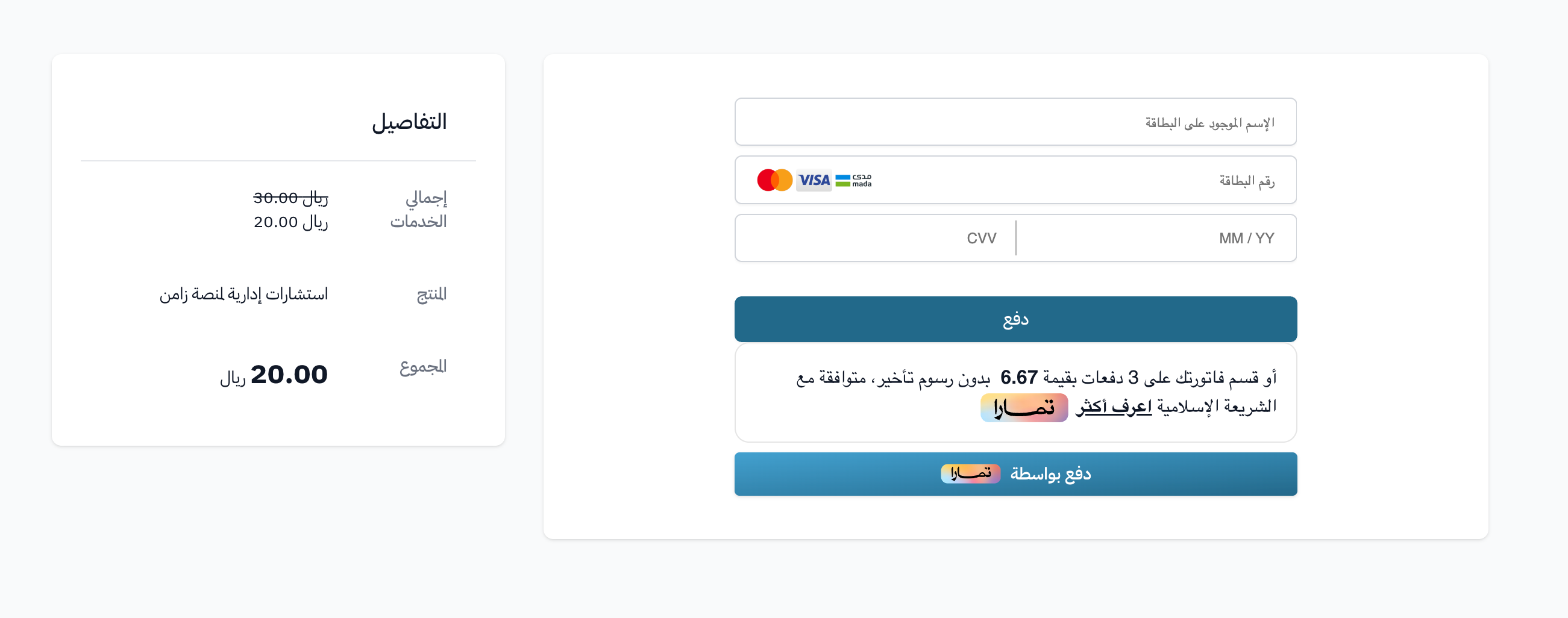
Choose a payment method, enter your card details, then click Confirm Payment.
-
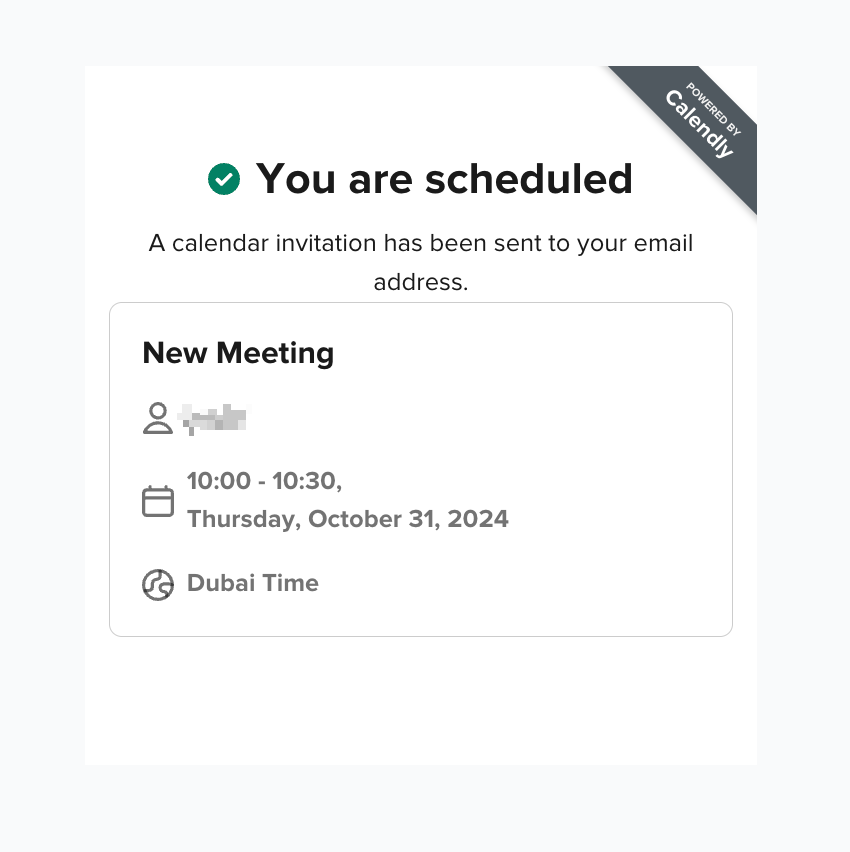
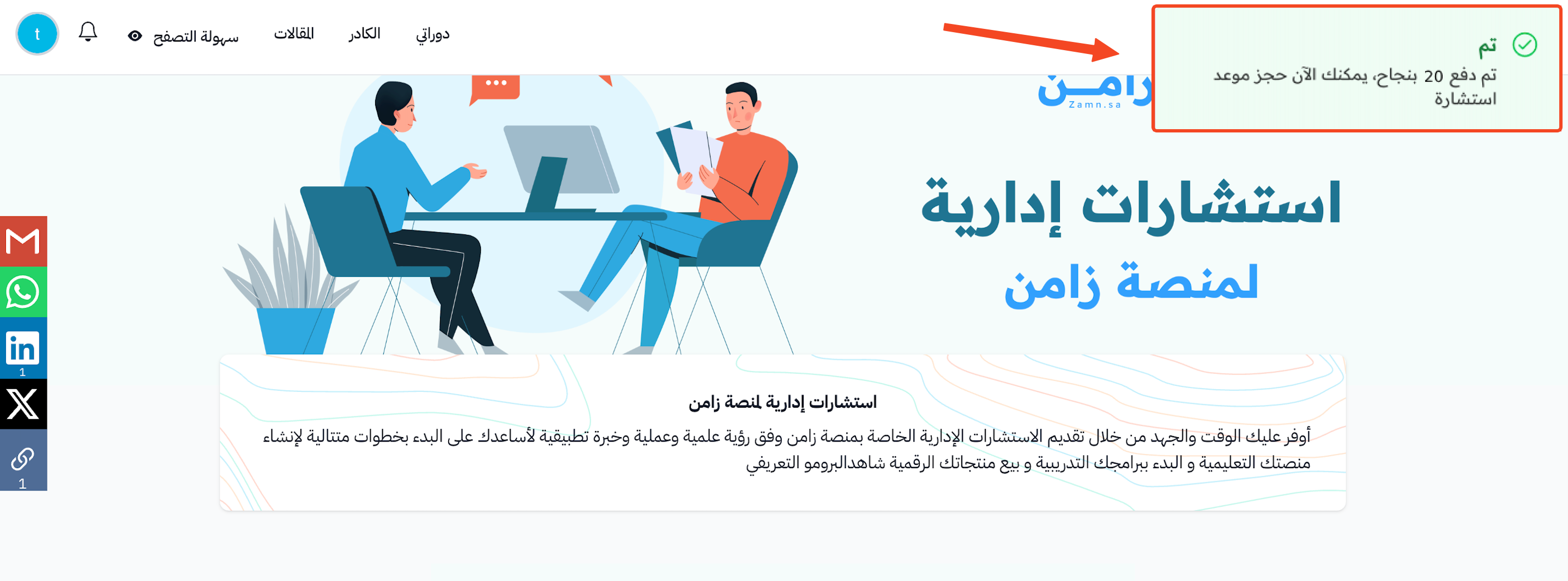
When the payment success message shows, go back to the calendar on the consultation page to confirm your booking time.
-
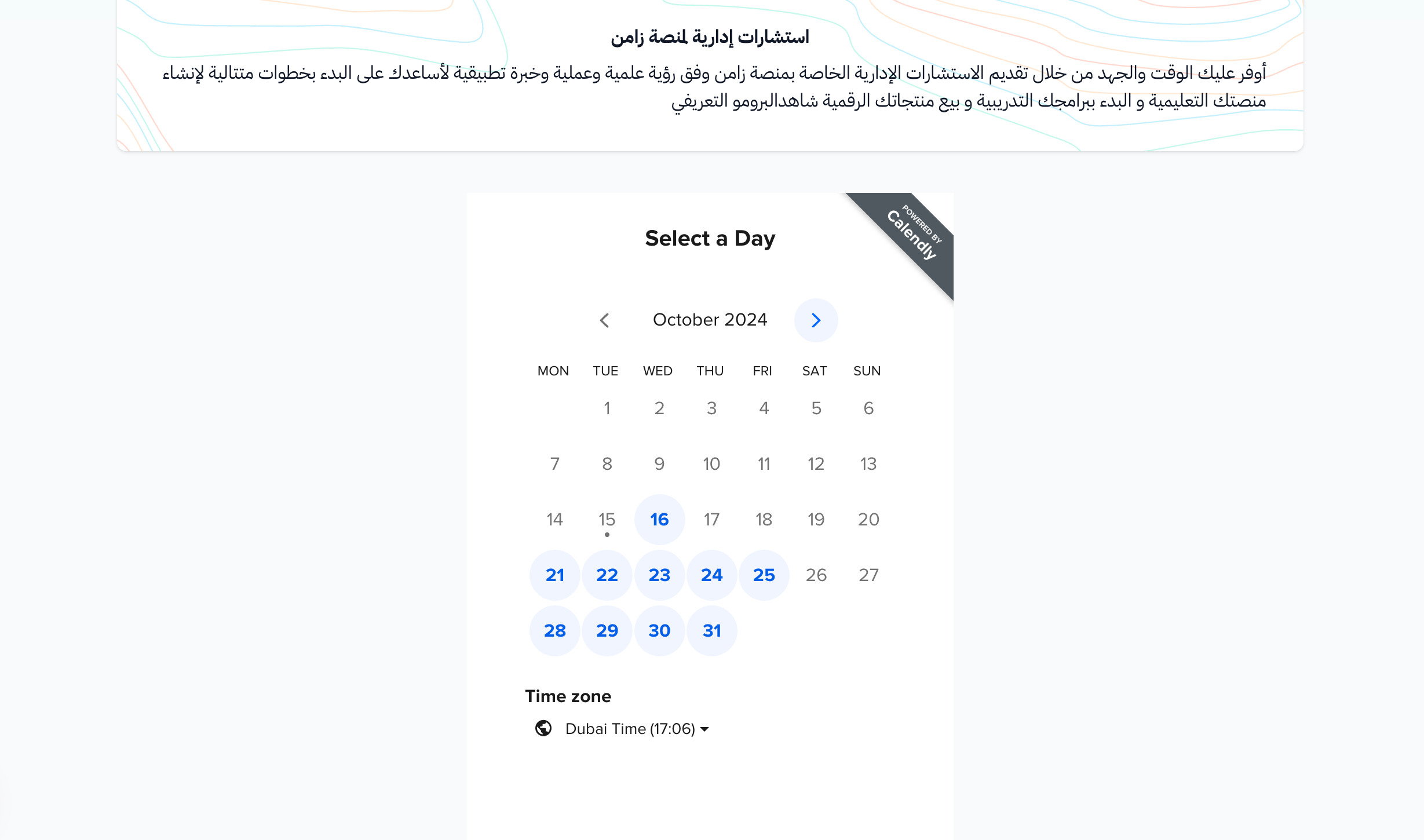
Choose the day from the calendar.
-
Choose the time, then click Next.
-
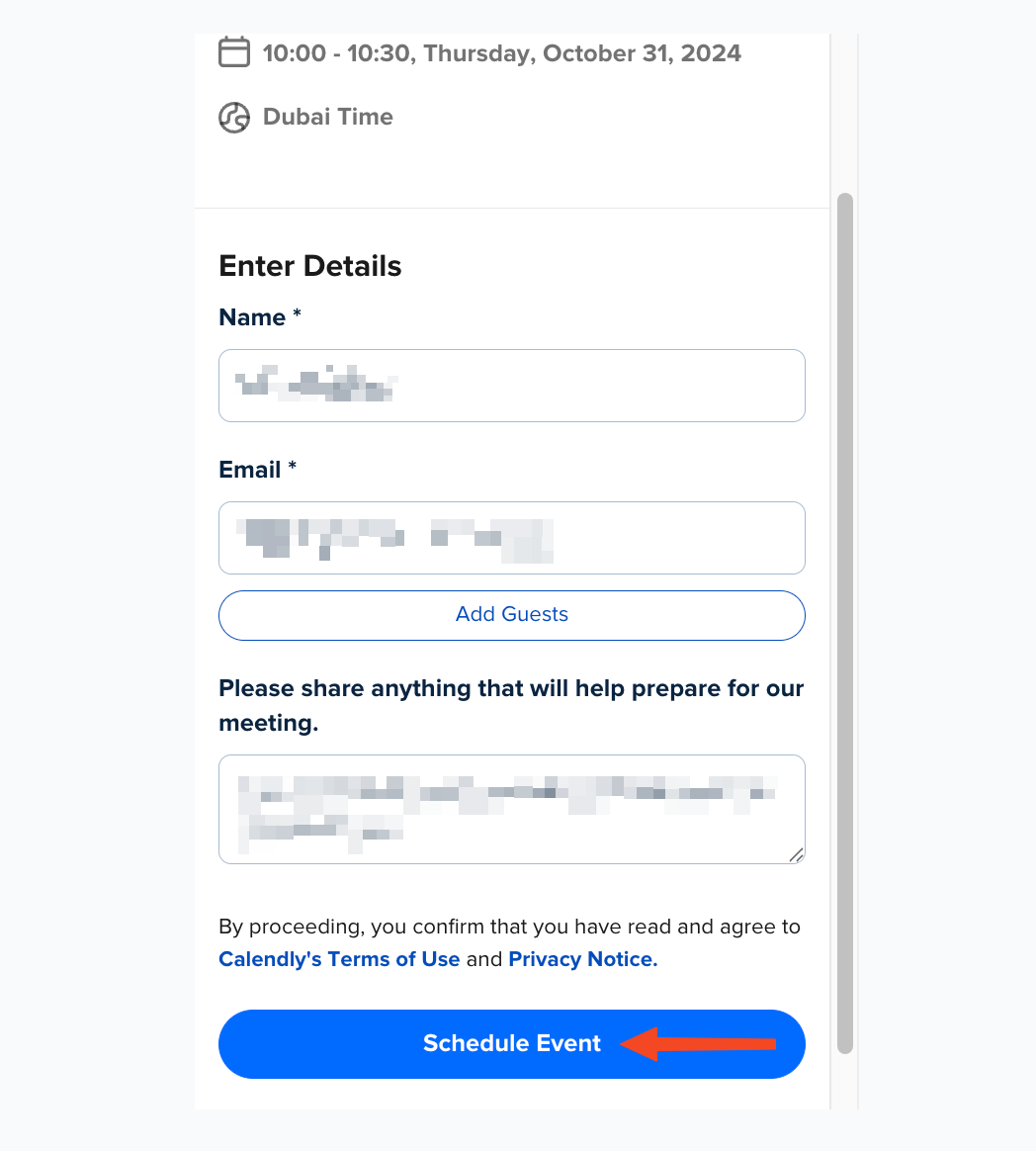
Enter the details asked for, then click Schedule Event to save and confirm your booking.