Task alerts and notifications
When the coach adds a new task to your course, you get alerts in the following ways.
These alerts depend on the platform's subscription plan, so on some platforms you may not get all of them.
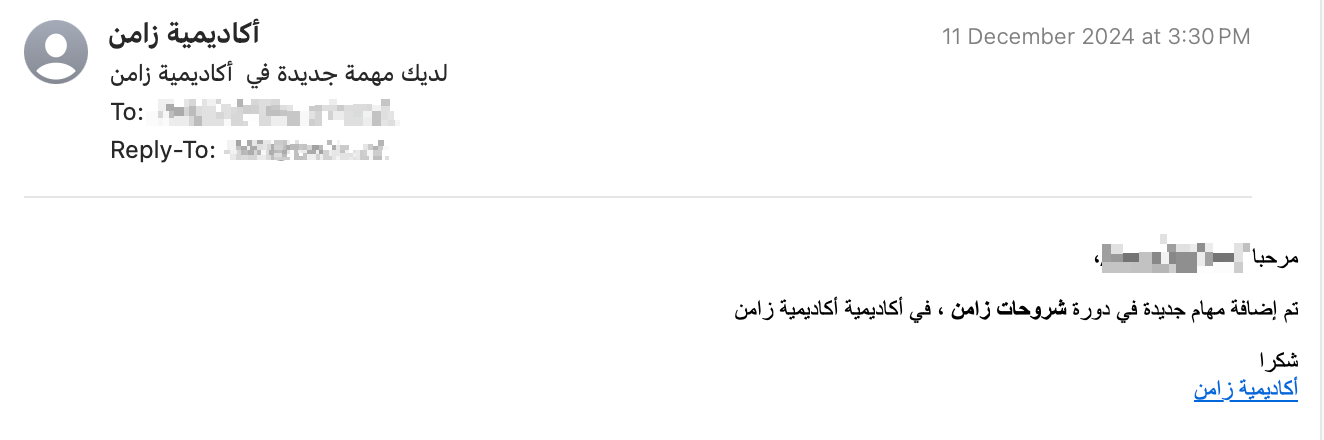
Email
You get a message at the email you used to sign up on the platform.
You can turn these emails off or on from the Edit Profile page, in the New Content Notifications section.
Alerts in your account (the bell button)
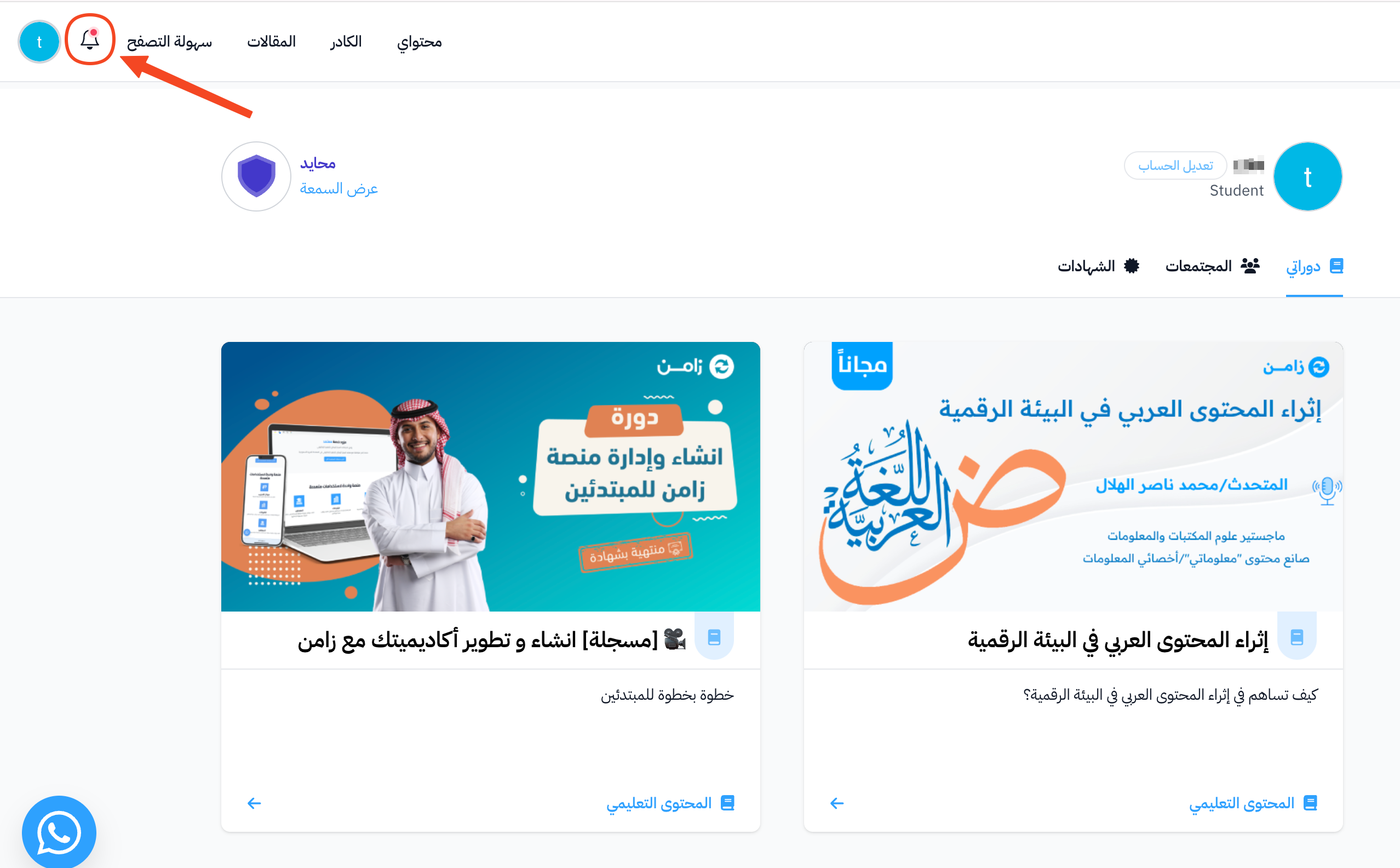
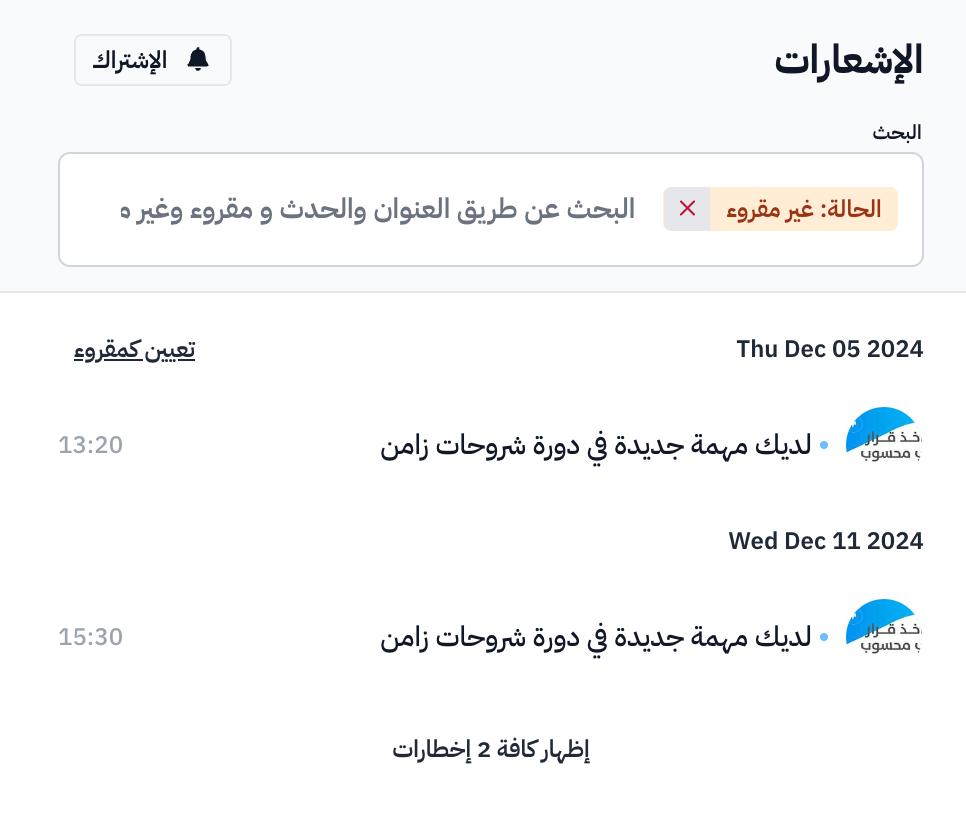
An alert reaches your account on the platform. To see your alerts, click the bell button in the top bar. A red dot shows on the bell button when you have new unread alerts.
Click an alert to go straight to the task.
Turn on bell notifications on your device
When you turn on bell notifications, task notifications reach your device directly.
-
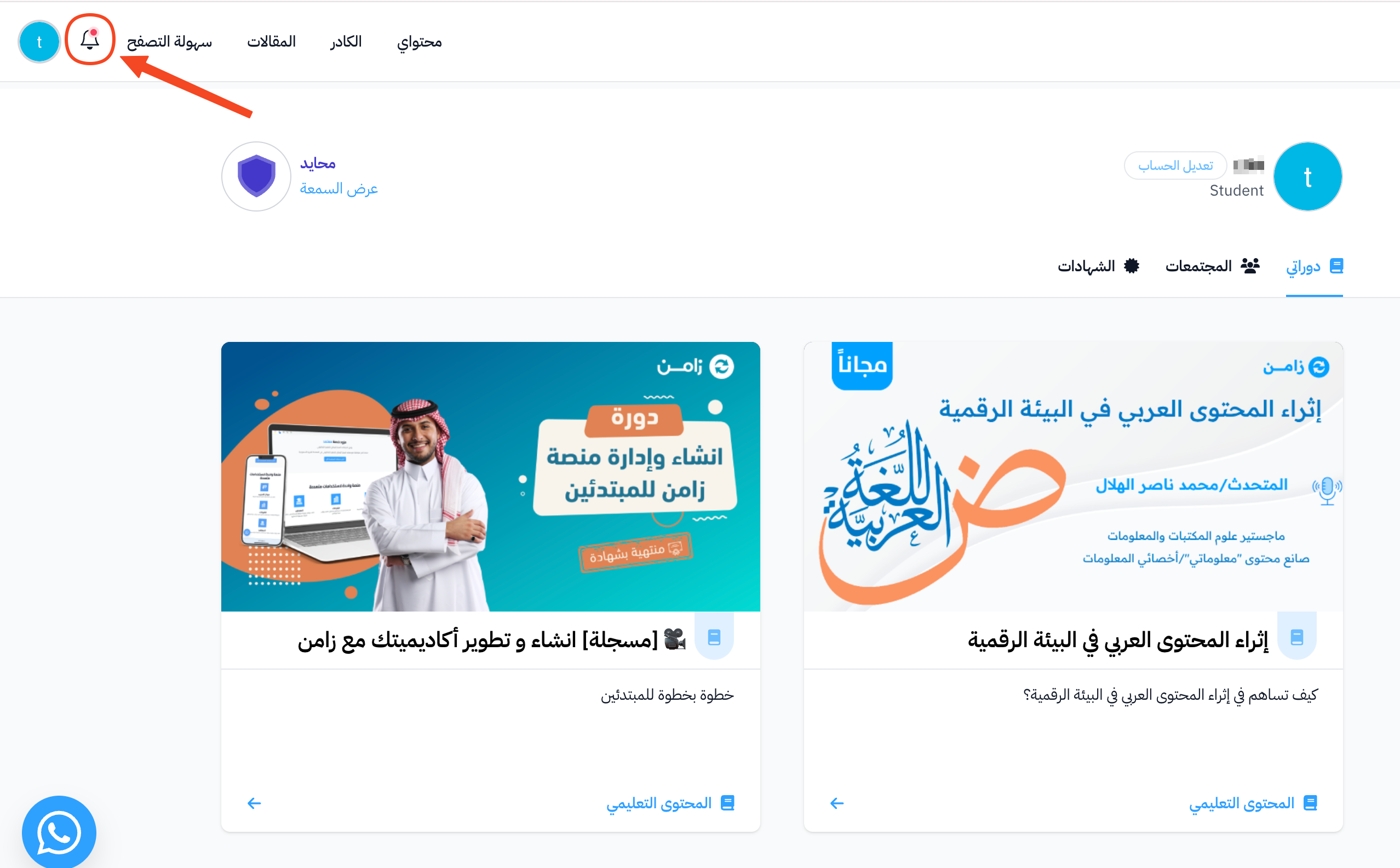
Click the bell button in the top bar of the platform.
-
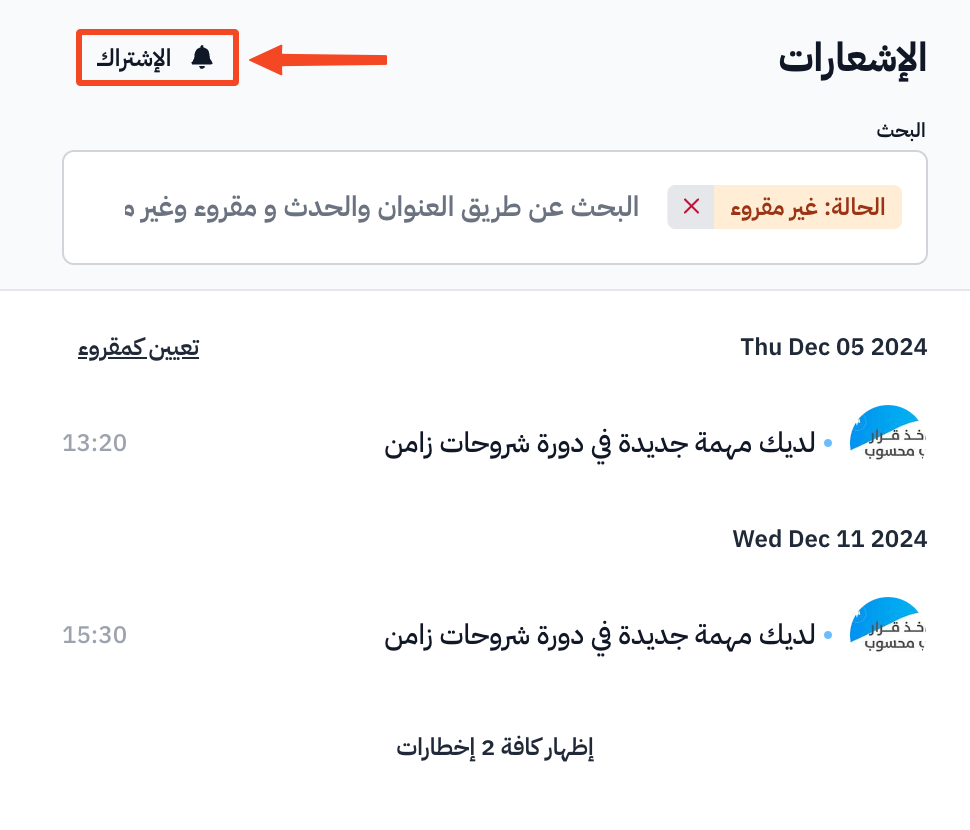
Click Subscribe. If you turned on notifications on another device, the button reads Subscribe on this Device.
-
If your browser does not allow notifications yet, a window asks you about it. Click Allow so the browser can receive notifications.
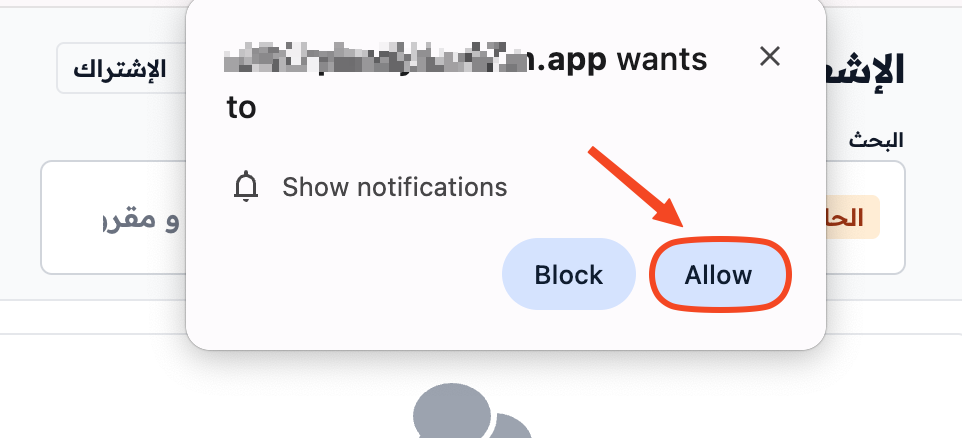
If you clicked Block by mistake, click the lock icon next to the site address in your browser and allow notifications.