Connect your Zoom account to your platform
Connect your Zoom account to your platform, so you can open and share rooms from your platform through Zoom. This guide is for the platform admin.
The Zoom integration is available on some subscription plans only. If your plan does not include it, you see the message You need to upgrade your plan.
Turn on the connection keys in Zoom
-
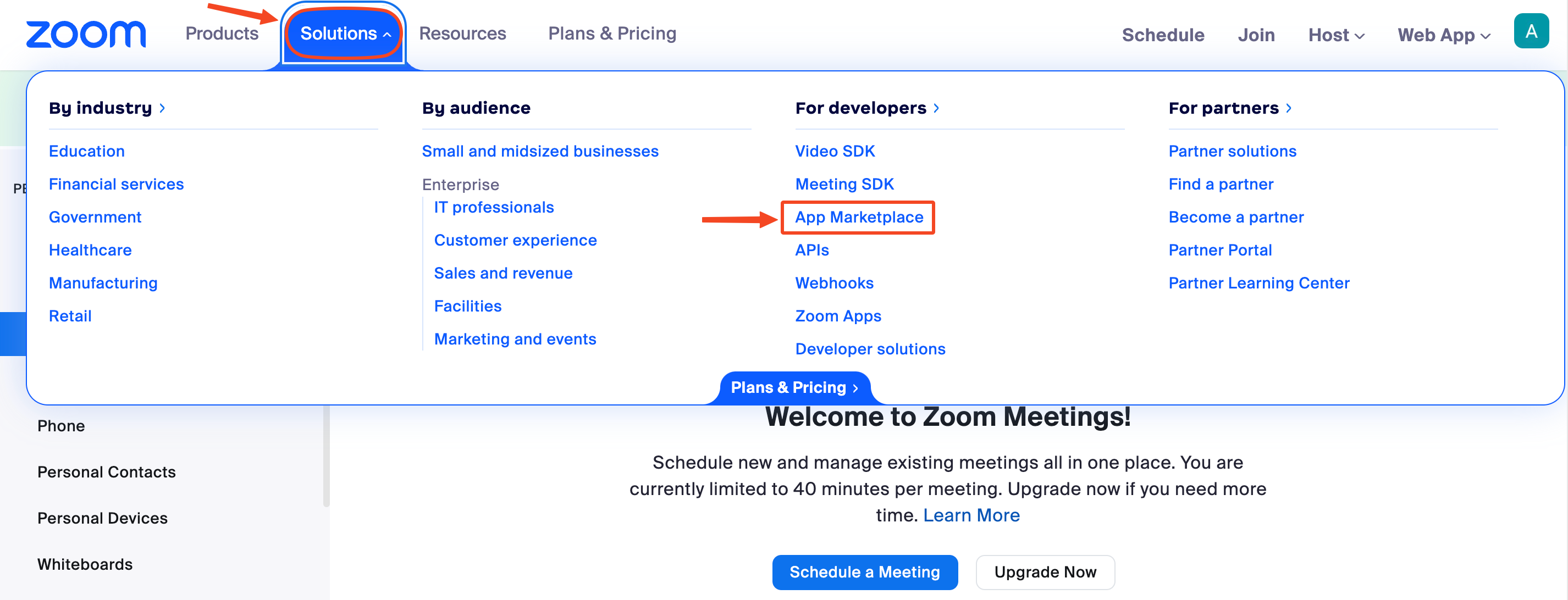
Sign in to your Zoom account. In the top bar, click Solutions, then click App Marketplace.
-
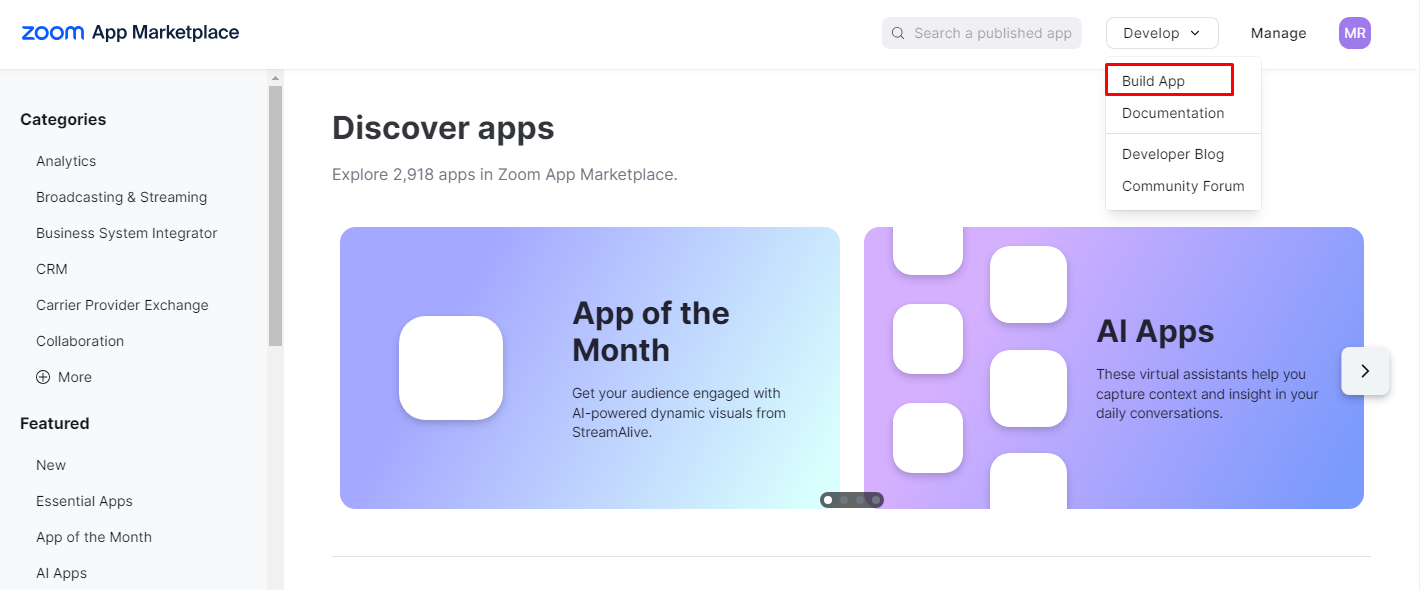
Click Develop, then choose Build App.
-
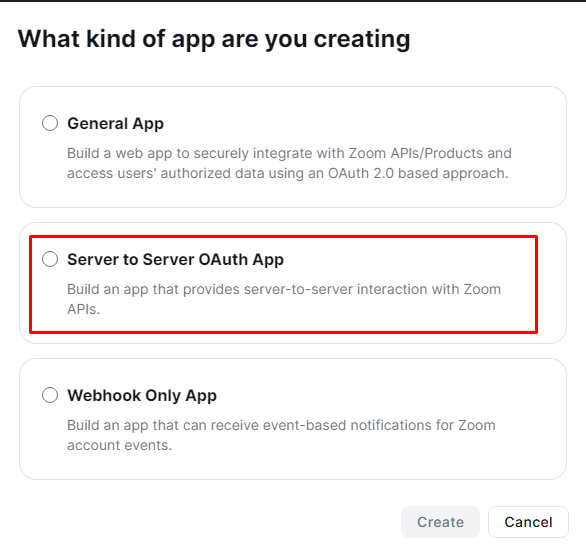
Choose Server to Server OAuth App, then click Create.
-
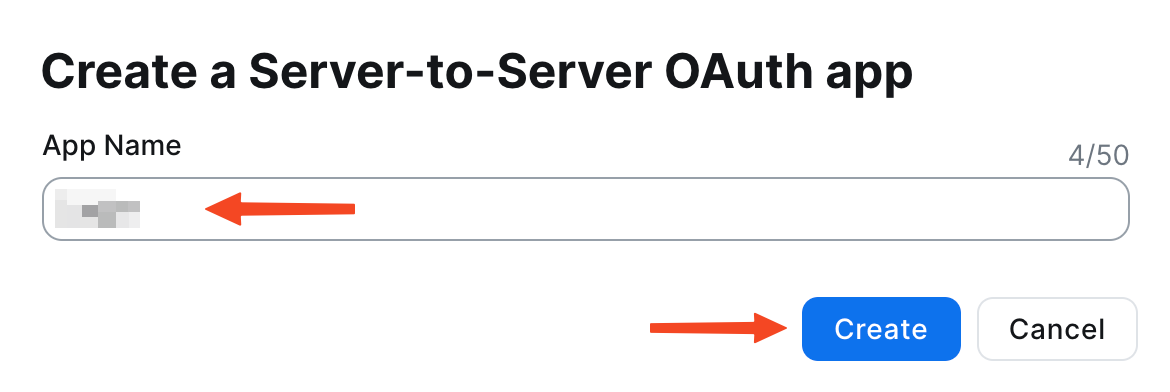
Type your platform name in the App Name field, then click Create.
-
The App Credentials page opens. Click Continue at the bottom of the page.
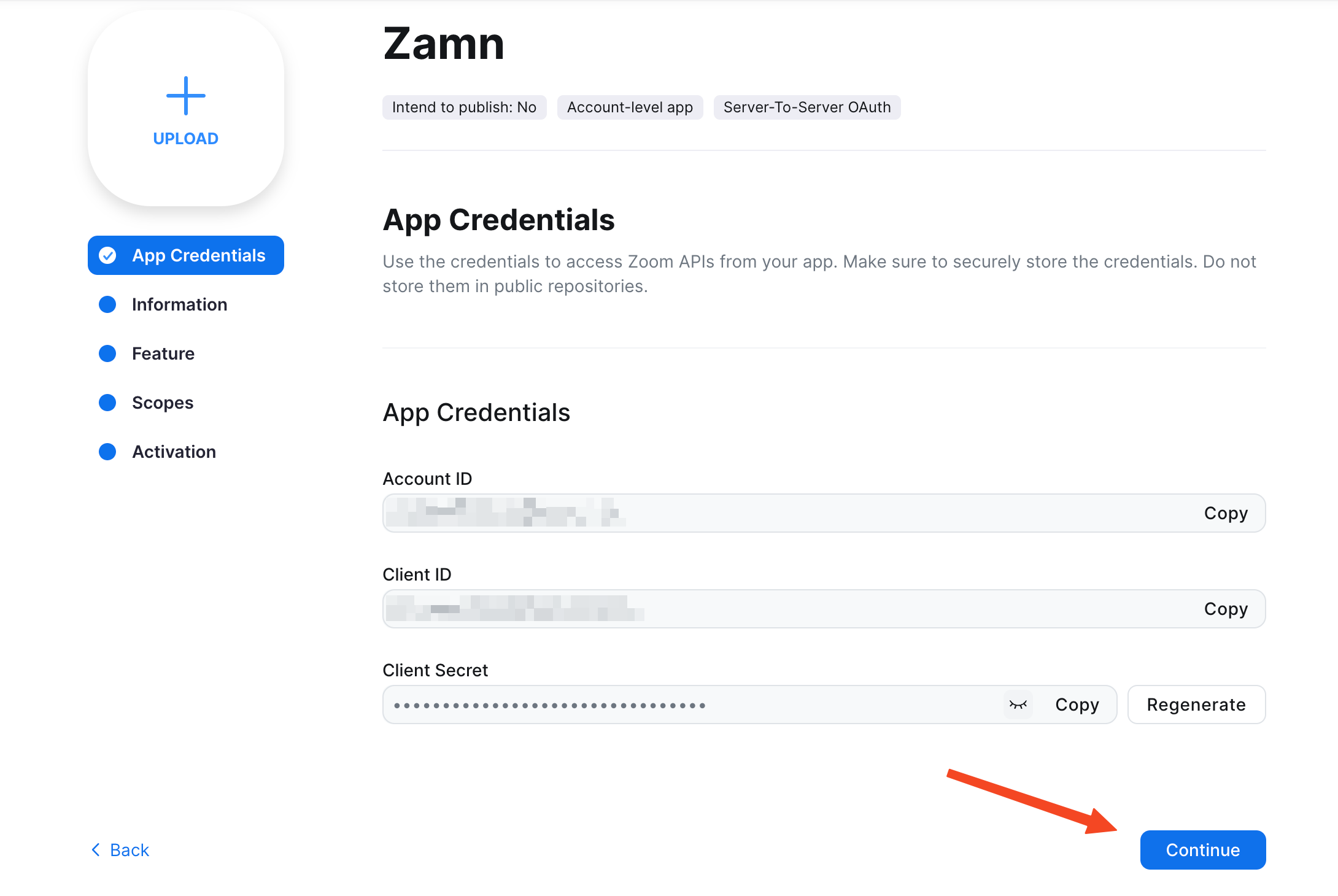
-
On the Information page, type your platform name in the Company Name field. Type your name and email in the Name and Email fields, then click Continue.
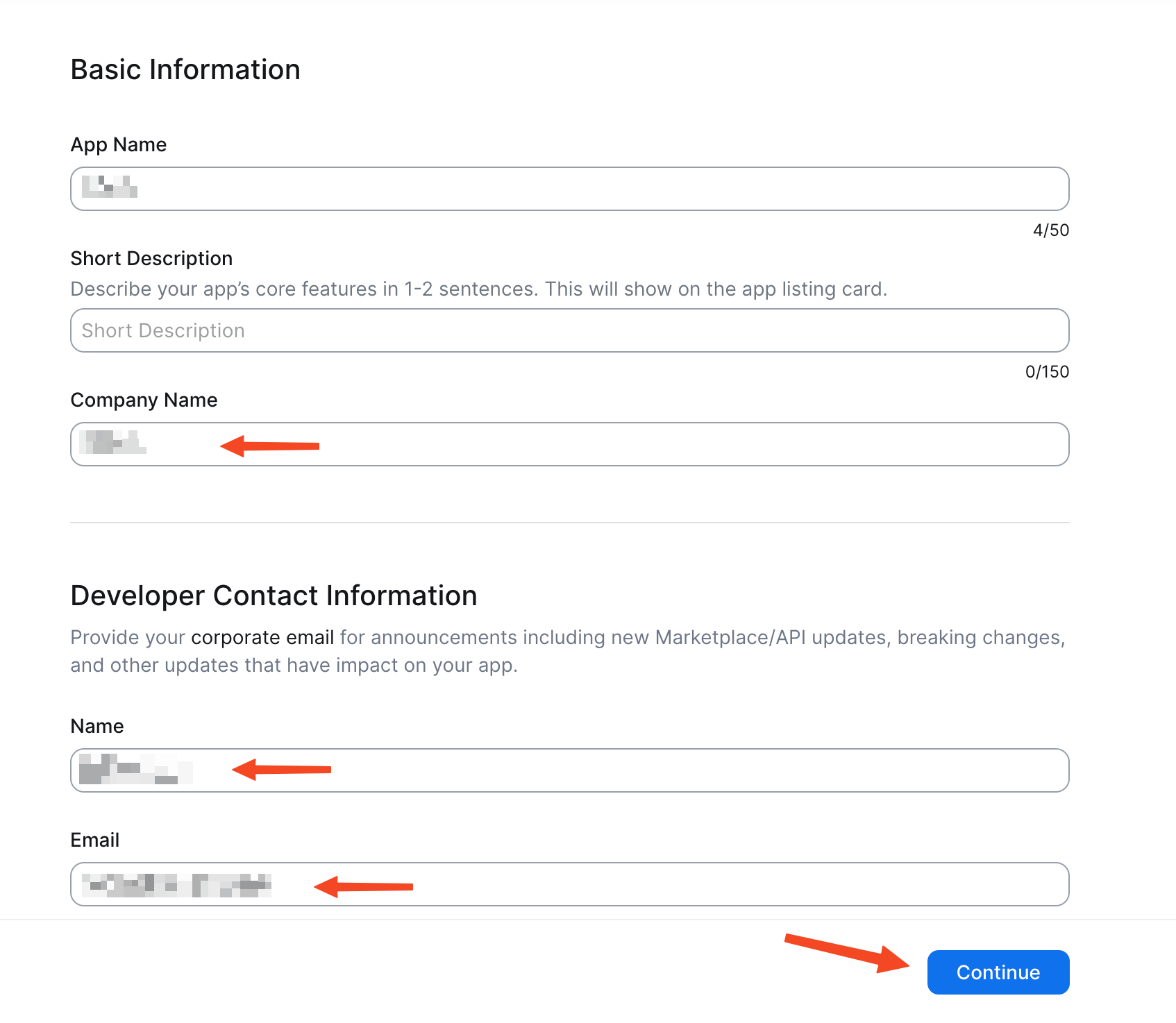
-
On the Feature page, click Continue.
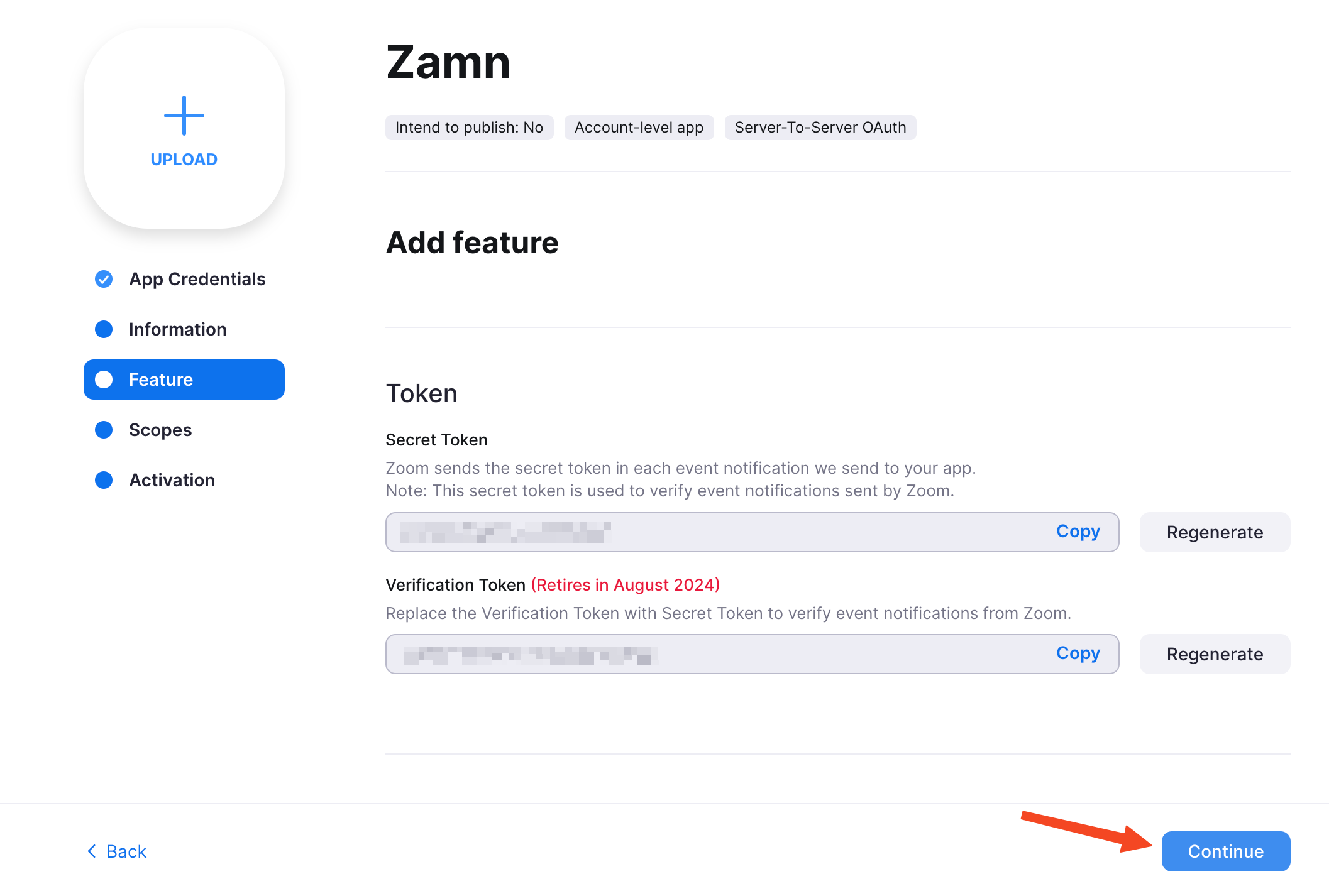
-
On the Scopes page, click Add Scopes.
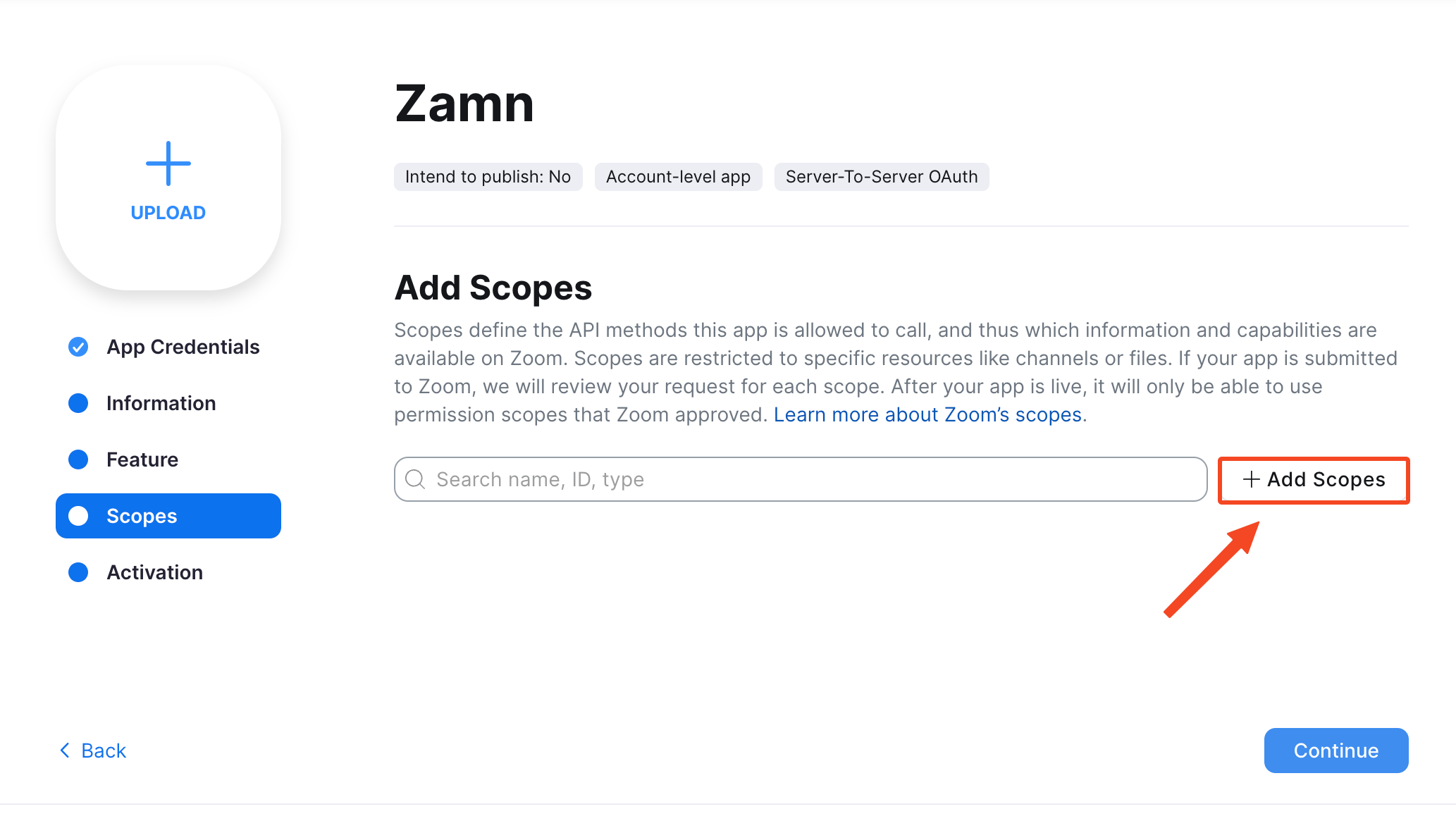
-
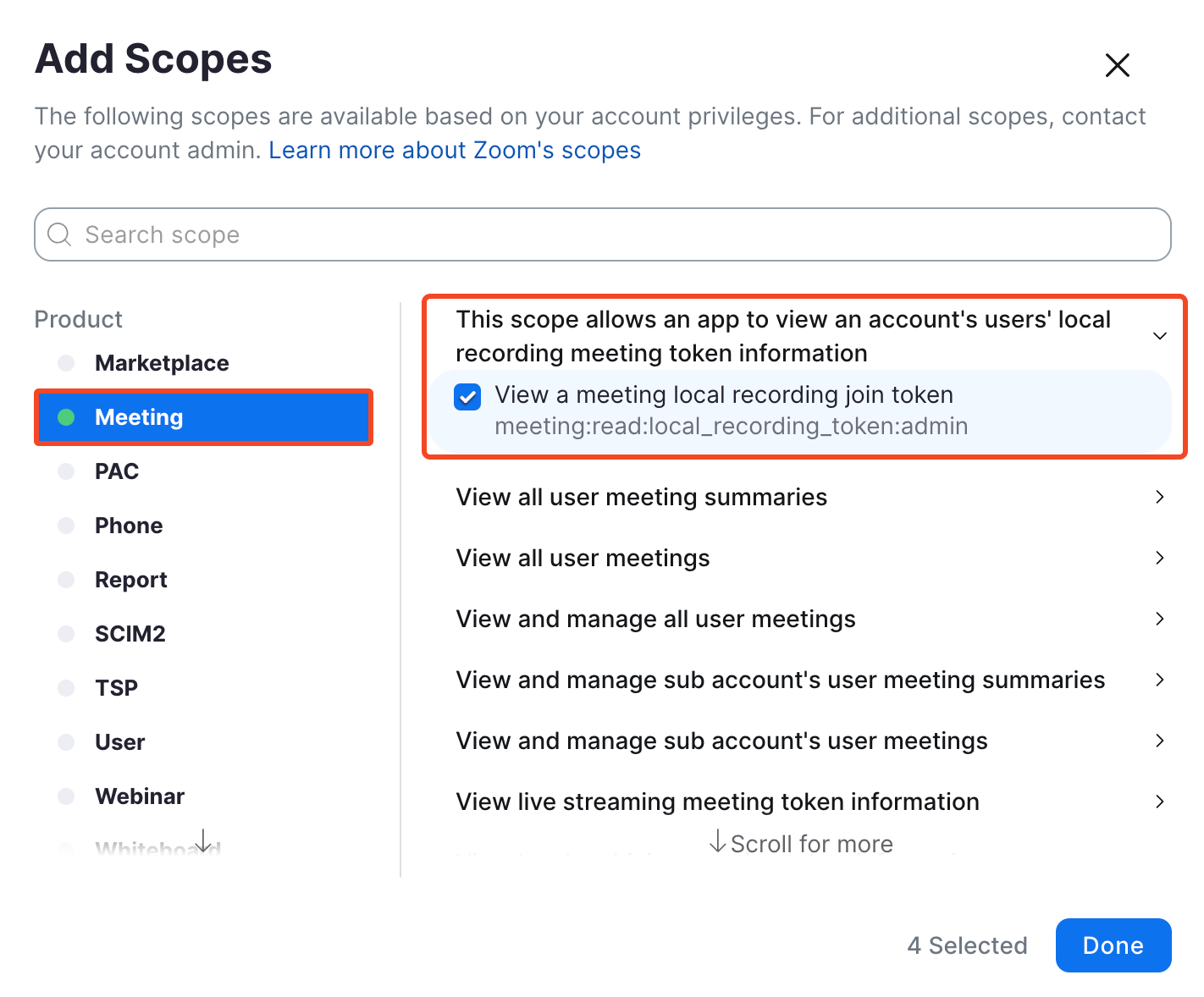
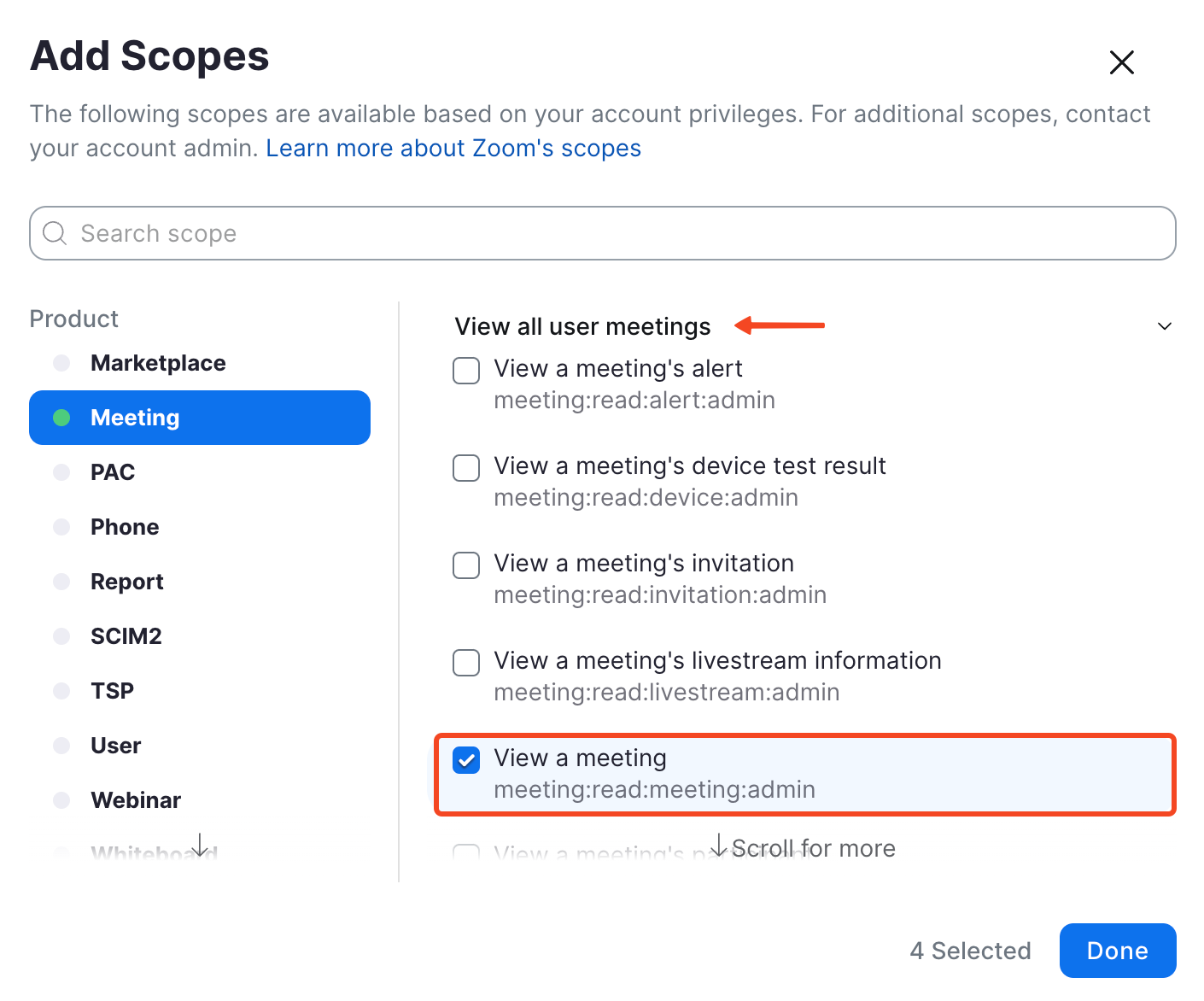
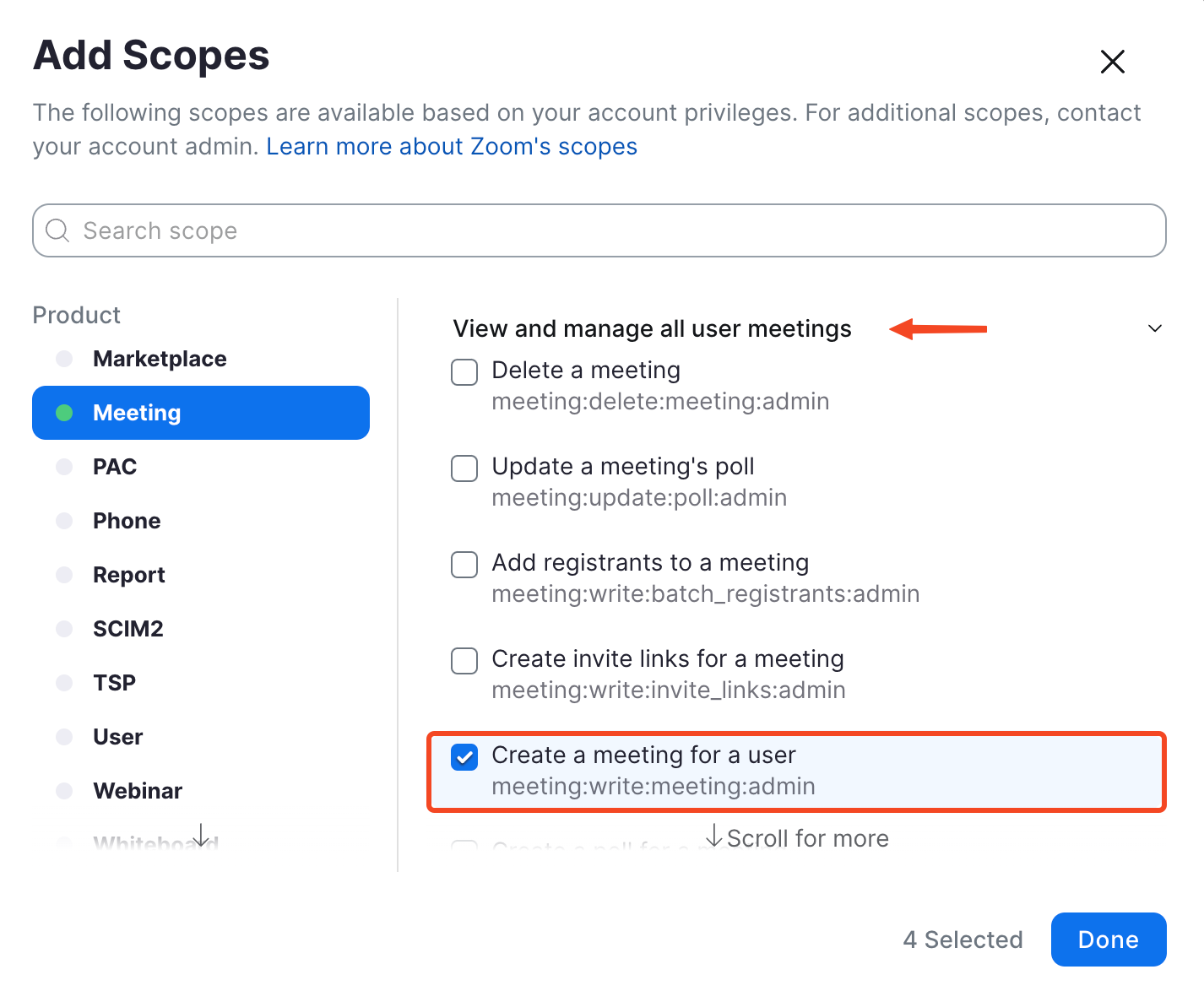
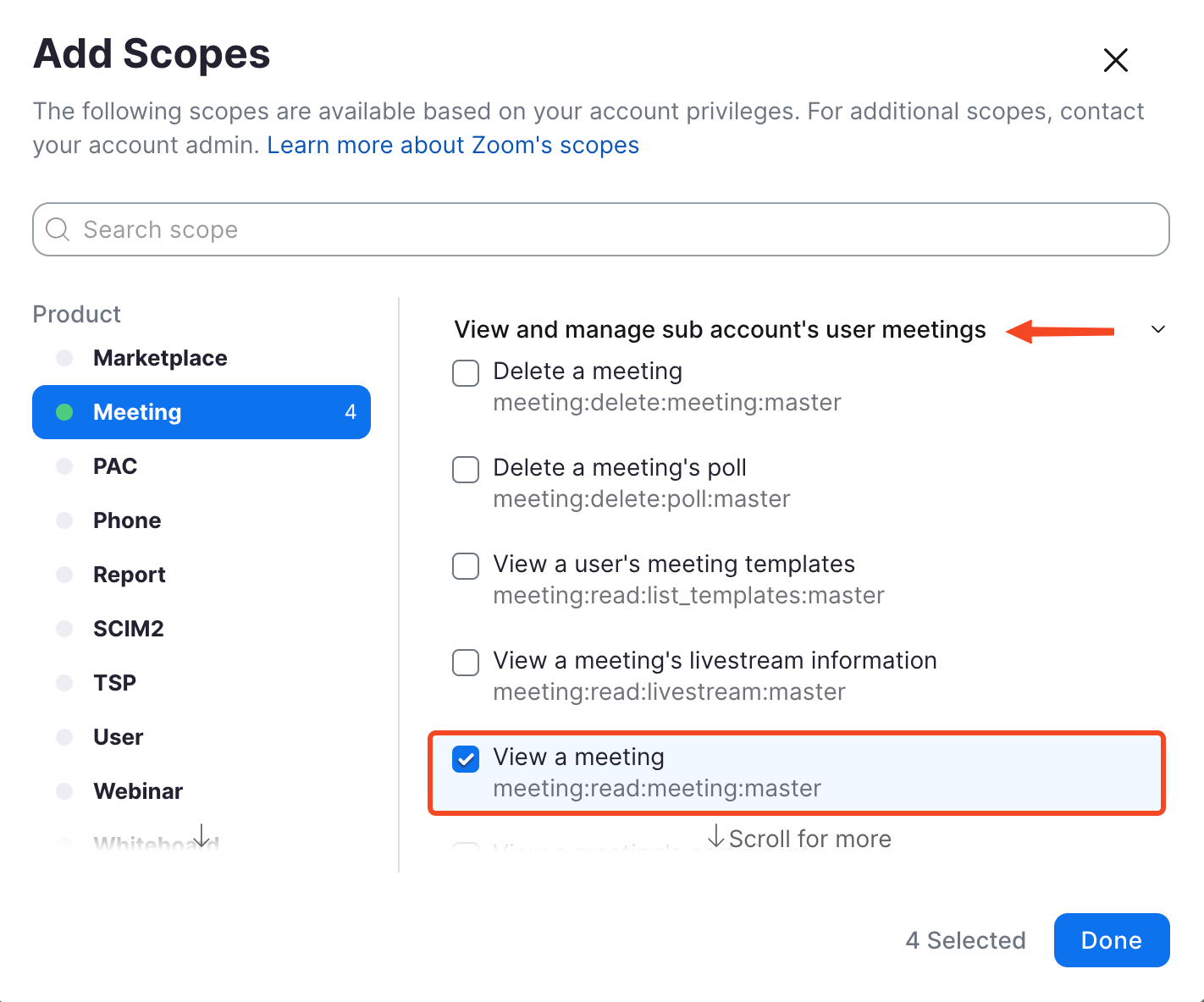
Choose Meeting from the list and turn on these four scopes. You can type a scope name in the Search scope box to find it fast.
meeting:read:list_meetings:adminmeeting:read:meeting:adminmeeting:write:meeting:adminmeeting:update:meeting:admin
-
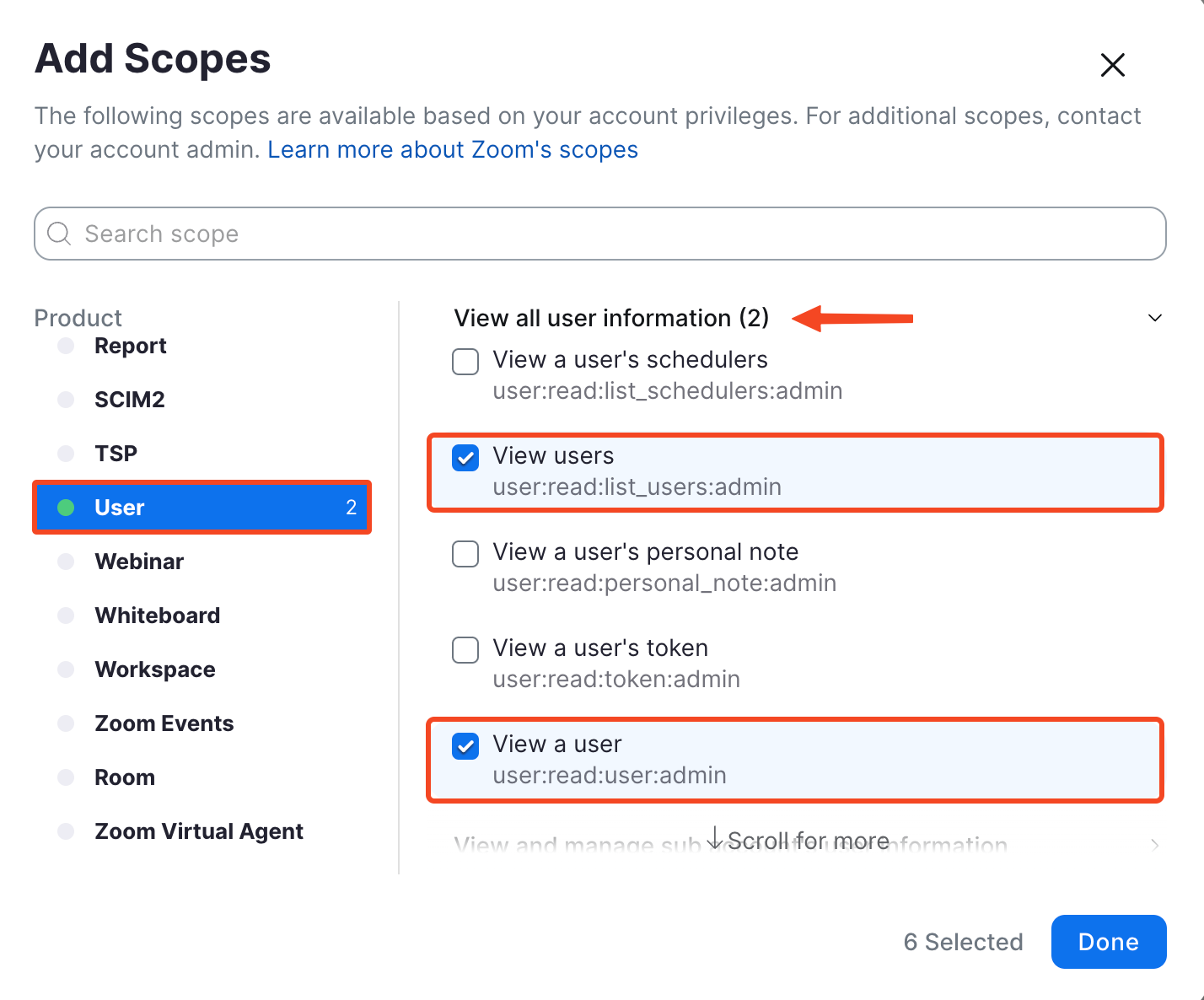
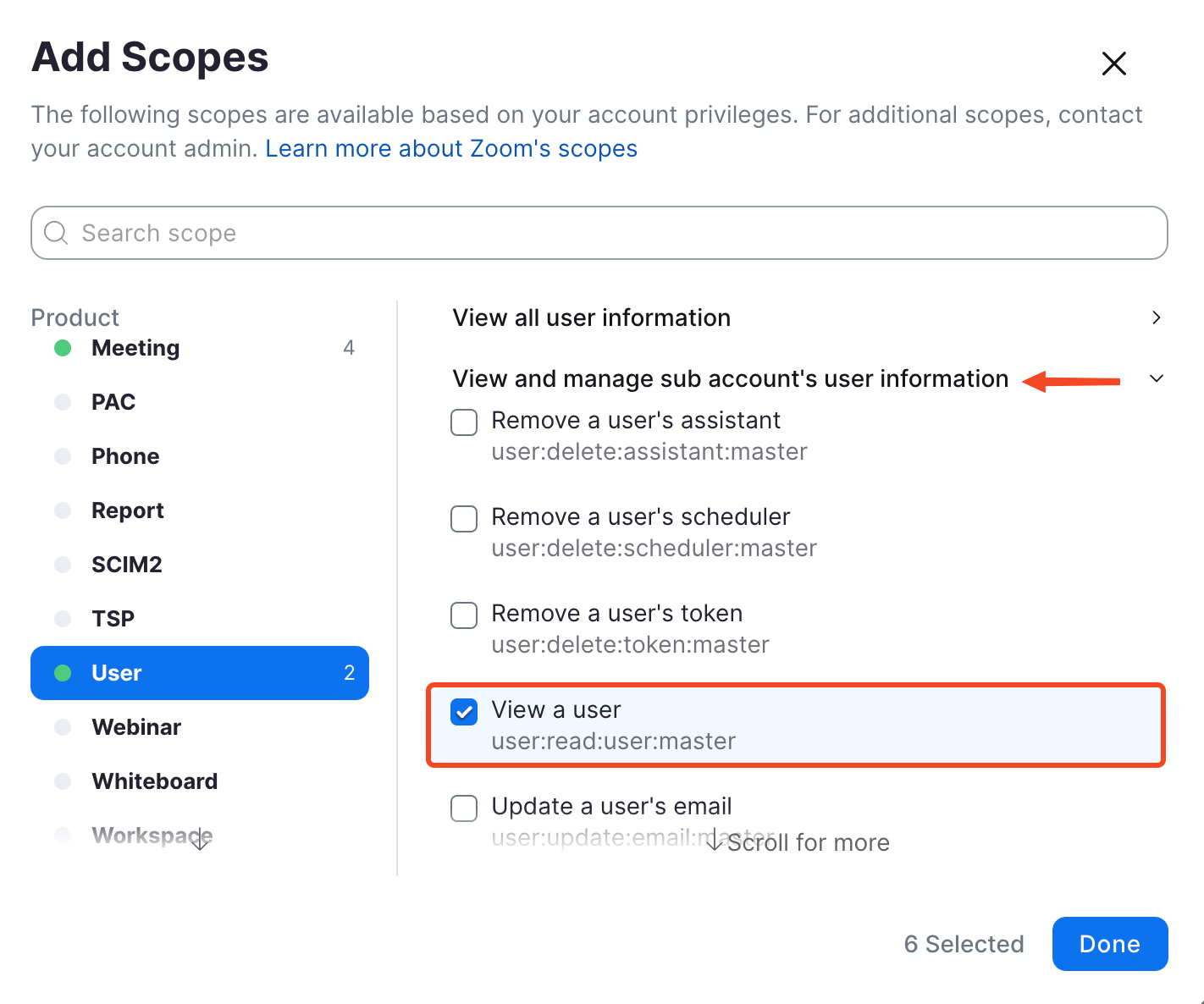
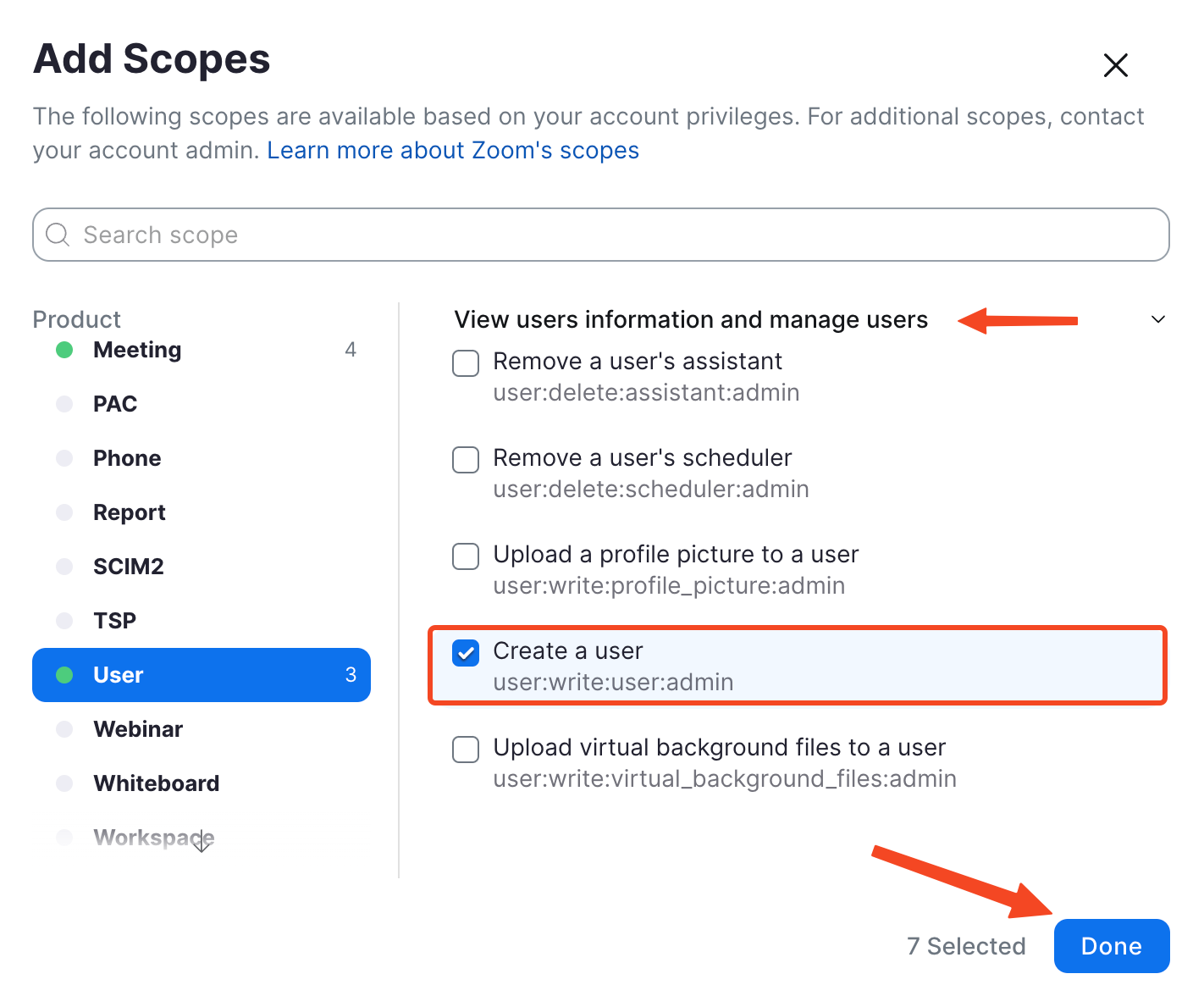
Choose User from the list and turn on these four scopes, then click Done.
user:read:list_users:adminuser:read:user:adminuser:write:user:adminuser:update:user:admin
-
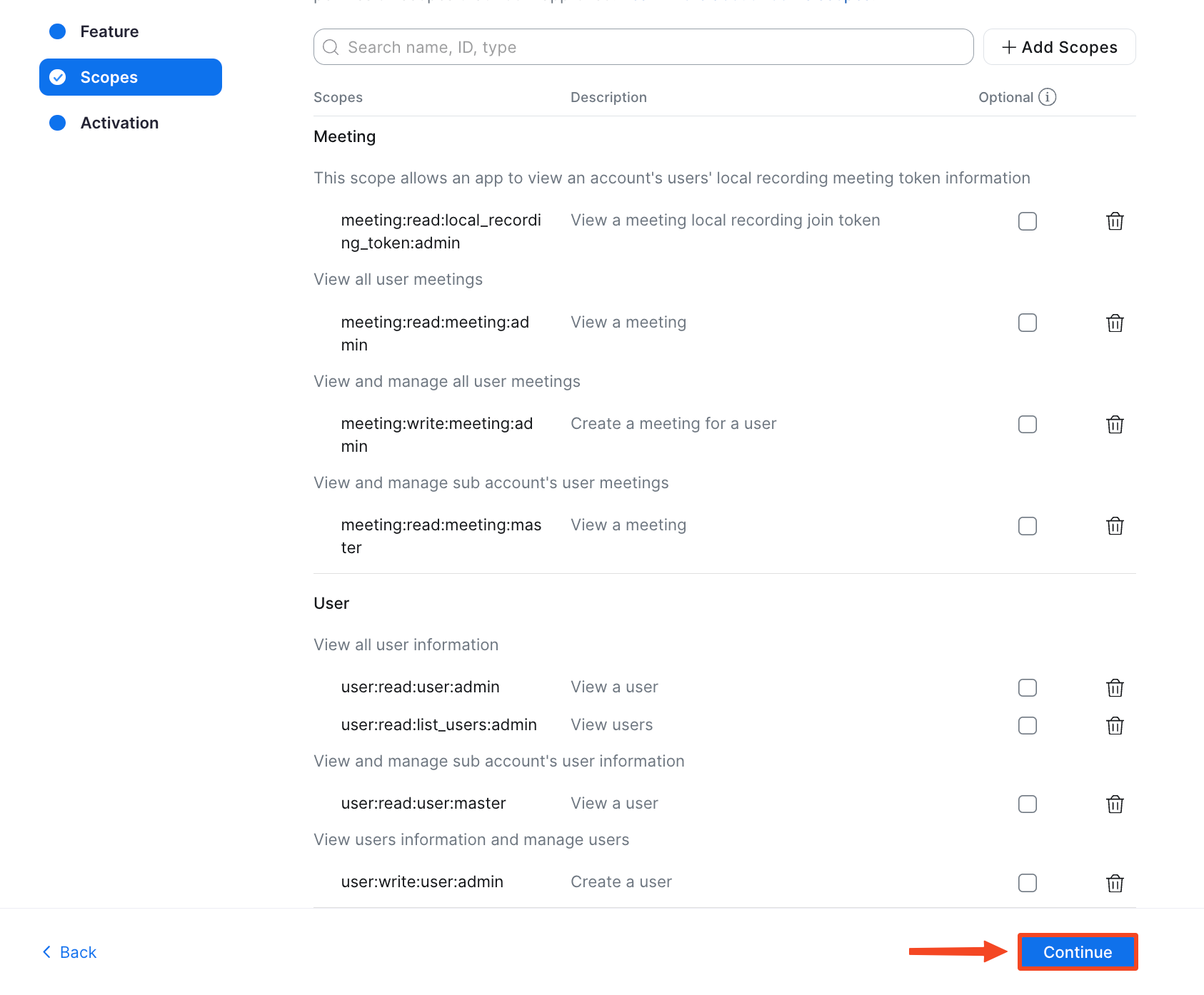
Check that the scopes show in the list, then click Continue to go to the activation step.
-
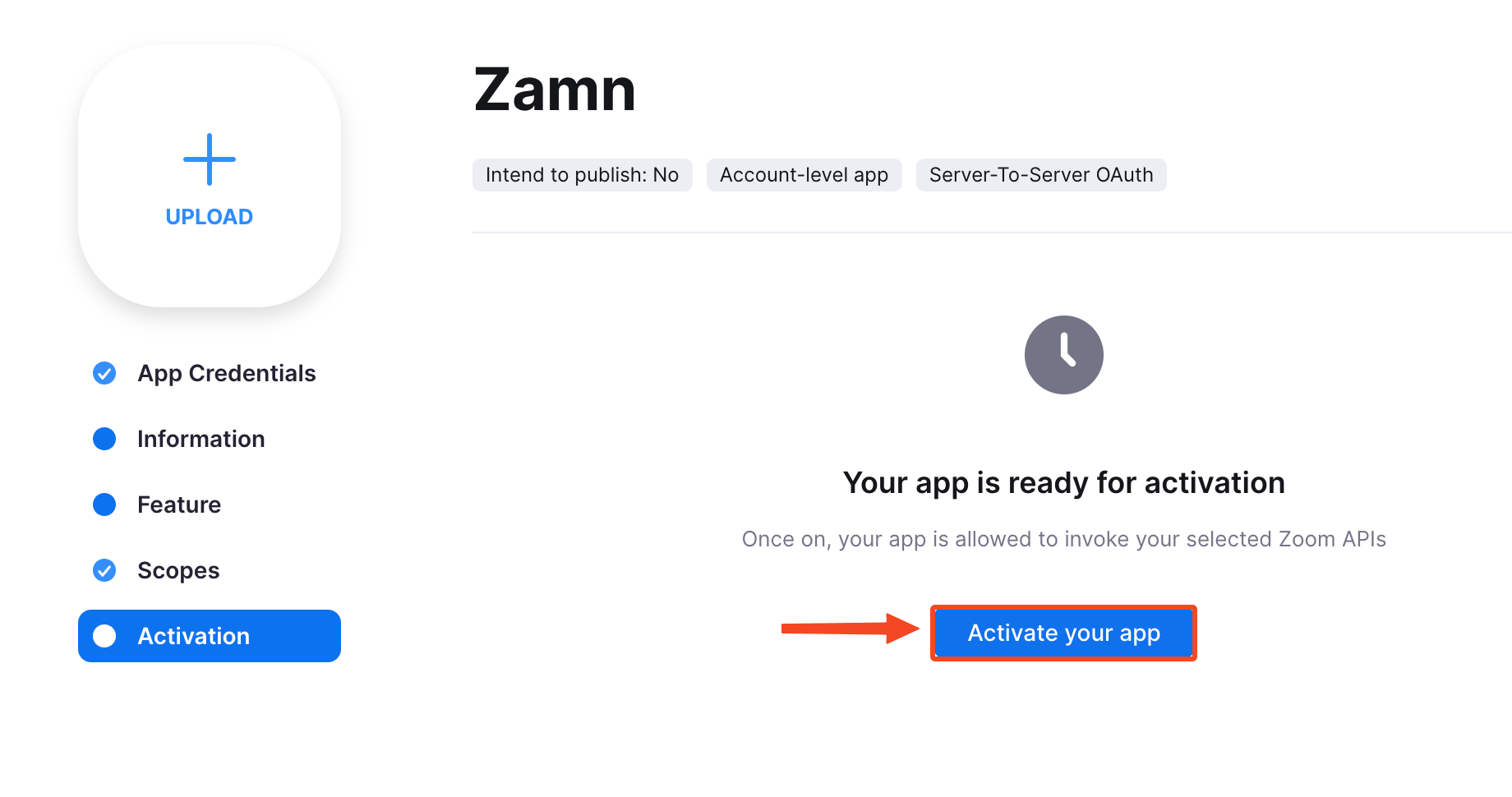
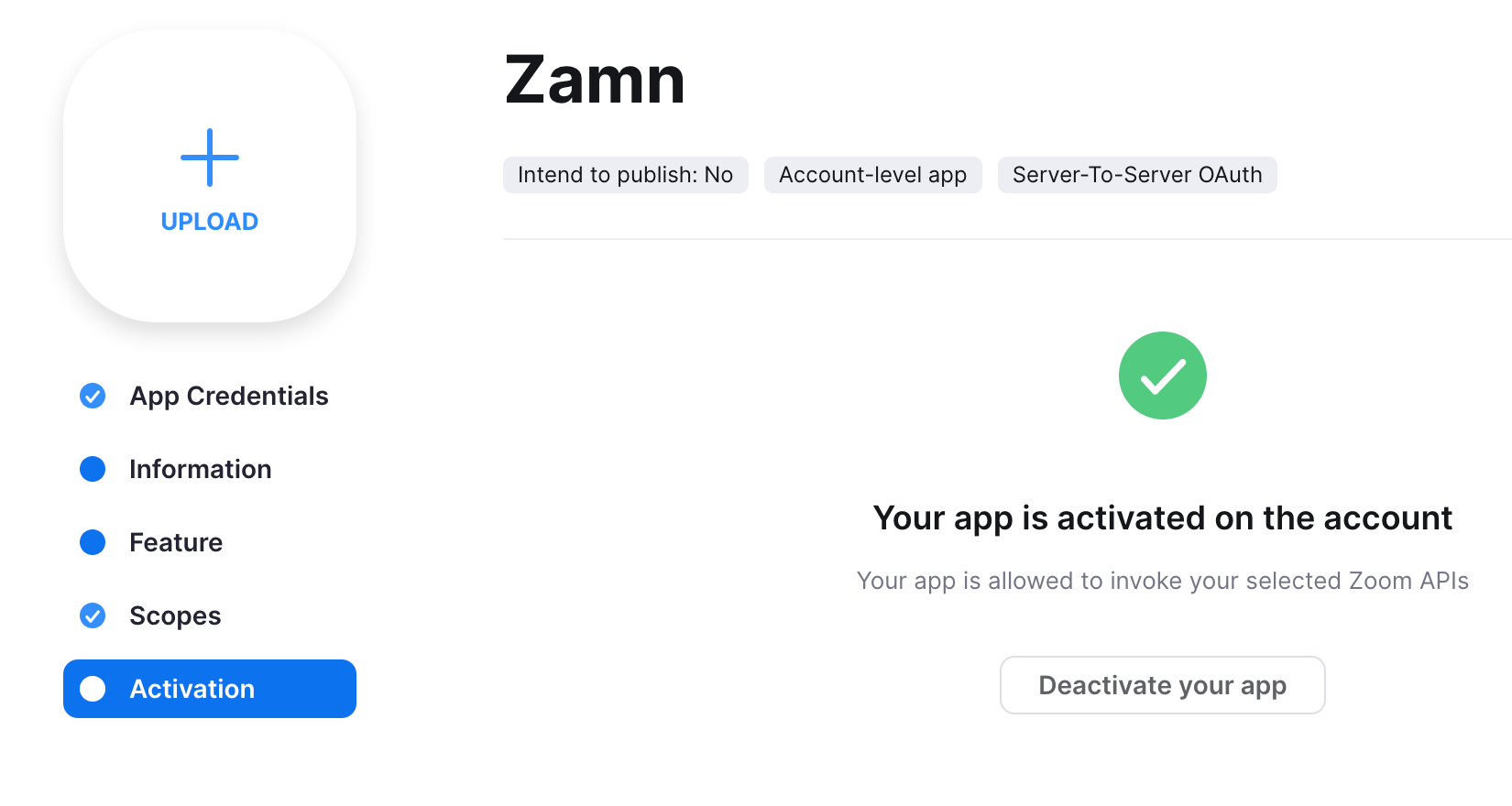
On the Activation page, click Activate your app. A message shows that the app is now active.
-
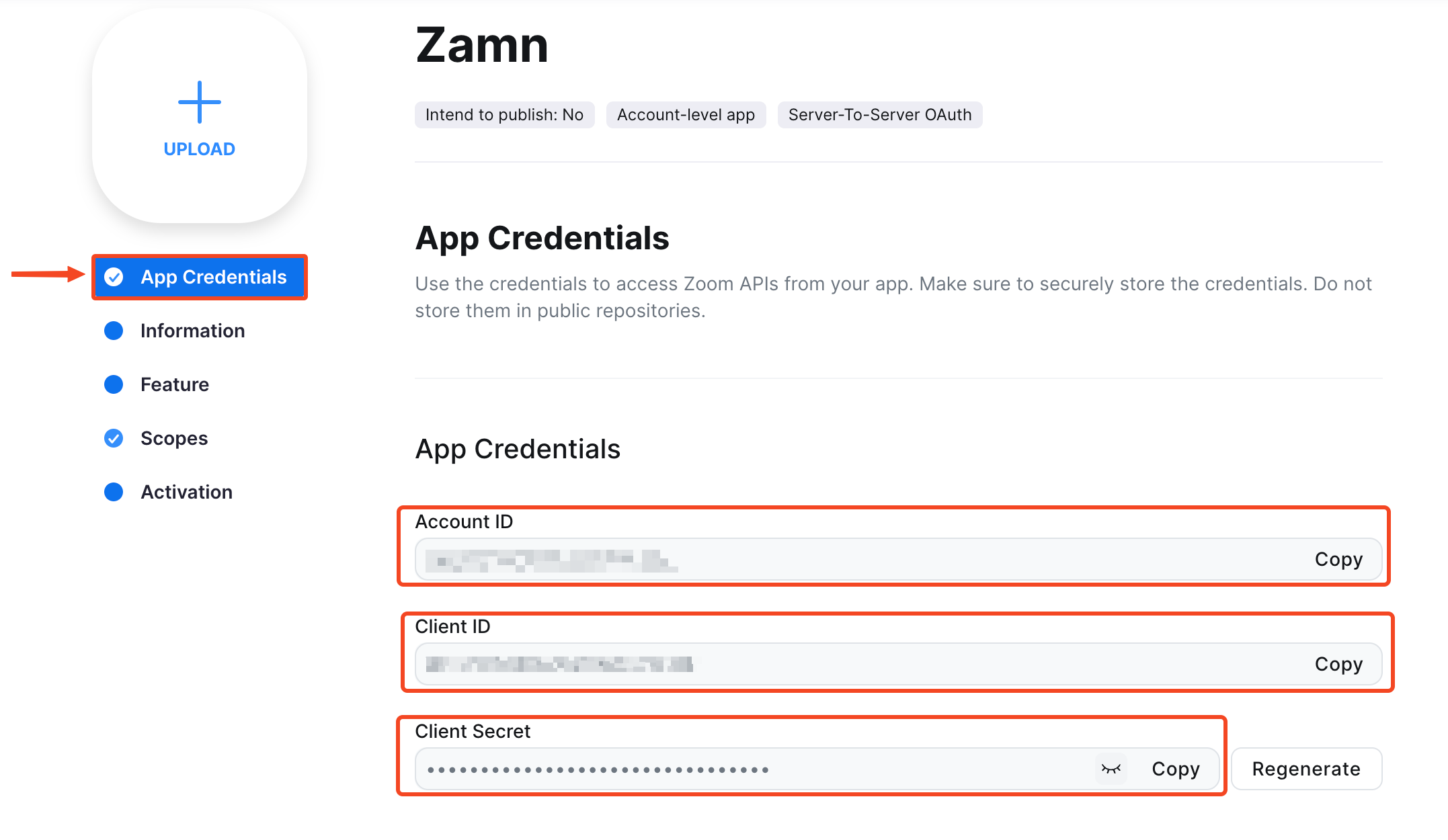
Go back to App Credentials from the side menu. The connection keys are now active: Account ID, Client ID and Client Secret. Now go to your platform on Zamn to finish the connection.
Connect Zoom to your platform on Zamn
-
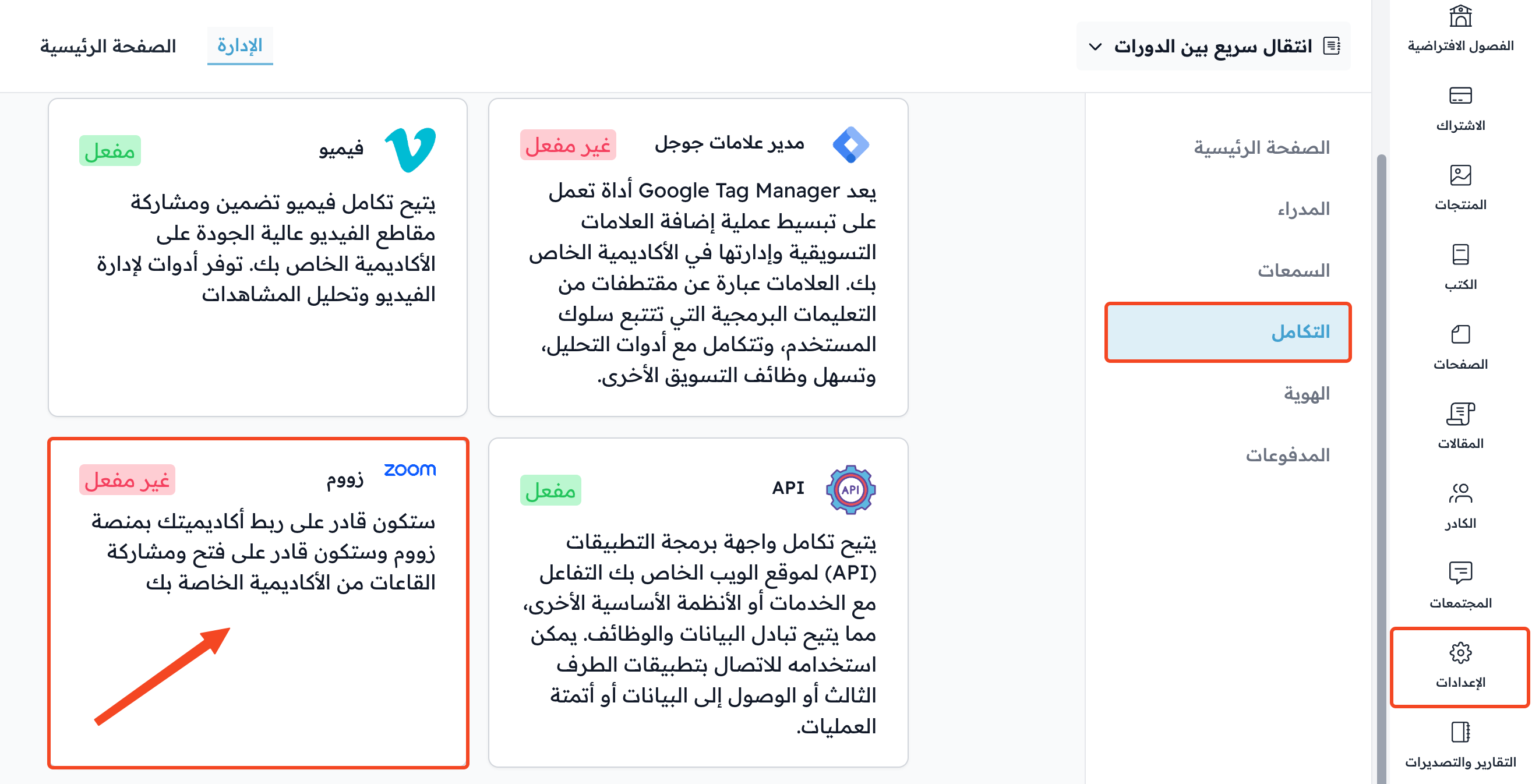
From your platform dashboard, choose Settings.
-
Go to the Integrations page.
-
Click the Zoom card.
-
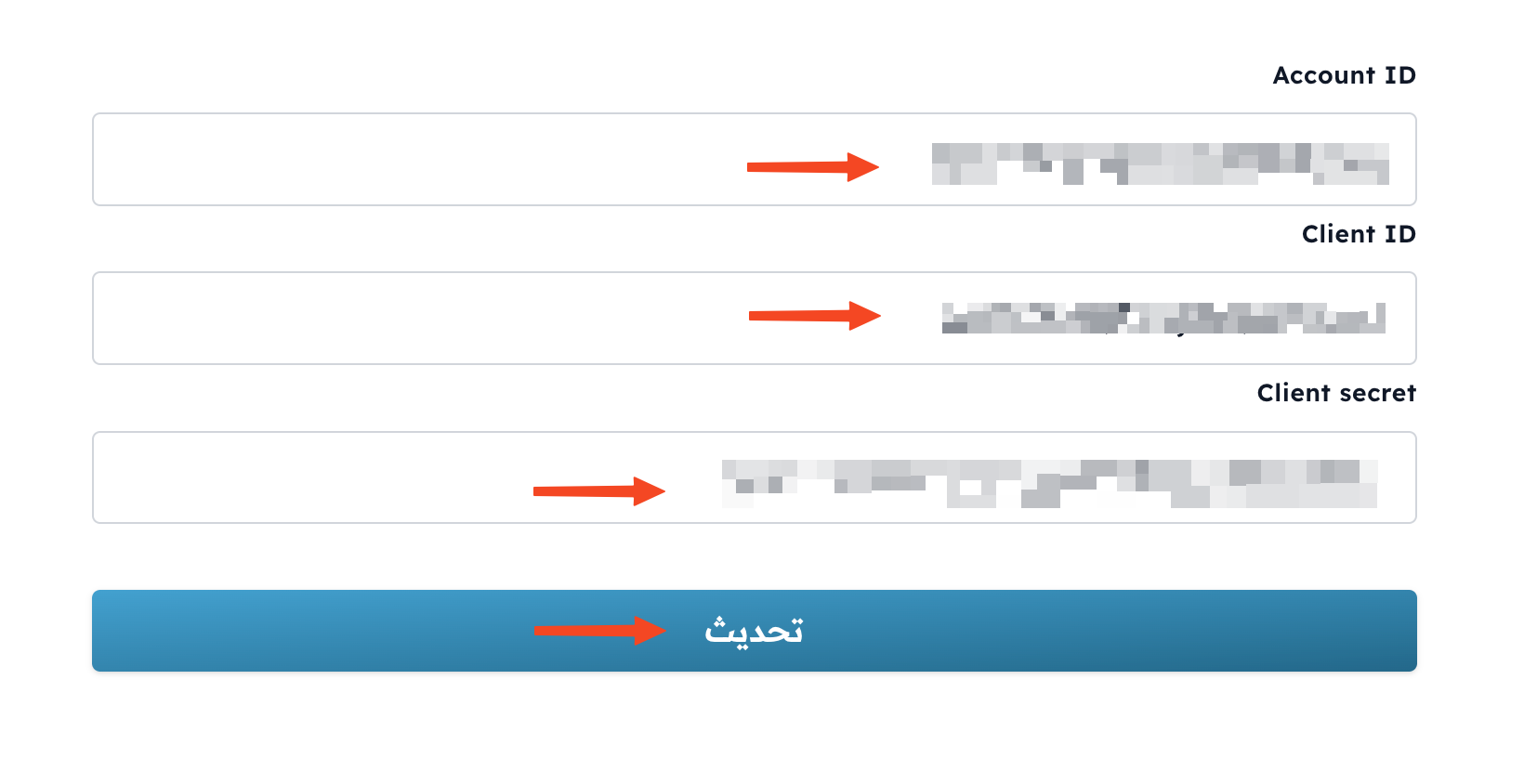
Copy each key from the App Credentials page in Zoom and paste it in its field: Account ID, Client ID and Client Secret.
-
Click Update to save and turn on the connection.
After you save, the Zoom card on the Integrations page shows Enabled. If the keys are wrong, an error message shows and nothing is saved. Make sure the app is activated in Zoom and that you copied the full keys.