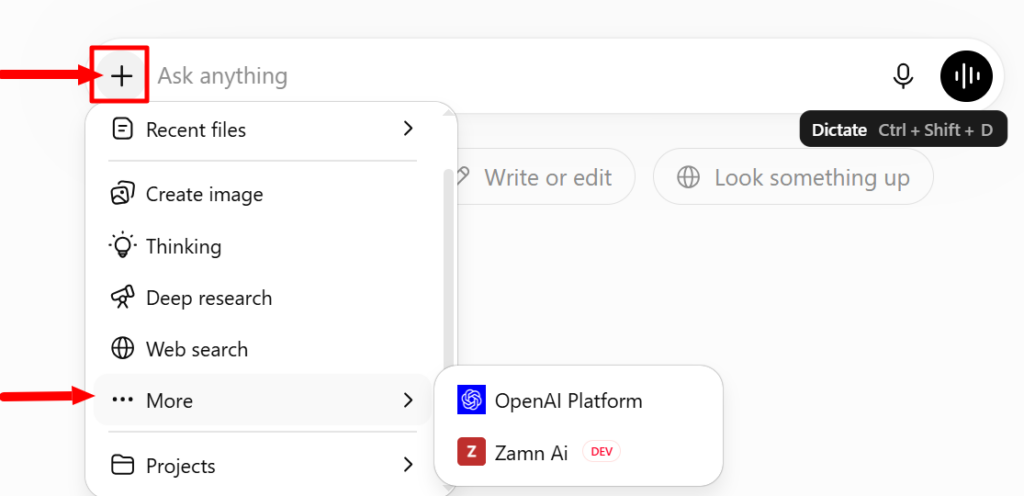
Zamn AI integration with ChatGPT
You can connect your platform to ChatGPT through Zamn AI, so you can use AI to manage your platform and reach its data, based on the permissions you give.
Check the basic requirements
Before you start, make sure your account meets these requirements:
- You are on the Plus or Pro plan in ChatGPT (or a plan that supports Connectors).
- You opened your platform and signed in with the platform admin account in the same browser you use for ChatGPT, so the connection works with no session conflict.
Connect the platform to AI applications
-
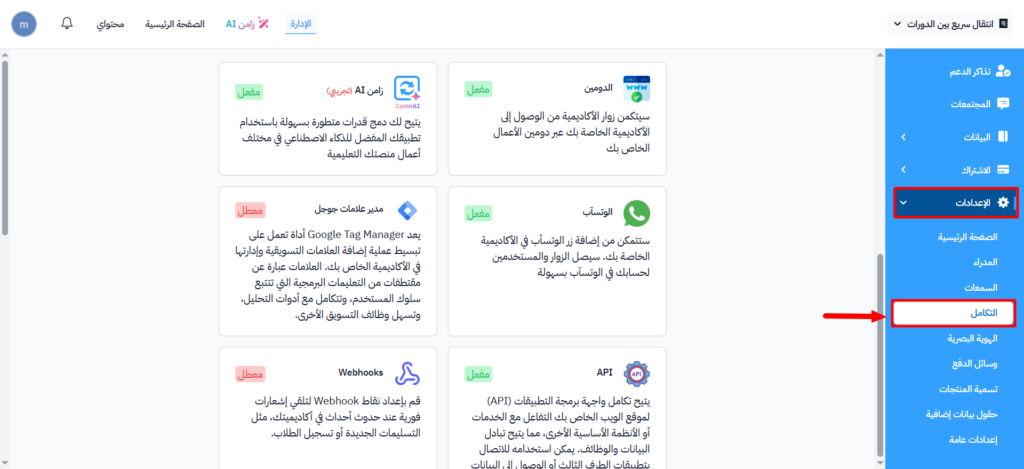
From your platform's Dashboard, go to Settings, then choose Integrations.
-
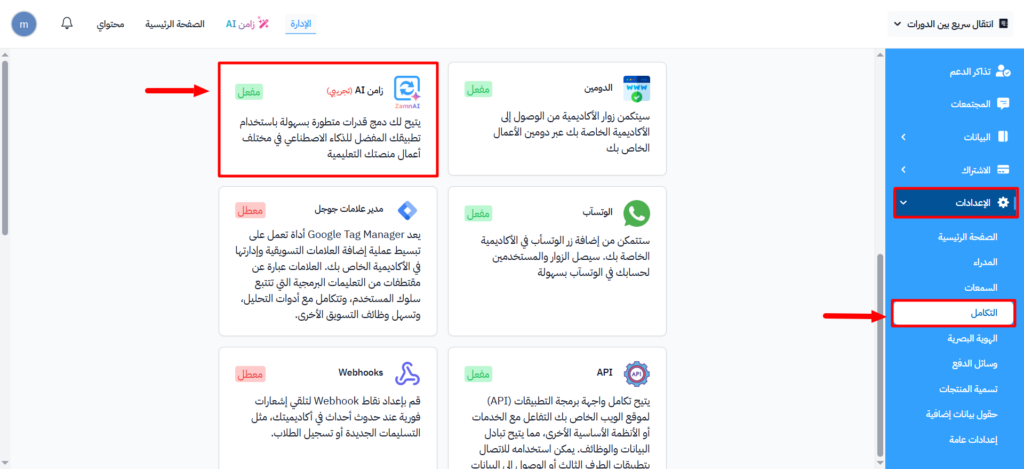
Click Zamn AI.
-
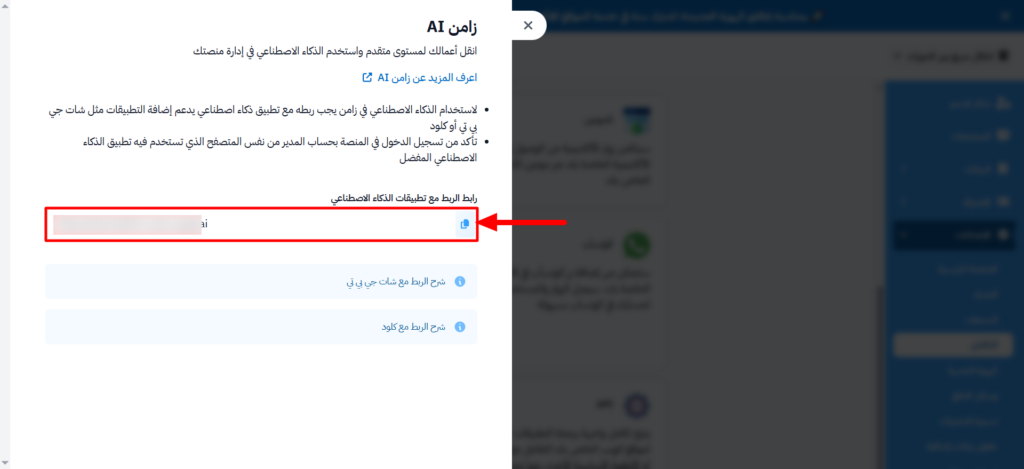
A side window opens with the AI Integration Link. Click the copy button next to it to copy the link.
Steps to connect with ChatGPT
-
Open ChatGPT in a web browser.
-
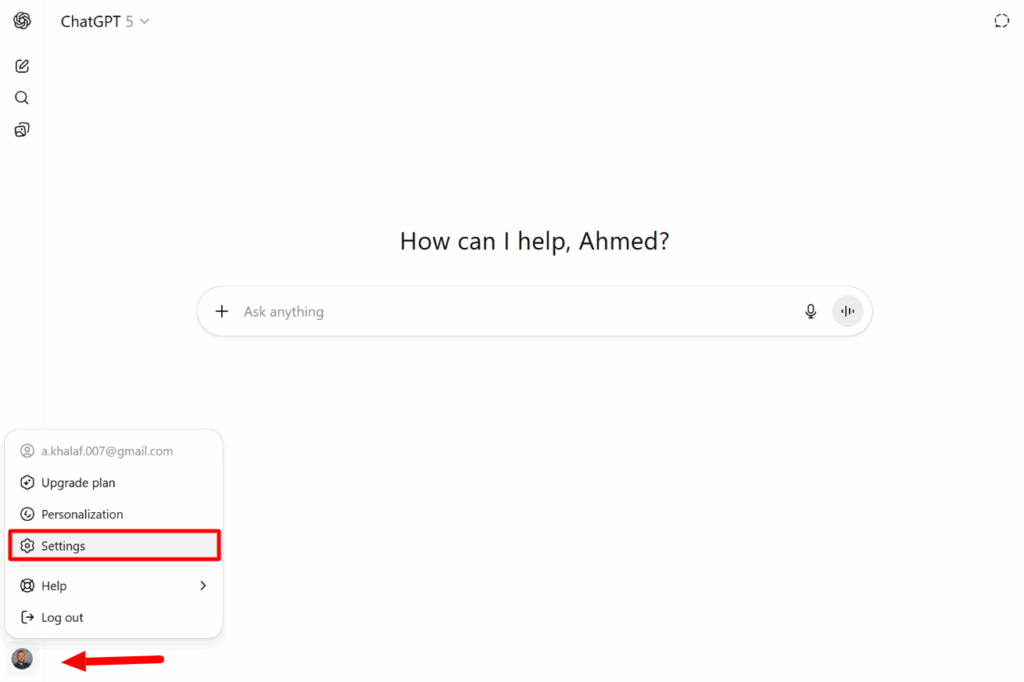
Click your profile picture in the bottom corner, then choose Settings from the menu.
-
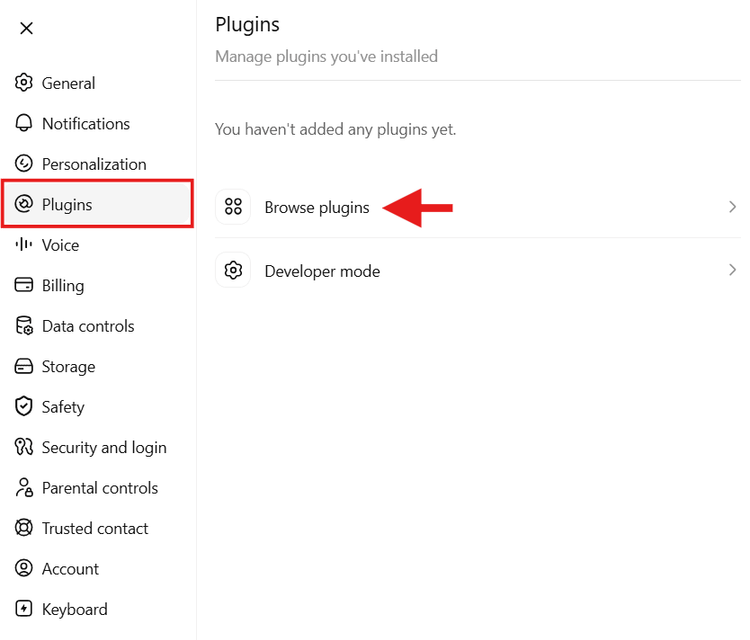
From the side menu, click Plugins, then Browse plugins.
-
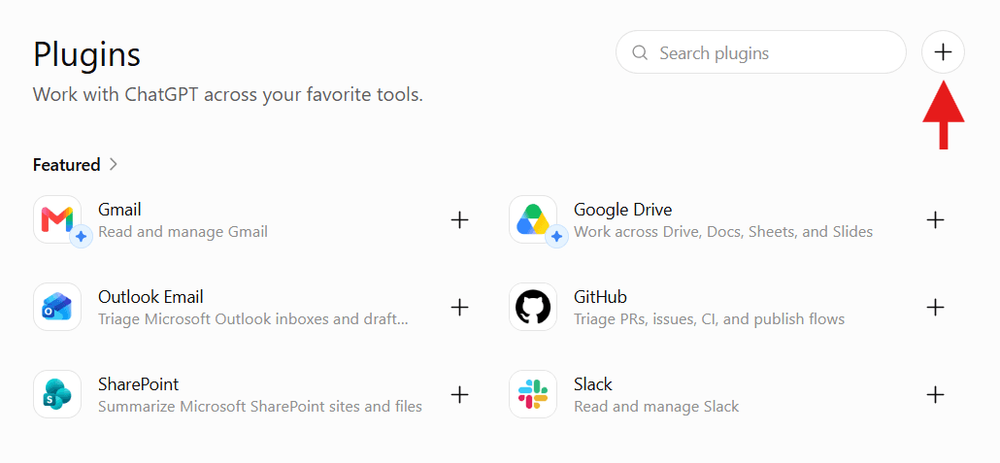
On the Plugins page, click (+) to add a custom connection.
Enter the connection details
-
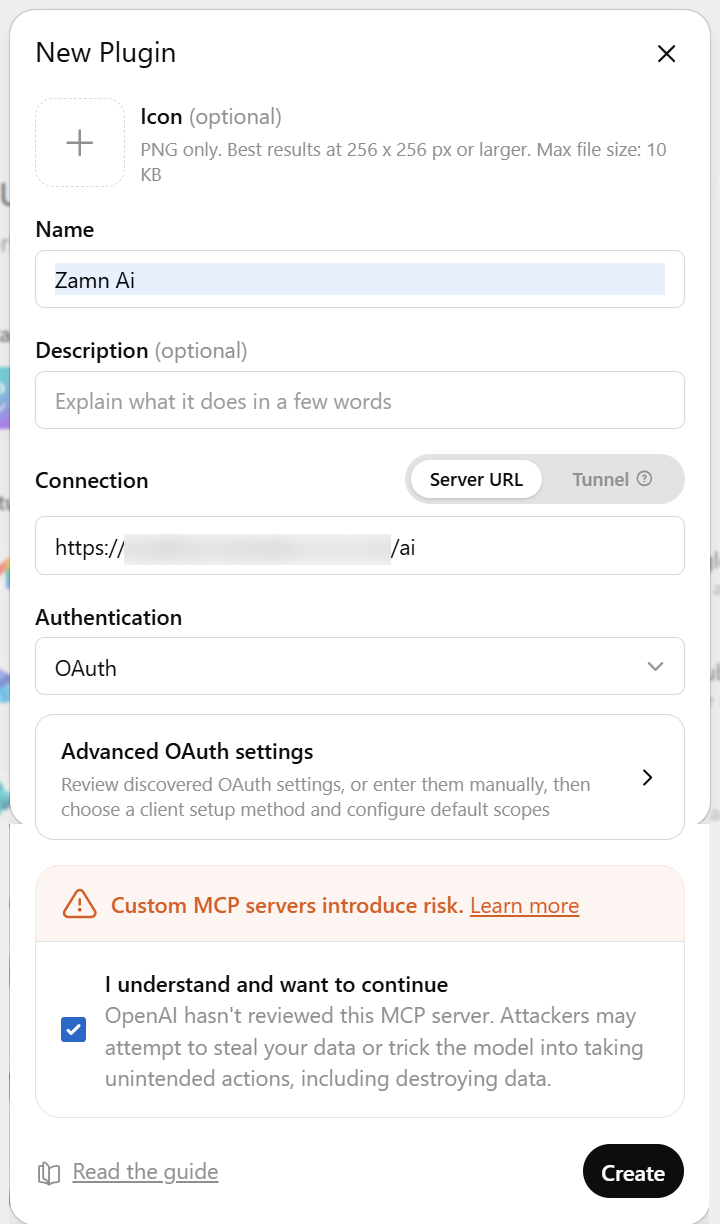
Name: enter the name you will see, for example: Zamn AI.
-
Description (optional): add a short description of what the connection does. The system uses this description to know the type of tool.
-
Connection: keep Server URL selected, and paste the link you copied from your platform, for example:
https://academy.example.com/ai. -
Authentication: keep it on OAuth.
-
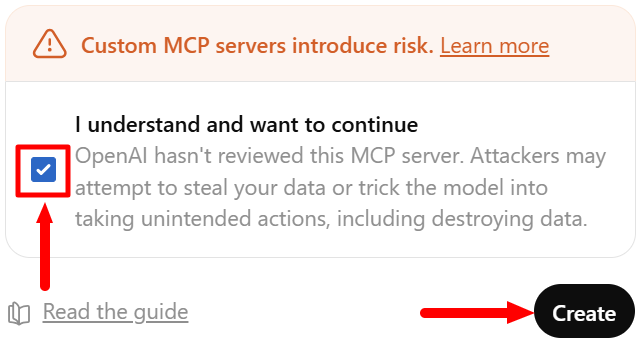
Check the box I understand and want to continue, then click Create.
-
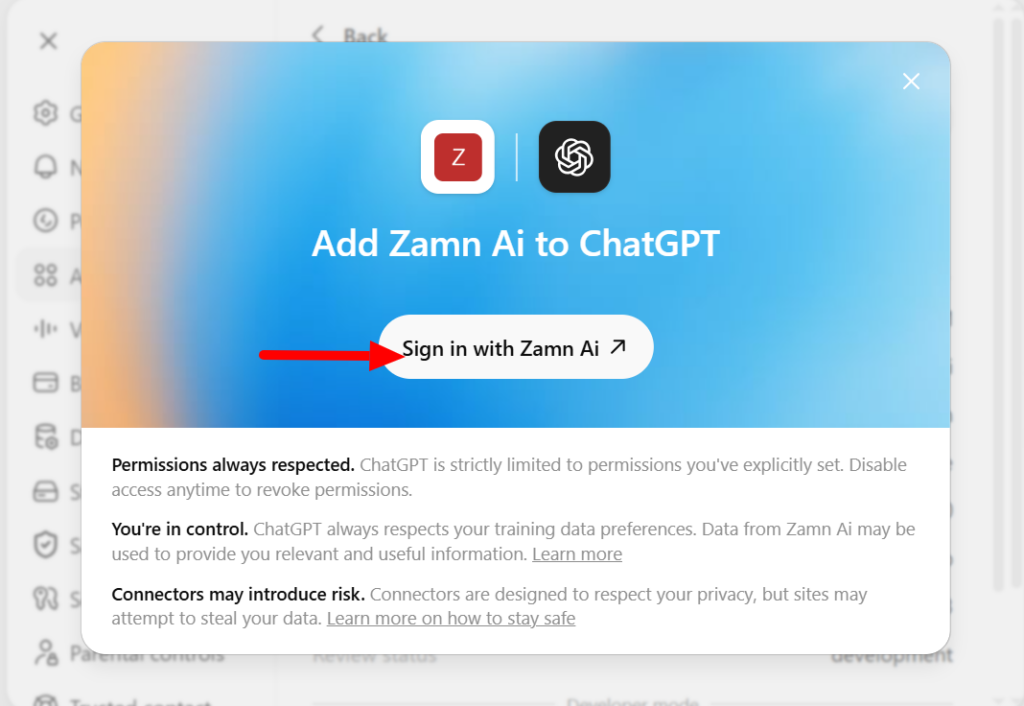
Click Sign in with followed by the connection name you entered.
-
A page from your platform opens with the title Authorization required. Click Authorize.
The connection between ChatGPT and your platform is created, and you can use AI to reach your platform's data based on the permissions you give.
Use the app in ChatGPT
-
Open a new chat in ChatGPT.
-
Click the (+) sign next to the message box, then choose More.
-
Choose the app you just created.
-
It turns on, and you can now use it right from the chat.