How to verify your store with Zamn on the Business Platform using a freelance document
Here is how to verify your store on the Business Platform using a freelance document, in clear and easy steps, and then link the verification to your platform on Zamn.
To make online trade more trusted and its payments safer, the Ministry of Commerce asked online store owners to verify their stores through the "Business Platform" of the Saudi Business Center, instead of the "Maroof" platform.
This step comes in cooperation with the E-Commerce Council. It aims to improve verification steps and to make sure stores are linked to business bank accounts. This builds trust in online deals and reduces fraud.
The Ministry of Commerce said that online store verification is done easily on the Saudi Business Center website. To get verified, you need a valid freelance document and a business bank account in the name of the person doing the business (the store owner on Zamn).
It also said that the "Business Platform" will be the only official platform for verifying online stores in the Kingdom.
Verification requirements
- A valid freelance document.
- A business bank account.
- An active Absher account.
- Age 18 or older.
- Saudi nationality.
Steps to register on the Business Platform
-
Go to the Business Platform from here.
-
Click Business Platform.
-
Click the Start Service icon.
-
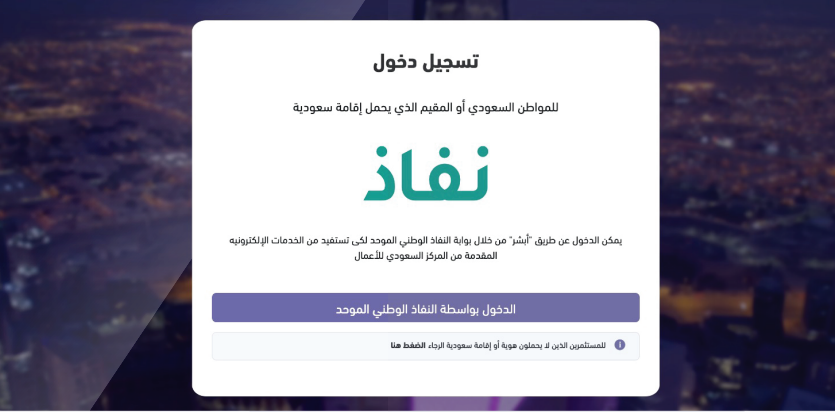
Sign in through National Single Sign-On (Nafath).
-
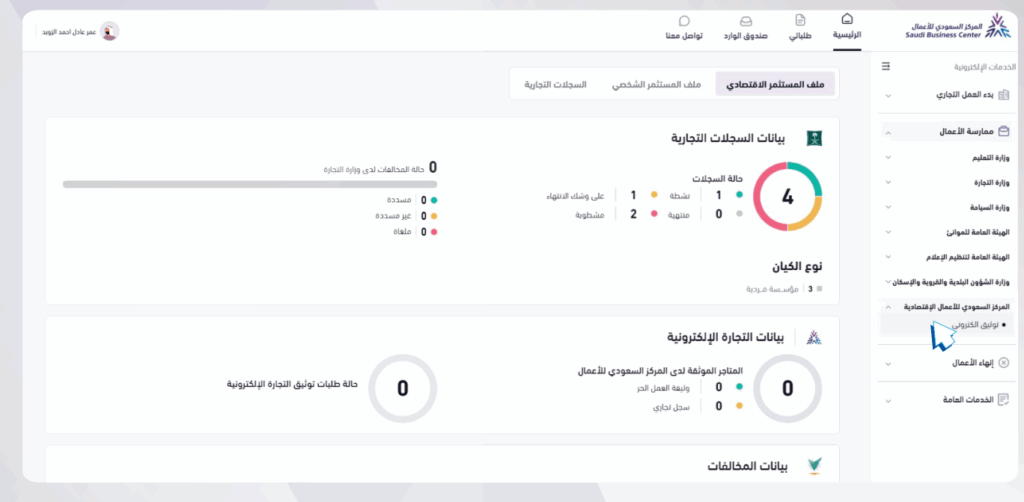
From the main menu, choose E-Services, then choose E-Store Verification.
-
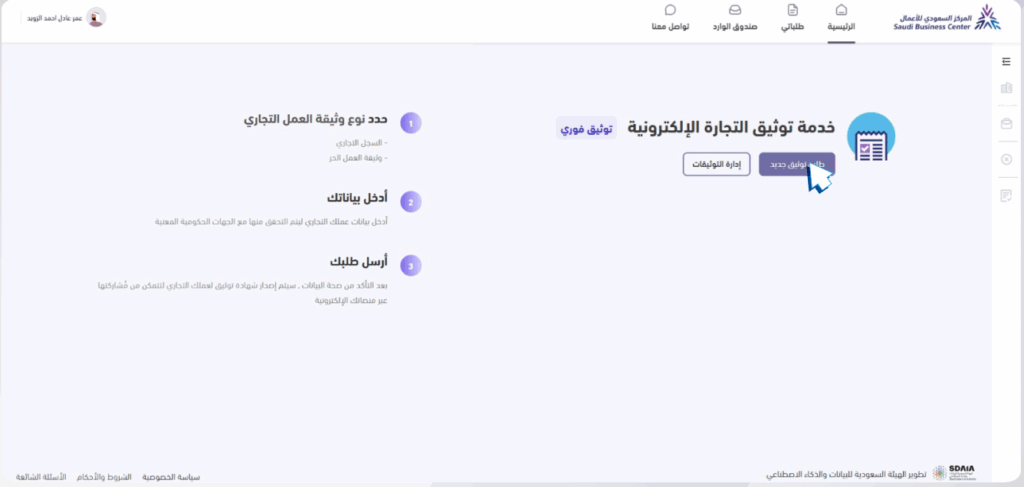
Choose New Verification Request.
-
Choose the document type Freelance Document.
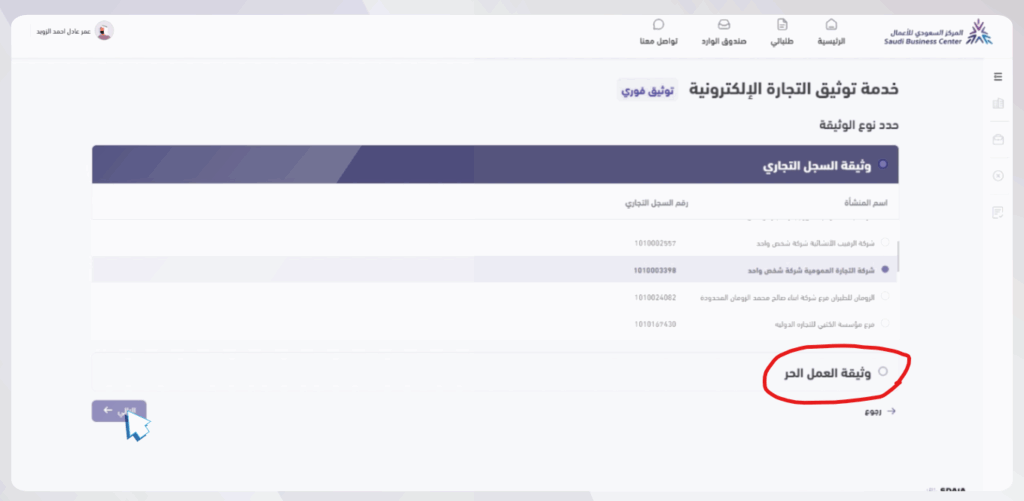
-
Make sure you meet all the requirements, then agree to the terms and click Next.
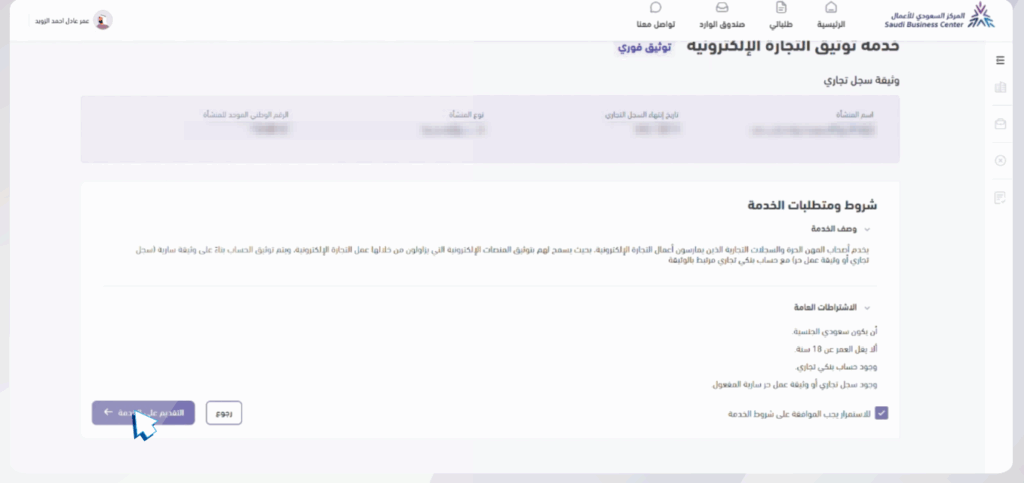
-
Add your business bank account number and your contact details and channels, then click Next.
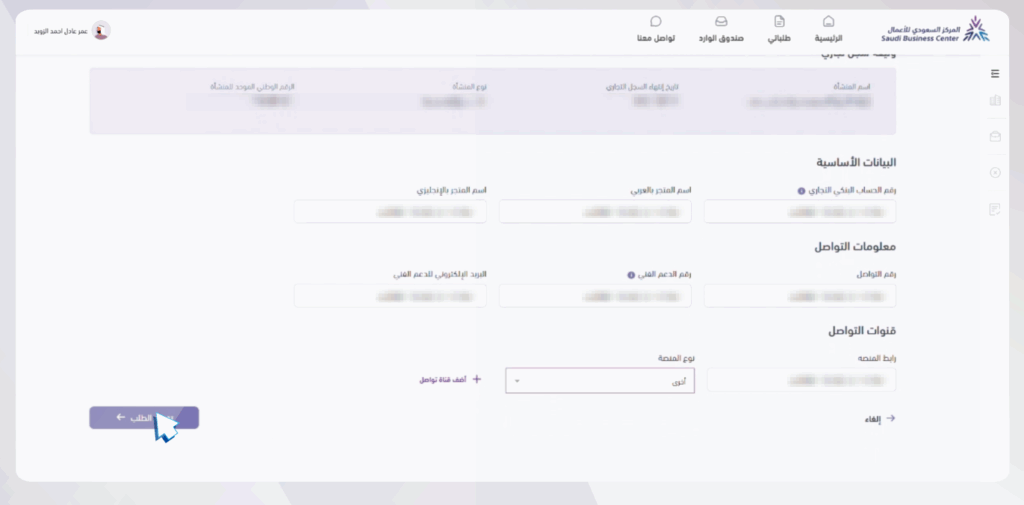
-
The confirmation message "Verification request submitted successfully" shows.
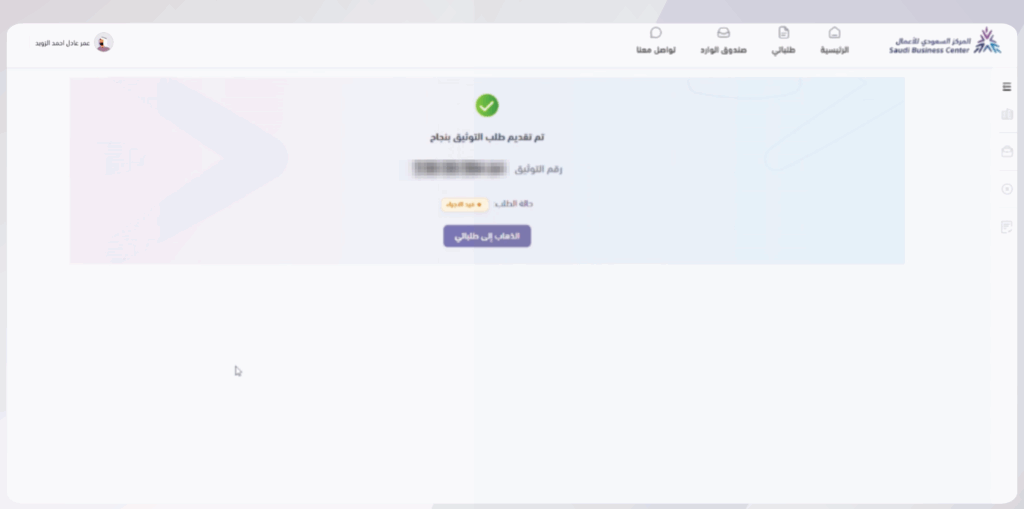
-
To follow your request, find it in the My Requests section.
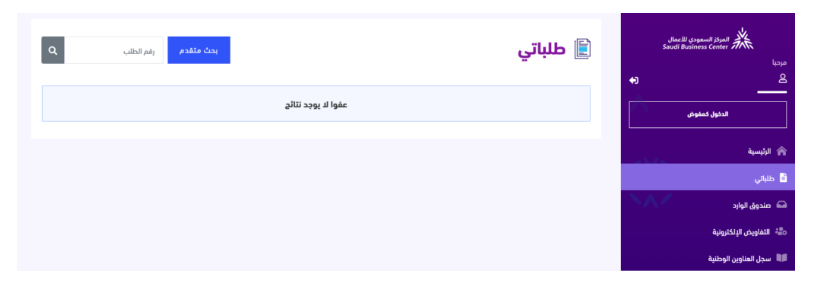
-
Congratulations! Your Saudi Business Center certificate is issued.
To get the Business Platform user guide, click here.
Link the verification certificate to your platform on Zamn
-
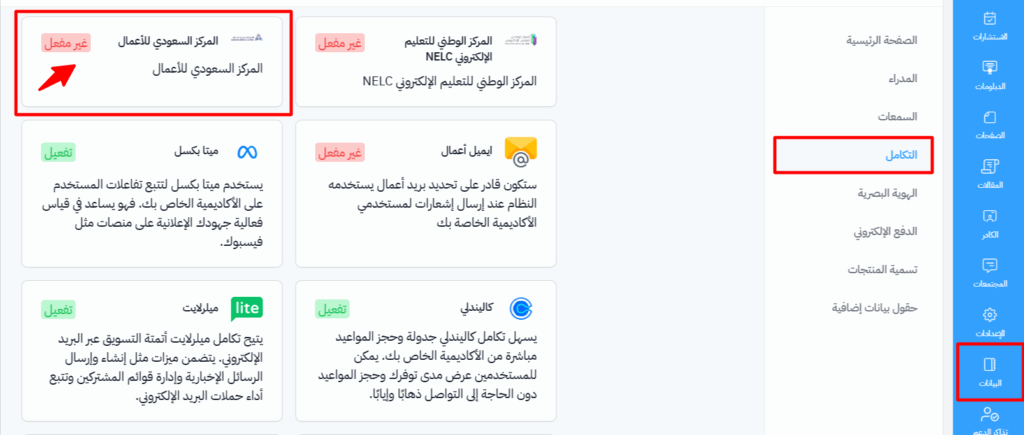
From your platform's dashboard, choose Settings.
-
Go to the Integrations page.
-
Choose Saudi Business Center.
-
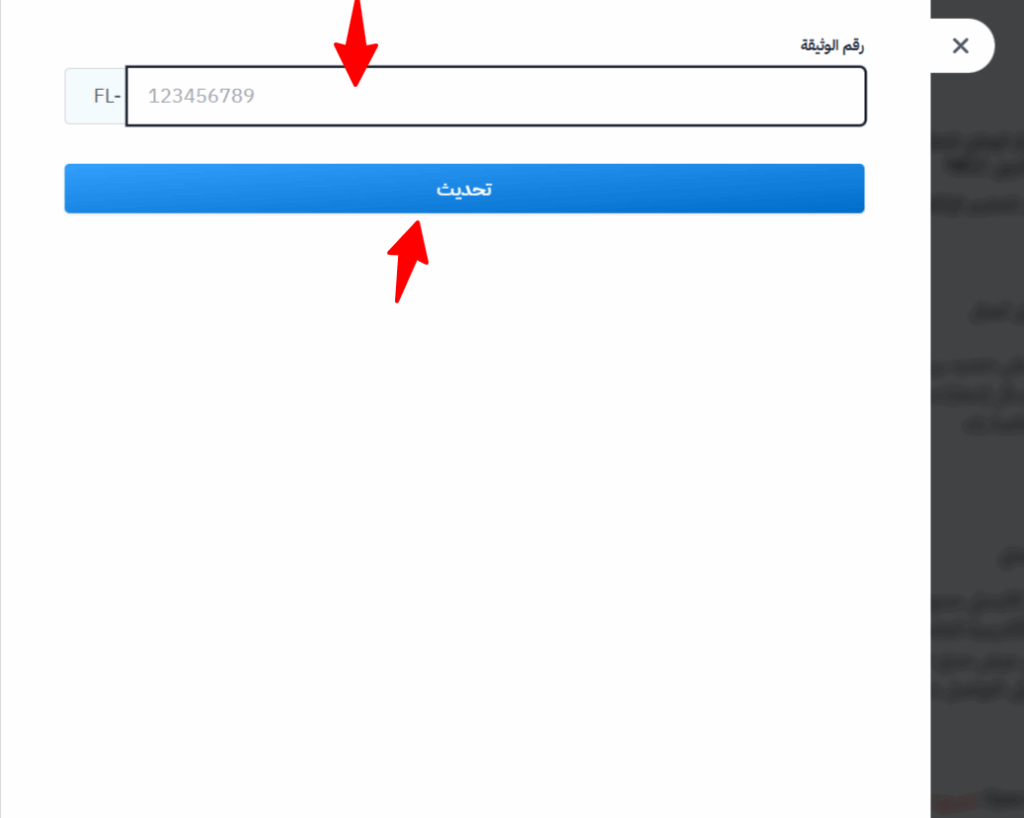
In the Document number field, enter the verification certificate number issued by the center. The field takes 9 digits only, because the FL- part is already filled in.
-
Click Update to save.