Direct link with your organization's WhatsApp
You can link your organization's WhatsApp number directly to your platform. After you link it, your students get their sign-in codes (OTP) on WhatsApp from your own number.
Steps to link
-
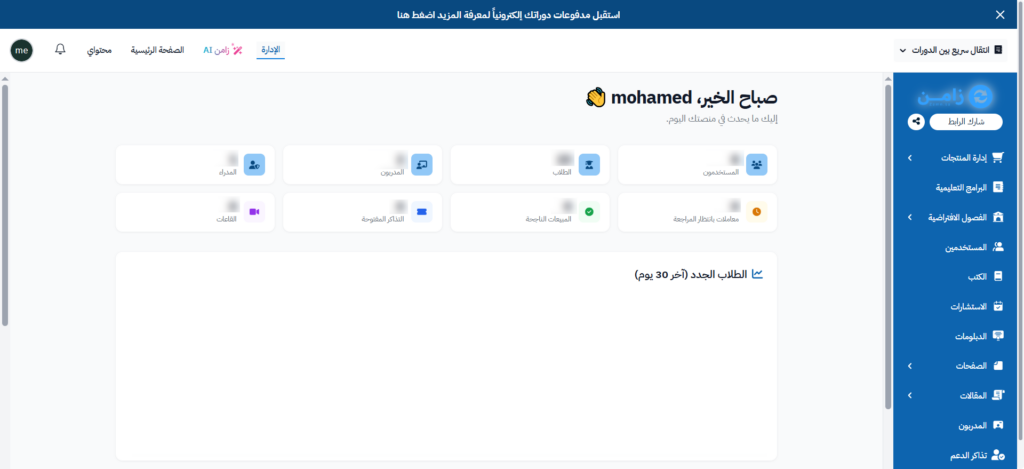
Sign in to your platform's Dashboard.
-
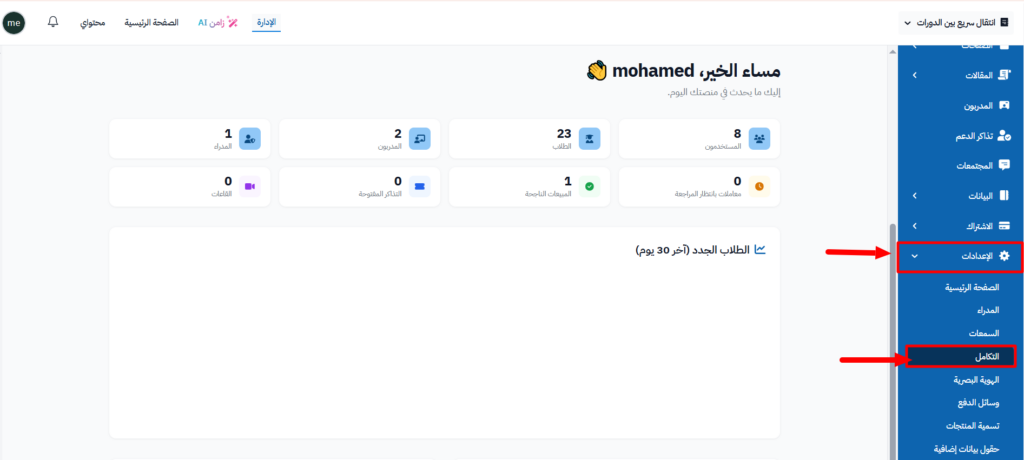
From the side menu, go to Settings, then choose Integrations.
-
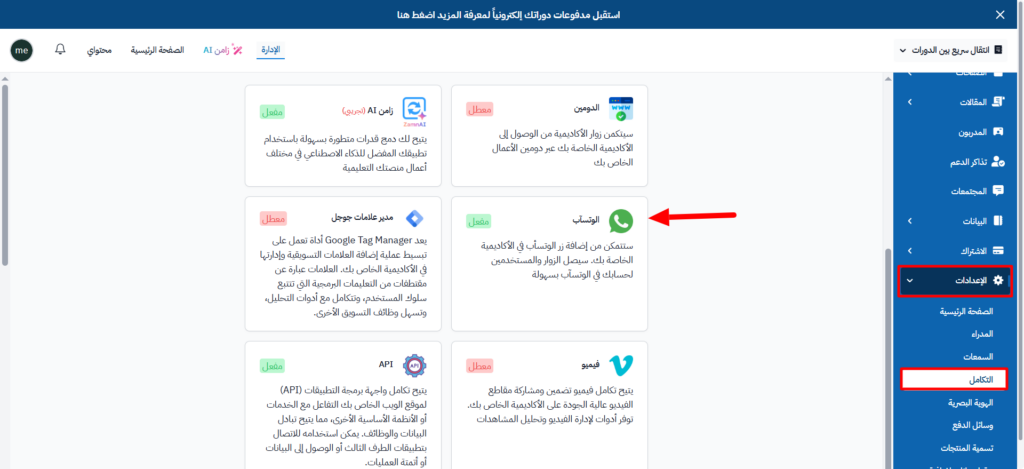
In the list of integrations, choose WhatsApp.
-
In the side window, type your organization's WhatsApp number in the Phone number field. Start the number with the country code, like 966000111222.
-
Turn on Enable WhatsApp Integration, then click Create to save the number. If you saved it before, the button is called Update. The window closes after saving.
-
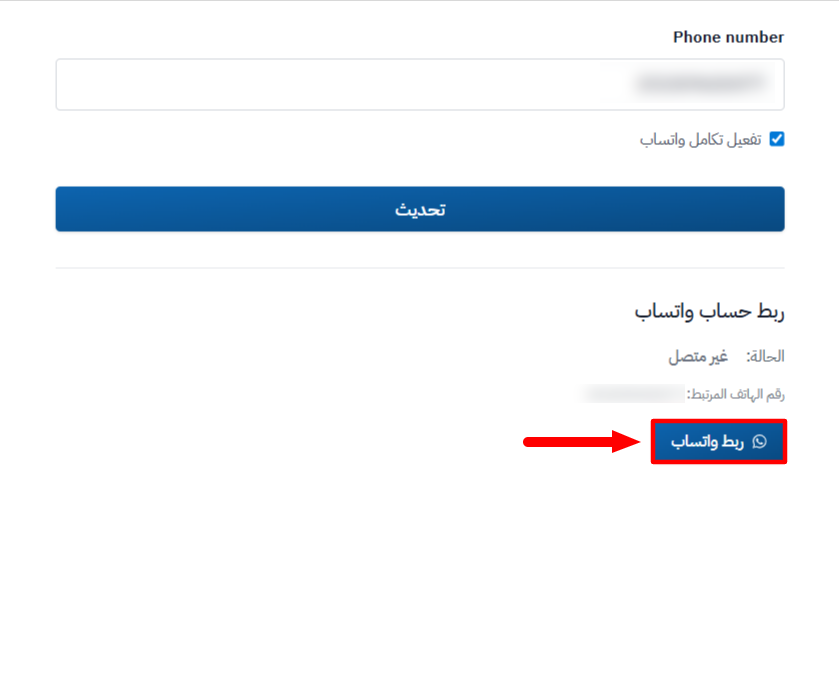
Click WhatsApp again. The Link WhatsApp Account section shows. Click the Connect WhatsApp button.
-
A QR code shows on the screen. Open WhatsApp on your organization's phone, and from Linked devices scan the QR code to link.
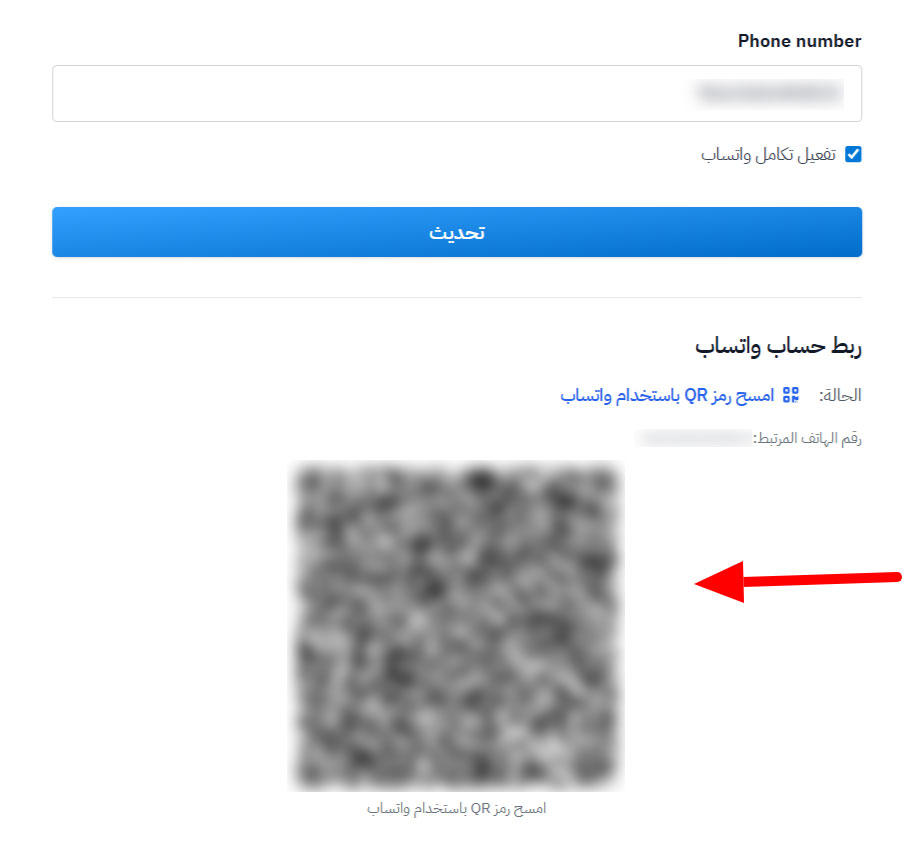
When you finish these steps, WhatsApp is linked directly with the platform, and the status shows Connected with the linked phone number.
If the QR code expires before you scan it, click Connect WhatsApp again to get a new code. To unlink at any time, click Disconnect.