How does the admin follow student progress and view their submissions?
This article shows how a platform admin can follow student progress in courses, and view their submissions and reports.
Reach student submissions and progress
-
From your platform's home page, click Dashboard in the top menu.
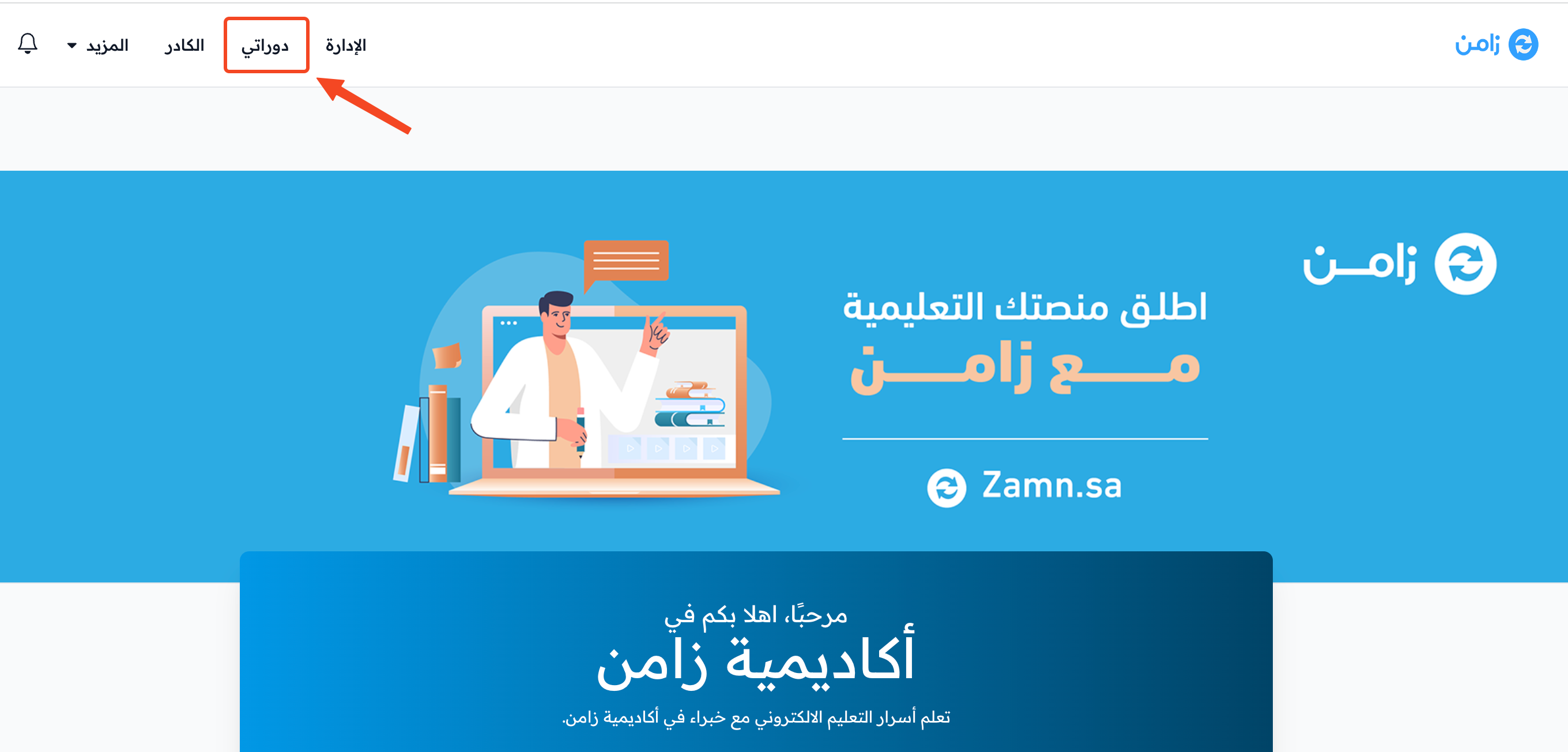
-
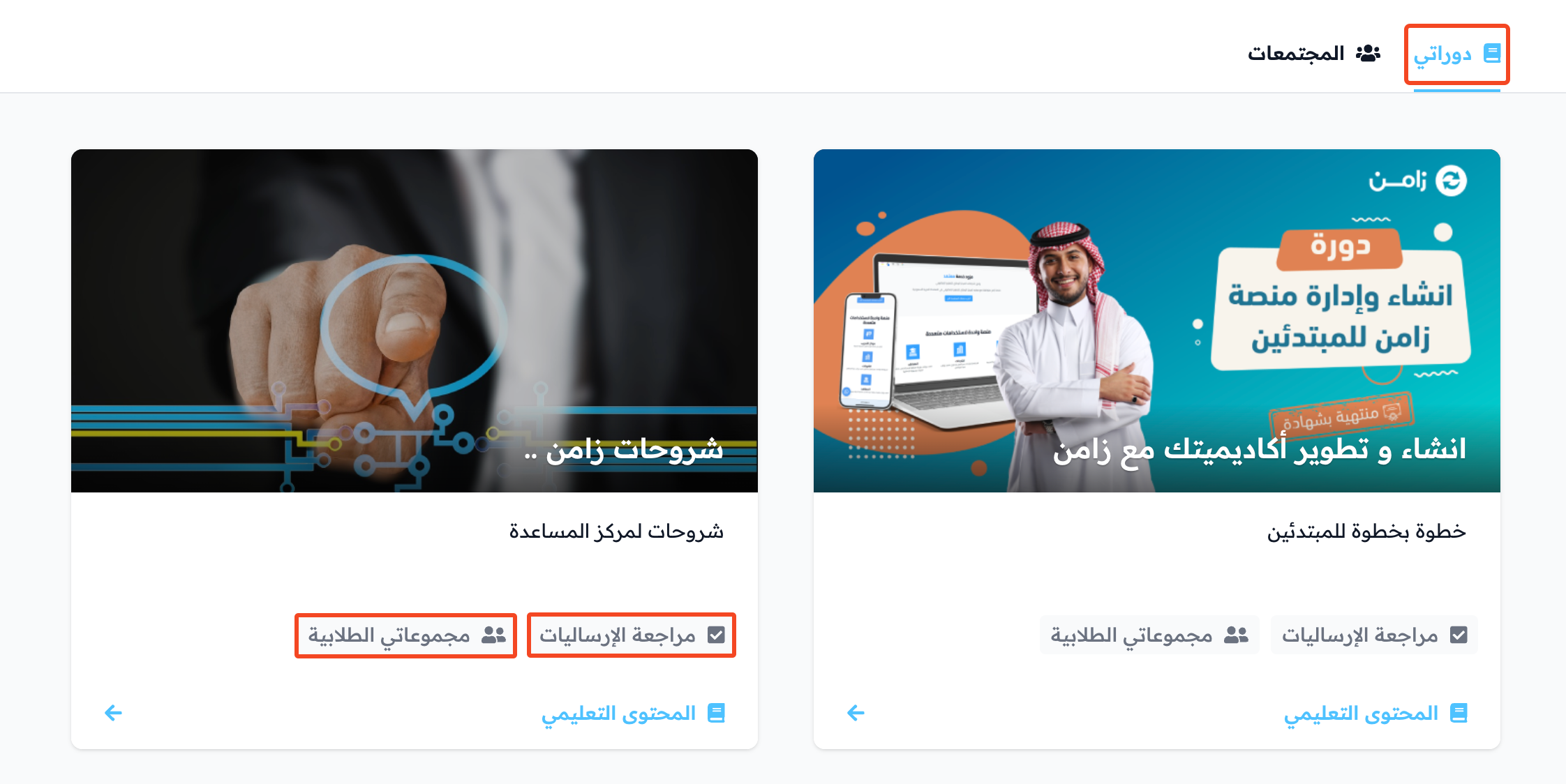
The My Courses page opens. It shows your platform's courses that have a cohort that has not ended yet.
-
On the course card, click Review Submissions to view the students' submissions, or click My Cohorts to see the students and their progress in the course.
Review submissions
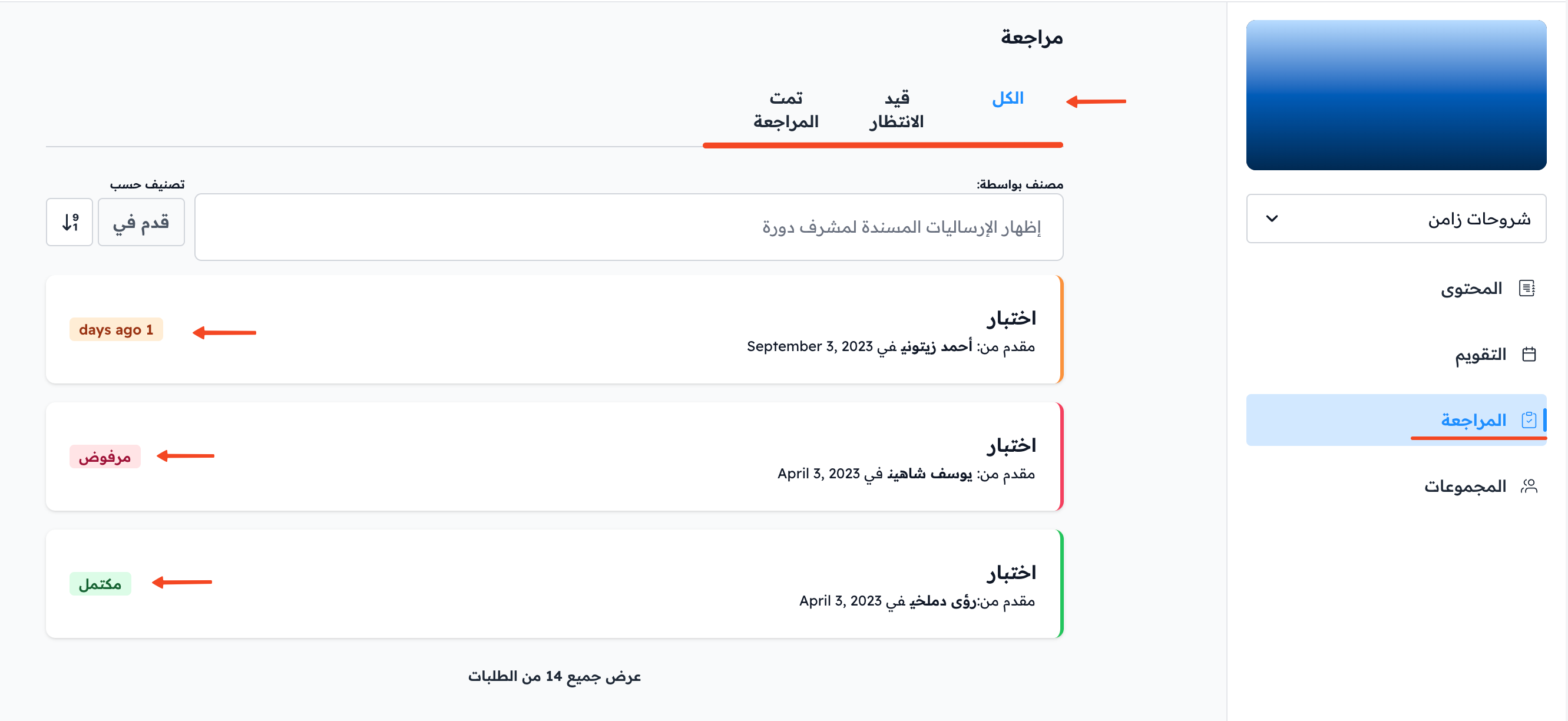
On the Review page, you can choose which submissions to show:
- All: all submissions.
- Pending: submissions waiting for review.
- Reviewed: submissions that were reviewed. They are of two kinds: Completed and Rejected.
Submissions have colors:
- Orange: submissions waiting for review.
- Red: rejected submissions.
- Green: completed submissions.
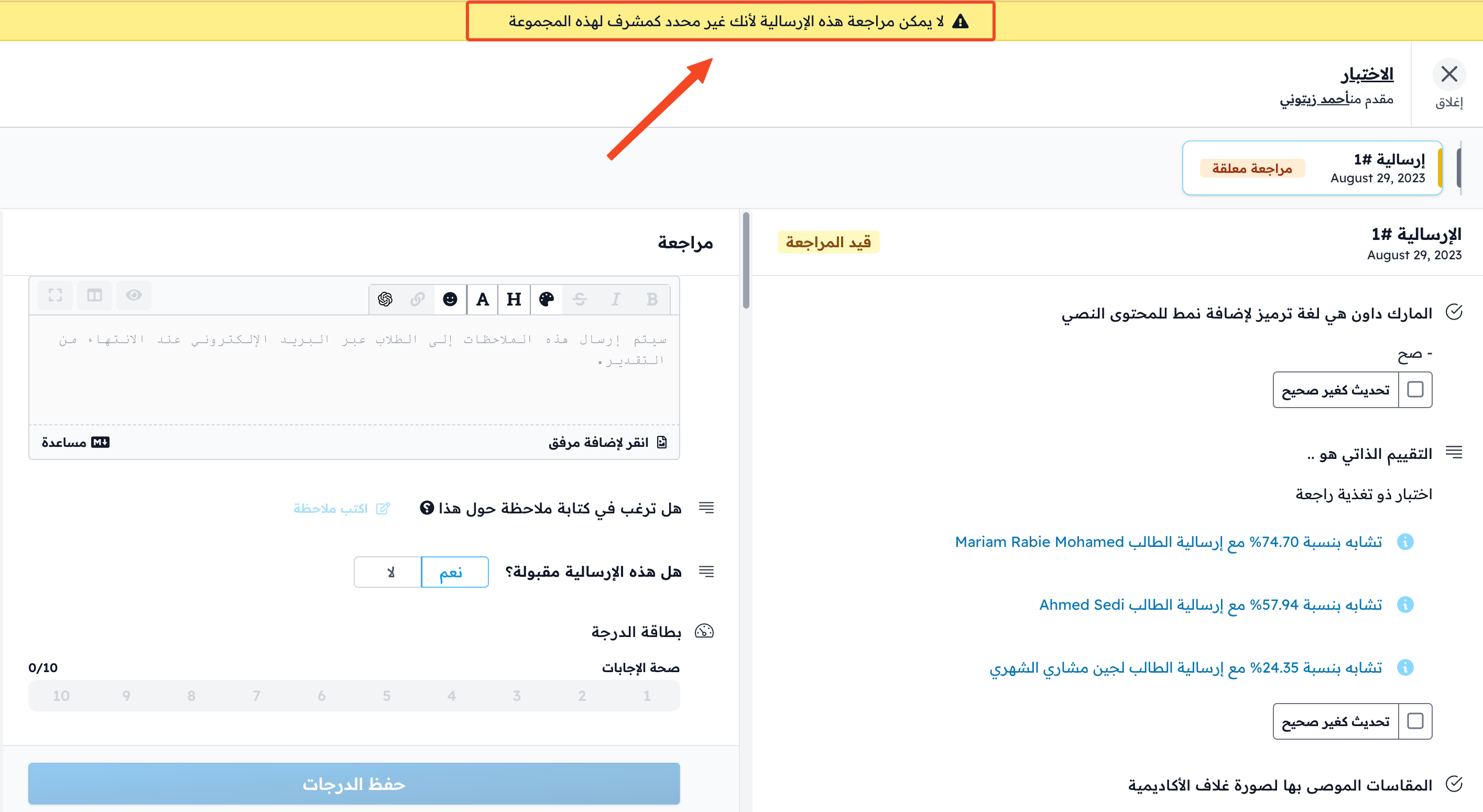
When you click a submission, you can only view it. You cannot take any action.
You can review a submission only if you are a coach of the student's cohort. That is why you see this message: You cannot review this submission as you're not assigned to this cohort as a coach.
Follow cohorts and students
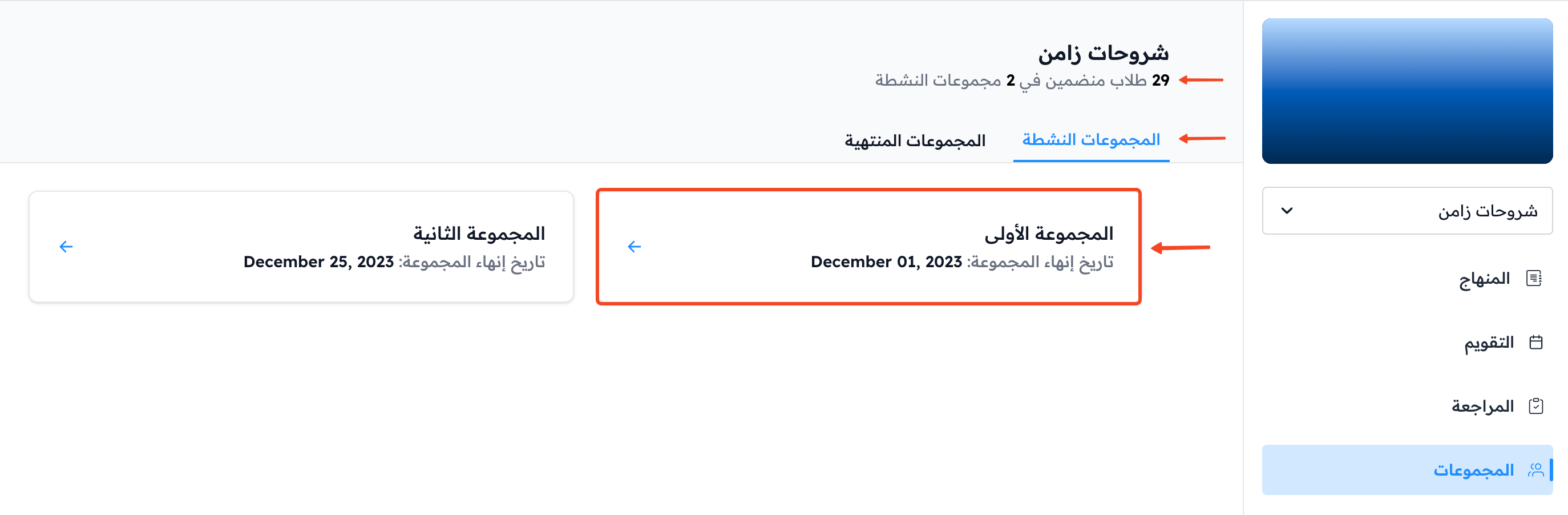
The Cohorts page shows:
- The number of students and the number of cohorts in the course.
- Two tabs: Active Cohorts and Ended Cohorts.
Click the cohort whose student reports you want to see.
Overview tab
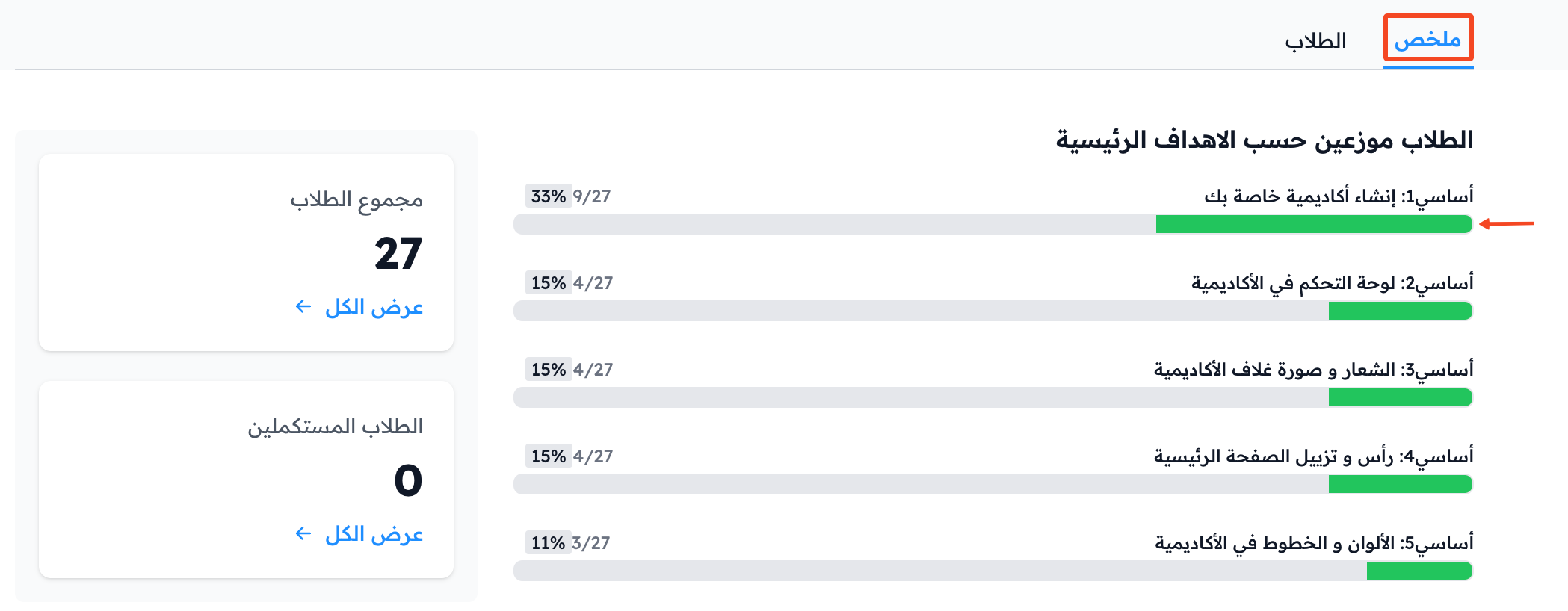
The Overview tab shows the share of students who completed each milestone target in this cohort. Click the progress bar of a milestone target to see the names of the students who completed it.
Students tab
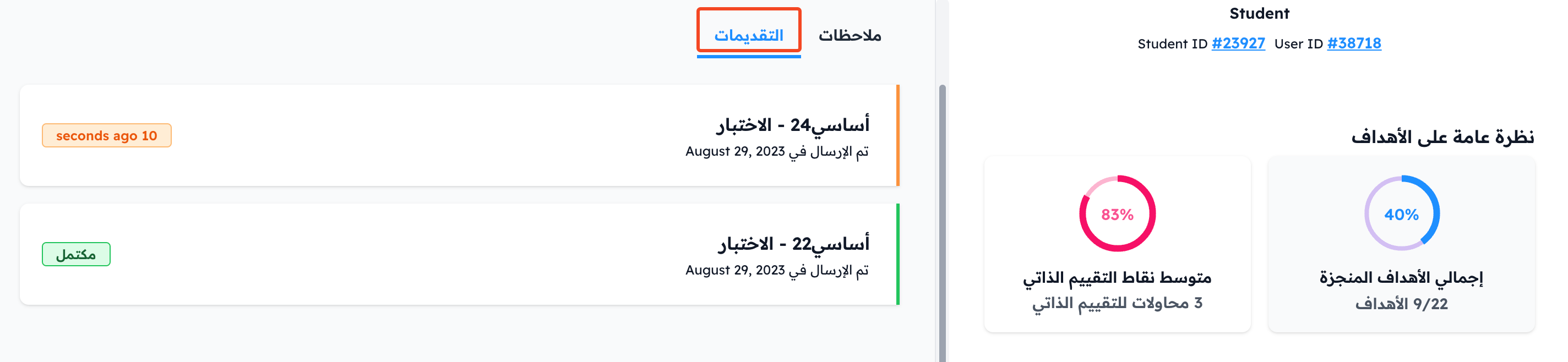
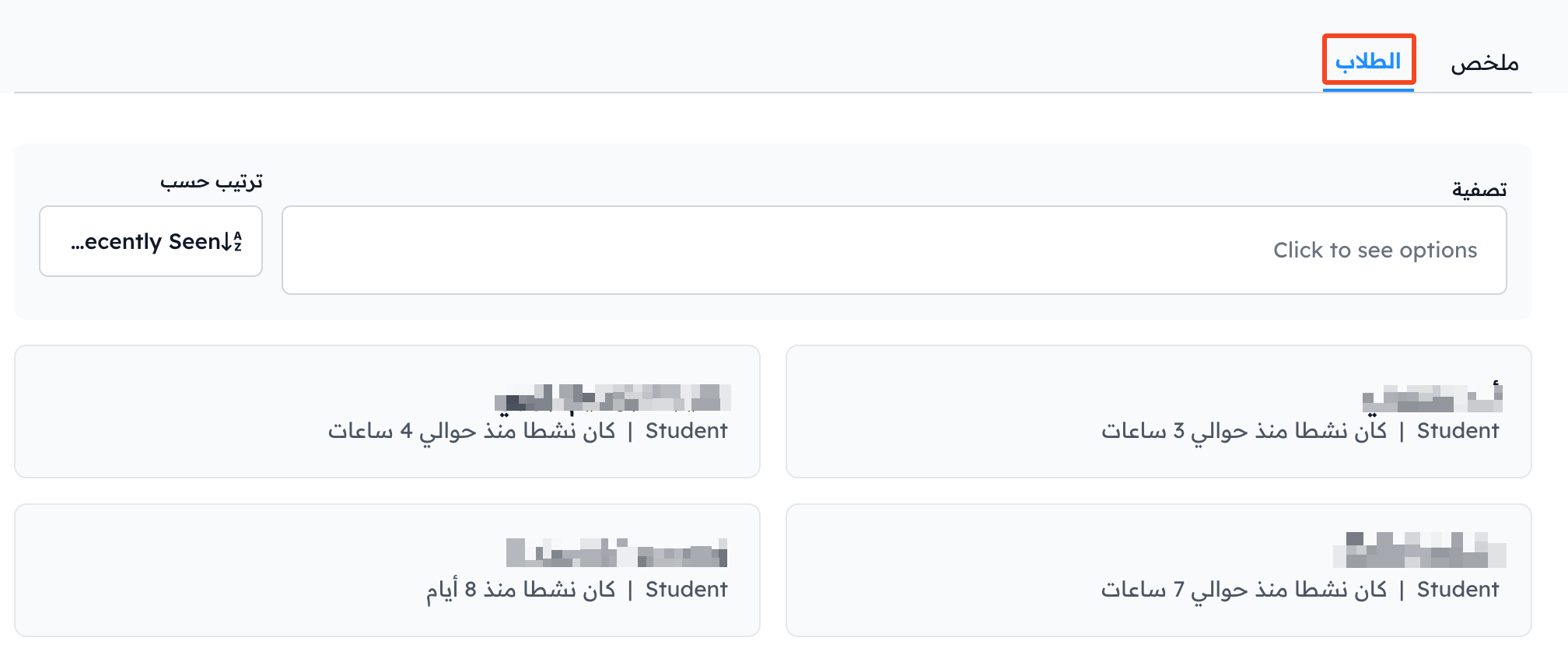
The Students tab shows all the students of the cohort. Click any student to see a detailed report of their progress in the course.
Student report details
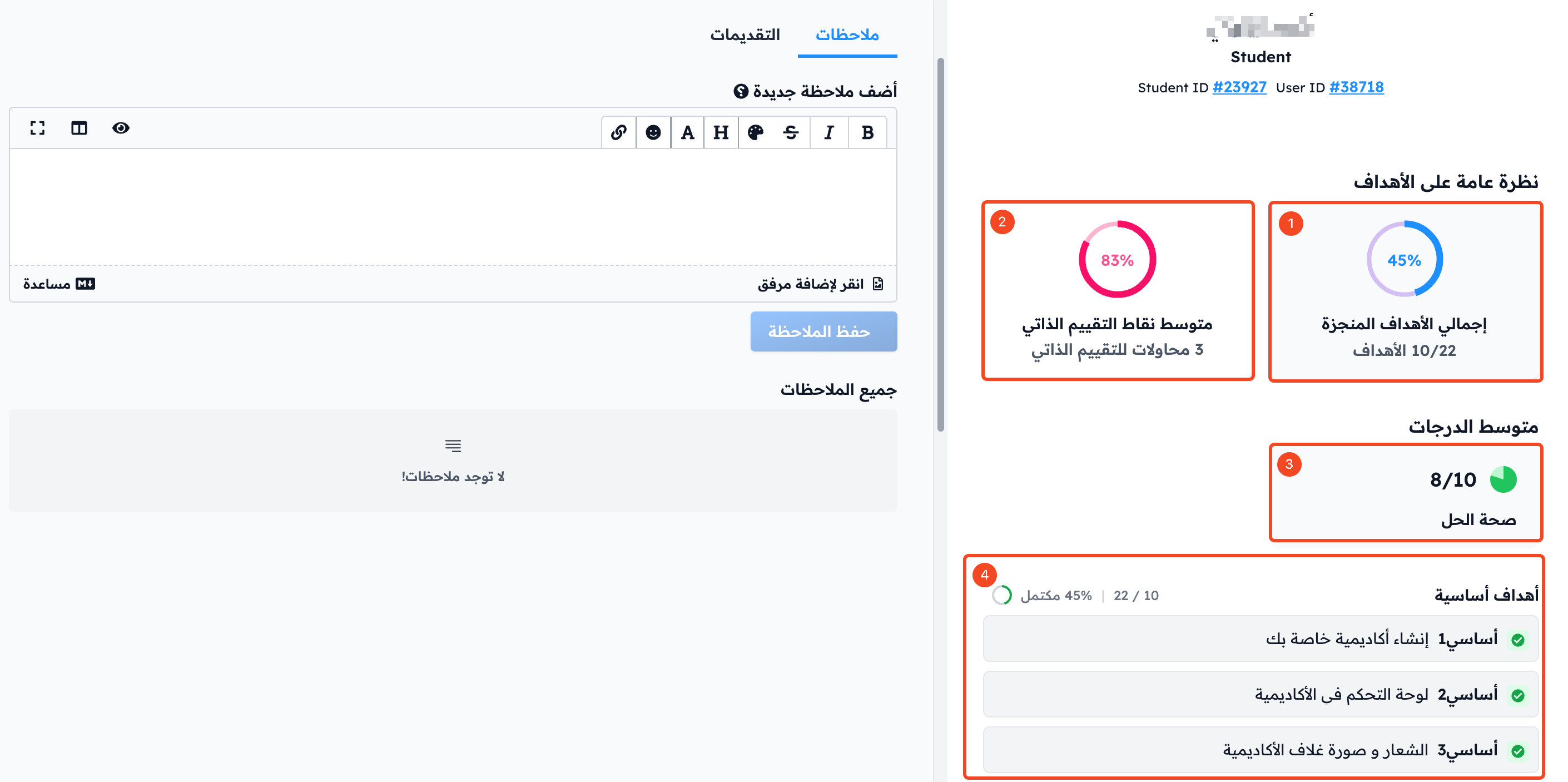
The student report has two tabs: Targets and Quizzes. Items 1, 3 and 4 are in the Targets tab, and item 2 is in the Quizzes tab:
- Total Targets Completed: the share of targets the student completed in the course.
- Average Quiz Score: the student's average score in quizzes (self-assessment). The same tab also lists the course quizzes and the student's result in each one.
- Average Grades: the student's average grades in assignments (advanced questions).
- Milestone Targets: the share of milestone targets the student completed in the course.
Notes and submissions
In the Notes tab, you can write notes to follow the student's progress. These notes are shown only to coaches and the admin.
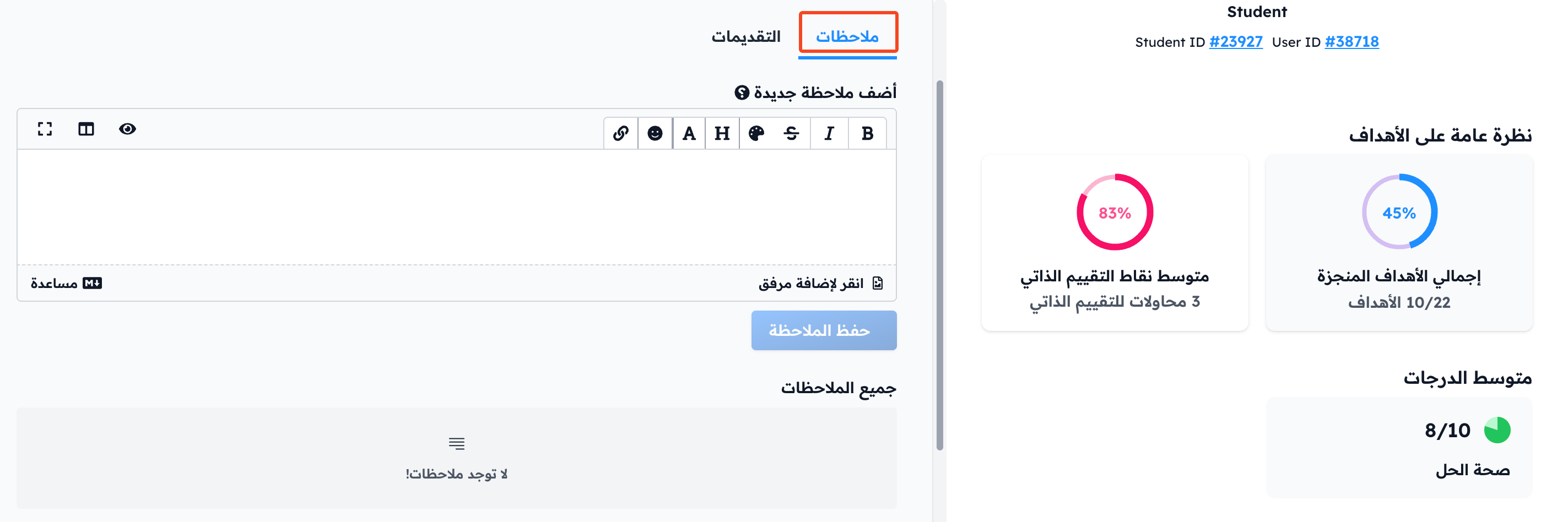
The Submissions tab shows all the student's submissions in the course.