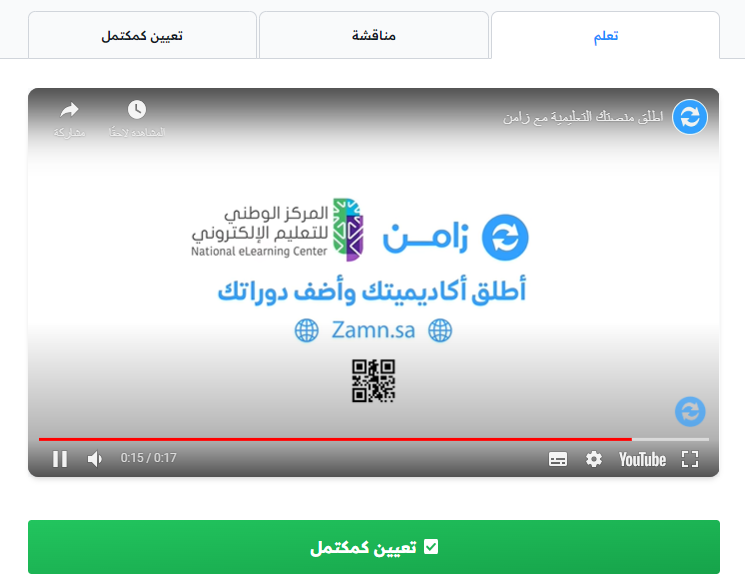
Add a recorded video to a course
You can add a recorded video to the content of any target in a course, either by embedding the video link, or by uploading the video straight to Zamn.
Steps to open the target content
-
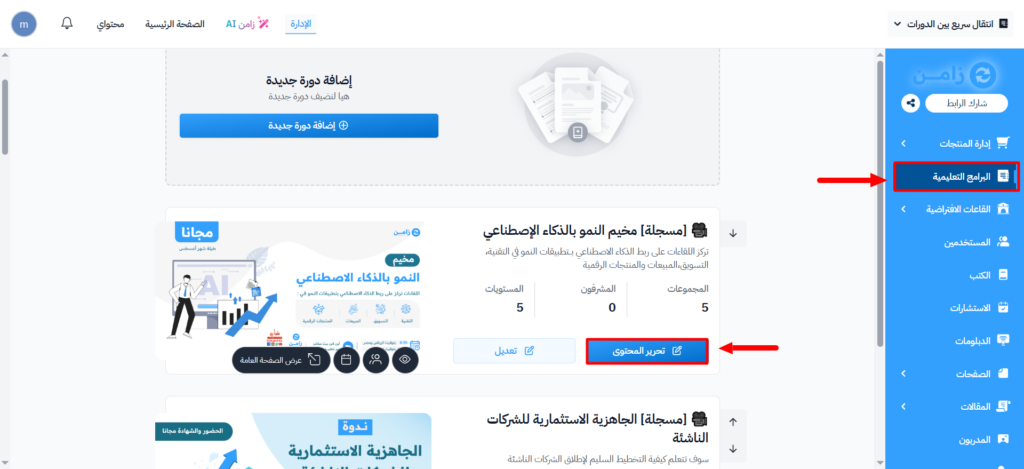
From the dashboard, go to the Courses page, then click Edit Curriculum for the course you want to add the video to.
-
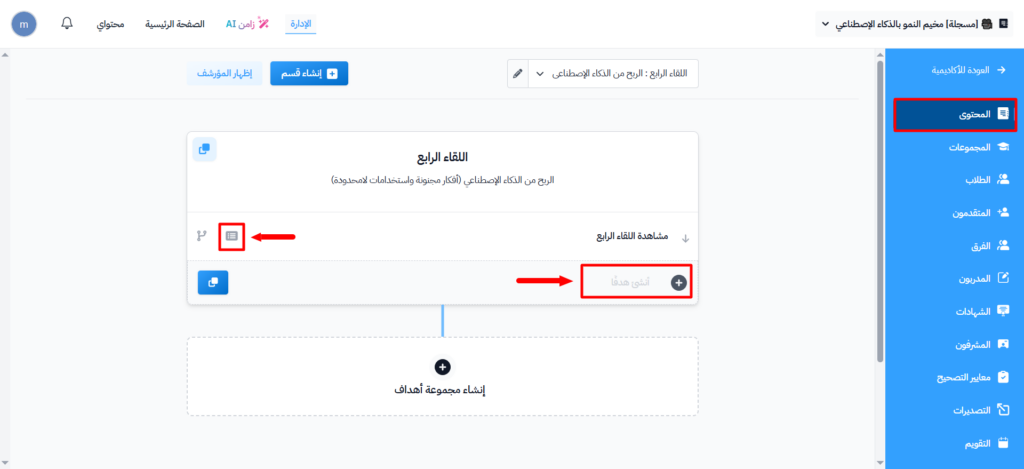
Open the target you want to add the video to, or create a new target with Create target.
-
Go to the Content tab of the target.
Add a video by embedding
-
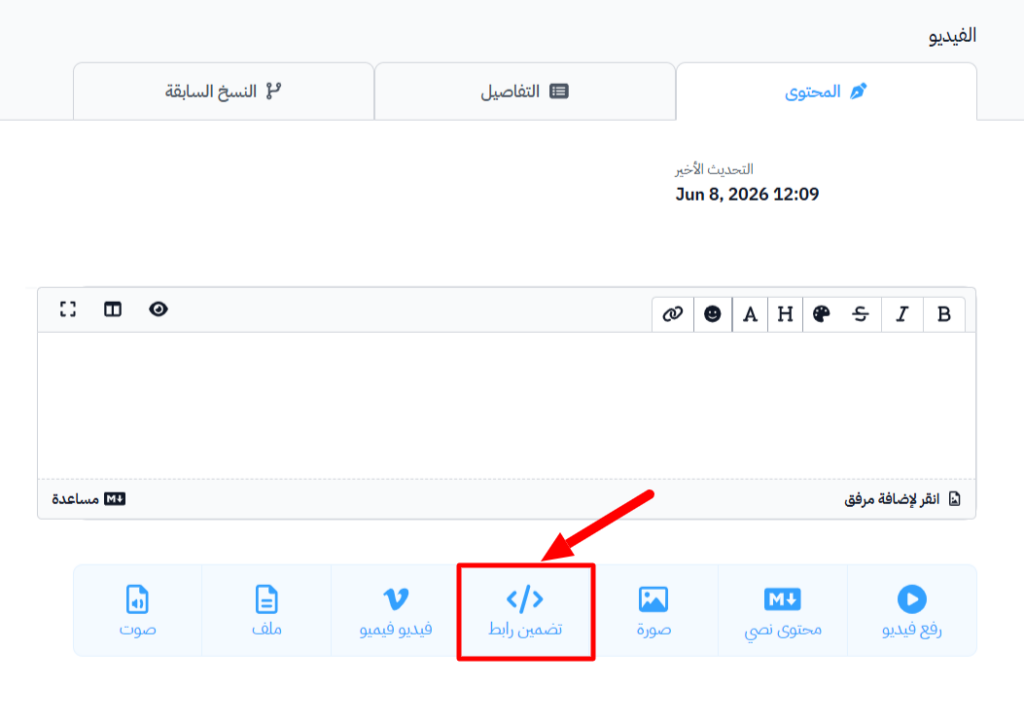
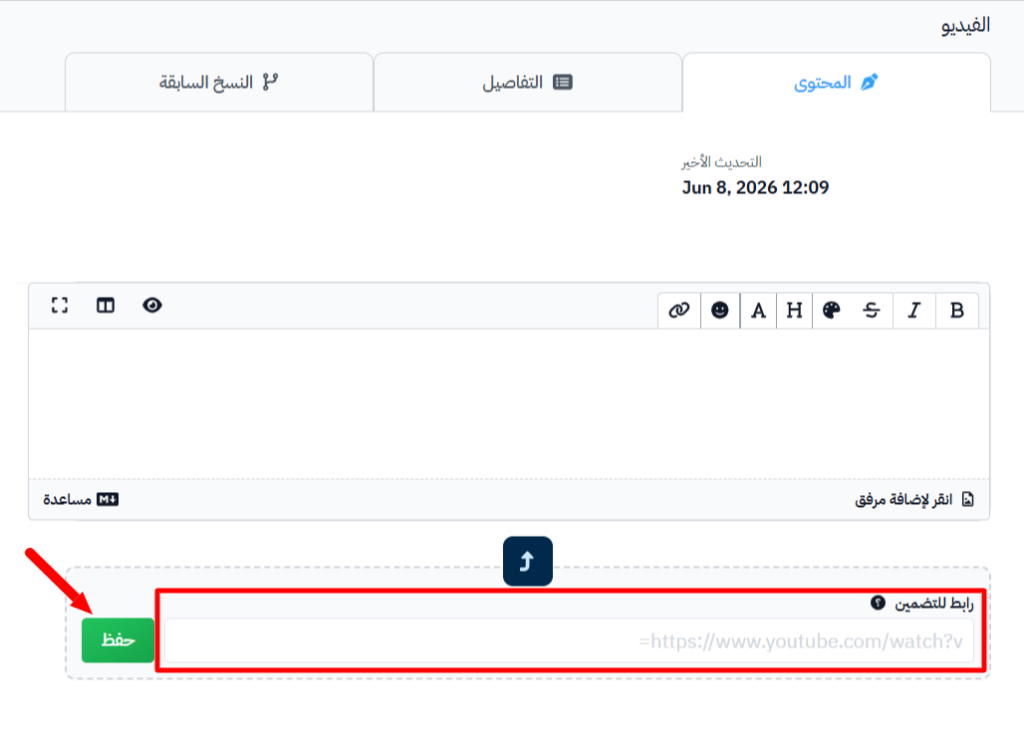
Click Embeded Link.
-
In the URL to Embed field, paste the video link from YouTube, then click Save to add the video.
Upload a video to Zamn
-
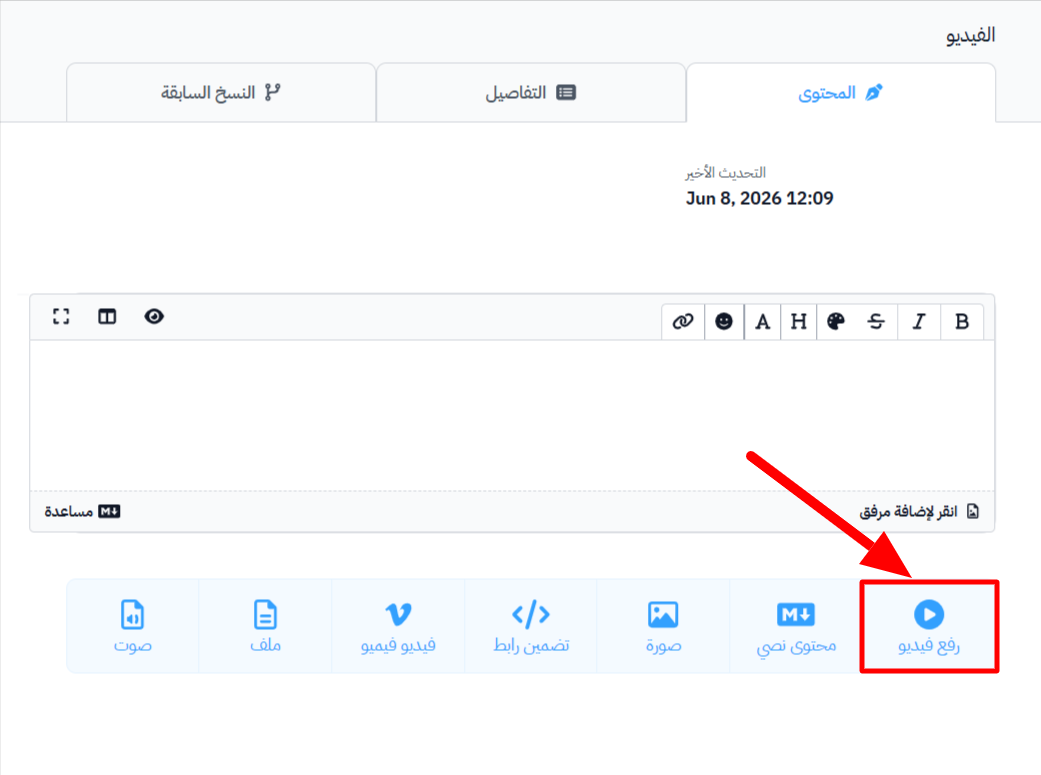
Click Upload Video.
-
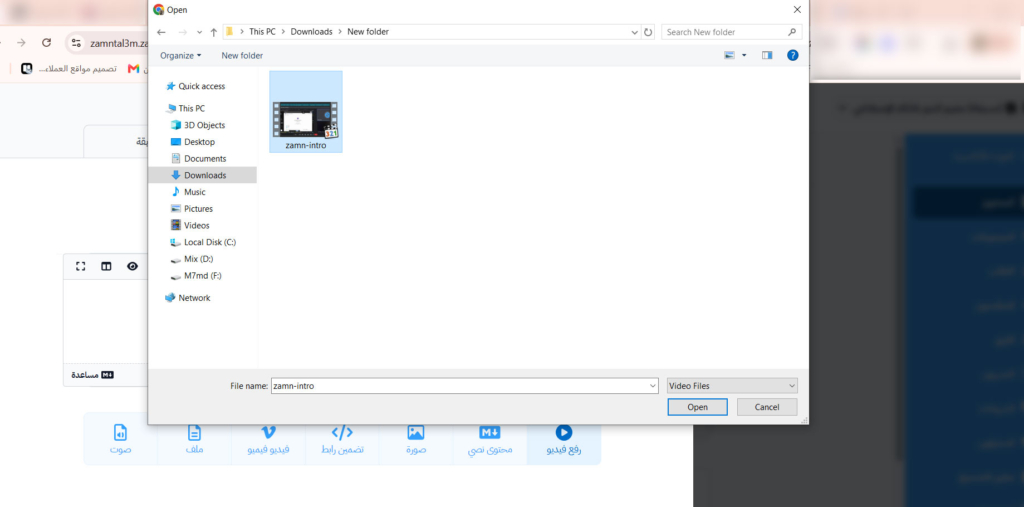
A window opens to choose the file. Choose the video you want.
-
Wait until the upload reaches 100%. Then the video is saved in the target content.
Note
- The largest video size is 2 GB.
- The Upload Video button shows only if you have an active subscription to the Growth or Pro plan from the Websites plans, or during the free trial.
How the video looks after you add it
The video on the Content tab after you add it:
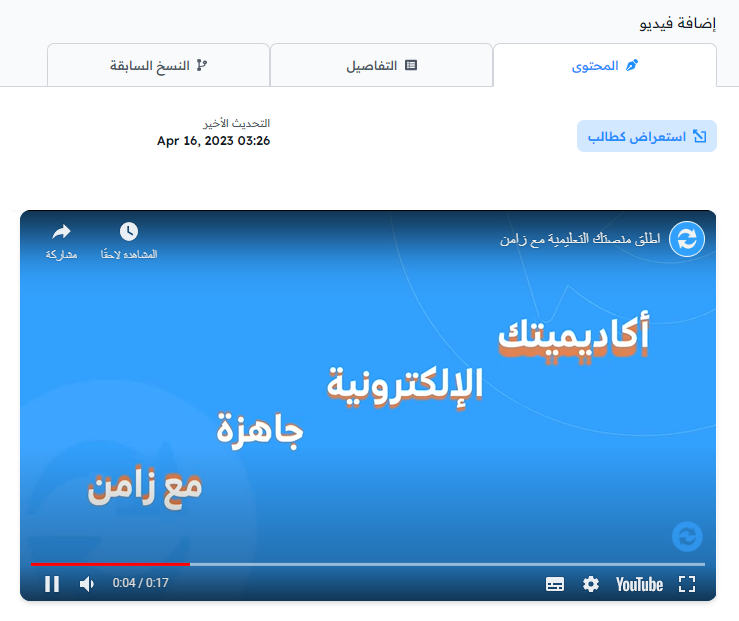
The video as the student sees it: