Set up TikTok Pixel with Google Tag Manager (GTM)
TikTok Pixel helps you track visits to your platform and events such as purchases, so you can measure the results of your TikTok ads. This article shows how to install it with Google Tag Manager (GTM), after you connect GTM to your platform.
Ways to install TikTok Pixel with GTM
You can install TikTok Pixel in one of these two ways:
- Recommended way: install it from TikTok Events Manager with the direct GTM connection.
- Manual way: add the TikTok Pixel code by hand in GTM with a Custom HTML Tag.
Requirements
Before you start, make sure you have:
- Basic knowledge of GTM ideas, such as Tags, Triggers and Variables.
- An active Google Tag Manager account connected to your platform.
- A Web Container in GTM, with full permissions (publish, edit, approve, read).
- A TikTok Pixel (new, or one you created before).
Method 1: install with TikTok Events Manager (recommended)
-
Sign in to TikTok Events Manager from TikTok Business Center.
-
Go to Data Sources, then choose the pixel you want to connect.
-
Click Settings.
-
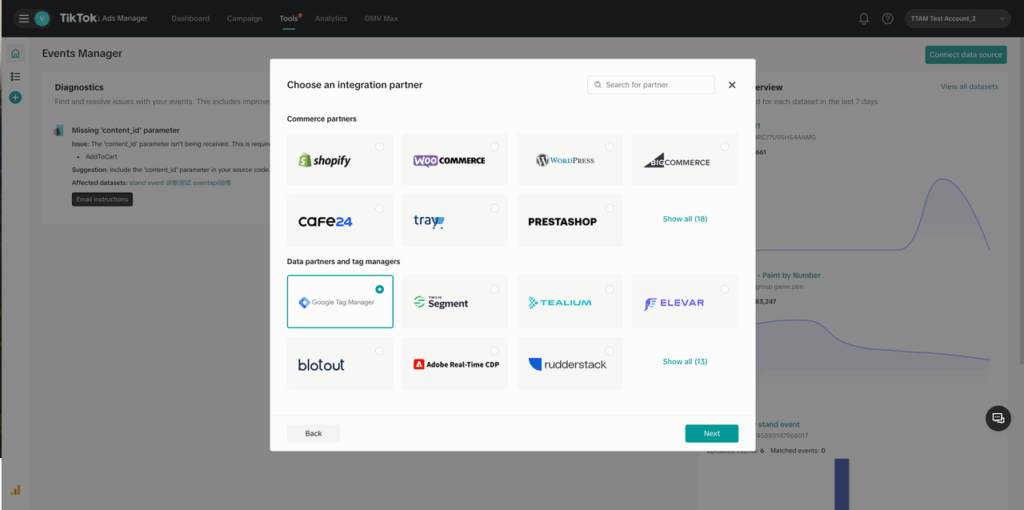
In the Partner Platform section, choose Choose Partner.
-
Choose Google Tag Manager, then click Next.
-
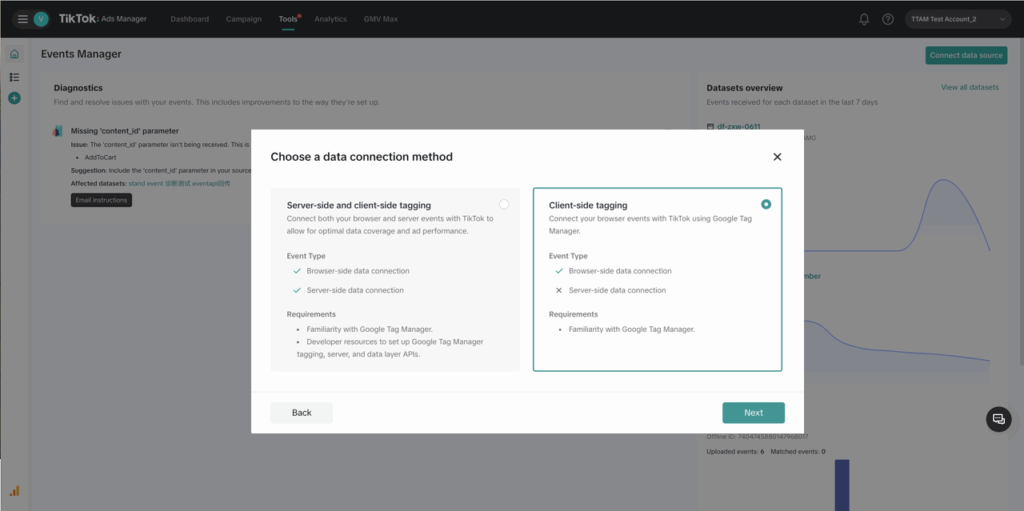
Choose Client-side Tagging, then click Get Started.
-
Sign in with the Google account that is linked to GTM.
-
If you are creating a new Pixel, enter its name.
-
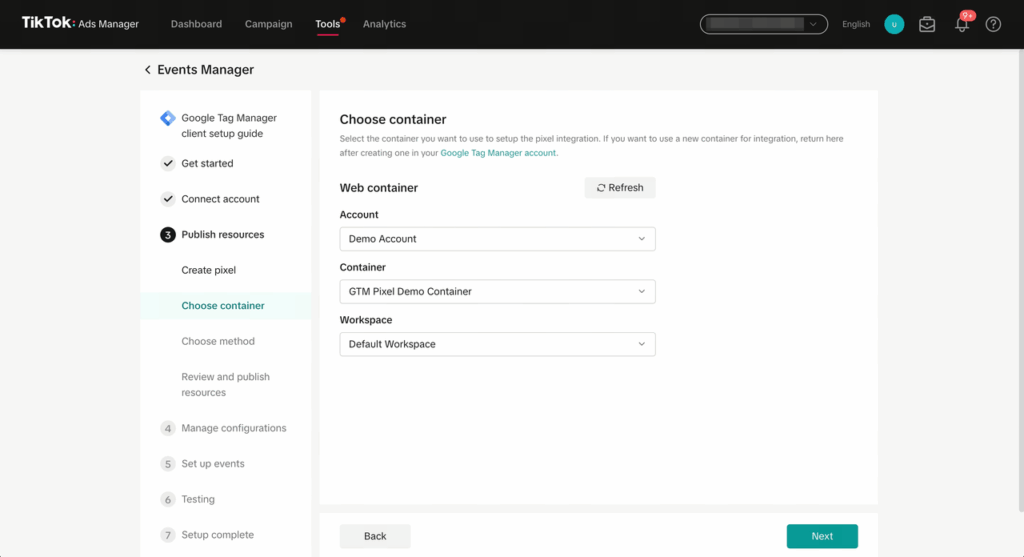
Choose each of these:
- The GTM account.
- The Container.
- The Workspace.
tipIf the Container does not show, create it in GTM, then refresh the page.
-
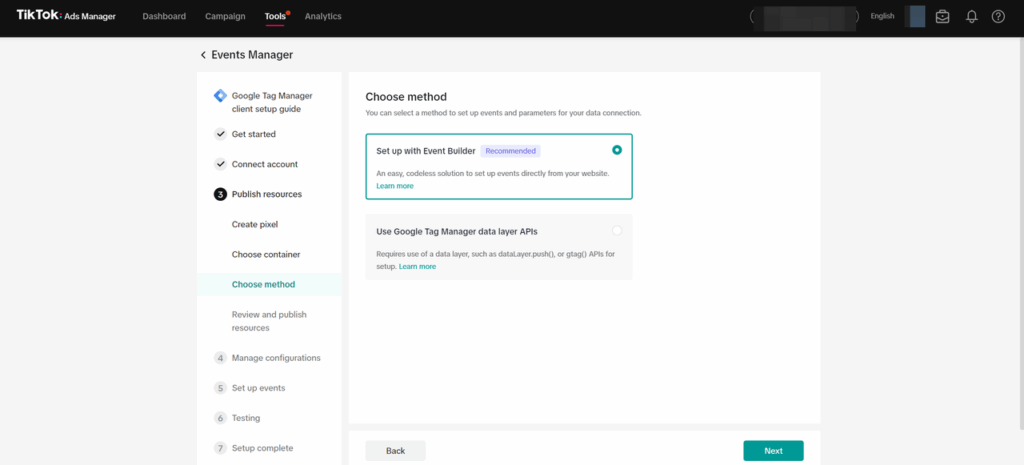
Choose how to set up events:
- TikTok Event Builder (recommended): set up and track events (such as Purchase and Add to Cart) without changing any code.
- GTM Data Layer API: good if your site sends custom data to GTM through the dataLayer.
-
Review the suggested changes to your GTM account to make sure they are correct.
-
Click Publish.
-
Refresh your platform page to apply the changes.
Method 2: install by hand in Google Tag Manager (GTM)
-
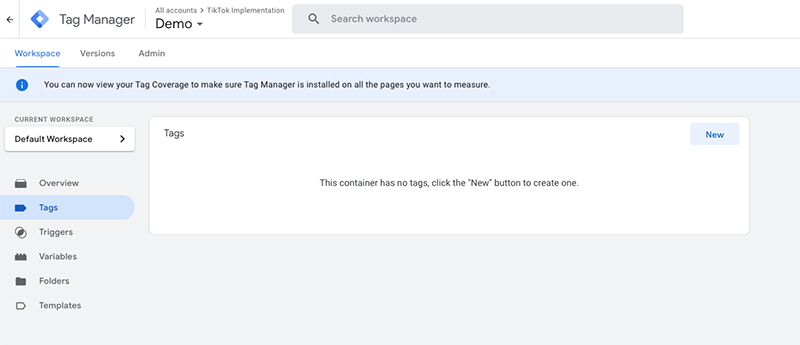
In Google Tag Manager, go to Tags, then click New.
-
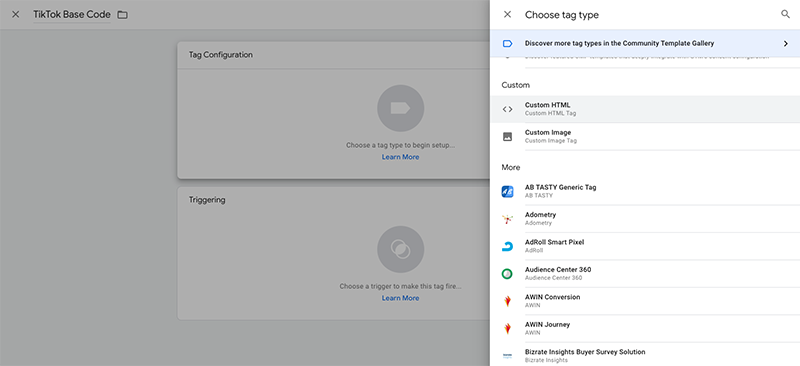
Choose Custom HTML Tag.
-
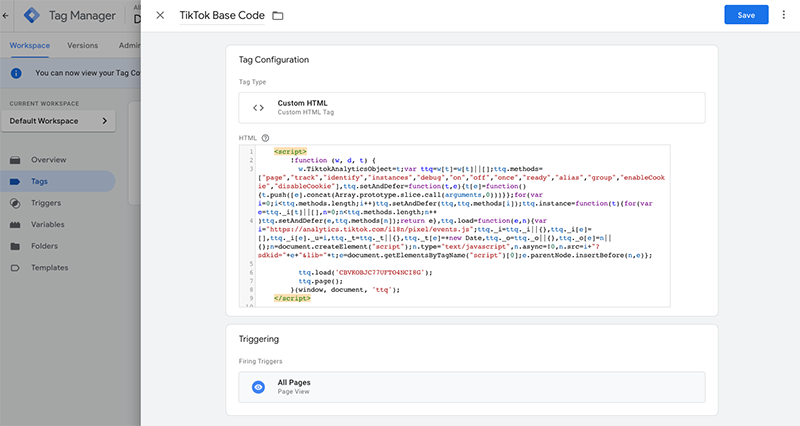
Copy the pixel base code from TikTok Events Manager, and paste it in the code field.
-
Add a Trigger (you usually choose All Pages to track all visits to your platform).
-
Click Save, then Publish.