How to use the text tool (Markdown)
The text tool is the Markdown block in the content editor. Use it to add written text to any target in a course. This article is for platform admins.
-
From the dashboard, click Courses, then click Edit Curriculum on the course card.
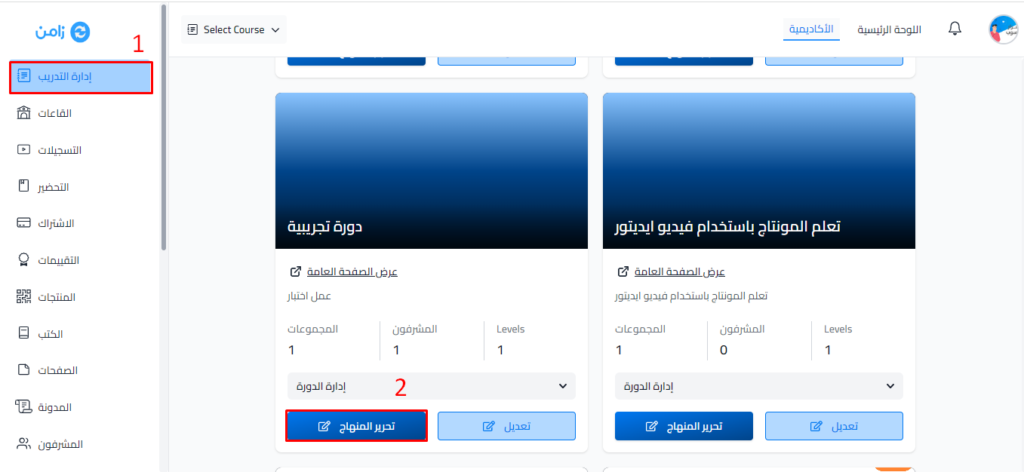
-
On the Curriculum page, click the target you want to add text to. To make a new target, type its title in the Create target box under the target group, click Create, then click the new target.
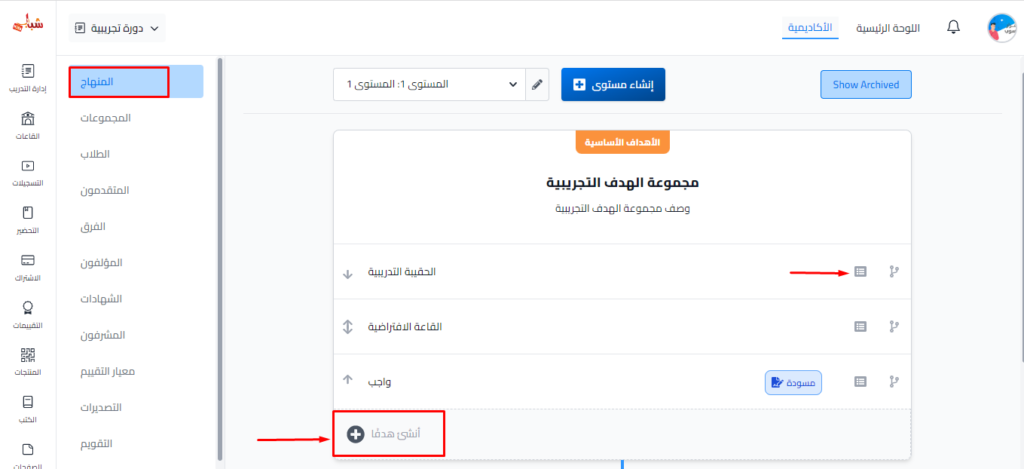
-
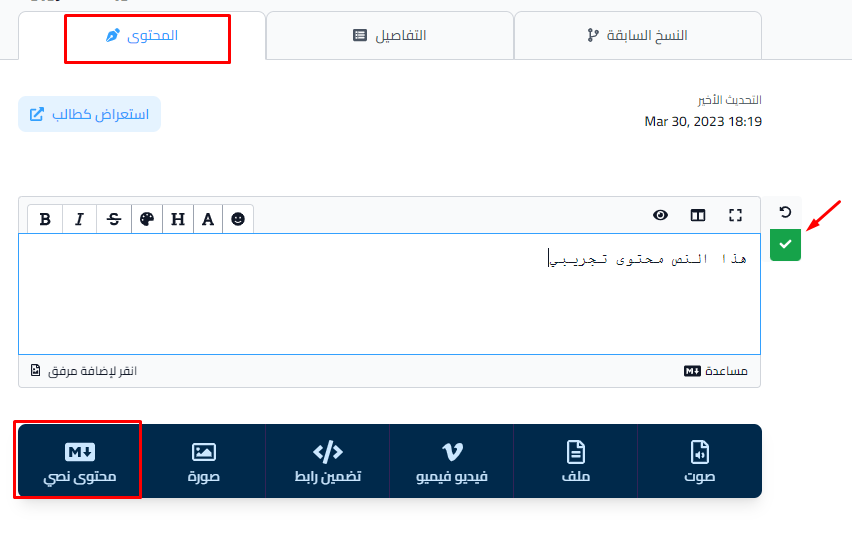
The target opens on the Content tab. Type your text in the text box.
-
To add more text, click Markdown in the bar of content types at the bottom of the page, then type the text in the new box.
-
Click the green check mark button (Save Changes) next to the box to save the text. Students see the text in the target right away.

A new target is a Draft, and students cannot see it. To publish it, open the Details tab of the target, choose Live under Target Visibility, then click Update Target.