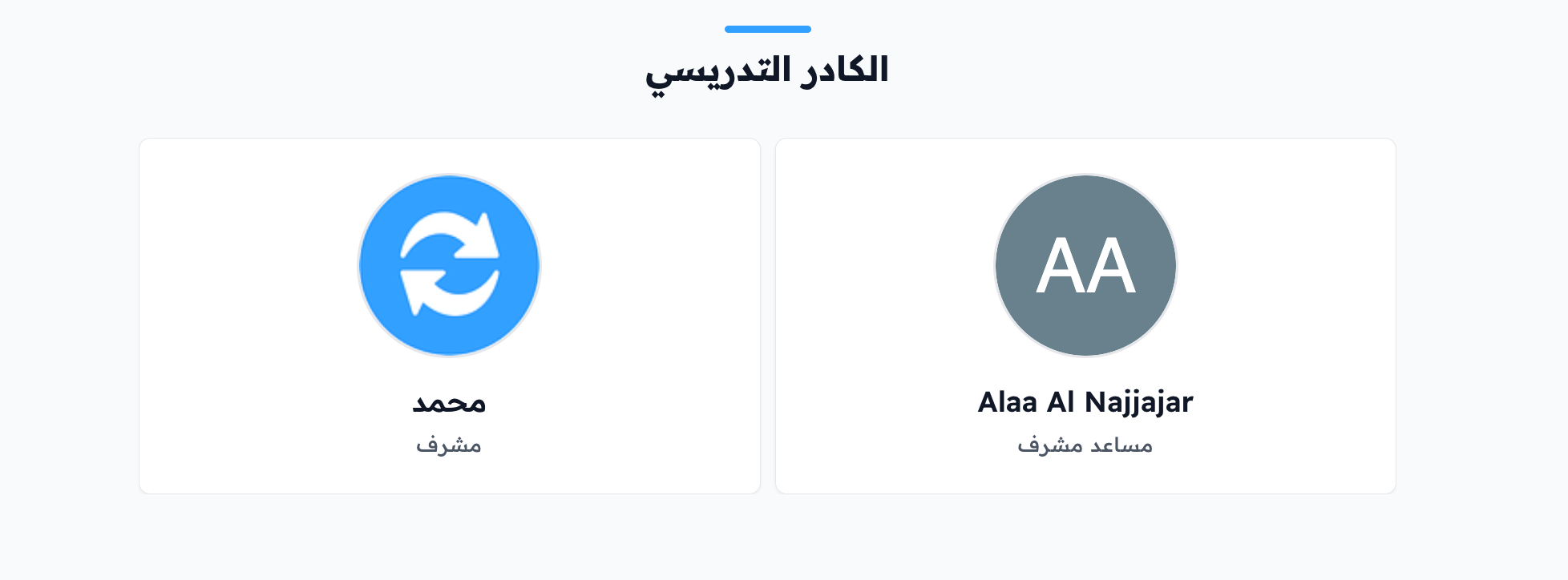
Show the teaching staff on the home page
You can show the teaching staff members of your platform in a special section on the home page. Each member has a card with their photo and name. This feature is for platform admins.
Add the staff to the home page
-
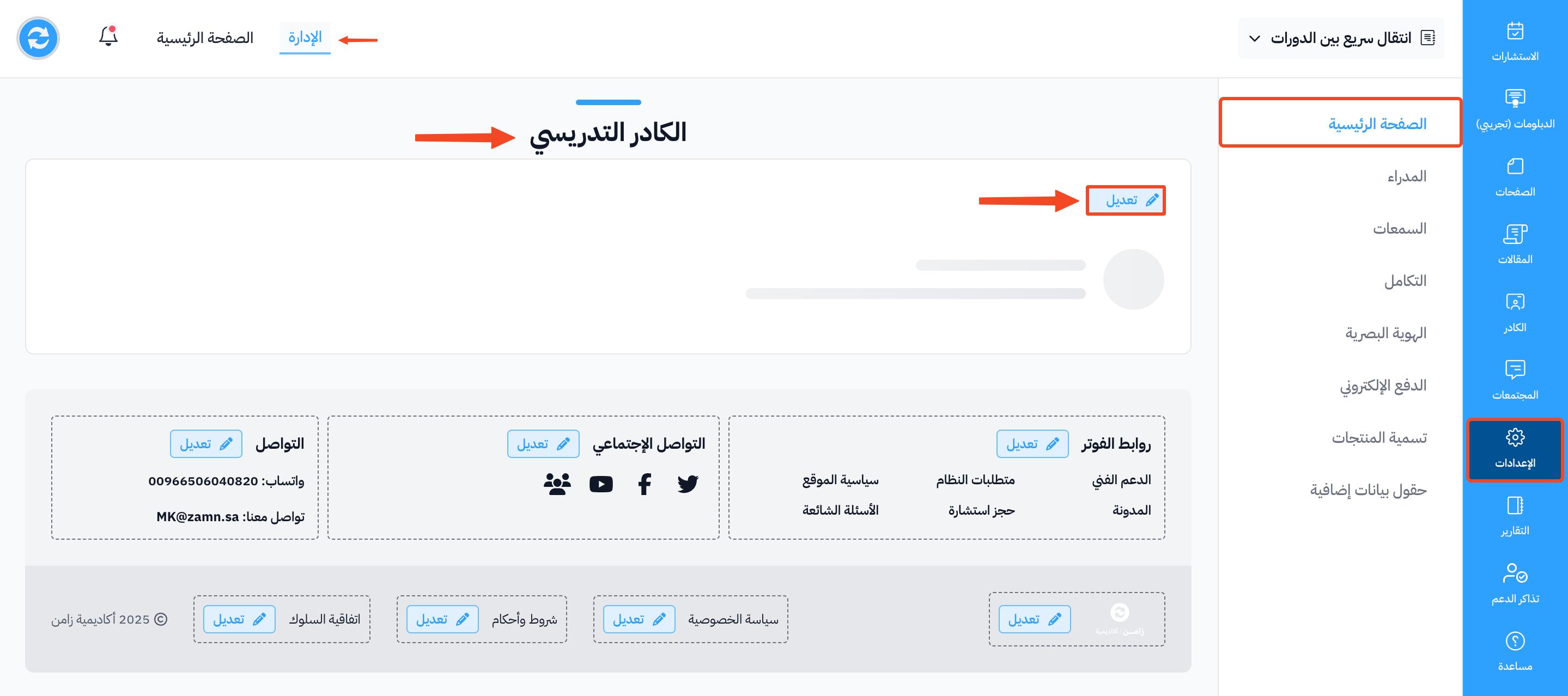
From the dashboard, click Settings, then choose Customization.
-
Go to the Teaching staff section, then click Update.
-
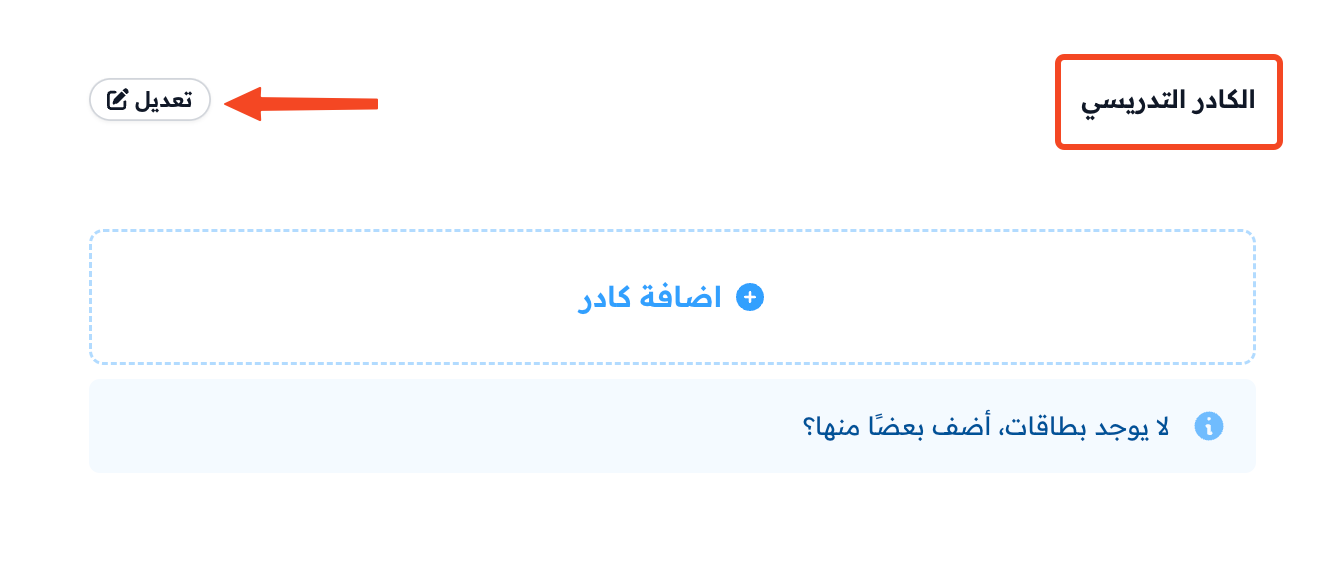
To change the title of the section, click Edit next to the title.
-
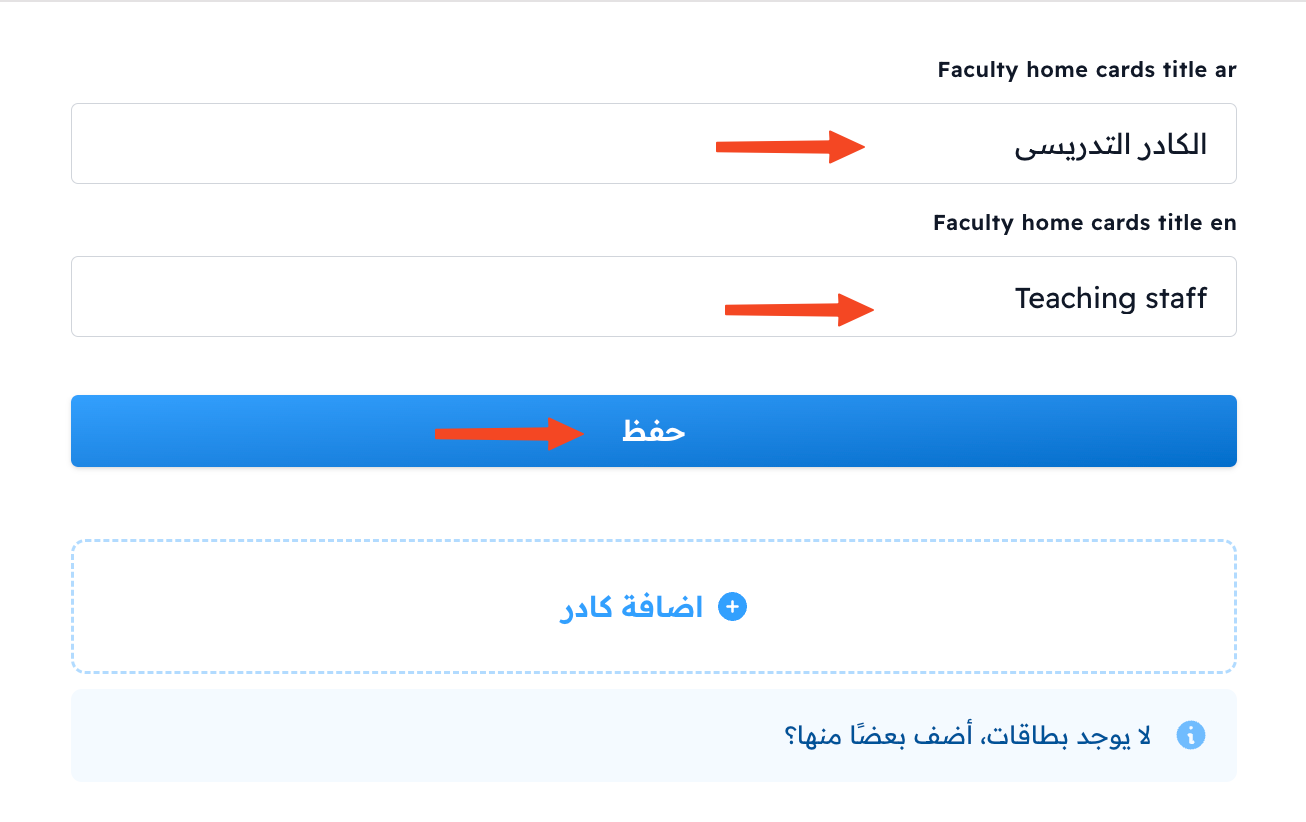
Type the title in Arabic Faculty home cards title and English Faculty home cards title, then click Submit.
-
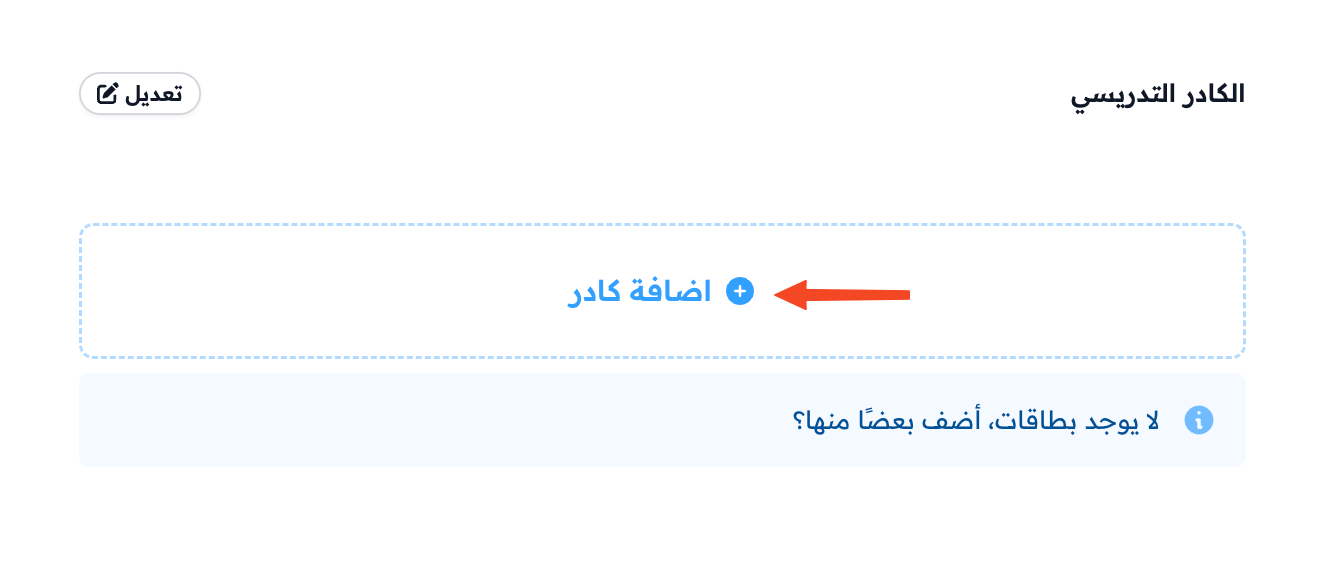
Click Add Faculty home card.
-
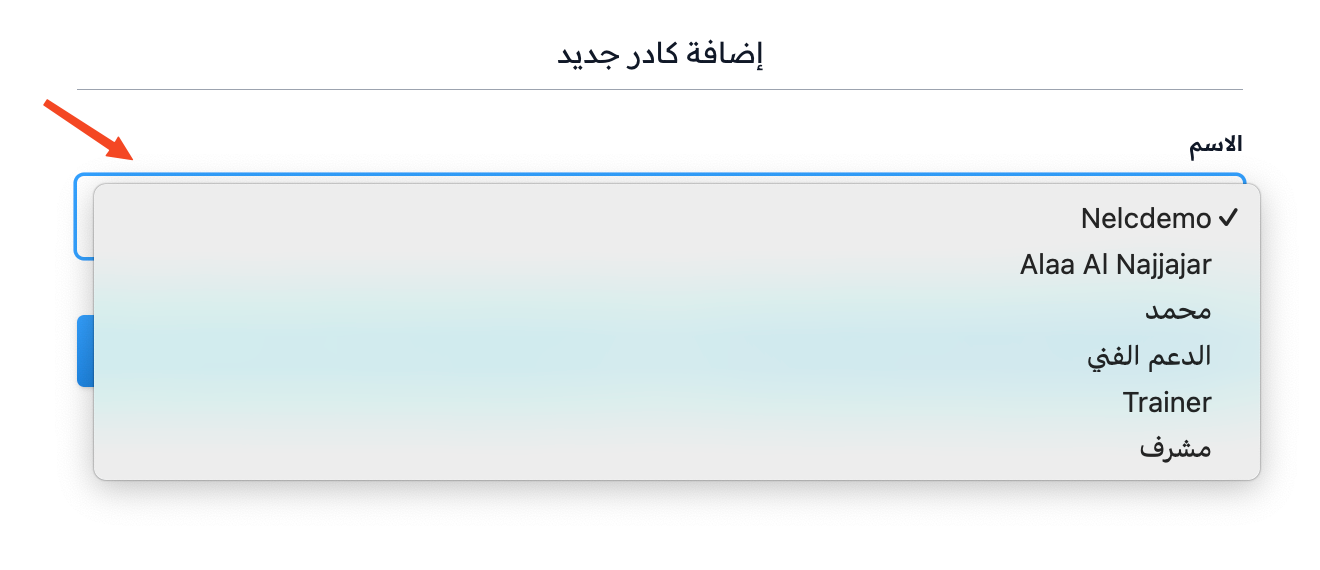
Choose the staff member from the Name list. The list shows the admins and staff members you have not added yet.
-
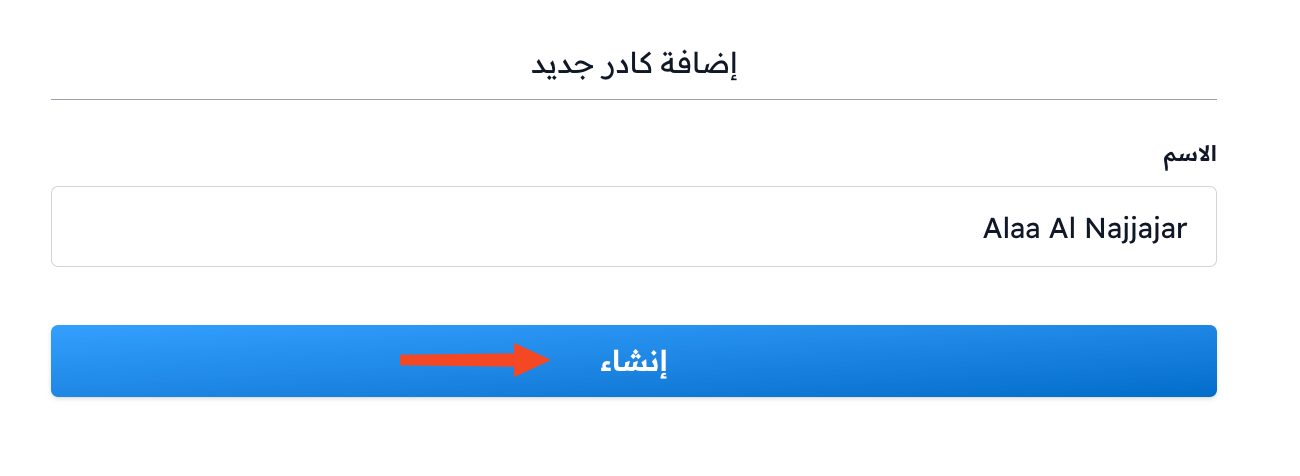
Click Create to add the member.
Examples of the section