Spaces and templates for platform policies
Zamn gives you spaces and ready-made templates that help you write the policies of your platform in a simple way, like a privacy policy or an attendance policy. This article is for platform admins.
Spaces
Write each policy in its own text page:
-
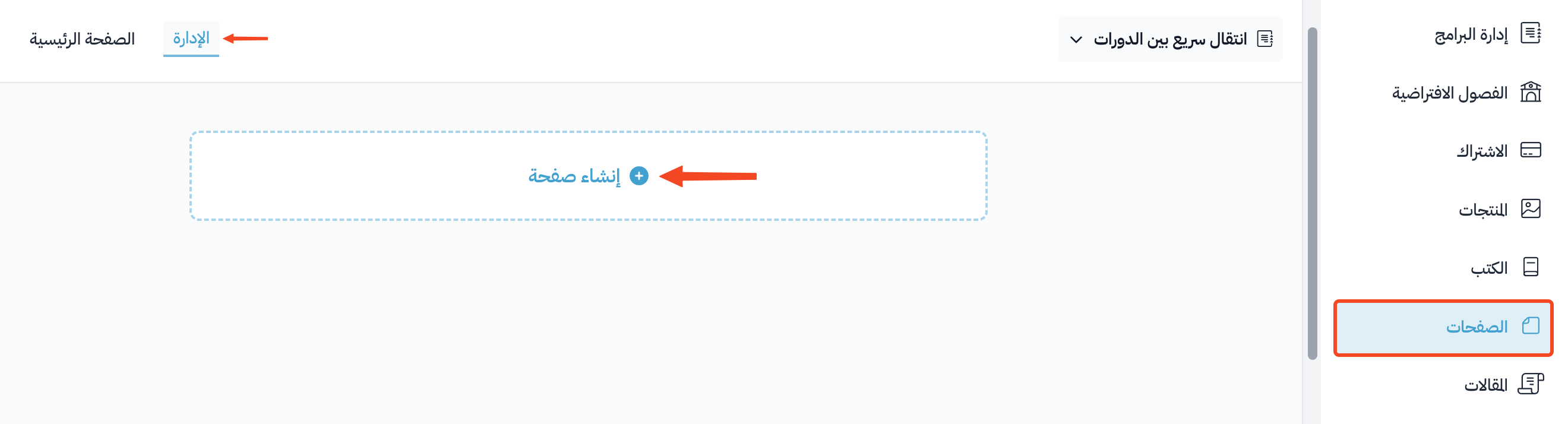
In your platform dashboard, click Pages, then go to Text Pages.
-
Click Create Page.
-
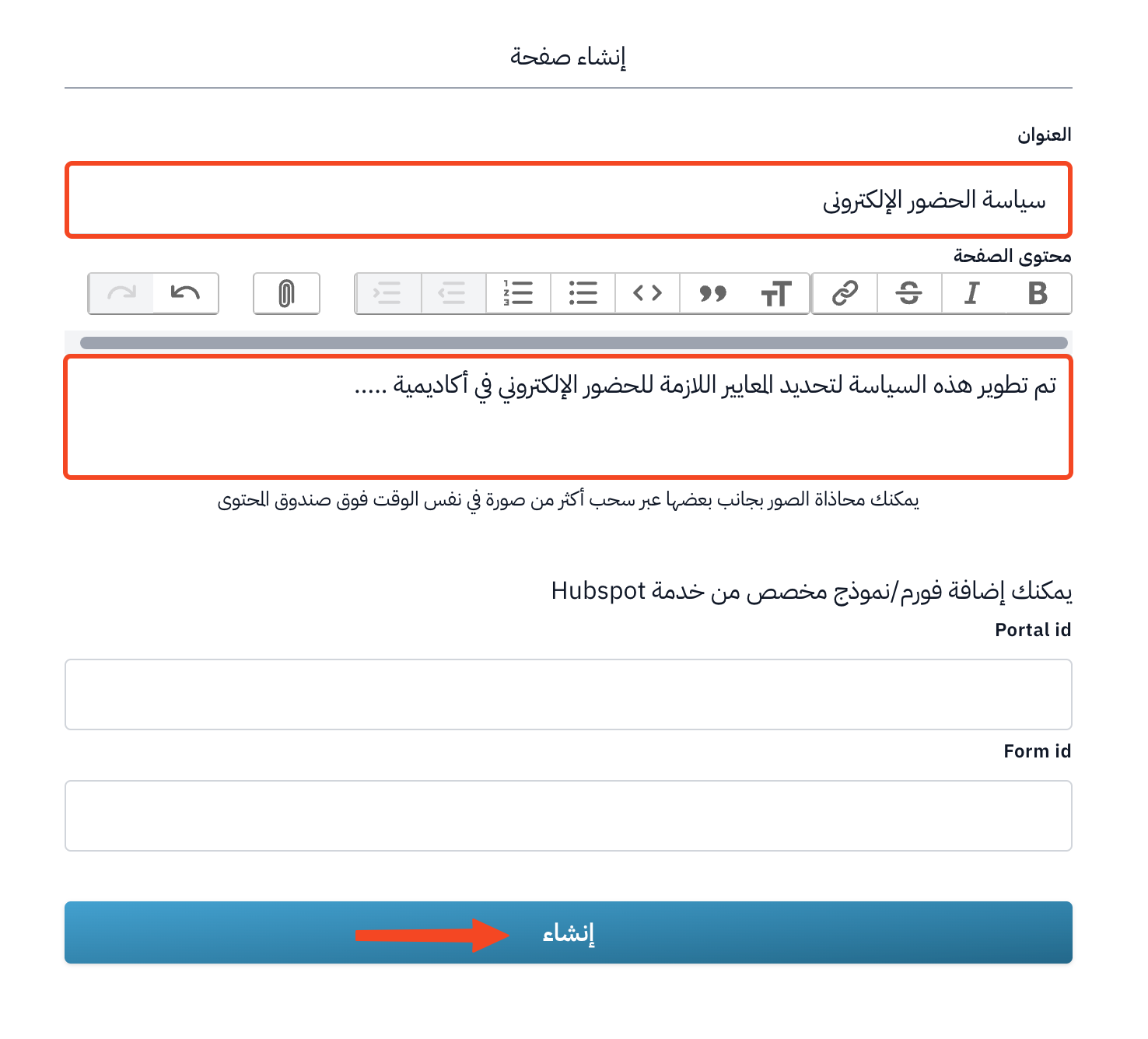
Type the Title, like "Online attendance policy".
-
Choose the Type: choose the policy type if it is in the list, like Privacy Policy or Terms And Conditions, or choose Regular for any other policy.
-
Write the policy text in Content.
-
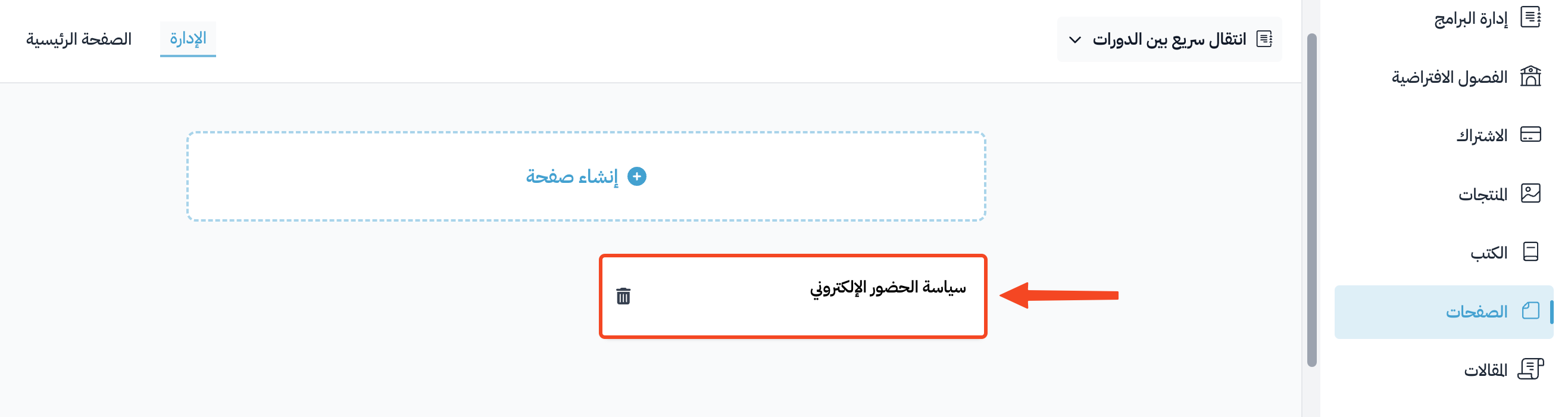
Click Create. The page shows in the list of text pages.
-
Click the page in the list, then click View Public under Page Actions to open it as visitors see it.
-
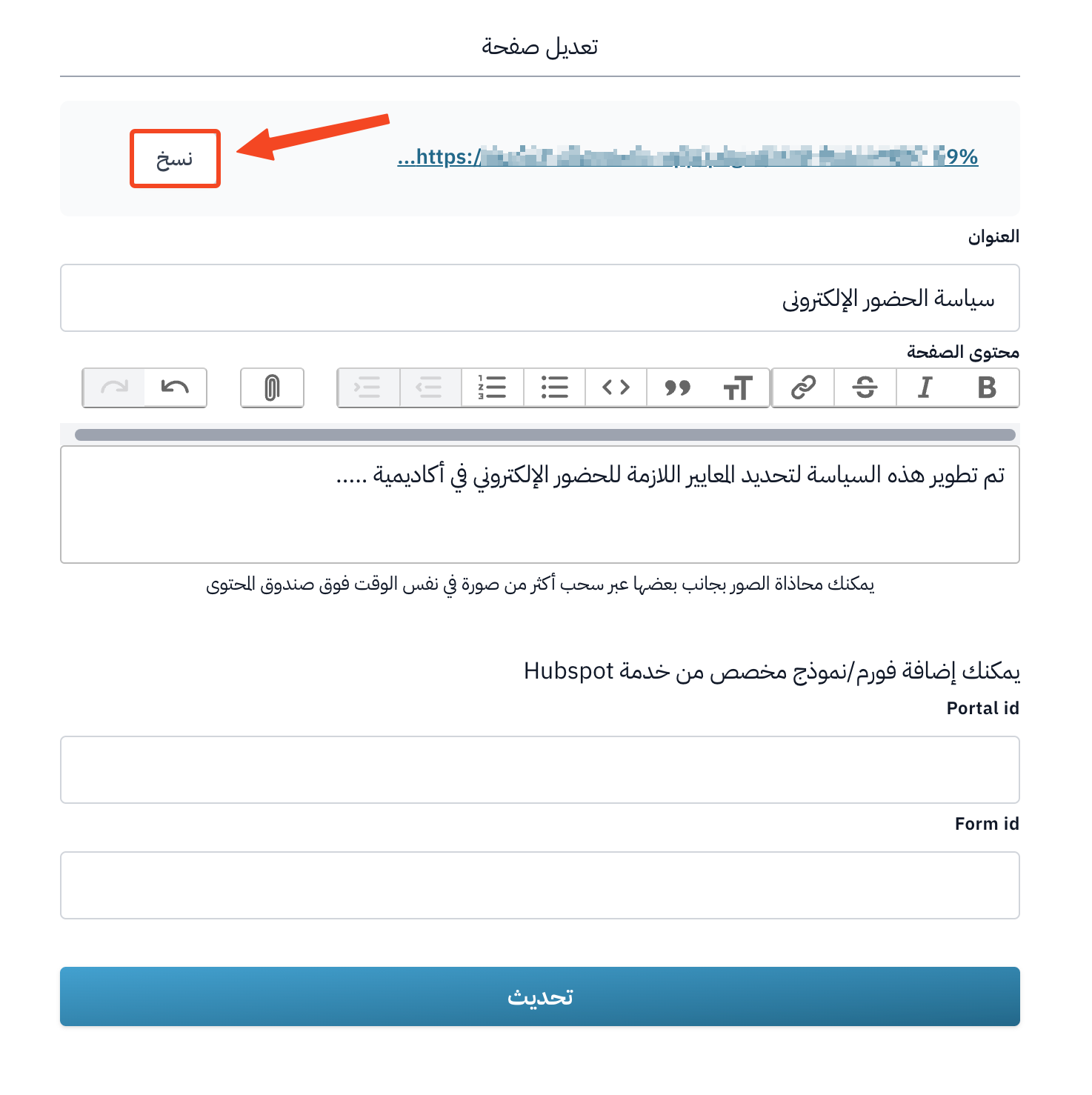
Copy the page link from the address bar of your browser, then add it to the footer of your platform, as in the next steps.
If you chose a policy type in step 4, the page link shows at the bottom of your platform footer by itself, and you do not need to add it to the footer links.
Add the link to the footer
-
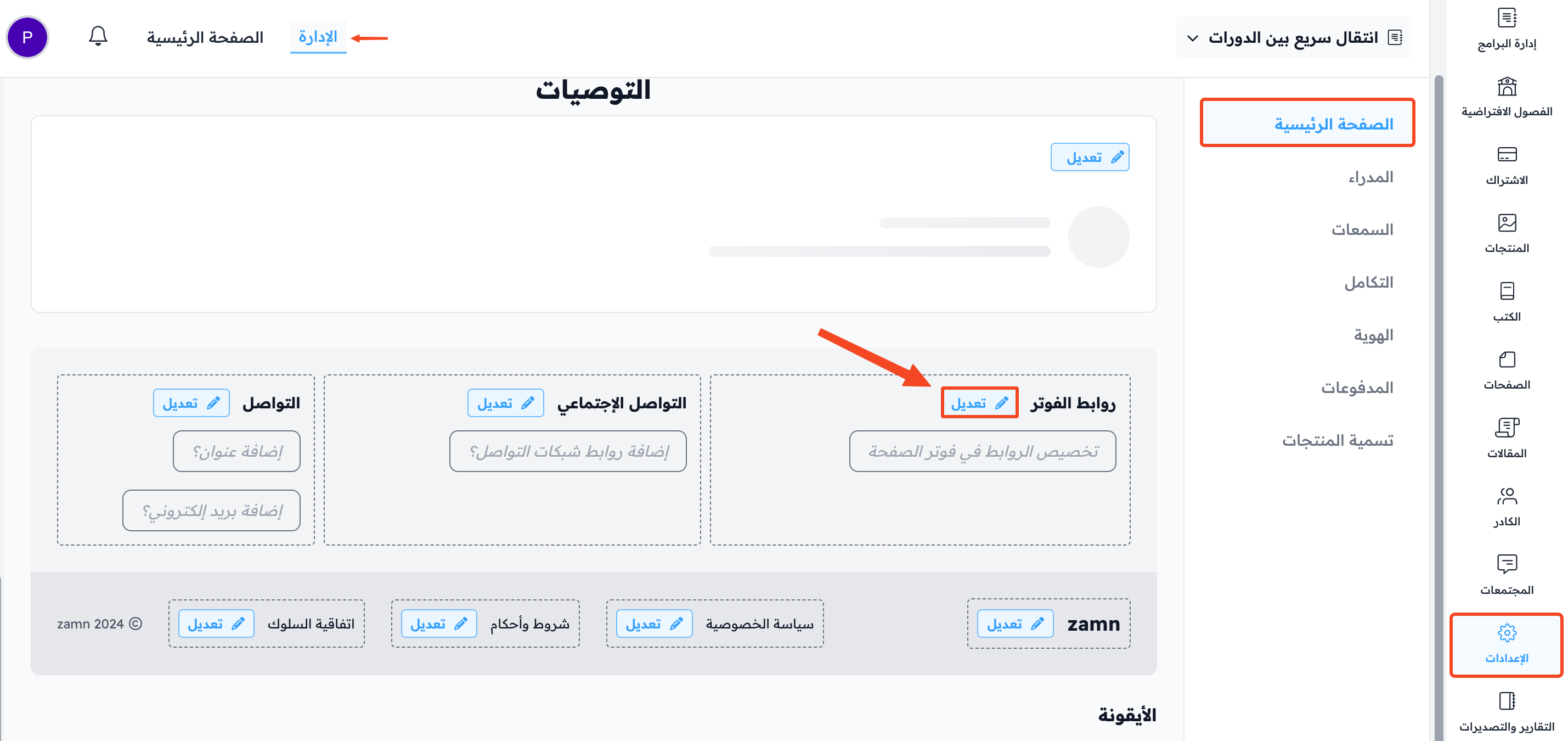
From the dashboard, click Settings, then choose Customization, and scroll to the bottom of the page.
-
Click Edit next to Sitemap.
-
In the Manage custom links window, choose the Footer Sitemap tab.
-
Type the Title.
-
Put the page link in the Full URL field.
-
Click Add a New Link.
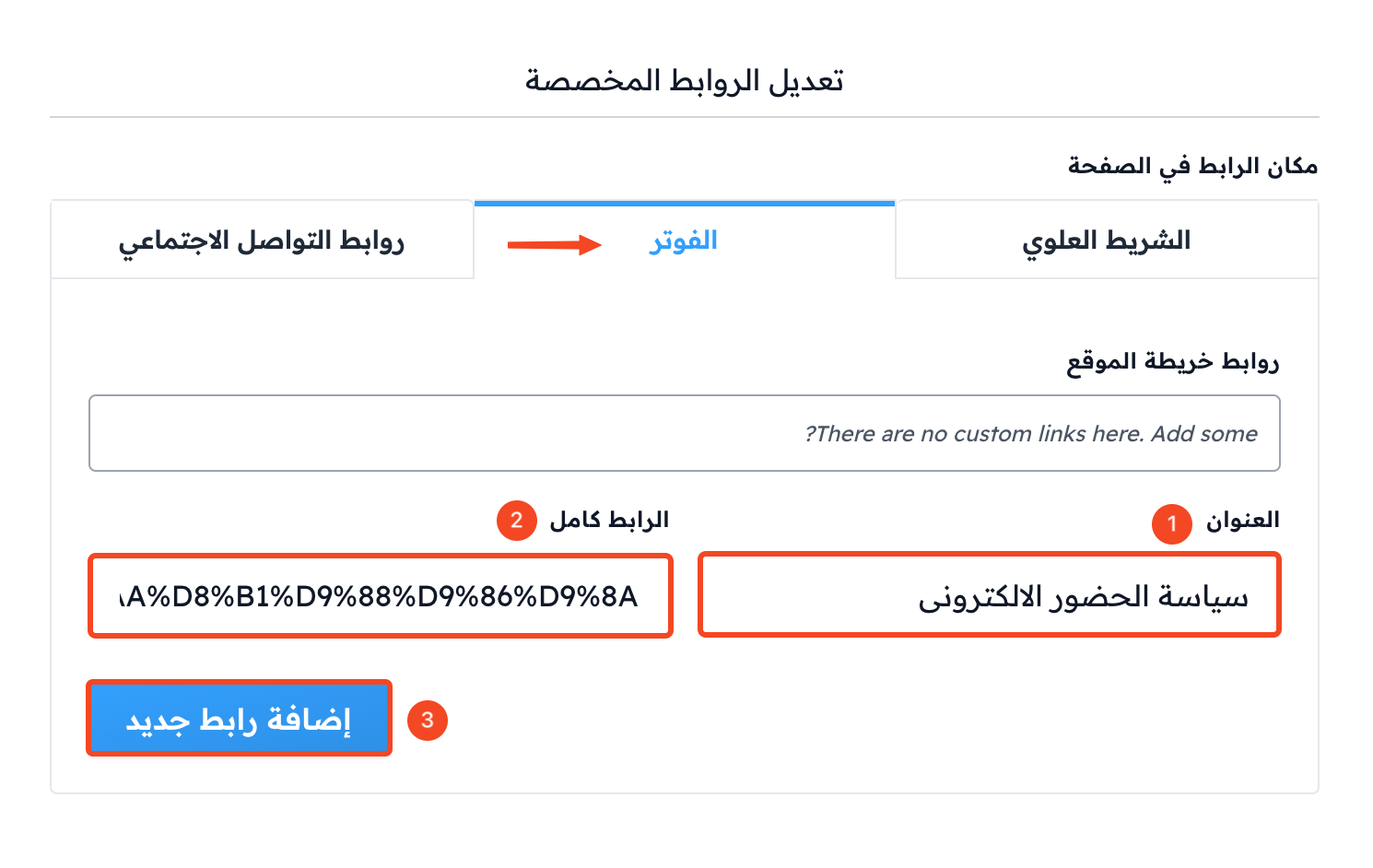
The link shows in the footer of your platform under Sitemap.

Templates for platform policies
Zamn gives you some ready-made templates for platform policies, so you can write your policies with less effort:
- Integrity policy
- Intellectual property and copyright policy
- Privacy and usage policy
- Online attendance policy
- Technical support policy
When you create a new page and choose a policy type, like Privacy Policy or Attendance And Refund, the Content box fills with a ready-made template that you can edit. This feature is available on the Growth plan or above.