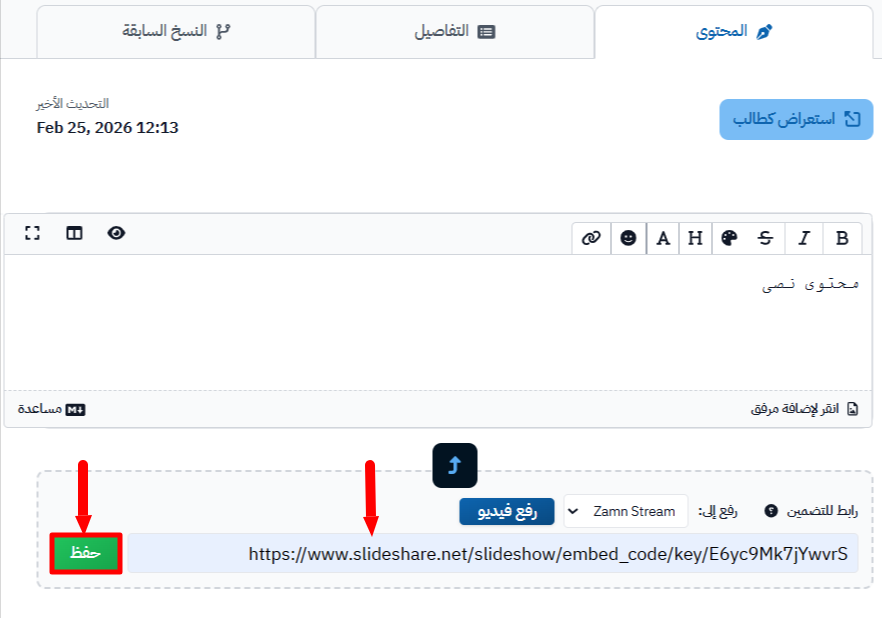
Embed a file from SlideShare
You can show a file that you uploaded to SlideShare (Word, PowerPoint or Excel) inside your course content, so your students can see it without leaving your platform. This article is for platform admins.
Steps to embed a SlideShare file in a course
After you upload the file to SlideShare, follow these steps:
-
Click View for the file.
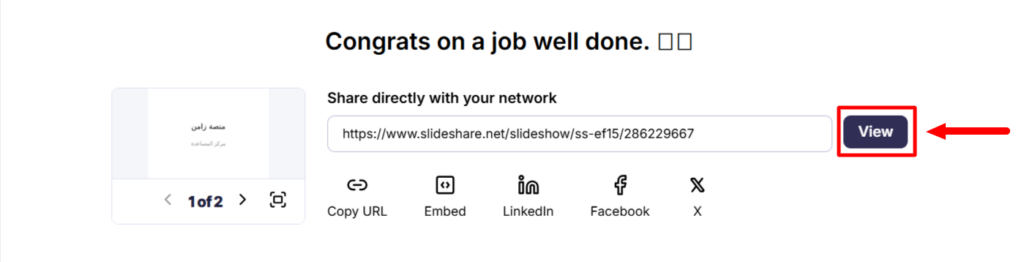
-
Click Embed.

-
Copy the link inside the
srcattribute of the embed code.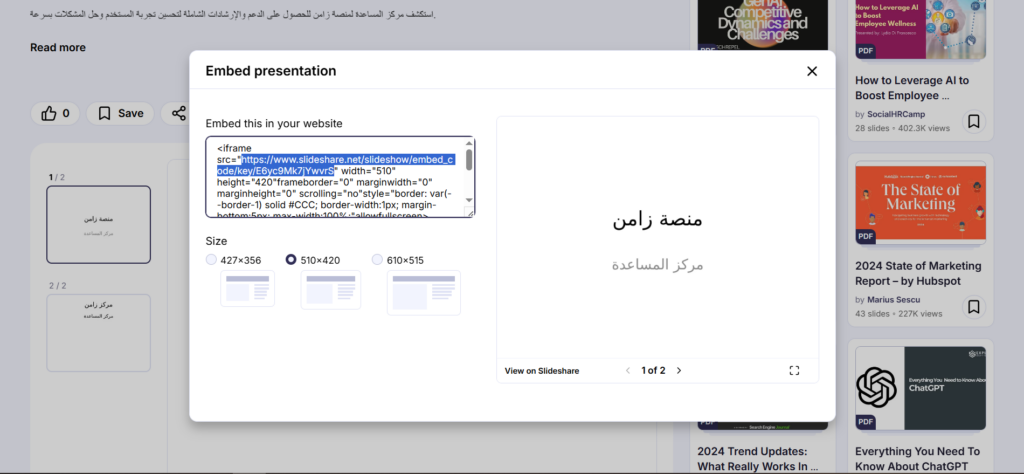
-
Go to your platform dashboard.
-
Go to the Courses page, then click Edit Curriculum on the course.
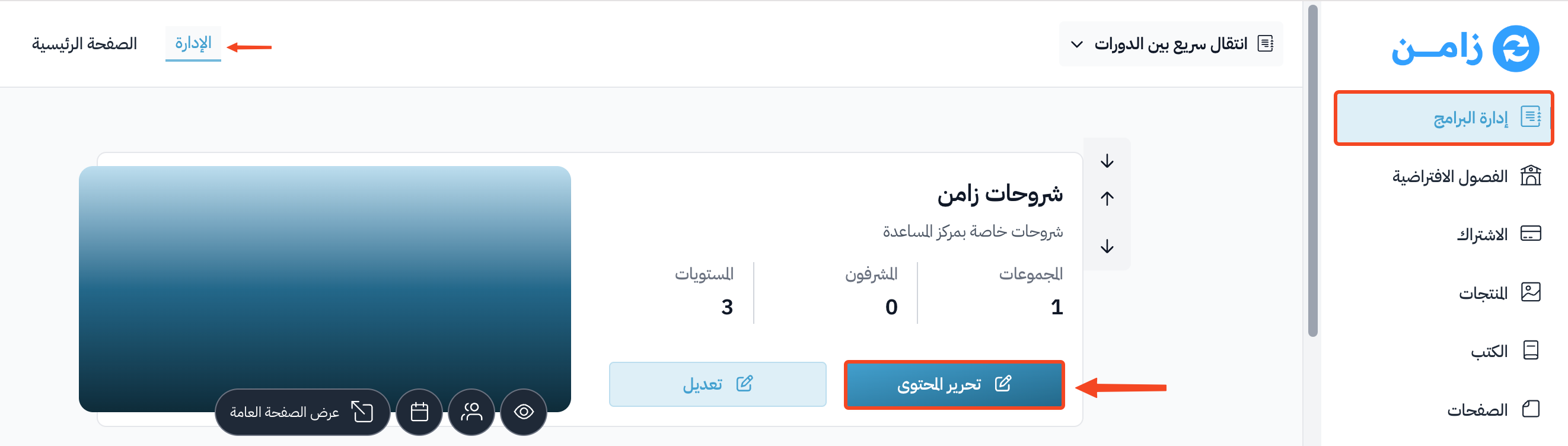
-
On the Curriculum page, open a target you already have, or type a title in the Create target box to make a new one.
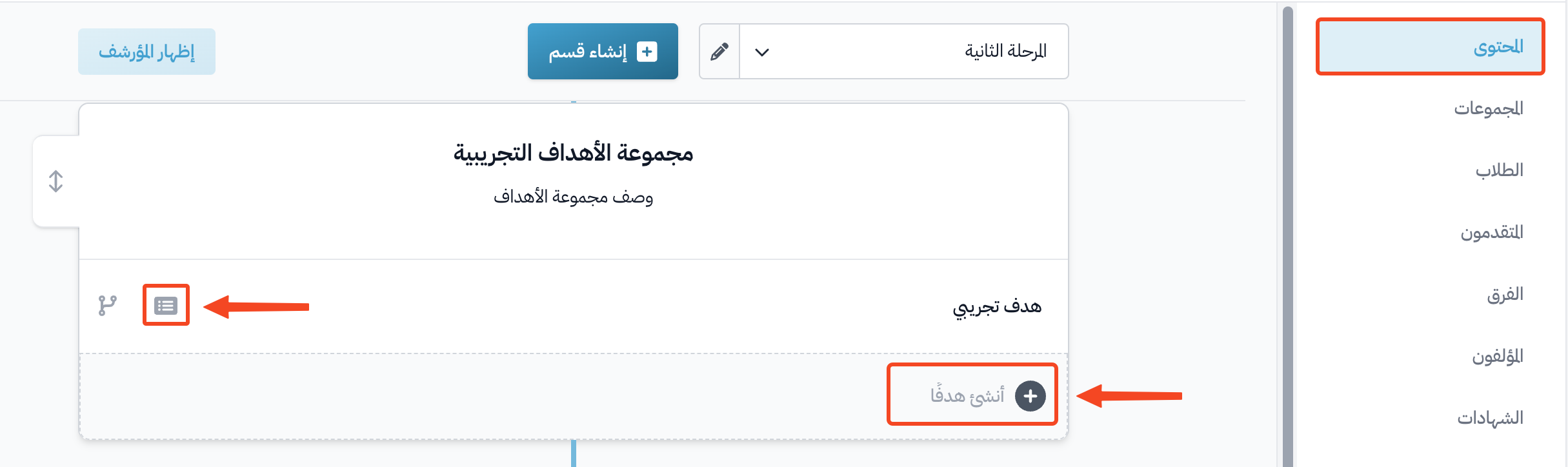
-
In the target's Content tab, click Embeded Link.
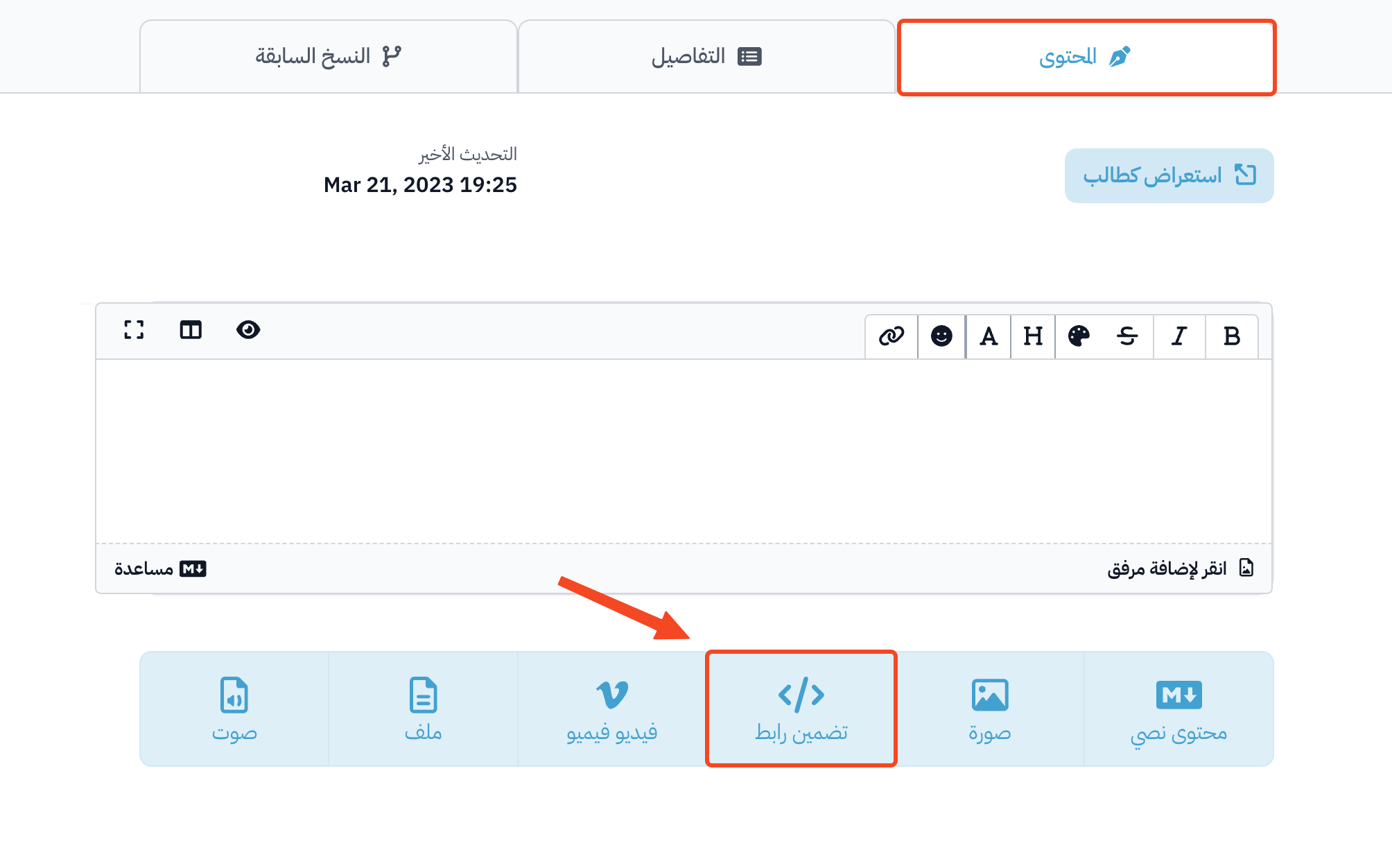
-
Paste the link in the URL to Embed field, then click Save.