Set a username and password for a user
You can set a username or change the password of any user from the platform dashboard. These steps are for platform admins.
Steps
-
Sign in to the platform dashboard.
-
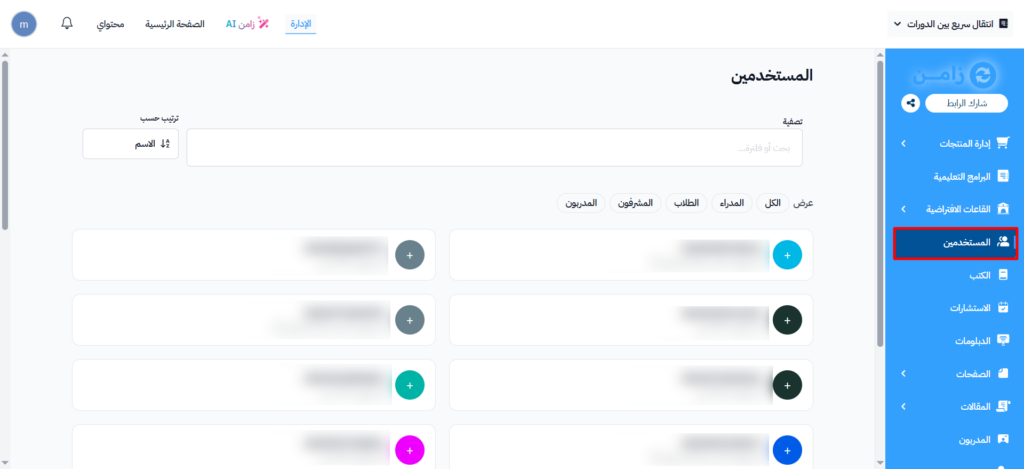
From the main menu, go to Users.
-
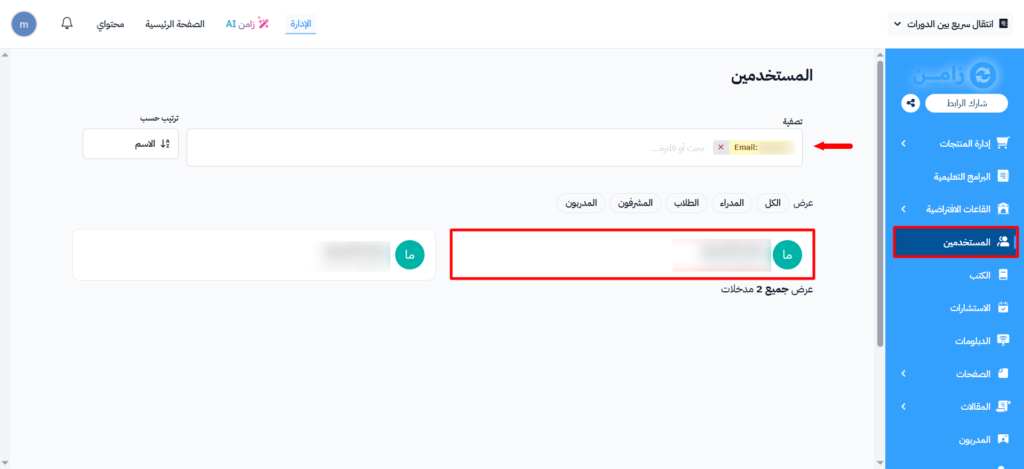
Find the user. You can search by name or email in the search box.
-
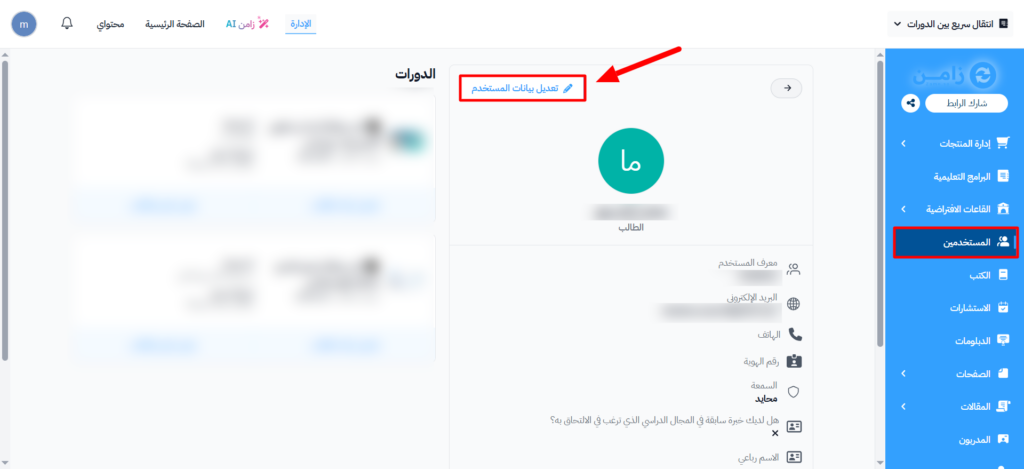
Click the ⋯ (Actions) button at the end of the user's row, then click Edit.
-
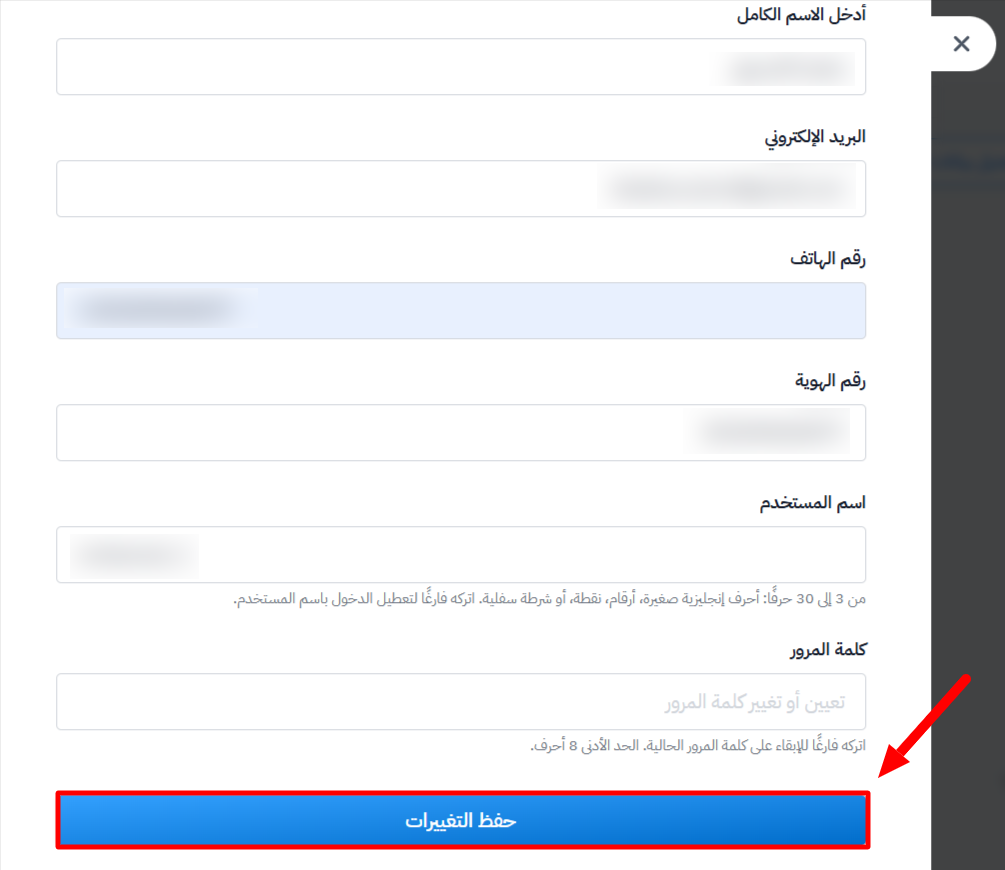
In the side panel, enter the Username and Password using these rules:
- Username:
- 3 to 30 characters.
- You can use lowercase English letters (a-z), numbers, dot (.) and underscore (_).
- Leave it blank to turn off sign-in with username.
- Password:
- At least 8 characters.
- Leave it blank if you do not want to change the current password.
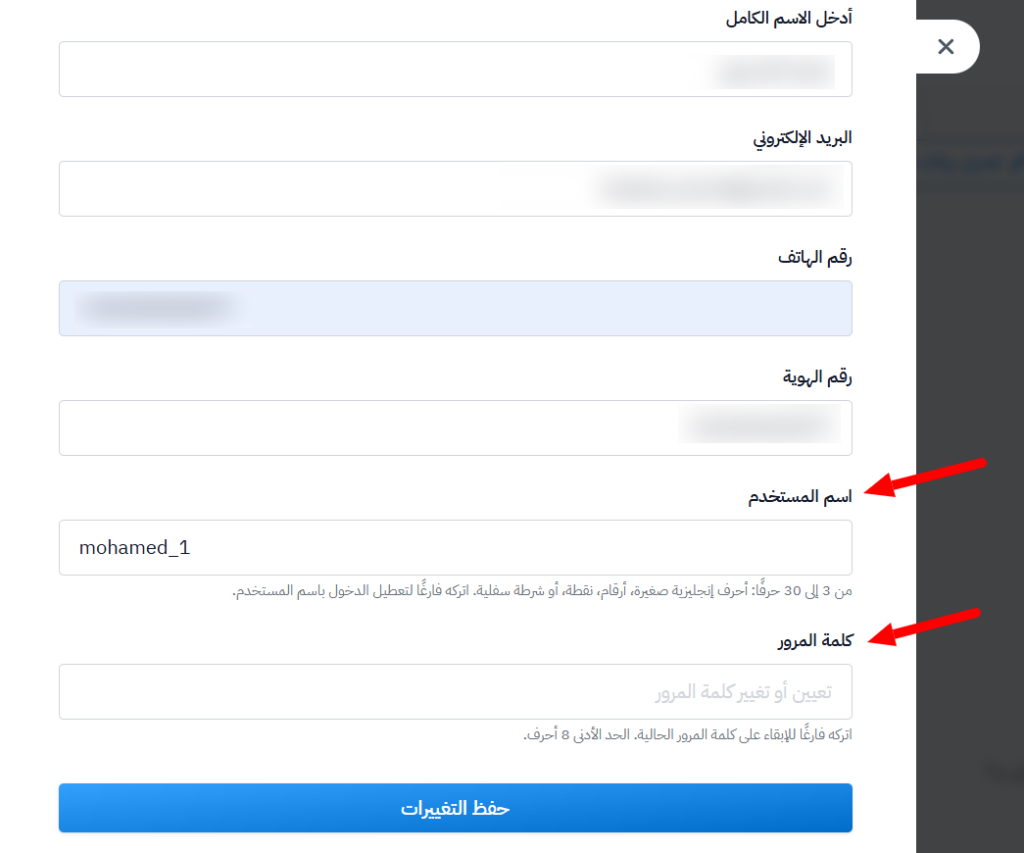
- Username:
-
Click Save Changes to apply your changes.