Add a virtual room link as a course target
If you are creating a course that uses live sessions, such as a Zoom meeting or a Zamn virtual room, you can easily link the room to a target in the course. These steps are for platform admins.
Steps
-
Open the target on the course Curriculum page, then go to the Details tab.
-
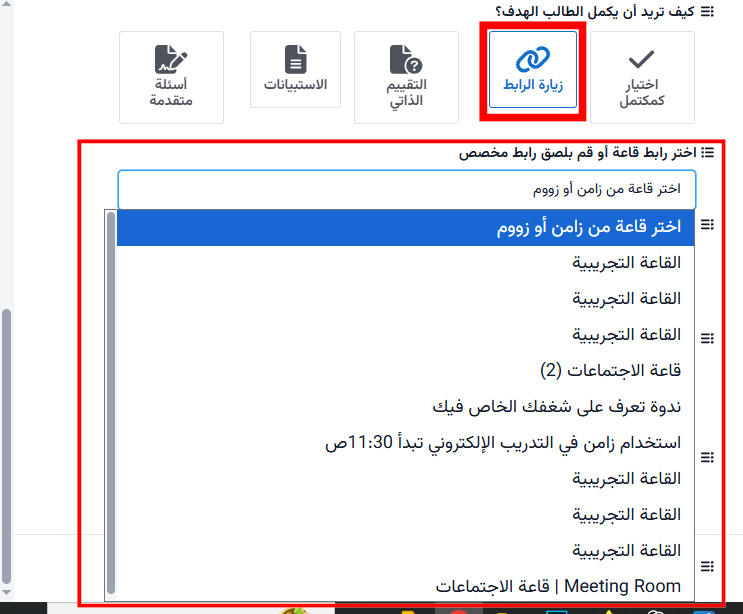
Under How do you want the student to complete the target?, choose Visit a link to complete the target.
-
A drop-down list named Choose room link or paste a custom link shows. This list has all the rooms you created in Zamn.
-
Choose the room you want. Its link is added by itself in the Link to complete field.
-
Click Update Target to save your changes.
This feature lets you link your course to live sessions quickly and correctly, with no need to copy links by hand. This makes managing content easier and saves you time.