Alert students when you publish a new target
This article shows how to alert the students of a course about a new task. They get the alert when you publish a new target in the course. This feature is for platform admins.
Steps to send the alert
-
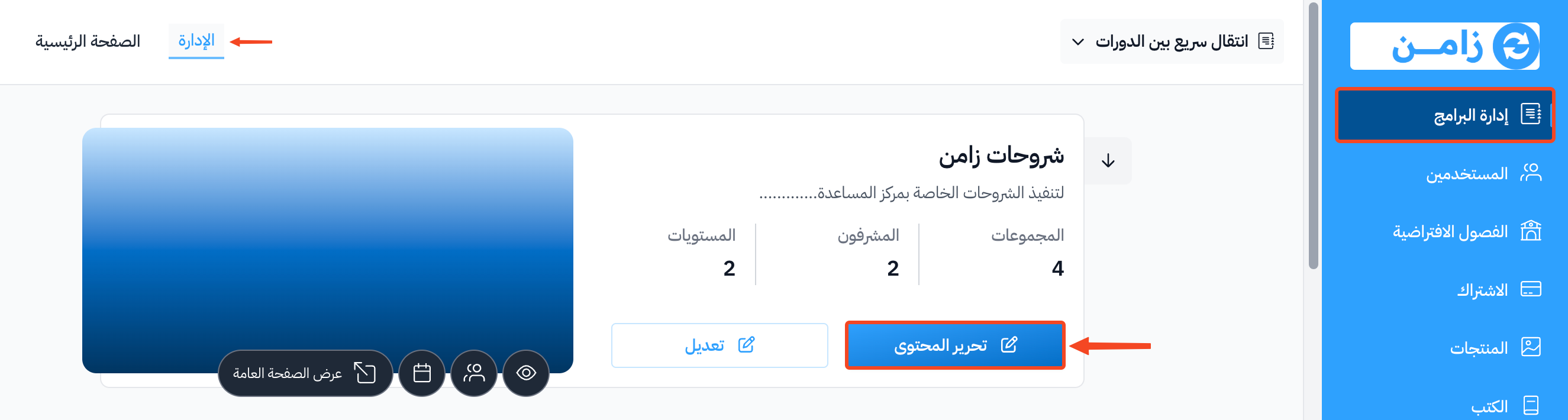
In your dashboard, go to the Courses page, then click Edit Curriculum on the course.
-
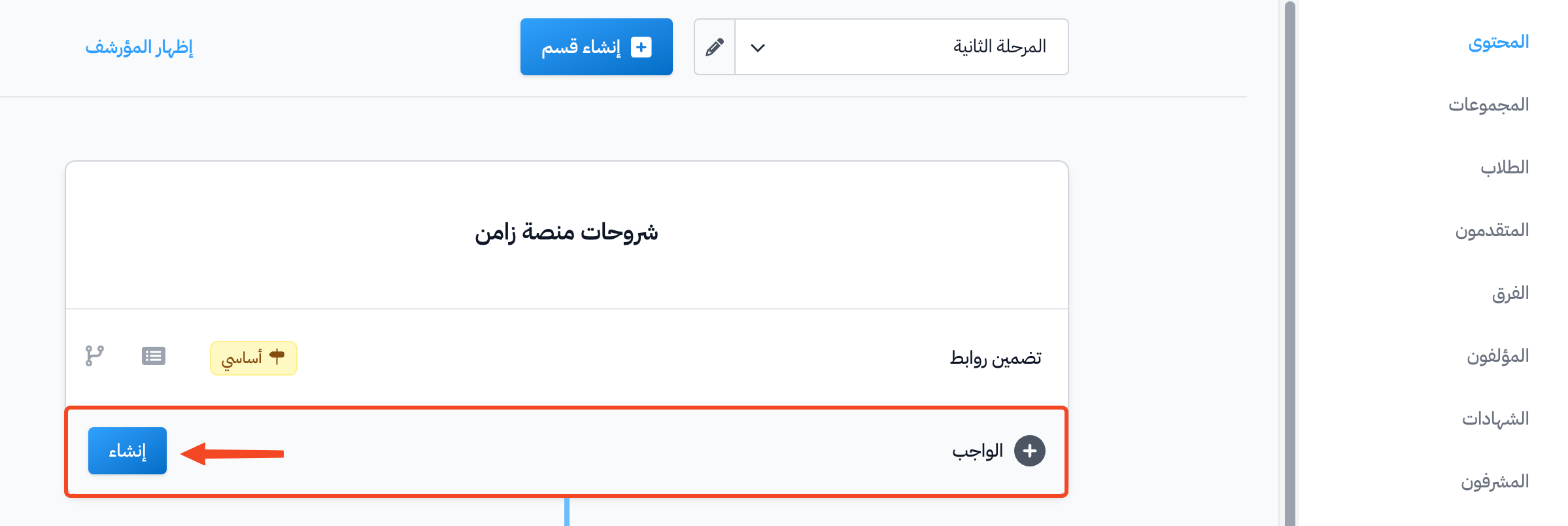
Under the target group, type the target title in the Create target box, then click Create.
-
Add the target content and details.
-
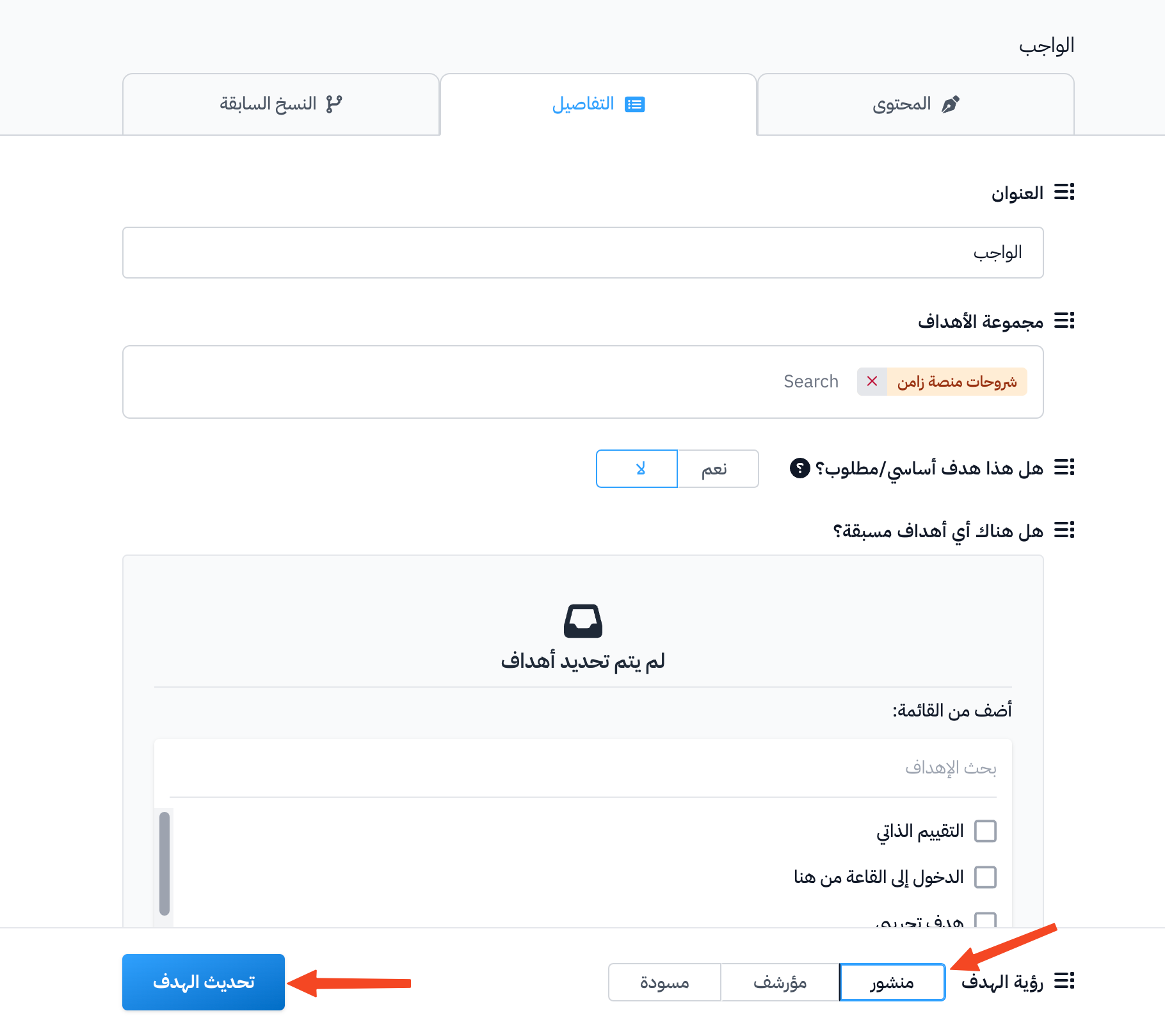
In the Details tab, choose Live next to Target Visibility, then click Update Target. An alert about the new target is then sent to the course students.
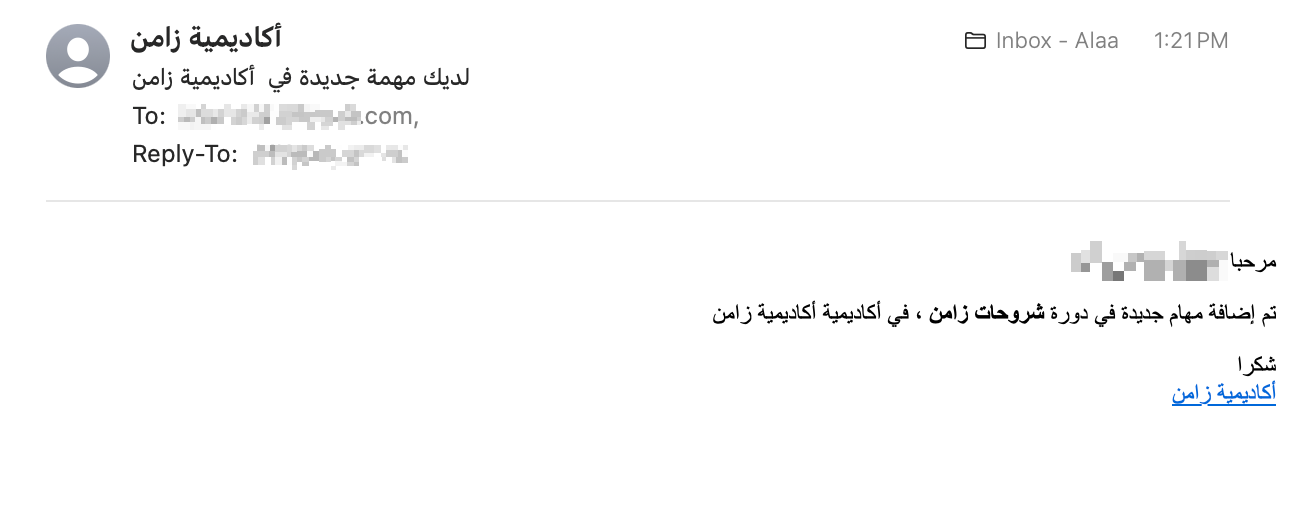
Students get the alert in the platform notifications, and they may also get it by email, as in the picture below:
Note
- The alert is sent only once, when the target status changes to Live. Editing a target that is already live does not send a new alert.
- Alerts work on the Pro plan or during the free trial.