Self-evaluations and quizzes
Self-evaluation quizzes help students check that they understand. As soon as students finish the quiz, they see their right and wrong answers, with no need for a coach to review or step in.
How to create a self-evaluation quiz
-
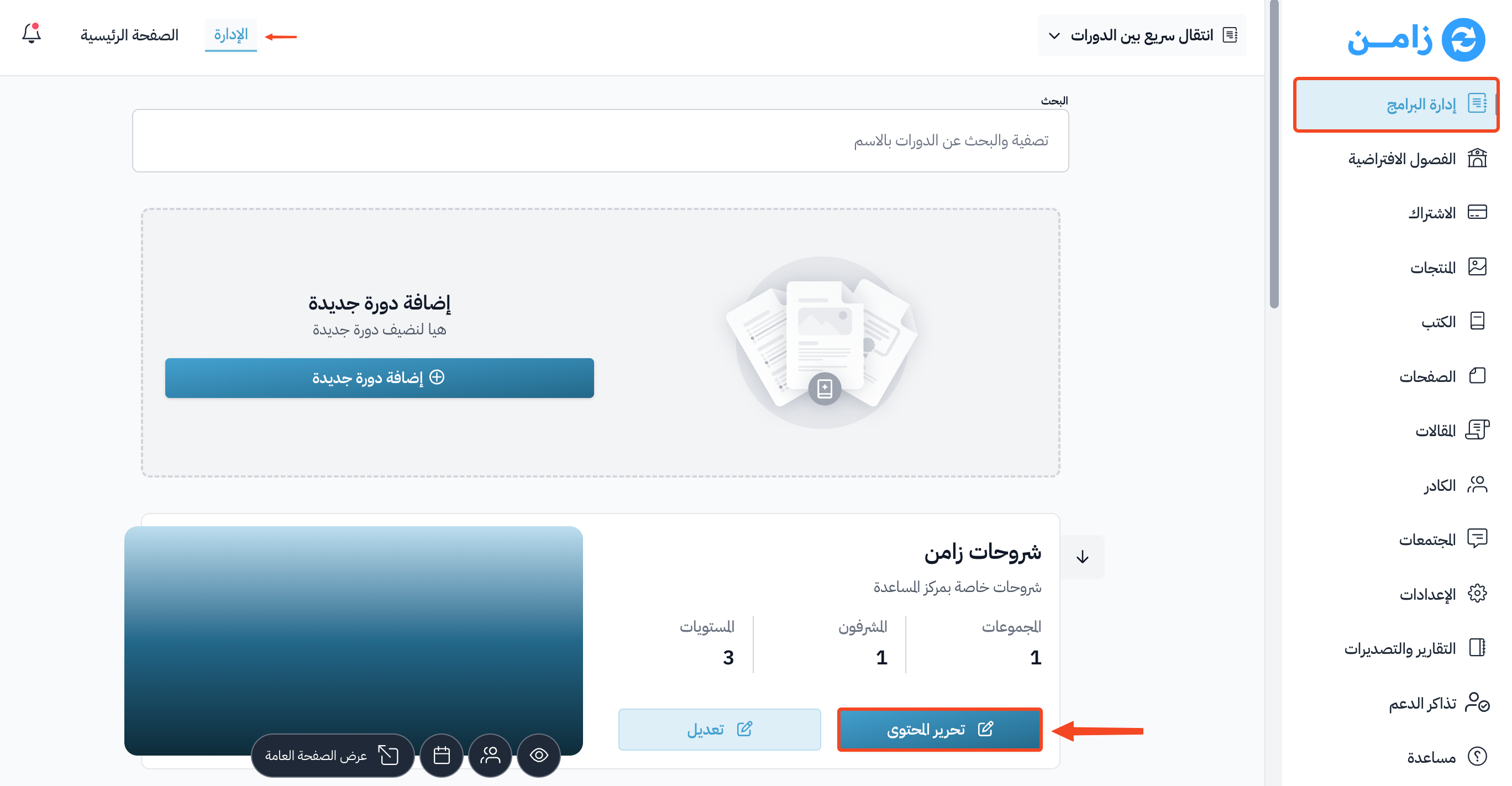
On the Courses page, click Edit Curriculum on the course.
-
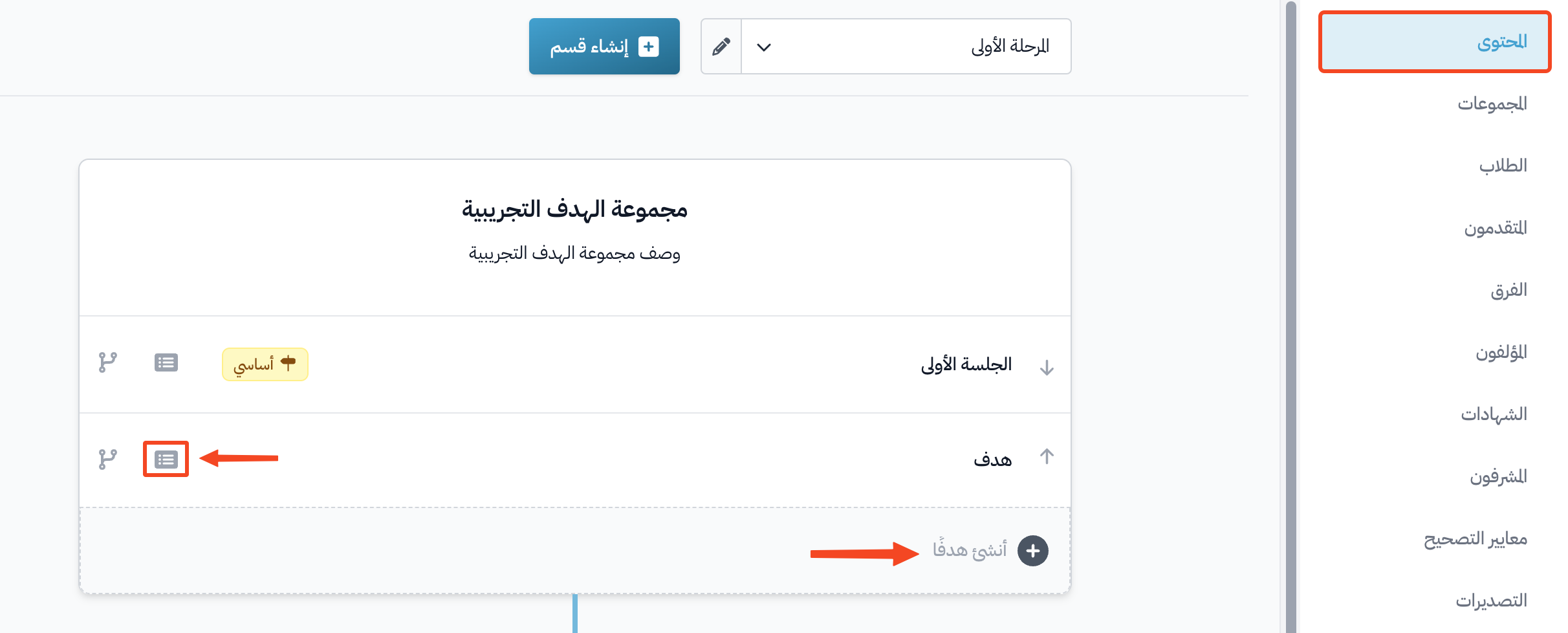
On the course Curriculum page, create a new target with Create target, or click the details icon on an existing target.
-
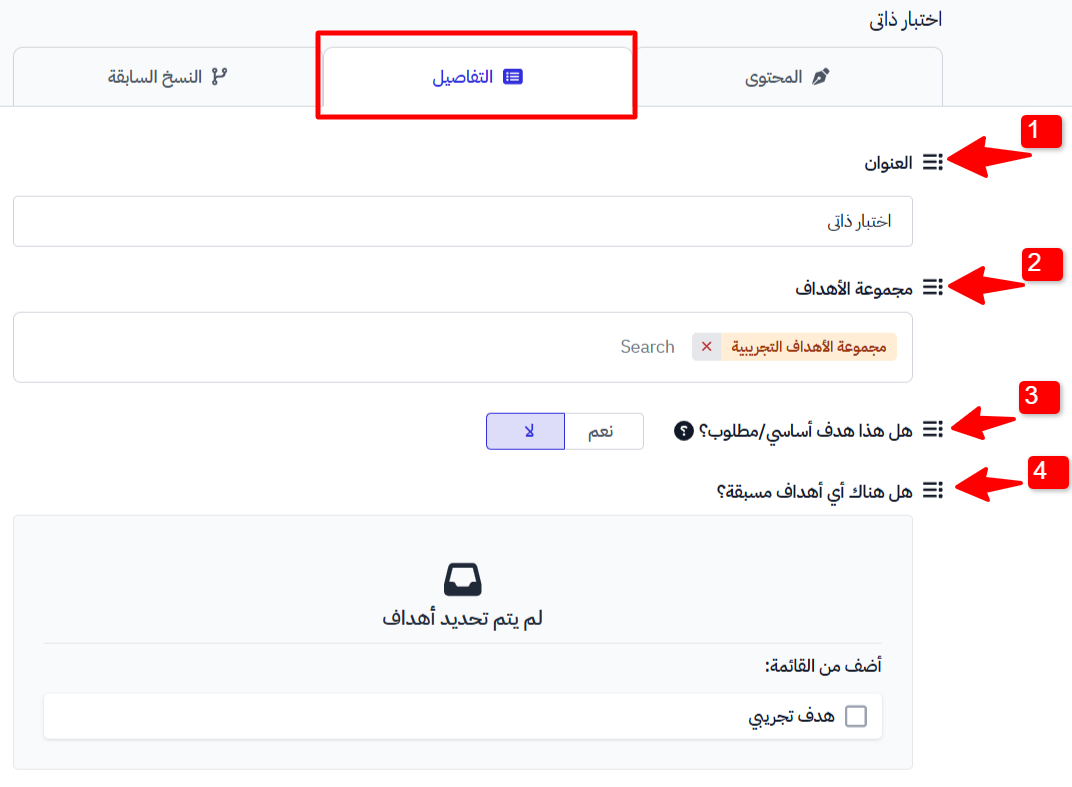
On the target's Details tab, set:
- Title: the target name.
- Target Group: change it, or leave it as it is if you do not need to change it.
- Milestone target: turn it on if the target is a milestone.
- Are there any prerequisite targets?: choose the prerequisite targets, or leave them as they are if you do not need to change them.
-
Under How do you want the student to complete the target?, choose Self-evaluation or Quiz.

-
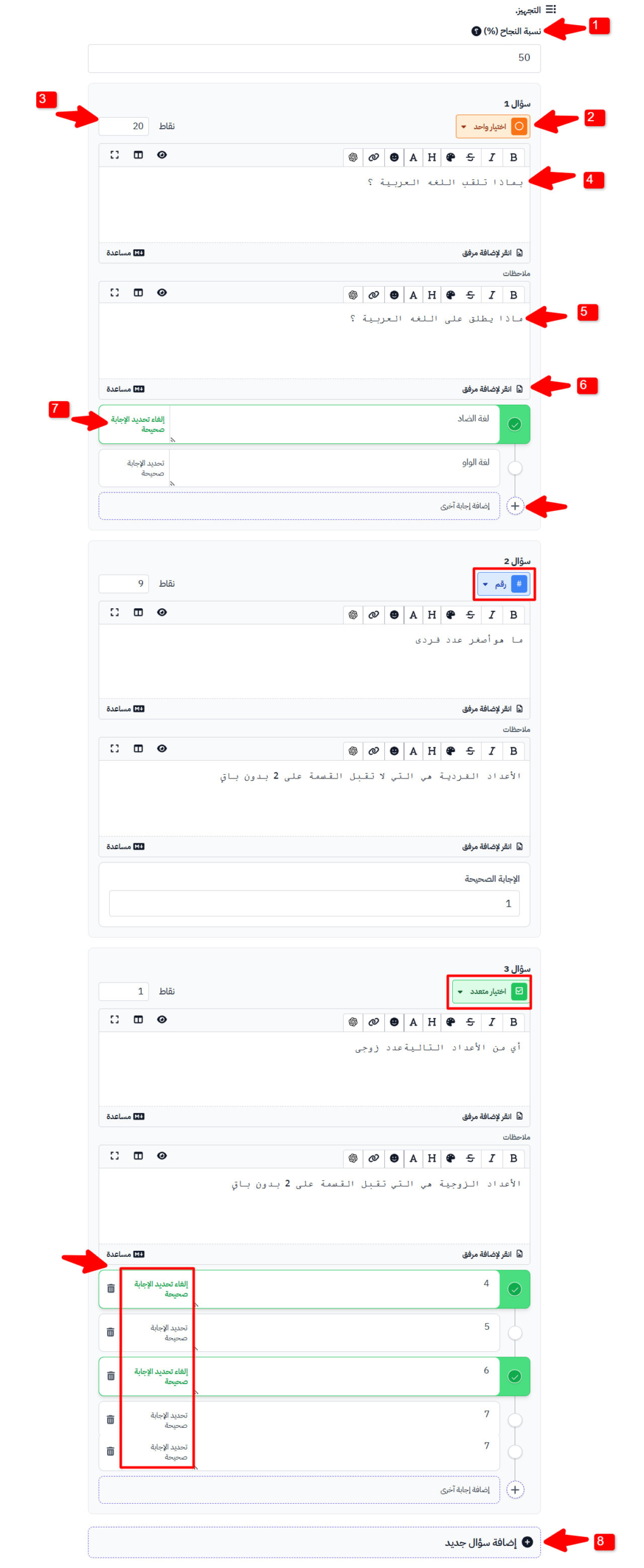
Add the quiz questions:
- Set the Passing Percentage (%) for the quiz, or leave it at 0 if you do not need one.
- Choose the question type: Single Choice, Multiple Choice or Number. Learn more.
- Enter the Points for the question if you set a passing percentage in the first step.
- Type the question.
- Add Feedback for the question if you have any, or leave it empty.
- Add attachments if the question needs them.
- Add the answers, and mark the correct answer.
- Add more questions the same way with Add another question.
-
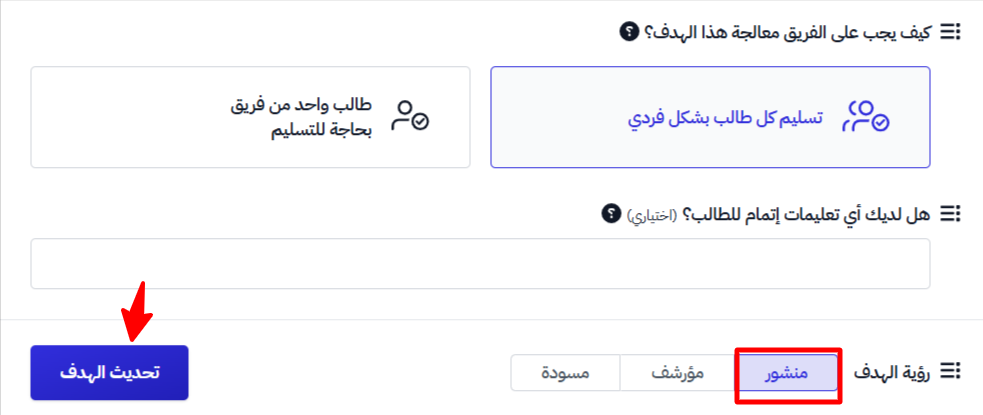
Choose how teams submit the target, under How should teams tackle this target?.
-
Add completion instructions for the student if you have any, under Do you have any completion instructions for the student?.
-
Choose Live under Target Visibility.
-
Click Update Target.