Embed ScribeHow guides in course content
What is ScribeHow?
ScribeHow is a platform for making and sharing step-by-step guides. You record the steps you take on your computer, and it turns them into a detailed guide with screenshots, text and notes. You can then edit the guide, and share it or embed it in your course content on your Zamn platform.
How to use ScribeHow
- Create an account on ScribeHow.
- Create the guide and edit it.
- Share the guide and embed it in your course content.
Create a ScribeHow account
-
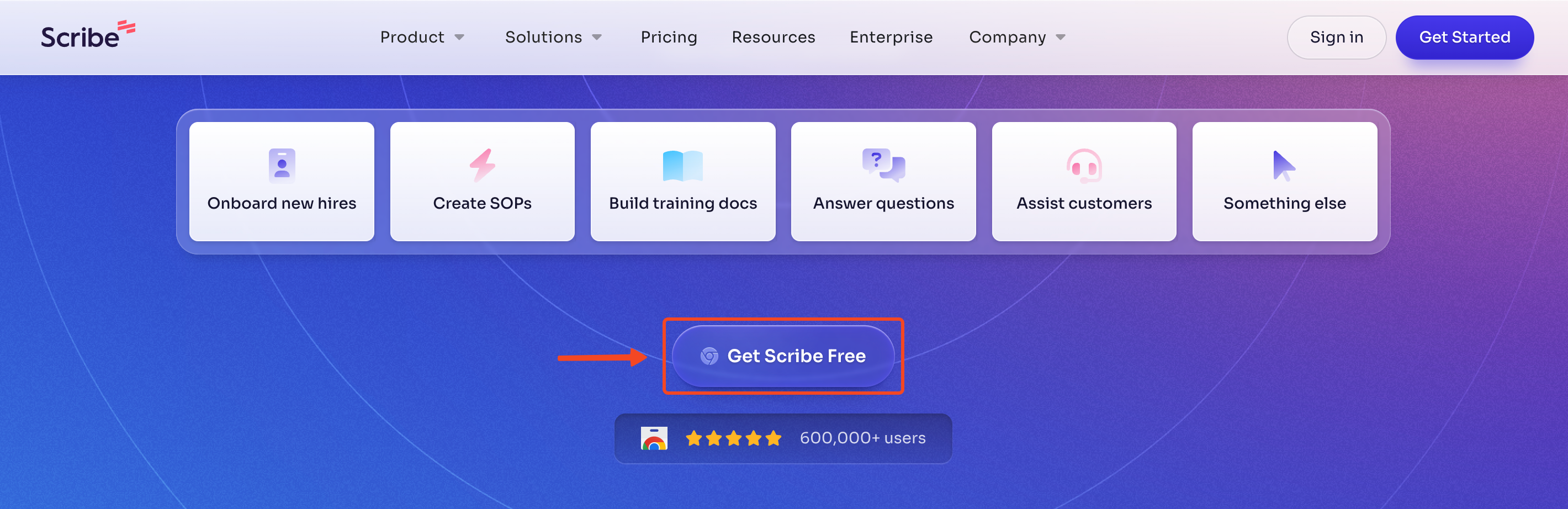
On the ScribeHow website, click "Get scribe free".
-
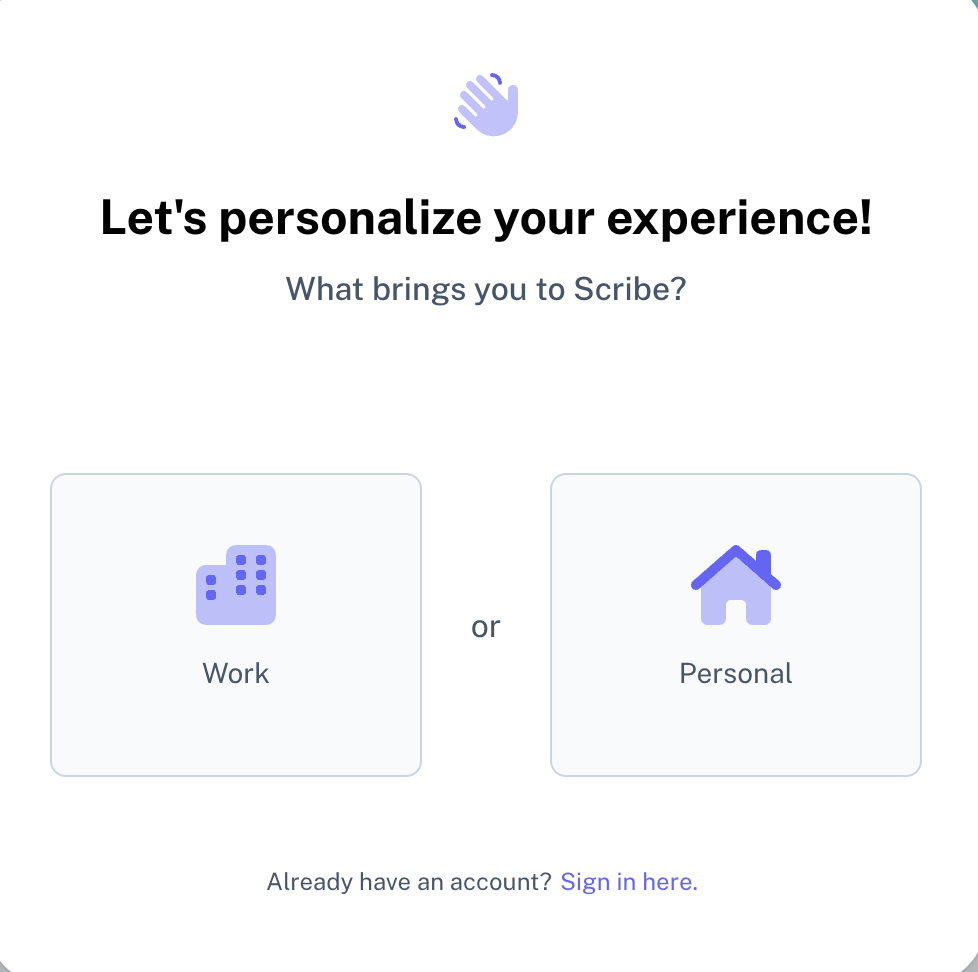
Choose why you will use the platform: personal or for work.
-
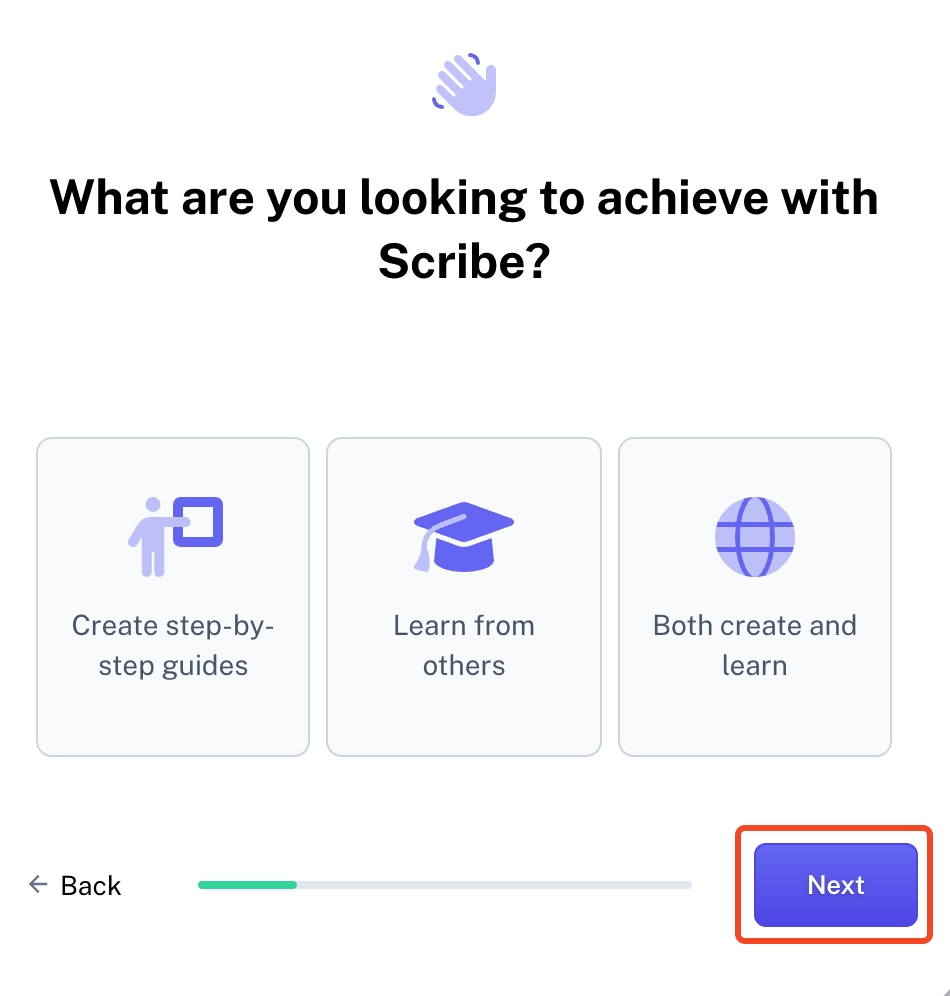
Finish the next steps by choosing one of the suggested options, or skip them by clicking "Next".
-
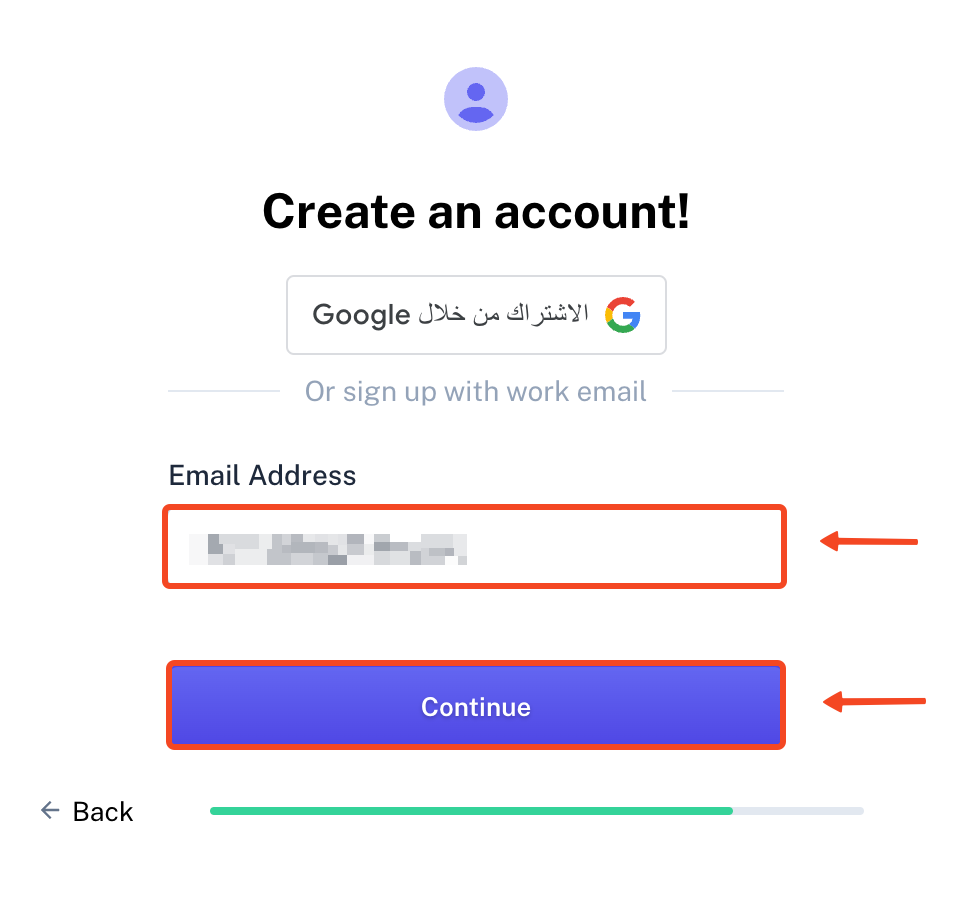
Type your email, then click "Continue".
-
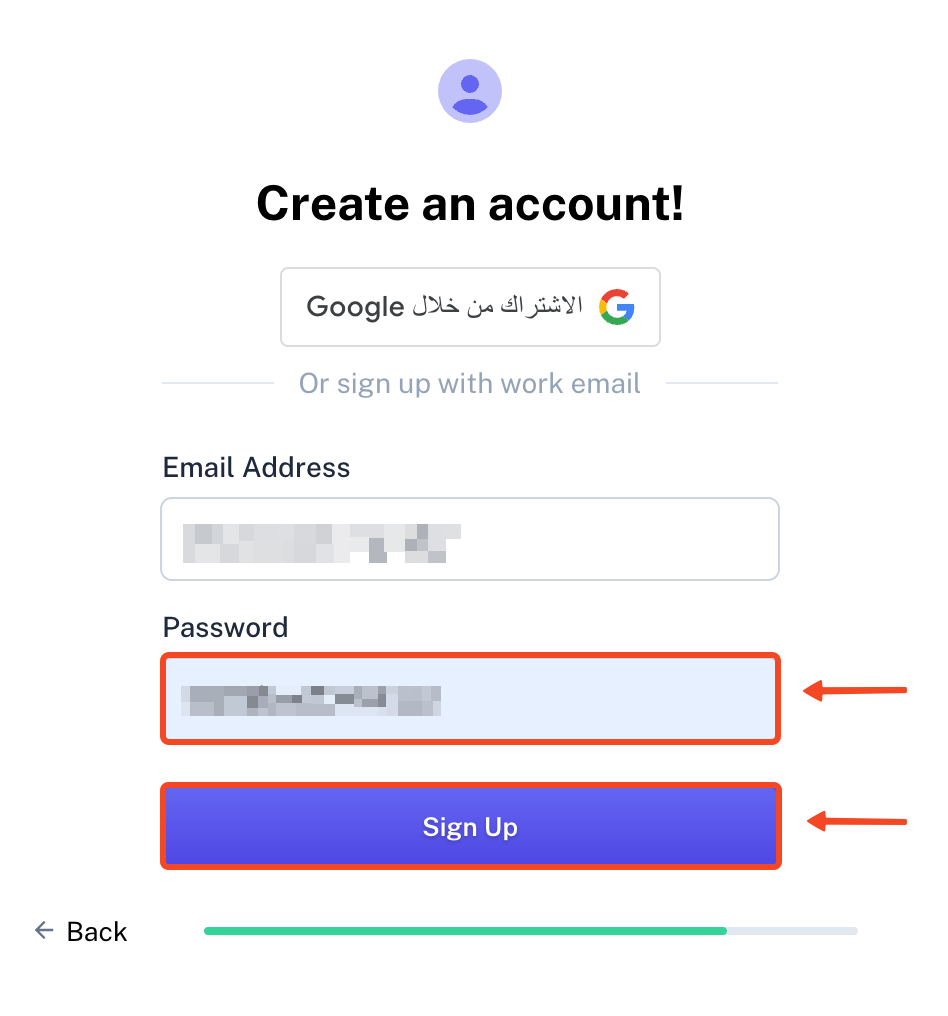
Type a password for the account, then click "Sign Up". You get an email to verify your account.
-
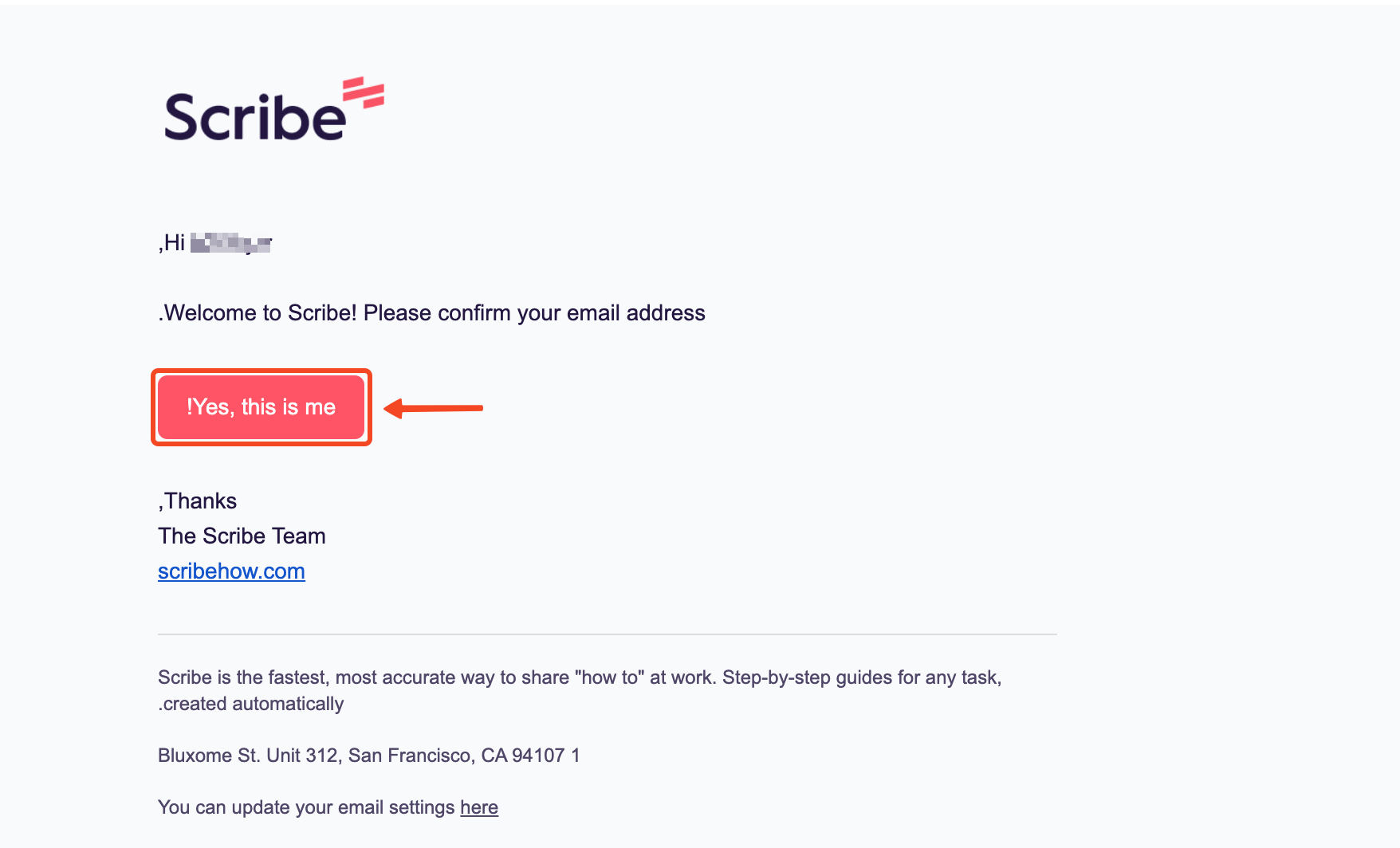
Open the email that Scribe sent you, and click "Yes, this is me" to verify your account.
-
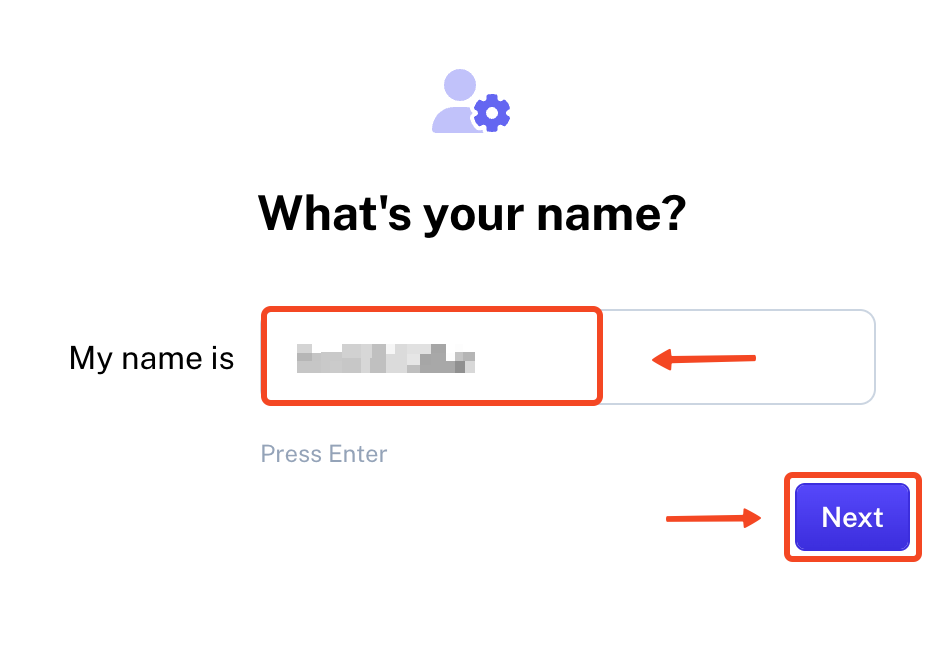
Type your full name, then click "Next".
-
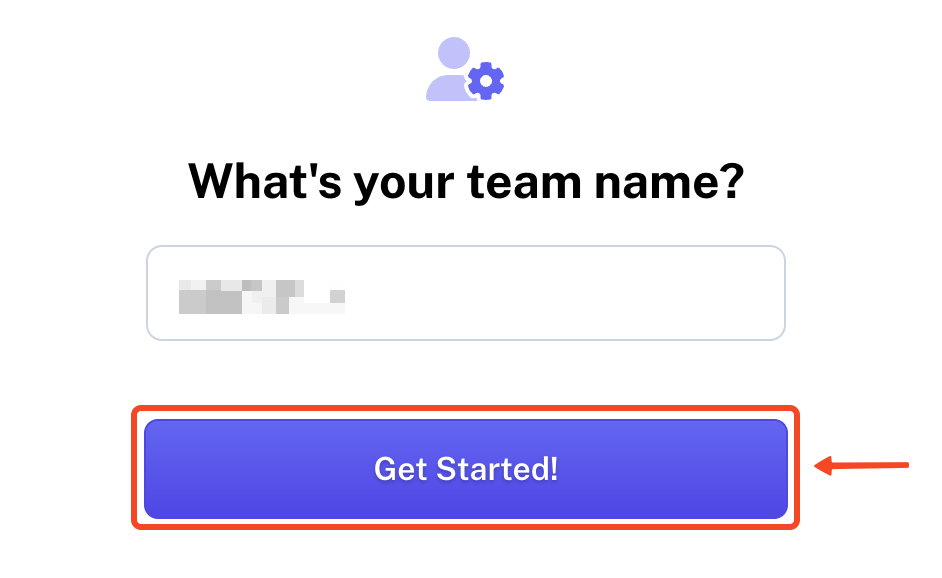
Type your team name, then click "Get Started!".
-
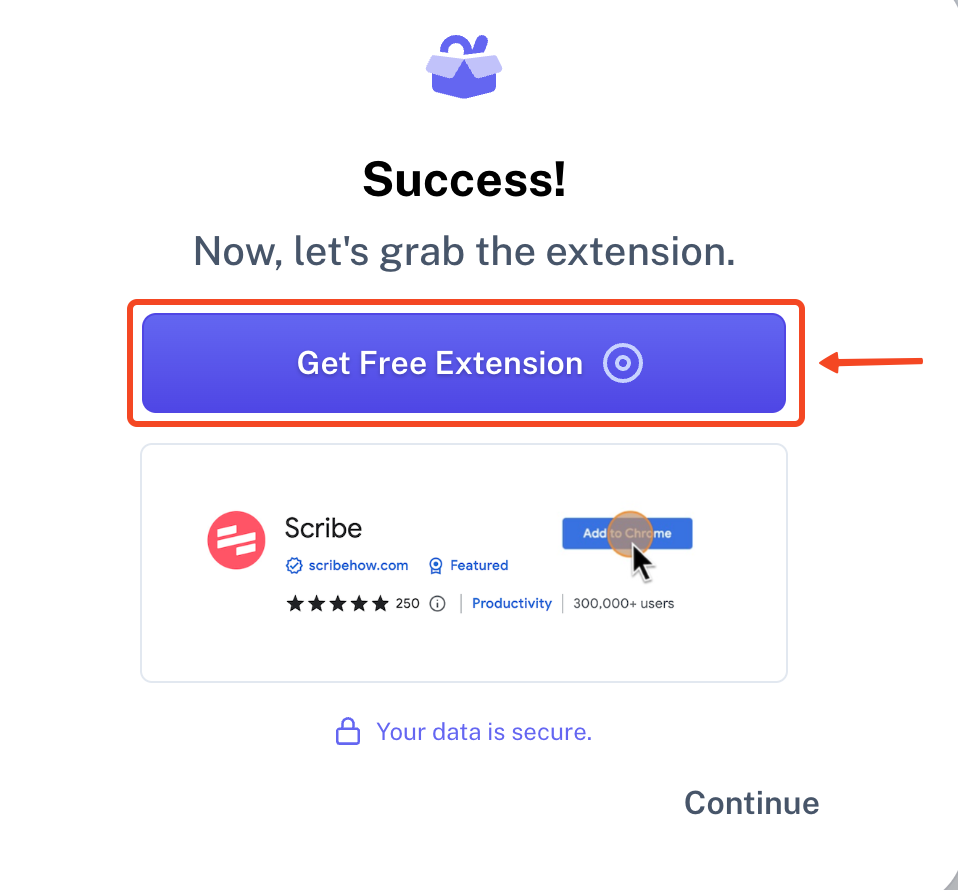
Install the Scribe browser extension by clicking "Get Free Extension".
NoteThe Scribe extension is only available for the Chrome and Microsoft Edge browsers.
-
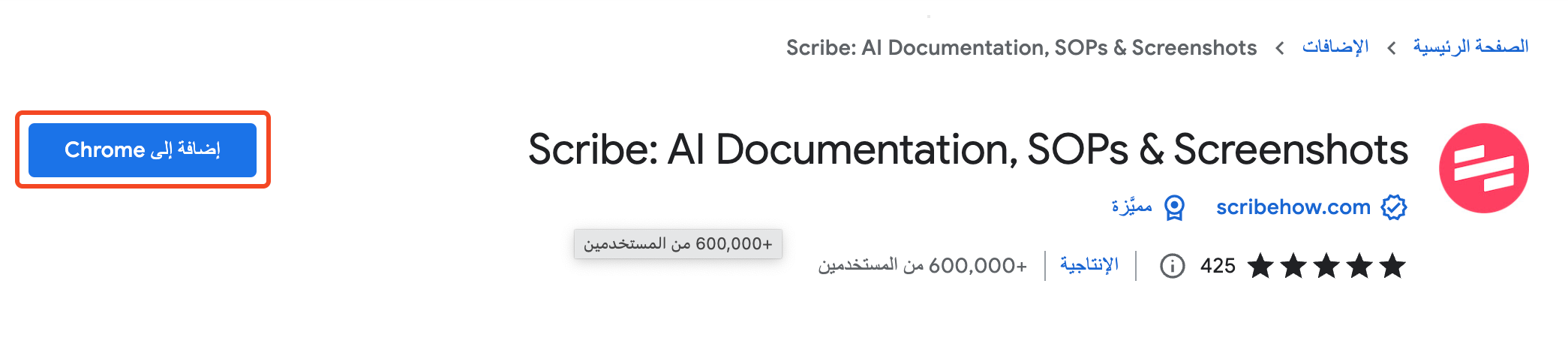
Click "Add to Chrome".
-
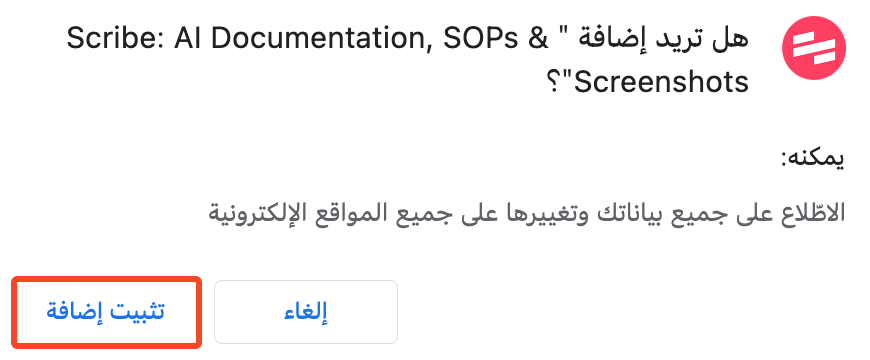
Choose "Add extension".
Create the guide
-
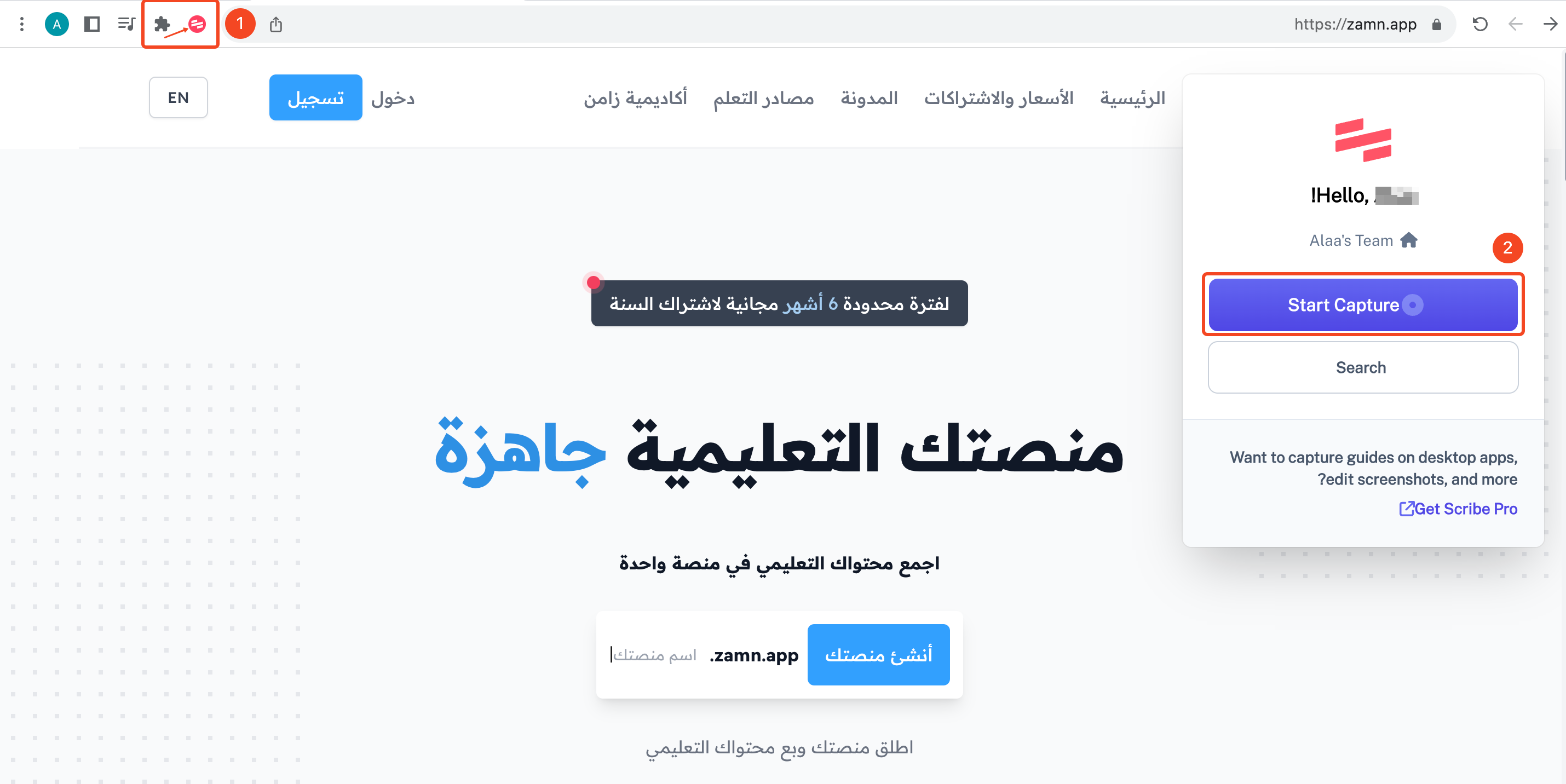
Click the Scribe icon in your browser extensions.
-
Click "Start Capture" to start recording your steps.
-
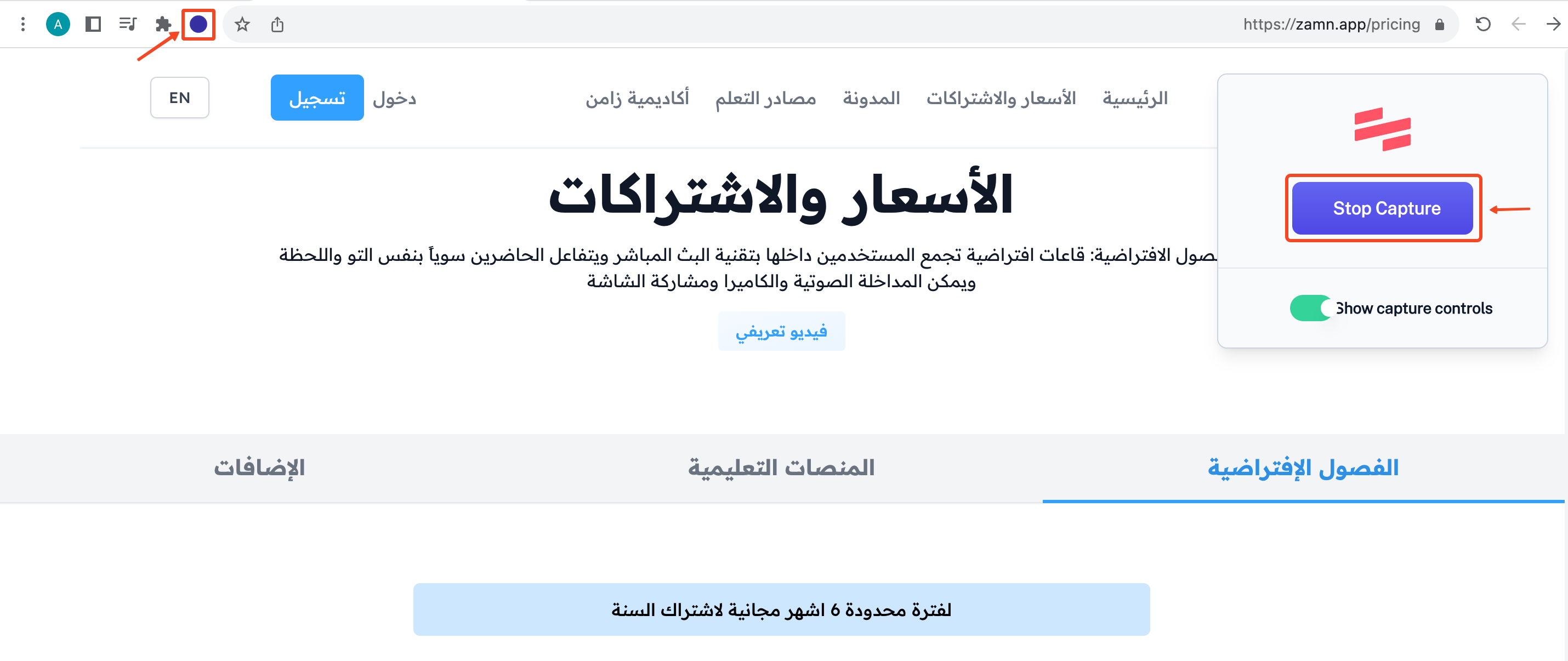
When you finish, click the Scribe icon in your extensions again (it shows that it is recording, as in the screenshot).
-
Click "Stop Capture" to stop recording.
-
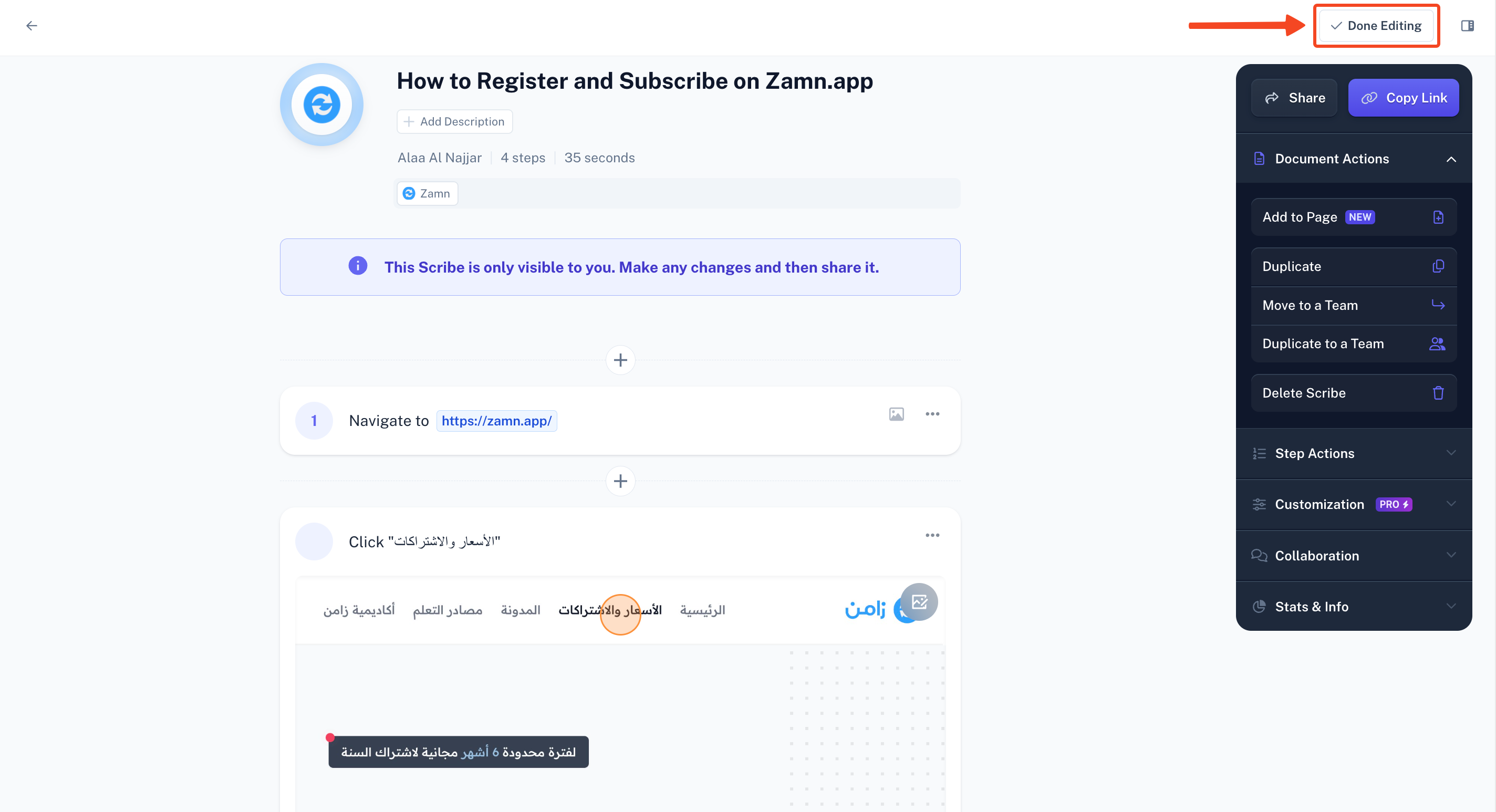
Edit the guide as you like.
-
Click "Done Editing" to save.
Share the guide and embed it in your course content
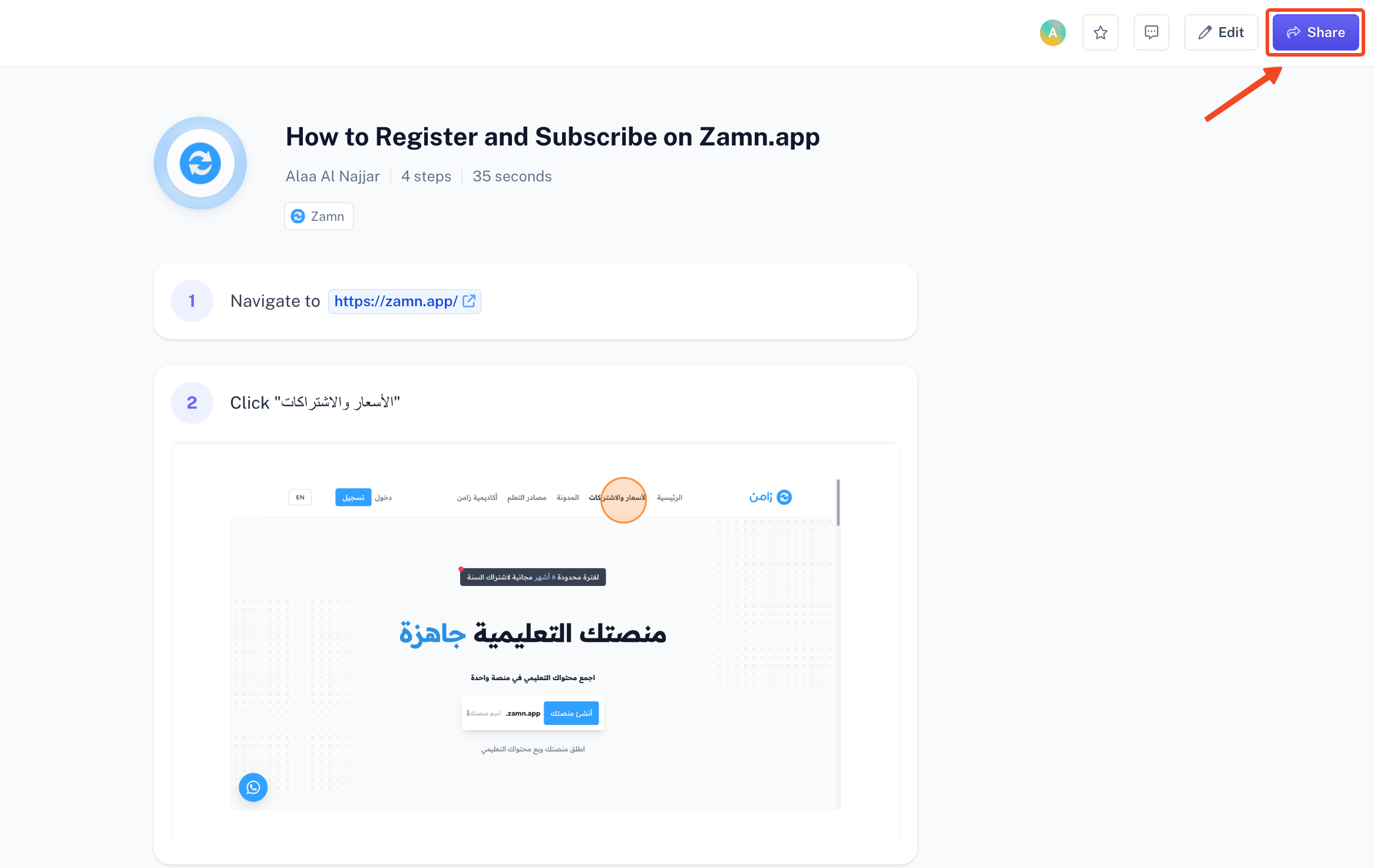
After you save your changes:
-
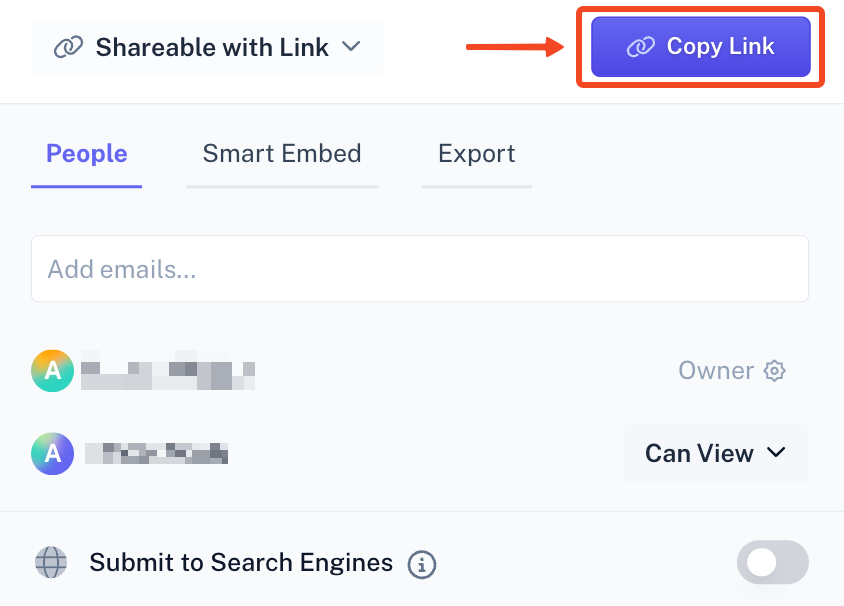
Click "Share".
-
Click "Copy link" to copy the link.
-
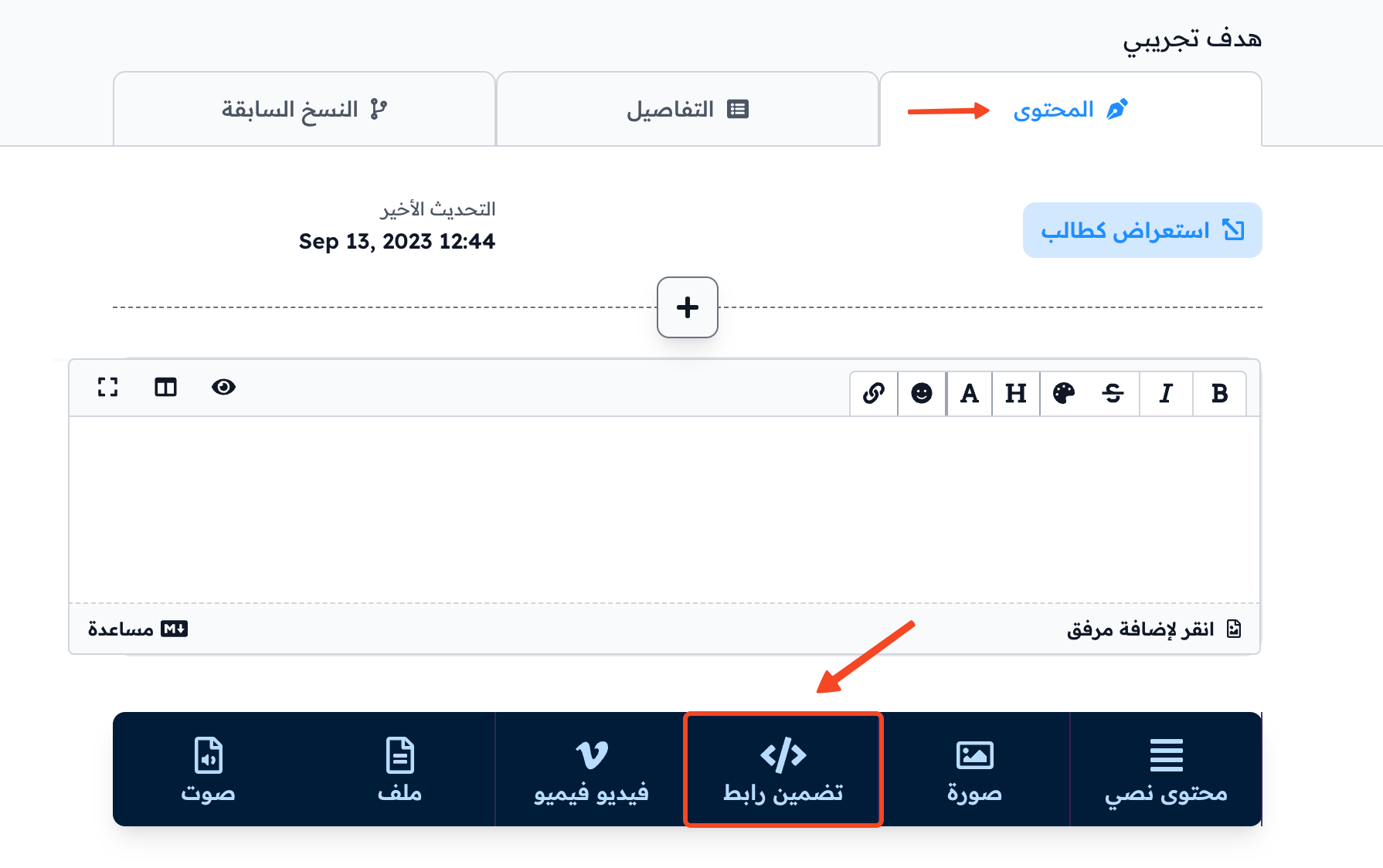
On your platform, open the target from the course Curriculum page.
-
On the target's Content tab, click Embeded Link.
-
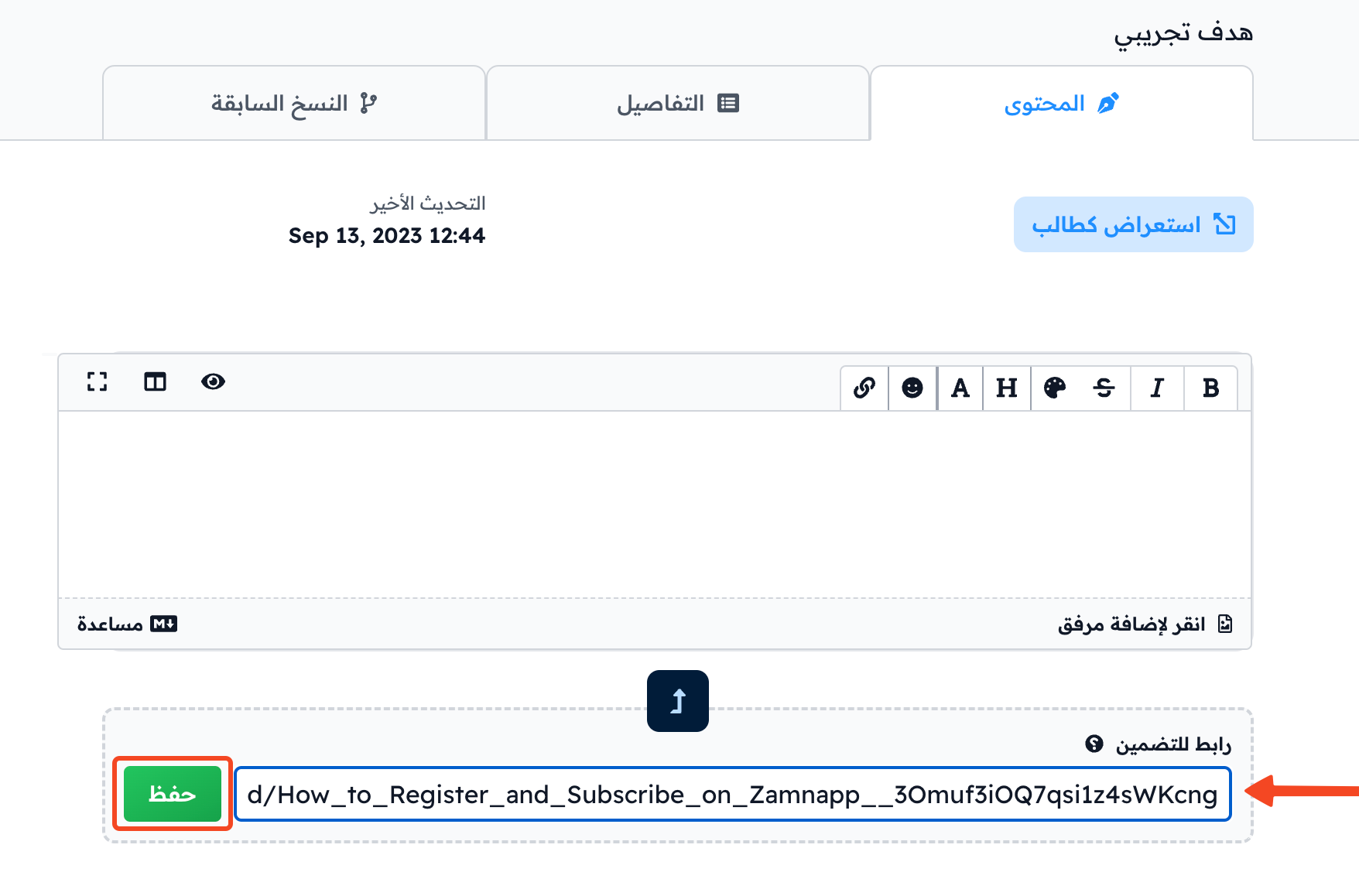
Paste the link in the URL to Embed field, then click Save.
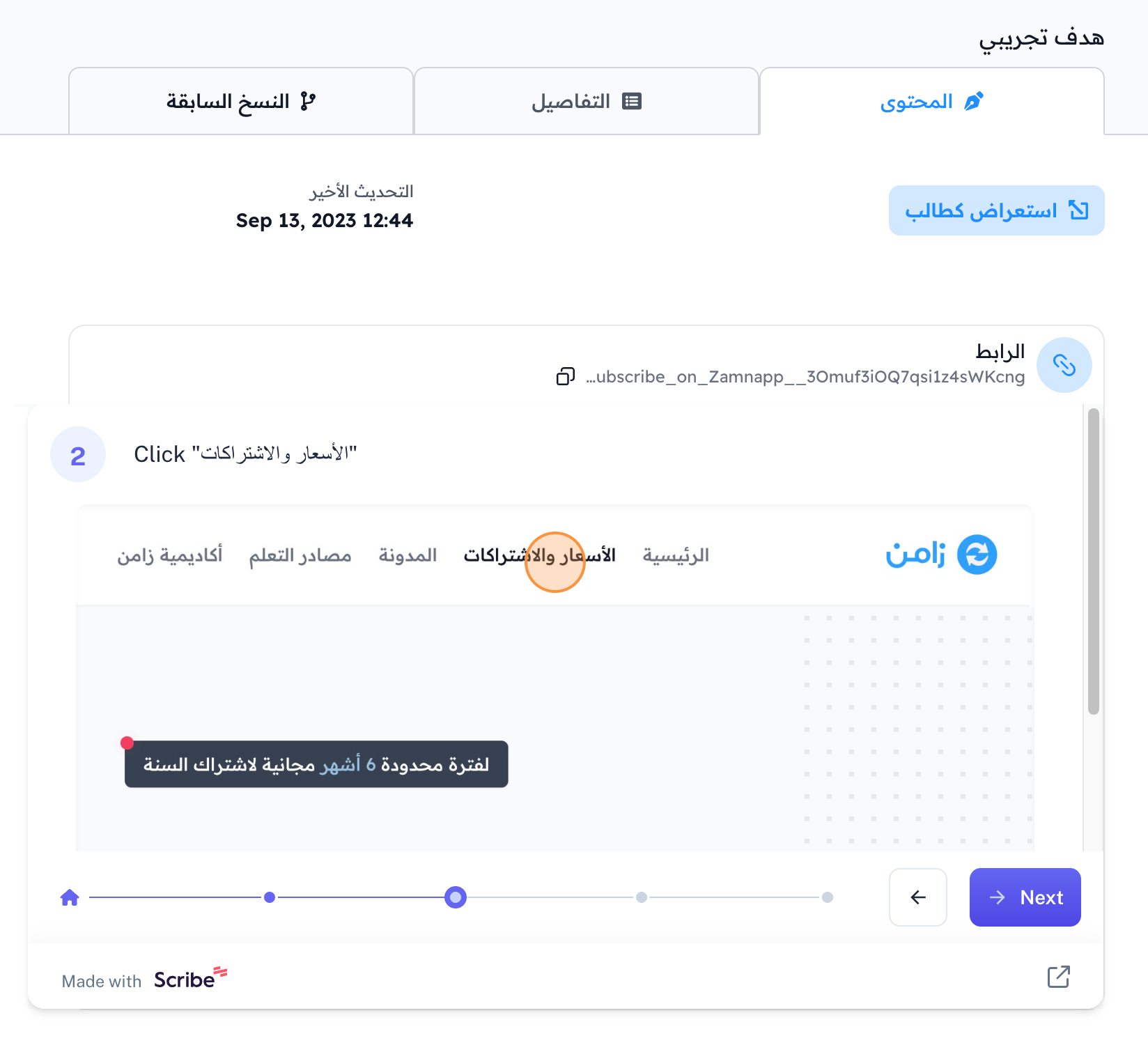
Example from the student's view