Turn on standings on your platform
Standings show how well students follow the rules of behavior on your platform. Good actions raise a student's standing, and bad behavior lowers it. This guide is for the platform admin.
How to turn on standings on your platform
-
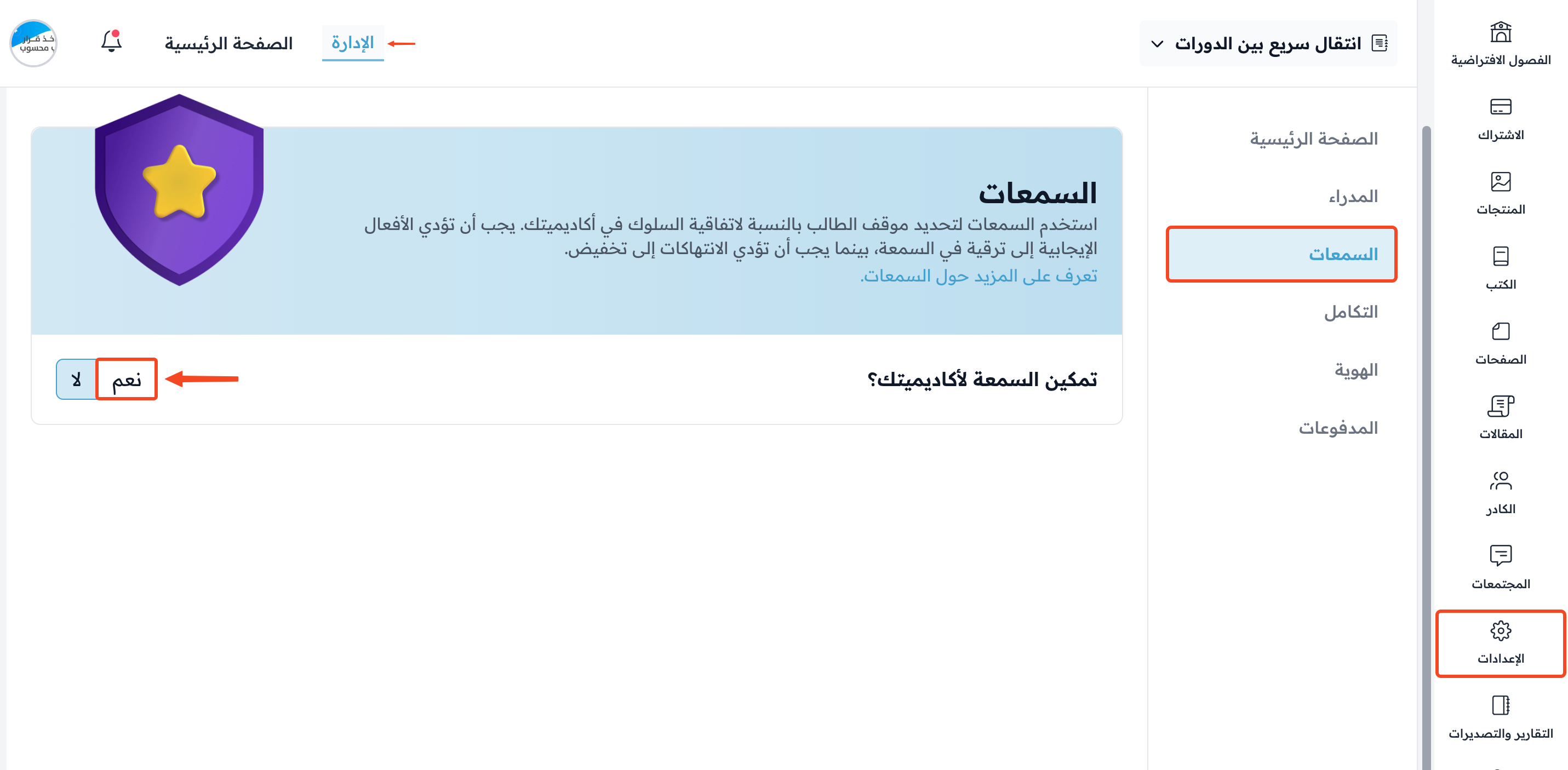
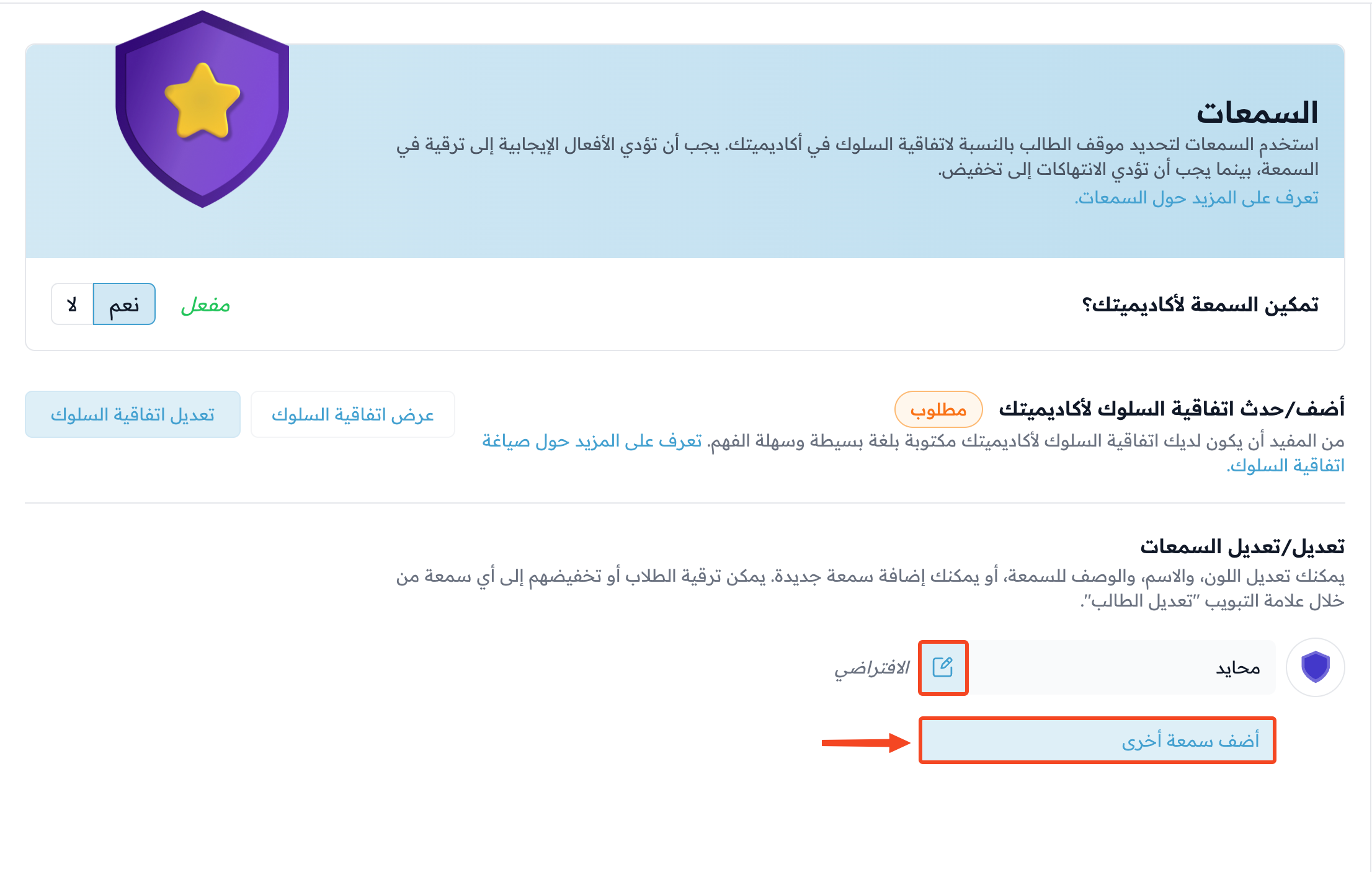
From the dashboard, click Settings, then click Standing.
-
Click Yes next to Enable standing?.
-
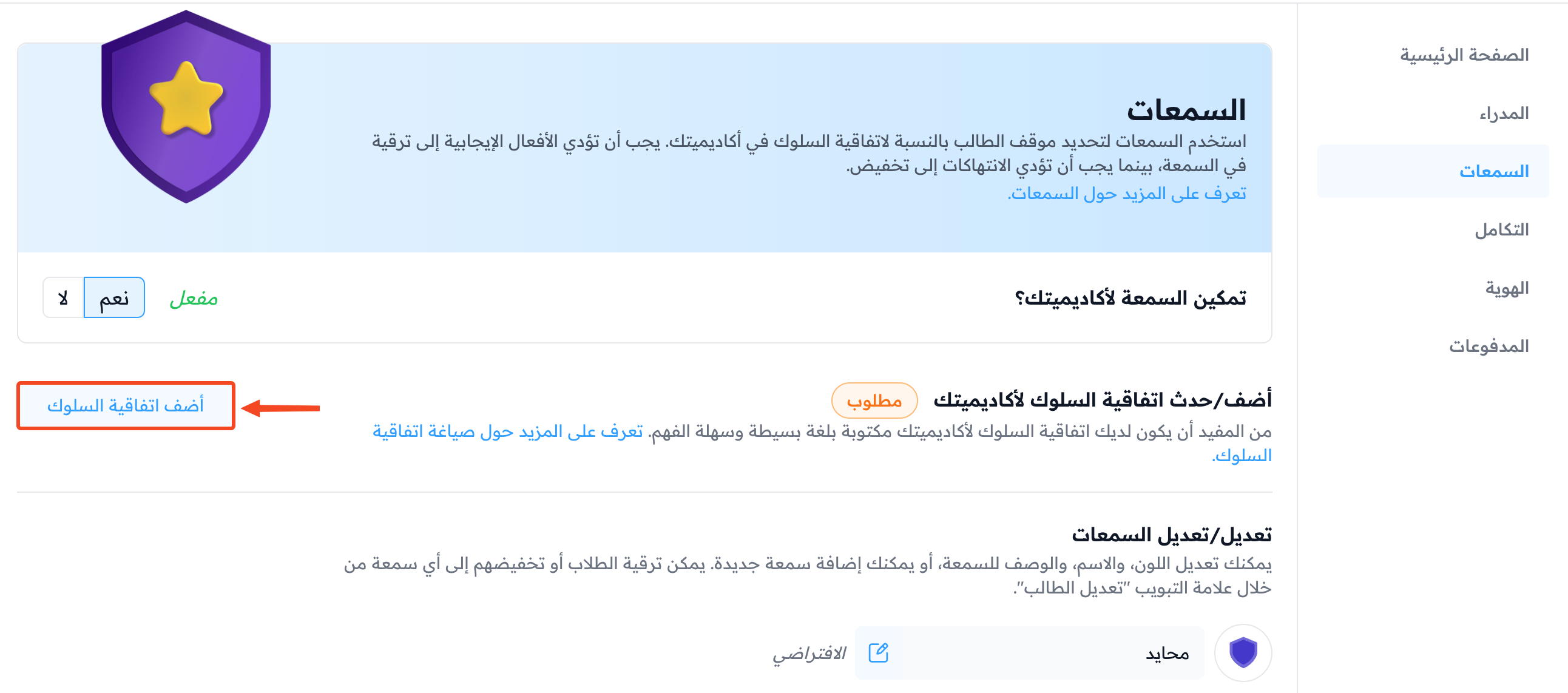
Click Add CoC. You go to the Text Pages page.
-
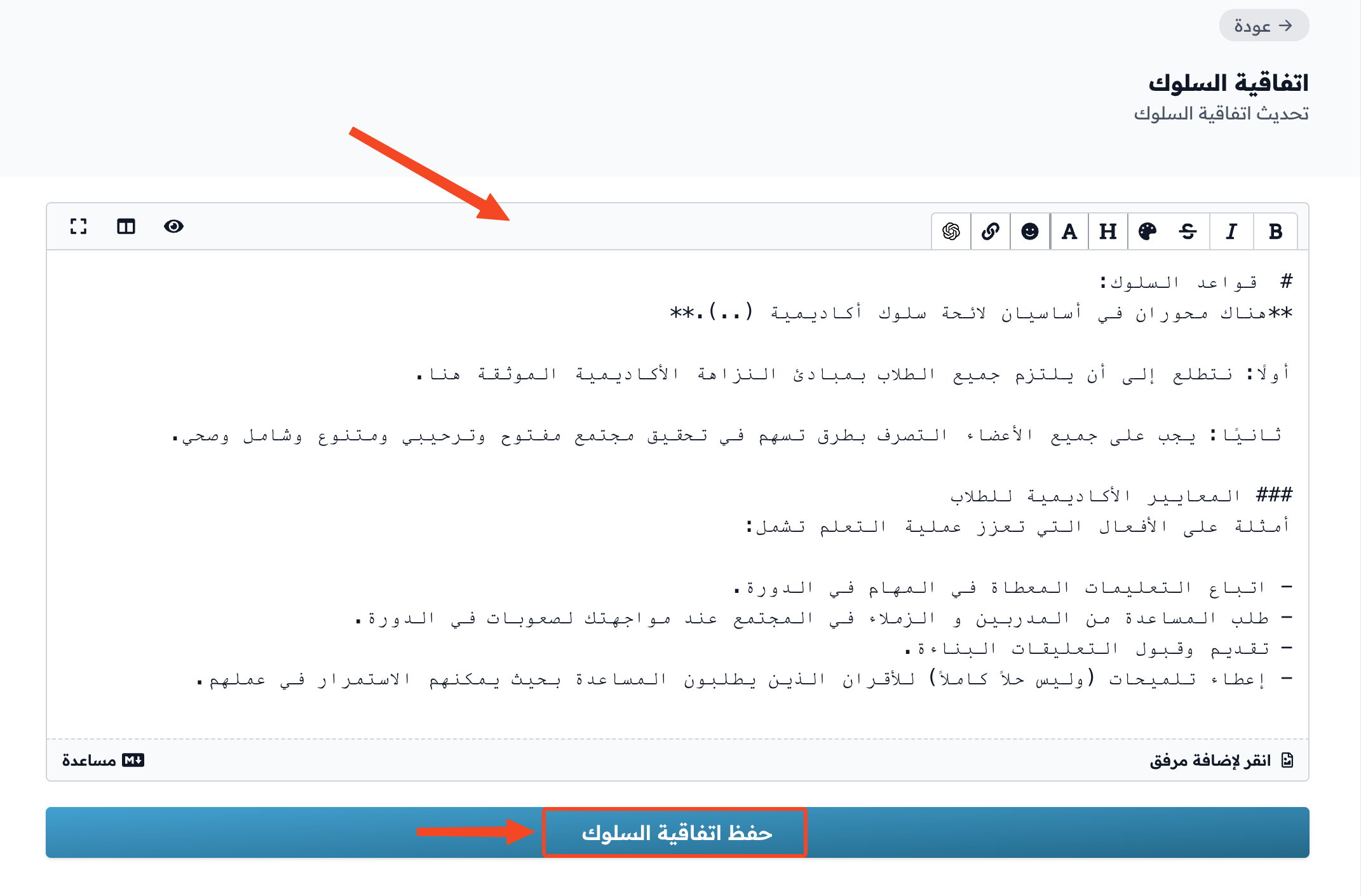
Click Create Page, choose Code Of Conduct in the Type field, then write the rules of behavior for your platform and save the page.
-
Go back to the Standing page and click Add another standing.
NoteWhen you enable standing for the first time, a default standing called Neutral is created. You can edit it, but you cannot delete it.
-
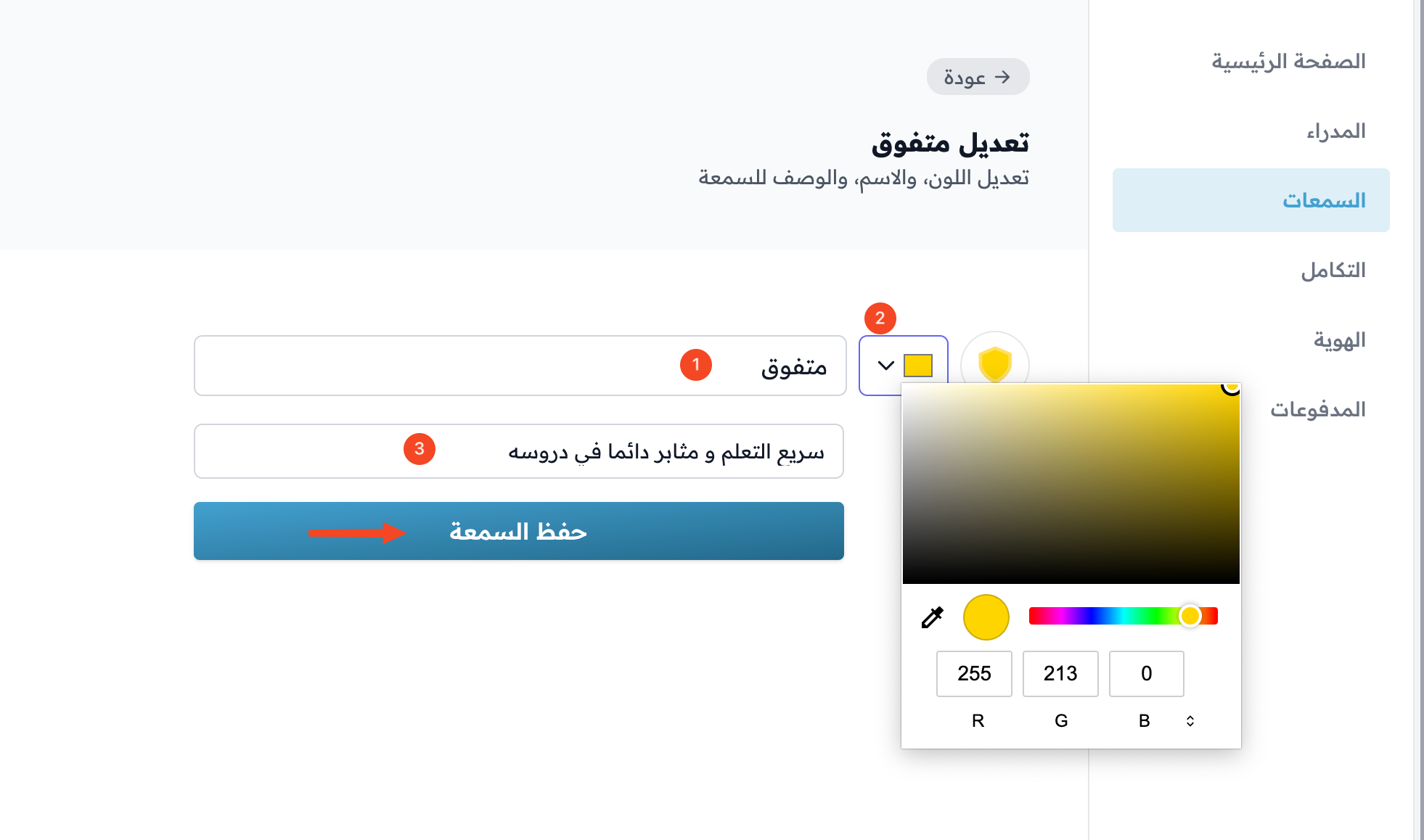
Type the name of the standing.
-
Choose a color for the standing.
-
Type a description for the standing if you want. The description is optional.
-
Click Save Standing.
How to give a student a standing
-
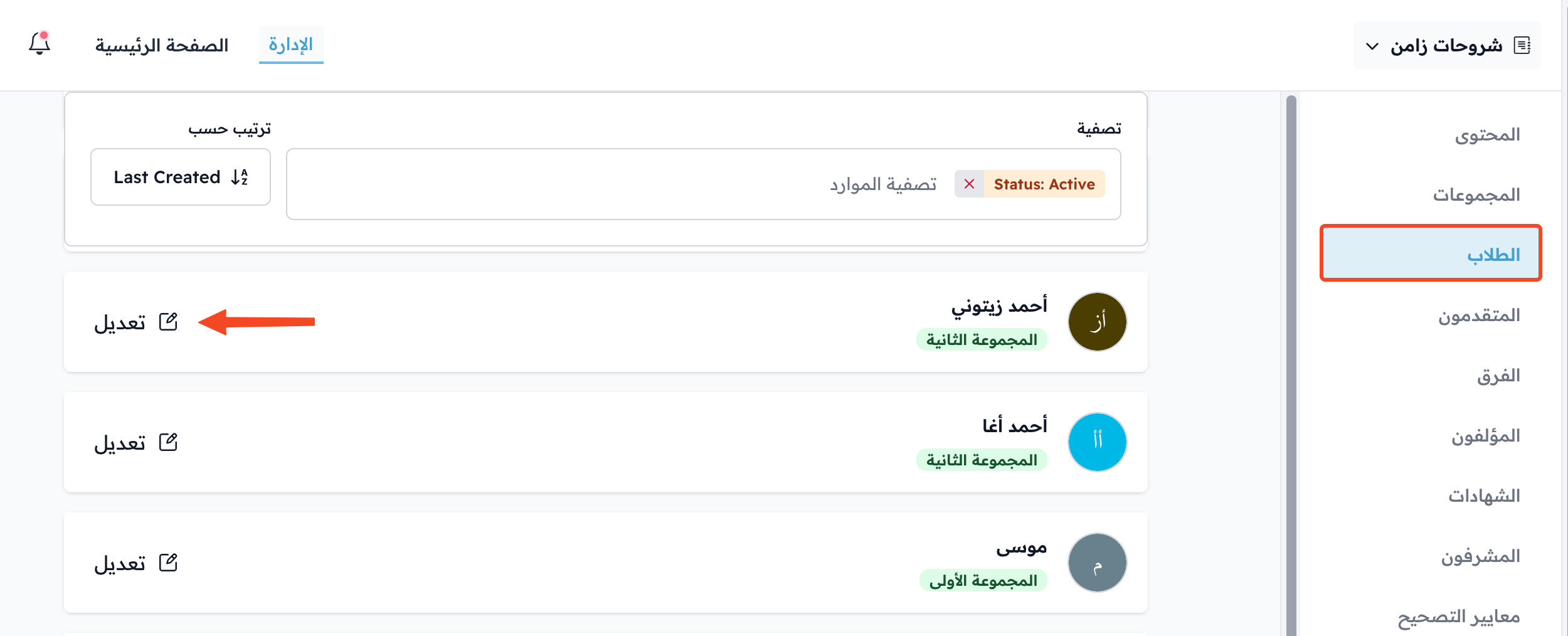
On the course Students page, click Edit next to the student.
-
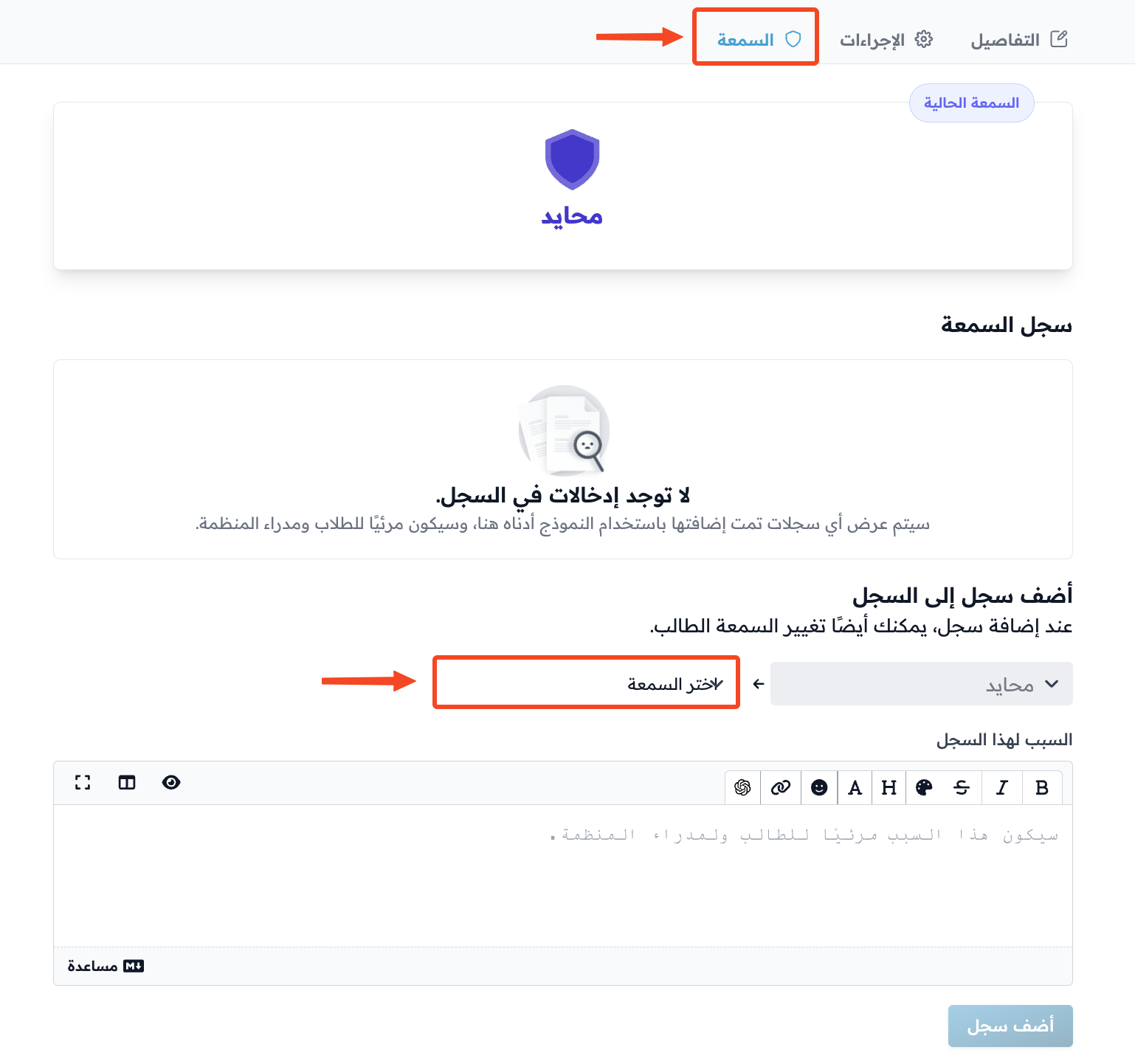
Go to the Standing tab.
-
Click Select Standing to see the standings you added, and choose one.
-
Choose the right standing for the student, and write why you gave it under Reason for this entry.
-
Click Add Entry.
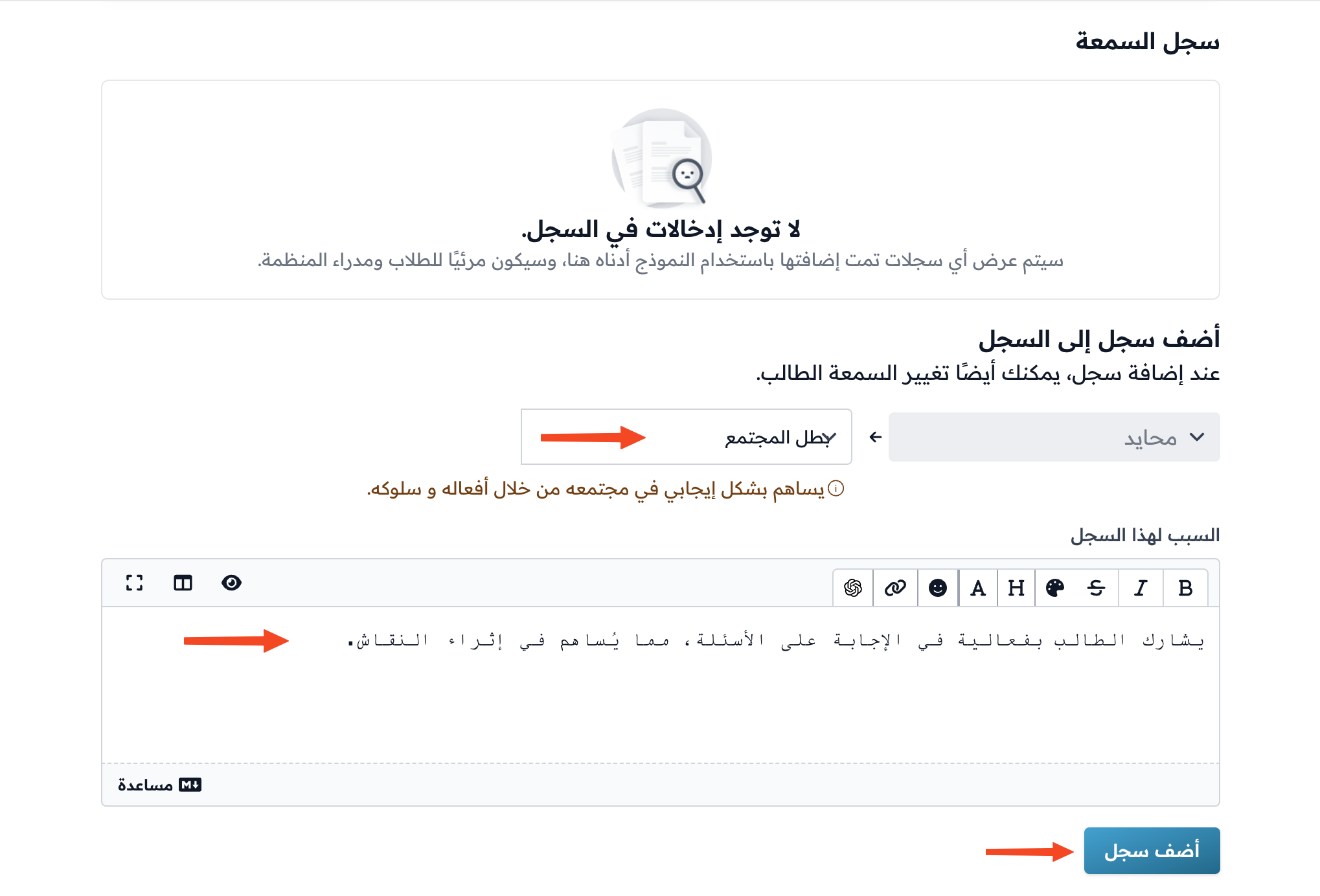
When you add more standings for the student, they all show in the Standing Log, and the Current Standing is the last one you added.

How students see their standing
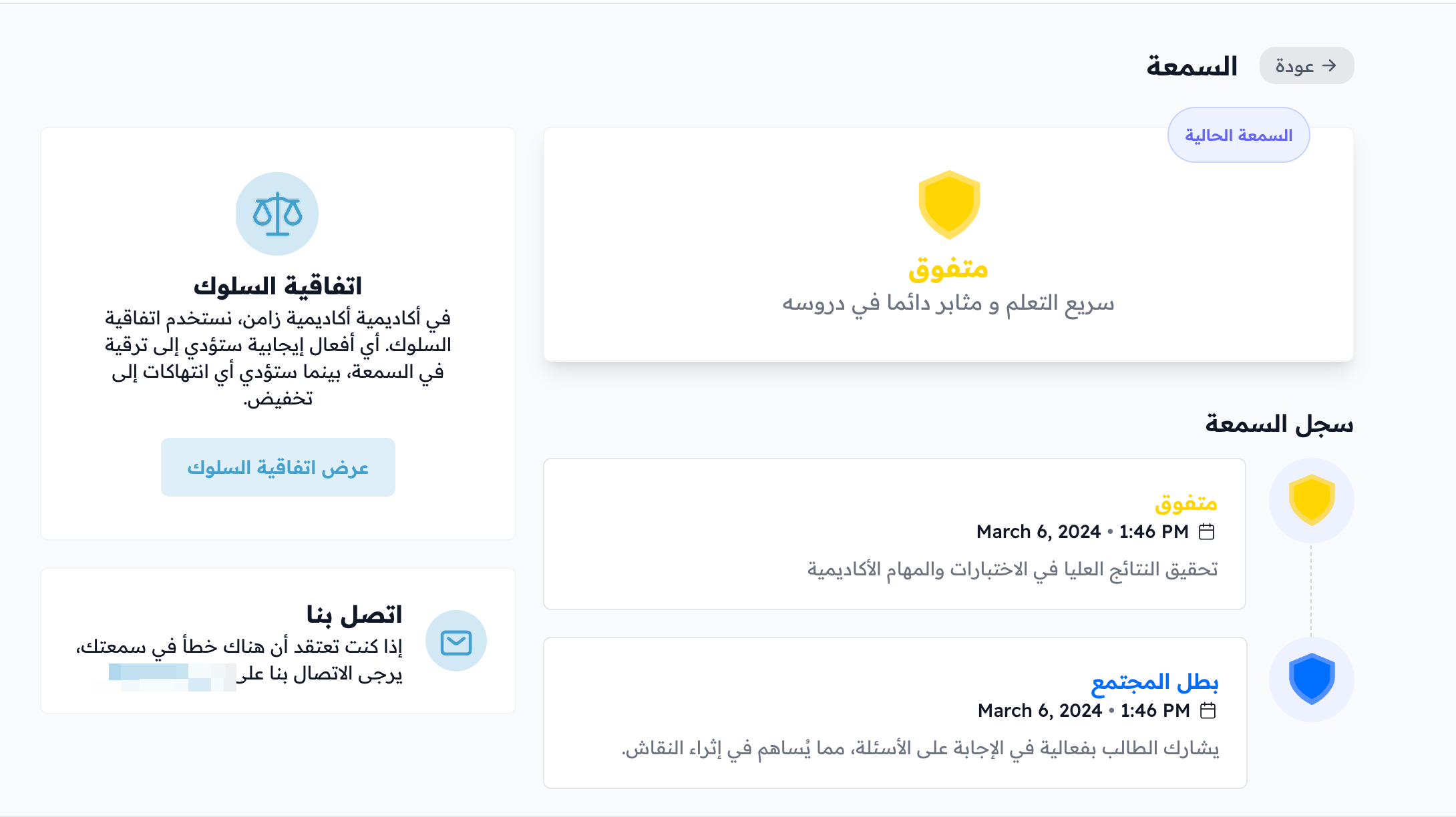
On the student dashboard, the student clicks View Standing in the menu to see their current standing and their standing log. On a phone, the current standing also shows under their name as My Standing.