Student satisfaction survey
You can add a survey to your course to measure how happy students are with it, and then see their answers. This guide is for whoever manages course content on your platform.
Steps to create a student satisfaction survey
-
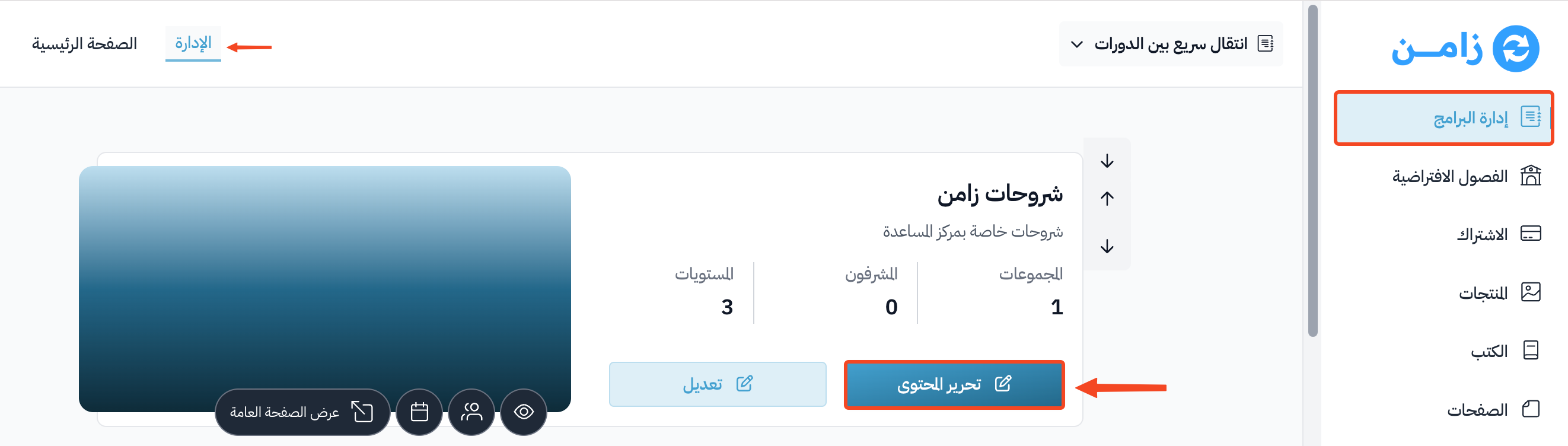
From the dashboard, go to the Courses page.
-
Click Edit Curriculum on the course.
-
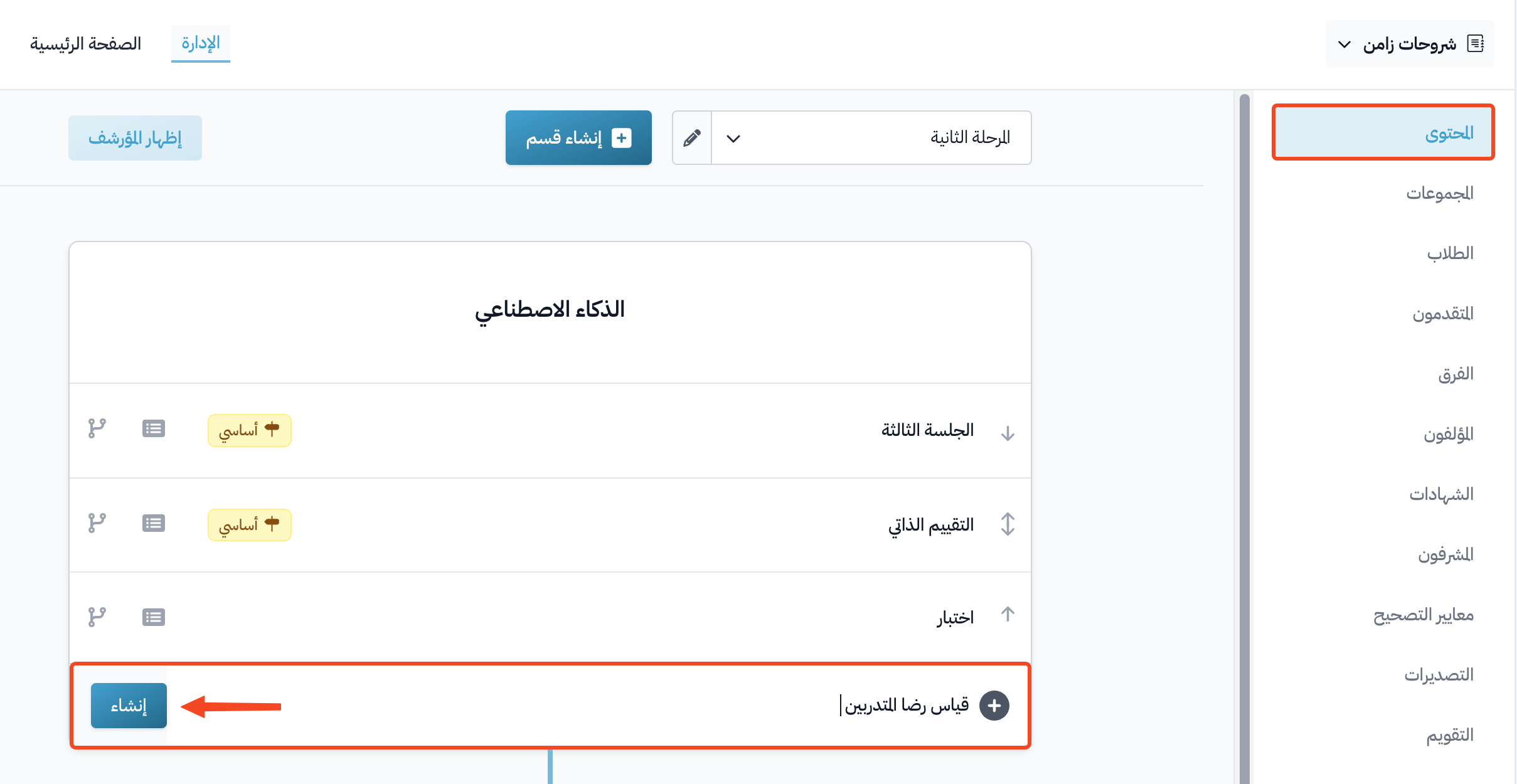
Type the survey title in the Create target box, then click Create.
tipPut the satisfaction survey at the end of the course.
-
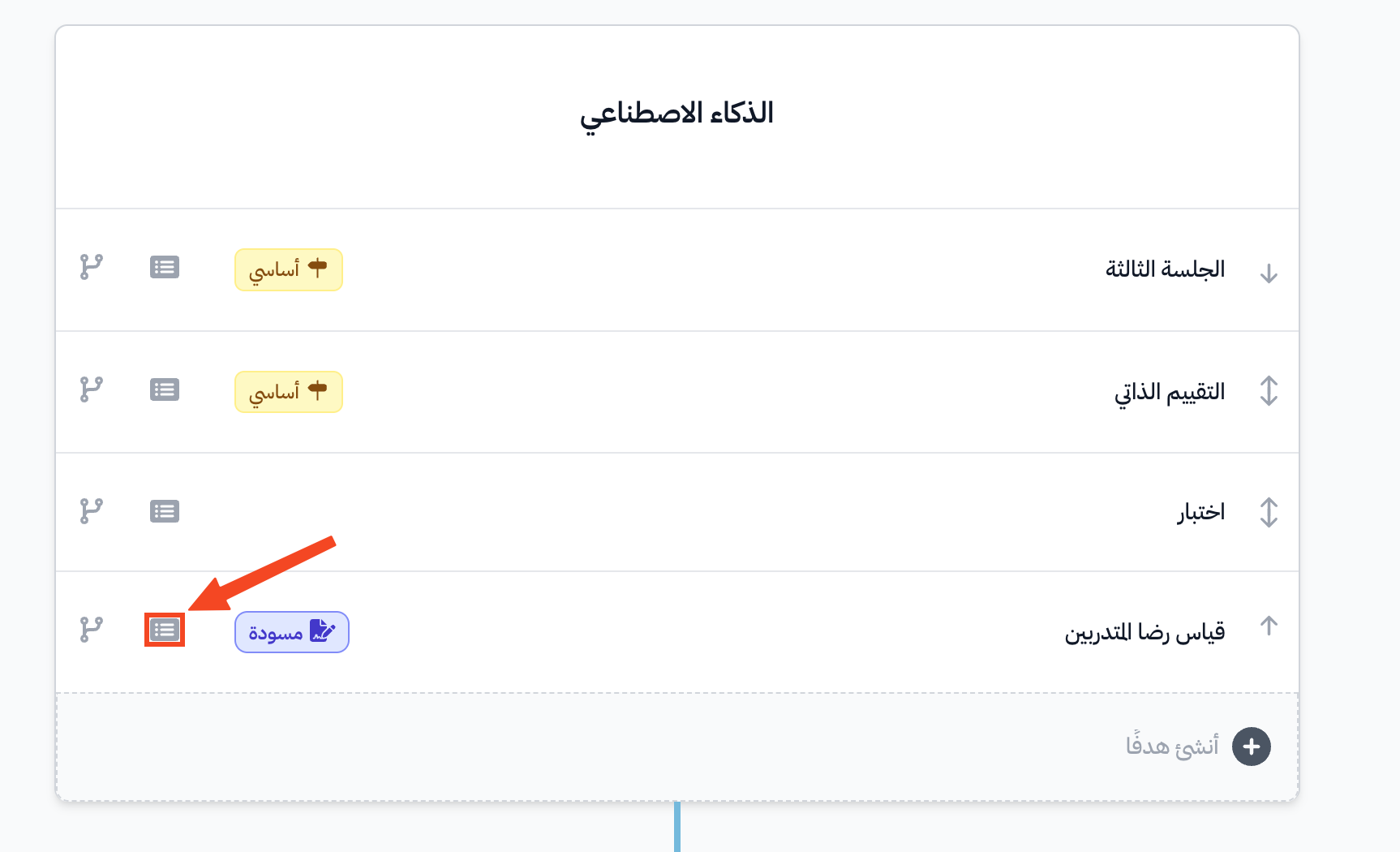
Click the details icon next to the target.
-
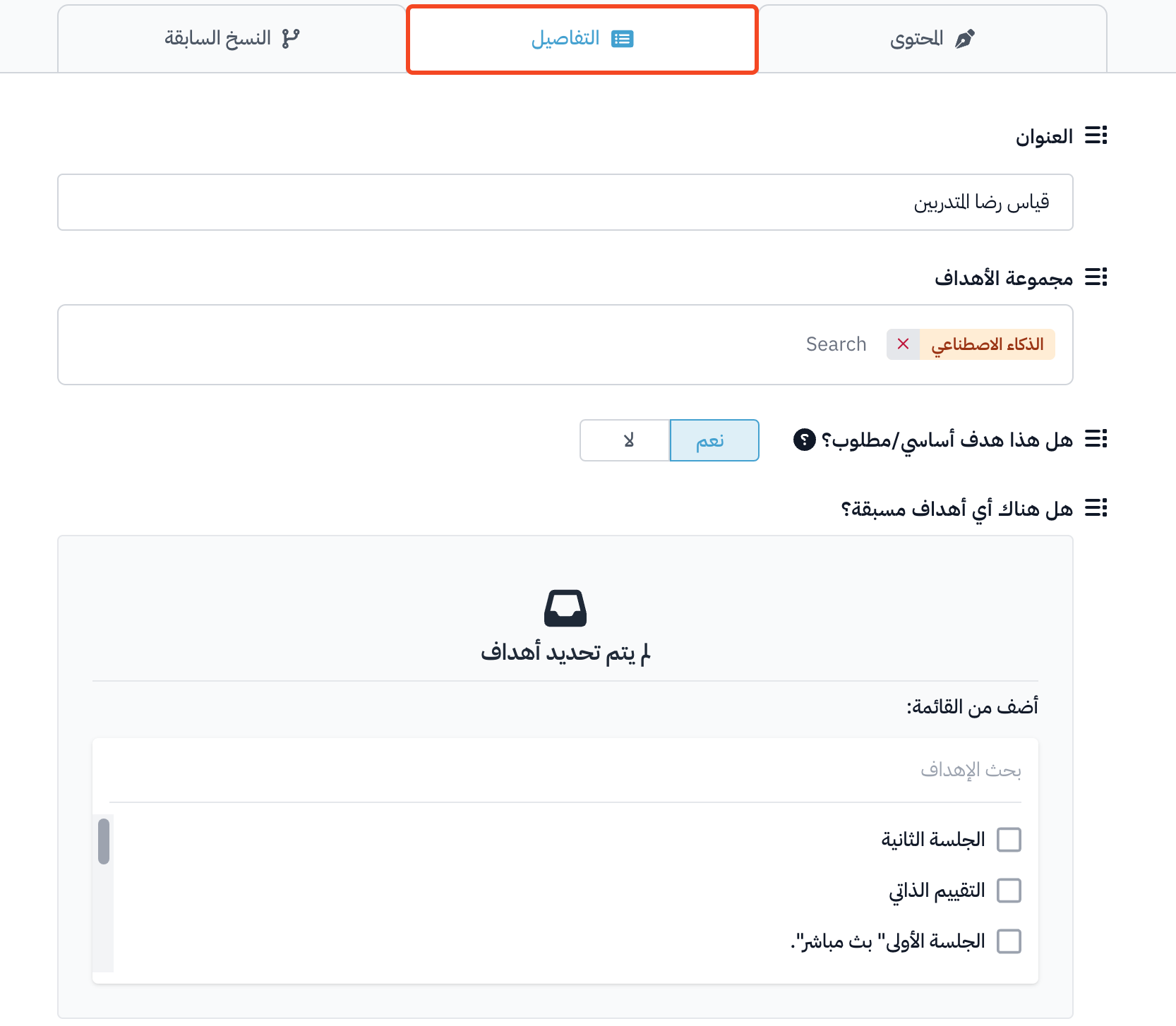
Set up the target on the Details tab:
- Edit the target name in the Title field if you want.
- Change the Target Group if you want.
- Turn on Milestone target if the target is a milestone.
- Choose the targets that must be done before this one, under Are there any prerequisite targets?.
-
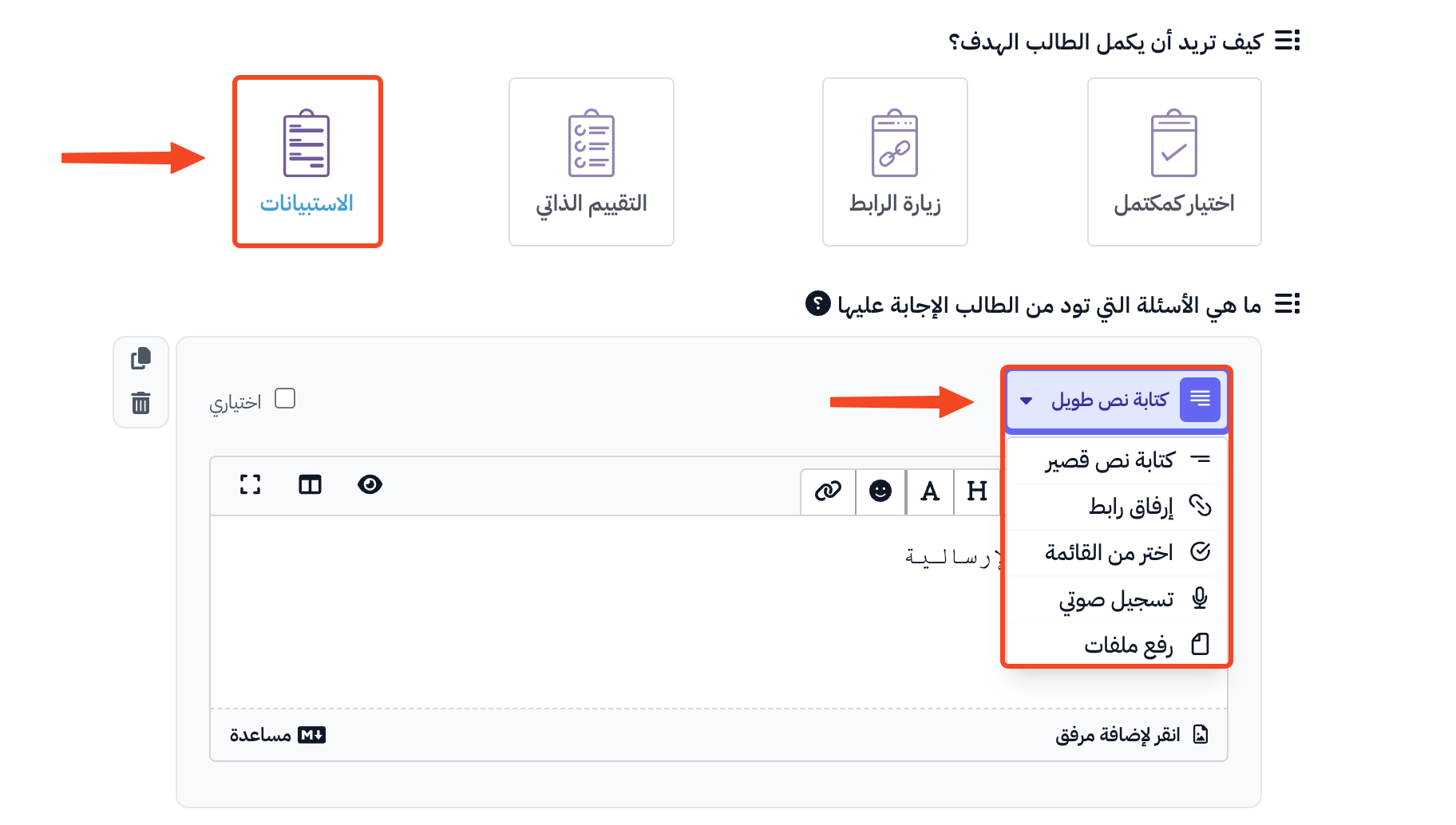
Under How do you want the student to complete the target?, choose Submit a form to complete the target.
-
Choose the question type from the dropdown list.
-
Type the question in its box.
-
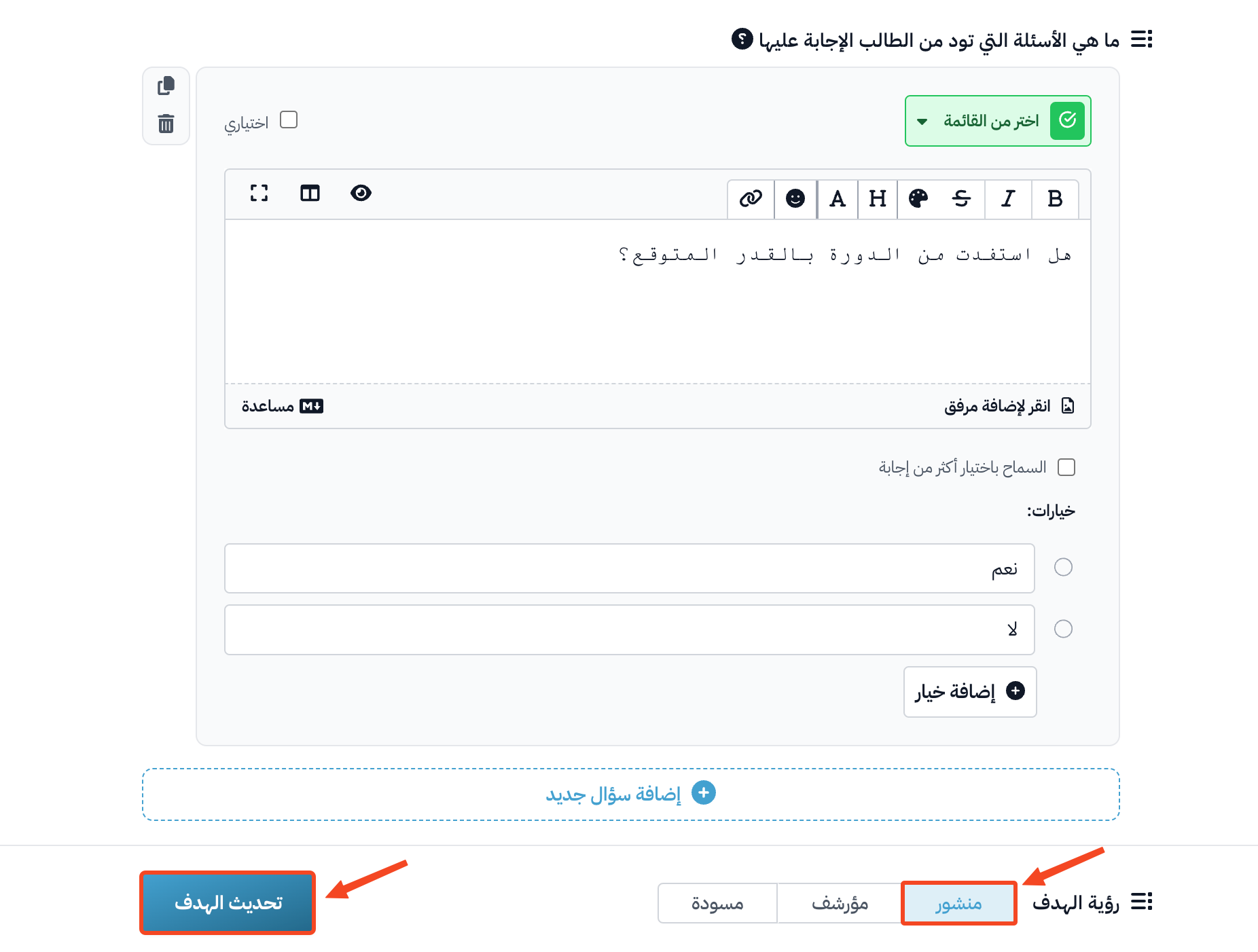
To add another question, click Add another question.
-
Choose Live under Target Visibility.
-
Click Update Target to save.
NoteFor Choose from a list questions, you can edit the answer choices, or add more choices by clicking Add a choice.
See the survey answers
-
From the dashboard, go to the Courses page.
-
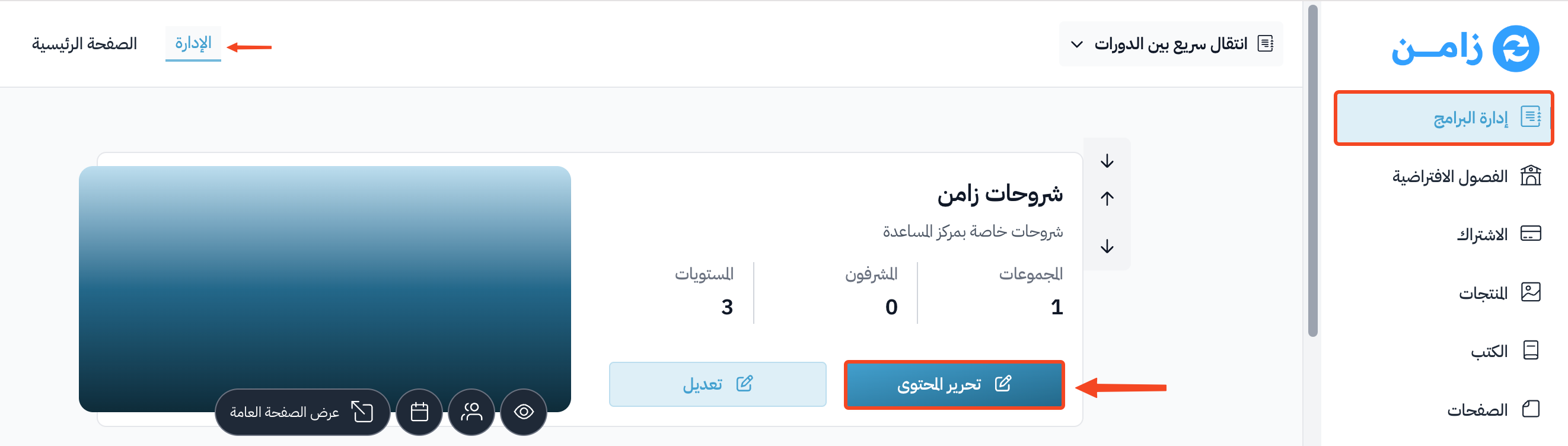
Click Edit Curriculum on the course.
-
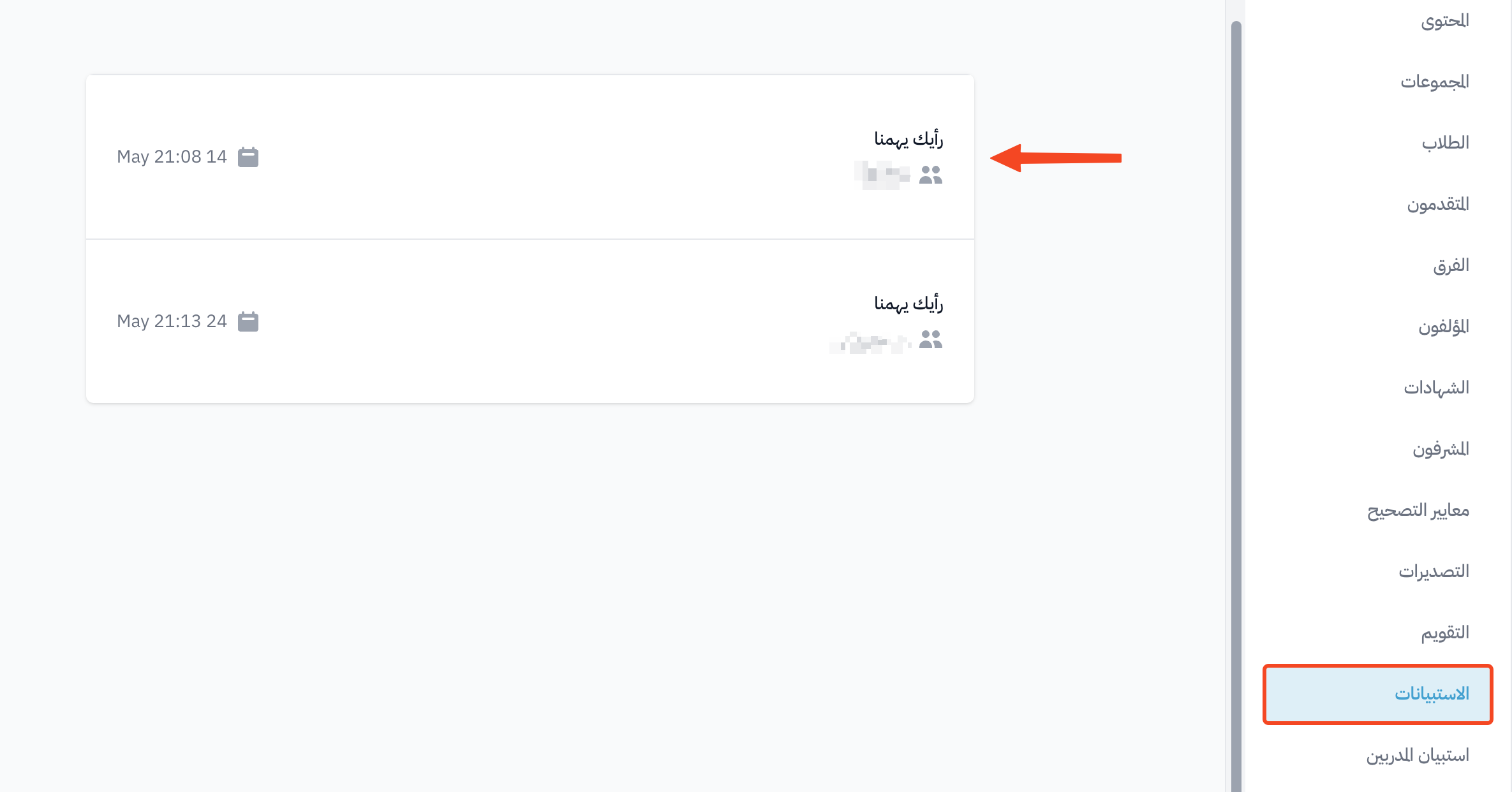
From the course menu, go to the Curriculum Surveys page.
-
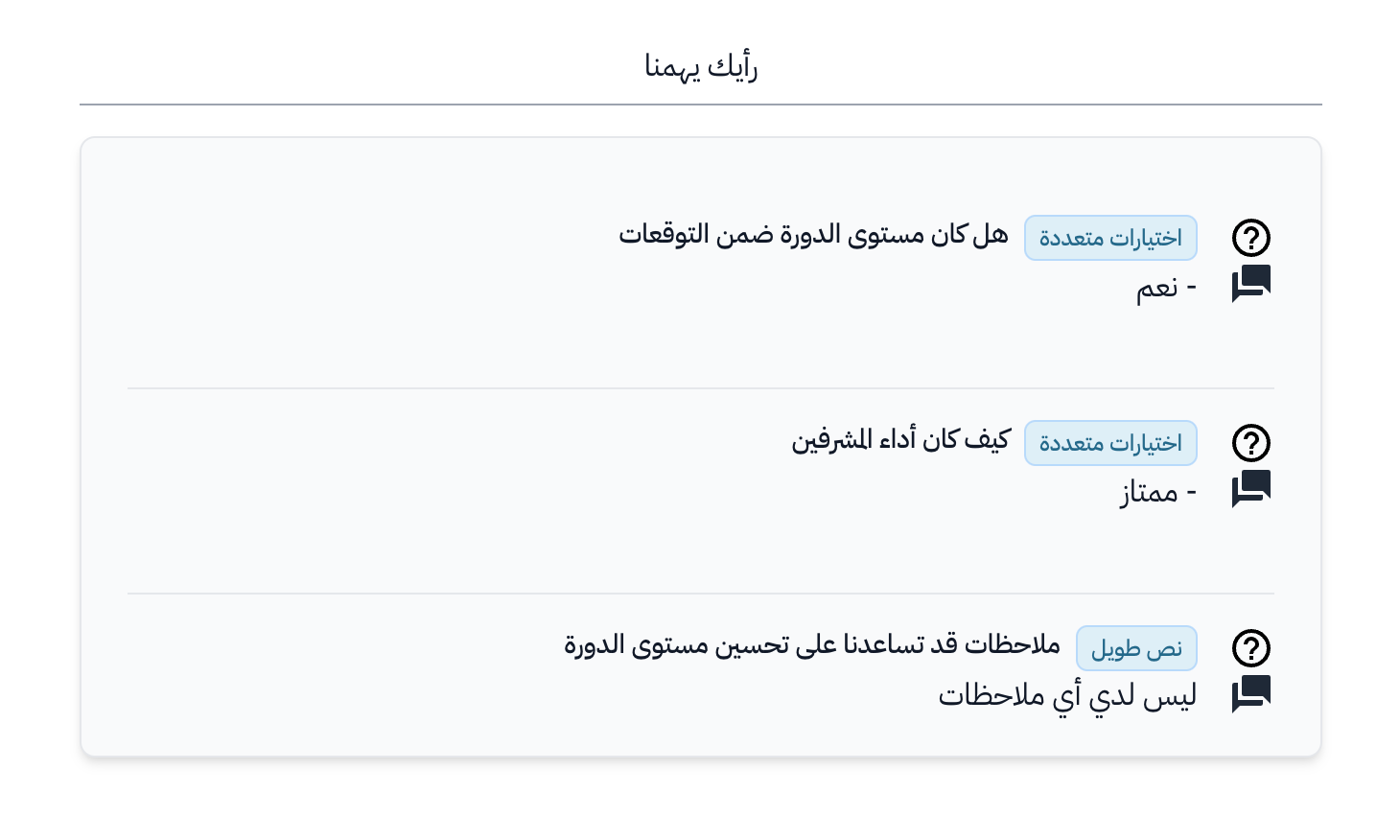
To see a student's answers, click the survey name in the student's row, or click the ⋯ (Actions) button at the end of the row, then click View answers. The answers open on their own page.